vscode_cuda调试环境搭建
·

vscode_cuda调试环境
1.基础软件环境准备
vscode
版本: 1.76.2
提交: ee2b180d582a7f601fa6ecfdad8d9fd269ab1884
日期: 2023-03-14T17:57:21.103Z
Electron: 19.1.11
Chromium: 102.0.5005.196
Node.js: 16.14.2
V8: 10.2.154.26-electron.0
OS: Linux x64 4.15.0-50-generic
沙盒化: No
c/c++开发环境
gcc (Ubuntu 9.4.0-1ubuntu1~16.04) 9.4.0
Copyright (C) 2019 Free Software Foundation, Inc.
This is free software; see the source for copying conditions.  There is NO
warranty; not even for MERCHANTABILITY or FITNESS FOR A PARTICULAR PURPOSE.

g++ (Ubuntu 9.4.0-1ubuntu1~16.04) 9.4.0
Copyright (C) 2019 Free Software Foundation, Inc.
This is free software; see the source for copying conditions.  There is NO
warranty; not even for MERCHANTABILITY or FITNESS FOR A PARTICULAR PURPOSE.
GPU驱动
驱动下载和安装
https://www.nvidia.com/Download/index.aspx?lang=en-us
cuda开发环境
cudatoolkit的下载和安装
CUDA Toolkit Archive | NVIDIA Developer
cudnn下载和安装
cuDNN Archive | NVIDIA Developer
2.VSCode扩展插件安装
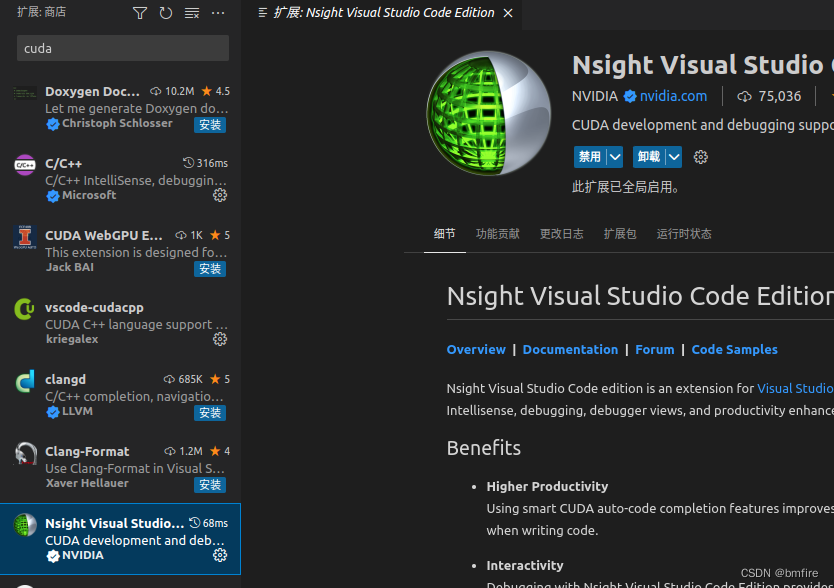
扩展中安装Microsoft: C/C++
NVIDIA: Nsight Visual Studio Code Edition
3.程序调试
新建.cu文件,完成代码编写。
这里为矩阵加为例,add.cu
代码编写过程中可通过观察cuda函数是否自动补全来检验2中的插件是否正确安装。
单击左侧功能菜单“运行和调试”,通过选择cuda-c++(cudagdb)调试器。 新建launch.json
{
    "version": "0.2.0",
    "configurations": [
        {
            "name": "CUDA C++: Launch",
            "type": "cuda-gdb",
            "request": "launch",
            "program": ""
        },
        {
            "name": "CUDA C++: Attach",
            "type": "cuda-gdb",
            "request": "attach"
        }
    ]
}
然后新建tasks.json
{
    "version": "2.0.0",
    "tasks": [
        {
            "label": "mynvcc",		#自定义
            "type": "shell",
            "command": "nvcc",
            "args":["-g","-G", "-o","${fileDirname}/add","${file}",
            	#需要的头文件,和动态库
                "-I", "/usr/local/cuda/include",
                "-I", "/usr/local/cuda/samples/common/inc",
                "-L", "/usr/local/cuda/lib64",
                "-L", "/usr/local/cuda/samples/common/lib",
                "-l", "cudart",
                "-l", "cublas",
                "-l", "cudnn",
                "-l", "curand",
                "-D_MWAITXINTRIN_H_INCLUDED"
            ]
        }
    ]
}
根据tasks内容补充launch.json
{
    "version": "0.2.0",
    "configurations": [
        {
            "name": "CUDA C++: Launch",
            "type": "cuda-gdb",
            "request": "launch",
            "program": "${fileDirname}/add", 	#编译生成的可执行程序
            "preLaunchTask": "mynvcc"  			#tasks label
        },
        {
            "name": "CUDA C++: Attach",
            "type": "cuda-gdb",
            "request": "attach"
        }
    ]
}
配置完成后。单击“开始调试”或F5,开始调试。界面如下:
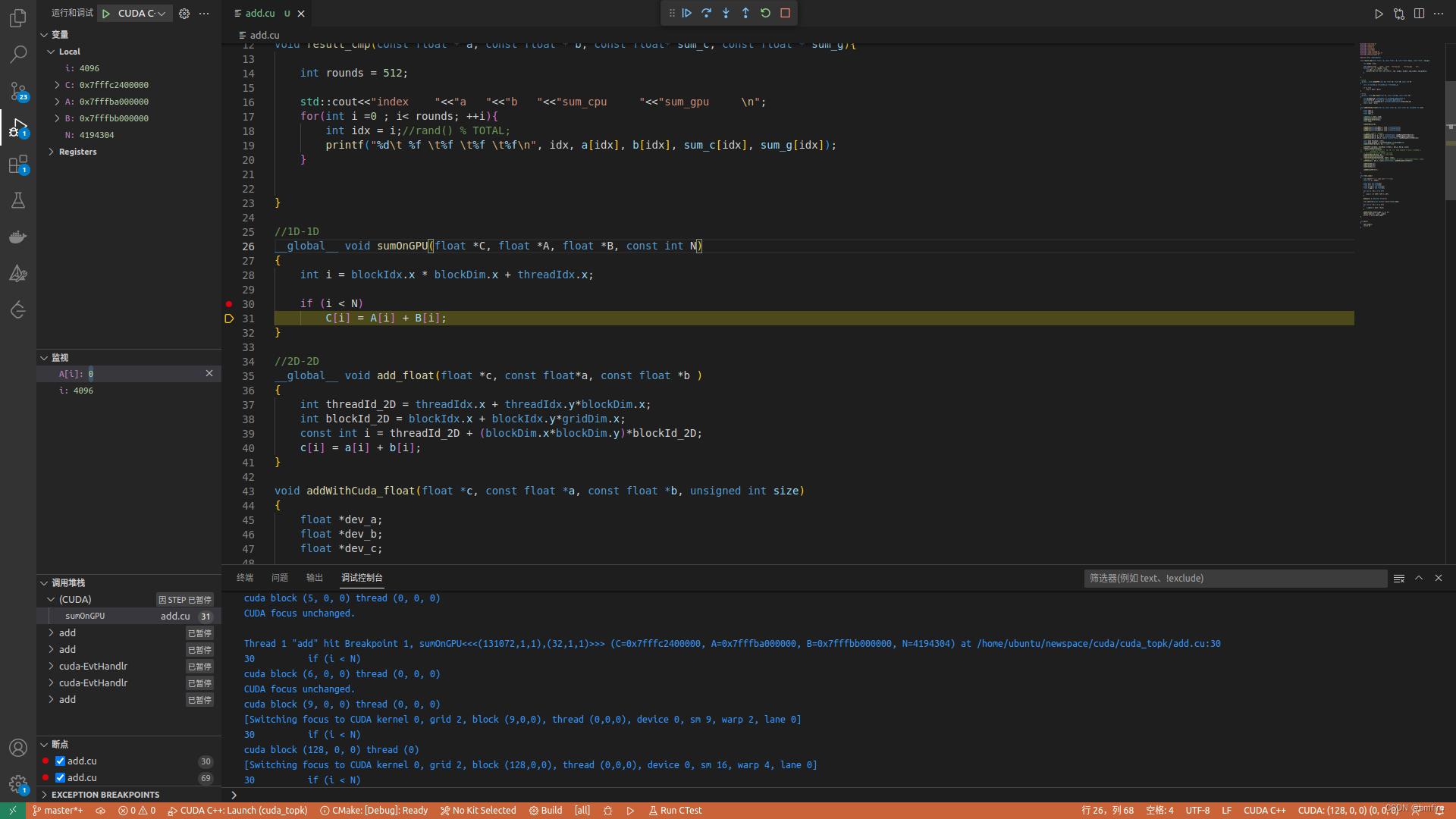
开始调试后,vscode界面右下角或出现当前断点所在的的线程信息:
CUDA:(0, 0, 0) (0, 0, 0),代表了当前执行核函数的线程块号与块内的线程号
线程跳转:
单击上述线程ID显示位置,可以在vscode顶部的输入框输入线程块信息进行线程块的直接跳转。


腾讯云面向开发者汇聚海量精品云计算使用和开发经验,营造开放的云计算技术生态圈。
更多推荐
 5
5 0
0- 0


 已为社区贡献2条内容

所有评论(0)