HarmonyOS6 - 折线图/饼状图/柱状图实现数据可视化
HarmonyOS6-折线图/饼状图/柱状图实现数据可视化
HarmonyOS6-折线图/饼状图/柱状图实现数据可视化
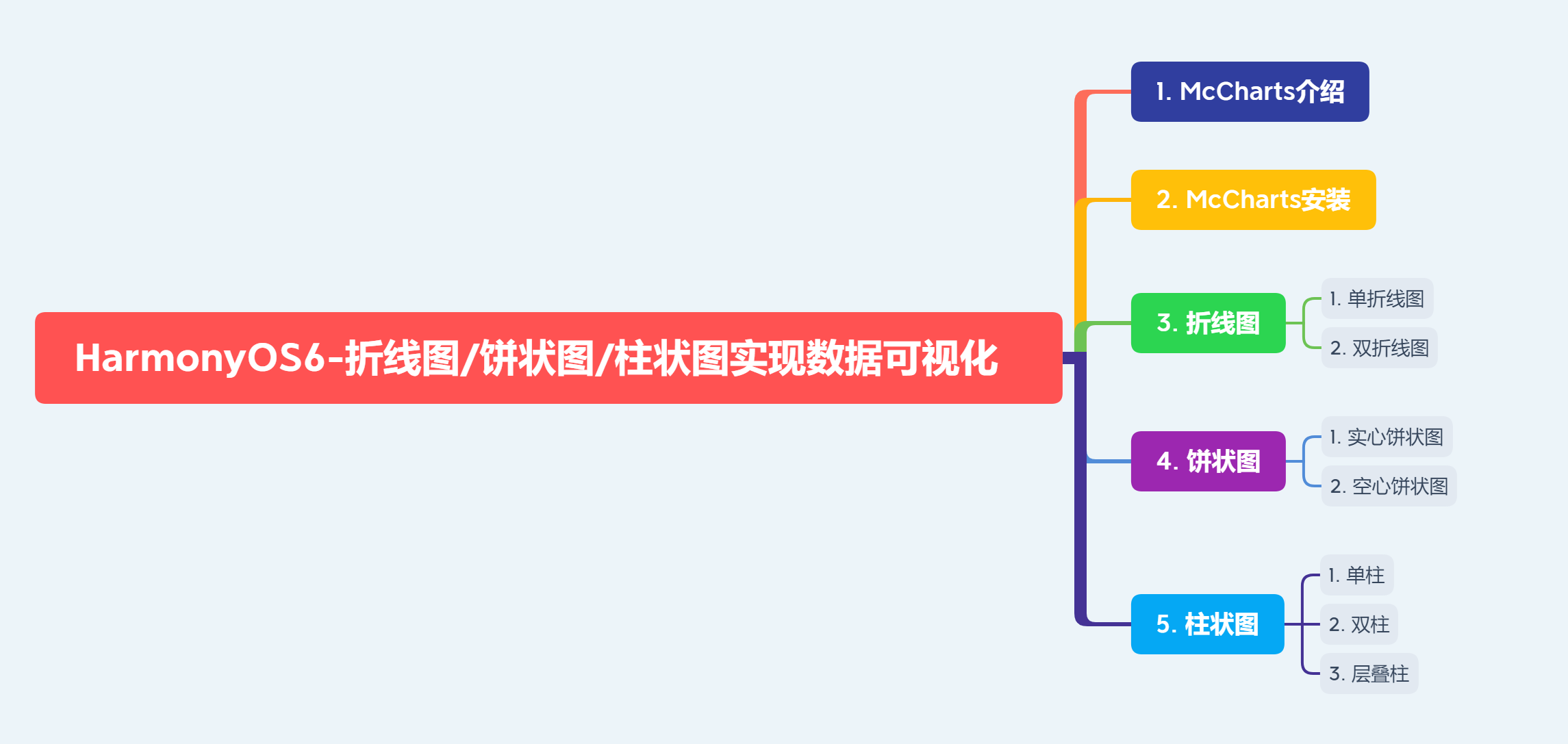
在我们鸿蒙APP开发中,经常有些场景需要用的图表对统计数据进行展示,如折线图/饼状图/柱状图等,本文主要介绍使用 McCharts 第三方库绘制各类图表的方法
开发环境为:
开发工具:DevEco Studio 6.0.1 Release
API版本是:API21本文所有代码都已使用模拟器测试成功!
1. McCharts介绍
1.1. McCharts
McCharts(莓创图表)是McUI提供的一款开箱即用的图表工具库,专为Harmony OS的所有类型的开发人员而设计。该组件库目前支持折线图、柱状图、饼图、散点图。
McCharts是一个基于ArkTS语法封装的图表组件,你可以运行在ArkTS 3+版本(DevEco Studio 3.1.1+)以上的任意版本当中。
1.2. 我们选择McCharts
- McCharts是一款自研开发的公共组件,基于ArkTS最新版本。意味着HarmonyOS的新特性我们都支持,并拥有一个庞大的社区,您将拥有所有创建和制作项目的帮助和文档。
- 每个组件都是独立化的,更好地避免导入不必要的代码。
- 所有开发者拥有创建、改进和纠正任何组件或功能的开源社区。
- 提供了配套的设计资源,充分满足可定制化的需求。
1.3. 官网地址
http://meichuang.org.cn(有时可能访问不了)
可以访问这个试试:https://meichuangit.net.cn/McLineChart
2. 安装
McCharts已经使用OpenHarmony三方库进行托管,你可以使用OpenHarmony提供的ohpm工具安装McCharts。在DevEco Studio中,您可以在Terminal(命令行窗口)输入如下的指令进行安装。
ohpm install @mcui/mccharts
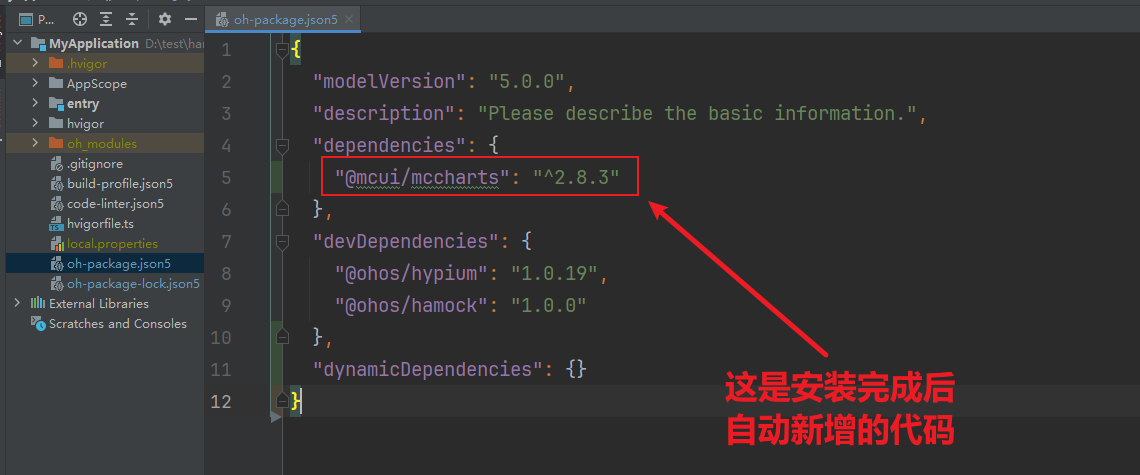
安装完毕之后,可以检查oh-package.json5文件中是否已经添加了mccharts的依赖。如下图所示:
3. 绘制折线图
3.1. 新建空白页面:
@Entry
@Component
struct LineCharts {
  build() {
    Column() {
    }
    .height('100%')
    .width('100%')
  }
}
3.2. 创建Options类
在Options类中,我们可以通过属性来设置折线图的样式,如设置图例的相关样式与功能,设置提示层的相关样式与功能,设置X轴的相关样式与功能,设置Y轴的相关样式与功能,设置折线区的相关样式与功能。具体代码如下所示:
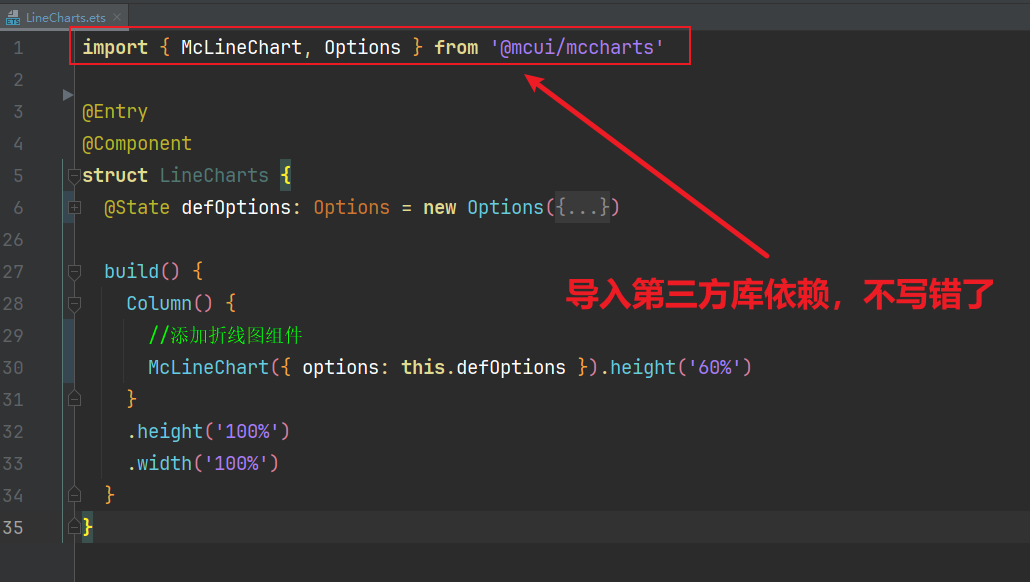
import { McLineChart, Options } from '@mcui/mccharts'//注意不要导入错误的包了,这个是正确的引入代码

@State defOptions: Options = new Options({
    xAxis: {
      //设置X轴的相关样式与功能
      data: ['周一', '周二', '周三', '周四', '周五', '周六', '周日']
    },
    yAxis: {
      //设置Y轴的相关样式与功能
      name: '温度'
    },
    series: [//设置折线区的相关样式与功能
      {
        name: '周最高气温',
        data: [11, 5, 9, 13, 12, 12, 5]
      },
      {
        name: '周最低气温',
        data: [3, 0, 3, 5, 4, 2, 2]
      }
    ]
  })
3.3. 添加折线组件
//添加折线图组件
McLineChart({ options: this.defOptions }).height('60%')
3.4. 页面效果
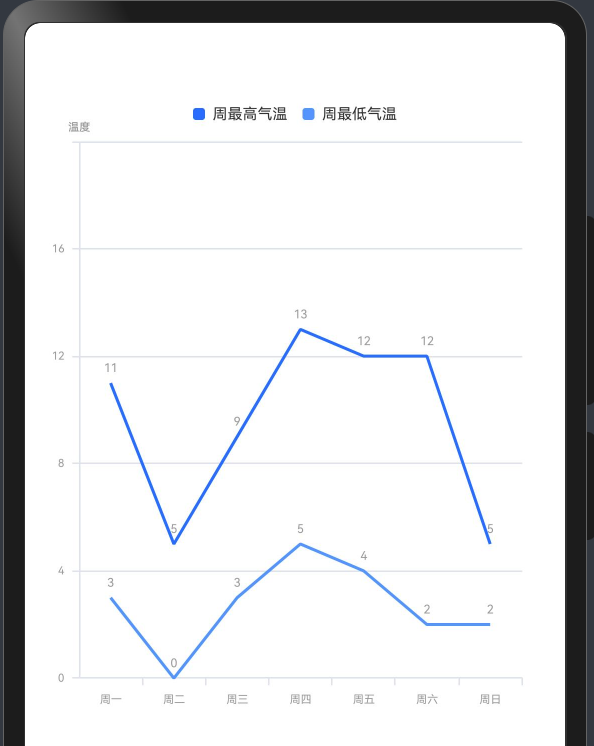
代码截图如下:
3.5. 美化
上面是一个最简单的版本,我们还可以参考官网,对X轴和Y轴及其他地方,做一些美化设置,设置完毕后,折线图最终页面如下图所示:
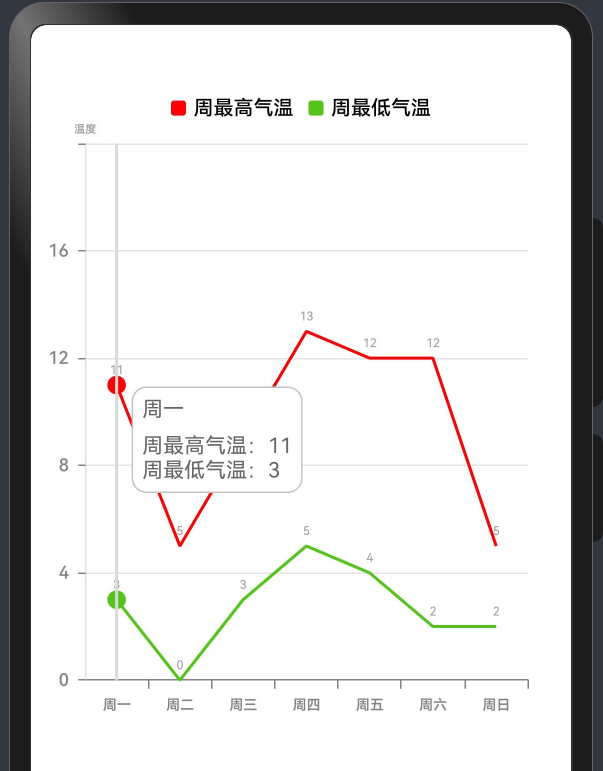
最终完整代码如下:
import { McLineChart, Options } from '@mcui/mccharts'

/**
 * Author: 波波老师(weixin:javabobo0513)
 * Desc: 折线图-案例页面
 */
@Entry
@Component
struct LineCharts {
  @State message: string = 'Hello World';
  @State defOptions: Options = new Options({
    //设置图例的相关样式与功能
    legend: {
      top: '5%', //图例距离顶部侧位置
      itemWidth: 10, //图形的宽度
      itemHeight: 10, //图形的高度
      textStyle: {
        //文本样式配置
        color: '#ff000000', //字体颜色
        fontSize: 40, //字体大小
        fontWeight: '500' //字体粗细
      }
    },
    //设置X轴的相关样式与功能
    xAxis: {
      axisLabel: {
        color: '#ff838383', //X轴字体颜色
        fontSize: 28, //X轴字体大小
        fontWeight: '600' //X轴字体粗线
      },
      axisTick: {
        //刻度线配置
        show: true, //控制刻度线显示与隐藏
        length: 6, // 刻度线的长度
        interval: 4, //刻度线与文本的间隔
        lineStyle: {
          color: '#ff838383', //X轴刻度线颜色
          width: 1 //X轴线刻度线宽度
        }
      },
      axisLine: {
        //x轴线配置
        show: true, //控制轴线显示与隐藏 可选值-true显示 false-隐藏
        lineStyle: {
          color: '#ff838383', //X轴线条颜色
          width: 1, //X轴线宽度
          type: 'solid' //X轴线类型
        }
      },
      data: ['周一', '周二', '周三', '周四', '周五', '周六', '周日']
    },
    //设置Y轴的相关样式与功能
    yAxis: {
      name: '温度',
      axisTick: {
        //刻度线配置
        length: 6, //刻度的长度
        lineStyle: {
          //刻度线样式
          color: '#ff838383', //线颜色
          width: 1 //线宽度
        }
      },
      axisLine: {
        //y轴线配置
        show: true //隐藏y轴线
      },
      splitLine: {
        // Y轴分割线配置。
        show: true, //显示分割线
        lineStyle: {
          //轴线样式
          color: '#ffe5e5e5', //线颜色
          width: 1 //线宽度
        }
      },
      axisLabel: {
        //y轴文本标签样式配置
        color: '#ff838383', //字体颜色
        fontSize: 35, //字体大小
        fontWeight: '500' //字体粗细
      },
    },
    //设置折线区的相关样式与功能
    series: [
      {
        name: "周最高气温", //图例文字
        color: '#ffff0002', //图例颜色
        lineStyle: {
          //折线样式配置
          width: 2, //折线宽度
          color: '#ffff0002' //折线显色
        },
        itemStyle: {
          //折线拐点配置
          symbol: 'solidCircle', //拐点类型
          symbolSize: 4 //拐点大小
        },
        data: [11, 5, 9, 13, 12, 12, 5] //数据
      },
      {
        name: "周最低气温", //图例文字
        color: '#52C41A', //图例颜色
        lineStyle: {
          width: 2, //折线宽度
          color: '#52C41A' //折线显色
        },
        itemStyle: {
          //折线拐点配置
          symbol: 'solidCircle', //拐点类型
          symbolSize: 4 //拐点大小
        },
        data: [3, 0, 3, 5, 4, 2, 2] //数据
      }
    ],
    tooltip: {
      //设置提示层的相关样式与功能
      axisPointer: {
        //指示器配置项
        type: 'line', //指示器类型
        lineStyle: {
          //提示线样式
          color: '#D9D9D9', //线颜色
          width: 2, //线宽度
          type: 'solid' //线类型
        }
      },
      backgroundColor: '#FFFFFF', //提示框背景颜色
      borderColor: '#C4C4C4', //提示框边框颜色
      borderWidth: 1, //提示框边框宽度
      padding: 6, //提示框内边距
      textStyle: {
        //文本样式配置
        color: '#666666', //字体颜色
        fontSize: 14 //字体大小
      }
    },
  })

  build() {
    Column() {
      //折线图组件
      McLineChart({ options: this.defOptions })
        .height('60%') //设置图表区域的高度
    }
    .height('100%')
    .width('100%')
  }
}
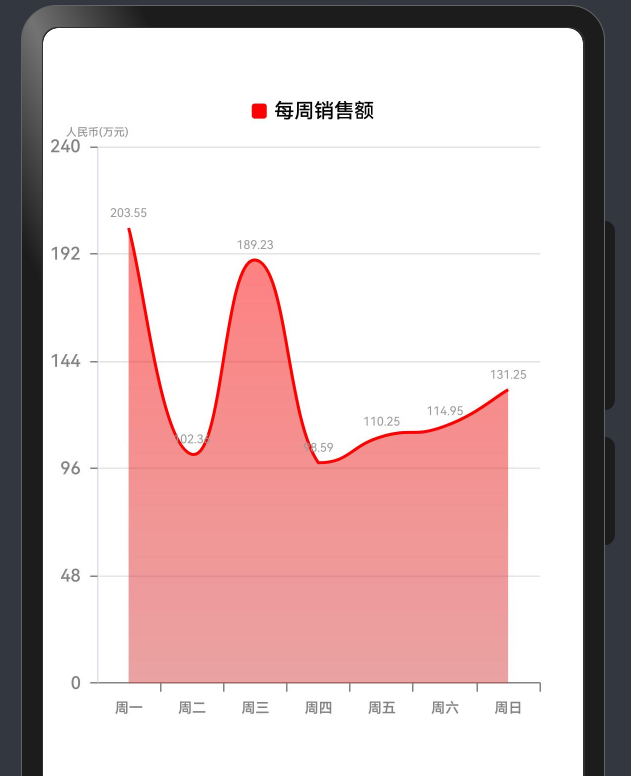
3.6. 单折线图
效果如下图所示:
代码:
import { McLineChart, Options } from '@mcui/mccharts'

/**
 * Author: 波波老师(weixin:javabobo0513)
 * Desc: 单折线图-案例页面
 */
@Entry
@Component
struct SingleLineCharts {
  @State defOptions: Options = new Options({
    //设置图例的相关样式与功能
    legend: {
      top: '5%', //图例距离顶部侧位置
      itemWidth: 10, //图形的宽度
      itemHeight: 10, //图形的高度
      textStyle: {
        //文本样式配置
        color: '#ff000000', //字体颜色
        fontSize: 40, //字体大小
        fontWeight: '500' //字体粗细
      }
    },
    //设置X轴的相关样式与功能
    xAxis: {
      axisLabel: {
        color: '#ff838383', //X轴字体颜色
        fontSize: 28, //X轴字体大小
        fontWeight: '600' //X轴字体粗线
      },
      axisTick: {
        //刻度线配置
        show: true, //控制刻度线显示与隐藏
        length: 6, // 刻度线的长度
        interval: 4, //刻度线与文本的间隔
        lineStyle: {
          color: '#ff838383', //X轴刻度线颜色
          width: 1 //X轴线刻度线宽度
        }
      },
      axisLine: {
        //x轴线配置
        show: true, //控制轴线显示与隐藏 可选值-true显示 false-隐藏
        lineStyle: {
          color: '#ff838383', //X轴线条颜色
          width: 1, //X轴线宽度
          type: 'solid' //X轴线类型
        }
      },
      data: ['周一', '周二', '周三', '周四', '周五', '周六', '周日']
    },
    //设置Y轴的相关样式与功能
    yAxis: {
      name: '人民币(万元)',
      axisTick: {
        //刻度线配置
        length: 6, //刻度的长度
        lineStyle: {
          //刻度线样式
          color: '#ff838383', //线颜色
          width: 1 //线宽度
        }
      },
      axisLine: {
        //y轴线配置
        show: true //隐藏y轴线
      },
      splitLine: {
        // Y轴分割线配置。
        show: true, //显示分割线
        lineStyle: {
          //轴线样式
          color: '#ffe5e5e5', //线颜色
          width: 1 //线宽度
        }
      },
      axisLabel: {
        //y轴文本标签样式配置
        color: '#ff838383', //字体颜色
        fontSize: 35, //字体大小
        fontWeight: '500' //字体粗细
      },
    },
    //设置折线区的相关样式与功能
    series: [
      {
        name: "每周销售额", //图例文字
        color: '#ffff0000', //图例颜色
        lineStyle: {
          width: 2, //折线宽度
          color: '#ffff0000' //折线显色
        },
        itemStyle: {
          //折线拐点配置
          symbol: 'ffff0000', //拐点类型
          symbolSize: 4 //拐点大小
        },
        // 平滑曲线
        smooth: true,
        // 区域颜色,线性渐变
        areaStyle: {
          show: true,
          gradient: ['#ffff0000', '#ffd44646']
        },
        data: [123.36, 102.36, 189.23, 98.59, 110.25, 114.95, 131.25] //数据
      }
    ],
    tooltip: {
      //设置提示层的相关样式与功能
      axisPointer: {
        //指示器配置项
        type: 'line', //指示器类型
        lineStyle: {
          //提示线样式
          color: '#D9D9D9', //线颜色
          width: 2, //线宽度
          type: 'solid' //线类型
        }
      },
      backgroundColor: '#FFFFFF', //提示框背景颜色
      borderColor: '#C4C4C4', //提示框边框颜色
      borderWidth: 1, //提示框边框宽度
      padding: 6, //提示框内边距
      textStyle: {
        //文本样式配置
        color: '#666666', //字体颜色
        fontSize: 14 //字体大小
      }
    },
  })

  build() {
    Column() {
      //折线图组件
      McLineChart({ options: this.defOptions })
        .height('60%') //设置图表区域的高度
    }
    .height('100%')
    .width('100%')
  }
}
4. 绘制饼状图
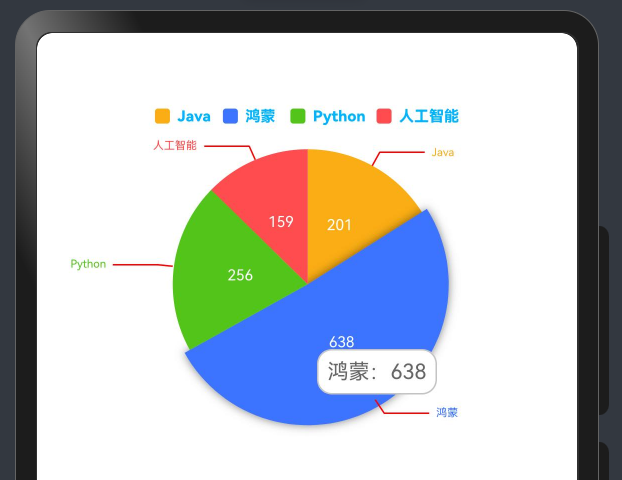
4.1. 实心饼状图
效果图:
代码如下:
import { McPieChart, Options } from '@mcui/mccharts'

/**
 * Author: 波波老师(weixin:javabobo0513)
 * Desc: 饼状图-案例页面
 */
@Entry
@Component
struct PieCharts {
  @State message: string = 'Hello World';
  @State defOptions: Options = new Options({
    //调色盘颜色列表
    color: ['#FAAD14', '#3C73FF', '#52C41A', '#FF4D4F'],
    //设置图例的相关样式与功能
    legend: {
      top: '5%', //图例距离顶部侧位置
      itemWidth: 10, //图形的宽度
      itemHeight: 10, //图形的高度
      textStyle: {
        //文本样式配置
        color: '#ff00b4ff', //字体颜色
        fontSize: 30, //字体大小
        fontWeight: '800' //字体粗细
      }
    },
    // title: {
    //   show: true,
    //   text: '最受欢迎语言', // 主标题文本
    //   subtext: '占比', // 副标题文本
    //   top: '30%',
    // },
    series: [
      {
        // radius: ['45%', '30%'], // 饼图外半径、内半径
        center: ['50%', '30%'], // 饼图中心位置
        data: [
          { name: 'Java', value: 201 },
          { name: '鸿蒙', value: 638 },
          { name: 'Python', value: 256 },
          { name: '人工智能', value: 159 },
        ],
        labelLine: {
          //文本连接线样式配置
          length: 10, //连接线1的长度
          length2: 30, //连接线2的长度
          lineStyle: {
            //提示线样式
            width: 1, //线宽度
            color: '#ffff0000' //线颜色
          }
        },
        label: {
          //系列文本标签样式配置
          show: true, //是否显示文本标签
          fontWeight: '800', //字体粗细
          fontFamily: 'sans-serif',
          color: '#ffffffff', //字体颜色
          position: 'outside', //文本显示位置
          fontSize: 30, //字体大小
          distanceToLabelLine: 6 //字体与饼状间距
        },
      }
    ],
    tooltip: {
      //设置提示层的相关样式与功能
      axisPointer: {
        //指示器配置项
        type: 'line', //指示器类型
        lineStyle: {
          //提示线样式
          color: '#D9D9D9', //线颜色
          width: 2, //线宽度
          type: 'solid' //线类型
        }
      },
      backgroundColor: '#FFFFFF', //提示框背景颜色
      borderColor: '#C4C4C4', //提示框边框颜色
      borderWidth: 1, //提示框边框宽度
      padding: 6, //提示框内边距
      textStyle: {
        //文本样式配置
        color: '#666666', //字体颜色
        fontSize: 14 //字体大小
      }
    },
  })

  build() {
    Column() {
      //饼状图组件
      McPieChart({ options: this.defOptions })
        .height('60%') //设置图表区域的高度
    }
    .height('100%')
    .width('100%')
  }
}
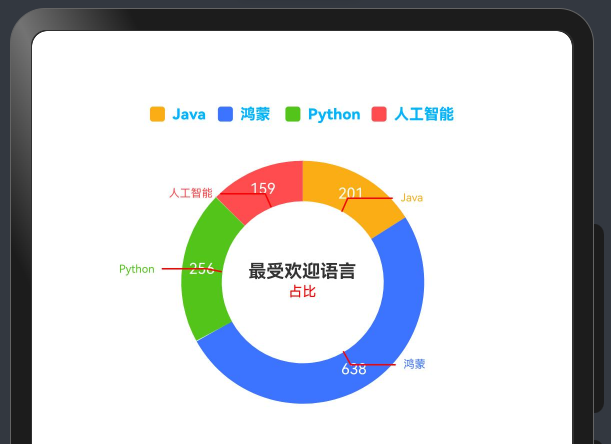
4.2. 空心饼状图
效果图:
代码如下:
import { McPieChart, Options } from '@mcui/mccharts'

/**
 * Author: 波波老师(weixin:javabobo0513)
 * Desc: 饼状图-案例页面
 */
@Entry
@Component
struct PieCharts {
  @State message: string = 'Hello World';
  @State defOptions: Options = new Options({
    //调色盘颜色列表
    color: ['#FAAD14', '#3C73FF', '#52C41A', '#FF4D4F'],
    //设置图例的相关样式与功能
    legend: {
      top: '5%', //图例距离顶部侧位置
      itemWidth: 10, //图形的宽度
      itemHeight: 10, //图形的高度
      textStyle: {
        //文本样式配置
        color: '#ff00b4ff', //字体颜色
        fontSize: 30, //字体大小
        fontWeight: '800' //字体粗细
      }
    },
    title: {
      show: true,
      text: '最受欢迎语言', // 主标题文本
      subtext: '占比', // 副标题文本
      top: '30%',
    },
    series: [
      {
        radius: ['45%', '30%'], // 饼图外半径、内半径
        center: ['50%', '30%'], // 饼图中心位置
        data: [
          { name: 'Java', value: 201 },
          { name: '鸿蒙', value: 638 },
          { name: 'Python', value: 256 },
          { name: '人工智能', value: 159 },
        ],
        labelLine: {
          //文本连接线样式配置
          length: 10, //连接线1的长度
          length2: 30, //连接线2的长度
          lineStyle: {
            //提示线样式
            width: 1, //线宽度
            color: '#ffff0000' //线颜色
          }
        },
        label: {
          //系列文本标签样式配置
          show: true, //是否显示文本标签
          fontWeight: '800', //字体粗细
          fontFamily: 'sans-serif',
          color: '#ffffffff', //字体颜色
          position: 'outside', //文本显示位置
          fontSize: 30, //字体大小
          distanceToLabelLine: 6 //字体与饼状间距
        },
      }
    ]
  })

  build() {
    Column() {
      //饼状图组件
      McPieChart({ options: this.defOptions })
        .height('60%') //设置图表区域的高度
    }
    .height('100%')
    .width('100%')
  }
}
5. 绘制柱状图
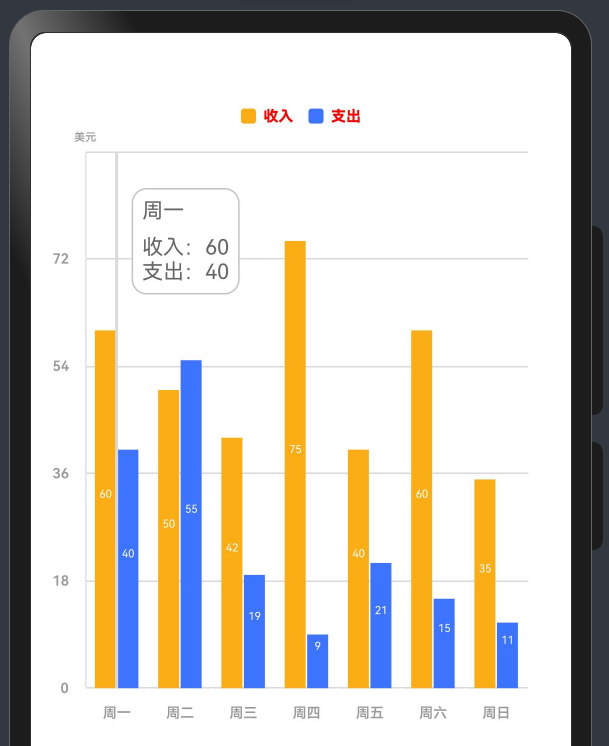
5.1. 双柱
效果图如下所示:
代码如下:
import { McBarChart, McPieChart, Options } from '@mcui/mccharts'

/**
 * Author: 波波老师(weixin:javabobo0513)
 * Desc: 柱状图-案例页面
 */
@Entry
@Component
struct BarCharts {
  @State message: string = 'Hello World';
  @State defOptions: Options = new Options({
    legend: {
      //设置图例的相关样式与功能
      top: '5%', //图例距离顶部侧位置
      itemWidth: 10, //图形的宽度
      itemHeight: 10, //图形的高度
      textStyle: {
        //文本样式配置
        color: '#ffff0000', //字体颜色
        fontSize: 30, //字体大小
        fontWeight: '800' //字体粗细
      }
    },
    yAxis: {
      //设置y轴的相关样式与功能
      name: '美元',
      axisTick: {
        //刻度线配置
        length: 6, //刻度的长度
        lineStyle: {
          //刻度线样式
          color: '#FFFFFF', //线颜色
          width: 1 //线宽度
        }
      },
      axisLine: {
        //y轴线配置
        show: true //隐藏y轴线
      },
      splitLine: {
        // Y轴分割线配置。
        show: true, //显示分割线
        lineStyle: {
          //轴线样式
          color: '#D9D9D9', //线颜色
          width: 1 //线宽度
        }
      },
      axisLabel: {
        //y轴文本标签样式配置
        color: '#999999', //字体颜色
        fontSize: 28, //字体大小
        fontWeight: '600' //字体粗细
      },
    },
    xAxis: {
      axisLabel: {
        //X轴文本标签样式配置
        color: '#999999', //字体颜色
        fontSize: 28, //字体大小
        fontWeight: '600' //字体粗线
      },
      axisTick: {
        //刻度线配置
        show: true, //控制刻度线显示与隐藏
        length: 6, // 刻度线的长度
        interval: 4, //刻度线与文本的间隔
        lineStyle: {
          //刻度线样式
          color: '#FFFFFF', //线颜色
          width: 1 //线宽度
        }
      },
      axisLine: {
        //x轴线配置
        show: true, //控制轴线显示与隐藏 可选值-true显示 false-隐藏
        lineStyle: {
          //轴线样式
          color: '#D9D9D9', //线颜色
          width: 1, //线宽度
          type: 'solid' //线类型
        }
      },
      //设置x轴的相关样式与功能
      data: ['周一', '周二', '周三', '周四', '周五', '周六', '周日']
    },
    series: [//设置柱状区的相关样式与功能
      {
        label: {
          //系列文本标签样式配置
          show: true, //显示文本标签样
          color: '#FFFFFF', //字体颜色
          fontWeight: '600', //字体粗细
          fontFamily: 'sans-serif', //字体样式
          position: 'center', //文本显示位置
          fontSize: 22, //字体大小
          distanceToLabelLine: 5 //字体与柱状间距
        },
        name: "收入", //图例文字
        color: '#FAAD14', //图例颜色
        stack: '', //是否显示堆叠柱子
        barStyle: {
          //柱状样式配置
          width: 14, //柱子宽度
          color: '#FAAD14', //柱子颜色
          barGap: 1 //同系列之间的柱子间隙
        },
        data: [60, 50, 42, 75, 40, 60, 35] //数据
      },
      {
        label: {
          //系列文本标签样式配置
          show: true, //显示文本标签样
          color: '#FFFFFF', //字体颜色
          fontWeight: '600', //字体粗细
          fontFamily: 'sans-serif', //字体样式
          position: 'center', //文本显示位置
          fontSize: 22, //字体大小
          distanceToLabelLine: 5 //字体与柱状间距
        },
        name: "支出", //图例文字
        color: '#3C73FF', //图例颜色
        stack: '', //是否显示堆叠柱子
        barStyle: {
          //柱状样式配置
          width: 14, //柱子宽度
          color: '#3C73FF', //柱子颜色
          barGap: 1 //同系列之间的柱子间隙
        },
        data: [40, 55, 19, 9, 21, 15, 11] //数据
      }
    ],
    tooltip: {
      //设置提示层的相关样式与功能
      axisPointer: {
        //指示器配置项
        type: 'line', //指示器类型
        lineStyle: {
          //提示线样式
          color: '#D9D9D9', //线颜色
          width: 2, //线宽度
          type: 'solid' //线类型
        }
      },
      backgroundColor: '#FFFFFF', //提示框背景颜色
      borderColor: '#C4C4C4', //提示框边框颜色
      borderWidth: 1, //提示框边框宽度
      padding: 6, //提示框内边距
      textStyle: {
        //文本样式配置
        color: '#666666', //字体颜色
        fontSize: 14 //字体大小
      }
    },
  })

  build() {
    Column() {
      //柱状图组件
      McBarChart({ options: this.defOptions })
        .height('60%') //设置图表区域的高度
    }
    .height('100%')
    .width('100%')
  }
}
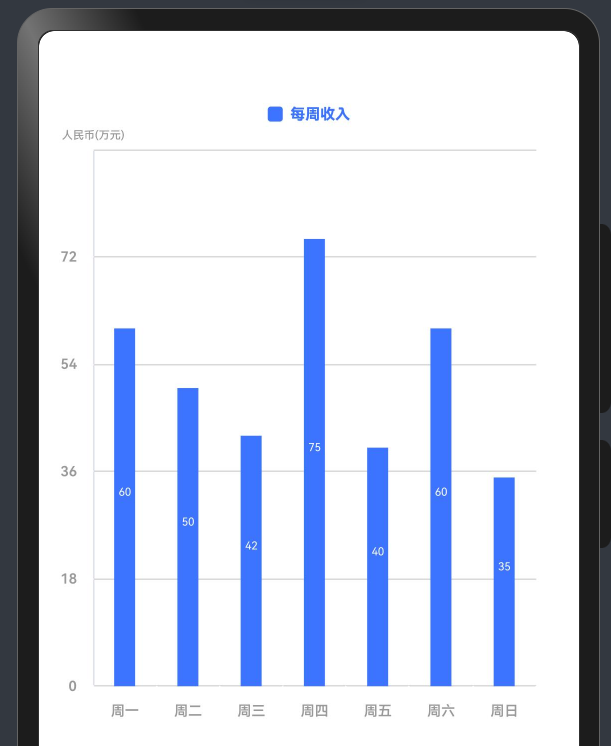
5.2. 单柱
效果图如下所示:
代码如下:
import { McBarChart, McPieChart, Options } from '@mcui/mccharts'

/**
 * Author: 波波老师(weixin:javabobo0513)
 * Desc: 单柱状图-案例页面
 */
@Entry
@Component
struct SingleBarCharts {
  @State defOptions: Options = new Options({
    legend: {
      //设置图例的相关样式与功能
      top: '5%', //图例距离顶部侧位置
      itemWidth: 10, //图形的宽度
      itemHeight: 10, //图形的高度
      textStyle: {
        //文本样式配置
        color: '#3C73FF', //字体颜色
        fontSize: 30, //字体大小
        fontWeight: '800' //字体粗细
      }
    },
    yAxis: {
      //设置y轴的相关样式与功能
      name: '人民币(万元)',
      axisTick: {
        //刻度线配置
        length: 6, //刻度的长度
        lineStyle: {
          //刻度线样式
          color: '#FFFFFF', //线颜色
          width: 1 //线宽度
        }
      },
      axisLine: {
        //y轴线配置
        show: true //隐藏y轴线
      },
      splitLine: {
        // Y轴分割线配置。
        show: true, //显示分割线
        lineStyle: {
          //轴线样式
          color: '#D9D9D9', //线颜色
          width: 1 //线宽度
        }
      },
      axisLabel: {
        //y轴文本标签样式配置
        color: '#999999', //字体颜色
        fontSize: 28, //字体大小
        fontWeight: '600' //字体粗细
      },
    },
    xAxis: {
      axisLabel: {
        //X轴文本标签样式配置
        color: '#999999', //字体颜色
        fontSize: 28, //字体大小
        fontWeight: '600' //字体粗线
      },
      axisTick: {
        //刻度线配置
        show: true, //控制刻度线显示与隐藏
        length: 6, // 刻度线的长度
        interval: 4, //刻度线与文本的间隔
        lineStyle: {
          //刻度线样式
          color: '#FFFFFF', //线颜色
          width: 1 //线宽度
        }
      },
      axisLine: {
        //x轴线配置
        show: true, //控制轴线显示与隐藏 可选值-true显示 false-隐藏
        lineStyle: {
          //轴线样式
          color: '#D9D9D9', //线颜色
          width: 1, //线宽度
          type: 'solid' //线类型
        }
      },
      //设置x轴的相关样式与功能
      data: ['周一', '周二', '周三', '周四', '周五', '周六', '周日']
    },
    series: [//设置柱状区的相关样式与功能
      {
        label: {
          //系列文本标签样式配置
          show: true, //显示文本标签样
          color: '#FFFFFF', //字体颜色
          fontWeight: '600', //字体粗细
          fontFamily: 'sans-serif', //字体样式
          position: 'center', //文本显示位置
          fontSize: 22, //字体大小
          distanceToLabelLine: 5 //字体与柱状间距
        },
        name: "每周收入", //图例文字
        color: '#3C73FF', //图例颜色
        stack: '', //是否显示堆叠柱子
        barStyle: {
          //柱状样式配置
          width: 14, //柱子宽度
          color: '#3C73FF', //柱子颜色
          barGap: 1 //同系列之间的柱子间隙
        },
        data: [60, 50, 42, 75, 40, 60, 35] //数据
      },
    ],
    tooltip: {
      //设置提示层的相关样式与功能
      axisPointer: {
        //指示器配置项
        type: 'line', //指示器类型
        lineStyle: {
          //提示线样式
          color: '#D9D9D9', //线颜色
          width: 2, //线宽度
          type: 'solid' //线类型
        }
      },
      backgroundColor: '#FFFFFF', //提示框背景颜色
      borderColor: '#C4C4C4', //提示框边框颜色
      borderWidth: 1, //提示框边框宽度
      padding: 6, //提示框内边距
      textStyle: {
        //文本样式配置
        color: '#666666', //字体颜色
        fontSize: 14 //字体大小
      }
    },
  })

  build() {
    Column() {
      //柱状图组件
      McBarChart({ options: this.defOptions })
        .height('60%') //设置图表区域的高度
    }
    .height('100%')
    .width('100%')
  }
}
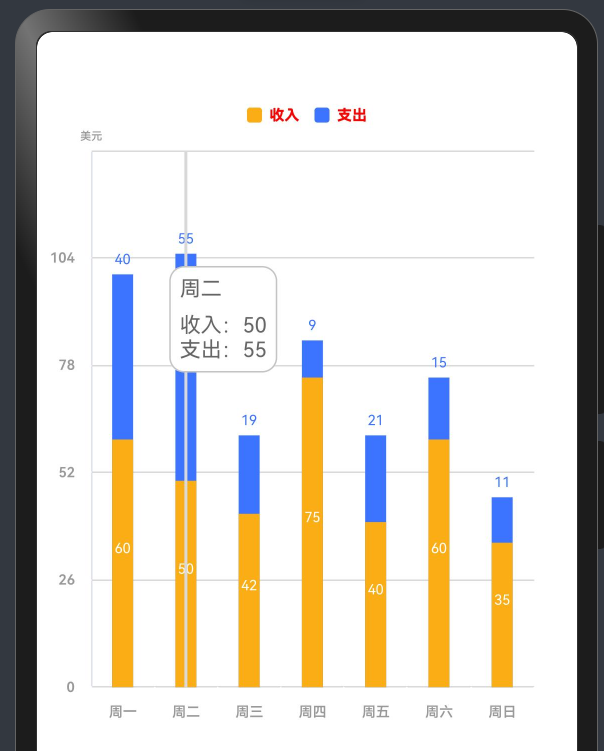
5.1. 层叠柱
效果图如下所示:
代码如下:
import { McBarChart, McPieChart, Options } from '@mcui/mccharts'

/**
 * Author: 波波老师(weixin:javabobo0513)
 * Desc: 层叠柱状图-案例页面
 */
@Entry
@Component
struct CengDieBarCharts {
  @State defOptions: Options = new Options({
    legend: {
      //设置图例的相关样式与功能
      top: '5%', //图例距离顶部侧位置
      itemWidth: 10, //图形的宽度
      itemHeight: 10, //图形的高度
      textStyle: {
        //文本样式配置
        color: '#ffff0000', //字体颜色
        fontSize: 30, //字体大小
        fontWeight: '800' //字体粗细
      }
    },
    yAxis: {
      //设置y轴的相关样式与功能
      name: '美元',
      axisTick: {
        //刻度线配置
        length: 6, //刻度的长度
        lineStyle: {
          //刻度线样式
          color: '#FFFFFF', //线颜色
          width: 1 //线宽度
        }
      },
      axisLine: {
        //y轴线配置
        show: true //隐藏y轴线
      },
      splitLine: {
        // Y轴分割线配置。
        show: true, //显示分割线
        lineStyle: {
          //轴线样式
          color: '#D9D9D9', //线颜色
          width: 1 //线宽度
        }
      },
      axisLabel: {
        //y轴文本标签样式配置
        color: '#999999', //字体颜色
        fontSize: 28, //字体大小
        fontWeight: '600' //字体粗细
      },
    },
    xAxis: {
      axisLabel: {
        //X轴文本标签样式配置
        color: '#999999', //字体颜色
        fontSize: 28, //字体大小
        fontWeight: '600' //字体粗线
      },
      axisTick: {
        //刻度线配置
        show: true, //控制刻度线显示与隐藏
        length: 6, // 刻度线的长度
        interval: 4, //刻度线与文本的间隔
        lineStyle: {
          //刻度线样式
          color: '#FFFFFF', //线颜色
          width: 1 //线宽度
        }
      },
      axisLine: {
        //x轴线配置
        show: true, //控制轴线显示与隐藏 可选值-true显示 false-隐藏
        lineStyle: {
          //轴线样式
          color: '#D9D9D9', //线颜色
          width: 1, //线宽度
          type: 'solid' //线类型
        }
      },
      //设置x轴的相关样式与功能
      data: ['周一', '周二', '周三', '周四', '周五', '周六', '周日']
    },
    series: [//设置柱状区的相关样式与功能
      {
        label: {
          //系列文本标签样式配置
          show: true, //显示文本标签样
          color: '#FFFFFF', //字体颜色
          fontWeight: '800', //字体粗细
          fontFamily: 'sans-serif', //字体样式
          position: 'center', //文本显示位置
          fontSize: 28, //字体大小
          distanceToLabelLine: 5 //字体与柱状间距
        },
        name: "收入", //图例文字
        color: '#FAAD14', //图例颜色
        stack: 'total', //是否显示堆叠柱子
        barStyle: {
          //柱状样式配置
          width: 14, //柱子宽度
          color: '#FAAD14', //柱子颜色
          barGap: 1 //同系列之间的柱子间隙
        },
        data: [60, 50, 42, 75, 40, 60, 35] //数据
      },
      {
        label: {
          //系列文本标签样式配置
          show: true, //显示文本标签样
          color: '#3C73FF', //字体颜色
          fontWeight: '800', //字体粗细
          fontFamily: 'sans-serif', //字体样式
          position: 'top', //文本显示位置
          fontSize: 28, //字体大小
          distanceToLabelLine: 3 //字体与柱状间距
        },
        name: "支出", //图例文字
        color: '#3C73FF', //图例颜色
        stack: 'total', //是否显示堆叠柱子
        barStyle: {
          //柱状样式配置
          width: 14, //柱子宽度
          color: '#3C73FF', //柱子颜色
          barGap: 1 //同系列之间的柱子间隙
        },
        data: [40, 55, 19, 9, 21, 15, 11] //数据
      }
    ],
    tooltip: {
      //设置提示层的相关样式与功能
      axisPointer: {
        //指示器配置项
        type: 'line', //指示器类型
        lineStyle: {
          //提示线样式
          color: '#D9D9D9', //线颜色
          width: 2, //线宽度
          type: 'solid' //线类型
        }
      },
      backgroundColor: '#FFFFFF', //提示框背景颜色
      borderColor: '#C4C4C4', //提示框边框颜色
      borderWidth: 1, //提示框边框宽度
      padding: 6, //提示框内边距
      textStyle: {
        //文本样式配置
        color: '#666666', //字体颜色
        fontSize: 14 //字体大小
      }
    },
  })

  build() {
    Column() {
      //柱状图组件
      McBarChart({ options: this.defOptions })
        .height('60%') //设置图表区域的高度
    }
    .height('100%')
    .width('100%')
  }
}
6. 动态修改图表数据
McCharts 组件整体使用@Observed装饰器和@ObjectLink装饰器来监控数据的变化,所以修改数据需要使用Option实例对象的【setVal】方法来实现
案例代码如下:
import { McLineChart, Options } from '@mcui/mccharts'

@Entry
@Component
struct Index {
  @State defOption: Options = new Options({
      title: {
          show: true,
          text: '更新数据',
          right: 20,
          top: 30
      },
      xAxis:{
        data:['周一','周二','周三','周四','周五','周六','周日']
      },
      yAxis:{
        name:'温度'
      },
      series:[
        {
          name:'最高气温',
          data:[11, 11, 15, 13, 12, 130, 10]
        }
      ]
  })
  aboutToAppear() {
    setTimeout(() => {
      // 使用Option实例对象的setVal方法来实现,修改什么属性就传什么
      this.defOption.setVal({
        series: [
          {
            name:'最高气温',
            data:[110, 110, 150, 130, 102, 130, 210]
          }
        ]
      })
    }, 1000)
  }
  build() {
    Row() {
      McLineChart({
        options: this.defOption
      })
    }
    .height('50%')
  }
}
7. 总结
经过本文的学习,我们应该具备在自己项目中实现各种图表的实战能力了,赶紧动手试一试吧,加油…💪

腾讯云面向开发者汇聚海量精品云计算使用和开发经验,营造开放的云计算技术生态圈。
更多推荐
 36
36 0
0- 0


 已为社区贡献2条内容

所有评论(0)