python--pyQt5 pyside6 中 下拉列表框(QComboBox)
参考:https://zhuanlan.zhihu.com/p/138386185
https://developer.aliyun.com/article/1314474
一、组合框控件ComboBox
ComboBox的功能是从一个列表中一次只能选取或输入一个选项,其主要特点是具有带向下箭头的方框。在程序执行时,按下此按钮就会下拉出一个列表框供用户选择项目
| 属性 | 说明 |
|---|---|
| Items | 表示该组合框中所包含项的集合 |
| SelectedItem | 获取或设置当前组合框中选定项的索引 |
| SelectedText | 获取或设置当前组合框中选定项的文本 |
| Sorted | 指示是否对组合框中的项进行排序 |
| addItem | 添加一个下拉选项 |
| addItems | 添加多个下拉选项 |
| currentIndex | 返回当前的下拉选项索引 |
| currentText | 返回当前下拉选项文本 |
| count | 返回下拉列表框中全部选项的个数 |
| removeItem | 删除选项 |
| clear | 清空所有选项 |
| insertItem | 将选项添加到指定的index位置 |
| setCurrentIndex | 显示指定index位置的选项 |
【提示】在 qt designer 中 可以添加下拉框选择内容
  self.ui.comboBox.addItem("苹果") # 添加单个选项
  self.ui.comboBox.addItems(["葡萄","香蕉","西瓜"]) # 添加多个选项
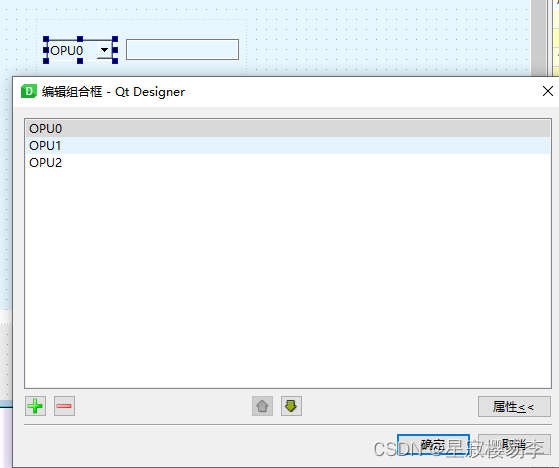
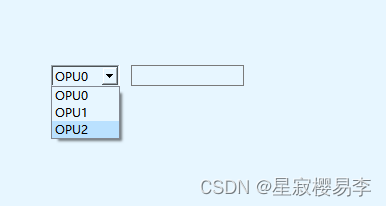
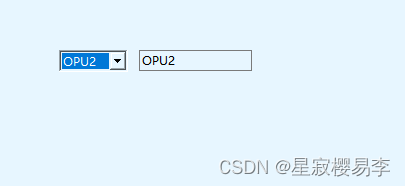
 self.Settings_UI.comboBox.textActivated.connect(self.check_result)  # 下拉框
 def check_result(self):
     data = self.Settings_UI.comboBox.currentText()
     self.Settings_UI.lineEdit_2.setText(data)  # 将选择的结果生成在LineEdit里
self.comboBox.activated.connect(self.getText()) # 当用户在组合下拉框中选中一个条目时发射此信号,索引作为参数传递
self.comboBox.currentIndexChanged.connect(self.box_result) # 索引变化时触发 绑定槽函数
self.comboBox.currentTextChanged.connect(self.box_result) # 文本变化时触发
self.comboBox.highlighted.connect(self.box_result) # 当用户高亮(光标移入或键盘选择)了弹出菜单中的某一条目时发射此信号
self.comboBox.textActivated.connect(self.box_result) # 当用户选择了条目之一时,发射此信号并将文本作为参数传递
self.comboBox.textHighlighted.connect(self.box_result) # 当用户高亮了弹出菜单中的某一条目时发射此信号
二、按钮+列表 文本显示
self.Settings_UI.pushButton_7.clicked.connect(self.getItem)
def getItem(self):
    items = ('OTU0', 'OTU1', 'OTU2')
    # 返回两个值,第一个item代表用户选择的值,ok代表用户是否按下了取消
    item, ok = QInputDialog.getItem(self, '请选择', '', items)
    if ok and item:
        self.Settings_UI.lineEdit.setText(item)
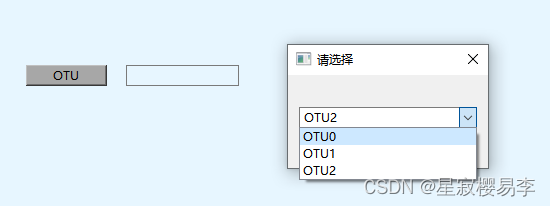
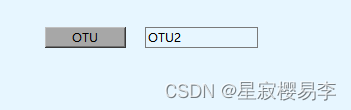
QInputDialog.getItem:选择选项的下拉列表
QInputDialog.getText:获取输入的文本内容
QInputDialog.getInt:获取输入数字的计时器
import sys
from PyQt5.QtWidgets import QApplication, QWidget, QVBoxLayout, QComboBox, QPushButton, QLabel

class MyWindow(QWidget):
    def __init__(self):
        super().__init__()

        self.initUI()

    def initUI(self):
        layout = QVBoxLayout()

        # 创建一个标签用于显示当前选中的值
        self.label = QLabel("请选择一个选项")
        layout.addWidget(self.label)

        # 创建一个 QComboBox
        self.comboBox = QComboBox()
        self.comboBox.addItems(["选项1", "选项2", "选项3"])

        # 将 QComboBox 添加到布局中
        layout.addWidget(self.comboBox)

        # 添加一个按钮来清除选择
        self.clearButton = QPushButton("清除选择")
        self.clearButton.clicked.connect(self.clearSelection)
        layout.addWidget(self.clearButton)

        # 设置窗口布局
        self.setLayout(layout)

        # 连接 QComboBox 的当前索引变化信号到槽函数
        self.comboBox.currentIndexChanged.connect(self.updateLabel)

    def updateLabel(self, index):
        if index >= 0:
            self.label.setText(f"当前选中的选项: {self.comboBox.itemText(index)}")
        else:
            self.label.setText("请选择一个选项")

    def clearSelection(self):
        # 清除选择
        self.comboBox.setCurrentIndex(-1)
        self.label.setText("请选择一个选项")

if __name__ == '__main__':
    app = QApplication(sys.argv)
    window = MyWindow()
    window.setWindowTitle("QComboBox 示例")
    window.resize(300, 150)
    window.show()
    sys.exit(app.exec_())
信号改变
import sys

from PySide6.QtWidgets import QApplication, QMainWindow, QLineEdit


class MainWindow(QMainWindow):

    def __init__(self):
        super(MainWindow, self).__init__()

        self.setWindowTitle("My App")

        widget = QLineEdit()
        '''设置输入内容最大长度'''
        widget.setMaxLength(10)
        '''设置文本框提示'''
        widget.setPlaceholderText("Enter your text")
        '''设置为只读模式'''
        # widget.setReadOnly(True)

        widget.returnPressed.connect(self.return_pressed)
        widget.selectionChanged.connect(self.selection_changed)  # 只要改变了,这个信号就会被触发
        widget.textChanged.connect(self.text_changed)  # 当修改文本内容时,这个信号就会被触发
        widget.textEdited.connect(self.text_edited)  # 当编辑文本结束时,这个信号就会被触发

        self.setCentralWidget(widget)

    def return_pressed(self):
        print("按了Enter键!")
        self.centralWidget().setText("BOOM!")

    def selection_changed(self):
        print("选中了文本!")
        print(self.centralWidget().selectedText())

    def text_changed(self, s):
        print("文本改变了!")
        print(s)

    def text_edited(self, s):
        print("文本被编辑了!")
        print(s)


if __name__ == '__main__':
    app = QApplication(sys.argv)  # 初始化
    win = MainWindow()  # 初始化界面并展示
    win.show()
    app.exec()
清除其选中状态
import sys
from PyQt5.QtWidgets import QApplication, QWidget, QVBoxLayout, QComboBox, QPushButton

class MyWindow(QWidget):
    def __init__(self):
        super().__init__()

        self.initUI()

    def initUI(self):
        layout = QVBoxLayout()

        self.comboBox = QComboBox()
        self.comboBox.addItem("选项1")
        self.comboBox.addItem("选项2")
        self.comboBox.addItem("选项3")

        layout.addWidget(self.comboBox)

        # 添加一个按钮来清除选择
        self.clearButton = QPushButton("清除选择")
        self.clearButton.clicked.connect(self.clearSelection)
        layout.addWidget(self.clearButton)

        self.setLayout(layout)

    def clearSelection(self):
        # 设置当前索引为 -1 来清除选择
        self.comboBox.setCurrentIndex(-1)

if __name__ == '__main__':
    app = QApplication(sys.argv)
    window = MyWindow()
    window.setWindowTitle("QComboBox 示例")
    window.resize(300, 150)
    window.show()
    sys.exit(app.exec_())

腾讯云面向开发者汇聚海量精品云计算使用和开发经验,营造开放的云计算技术生态圈。
更多推荐
 12
12 0
0- 0


 已为社区贡献2条内容

所有评论(0)