vscode备份还原插件和设置
·
用了vscode自带的同步功能后,导致所有插件和配置全没了,全没了,全没了,还是手动备份最安心.
Windows版
将下方代码保存为xxxxx.bat文件,双击即可执行
vscode稳定版
@echo off
chcp 65001 >nul
setlocal enabledelayedexpansion

set BACKUP_DIR=%USERPROFILE%\Desktop\backup-vscode

for /f "tokens=1-3 delims=/" %%a in ('echo %date%') do set DATE=%%a%%b%%c
for /f "tokens=1-2 delims=:" %%a in ('echo %time%') do set TIME=%%a%%b%
set BACKUP_PATH=%BACKUP_DIR%\%DATE%_%TIME: =0%

mkdir "%BACKUP_PATH%" 2>nul

echo 开始备份VSCode配置...

:: 备份用户配置
if exist "%APPDATA%\Code\User" (
    xcopy "%APPDATA%\Code\User" "%BACKUP_PATH%\User" /E /I /Y
    echo ✓ 用户配置备份完成
) else (
    echo ❌ 未找到VSCode配置目录
)

:: 备份扩展列表
where code >nul 2>&1
if %errorlevel% equ 0 (
    code --list-extensions > "%BACKUP_PATH%\extensions.txt"
    echo ✓ 插件列表备份完成
    echo 备份位置: %BACKUP_PATH%
    pause
) else (
    echo ⚠ 未找到code命令,跳过扩展备份
    pause
)
vscode-insiders版
@echo off
chcp 65001 >nul
setlocal enabledelayedexpansion

set BACKUP_DIR=%USERPROFILE%\Desktop\backup-vscode-insider

for /f "tokens=1-3 delims=/" %%a in ('echo %date%') do set DATE=%%a%%b%%c
for /f "tokens=1-2 delims=:" %%a in ('echo %time%') do set TIME=%%a%%b%
set BACKUP_PATH=%BACKUP_DIR%\%DATE%_%TIME: =0%

mkdir "%BACKUP_PATH%" 2>nul

echo 开始备份VSCode Insiders配置...

:: 备份用户配置
if exist "%APPDATA%\Code - Insiders\User" (
    xcopy "%APPDATA%\Code - Insiders\User" "%BACKUP_PATH%\User" /E /I /Y
    echo ✓ 用户配置备份完成
) else (
    echo ❌ 未找到VSCode Insiders配置目录
)


:: 备份扩展列表
where code-insiders >nul 2>&1
if %errorlevel% equ 0 (
    code-insiders --list-extensions > "%BACKUP_PATH%\extensions.txt"
    echo ✓ 插件列表备份完成
    echo 备份位置: %BACKUP_PATH%
    pause
) else (
    echo ⚠ 未找到code-insiders命令,跳过扩展备份
    pause
)
安装插件命令
保存为.bat文件,双击运行即可安装
vscode版
@echo off
chcp 65001 >nul
cd /d "%~dp0"


where code >nul 2>&1
if %errorlevel% equ 0 (
    echo code命令存在
) else (
    echo code命令不存在
    goto :notfound
)

if not exist "extensions.txt" (
  echo 找不到 extensions.txt 文件!应置于同级目录
  goto :notfound
)

echo 正在安装 VSCode 插件,请稍候...

for /f "usebackq tokens=*" %%i in ("extensions.txt") do (
    echo 正在安装插件:%%i
   call code --install-extension "%%i"
)

echo 所有插件安装完成!
echo 所有插件安装完成!
echo 所有插件安装完成!
echo 请将User文件夹粘贴至下方目录
echo %USERPROFILE%\AppData\Roaming\Code\User
echo %USERPROFILE%\AppData\Roaming\Code\User
echo %USERPROFILE%\AppData\Roaming\Code\User

:notfound
pause
vscode-insiders版
@echo off
chcp 65001 >nul
cd /d "%~dp0"


where code-insiders >nul 2>&1
if %errorlevel% equ 0 (
    echo code-insiders命令存在
) else (
    echo code-insiders命令不存在
    goto :notfound
)

if not exist "extensions.txt" (
  echo 找不到 extensions.txt 文件!应置于同级目录
  goto :notfound
)

echo 正在安装 VSCode Insiders 插件,请稍候...

for /f "usebackq tokens=*" %%i in ("extensions.txt") do (
    echo 正在安装插件:%%i
   call code-insiders --install-extension "%%i"
)

echo 所有插件安装完成!
echo 所有插件安装完成!
echo 所有插件安装完成!
echo 请将User文件夹粘贴至下方目录
echo %USERPROFILE%\AppData\Roaming\Code - Insiders\User
echo %USERPROFILE%\AppData\Roaming\Code - Insiders\User
echo %USERPROFILE%\AppData\Roaming\Code - Insiders\User

:notfound
pause
keybindings.json
[
  {
    "key": "ctrl+shift+/",
    "command": "editor.action.blockComment",
    "when": "editorTextFocus && !editorReadonly"
  },
  {
    "key": "ctrl+/",
    "command": "editor.action.commentLine",
    "when": "editorTextFocus && !editorReadonly"
  },
  {
    "key": "ctrl+m",
    "command": "bracket-select.select",
    "when": "editorTextFocus"
  },
  {
    "key": "ctrl+q",
    "command": "-workbench.action.quickOpenNavigateNextInViewPicker",
    "when": "inQuickOpen && inViewsPicker"
  },
  {
    "key": "ctrl+q",
    "command": "-workbench.action.quickOpenView"
  },
  {
    "key": "ctrl+q",
    "command": "workbench.action.navigateToLastEditLocation"
  },
  {
    "key": "ctrl+k ctrl+q",
    "command": "-workbench.action.navigateToLastEditLocation"
  }
]
Mac版
将下方代码保存为xxxxxx.sh文件
vscode稳定版
#!/bin/bash
# 完整的VSCode备份脚本

set -e  # 遇到错误立即退出

BACKUP_DIR="$HOME/vscode-backup"
DATE=$(date +%Y%m%dvscode)
BACKUP_PATH="$BACKUP_DIR/$DATE"

# 创建备份目录
mkdir -p "$BACKUP_PATH"

echo "开始备份VSCode配置..."

# 检测系统类型并备份
if [ -d "$HOME/.config/Code/User" ]; then
    # Linux
    cp -r "$HOME/.config/Code/User" "$BACKUP_PATH/"
    echo "✓ Linux配置备份完成"
elif [ -d "$HOME/Library/Application Support/Code/User" ]; then
    # macOS
    cp -r "$HOME/Library/Application Support/Code/User" "$BACKUP_PATH/"
    echo "✓ macOS配置备份完成"
elif [ -d "$APPDATA/Code/User" ]; then
    # Windows
    cp -r "$APPDATA/Code/User" "$BACKUP_PATH/"
    echo "✓ Windows配置备份完成"
else
    echo "❌ 未找到VSCode配置目录"
    exit 1
fi

# 备份扩展列表
if command -v code &> /dev/null; then
    code --list-extensions > "$BACKUP_PATH/extensions.txt"
    echo "✓ 扩展列表备份完成"
else
    echo "⚠ 未找到code命令,跳过扩展备份"
fi

# 创建恢复脚本
cat > "$BACKUP_PATH/还原方法.txt" << EOF
VSCode配置恢复方法
请手动将User文件夹复制到$HOME/Library/Application Support/Code/User
插件安装方法,命令行窗口直接输入:cat extensions.txt | xargs -L 1 code --install-extension
插件安装地址为$HOME/.vscode
EOF

echo "🎉 VSCode备份完成!"
echo "备份位置: $BACKUP_PATH"
echo "备份位置: $BACKUP_PATH"
echo "备份位置: $BACKUP_PATH"
vscode-insiders内测版
内测版使用code-insiders命令
#!/bin/bash
# 完整的VSCode备份脚本

set -e  # 遇到错误立即退出

BACKUP_DIR="$HOME/vscode-insiders-backup"
DATE=$(date +%Y%m%dvscode_insiders)
BACKUP_PATH="$BACKUP_DIR/$DATE"

# 创建备份目录
mkdir -p "$BACKUP_PATH"

echo "开始备份VSCode-insiders配置..."

# 检测系统类型并备份
if [ -d "$HOME/.config/Code - Insiders/User" ]; then
    # Linux
    cp -r "$HOME/.config/Code - Insiders/User" "$BACKUP_PATH/"
    echo "✓ Linux配置备份完成"
elif [ -d "$HOME/Library/Application Support/Code - Insiders/User" ]; then
    # macOS
    cp -r "$HOME/Library/Application Support/Code - Insiders/User" "$BACKUP_PATH/"
    echo "✓ macOS配置备份完成"
elif [ -d "$APPDATA/Code - Insiders/User" ]; then
    # Windows
    cp -r "$APPDATA/Code - Insiders/User" "$BACKUP_PATH/"
    echo "✓ Windows配置备份完成"
else
    echo "❌ 未找到Code - Insiders配置目录"
    exit 1
fi

# 备份扩展列表
if command -v code-insiders &> /dev/null; then
    code-insiders --list-extensions > "$BACKUP_PATH/extensions.txt"
    echo "✓ 扩展列表备份完成"
else
    echo "⚠ 未找到code-insiders命令,跳过扩展备份"
fi

# 创建恢复脚本
cat > "$BACKUP_PATH/还原方法.txt" << EOF
VSCode-insiders配置恢复方法
请手动将User文件夹复制到$HOME/Library/Application Support/Code - Insiders/User
插件安装方法,命令行窗口直接输入:cat extensions.txt | xargs -L 1 code-insiders --install-extension
插件安装地址为$HOME/.vscode-insiders
EOF

echo "🎉 VSCodeInsiders备份完成!"
echo "备份位置: $BACKUP_PATH"
echo "备份位置: $BACKUP_PATH"
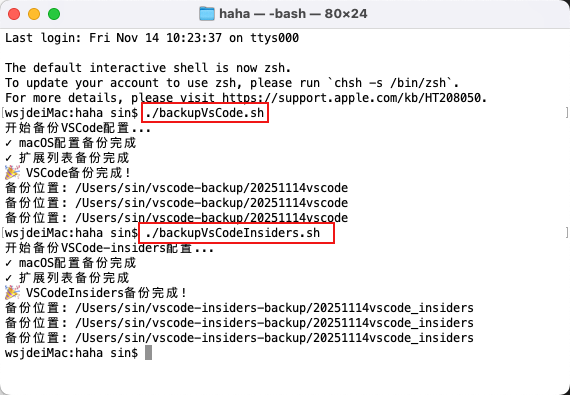
echo "备份位置: $BACKUP_PATH"在命令行窗口分别输入./backupVsCode.sh或./backupVsCodeInsiders.sh执行备份操作
如果无法执行,可用chmod +x aabbcc.sh添加执行权限
添加环境变量
如果找不到code-insiders命令
Ctrl + Shift + P  (Windows/Linux)
Cmd + Shift + P   (macOS)

输入并执行命令

Shell Command: Install 'code' command in PATH
安装插件命令
cat extensions.txt | xargs -L 1 code-insiders --install-extensionsettings.json
配置文件
{
  "workbench.colorTheme": "One Dark Pro",
  "workbench.iconTheme": "vscode-great-icons",
  "window.title": "${activeEditorLong}",
  "editor.fontWeight": "100",
  "editor.autoClosingBrackets": "never",
  "editor.emptySelectionClipboard": false,
  "editor.inlineSuggest.enabled": true,
  "editor.minimap.enabled": true,
  "editor.wordSeparators": "`~!@#$%^&*()=+[{]}\\|;:'\",.<>/?",
  "editor.renderControlCharacters": true,
  "editor.selectionHighlight": false,
  "editor.colorDecorators": false,
  "editor.acceptSuggestionOnCommitCharacter": false,
  "editor.guides.bracketPairs": true,
  "editor.wordWrap": "on",
  "editor.detectIndentation": false,
  "editor.find.autoFindInSelection": "multiline",
  "editor.tabSize": 2,
  "editor.linkedEditing": true,
  "editor.fontSize": 18,
  "editor.defaultFormatter": "vscode.typescript-language-features",
  "editor.formatOnPaste": true,
  "editor.formatOnType": true,
  "editor.formatOnSave": true,
  "css.format.enable": false,
  "workbench.statusBar.visible": true,
  "workbench.sideBar.location": "left",
  "explorer.compactFolders": false,
  "typescript.updateImportsOnFileMove.enabled": "always",
  "javascript.updateImportsOnFileMove.enabled": "always",
  "window.titleBarStyle": "custom",
  "extensions.autoUpdate": false,
  "extensions.autoCheckUpdates": false,
  "typescript.preferences.quoteStyle": "double",
  "editor.autoClosingQuotes": "never",
  "diffEditor.renderSideBySide": false,
  "emmet.triggerExpansionOnTab": true,
  "security.workspace.trust.untrustedFiles": "open",
  "[html]": {
    "editor.defaultFormatter": null,
    "editor.formatOnSave": false,
    "editor.formatOnPaste": false
  },
  "[css]": {
    "editor.defaultFormatter": null,
    "editor.formatOnSave": false
  },
  "[javascript]": {
    "editor.defaultFormatter": "vscode.typescript-language-features"
  },
  "[javascriptreact]": {
    "editor.defaultFormatter": "vscode.typescript-language-features"
  },
  "[jsonc]": {
    "editor.defaultFormatter": "esbenp.prettier-vscode"
  },
  "html.completion.attributeDefaultValue": "empty",
  "highlight-matching-tag.styles": {
    "opening": {
      "left": {
        "custom": {
          "borderWidth": "0 0 0 3px",
          "borderStyle": "solid",
          "borderColor": "green",
          "borderRadius": "0px"
        }
      },
      "right": {
        "custom": {
          "borderWidth": "0 3px 0 0",
          "borderStyle": "solid",
          "borderColor": "green",
          "borderRadius": "0px"
        }
      }
    }
  },
  "workbench.colorCustomizations": {
    "editor.background": "#222",
    "editorLineNumber.foreground": "#888", //行号的颜色
    "editorLineNumber.activeForeground": "#1dc", //当前行号的颜色
    "tab.activeBorder": "#88d650",
    "tab.hoverBorder": "#30a8f4",
    "tab.hoverForeground": "#fff",
    "breadcrumb.background": "#000",
    "activityBar.background": "#004c94",
    "titleBar.activeForeground": "#fff",
    "titleBar.activeBackground": "#004c94",
    "titleBar.inactiveForeground": "#fff",
    "titleBar.inactiveBackground": "#0064af",
    "tree.indentGuidesStroke": "#05ef3c",
    "list.activeSelectionBackground": "#0091ff",
    "list.activeSelectionForeground": "#fff",
    "list.inactiveSelectionBackground": "#7e00ff",
    "list.inactiveSelectionForeground": "#fff",
    "list.hoverBackground": "#00a01c50",
    "list.hoverForeground": "#fff"
  },
  "workbench.startupEditor": "none",
  "workbench.tree.indent": 21,
  "workbench.tree.renderIndentGuides": "always",
  // 是否启用 Workspace Trust(不建议关闭)
  "security.workspace.trust.enabled": false,

  "path-intellisense.extensionOnImport": true,
  "path-intellisense.mappings": {
    "@": "${workspaceRoot}/src"
  },
  "workbench.tree.enableStickyScroll": false,
  "editor.stickyScroll.enabled": false,
  "git.confirmSync": false,
  "codingcopilot.enableInlineChat": false,
  "editor.quickSuggestions": {
    "strings": "on"
  },
  "window.restoreWindows": "all",
  "codingcopilot.enableCodelens": false,
  "codingcopilot.selectedCompletionModel": "codewise-7b-052"
}
对insiders版进行颜色区分
"workbench.colorCustomizations": {
    "editor.background": "#222",
    "editorLineNumber.foreground": "#888", //行号的颜色
    "editorLineNumber.activeForeground": "#1dc", //当前行号的颜色
    "tab.activeBorder": "#f00",
    "tab.hoverBorder": "#30a8f4",
    "tab.hoverForeground": "#fff",
    "breadcrumb.background": "#000",
    "activityBar.background": "#213d01",
    "titleBar.activeForeground": "#fff",
    "titleBar.activeBackground": "#213d01",
    "titleBar.inactiveForeground": "#fff",
    "titleBar.inactiveBackground": "#006164",
    "tree.indentGuidesStroke": "#05ef3c",
    "list.activeSelectionBackground": "#0091ff",
    "list.activeSelectionForeground": "#fff",
    "list.inactiveSelectionBackground": "#7e00ff",
    "list.inactiveSelectionForeground": "#fff",
    "list.hoverBackground": "#00a01c50",
    "list.hoverForeground": "#fff"
  }
keybindings.json
快捷键
// 将键绑定放在此文件中以覆盖默认值auto[]
[
  {
    "key": "cmd+/",
    "command": "editor.action.commentLine",
    "when": "editorTextFocus && !editorReadonly"
  },
  {
    "key": "cmd+alt+/",
    "command": "editor.action.blockComment",
    "when": "editorTextFocus "
  },
  {
    "key": "cmd+m",
    "command": "bracket-select.select",
    "when": "editorTextFocus"
  },
  {
    "key": "cmd+q",
    "command": "workbench.action.navigateToLastEditLocation"
  }
]
snippets
代码片段
下图中几个snippets的json内容都是一样的
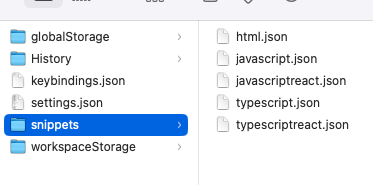
{
  "Print to console": {
    "prefix": "qq",
    "body": ["console.log('🟩 🟩 🟩 $1',$1);"],
    "description": "等号console"
  }
}
2025-11-16插件列表
win和mac通用,extensions.txt
1yasa.css-better-sorting
alefragnani.bookmarks
alefragnani.project-manager
bradlc.vscode-tailwindcss
christian-kohler.path-intellisense
chunsen.bracket-select
dsznajder.es7-react-js-snippets
emmanuelbeziat.vscode-great-icons
esbenp.prettier-vscode
formulahendry.auto-rename-tag
iflow-cli.iflow-cli-vscode-ide-companion
ms-ceintl.vscode-language-pack-zh-hans
naumovs.color-highlight
peakchen90.open-html-in-browser
tencent-cloud.coding-copilot
vincaslt.highlight-matching-tag
xyz.local-history
zhuangtongfa.material-theme
腾讯云面向开发者汇聚海量精品云计算使用和开发经验,营造开放的云计算技术生态圈。
更多推荐
 0
0 0
0- 0


 已为社区贡献7条内容

所有评论(0)