完美解决 vscode 多设备通过ssh登录远程服务器免密登录(解决服务器禁止公钥登录问题)
·
问题
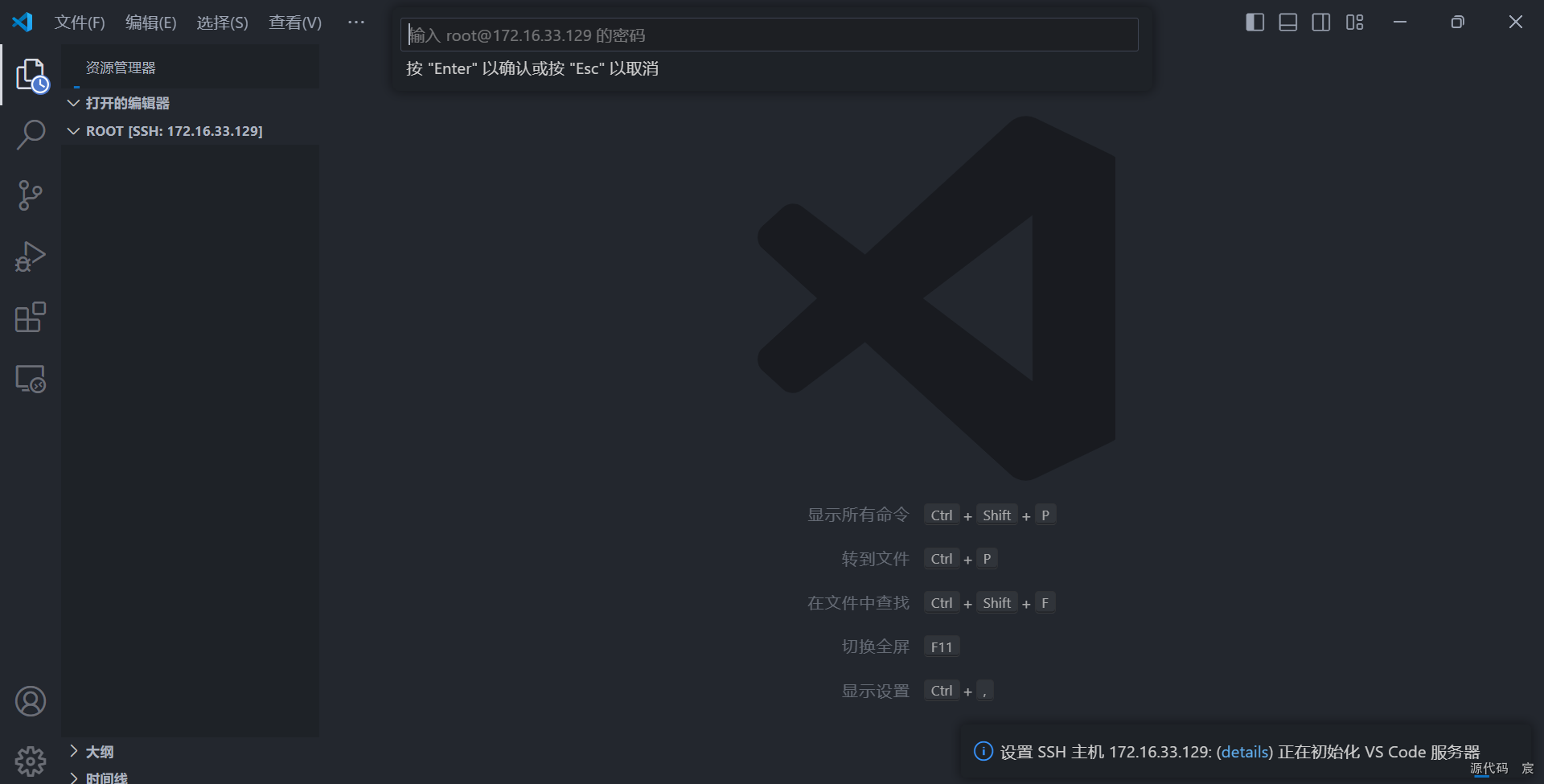
麻烦,每次打开vscode都要输入密码才能连接服务器,密码强度很高,记不下来。。。
解决
1、在本地电脑上创建公钥和私钥。以windows为例:我们打开PowerShell
输入
ssh-keygen
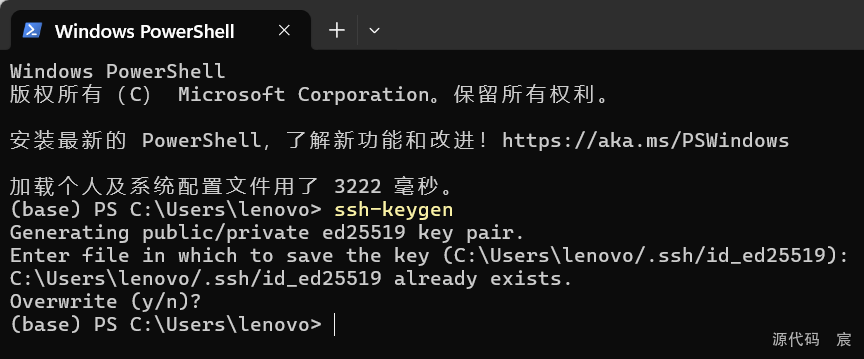
当然我一开始已经生成了密钥,这里就没有那个图案显示了,我用另一台机器截图展示一下
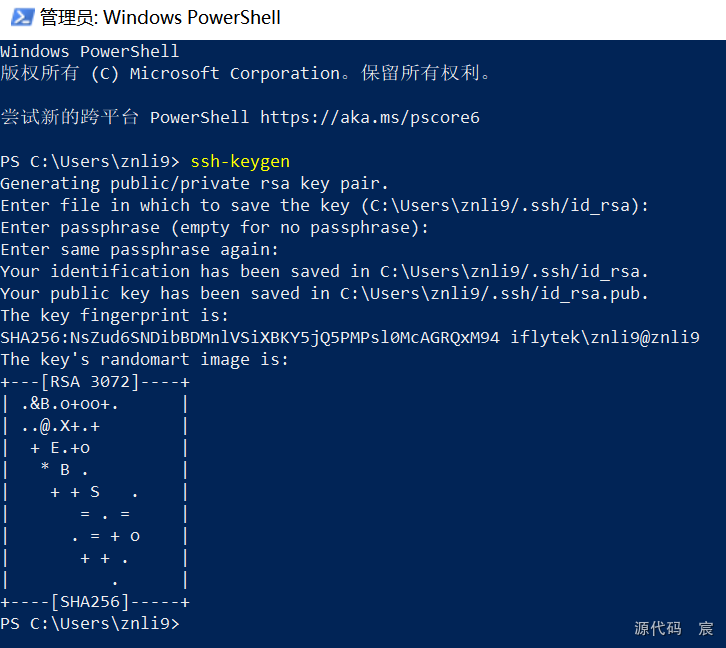
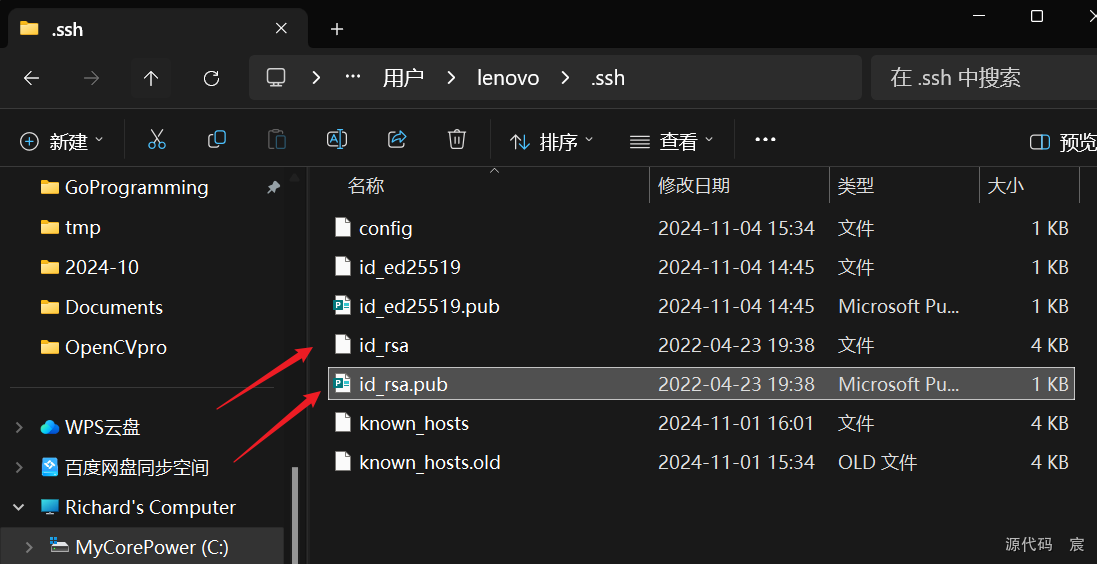
连续按3次“enter”,则“C:\Users\lenovo.ssh”内容会生成一对密钥,如下:
分支一:只需一个设备连服务器
回到powershell,继续输入:
PS C:\Users\lenovo>scp C:\Users\lenovo\.ssh\id_rsa UserName@HostIP:/home/XX/.ssh
PS C:\Users\lenovo>scp C:\Users\lenovo\.ssh\id_rsa.pub UserName@HostIP:/home/XX/.ssh

注意:此命令的格式为:scp <id_rsa 的本地路径> <ssh 文件夹的远程服务器路径>。现在我们将密钥对复制到远程服务器。然后我们应该连接到服务器,打开 .ssh 文件并输入:
UserName@Host:~$ cat id_rsa.pub >> authorized_keys
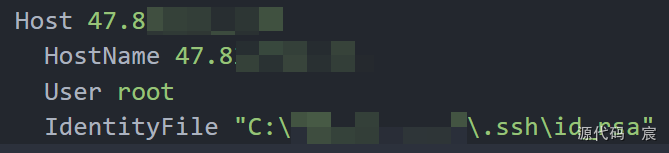
分支二:需要多台设备连服务器(即分支一成立的情况下,即已经有一个设备连接服务器了)
将公钥内容添加到服务器的 ~/.ssh/authorized_keys 文件中,注意不是覆盖,而是追加!!!
(base) root@8sc0q30dl6irq-0:~/.ssh# cat /gly/lizn_workSpace/.ssh/id_rsa.pub >> authorized_keys
确保权限正确
chmod 700 ~/.ssh
chmod 600 ~/.ssh/authorized_keys
注意
每个设备的rsa是换行的!!!
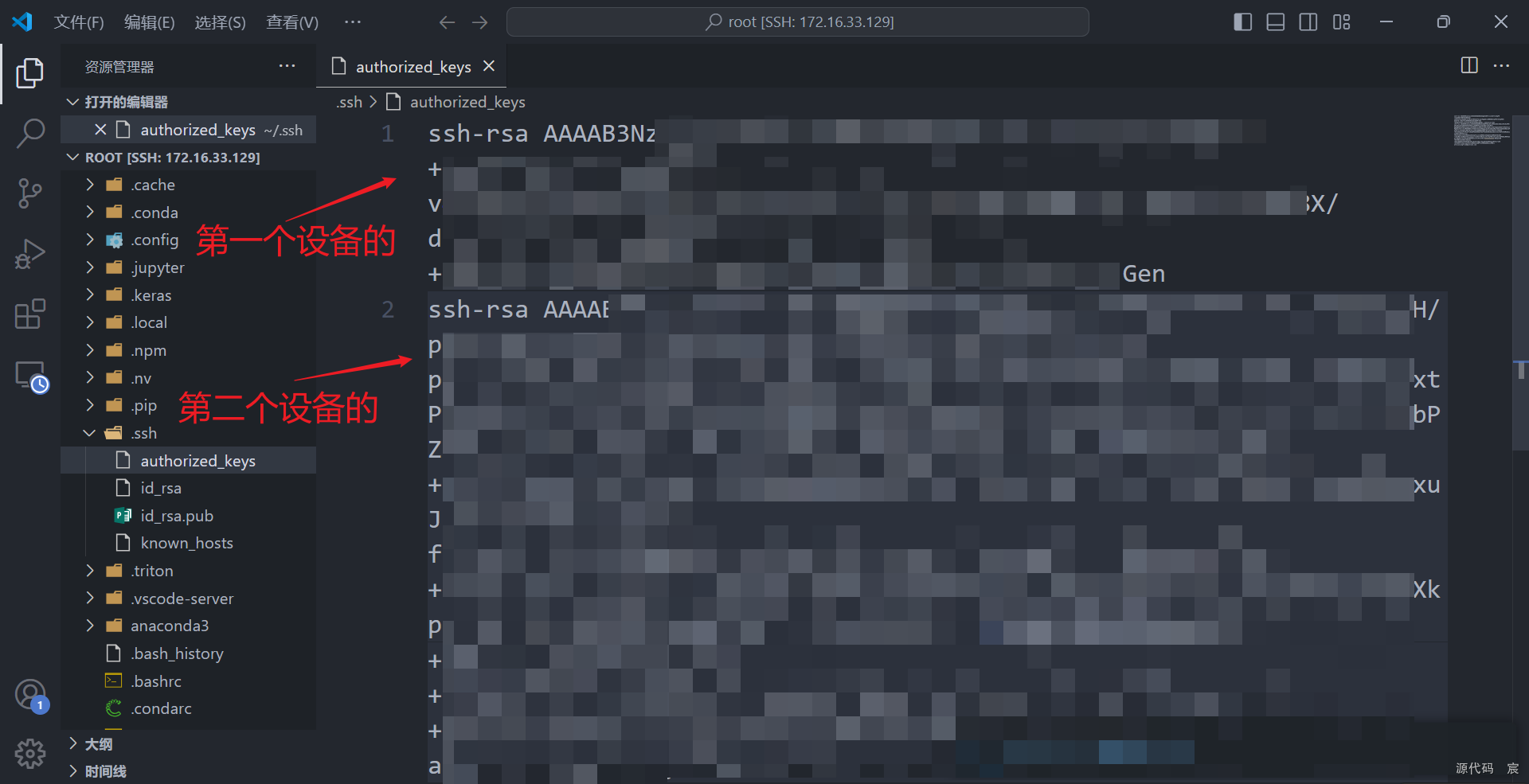
最后,关闭所有 vscode 文件并重新打开。就可以免密码连接到远程主机。
服务器要允许公钥登录
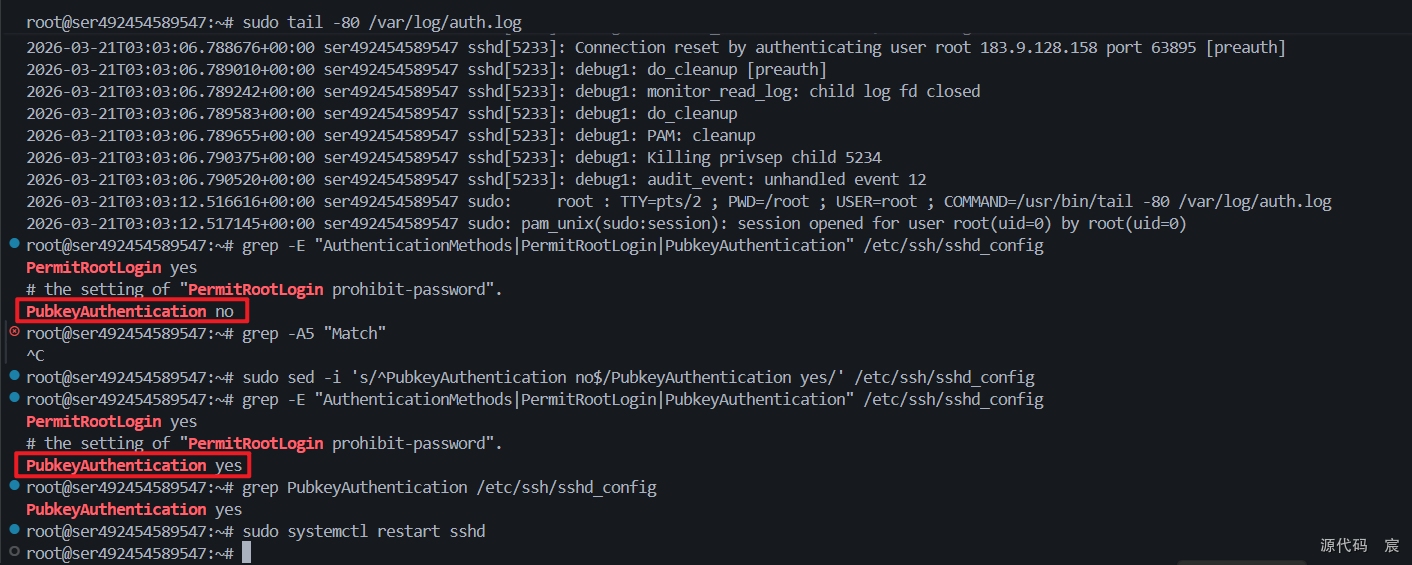
有的服务器比较狗,禁止公钥免密登录,你就需要打开!
root@ser492454589547:~# grep -E "AuthenticationMethods|PermitRootLogin|PubkeyAuthentication" /etc/ssh/sshd_config
PermitRootLogin yes
# the setting of "PermitRootLogin prohibit-password".
PubkeyAuthentication no
root@ser492454589547:~# grep -A5 "Match"
^C
root@ser492454589547:~# sudo sed -i 's/^PubkeyAuthentication no$/PubkeyAuthentication yes/' /etc/ssh/sshd_config
root@ser492454589547:~# grep -E "AuthenticationMethods|PermitRootLogin|PubkeyAuthentication" /etc/ssh/sshd_config
PermitRootLogin yes
# the setting of "PermitRootLogin prohibit-password".
PubkeyAuthentication yes
root@ser492454589547:~# grep PubkeyAuthentication /etc/ssh/sshd_config
PubkeyAuthentication yes
root@ser492454589547:~# sudo systemctl restart sshd
之后我会持续更新,如果喜欢我的文章,请记得一键三连哦,点赞关注收藏,你的每一个赞每一份关注每一次收藏都将是我前进路上的无限动力 !!!↖(▔▽▔)↗感谢支持!

腾讯云面向开发者汇聚海量精品云计算使用和开发经验,营造开放的云计算技术生态圈。
更多推荐
 7
7 0
0- 0


 已为社区贡献10条内容

所有评论(0)