在windows上的git bash中安装tree 和 linux tree命令使用
·
在windows上的git bash中安装tree 和 linux tree命令使用
文章目录:
1 在windows上的git bash中安装tree
1.1 下载windows版本的tree
下载地址:
http://gnuwin32.sourceforge.net/packages/tree.htm
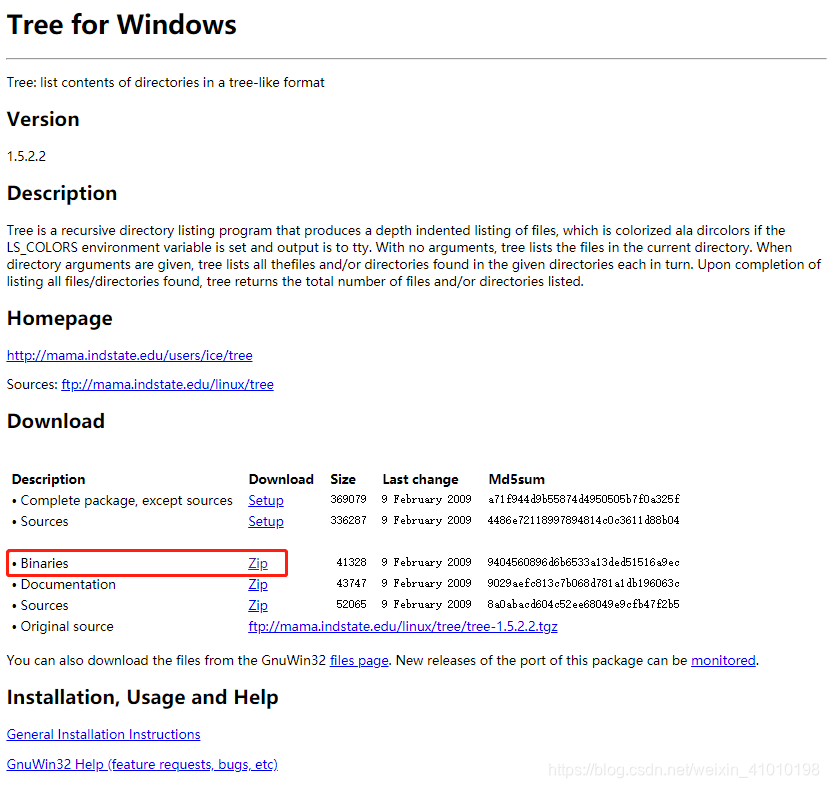
下载Binaries版本的即可
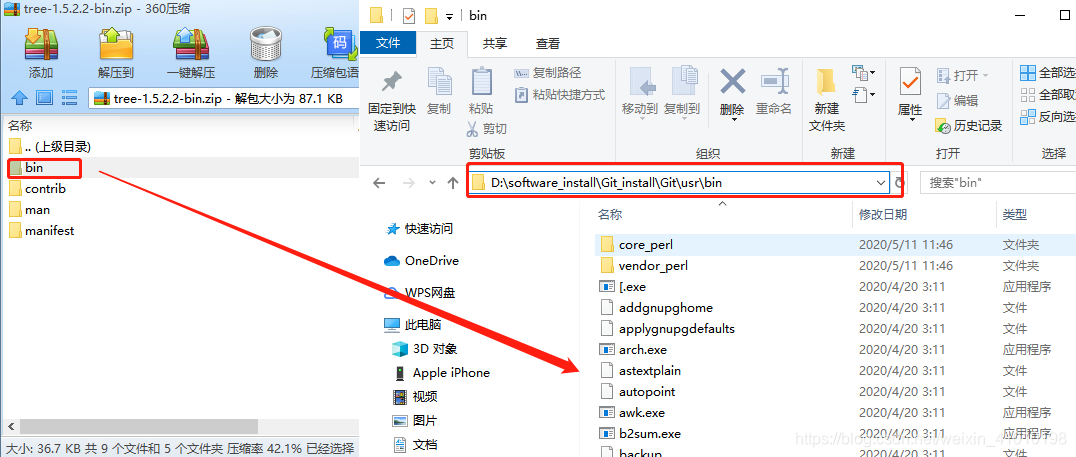
1.2 把可执行文件tree.exe放到git的安装目录下
tree-1.5.2.2-bin.zip解压之后,在bin目录下有一个tree.exe的可执行文件,把这个可执行文件复制粘贴到你git的安装目录:D:\software_install\Git_install\Git\usr\bin下即可(这是我的git安装目录仅供参考)
##1.2 在其他终端下使用tree
直接把解压的可执行文件tree.exe所在的`bin目录的绝对路径添加到系统的环境变量种即可:

2 tree 在linux下的使用
2.1 tree的命令
在windows下的git bash中可以通过tree --help查看有哪些常用的命令,主要命令如下:
$ tree --help
usage: tree [-adfghilnpqrstuvxACDFNS] [-H baseHREF] [-T title ] [-L level [-R]]
        [-P pattern] [-I pattern] [-o filename] [--version] [--help] [--inodes]
        [--device] [--noreport] [--nolinks] [--dirsfirst] [--charset charset]
        [--filelimit #] [<directory list>]
  -a            All files are listed.
  -d            List directories only.
  -l            Follow symbolic links like directories.
  -f            Print the full path prefix for each file.
  -i            Don't print indentation lines.
  -q            Print non-printable characters as '?'.
  -N            Print non-printable characters as is.
  -p            Print the protections for each file.
  -u            Displays file owner or UID number.
  -g            Displays file group owner or GID number.
  -s            Print the size in bytes of each file.
  -h            Print the size in a more human readable way.
  -D            Print the date of last modification.
  -F            Appends '/', '=', '*', or '|' as per ls -F.
  -v            Sort files alphanumerically by version.
  -r            Sort files in reverse alphanumeric order.
  -t            Sort files by last modification time.
  -x            Stay on current filesystem only.
  -L level      Descend only level directories deep.
  -A            Print ANSI lines graphic indentation lines.
  -S            Print with ASCII graphics indentation lines.
  -n            Turn colorization off always (-C overrides).
  -C            Turn colorization on always.
  -P pattern    List only those files that match the pattern given.
  -I pattern    Do not list files that match the given pattern.
  -H baseHREF   Prints out HTML format with baseHREF as top directory.
  -T string     Replace the default HTML title and H1 header with string.
  -R            Rerun tree when max dir level reached.
  -o file       Output to file instead of stdout.
  --inodes      Print inode number of each file.
  --device      Print device ID number to which each file belongs.
  --noreport    Turn off file/directory count at end of tree listing.
  --nolinks     Turn off hyperlinks in HTML output.
  --dirsfirst   List directories before files.
  --charset X   Use charset X for HTML and indentation line output.
  --filelimit # Do not descend dirs with more than # files in them.
2.2 tree的常用命令
2.2.1 tree不加参数,显示当前目录下的所有文件
zpp@estar-cvip:/HDD/$tree -d
- 会递归的显示所有的文件夹和文件
2.2.2 tree -d 会递归的显示所有目录
zpp@estar-cvip:/HDD/$tree -d
-d参数:会递归的显示所有的文件夹,但是不会显示文件
2.2.3 tree -L 1
zpp@estar-cvip:/HDD/$tree -L 1
-L参数:显示当前目录指定最大深度的目录结构
2.2.4 tree -f 递归的显示所有的目录和文件,以相对路径形式
zpp@estar-cvip:/HDD/$tree -f
-f参数:递归的显示所有的目录和文件,但是目录和文件都是以相对路径的形式显示的
2.2.5 tree -t 文件按修改的时间顺序进行排列
zpp@estar-cvip:/HDD/$tree -t
将上面的结果参数进行组合使用,可以很方便查看文件的目录结构
参考1https://blog.csdn.net/lwnylslwnyls/article/details/8211191
参考2https://blog.csdn.net/t3369/article/details/80517097
上面的方式可能只能查看目录,不能查看目录下的文件,windows命令行自带的有tree命令
1、通过help可以查看到该命令
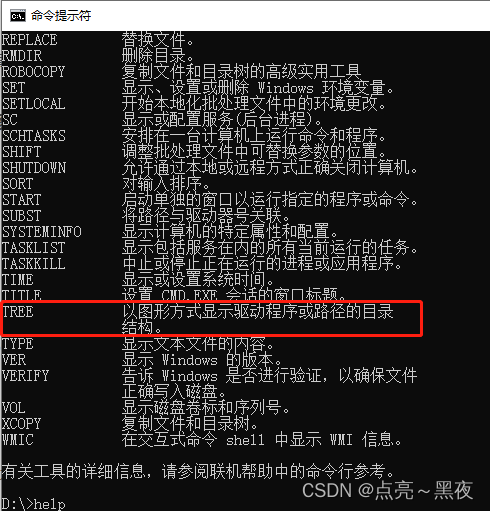
2、查看tree命令的参数
tree /?
D:\>tree /?
以图形显示驱动器或路径的文件夹结构。

TREE [drive:][path] [/F] [/A]

   /F   显示每个文件夹中文件的名称。
   /A   使用 ASCII 字符,而不使用扩展字符。


D:\>
可以看到只有两个参数,/F参数可以显示目录下的文件,如下:
D:\projectCPlus>tree
卷 软件 的文件夹 PATH 列表
卷序列号为 A7A9-5FF2
D:.
└─learn
    └─Project1
        └─Project1

D:\projectCPlus>tree /f
卷 软件 的文件夹 PATH 列表
卷序列号为 A7A9-5FF2
D:.
└─learn
    └─Project1
        │  Project1.sln
        │
        └─Project1
                Project1.vcxproj
                Project1.vcxproj.filters
                Project1.vcxproj.user


D:\projectCPlus>

腾讯云面向开发者汇聚海量精品云计算使用和开发经验,营造开放的云计算技术生态圈。
更多推荐
 6
6 0
0- 0


 已为社区贡献7条内容

所有评论(0)