Python数据可视化:往图表中添加文本就是这么简单
一图胜千言,使用Python的matplotlib库,可以快速创建高质量的图形。我们推出一个新的系列教程:Python数据可视化,针对初级和中级用户,将理论和示例代码相结合,使用matplotlib, seaborn, plotly等工具实现可视化。本文的主题是用Matplotlib往图表中添加文本。有时候我们希望向图表中添加文本,一些简单的描述能够突出重点,帮助读者理解图表的含义。Matplot
一图胜千言,使用Python的matplotlib库,可以快速创建高质量的图形。
我们推出一个新的系列教程:Python数据可视化,针对初级和中级用户,将理论和示例代码相结合,使用matplotlib, seaborn, plotly等工具实现可视化。
本文的主题是用Matplotlib往图表中添加文本。
有时候我们希望向图表中添加文本,一些简单的描述能够突出重点,帮助读者理解图表的含义。
Matplotlib提供两种添加文本的接口:
- ax.text
- ax.annotate
import os
import datetime as dt

import requests
import numpy as np
import pandas as pd
import matplotlib.pyplot as plt

%matplotlib inline

plt.style.use("ggplot")
1. 数据集
我们使用真实的数据集作为说明。
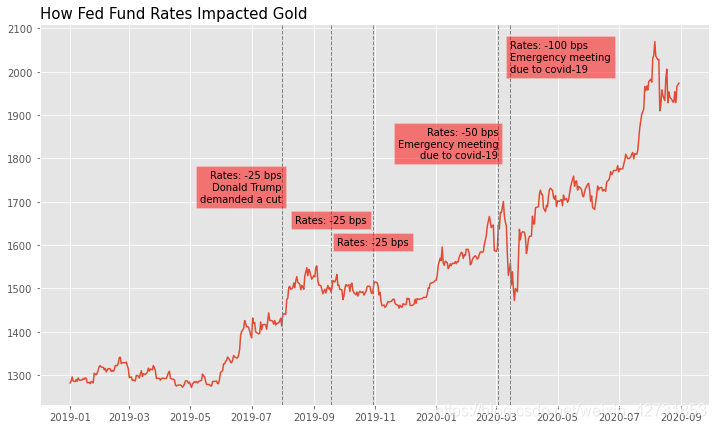
在金融分析中,有一种分析技巧被称为“事件分析(event analysis)”,评估政治经济事件对证券价格的影响。假设投资者想知道美联储利率决议对黄金的影响,最直观的方法就是在金价历史走势图上标注事件,观察价格在事件前后的变化。每个黄金投资者都知道,美联储的货币政策对黄金影响极大,因为利率会对投资,通胀预期和市场情绪等关键因素产生深远影响。
首先从蜂鸟数据获取黄金的历史数据,创建曲线图,然后在图上标注美联储利率决议的结果。
蜂鸟数据是国内领先的金融数据API提供商,提供沪深A股,港股,美股,期货,外汇和数字货币的实时报价和历史数据,详情参阅官方API文档。
2019年下半年至今美联储调整了5次基准利率:
- 2019年7月31号,降息25基点,美国总统特朗普对美联储施加压力要求降息
- 2019年9月18号,降息25基点
- 2019年10月30号,降息25基点
- 2020年3月3号,降息50基点,召开紧急利率决议应对新冠疫情
- 2020年3月15号,降息100基点,作为对新冠疫情恶化的回应
# 从蜂鸟数据获取黄金历史价格
url = "https://api.trochil.cn/v1/forex/history"
params = {
    "symbol": "XAUUSD",
    "start_date": "2019-01-01",
    "end_date": "2020-08-30",
    "apikey": os.getenv("TROCHIL_API")   # 使用您的API密钥
}

resp = requests.get(url, params)

gold = pd.DataFrame.from_records(resp.json()["data"])
gold["datetime"] = pd.to_datetime(gold["datetime"])
gold.set_index("datetime", inplace=True)

gold.head()
| open | high | low | close | symbol | |
|---|---|---|---|---|---|
| datetime | |||||
| 2019-01-01 | 1282.805 | 1282.855 | 1280.975 | 1281.485 | xauusd |
| 2019-01-02 | 1281.465 | 1290.372 | 1278.942 | 1286.185 | xauusd |
| 2019-01-03 | 1286.155 | 1295.525 | 1284.795 | 1295.425 | xauusd |
| 2019-01-04 | 1295.455 | 1298.765 | 1276.822 | 1285.675 | xauusd |
| 2019-01-06 | 1285.802 | 1286.695 | 1284.352 | 1284.465 | xauusd |
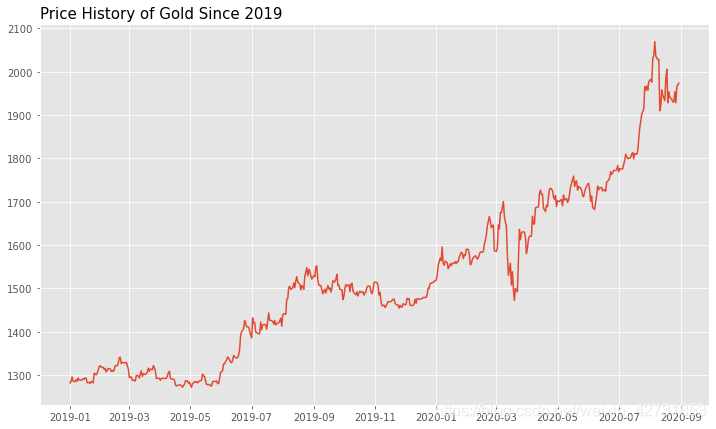
创建曲线图,查看2019年以来的价格变化。
fig, ax = plt.subplots(figsize=(12, 7))
ax.plot(gold.index, gold.close)
ax.set_title("Price History of Gold Since 2019", fontsize=15, loc="left")
2. 利用ax.text添加文本
接口: a x . t e x t ( x , y , s , ∗ , c o l o r , s i z e , h a , v a , r o t a t i o n , b b o x , s t y l e ) ax.text(x, y, s, *, color, size, ha, va, rotation, bbox, style) ax.text(x,y,s,∗,color,size,ha,va,rotation,bbox,style)
‘x’,‘y’,'s’是必要参数,分别定义文本的坐标和内容。其余参数是可选参数,通过关键字参数传递,这里列举了一些常用的参数。
ax.text创建mpl.text.Text对象,上面可选参数都是构造Text对象的属性,如果要深度调整Text对象的样式,参阅官方文档。
- x: 文本的x轴坐标
- y: 文本的y轴坐标
- s: 要添加的文本,长字符串可用’\n’分行
- color: 文本颜色
- size: 文本大小
- ha or horizontalalignment: 水平对齐,‘center’, ‘right’, ‘left’
- va or verticalalignment: 垂直对齐,‘center’, ‘top’, ‘bottom’, ‘baseline’
- rotation: 文本旋转角度,可以是代表角度的整数,也可以是字符串:‘vertical’, ‘horizontal’
- bbox: 是否将文本放置于文本框内,需要提供一个定义文本框样式的字典
- style: 字体样式,‘normal’, ‘italic’, ‘oblique’
fig, ax = plt.subplots(figsize=(12, 7))
ax.plot(gold.index, gold.close)

# 创建文本框,将文本置于文本框内
bbox = {"facecolor": "red", "alpha": 0.5}

# 所有文本使用统一的样式
styles = {"size": 10, "color": "black", "bbox": bbox}

x1, y1 = dt.datetime(2019, 7, 31), 1700
text1 = "Rates: -25 bps\nDonald Trump\ndemanded a cut"
ax.axvline(x1, color="gray", linestyle="dashed", linewidth=1.0)
ax.text(x1, y1, text1, ha="right", **styles)

x2, y2 = dt.datetime(2019, 9, 18), 1650
text2 = "Rates: -25 bps"
ax.axvline(x2, color="gray", linestyle="dashed", linewidth=1.0)
ax.text(x2, y2, text2, ha="center", **styles)

x3, y3 = dt.datetime(2019, 10, 30), 1600
text3 = "Rates: -25 bps"
ax.axvline(x3, color="gray", linestyle="dashed", linewidth=1.0)
ax.text(x3, y3, text3, ha="center", **styles)

x4, y4 = dt.datetime(2020, 3, 3), 1800
text4 = "Rates: -50 bps\nEmergency meeting\ndue to covid-19"
ax.axvline(x4, color="gray", linestyle="dashed", linewidth=1.0)
ax.text(x4, y4, text4, ha="right", **styles)

x5, y5 = dt.datetime(2020, 3, 15), 2000
text5 = "Rates: -100 bps\nEmergency meeting\ndue to covid-19"
ax.axvline(x5, color="gray", linestyle="dashed", linewidth=1.0)
ax.text(x5, y5, text5, ha="left", **styles)

ax.set_title("How Fed Fund Rates Impacted Gold", loc="left", fontsize=15)
3. 利用ax.annotate添加文本
Matplotlib提供了一个更加强大的接口,能够同时添加文本和箭头,实现更美观的可视化效果。
接口: a x . a n n o t a t e ( t e x t , x y , x y t e x t , x y c o o r d s , t e x t c o o r d s , a r r o w p r o p s , ∗ ∗ k w a r g s ) ax.annotate(text, xy, xytext, xycoords, textcoords, arrowprops, **kwargs) ax.annotate(text,xy,xytext,xycoords,textcoords,arrowprops,∗∗kwargs)
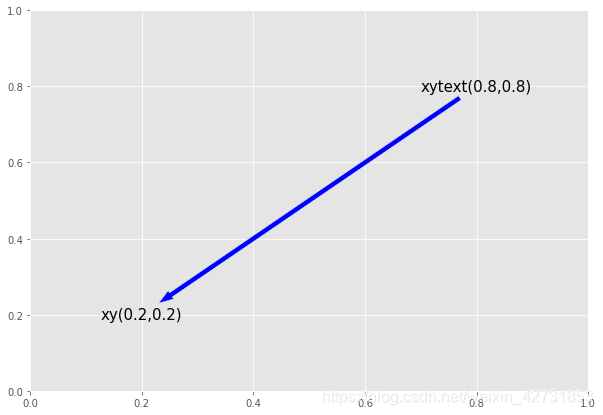
理解ax.annotate的关键在于,它会创建两个点:xy和xytext,xy是标注点的坐标,xytext是文本的坐标,中间有一个箭头从xytext指向xy。在最简单的情况下,只需要提供text和xy,往图表中添加文本,效果跟ax.text相同。如果要添加箭头,则需要同时指定两个点的坐标,以及箭头的样式。
- text: 文本
- xy: 包含两个浮点值的元组,表示要标注的坐标,如果添加箭头,代表箭头指向的位置
- xytext: 包含两个浮点值的元组,表示文本的坐标,默认等于xy, 在最简单的情况下不需要定义,如果要添加箭头,则必须定义xytext并区别于xy, 箭头从坐标(xytext)指向坐标(xy)
- xycoords: xy使用的坐标系统,默认值’data’,即使用跟映射数据相同尺度的坐标体系
- textcoords: xytext使用的坐标系统,如果不使用箭头,使用默认值即可,如果要添加箭头,建议设置为’offset points’,那么xytext就表示相对xy的位移,方便我们调整文本的位置
- arrowprops: 添加箭头,需要提供一个字典
- kwargs: 传递给mpl.text.Text的关键字参数,跟ax.text类似,ax.annotate也会创建mpl.text.Text对象,关键字参数用于定义文本的样式
先看一个简单的案例。
fig, ax = plt.subplots(figsize=(10, 7))

styles = dict(ha="center", va="center", color="black", size=15)
ax.annotate(s="xytext(0.8,0.8)", xy=(0.8, 0.8), **styles)
ax.annotate(s="xy(0.2,0.2)", xy=(0.2, 0.2), **styles)

# 如果要创建箭头,需要提供一个字典,传递给ax.annotate的参数arrowprops
# Matplotlib会根据字典的内容创建FancyArrowPatch对象
# 如果只需要创建简单的箭头,不需要使用'arrowstyle'字段,该字段用于创建复杂箭头
# 有几个常用参数可以定制简单箭头的样式,如下所示
arrowprops = {
    "facecolor": "blue",  # 箭头颜色
    "width": 5.0,  # 箭头宽度
    "headwidth": 10.0,  # 箭头头部的宽度
    "headlength": 15.0,  # 箭头头部的长度
    "shrink": 0.05  # 箭头从两端收缩的比例,避免或文本重叠
}

ax.annotate(
    s="",
    xy=(0.2, 0.2),
    xytext=(0.8, 0.8),
    xycoords="data",
    textcoords="data",
    arrowprops=arrowprops
)
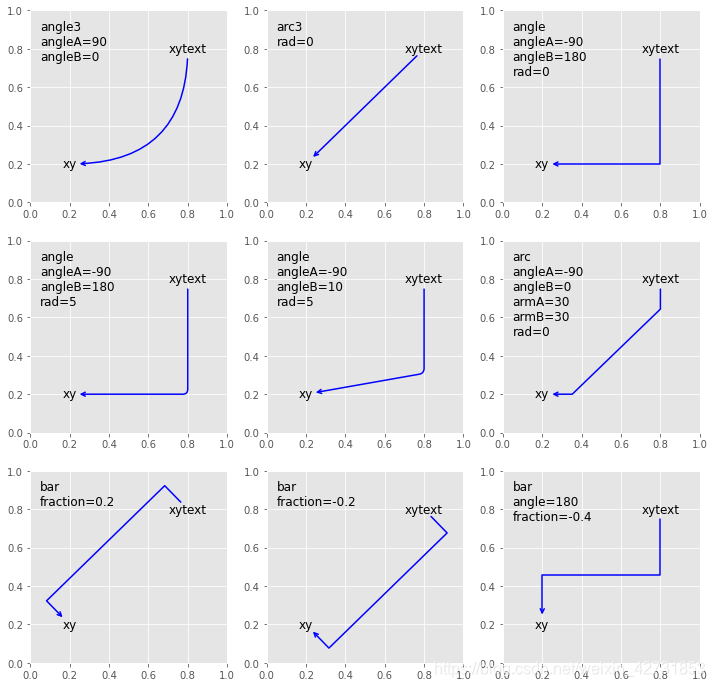
Matplotlib允许创建复杂的箭头,包括调整箭头的形状。
要实现这一点,需要往变量arrowprops中添加’arrowstyle’和’connectionstyle’字段,前者控制箭头的样式,后者控制连接的形状。
由于arrowstyle提前定义了箭头的样式,如果要进一步调整箭头的颜色和宽度等属性,则必须使用跟上面案列不同的字段。
关于’arrowstyle’和’connectionstyle’的细节,参阅官方文档:
def plot_arrow(ax, arrowstyle, connectionstyle, **kwargs):
    styles = dict(ha="center", va="center", color="black", size=12)
    ax.annotate(s="xytext", xy=(0.8, 0.8), **styles)
    ax.annotate(s="xy", xy=(0.2, 0.2), **styles)

    desc = connectionstyle.replace(",", "\n")
    ax.annotate(desc, (0.05, 0.95), ha="left", va="top", size=12)

    arrowprops = {
        "arrowstyle": arrowstyle,
        "connectionstyle": connectionstyle
    }
    if kwargs:
        arrowprops.update(kwargs)

    ax.annotate(
        s="",
        xy=(0.2, 0.2),
        xytext=(0.8, 0.8),
        xycoords="data",
        textcoords="data",
        arrowprops=arrowprops
    )

fig, axes = plt.subplots(ncols=3, nrows=3, figsize=(12, 12))
axes = axes.flatten()

# 在定义了'arrowstyle'的情况下进一步调整箭头的样式
# 注意参数和没有定义'arrowstyle'的情况下不同
styles = {
    "color": "blue",  # 箭头颜色
    "shrinkA": 10,  # 箭头从A点收缩
    "shrinkB": 10,  # 箭头从B点收缩
    "linewidth": 1.5  # 箭头大小
}

# arrowstyle有很多选择:例如'->', '<->', 'simple', 'fancy',具体参见官方文档
# connectionstyle用于控制箭头的形状,这里列举几种常见的组合,具体参见官方文档
plot_arrow(axes[0], "->", "angle3,angleA=90,angleB=0", **styles)
plot_arrow(axes[1], "->", "arc3,rad=0", **styles)
plot_arrow(axes[2], "->", "angle,angleA=-90,angleB=180,rad=0", **styles)
plot_arrow(axes[3], "->", "angle,angleA=-90,angleB=180,rad=5", **styles)
plot_arrow(axes[4], "->", "angle,angleA=-90,angleB=10,rad=5", **styles)
plot_arrow(axes[5], "->", "arc,angleA=-90,angleB=0,armA=30,armB=30,rad=0", **styles)
plot_arrow(axes[6], "->", "bar,fraction=0.2", **styles)
plot_arrow(axes[7], "->", "bar,fraction=-0.2", **styles)
plot_arrow(axes[8], "->", "bar,angle=180,fraction=-0.4", **styles)
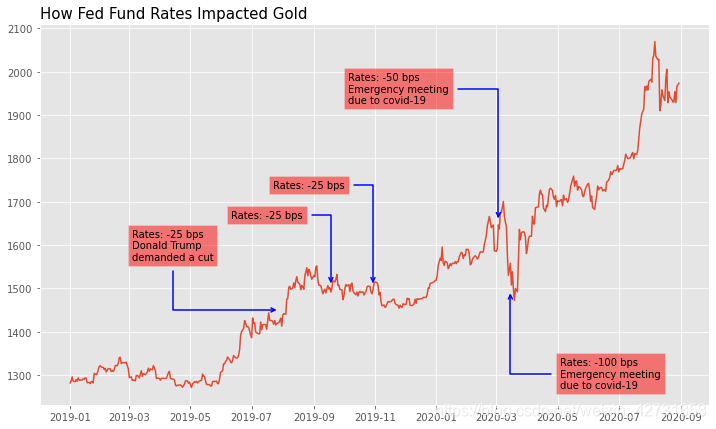
回到真实的案例,先添加文本,然后用不同的箭头指向对应的时间点。
fig, ax = plt.subplots(figsize=(12, 7))

ax.plot(gold.index, gold.close)

# 文本使用统一的样式
styles = {
    "size": 10,
    "color": "black",
    "bbox": {
        "facecolor": "red",
        "alpha": 0.5
    }
}

# 箭头使用统一的样式
arrowprops = {
    "arrowstyle": "->",
    "color": "blue",
    "shrinkA": 5,
    "shrinkB": 5,
    "linewidth": 1.5
}

xy1 = dt.datetime(2019, 7, 31), 1450
s1 = "Rates: -25 bps\nDonald Trump\ndemanded a cut"
arrowprops.update({"connectionstyle": "angle,angleA=-90,angleB=180,rad=0"})
ax.annotate(
    s=s1,  # 文本
    xy=xy1,  # 箭头指向的坐标
    xytext=(-150, 50),  # 文本坐标,相对(xy)的位移
    xycoords="data",  # xy使用的坐标系统,'data'表示跟映射数据相同尺度的原始坐标系统
    textcoords="offset points",  # xytext使用的坐标系统,'offset points'表示xy的相对位移
    arrowprops=arrowprops,  # 箭头
    **styles  # 文本样式
)

xy2 = dt.datetime(2019, 9, 18), 1500
s2 = "Rates: -25 bps"
arrowprops.update({"connectionstyle": "angle,angleA=0,angleB=90,rad=0"})
ax.annotate(s=s2, xy=xy2, xytext=(-100, 70), xycoords="data", textcoords="offset points", arrowprops=arrowprops, **styles)

xy3 = dt.datetime(2019, 10, 30), 1500
s3 = "Rates: -25 bps"
arrowprops.update({"connectionstyle": "angle,angleA=0,angleB=90,rad=0"})
ax.annotate(s=s3, xy=xy3, xytext=(-100, 100), xycoords="data", textcoords="offset points", arrowprops=arrowprops, **styles)

xy4 = dt.datetime(2020, 3, 3), 1650
s4 = "Rates: -50 bps\nEmergency meeting\ndue to covid-19"
arrowprops.update({"connectionstyle": "angle,angleA=0,angleB=90,rad=0"})
ax.annotate(s=s4, xy=xy4, xytext=(-150, 120), xycoords="data", textcoords="offset points", arrowprops=arrowprops, **styles)

xy5 = dt.datetime(2020, 3, 15), 1500
s5 = "Rates: -100 bps\nEmergency meeting\ndue to covid-19"
arrowprops.update({"connectionstyle": "angle,angleA=180,angleB=90,rad=0"})
ax.annotate(s=s5, xy=xy5, xytext=(50, -100), xycoords="data", textcoords="offset points", arrowprops=arrowprops, **styles)

ax.set_title("How Fed Fund Rates Impacted Gold", loc="left", fontsize=15)
如果喜欢我们的文章,记得点赞和收藏哦,我们每天都会为大家带来Python,数据科学和量化交易的精品内容。
【关于我们】
蜂鸟数据:国内领先的金融数据API提供商。
蜂鸟数据团队由业界顶尖的数据工程师,数据科学家和宽客组成,我们正努力构建一个强大的金融数据库,并提供API接口,目标是令金融数据开源化和平民化。
浏览并测试我们接口吧,目前覆盖股票,外汇,商品期货,数字货币和宏观经济领域,包括实时报价(tick)和历史数据(分钟),提供REST API和Websocket两种接入方式,能够满足金融分析师,量化交易和理财app的需求。
如果您准备好了,请登录蜂鸟官网,注册免费获取API密钥,然后开始探索我们的金融数据库吧。

腾讯云面向开发者汇聚海量精品云计算使用和开发经验,营造开放的云计算技术生态圈。
更多推荐
 3
3 0
0- 0


 已为社区贡献1条内容

所有评论(0)