

react动画
In the previous blog post, we covered all of the changes to the APIs related to going edge-to-edge:
在上一篇博客文章中,我们介绍了与边缘到边缘相关的所有API更改:
In this blog post we move forward on with the actual task of animating the keyboard. To demonstrate what is possible, here you can see an example of the same app, running on Android 10 on the left, and Android 11 on the right (at 20% speed):
在此博客文章中,我们将继续进行动画键盘的实际任务。 为了演示可能的方法,在这里您可以看到同一应用的示例,该应用在左侧的Android 10上运行,在右侧的Android 11上运行(速度为20%):
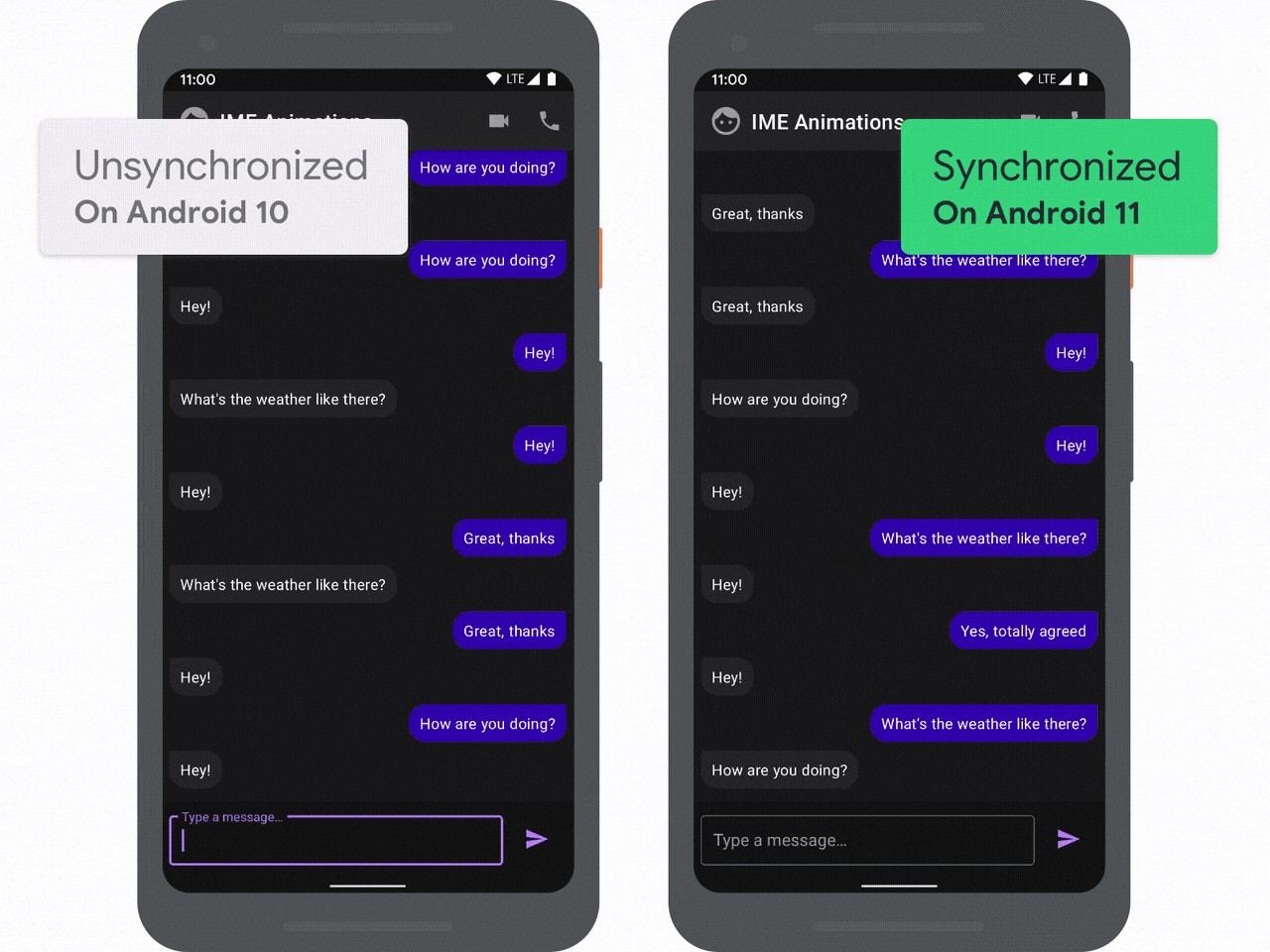
On devices running Android 10 and before, when the user clicks on the text input to type a reply, the keyboard animates into place, but the app snaps between the states. This is the behaviour you’ve seen on your devices for a while, it’s just easier to see at 20% speed.
在运行Android 10及更低版本的设备上,当用户单击输入的文本以键入回复时,键盘会自动设置动画,但是应用会在状态之间切换。 这是您一段时间以来在设备上看到的行为,以20%的速度查看更容易。
On the right you can see the same scenario running on Android 11. This time when the user clicks on the text input, the app moves with the keyboard, creating a more seamless experience.
在右侧,您可以看到在Android 11上运行的相同场景。 这次,当用户单击文本输入时,应用程序随键盘一起移动,从而创建了更加无缝的体验。
So how can you add this experience to your app? Well it’s all powered by some new APIs…
那么如何将这种体验添加到您的应用程序中呢? 好吧,这一切都由一些新的API提供支持…
WindowInsetsAnimation (WindowInsetsAnimation)
The API which powers this in Android 11 is the new WindowInsetsAnimation class, which encapsulates an animation involving insets. Apps can listen to animation events through the WindowInsetsAnimation.Callback class, which can be set on a view:
Android 11中支持此功能的API是新的WindowInsetsAnimation类,该类封装了包含插图的动画。 应用程序可以通过WindowInsetsAnimation.Callback类收听动画事件,可以在视图上进行设置:
val cb = object : WindowInsetsAnimation.Callback(DISPATCH_MODE_STOP) {
    // TODO
}


view.setWindowInsetsAnimationCallback(cb)
So let’s just a look at the callback class, and the functions it provides:
因此,让我们看一下回调类及其提供的功能:
Imagine that the keyboard is currently closed, and the user has just clicked on an EditText. The system is now about to start showing the keyboard, and since we have a WindowInsetsAnimation.Callback set, we’ll receive the following calls in order:
想象一下,键盘当前处于关闭状态,并且用户刚刚单击了EditText 。 系统现在即将开始显示键盘,并且由于我们设置了WindowInsetsAnimation.Callback ,因此WindowInsetsAnimation.Callback顺序接收以下调用:
val cb = object : WindowInsetsAnimation.Callback(DISPATCH_MODE_STOP) {


    override fun onPrepare(animation: WindowInsetsAnimation) {
        // #1: First up, onPrepare is called which allows apps to record any
        // view state from the current layout
    }

    // #2: After onPrepare, the normal WindowInsets will be dispatched to
    // the view hierarchy, containing the end state. This means that your
    // view's OnApplyWindowInsetsListener will be called, which will cause
    // a layout pass to reflect the end state.


    override fun onStart(
        animation: WindowInsetsAnimation,
        bounds: WindowInsetsAnimation.Bounds
    ):  WindowInsetsAnimation.Bounds {
        // #3: Next up is onStart, which is called at the start of the animation.
        // This allows apps to record the view state of the target or end state.
        return bounds
    }


    override fun onProgress(
      insets: WindowInsets,
      runningAnimations: List<WindowInsetsAnimation>
    ): WindowInsets {
        // #4: Next up is the important call: onProgress. This is called every time
        // the insets change in the animation. In the case of the keyboard, which
        // would be as it slides on screen.
        return insets
    }


    override fun onEnd (animation: WindowInsetsAnimation) {
        // #5: And finally onEnd is called when the animation has finished. Use this
        // to clear up any old state.
    }
}
So that’s how the callback works in theory, now let’s apply it to a scenario…
因此,从理论上讲,这就是回调的工作方式,现在让我们将其应用于场景中……
实施示例 (Implementing the example)
We’re going to use WindowInsetsAnimation.Callback to implement the example which you saw at the beginning of this blog post. So lets start implementing our callback:
我们将使用WindowInsetsAnimation.Callback来实现您在本博文开头看到的示例。 因此,让我们开始实现我们的回调:
onPrepare() (onPrepare())
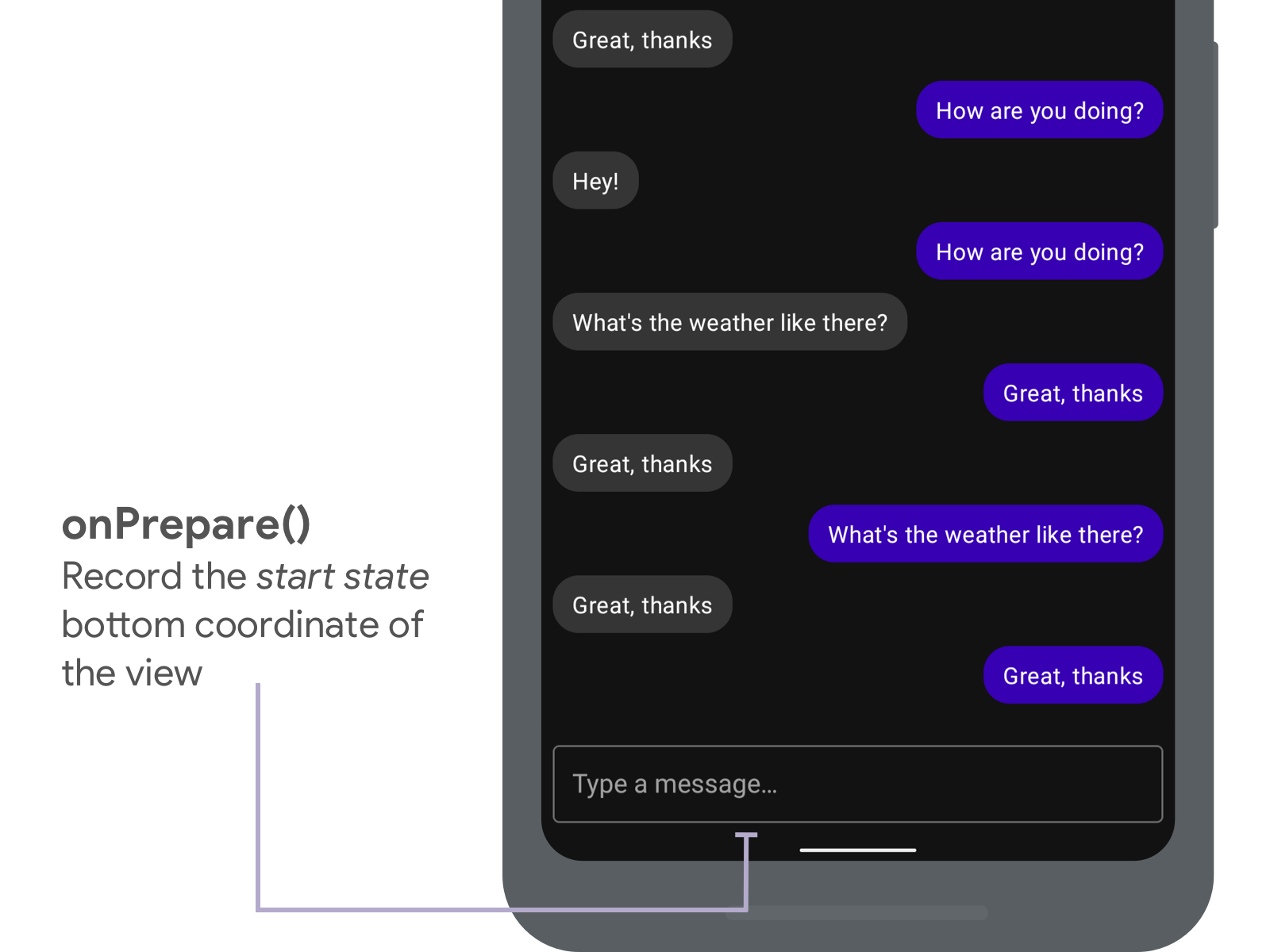
First we’ll override onPrepare(), and record the bottom coordinate of the view, before any layout changes have happened:
首先,我们将重写onPrepare() ,并在发生任何布局更改之前记录视图的底部坐标 :
val view = binding.conversationList


val cb = object : WindowInsetsAnimation.Callback(DISPATCH_MODE_STOP) {
    var startBottom = 0
    var endBottom = 0


    override fun onPrepare(animation: WindowInsetsAnimation) {
        // #1: First up, onPrepare is called which allows apps to record any
        // view state from the current layout. We record the bottom of the view
        // in the window
        startBottom = view.calculateBottomInWindow()
    }
}
插页调度 (Insets dispatch)
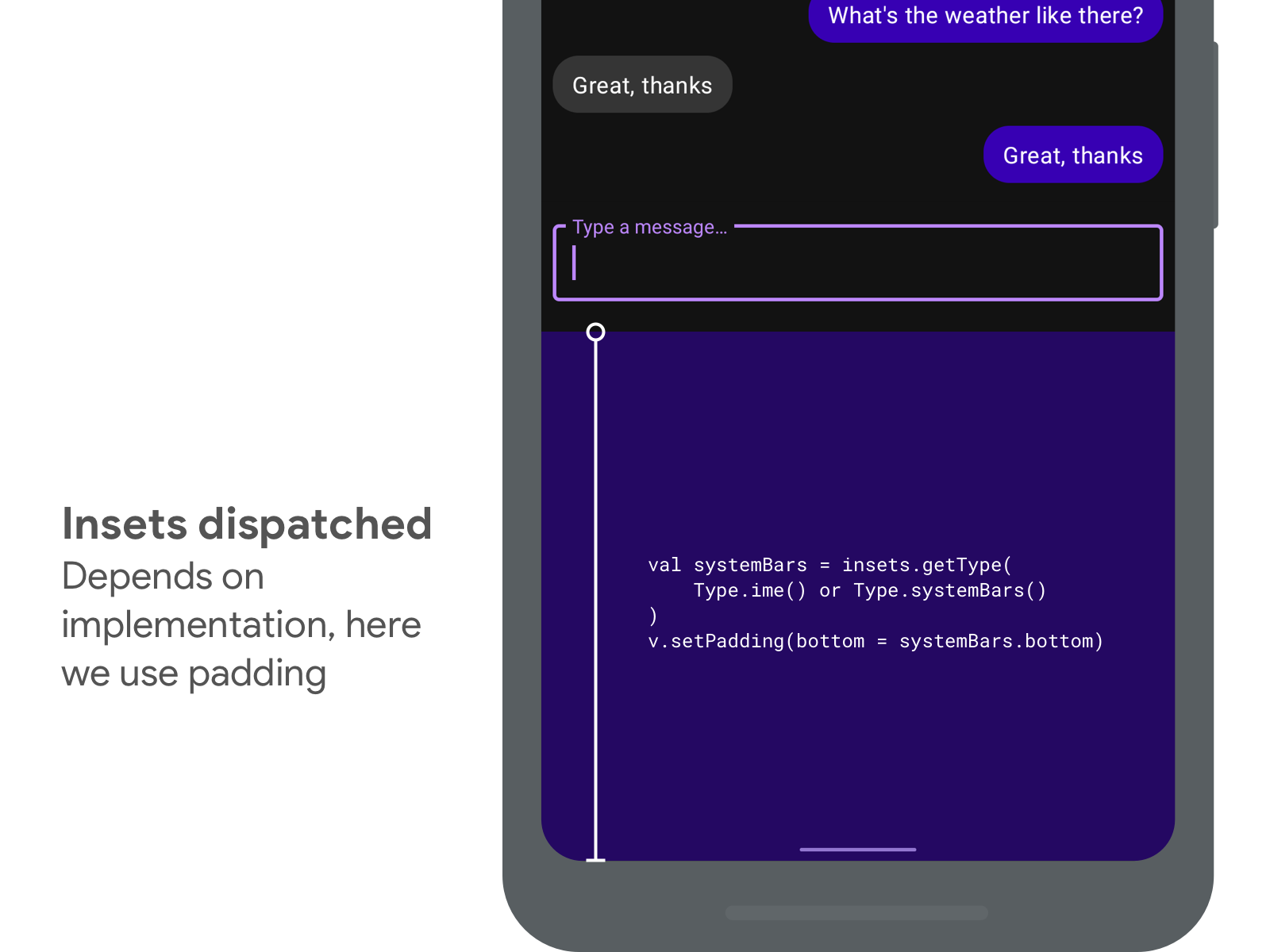
At this point, the end-state insets will be dispatched, and our OnApplyWindowInsetsListener called. Our listener updates the padding of the container view, which results in the content being pushed up.
此时,将调度最终状态插入,并调用我们的OnApplyWindowInsetsListener 。 我们的监听器会更新容器视图的填充,从而导致内容被上推。
The user never sees this though as we’ll see below.
用户将永远不会看到它,如下所示。
onStart() (onStart())
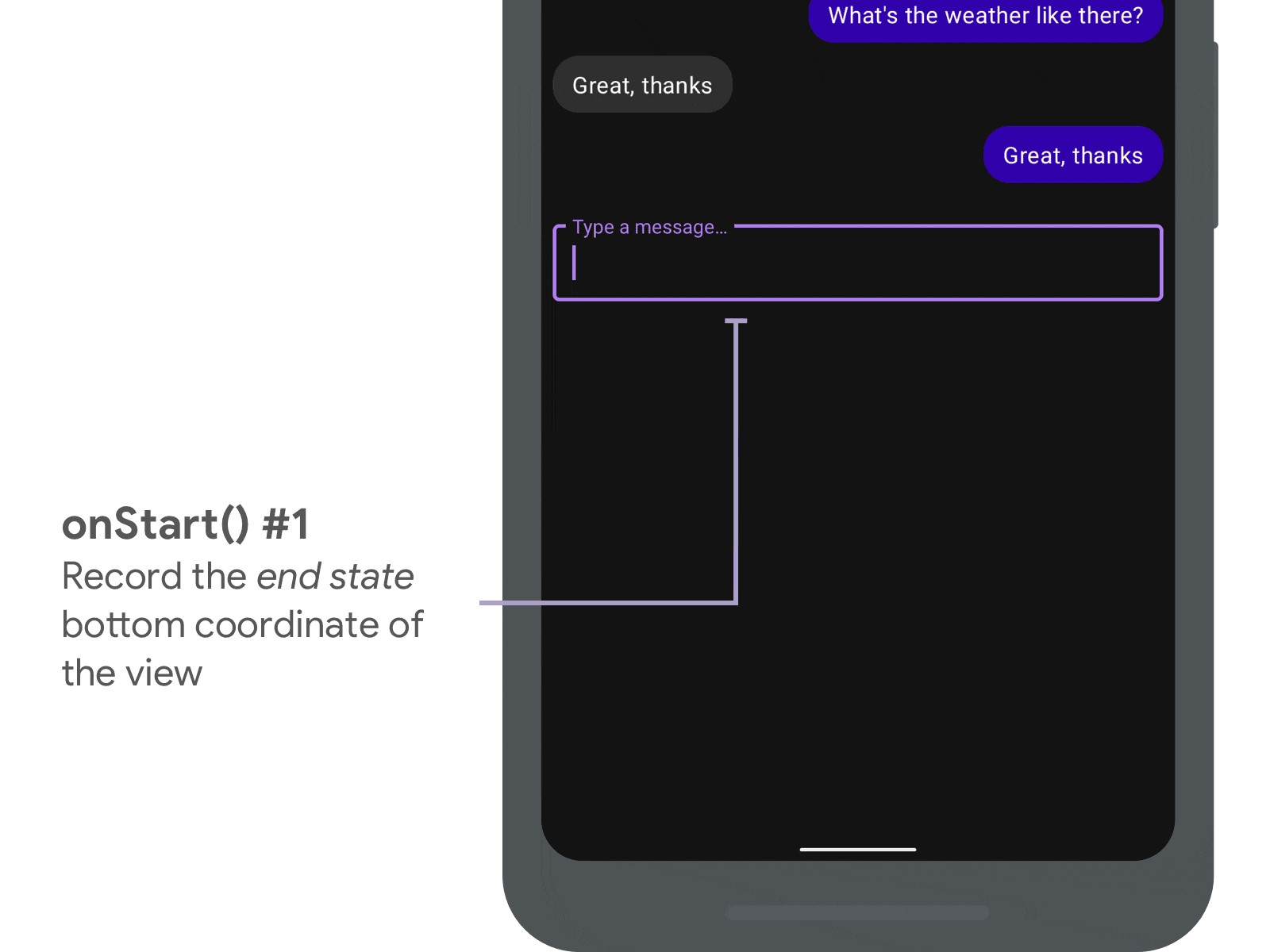
Next we have our onStart() function, which first allows us to record the end position of the view.
接下来,我们有onStart()函数,该函数首先允许我们记录视图的结束位置。
We also visually shift the view back down to its original position using translationY, as we don’t want the user to see the end state right now. The user doesn’t see a flicker, as the system guarantees that any layout triggered from the inset pass above is called in the same frame as onStart().
我们还可以使用translationY直观地将视图移回其原始位置,因为我们不希望用户现在看到结束状态。 用户看不到闪烁,因为系统保证从上述插入过程触发的任何布局都在与onStart()相同的帧中onStart() 。
val view = binding.conversationList


val cb = object : WindowInsetsAnimation.Callback(DISPATCH_MODE_STOP) {
    var startBottom = 0
    var endBottom = 0


    override fun onStart(
        animation: WindowInsetsAnimation,
        bounds: WindowInsetsAnimation.Bounds
    ):  WindowInsetsAnimation.Bounds {
        // #3: Next up is onStart, which is called at the start of the animation.

        // We record the bottom of the view within the window
        endBottom = view.calculateBottomInWindow()

        // And then we translate the view back down, so it is visually
        // in the start position
        view.translationY = startBottom - endBottom

        // We don't alter the bounds so just pass the value given to us
        return bounds
    }
}
onProgress() (onProgress())
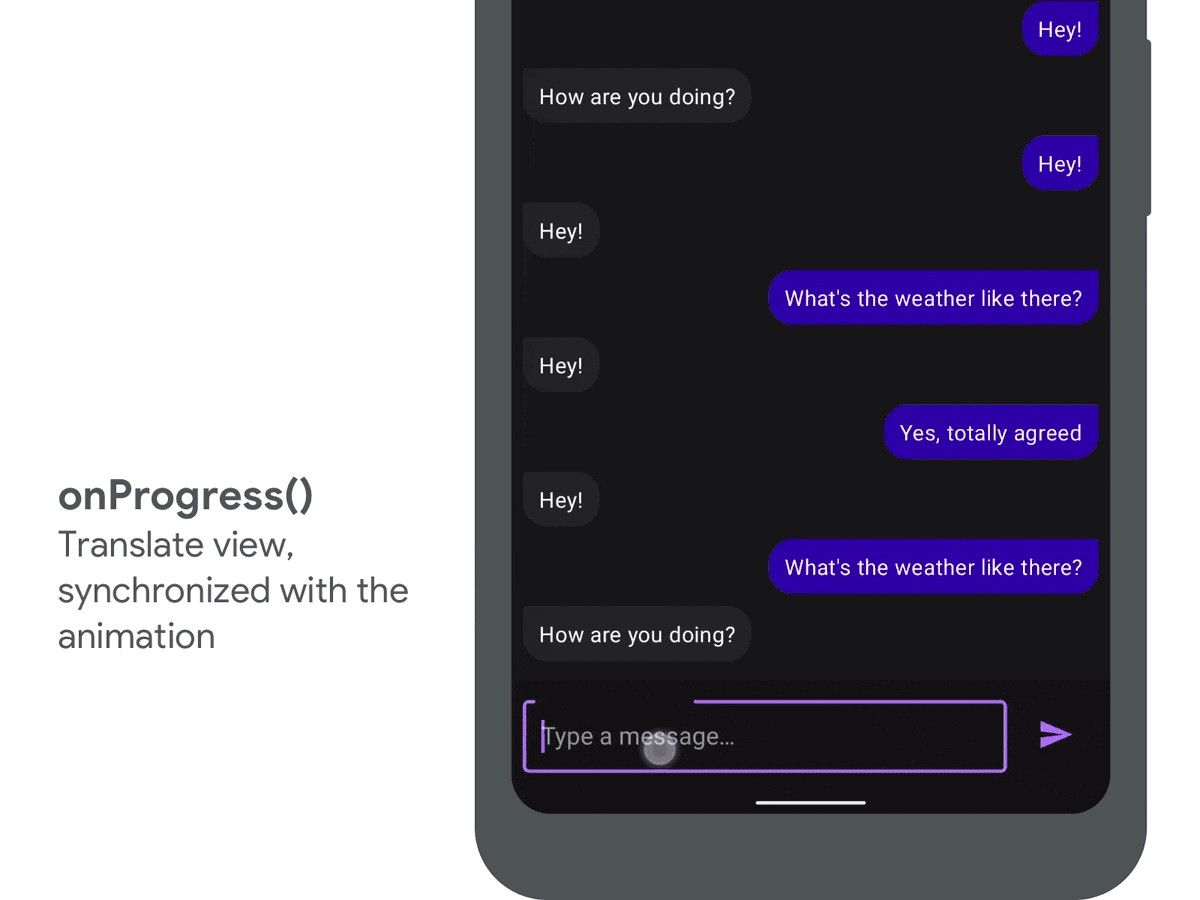
Finally we override onProgress() which allows us to update our view as the keyboard slides in.
最后,我们重写onProgress() ,它允许我们在键盘滑入时更新视图。
We use translationY again, interpolating between the start and end states to move the view in unison with the keyboard.
我们再次使用translationY ,在开始状态和结束状态之间进行插补,以与键盘一致地移动视图。
val view = binding.conversationList


val cb = object : WindowInsetsAnimation.Callback(DISPATCH_MODE_STOP) {
    var startBottom = 0
    var endBottom = 0


    override fun onProgress(
      insets: WindowInsets,
      runningAnimations: List<WindowInsetsAnimation>
    ): WindowInsets {
        // #4: Next up is the important call: onProgress. This is called every time
        // the insets change in the animation.

        // We calculate the the offset for our view by linearly interpolating from
        // the start position, to the end position, using the animation's fraction
        val offset = lerp(
            startBottom - endBottom,
            0,
            animation.interpolatedFraction
        )
        // ...which we then set using translationY
        view.translationY = offset


        return insets
    }
}
键盘协同 (Keyboard synergy)
And with that, we have achieved synchronization between the keyboard and the app’s views. If you would like to see a fully implementation, check out the WindowInsetsAnimation sample:
这样,我们就实现了键盘和应用程序视图之间的同步。 如果您希望看到完整的实现,请查看WindowInsetsAnimation示例:
Let us know on Twitter or the comments below if you add this to your app, and how you found it!
如果您将此添加到您的应用程序中,以及如何找到它,请在Twitter或下面的评论中告诉我们!
In the next blog post we will explore how your apps can control the keyboard, allowing things like list scrolling to automatically open the keyboard. Stay tuned!
在下一篇博客文章中,我们将探讨您的应用程序如何控制键盘,允许列表滚动之类的操作自动打开键盘。 敬请关注!
查看剪裁 (View clipping)
If you try and implement this in your own views you may find that the techniques we talked about in this blog post can lead to view’s being clipped as they are animated. This is because we are translating views which may have been resized through the layout changes from your OnApplyWindowInsetsListener.
如果您尝试在自己的视图中实现此功能,则可能会发现我们在本博文中讨论的技术可能会导致视图被动画化时被裁剪。 这是因为我们正在翻译可能已通过OnApplyWindowInsetsListener的布局更改来调整大小的OnApplyWindowInsetsListener 。
We will explore in a future blog post how to combat this, but for now I recommend looking through the WindowInsetsAnimation sample, which contains one technique to avoid it.
我们将在以后的博客文章中探讨如何解决此问题,但是现在我建议您浏览WindowInsetsAnimation示例,该示例包含一种避免这种情况的技术。
react动画


 已为社区贡献1条内容

所有评论(0)