云服务器配置hugo——生成个人静态博客网站(一)
·
其实很久之前自己配置成功过一次,但是由于当时没有做好记录,导致现在已经忘记了当初是如何做到的。其实大致的思路还是记得,只是具体的实现细节比如代码命令这些东西现在是忘得差不多了。
然后最近配置了云服务器,选择了Debian系统,然后想要着手继续搞静态网页。只是已经忘记了当时到底是怎么做到的。所以现在只能是重新开始了。
将所有的代码命令整理如下,以便读者翻阅查找:
#(一)首先开始安装hugo的软件
#1.尝试直接安装hugo软件,比如
apt install hugo
yum install hugo
#但是大多数情况下会失败
#2.直接使用源码尝试
mkdir hugo
cd hugo
mkdir bin
git clone https://github.com/gohugoio/hugo.git
#这是创建文件目录,然后在指定的地方下载hugo源码,等待下载完成
主要参考网址为: Install Hugo | Hugo (gohugo.io)
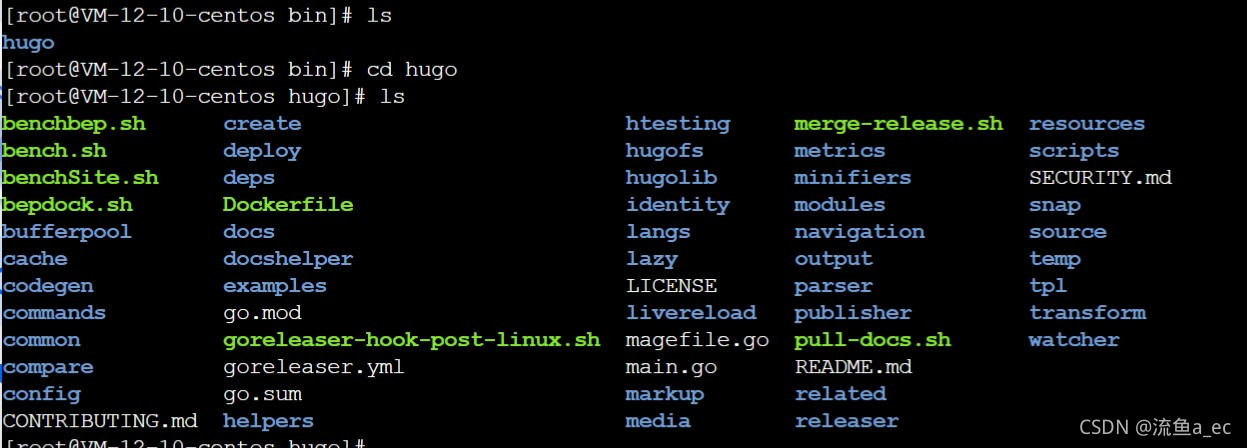
#下载完成之后,进入所下载的目录
cd hugo
#最后一步是安装,由于hugo是使用go语言创建的,因此,使用
go install --tags-extended
#其中--tags-extended是为了启用Sass/SCSS服务。此处暂不讨论。
#但是之后出现了问题,就是go install 出现了无响应的情况,也就是服务器根本不响应
#最后出现报错代码如下:
go: github.com/BurntSushi/locker@v0.0.0-20171006230638-a6e239ea1c69: Get "https://proxy.golang.org/g
ithub.com/%21burnt%21sushi/locker/@v/v0.0.0-20171006230638-a6e239ea1c69.mod": dial tcp 142.251.43.17
:443: i/o timeout
#原因是go试图连接一个无法给出回应的网站,然后超时了。
#经过在网上的查找,结合对系统配置的研究
go env
#其中出现了一个网址,在上面报错的时候也出现过,也就是https://proxy.golang.org,因为在国内无法访问外网
go env -w GOPROXY=https://goproxy.cn
#使用这个命令即可更改网址,从而解决问题
#但是之后遇到了新的问题
pl/internal/go_templates/texttemplate/helper.go:11:2: package io/fs is not in GOROOT (/usr/lib/golang/src/io/fs)
#再次在网上查找相关内容,在github相关网站发现了该问题的解决方法,于是决定试验
由于其中又涉及了一些docker的事情。因此安装了docker。
#首先按照网址里面的方法进行修改配置
git clone https://gohugo.io/getting-started/installing/#source
#之后发现还需要docker,于是安装docker
yum install docker
#安装完之后,进行编译
make build
然后再次报错,深感不妙
Error: error building at STEP "RUN curl -fsSL https://github.com/gohugoio/hugo/archive/${RELEASE}.tar.gz | tar -xz --strip-components=1": error while running runtime: exit status 2
make: *** [Makefile:20: build] Error 125
又是网址的问题,网址未返回任何内容导致错误。而点击进去那个网址,显示404.不得不说,网上的教程时效性实在是有点低。
然后重新回想起来之前的另一种配置方法是通过brew软件。
#使用下列命令开始获取brew
/bin/bash -c "$(curl -fsSL https://raw.githubusercontent.com/Homebrew/install/HEAD/install.sh)"
#等待homebrew下载安装
#安装完成之后,会又相关提示信息
=> Next steps:
- Run these two commands in your terminal to add Homebrew to your PATH:
    echo 'eval "$(/home/linuxbrew/.linuxbrew/bin/brew shellenv)"' >> /home/lighthouse/.bash_profile
    eval "$(/home/linuxbrew/.linuxbrew/bin/brew shellenv)"
- Run `brew help` to get started
- Further documentation:
    https://docs.brew.sh
- Install the Homebrew dependencies if you have sudo access:
    sudo yum groupinstall 'Development Tools'
    See https://docs.brew.sh/linux for more information
- We recommend that you install GCC:
    brew install gcc
#按照相关提示进行即可
#最后,安装hugo
brew install hugo
这一步持续的时间比较长。
安装成功之后,就要配置Hugo了。首先,查看帮助信息。
$ hugo help new
Create a new content file and automatically set the date and title.
It will guess which kind of file to create based on the path provided.

You can also specify the kind with `-k KIND`.

If archetypes are provided in your theme or site, they will be used.

Ensure you run this within the root directory of your site.

Usage:
  hugo new [path] [flags]
  hugo new [command]

Available Commands:
  site        Create a new site (skeleton)
  theme       Create a new theme

Flags:
  -b, --baseURL string         hostname (and path) to the root, e.g. http://spf13.com/
  -D, --buildDrafts            include content marked as draft
  -E, --buildExpired           include expired content
  -F, --buildFuture            include content with publishdate in the future
      --cacheDir string        filesystem path to cache directory. Defaults: $TMPDIR/hugo_cache/
      --cleanDestinationDir    remove files from destination not found in static directories
  -c, --contentDir string      filesystem path to content directory
  -d, --destination string     filesystem path to write files to
      --disableKinds strings   disable different kind of pages (home, RSS etc.)
      --editor string          edit new content with this editor, if provided
      --enableGitInfo          add Git revision, date and author info to the pages
      --forceSyncStatic        copy all files when static is changed.
      --gc                     enable to run some cleanup tasks (remove unused cache files) after the build
  -h, --help                   help for new
      --i18n-warnings          print missing translations
      --ignoreCache            ignores the cache directory
  -k, --kind string            content type to create
  -l, --layoutDir string       filesystem path to layout directory
      --minify                 minify any supported output format (HTML, XML etc.)
      --noChmod                don't sync permission mode of files
      --noTimes                don't sync modification time of files
      --path-warnings          print warnings on duplicate target paths etc.
      --poll string            set this to a poll interval, e.g --poll 700ms, to use a poll based approach to watch for file system changes
      --print-mem              print memory usage to screen at intervals
      --templateMetrics        display metrics about template executions
      --templateMetricsHints   calculate some improvement hints when combined with --templateMetrics
  -t, --theme strings          themes to use (located in /themes/THEMENAME/)
      --trace file             write trace to file (not useful in general)

Global Flags:
      --config string              config file (default is path/config.yaml|json|toml)
      --configDir string           config dir (default "config")
      --debug                      debug output
  -e, --environment string         build environment
      --ignoreVendor               ignores any _vendor directory
      --ignoreVendorPaths string   ignores any _vendor for module paths matching the given Glob pattern
      --log                        enable Logging
      --logFile string             log File path (if set, logging enabled automatically)
      --quiet                      build in quiet mode
  -s, --source string              filesystem path to read files relative from
      --themesDir string           filesystem path to themes directory
  -v, --verbose                    verbose output
      --verboseLog                 verbose logging

Use "hugo new [command] --help" for more information about a command.
之后使用hugo开始配置
#输入hugo指令创建网站
hugo new site hellosite/
#得到如下输出:

Just a few more steps and you're ready to go:

1. Download a theme into the same-named folder.
   Choose a theme from https://themes.gohugo.io/ or
   create your own with the "hugo new theme <THEMENAME>" command.
2. Perhaps you want to add some content. You can add single files
   with "hugo new <SECTIONNAME>/<FILENAME>.<FORMAT>".
3. Start the built-in live server via "hugo server".
#插播一个软链接的方式,因为安装hugo是在非root情况下进行的,但是mkdir需要root,而root找不到hugo
ln -s  /home/linuxbrew/.linuxbrew/bin/hugo hugo
按照提示信息中的网址Complete List | Hugo Themes去寻找模板。
#使用git工具下载模板
git clone https://github.com/cntrump/hugo-notepadium.git themes/notepadium
#返回上一级目录,修改config.toml
baseURL = 'http://example.org/'
languageCode = 'en-us'
title = 'Hello'
theme = 'notepadium'
#之后就可以写文章了
hugo new posts/helloworld.md
#最后进行站点预览
hugo server

腾讯云面向开发者汇聚海量精品云计算使用和开发经验,营造开放的云计算技术生态圈。
更多推荐
 2
2 0
0- 0


 已为社区贡献3条内容

所有评论(0)