c#调用c++的DLL
·
C#是托管型代码,创建的对象会自动回收。C++是非托管型代码,创建的对象需要手动回收(有时不手动回收,可能出现内存溢出的问题)。
C#调用C++的方式分为两种:(1)采用托管的方式进行调用;(2)非托管的方式进行调用。
环境vs2022
1.采用托管的方式进行调用,就和正常调用c#的dll一样
创建新的c++项目
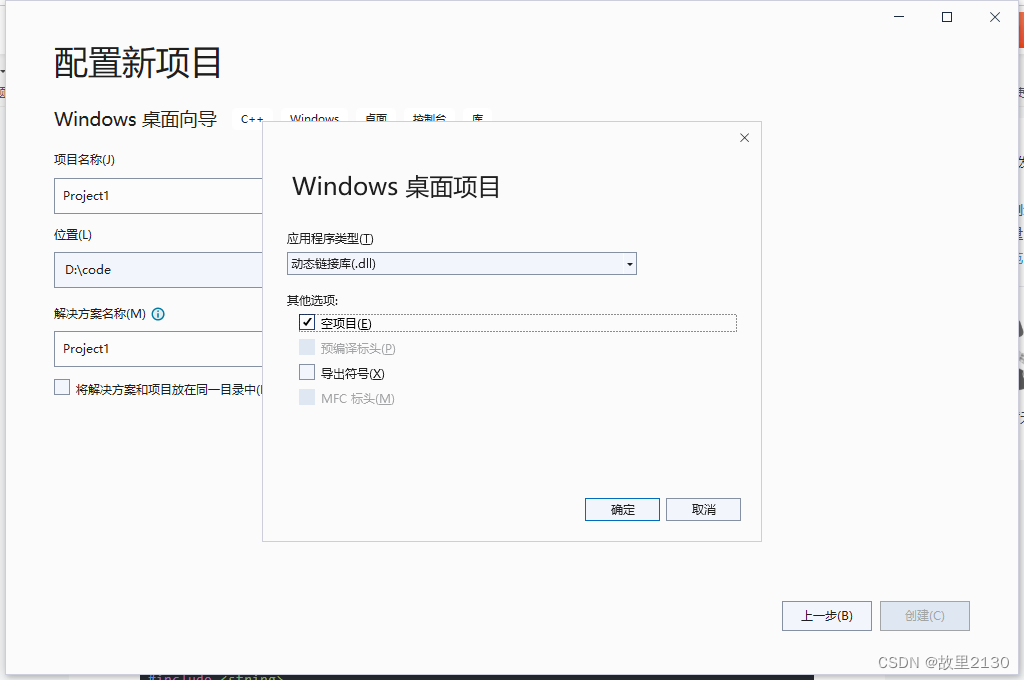
分别建立Function.h 和Function.cpp文件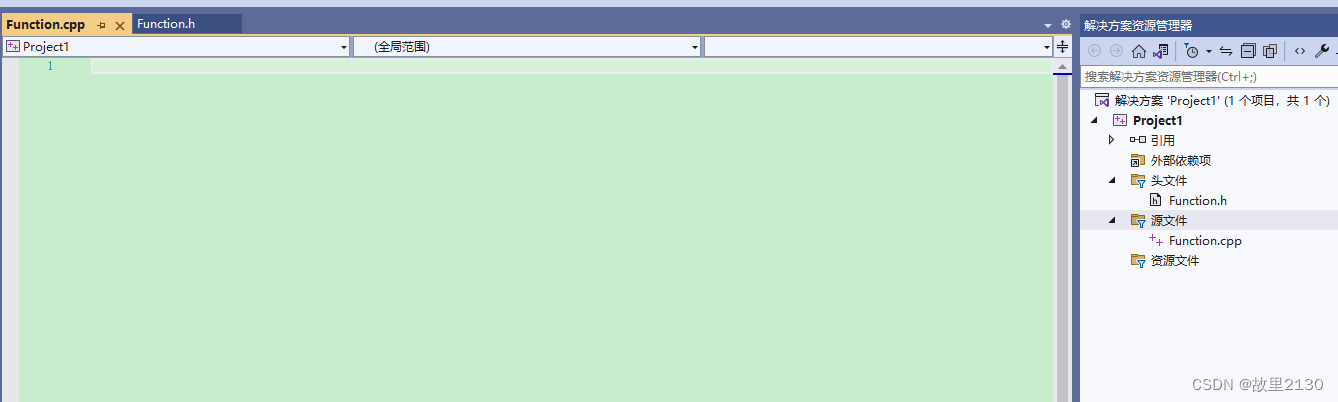
Function.h中的代码,一个返回两数之和的方法,一个返回字符串的方法
#pragma once
#include <string>
public ref class Function
{
public:int menberFuncAdd(int a, int b);
public:System::String^ say(System::String^ str);
};
Function.cpp中
#include "Function.h"
int Function::menberFuncAdd(int a, int b)
{
	return a + b;
}
System::String^ Function::say(System::String^ str)
{
	return str;
}
注意:此时会有报错,修改c++项目属性的配置,2个地方,如果有其他报错,再去查询,这里环境问题很坑。
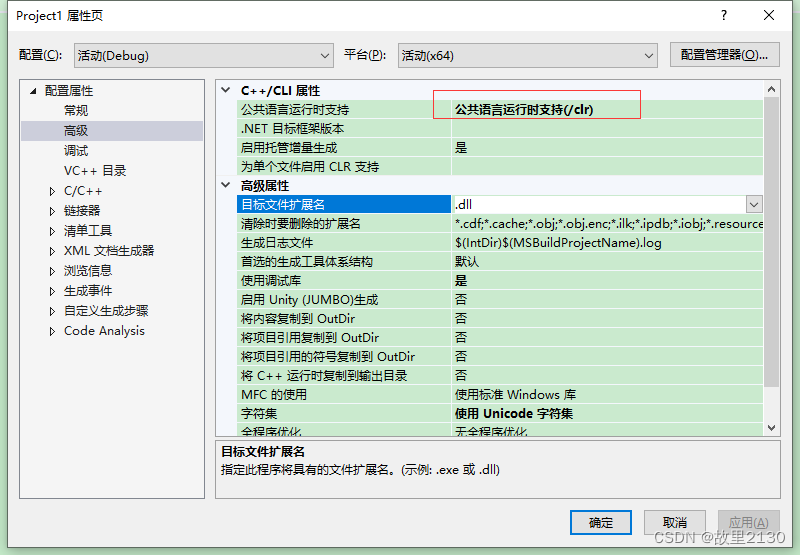
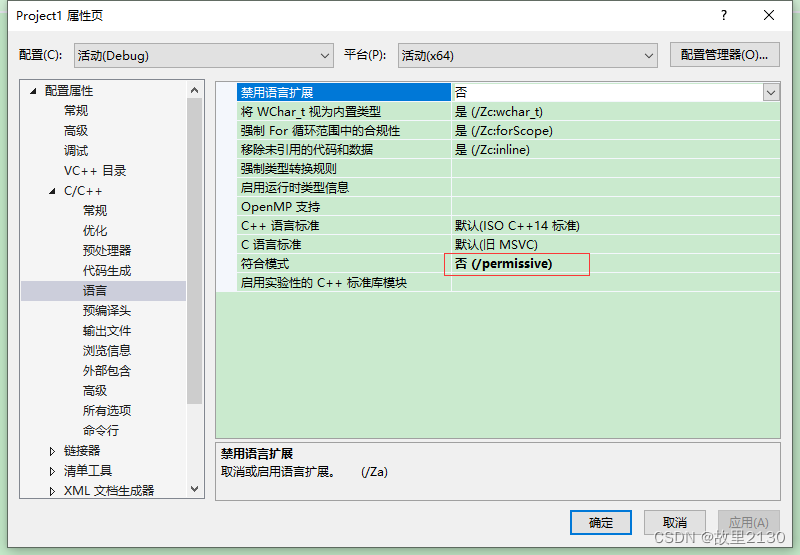
设置好后,点击生成。
在c#的项目中像引用c#的dll一样引用
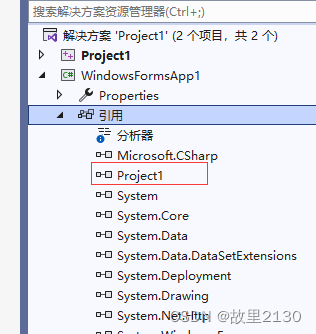
代码中调用
using System;
using System.Collections.Generic;
using System.ComponentModel;
using System.Data;
using System.Drawing;
using System.Linq;
using System.Text;
using System.Threading.Tasks;
using System.Windows.Forms;

namespace WindowsFormsApp1
{
    public partial class Form1 : Form
    {
        public Form1()
        {
            InitializeComponent();
        }

        private void button1_Click(object sender, EventArgs e)
        {
            Function fun = new Function();
            int a = fun.menberFuncAdd(1, 2);
            string s = fun.say("Hello World");
        }
    }
}
注意:c#项目要选择x86,否则可能要报错。
运行效果:
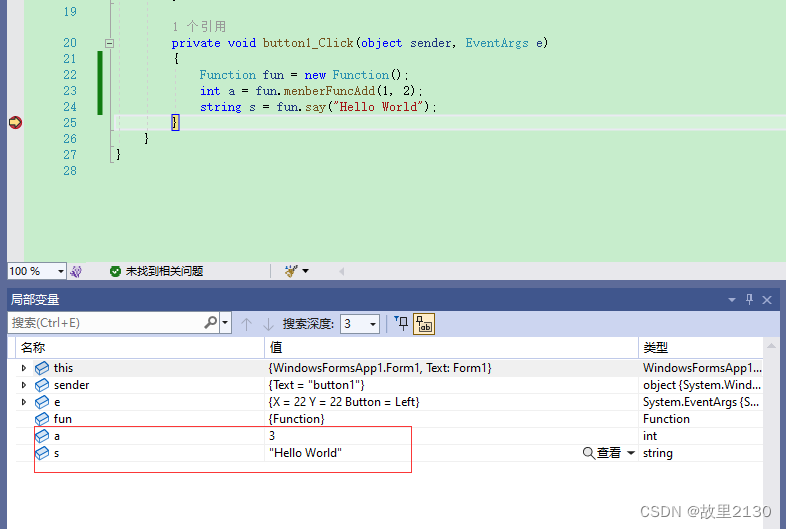
2.非托管的方式进行调用
创建新的c++项目,建立stdafx.h和dllmain.cpp
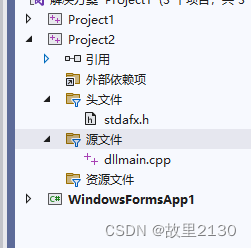
stdafx.h中的代码
// stdafx.h : 标准系统包含文件的包含文件,
// 或是经常使用但不常更改的
// 特定于项目的包含文件
//

#pragma once
#ifdef A_EXPORTS
#define DLL_API __declspec(dllexport)
#else
#define DLL_API __declspec(dllimport)
#endif
#define WIN32_LEAN_AND_MEAN             //  从 Windows 头文件中排除极少使用的信息
// Windows 头文件:
#include <windows.h>

extern "C" DLL_API void MessageBoxShow();

// TODO: 在此处引用程序需要的其他头文件
dllmain.cpp中的代码
#include "stdafx.h"
BOOL APIENTRY DllMain(HMODULE hModule,
    DWORD  ul_reason_for_call,
    LPVOID lpReserved
)
{
    switch (ul_reason_for_call)
    {
    case DLL_PROCESS_ATTACH:
    case DLL_THREAD_ATTACH:
    case DLL_THREAD_DETACH:
    case DLL_PROCESS_DETACH:
        break;
    }
    return TRUE;
}

#ifdef _MANAGED
#pragma managed(push, off)
#endif

void MessageBoxShow()
{
    MessageBox(NULL, TEXT("Hello World"), TEXT("In a DLL"), MB_OK);
}


#ifdef _MANAGED
#pragma managed(pop)
#endif
注意:c++的项目一定要选择公共语言运行时支持,同理,环境非常的坑,报错就去查询
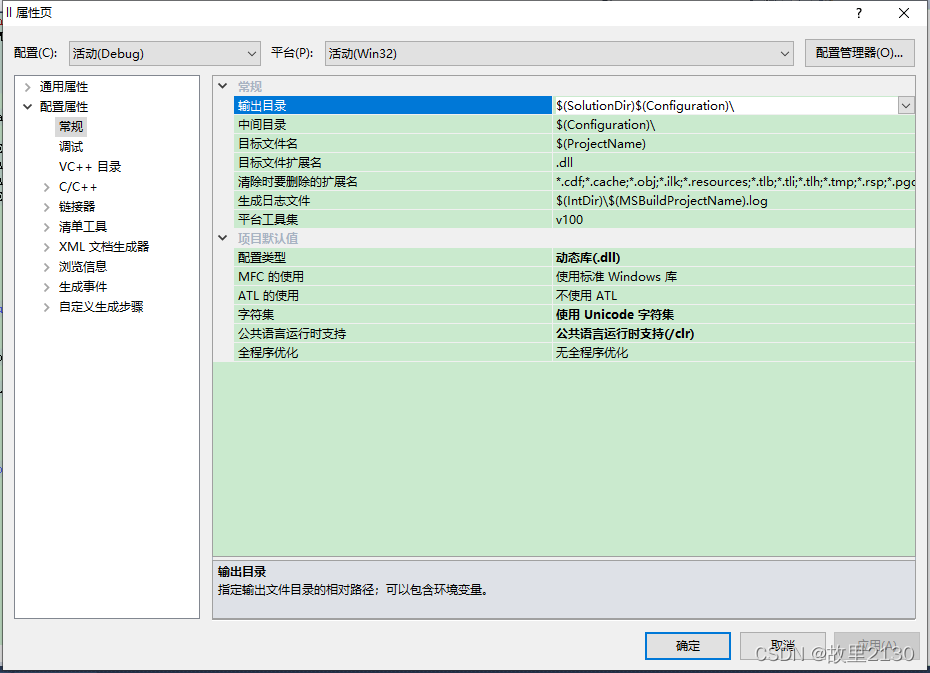
点击生成dll,把dll复制到c#项目的目录中即可
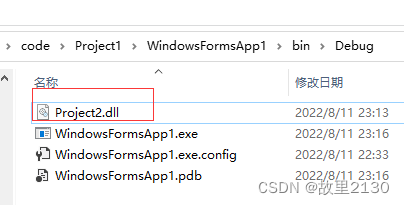
在代码加上
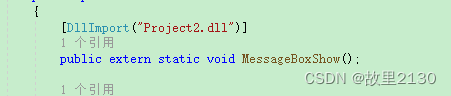
using System;
using System.Collections.Generic;
using System.ComponentModel;
using System.Data;
using System.Drawing;
using System.Linq;
using System.Runtime.InteropServices;
using System.Text;
using System.Threading.Tasks;
using System.Windows.Forms;

namespace WindowsFormsApp1
{
    public partial class Form1 : Form
    {
        [DllImport("Project2.dll")]
        public extern static void MessageBoxShow();

        public Form1()
        {
            InitializeComponent();
        }

        private void button1_Click(object sender, EventArgs e)
        {
            MessageBoxShow();
        }
    }
}
注意:c#项目一定要选择x86,否则要报错。
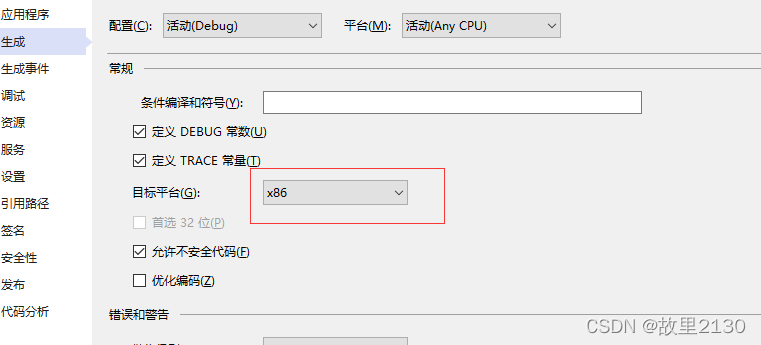
运行结果:
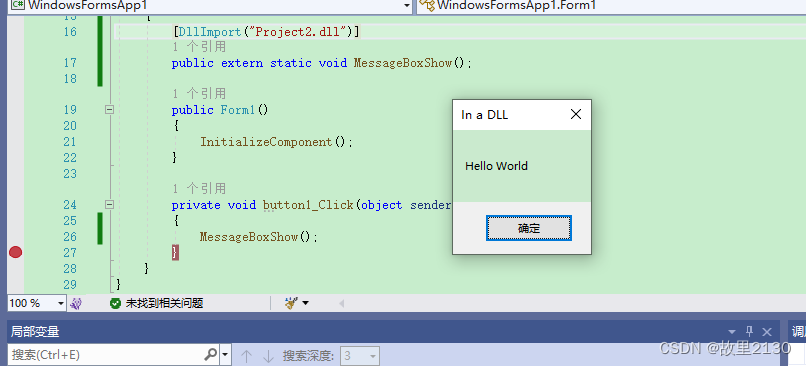
整体预览
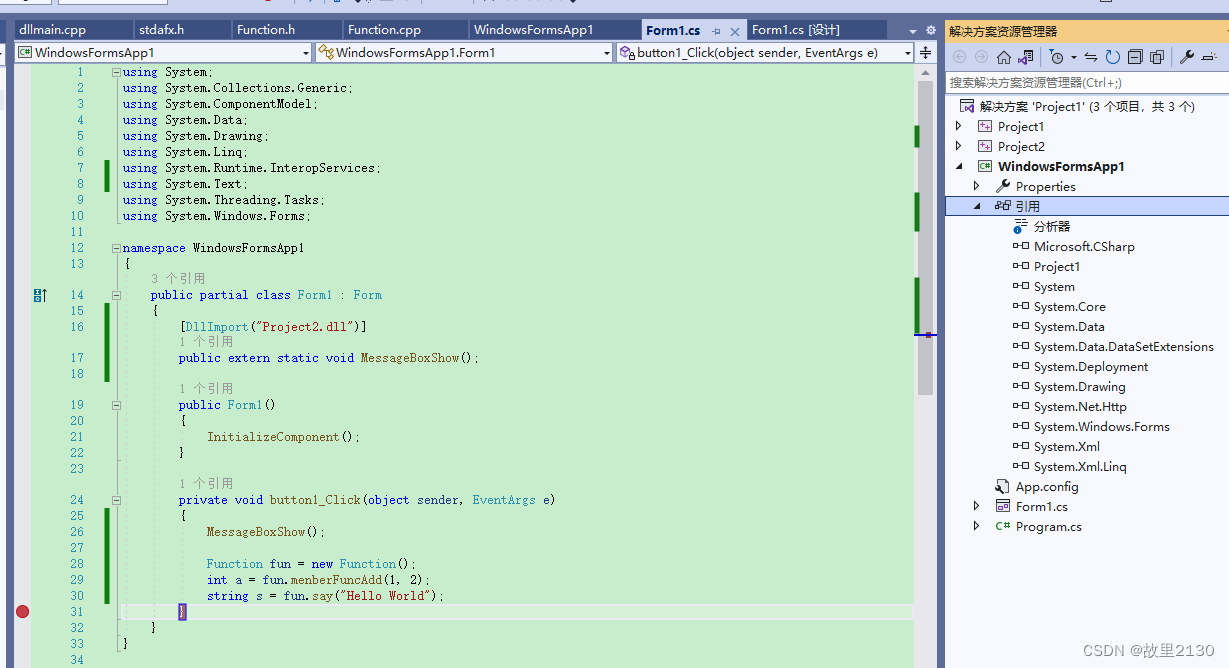
拓展
使用vs2019建立一个c++控制台程序
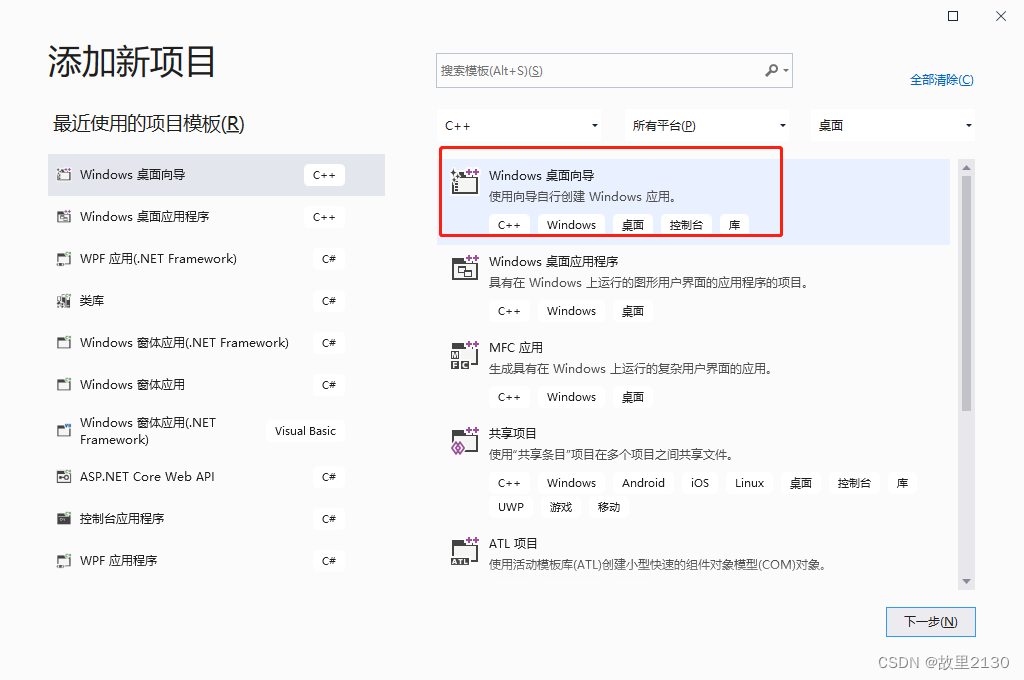
1.选择桌面向导
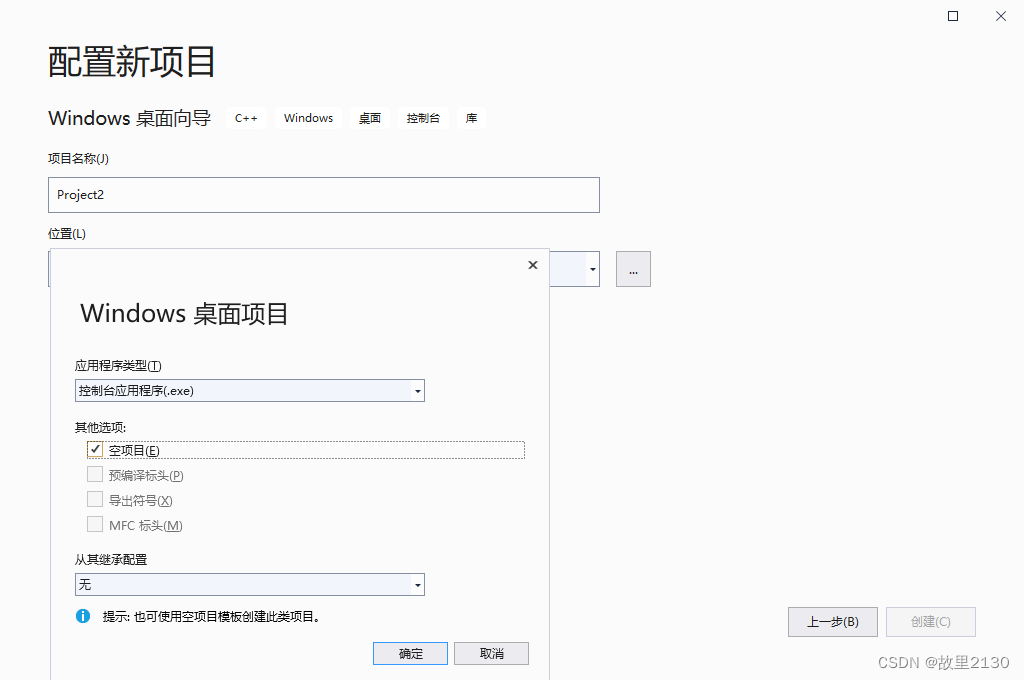
2.选择空项目
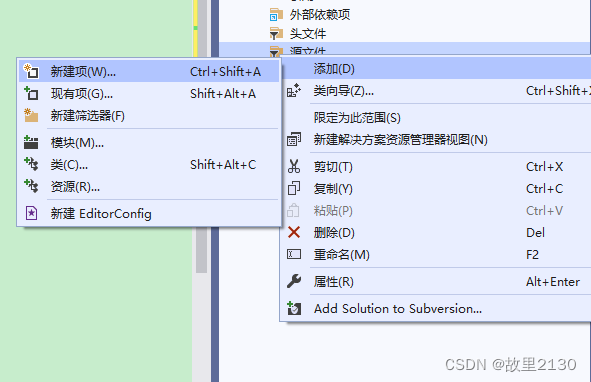
3.选择源文件,点击增加按钮,再选择新建项
4.选择cpp文件
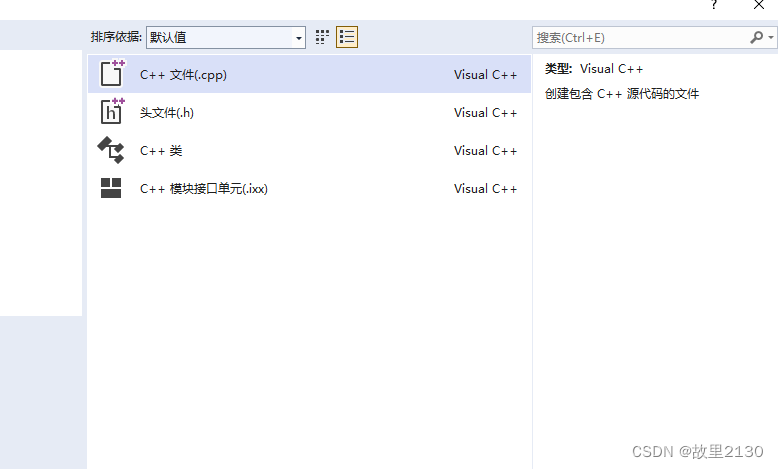
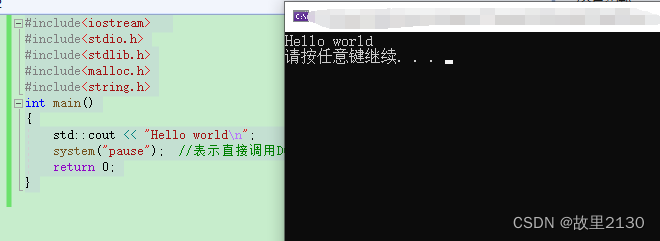
5.源.cpp中增加代码
#include<iostream>
#include<stdio.h>
#include<stdlib.h>
#include<malloc.h>
#include<string.h>
int main()
{
	std::cout << "Hello world\n";
	system("pause");  //表示直接调用DOS命令Pause,pause会输出"请按任意键继续. . .",这样就可以看清楚输出的结果。
	return 0;
}
6.运行效果

腾讯云面向开发者汇聚海量精品云计算使用和开发经验,营造开放的云计算技术生态圈。
更多推荐
 3
3 0
0- 0


 已为社区贡献2条内容

所有评论(0)