vscode 快速生层vue模板
·
配置
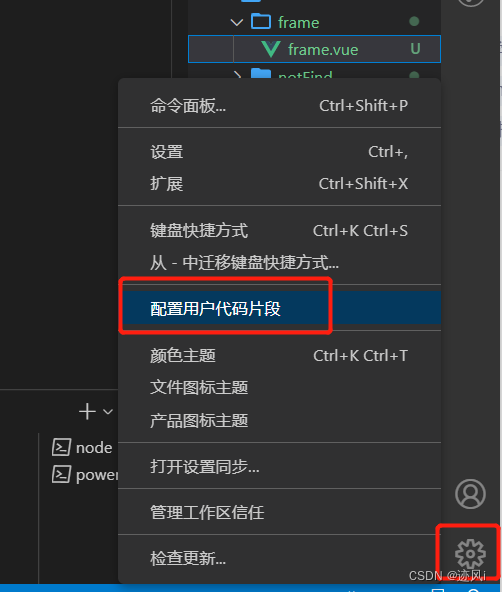
- 打开vscode的用户代码片段
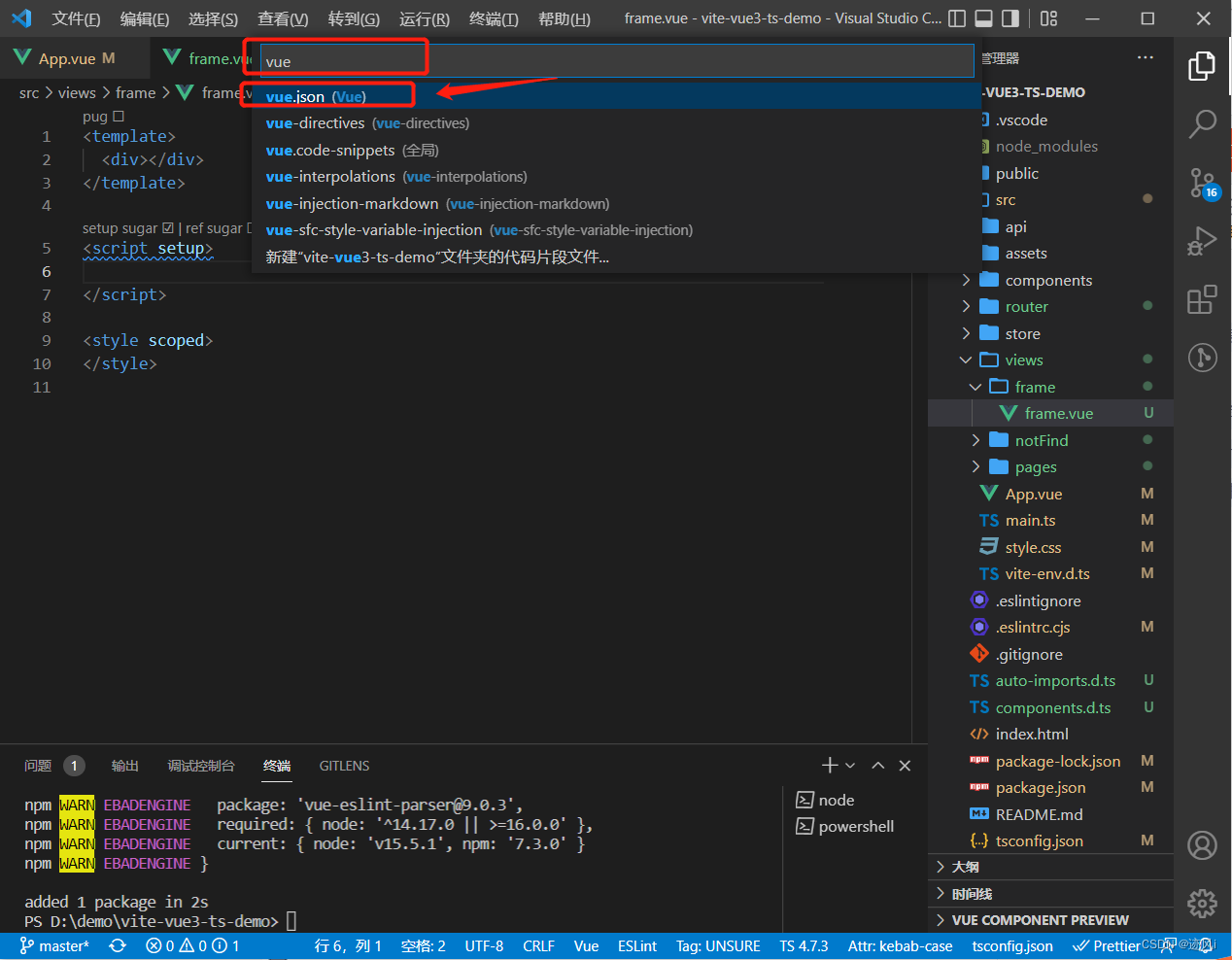
- 然后输入vue,选择vue.json
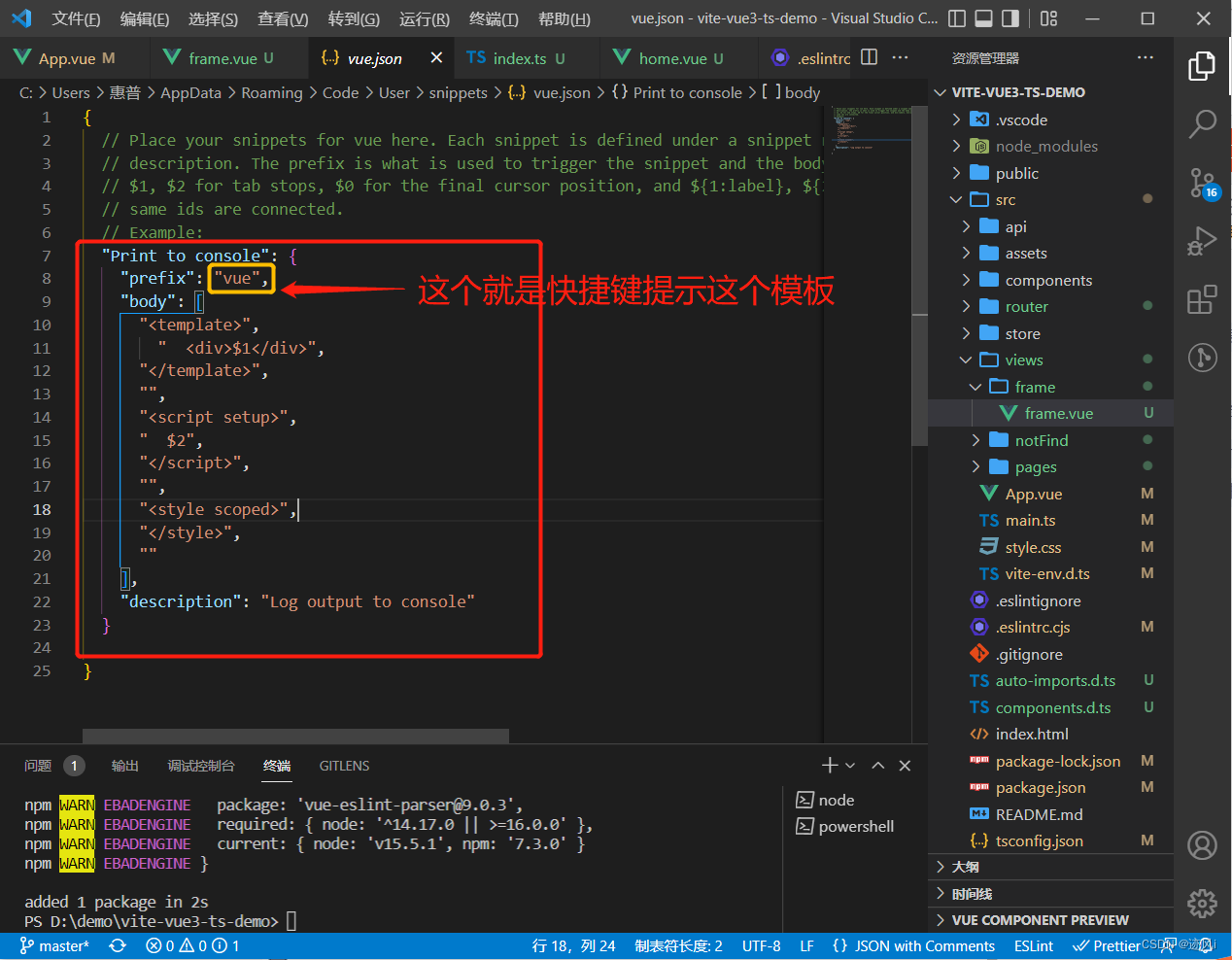
- 进入配置页面
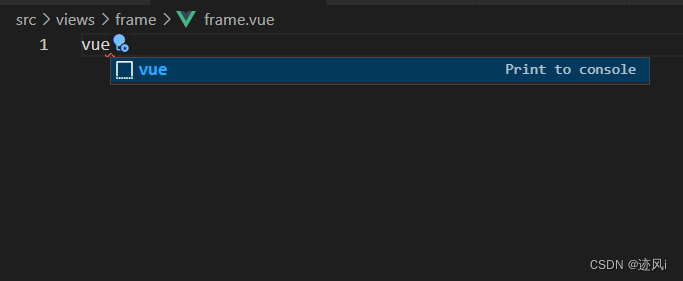
进入页面输入 vue, 回车选中模板即可生成
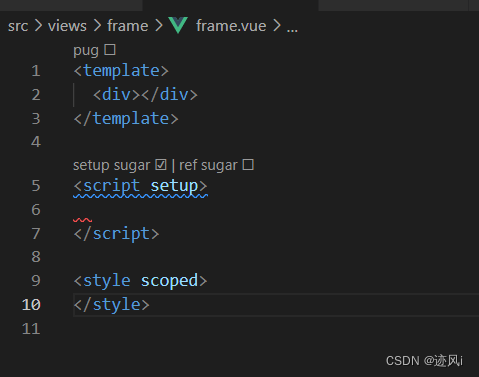
懒人专用代码模板, 你们可以根据自己习惯来修改模板 其中的$1, $2 就是用户创建模板后鼠标所在的位置,按tab键切换光标
{
	// Place your snippets for vue here. Each snippet is defined under a snippet name and has a prefix, body and
	// description. The prefix is what is used to trigger the snippet and the body will be expanded and inserted. Possible variables are:
	// $1, $2 for tab stops, $0 for the final cursor position, and ${1:label}, ${2:another} for placeholders. Placeholders with the
	// same ids are connected.
	// Example:
	"Print to console": {
		"prefix": "vue",
		"body": [
			"<template>",
				"  <div>$1</div>",
			"</template>",
			"",
			"<script setup>",
			"  $2",
			"</script>",
			"",
			"<style scoped>",
			"</style>",
			""
		],
		"description": "Log output to console"
	}
}

腾讯云面向开发者汇聚海量精品云计算使用和开发经验,营造开放的云计算技术生态圈。
更多推荐
 3
3 0
0- 0


 已为社区贡献1条内容

所有评论(0)