VSCode c++和CMake环境搭建(for Mac OS)
·
软件安装
VSCode直接去官网下载即可!
然后安装C/C++和CMake,CMake Tools插件:
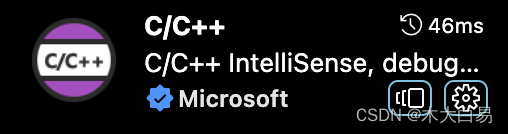
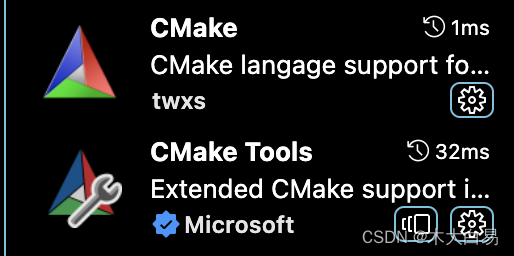
编译报错
在执行cmake编译的时候报错:Bad CMake executable “”. Is it installed or settings contain the correct path (cmake.cmakePath)?
这时候需要我们去下载CMake,同样的去官网下载即可!
如何将cmake添加到命令行中:
打开cmake app,选择Tools->How toInstall For Command Line Use
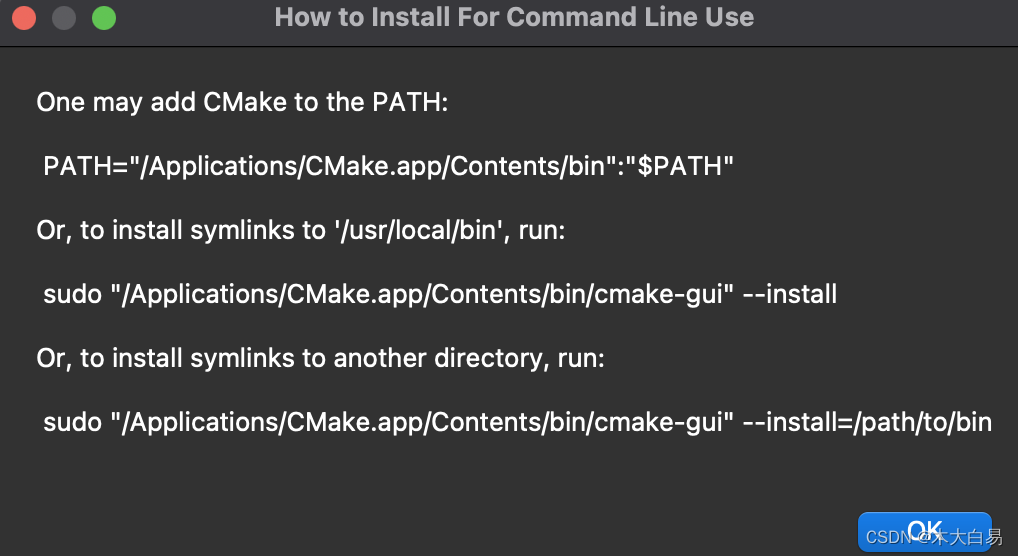
随便选择一种!
然后,打开工作区的settings.json,添加下边,将环境变量设置到cmakePath中!
{
    // 要使用的 CMake 可执行文件的名称/路径。
	"cmake.cmakePath": "/Applications/CMake.app/Contents/bin/cmake",
}
再次执行Cmake Build,则成功生成Makefile!
配置task.json{
	"version": "1.0.0",
	"options":{
		"cwd": "${workspaceFolder}/build"
	},
	"tasks" :[
		{
			"type" : "shell",
			"label" : "cmake",
			"command" : "/Applications/CMake.app/Contents/bin/cmake",
			"args" : [
				".."
			]
		},
		{
			"label" : "make",
			"group" : {
				"kind" : "build",
				"isDefault" : "true"
			},
			"command" : "make",
			"args" :[]
		},
		{
			"label" : "Build Cmake",   //最终要执行的task
			"dependsOn":[
				"cmake",
				"make"
			]
		}
	],
}
然后将preLaunchTask修改为Build Cmake即可!

腾讯云面向开发者汇聚海量精品云计算使用和开发经验,营造开放的云计算技术生态圈。
更多推荐
 1
1 0
0- 0


 已为社区贡献1条内容

所有评论(0)