如何vscode运行c/c++
·
最简单下载配置
链接:https://pan.baidu.com/s/1-My97-RBuYbk7bMlRv15WA
提取码:eikr
--来自百度网盘超级会员V6的分享
看链接
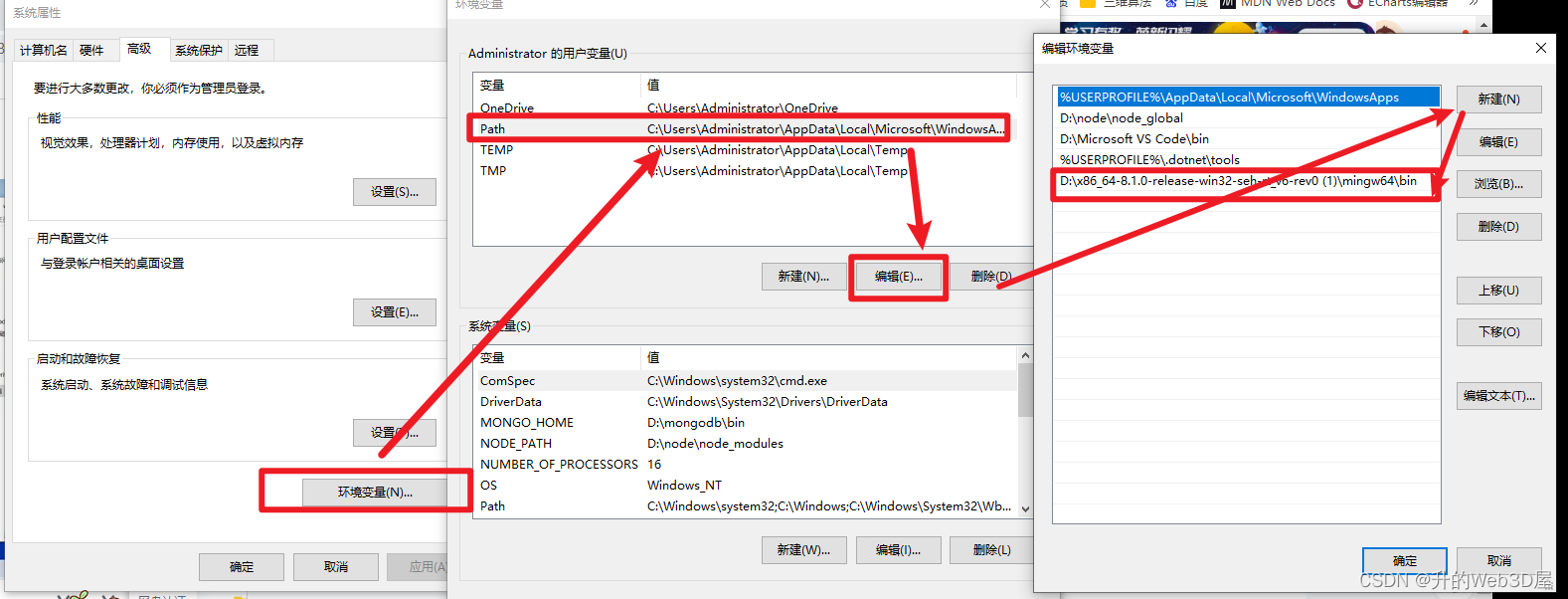
环境配置,解压7z文件到d盘,复制bin的链接:
我的是D:\x86_64-8.1.0-release-win32-seh-rt_v6-rev0 (1)\mingw64\bin
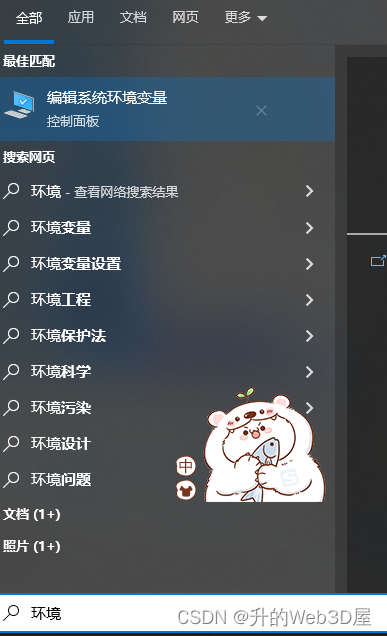
win+Q 环境变量
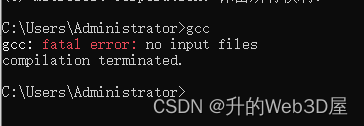
win+R 输入cmd,输入gcc,有这个页面代表成功!!!
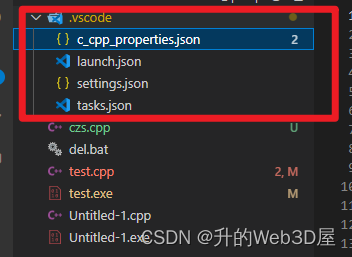
然后弄好.vscode的配置(最难,放网盘了)
{
    "configurations": [
        {
            "name": "win",
            "includePath": [
                "${workspaceFolder}/**",

            ],
            "defines": [],
            "compilerPath": "D:/Program/MinGW/bin/g++.exe",
            "cStandard": "c11",
            "cppStandard": "c++11",
            "intelliSenseMode": "clang-x64"
        }
    ],
    "version": 4
}
// https://github.com/Microsoft/vscode-cpptools/blob/master/launch.md
{
    "version": "0.2.0",
    "configurations": [{
        "name": "(gdb) Launch", // 配置名称,将会在启动配置的下拉菜单中显示
        "type": "cppdbg", // 配置类型,cppdbg对应cpptools提供的调试功能;可以认为此处只能是cppdbg
        "request": "launch", // 请求配置类型,可以为launch(启动)或attach(附加)
        "program": "${fileDirname}/${fileBasenameNoExtension}.exe", // 将要进行调试的程序的路径
        "args": [], // 程序调试时传递给程序的命令行参数,一般设为空即可
        "stopAtEntry": false, // 设为true时程序将暂停在程序入口处,相当于在main上打断点
        "cwd": "${workspaceFolder}", // 调试程序时的工作目录,此为工作区文件夹;改成${fileDirname}可变为文件所在目录
        "environment": [], // 环境变量
        "externalConsole": false, // 为true时使用单独的cmd窗口,与其它IDE一致;18年10月后设为false可调用VSC内置终端
        "internalConsoleOptions": "neverOpen", // 如果不设为neverOpen,调试时会跳到“调试控制台”选项卡,你应该不需要对gdb手动输命令吧?
        "MIMode": "gdb", // 指定连接的调试器,可以为gdb或lldb。但我没试过lldb
        "miDebuggerPath": "gdb.exe", // 调试器路径,Windows下后缀不能省略,Linux下则不要
        "setupCommands": [
            { // 模板自带,好像可以更好地显示STL容器的内容,具体作用自行Google
                "description": "Enable pretty-printing for gdb",
                "text": "-enable-pretty-printing",
                "ignoreFailures": false
            }
        ],
        "preLaunchTask": "Compile" // 调试会话开始前执行的任务,一般为编译程序。与tasks.json的label相对应
    }]
}
{
  "files.defaultLanguage": "cpp", // ctrl+N新建文件后默认的语言
  "editor.formatOnType": true, // 输入分号(C/C++的语句结束标识)后自动格式化当前这一行的代码
  "files.autoSave": "onFocusChange",
  "editor.formatOnSave": true,
  "editor.formatOnPaste": true,
  "editor.acceptSuggestionOnEnter": "on", // 我个人的习惯,按回车时一定是真正的换行,只有tab才会接受Intellisense
  "editor.minimap.enabled": true,
  "C_Cpp.autocomplete": "default",
  "[cpp]": {
    "editor.quickSuggestions": {
      "comments": "on",
      "strings": "on",
      "other": "on"
    },
    "editor.wordBasedSuggestions": true,
    "editor.formatOnType": true,
  },
  "[c]": {
    "editor.quickSuggestions": {
      "comments": "on",
      "strings": "on",
      "other": "on"
    },
    "editor.wordBasedSuggestions": true,
    "editor.formatOnType": true,
  },
  "code-runner.runInTerminal": true, // 设置成false会在“输出”中输出,无法输入
  "code-runner.executorMap": {
    //"c": "cd $dir && gcc $fileName -o $fileNameWithoutExt.exe -Wall -g -O2 -static-libgcc  -fexec-charset=GBK && $dir$fileNameWithoutExt",
    //"cpp": "cd $dir && g++ $fileName -o $fileNameWithoutExt.exe -Wall -g -O2 -static-libgcc  -fexec-charset=UTF-8 && $dir$fileNameWithoutExt"
    "c": "cd $dir && gcc $fileName -o $fileNameWithoutExt.exe -Wall -g -O2 -static-libgcc -std=c17 -fexec-charset=UTF-8 && $dir$fileNameWithoutExt",
    "cpp": "clear && cd $dir && g++ $fileName -o $fileNameWithoutExt.exe -Wall -g -O2 -static-libgcc -fexec-charset=GBK -std=c++17  && $dir$fileNameWithoutExt"
  }, // 右键run code时运行的命令;未注释的仅适用于PowerShell(Win10默认),文件名中有空格也可以编译运行;注释掉的适用于cmd(win7默认),PS和bash也能用,但文件名中有空格时无法运行
  "code-runner.saveFileBeforeRun": true, // run code前保存
  "code-runner.preserveFocus": true, // 若为false,run code后光标会聚焦到终端上。如果需要频繁输入数据可设为false
  "code-runner.clearPreviousOutput": false, // 每次run code前清空属于code runner的终端消息,默认false
  "code-runner.ignoreSelection": true, // 默认为false,效果是鼠标选中一块代码后可以单独执行,但C是编译型语言,不适合这样用
  "C_Cpp.clang_format_sortIncludes": true,
  "files.associations": {
    "array": "cpp",
    "atomic": "cpp",
    "*.tcc": "cpp",
    "cctype": "cpp",
    "clocale": "cpp",
    "cmath": "cpp",
    "cstdarg": "cpp",
    "cstddef": "cpp",
    "cstdint": "cpp",
    "cstdio": "cpp",
    "cstdlib": "cpp",
    "cwchar": "cpp",
    "cwctype": "cpp",
    "deque": "cpp",
    "unordered_map": "cpp",
    "vector": "cpp",
    "exception": "cpp",
    "algorithm": "cpp",
    "memory": "cpp",
    "memory_resource": "cpp",
    "optional": "cpp",
    "string": "cpp",
    "string_view": "cpp",
    "system_error": "cpp",
    "tuple": "cpp",
    "type_traits": "cpp",
    "utility": "cpp",
    "fstream": "cpp",
    "initializer_list": "cpp",
    "iosfwd": "cpp",
    "iostream": "cpp",
    "istream": "cpp",
    "limits": "cpp",
    "new": "cpp",
    "ostream": "cpp",
    "sstream": "cpp",
    "stdexcept": "cpp",
    "streambuf": "cpp",
    "typeinfo": "cpp"
  }, // 格式化时调整include的顺序(按字母排序)
}
{
    "version": "2.0.0",
    "tasks": [
        {
            "label": "Compile", // 任务名称,与launch.json的preLaunchTask相对应
            "command": "g++", // 要使用的编译器,C++用g++
            "args": [
                "${file}",
                "-o", // 指定输出文件名,不加该参数则默认输出a.exe,Linux下默认a.out
                "${fileDirname}/${fileBasenameNoExtension}.exe",
                "-g", // 生成和调试有关的信息
                "-Wall", // 开启额外警告
                "-static-libgcc", // 静态链接libgcc,一般都会加上
                "-fexec-charset=UTF-8", // 生成的程序使用GBK编码,不加这一条会导致Win下输出中文乱码
                "-std=c++11" // C++最新标准为c++17,或根据自己的需要进行修改
            ], // 编译的命令,其实相当于VSC帮你在终端中输了这些东西
            "type": "process", // process是vsc把预定义变量和转义解析后直接全部传给command;shell相当于先打开shell再输入命令,所以args还会经过shell再解析一遍
            "group": {
                "kind": "build",
                "isDefault": true // 不为true时ctrl shift B就要手动选择了
            },
            "presentation": {
                "echo": true,
                "reveal": "always", // 执行任务时是否跳转到终端面板,可以为always,silent,never。具体参见VSC的文档
                "focus": false, // 设为true后可以使执行task时焦点聚集在终端,但对编译C/C++来说,设为true没有意义
                "panel": "shared" // 不同的文件的编译信息共享一个终端面板
            },
            // "problemMatcher":"$gcc" // 此选项可以捕捉编译时终端里的报错信息;但因为有Lint,再开这个可能有双重报错
        }
    ]
}
四个文件夹的内容分别是如上
最后打个断点f5运行就可以了,弹出来就选择第一项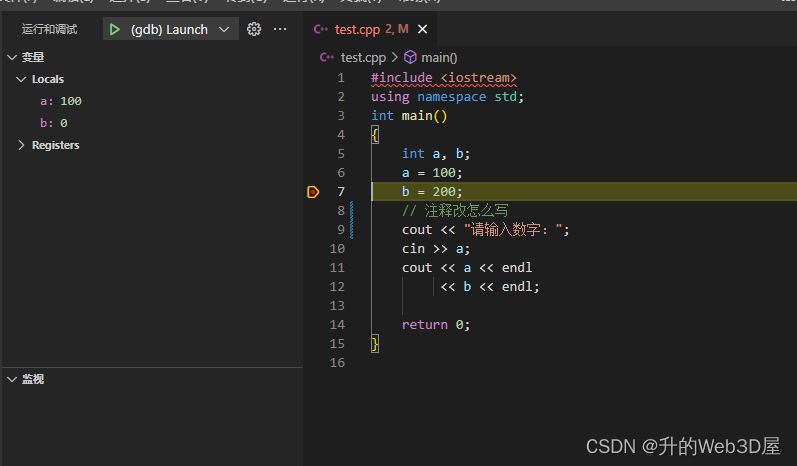
ok!

腾讯云面向开发者汇聚海量精品云计算使用和开发经验,营造开放的云计算技术生态圈。
更多推荐
 0
0 0
0- 0


 已为社区贡献4条内容

所有评论(0)