【docker】centos7安装harbor
·
零、前提
- 1.前提是已经安装了docker和docker-compose
一、下载离线包
- 1. csdn资源:harbor-offline-installer-v2.10.0.tgz
- 2. 百度云盘(提取码:ap3t):harbor-offline-installer-v2.10.0.tgz
- 3. github官方地址:harbor-offline-installer-v2.10.0.tgz
- 4. github下载速度太慢,建议翻墙
二、安装
- 1. 创建目录/opt/harbor
# 创建目录
sudo mkdir /opt/harbor
-
2. 将离线包上传到目录/opt/harbor
-
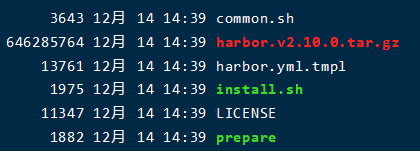
3. 在该目录下解压离线包
sudo tar xf harbor-offline-installer-v2.10.0.tgz
- 4. 复制一个harbor.yml
sudo scp -r harbor.yml.tmpl harbor.yml
- 5. 编辑文件harbor.yml
sudo vim harbor.yml
- 6. 修改内容
# The IP address or hostname to access admin UI and registry service.
# ip地址或主机名去访问管理界面和注册服务
# DO NOT use localhost or 127.0.0.1, because Harbor needs to be accessed by external clients.
# 不要使用localhost和127.0.0.1,因为harbor需要被外部客户端访问,改成主机ip吧
hostname: 172.18.208.85

# http related config
http:
  # port for http, default is 80. If https enabled, this port will redirect to https port
  # http的端口,默认是80。这里改的是18080
  port: 18080

# https related config
# 注释https配置,关闭https
#https:
  # https port for harbor, default is 443
 # port: 443
  # The path of cert and key files for nginx
  #certificate: /your/certificate/path
  #private_key: /your/private/key/path
- 7. 保存
:wq
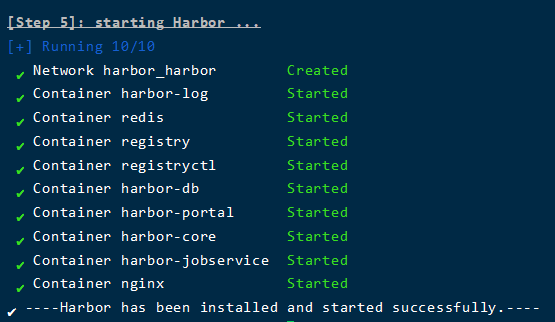
- 8.运行./install.sh安装脚本
sudo ./install.sh
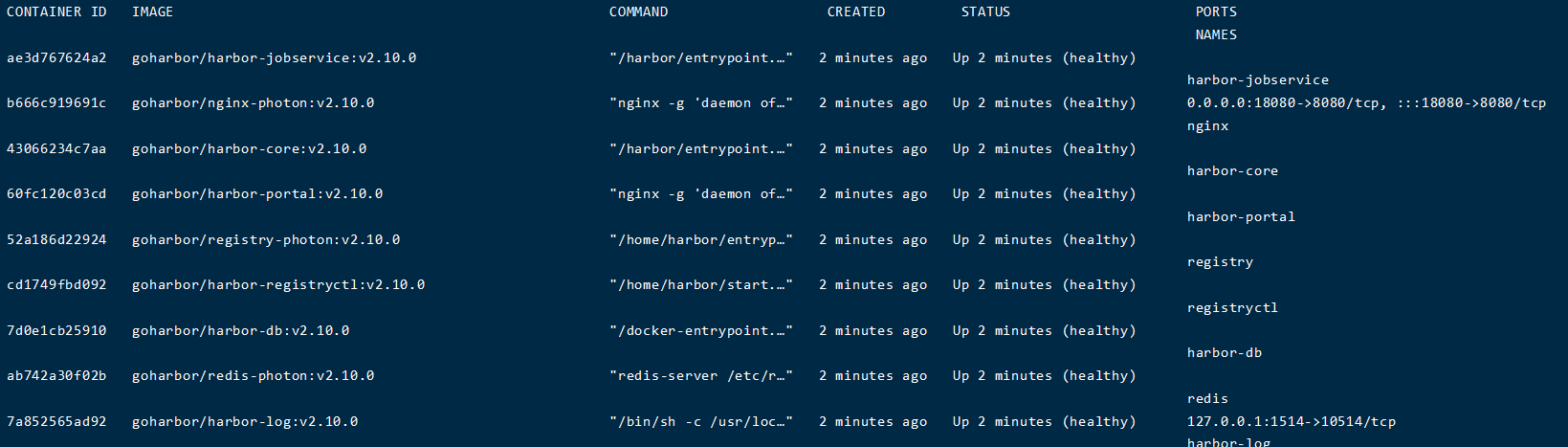
- 9.查看容器信息
sudo docker ps -a
三、访问
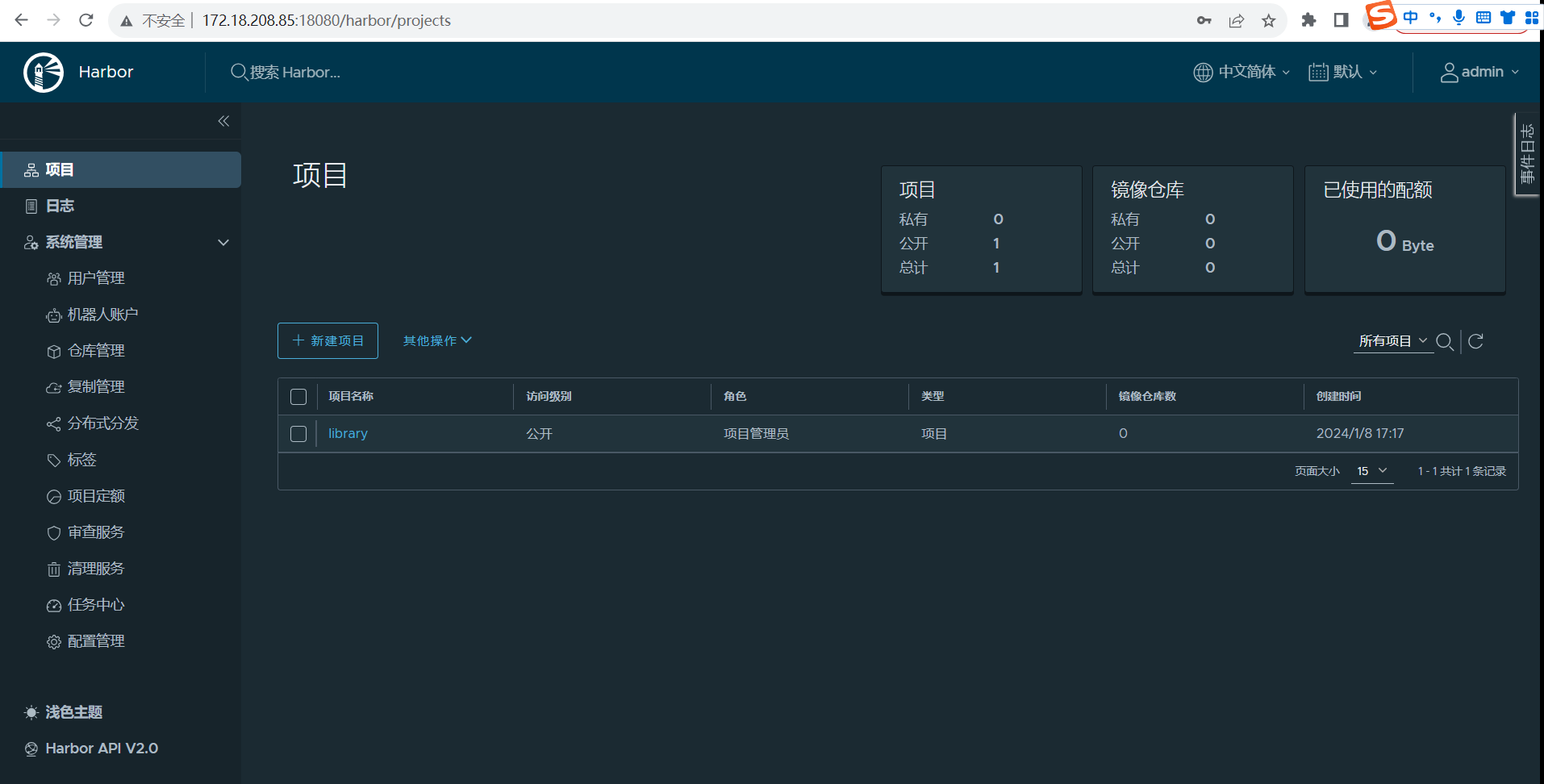
- 1.访问地址:http://172.18.208.85:18080
- 2.ip为配置里的ip,端口为配置里的端口
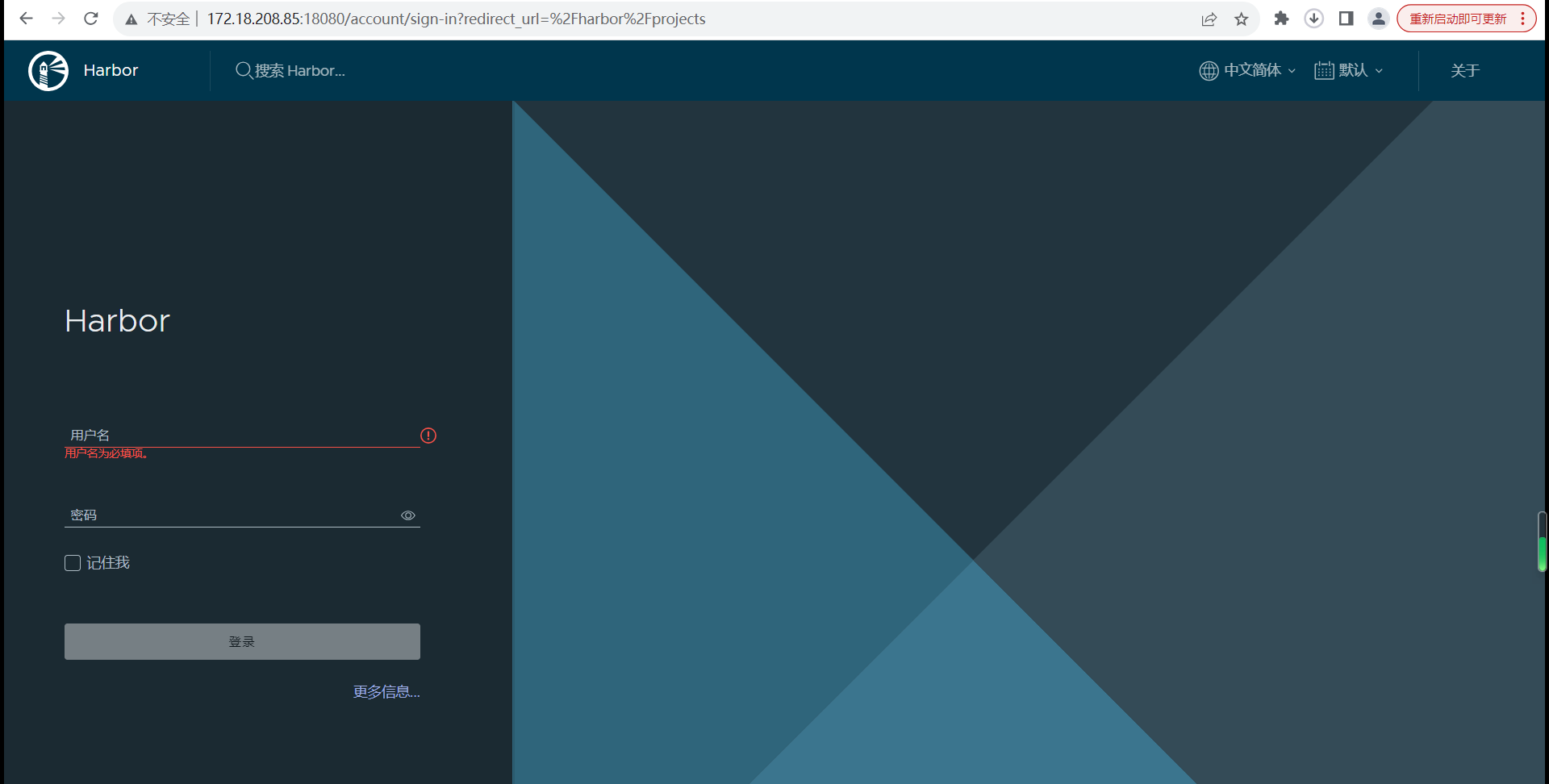
- 4.账号为admin,密码为Harbor12345(配置里的harbor_admin_password: Harbor12345)
四、开机自启
- 1.进入目录/opt/harbor/harbor
cd /opt/harbor/harbor
- 2.编辑脚本
sudo vim start.sh
- 3.输入内容
cd /opt/harbor/harbor
sudo docker-compose stop && docker-compose start
- 4.保存退出
:wq
- 5.赋予执行权限
sudo chmod +x /opt/harbor/harbor/start.sh
- 6.编辑rc.local
sudo vim /etc/rc.d/rc.local
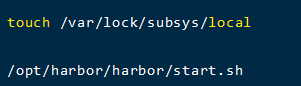
- 7.将命令文件绝对路径添加到文件最后
touch /var/lock/subsys/local
/opt/harbor/harbor/start.sh
- 8.给rc.local赋予权限
sudo chmod +x /etc/rc.d/rc.local
五、推送镜像
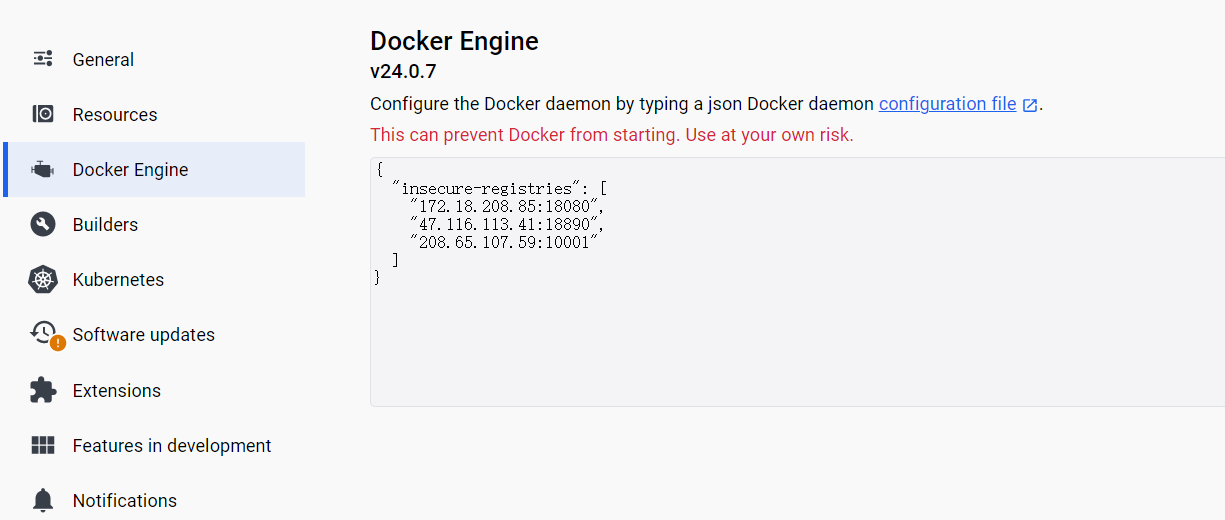
- 1.windows本地安装好docker并设置,可接受http;linux则修改daemon.json中的insecure-registries
windows
linux

//编辑daemon.json文件
sudo vim /etc/docker/daemon.json

{
  "registry-mirrors": ["http://172.18.208.85:18080"],
  "log-driver": "json-file",
  "log-opts": {"max-size": "5g", "max-file": "4"},
   "insecure-registries": [
       "172.18.208.85:18080",
       "208.65.107.59:10001"
    ]
}

//重新加载daemon.json文件
sudo systemctl daemon-reload
- 2.本地编写好Dockerfile,并执行docker build
docker build -t myproject .
- 3.重命名
docker tag myproject:latest 208.65.107.59:10001/test/myproject:latest
- 4.登录
docker login -u 用户名  http://208.65.107.59:10001/
输入密码
- 5.推送
docker push 208.65.107.59:10001/test/myproject

腾讯云面向开发者汇聚海量精品云计算使用和开发经验,营造开放的云计算技术生态圈。
更多推荐
 8
8 0
0- 0


 已为社区贡献12条内容

所有评论(0)