Python数据分析 之 制作酷炫的可视化大屏,特简单,2024年最新牛逼
@cache.memoize(timeout=3590), 可选择设置缓存, 我没使用
def get_df():
“”“获取当日最新的文章数据”“”
df = pd.read_sql(today, con=engine)
df[‘date_day’] = df[‘date’].apply(lambda x: x.split(’ ')[0]).astype(‘datetime64[ns]’)
df[‘date_month’] = df[‘date’].apply(lambda x: x[:7].split(‘-’)[0] + “年” + x[:7].split(‘-’)[-1] + “月”)
df[‘weekday’] = df[‘date_day’].dt.weekday
df[‘year’] = df[‘date_day’].dt.year
df[‘month’] = df[‘date_day’].dt.month
df[‘week’] = df[‘date_day’].dt.isocalendar().week
return df
导航栏的图片及标题
head = html.Div([
html.Div(html.Img(src=‘./assets/img.jpg’, height=“100%”), style={“float”: “left”, “height”: “90%”, “margin-top”: “5px”, “border-radius”: “50%”, “overflow”: “hidden”}),
html.Span(“{}博客的Dashboard”.format(info[‘author_name’][0]), className=‘app-title’),
], className=“row header”)
第一列的文字及数字信息
columns = info.columns[3:]
col_name = [‘文章数’, ‘关注数’, ‘喜欢数’, ‘评论数’, ‘等级’, ‘访问数’, ‘积分’, ‘排名’]
row1 = html.Div([
indicator(col_name[i], col) for i, col in enumerate(columns)
], className=‘row’)
第二列
row2 = html.Div([
html.Div([
html.P(“每月文章写作情况”),
dcc.Graph(id=“bar”, style={“height”: “90%”, “width”: “98%”}, config=dict(displayModeBar=False),)
], className=“col-4 chart_div”,),
html.Div([
html.P(“各类型文章占比情况”),
dcc.Graph(id=“pie”, style={“height”: “90%”, “width”: “98%”}, config=dict(displayModeBar=False),)
], className=“col-4 chart_div”),
html.Div([
html.P(“各类型文章阅读情况”),
dcc.Graph(id=“mix”, style={“height”: “90%”, “width”: “98%”}, config=dict(displayModeBar=False),)
], className=“col-4 chart_div”,)
], className=‘row’)
年数统计, 我的是2019 2020 2021
years = get_df()[‘year’].unique()
select_list = [‘每月文章’, ‘类型占比’, ‘类型阅读量’, ‘每日情况’]
两个可交互的下拉选项
dropDowm1 = html.Div([
html.Div([
dcc.Dropdown(id=‘dropdown1’,
options=[{‘label’: ‘{}年’.format(year), ‘value’: year} for year in years],
value=years[1], style={‘width’: ‘40%’})
], className=‘col-6’, style={‘padding’: ‘2px’, ‘margin’: ‘0px 5px 0px’}),
html.Div([
dcc.Dropdown(id=‘dropdown2’,
options=[{‘label’: select_list[i], ‘value’: item} for i, item in enumerate([‘bar’, ‘pie’, ‘mix’, ‘heatmap’])],
value=‘heatmap’, style={‘width’: ‘40%’})
], className=‘col-6’, style={‘padding’: ‘2px’, ‘margin’: ‘0px 5px 0px’})
], className=‘row’)
第三列
row3 = html.Div([
html.Div([
html.P(“每日写作情况”),
dcc.Graph(id=“heatmap”, style={“height”: “90%”, “width”: “98%”}, config=dict(displayModeBar=False),)
], className=“col-6 chart_div”,),
html.Div([
html.P(“文章列表”),
html.Div(get_news_table(get_df()), id=‘click-data’),
], className=“col-6 chart_div”, style={“overflowY”: “scroll”})
], className=‘row’)
总体情况
app.layout = html.Div([
定时器
dcc.Interval(id=“stream”, interval=1000*60, n_intervals=0),
dcc.Interval(id=“river”, interval=10006060, n_intervals=0),
html.Div(id=“load_info”, style={“display”: “none”},),
html.Div(id=“load_click_data”, style={“display”: “none”},),
head,
html.Div([
row1,
row2,
dropDowm1,
row3,
], style={‘margin’: ‘0% 30px’}),
])
上面的代码,就是网页的布局,效果如下。
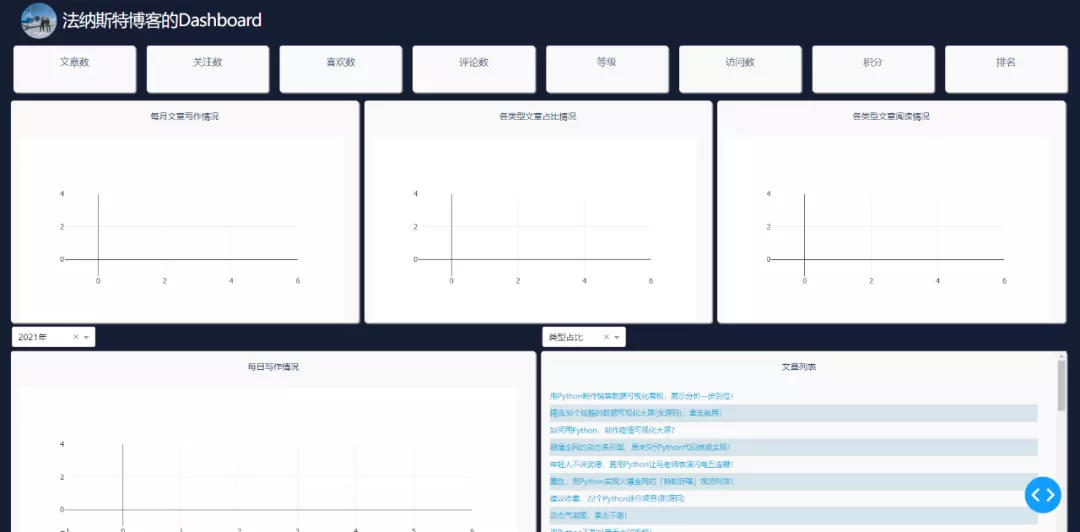
网页可以划分为三列。第一列为info表中的数据展示,第二、三列为博客文章的数据展示。
相关的数据需要通过回调函数进行更新,这样才能做到实时刷新。
各个数值及图表的回调函数代码如下所示。
回调函数, 60秒刷新info数据, 即第一列的数值实时刷新
@app.callback(Output(‘load_info’, ‘children’), [Input(“stream”, “n_intervals”)])
def load_info(n):
try:
df = pd.read_sql(‘info’, con=engine)
return df.to_json()
except:
pass
回调函数, 60分钟刷新今日数据, 即第二、三列的数值实时刷新(爬取文章数据, 并写入数据库中)
@app.callback(Output(‘load_click_data’, ‘children’), [Input(“river”, “n_intervals”)])
def cwarl_data(n):
if n != 0:
df_article = get_blog()
df_article.to_sql(today, con=engine, if_exists=‘replace’, index=True)
回调函数, 第一个柱状图
@app.callback(Output(‘bar’, ‘figure’), [Input(“river”, “n_intervals”)])
def get_bar(n):
df = get_df()
df_date_month = pd.DataFrame(df[‘date_month’].value_counts(sort=False))
df_date_month.sort_index(inplace=True)
trace = go.Bar(
x=df_date_month.index,
y=df_date_month[‘date_month’],
text=df_date_month[‘date_month’],
textposition=‘auto’,
marker=dict(color=‘#33ffe6’)
)
layout = go.Layout(
margin=dict(l=40, r=40, t=10, b=50),
yaxis=dict(gridcolor=‘#e2e2e2’),
paper_bgcolor=‘rgba(0,0,0,0)’,
plot_bgcolor=‘rgba(0,0,0,0)’,
)
return go.Figure(data=[trace], layout=layout)
回调函数, 中间的饼图
@app.callback(Output(‘pie’, ‘figure’), [Input(“river”, “n_intervals”)])
def get_pie(n):
df = get_df()
df_types = pd.DataFrame(df[‘type’].value_counts(sort=False))
trace = go.Pie(
labels=df_types.index,
values=df_types[‘type’],
marker=dict(colors=color_scale[:len(df_types.index)])
)
layout = go.Layout(
margin=dict(l=50, r=50, t=50, b=50),
paper_bgcolor=‘rgba(0,0,0,0)’,
plot_bgcolor=‘rgba(0,0,0,0)’,
)
return go.Figure(data=[trace], layout=layout)
回调函数, 左下角热力图
@app.callback(Output(‘heatmap’, ‘figure’),
[Input(“dropdown1”, “value”), Input(‘river’, ‘n_intervals’)])
def get_heatmap(value, n):
df = get_df()
grouped_by_year = df.groupby(‘year’)
data = grouped_by_year.get_group(value)
cross = pd.crosstab(data[‘weekday’], data[‘week’])
cross.sort_index(inplace=True)
trace = go.Heatmap(
x=[‘第{}周’.format(i) for i in cross.columns],
y=[“星期{}”.format(i+1) if i != 6 else “星期日” for i in cross.index],
z=cross.values,
colorscale=“Blues”,
reversescale=False,
xgap=4,
ygap=5,
showscale=False
)
layout = go.Layout(
margin=dict(l=50, r=40, t=30, b=50),
)
return go.Figure(data=[trace], layout=layout)
回调函数, 第二个柱状图(柱状图+折线图)
@app.callback(Output(‘mix’, ‘figure’), [Input(“river”, “n_intervals”)])
def get_mix(n):
df = get_df()
df_type_visit_sum = pd.DataFrame(df[‘read_num’].groupby(df[‘type’]).sum())
df[‘read_num’] = df[‘read_num’].astype(‘float’)
df_type_visit_mean = pd.DataFrame(df[‘read_num’].groupby(df[‘type’]).agg(‘mean’).round(2))
trace1 = go.Bar(
x=df_type_visit_sum.index,
y=df_type_visit_sum[‘read_num’],
name=‘总阅读’,
marker=dict(color=‘#ffc97b’),
yaxis=‘y’,
)
trace2 = go.Scatter(
x=df_type_visit_mean.index,
y=df_type_visit_mean[‘read_num’],
name=‘平均阅读’,
yaxis=‘y2’,
line=dict(color=‘#161D33’)
)
layout = go.Layout(
margin=dict(l=60, r=60, t=30, b=50),
showlegend=False,
yaxis=dict(
side=‘left’,
title=‘阅读总数’,
gridcolor=‘#e2e2e2’
),
yaxis2=dict(
showgrid=False, # 网格
title=‘阅读平均’,
anchor=‘x’,
overlaying=‘y’,
side=‘right’
),
paper_bgcolor=‘rgba(0,0,0,0)’,
plot_bgcolor=‘rgba(0,0,0,0)’,
)
return go.Figure(data=[trace1, trace2], layout=layout)
点击事件, 选择两个下拉选项, 点击对应区域的图表, 文章列表会刷新
@app.callback(Output(‘click-data’, ‘children’),
[Input(‘pie’, ‘clickData’),
Input(‘bar’, ‘clickData’),
Input(‘mix’, ‘clickData’),
Input(‘heatmap’, ‘clickData’),
Input(‘dropdown1’, ‘value’),
Input(‘dropdown2’, ‘value’),
])
def display_click_data(pie, bar, mix, heatmap, d_value, fig_type):
try:
df = get_df()
if fig_type == ‘pie’:
type_value = pie[‘points’][0][‘label’]
date_month_value = clickdata[‘points’][0][‘x’]
data = df[df[‘type’] == type_value]
elif fig_type == ‘bar’:
date_month_value = bar[‘points’][0][‘x’]
data = df[df[‘date_month’] == date_month_value]
elif fig_type == ‘mix’:
type_value = mix[‘points’][0][‘x’]
data = df[df[‘type’] == type_value]
else:
z = heatmap[‘points’][0][‘z’]
if z == 0:
return None
else:
week = heatmap[‘points’][0][‘x’][1:-1]
weekday = heatmap[‘points’][0][‘y’][-1]
if weekday == ‘日’:
weekday = 7
year = d_value
data = df[(df[‘weekday’] == int(weekday)-1) & (df[‘week’] == int(week)) & (df[‘year’] == year)]
return get_news_table(data)
except:
return None
第一列的数值
def update_info(col):
def get_data(json, n):
df = pd.read_json(json)
return df[col][0]
return get_data
for col in columns:
app.callback(Output(col, “children”),
[Input(‘load_info’, ‘children’), Input(“stream”, “n_intervals”)]
)(update_info(col))
图表的数据和样式全在这里设置,两个下拉栏的数据交互也在这里完成。
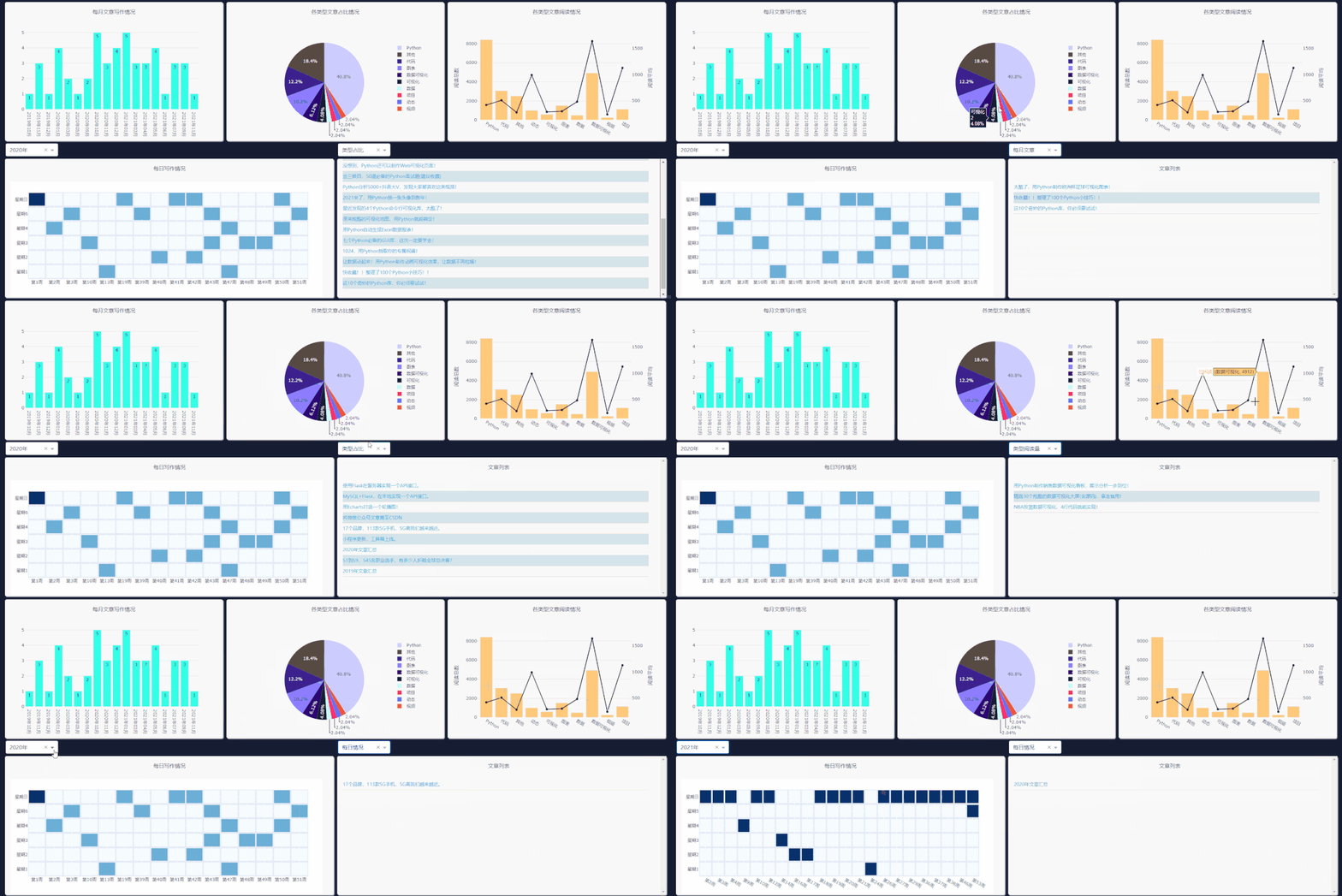
需要注意右侧下拉栏的类型,需和你所要点击图表类型一致,这样文章列表才会更新。
每日情况对应热力图,类型阅读量对应第二列第三个图表,类型占比对应饼图,每月文章对应第一个柱状图的点击事件。
最后启动程序代码。
if name == ‘main’:
debug模式, 端口7777
app.run_server(debug=True, threaded=True, port=7777)
正常模式, 网页右下角的调试按钮将不会出现
app.run_server(port=7777)
这样就能在本地看到可视化大屏页面,浏览器打开如下地址。
http://127.0.0.1:7777
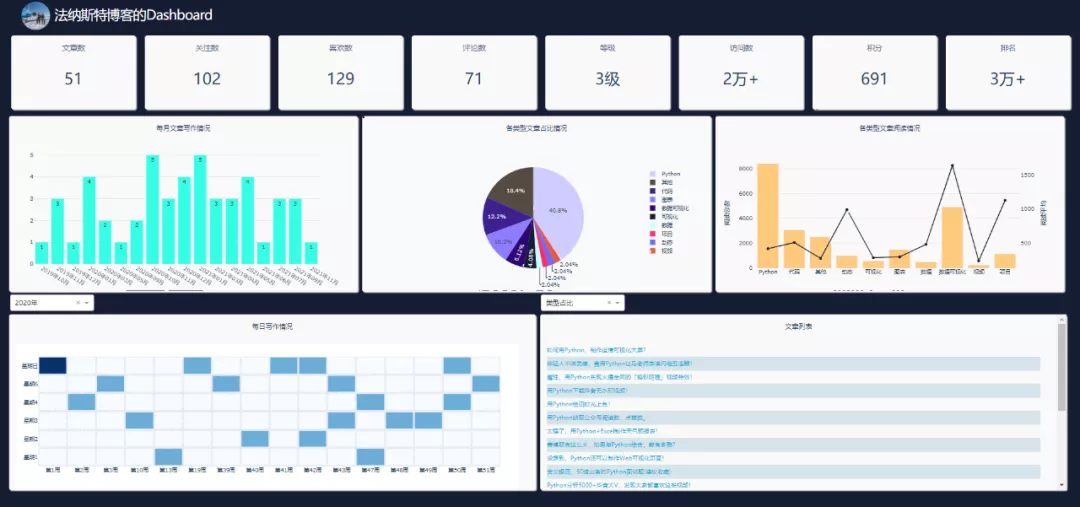
对于网页的布局、背景颜色等,主要通过CSS进行设置。
这一部分可能是大家所要花费时间去理解的。
body{
margin:0;
padding: 0;
background-color: #161D33;
font-family: ‘Open Sans’, sans-serif;
color: #506784;
-webkit-user-select: none; /* Chrome all / Safari all */
-moz-user-select: none; /* Firefox all */
-ms-user-select: none; /* IE 10+ */
user-select: none; /* Likely future */
}
.modal {
display: block; /*Hidden by default */
position: fixed; /* Stay in place */
z-index: 1000; /* Sit on top */
left: 0;
top: 0;
width: 100%; /* Full width */
height: 100%; /* Full height */
overflow: auto; /* Enable scroll if needed */
background-color: rgb(0,0,0); /* Fallback color */
background-color: rgba(0,0,0,0.4); /* Black w/ opacity */
}
.modal-content {
background-color: white;
margin: 5% auto; /* 15% from the top and centered */
padding: 20px;
width: 30%; /* Could be more or less, depending on screen size */
color:#506784;
}
._dash-undo-redo {
display: none;
}
.app-title{
color:white;
font-size:3rem;
letter-spacing:-.1rem;
padding:10px;
vertical-align:middle
}
.header{
margin:0px;
background-color:#161D33;
height:70px;
color:white;
padding-right:2%;
padding-left:2%
}
.indicator{
border-radius: 5px;
background-color: #f9f9f9;
自我介绍一下,小编13年上海交大毕业,曾经在小公司待过,也去过华为、OPPO等大厂,18年进入阿里一直到现在。
深知大多数Python工程师,想要提升技能,往往是自己摸索成长或者是报班学习,但对于培训机构动则几千的学费,着实压力不小。自己不成体系的自学效果低效又漫长,而且极易碰到天花板技术停滞不前!
因此收集整理了一份《2024年Python开发全套学习资料》,初衷也很简单,就是希望能够帮助到想自学提升又不知道该从何学起的朋友,同时减轻大家的负担。
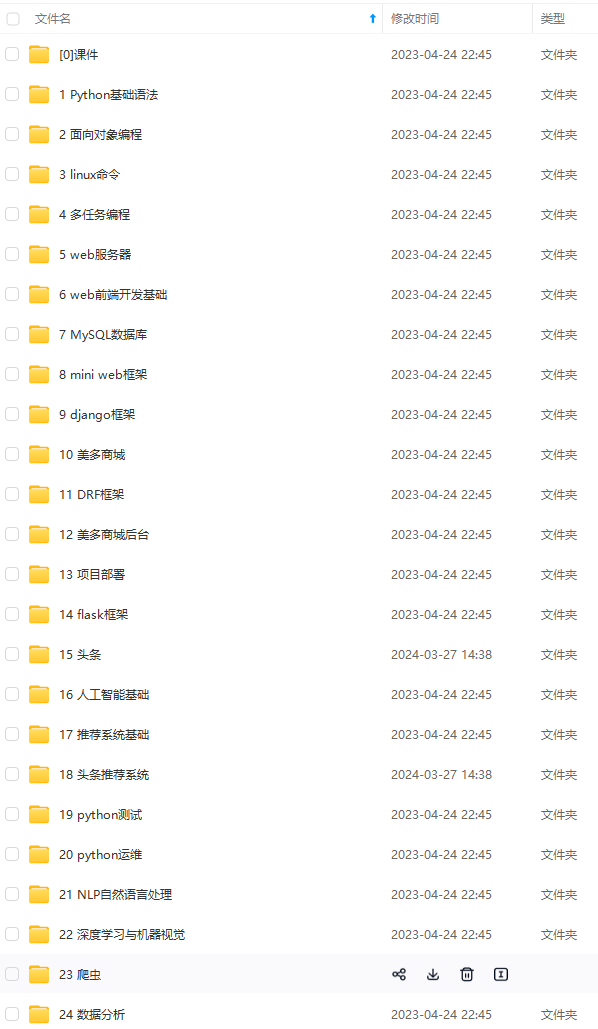
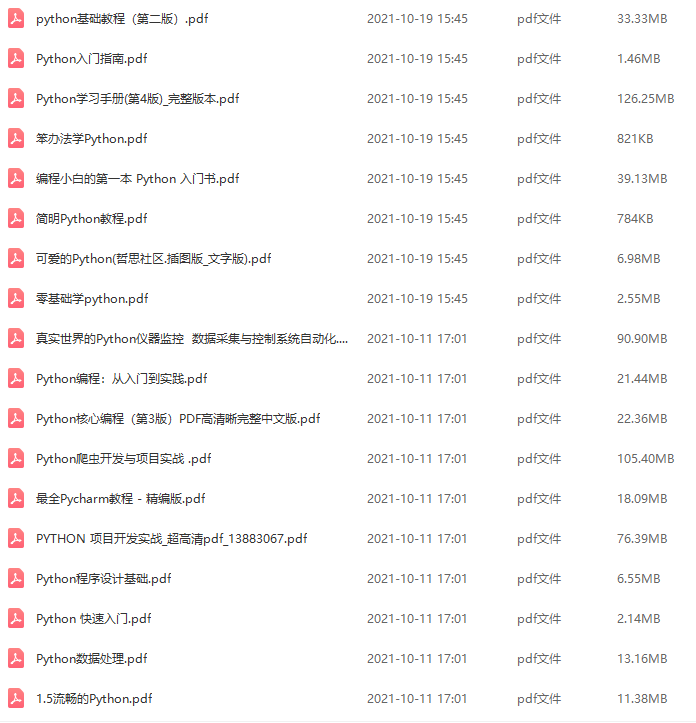
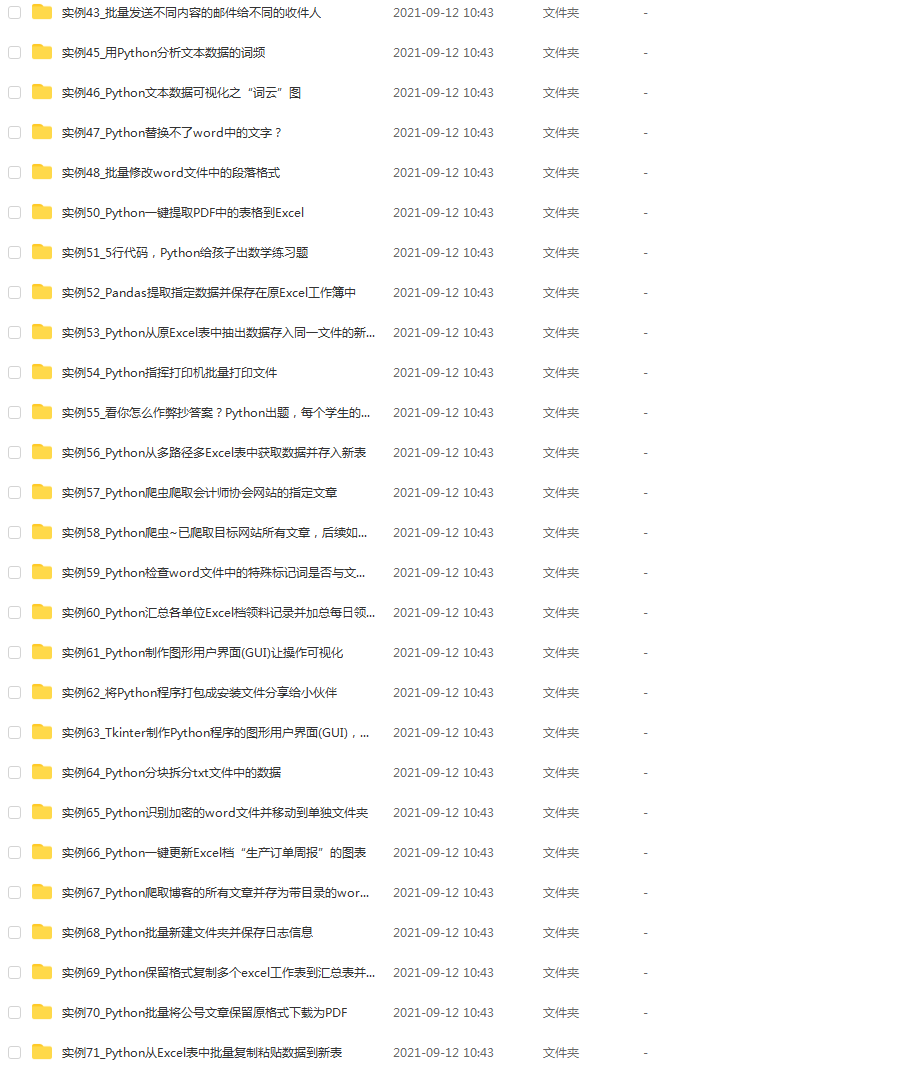
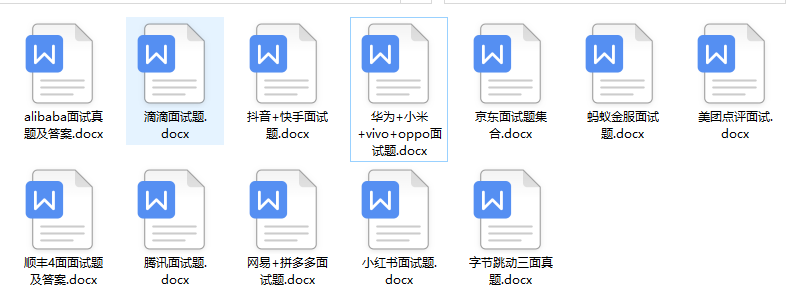
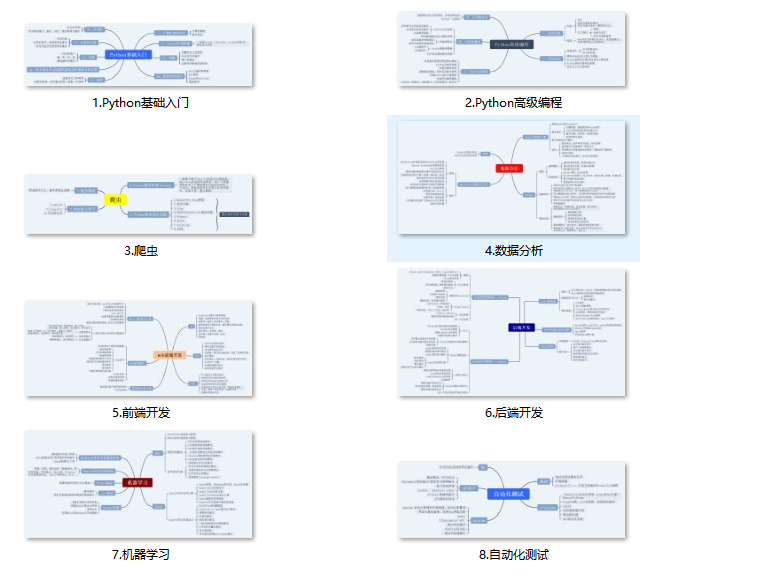
既有适合小白学习的零基础资料,也有适合3年以上经验的小伙伴深入学习提升的进阶课程,基本涵盖了95%以上Python开发知识点,真正体系化!
由于文件比较大,这里只是将部分目录大纲截图出来,每个节点里面都包含大厂面经、学习笔记、源码讲义、实战项目、讲解视频,并且后续会持续更新
如果你觉得这些内容对你有帮助,可以添加V获取:vip1024c (备注Python)

感谢每一个认真阅读我文章的人,看着粉丝一路的上涨和关注,礼尚往来总是要有的:
① 2000多本Python电子书(主流和经典的书籍应该都有了)
② Python标准库资料(最全中文版)
③ 项目源码(四五十个有趣且经典的练手项目及源码)
④ Python基础入门、爬虫、web开发、大数据分析方面的视频(适合小白学习)
⑤ Python学习路线图(告别不入流的学习)
一个人可以走的很快,但一群人才能走的更远。不论你是正从事IT行业的老鸟或是对IT行业感兴趣的新人,都欢迎扫码加入我们的的圈子(技术交流、学习资源、职场吐槽、大厂内推、面试辅导),让我们一起学习成长!
进阶课程,基本涵盖了95%以上Python开发知识点,真正体系化!**
由于文件比较大,这里只是将部分目录大纲截图出来,每个节点里面都包含大厂面经、学习笔记、源码讲义、实战项目、讲解视频,并且后续会持续更新
如果你觉得这些内容对你有帮助,可以添加V获取:vip1024c (备注Python)
[外链图片转存中…(img-YJICeZu8-1712706716720)]
感谢每一个认真阅读我文章的人,看着粉丝一路的上涨和关注,礼尚往来总是要有的:
① 2000多本Python电子书(主流和经典的书籍应该都有了)
② Python标准库资料(最全中文版)
③ 项目源码(四五十个有趣且经典的练手项目及源码)
④ Python基础入门、爬虫、web开发、大数据分析方面的视频(适合小白学习)
⑤ Python学习路线图(告别不入流的学习)
一个人可以走的很快,但一群人才能走的更远。不论你是正从事IT行业的老鸟或是对IT行业感兴趣的新人,都欢迎扫码加入我们的的圈子(技术交流、学习资源、职场吐槽、大厂内推、面试辅导),让我们一起学习成长!
[外链图片转存中…(img-T7kZsvxr-1712706716720)]

腾讯云面向开发者汇聚海量精品云计算使用和开发经验,营造开放的云计算技术生态圈。
更多推荐
 11
11 0
0- 0


 已为社区贡献6条内容

所有评论(0)