统信UOS服务器操作系统迁移docker目录_uos docker(1),膜拜
先自我介绍一下,小编浙江大学毕业,去过华为、字节跳动等大厂,目前阿里P7
深知大多数程序员,想要提升技能,往往是自己摸索成长,但自己不成体系的自学效果低效又漫长,而且极易碰到天花板技术停滞不前!
因此收集整理了一份《2024年最新Linux运维全套学习资料》,初衷也很简单,就是希望能够帮助到想自学提升又不知道该从何学起的朋友。


既有适合小白学习的零基础资料,也有适合3年以上经验的小伙伴深入学习提升的进阶课程,涵盖了95%以上运维知识点,真正体系化!
由于文件比较多,这里只是将部分目录截图出来,全套包含大厂面经、学习笔记、源码讲义、实战项目、大纲路线、讲解视频,并且后续会持续更新
如果你需要这些资料,可以添加V获取:vip1024b (备注运维)

正文
docker-ce-20.10.7-3.uel20.x86_64
docker-ce-cli-20.10.7-3.uel20.x86_64
docker-ce-rootless-extras-20.10.7-3.uel20.x86_64
docker-scan-plugin-0.7.0-3.uel20.x86_64
libcgroup-0.42.2-3.uel20.x86_64
Complete!
3、启动docker查看状态
[root@localhost ~]# systemctl start docker
[root@localhost ~]# systemctl status docker
● docker.service - Docker Application Container Engine
Loaded: loaded (/usr/lib/systemd/system/docker.service; disabled; vendor preset>
Active: active (running) since Tue 2023-06-20 14:51:27 CST; 3s ago
Docs: https://docs.docker.com
Main PID: 36834 (dockerd)
Tasks: 10
Memory: 44.0M
CGroup: /system.slice/docker.service
└─36834 /usr/bin/dockerd -H fd:// --containerd=/run/containerd/containe>
6月 20 14:51:26 localhost.localdomain dockerd[36834]: time="2023-06-20T14:51:26.51>
6月 20 14:51:26 localhost.localdomain dockerd[36834]: time="2023-06-20T14:51:26.51>
6月 20 14:51:26 localhost.localdomain dockerd[36834]: time="2023-06-20T14:51:26.57>
6月 20 14:51:27 localhost.localdomain dockerd[36834]: time="2023-06-20T14:51:27.22>
6月 20 14:51:27 localhost.localdomain dockerd[36834]: time="2023-06-20T14:51:27.35>
6月 20 14:51:27 localhost.localdomain dockerd[36834]: time="2023-06-20T14:51:27.53>
6月 20 14:51:27 localhost.localdomain dockerd[36834]: time="2023-06-20T14:51:27.58>
6月 20 14:51:27 localhost.localdomain dockerd[36834]: time="2023-06-20T14:51:27.58>
[root@localhost ~]#
4、配置阿里云docker镜像加速器
[root@localhost ~]# mkdir -p /etc/docker
[root@localhost ~]# tee /etc/docker/daemon.json <<-‘EOF’
{
“registry-mirrors”: [“https://xxxxxx.mirror.aliyuncs.com”]
}
EOF
{
“registry-mirrors”: [“https://xxxxxxxx.mirror.aliyuncs.com”]
}
[root@localhost ~]# systemctl daemon-reload
[root@localhost ~]# systemctl restart docker
[root@localhost ~]#
5、拉取nginx镜像
[root@localhost ~]# docker pull nginx
Using default tag: latest
latest: Pulling from library/nginx
a2abf6c4d29d: Pull complete
a9edb18cadd1: Pull complete
589b7251471a: Pull complete
186b1aaa4aa6: Pull complete
b4df32aa5a72: Pull complete
a0bcbecc962e: Pull complete
Digest: sha256:0d17b565c37bcbd895e9d92315a05c1c3c9a29f762b011a10c54a66cd53c9b31
Status: Downloaded newer image for nginx:latest
docker.io/library/nginx:latest
[root@localhost ~]#
6、查看nginx镜像
[root@localhost ~]# docker images
REPOSITORY TAG IMAGE ID CREATED SIZE
nginx latest 605c77e624dd 17 months ago 141MB
[root@localhost ~]#
7、启动nginx
[root@localhost ~]# docker run -d --name nginx -p 80:80 nginx
dcb11489260306d89e54608e0de1cc7efcce6c444b7f9c85b4018c3bef08a783
[root@localhost ~]# docker ps
CONTAINER ID IMAGE COMMAND CREATED STATUS PORTS NAMES
dcb114892603 nginx “/docker-entrypoint.…” 4 seconds ago Up 3 seconds 0.0.0.0:80->80/tcp, :::80->80/tcp nginx
[root@localhost ~]#
8、访问nginx网站,可以看到网站访问成功
[root@localhost ~]# curl http://192.168.122.236
Welcome to nginx!
If you see this page, the nginx web server is successfully installed and working. Further configuration is required.
For online documentation and support please refer to nginx.org.
Commercial support is available at nginx.com.
Thank you for using nginx.
[root@localhost ~]# ```9、停止docker服务
[root@localhost ~]# systemctl stop docker
Warning: Stopping docker.service, but it can still be activated by:
  docker.socket
[root@localhost ~]# systemctl stop docker.socket
[root@localhost ~]# systemctl status docker
● docker.service - Docker Application Container Engine
   Loaded: loaded (/usr/lib/systemd/system/docker.service; disabled; vendor preset>
   Active: inactive (dead)
     Docs: https://docs.docker.com

6月 20 14:59:15 localhost.localdomain dockerd[37327]: time="2023-06-20T14:59:15.26>
6月 20 14:59:15 localhost.localdomain systemd[1]: Started Docker Application Conta>
6月 20 14:59:15 localhost.localdomain dockerd[37327]: time="2023-06-20T14:59:15.30>
6月 20 15:03:52 localhost.localdomain systemd[1]: Stopping Docker Application Cont>
6月 20 15:03:52 localhost.localdomain dockerd[37327]: time="2023-06-20T15:03:52.29>
6月 20 15:03:52 localhost.localdomain dockerd[37327]: time="2023-06-20T15:03:52.52>
6月 20 15:03:52 localhost.localdomain dockerd[37327]: time="2023-06-20T15:03:52.91>
6月 20 15:03:52 localhost.localdomain dockerd[37327]: time="2023-06-20T15:03:52.91>
6月 20 15:03:52 localhost.localdomain systemd[1]: docker.service: Succeeded.
6月 20 15:03:52 localhost.localdomain systemd[1]: Stopped Docker Application Conta>
[root@localhost ~]#
10、同步/var/lib/docker/目录到/home/docker
[root@localhost ~]# rsync -aP /var/lib/docker/ /home/docker/
runtimes/
swarm/
tmp/
trust/
volumes/
volumes/backingFsBlockDev
volumes/metadata.db
         32,768 100%   41.29kB/s    0:00:00 (xfr#4432, to-chk=0/6359)
11、重新编辑docker服务配置文件
[root@localhost ~]# cp /usr/lib/systemd/system/docker.service /usr/lib/systemd/system/docker.service.bak
[root@localhost ~]# vi /usr/lib/systemd/system/docker.service
[root@localhost ~]# cat /usr/lib/systemd/system/docker.service
[Unit]
Description=Docker Application Container Engine
mentation=https://docs.docker.com
After=network-online.target firewalld.service containerd.service
Wants=network-online.target
Requires=docker.socket containerd.service

[Service]
Type=notify
# the default is not to use systemd for cgroups because the delegate issues still
# exists and systemd currently does not support the cgroup feature set required
# for containers run by docker
ExecStart=/usr/bin/dockerd --data-root /home/docker
ExecReload=/bin/kill -s HUP $MAINPID
TimeoutSec=0
RestartSec=2
Restart=always

# Note that StartLimit* options were moved from "Service" to "Unit" in systemd 229.
# Both the old, and new location are accepted by systemd 229 and up, so using the old location
# to make them work for either version of systemd.
StartLimitBurst=3

# Note that StartLimitInterval was renamed to StartLimitIntervalSec in systemd 230.
# Both the old, and new name are accepted by systemd 230 and up, so using the old name to make
# this option work for either version of systemd.
StartLimitInterval=60s

# Having non-zero Limit*s causes performance problems due to accounting overhead
# in the kernel. We recommend using cgroups to do container-local accounting.
LimitNOFILE=infinity
LimitNPROC=infinity
LimitCORE=infinity

# Comment TasksMax if your systemd version does not support it.
# Only systemd 226 and above support this option.
TasksMax=infinity

# set delegate yes so that systemd does not reset the cgroups of docker containers
Delegate=yes

# kill only the docker process, not all processes in the cgroup
KillMode=process
OOMScoreAdjust=-500

[Install]
WantedBy=multi-user.target
12、重新启动docker服务
[root@localhost ~]# systemctl daemon-reload
[root@localhost ~]# systemctl restart docker
[root@localhost ~]# systemctl status docker
● docker.service - Docker Application Container Engine
   Loaded: loaded (/usr/lib/systemd/system/docker.service; disabled; vendor preset>
   Active: active (running) since Tue 2023-06-20 15:10:20 CST; 5s ago
     Docs: https://docs.docker.com
 Main PID: 38374 (dockerd)
    Tasks: 9
   Memory: 44.1M
   CGroup: /system.slice/docker.service
           └─38374 /usr/bin/dockerd --data-root /home/docker

6月 20 15:10:19 localhost.localdomain dockerd[38374]: time="2023-06-20T15:10:19.38>
6月 20 15:10:19 localhost.localdomain dockerd[38374]: time="2023-06-20T15:10:19.63>
6月 20 15:10:19 localhost.localdomain dockerd[38374]: time="2023-06-20T15:10:19.67>
6月 20 15:10:19 localhost.localdomain dockerd[38374]: time="2023-06-20T15:10:19.94>
6月 20 15:10:20 localhost.localdomain dockerd[38374]: time="2023-06-20T15:10:20.05>
6月 20 15:10:20 localhost.localdomain dockerd[38374]: time="2023-06-20T15:10:20.19>
6月 20 15:10:20 localhost.localdomain dockerd[38374]: time="2023-06-20T15:10:20.21>
6月 20 15:10:20 localhost.localdomain dockerd[38374]: time="2023-06-20T15:10:20.21>
[root@localhost ~]#
13、查看docker是否启用新的数据目录
[root@localhost ~]# docker info |grep "Docker Root Dir"
 Docker Root Dir: /home/docker
[root@localhost ~]#
14、查看并清除历史的docker容器
### 最后的话
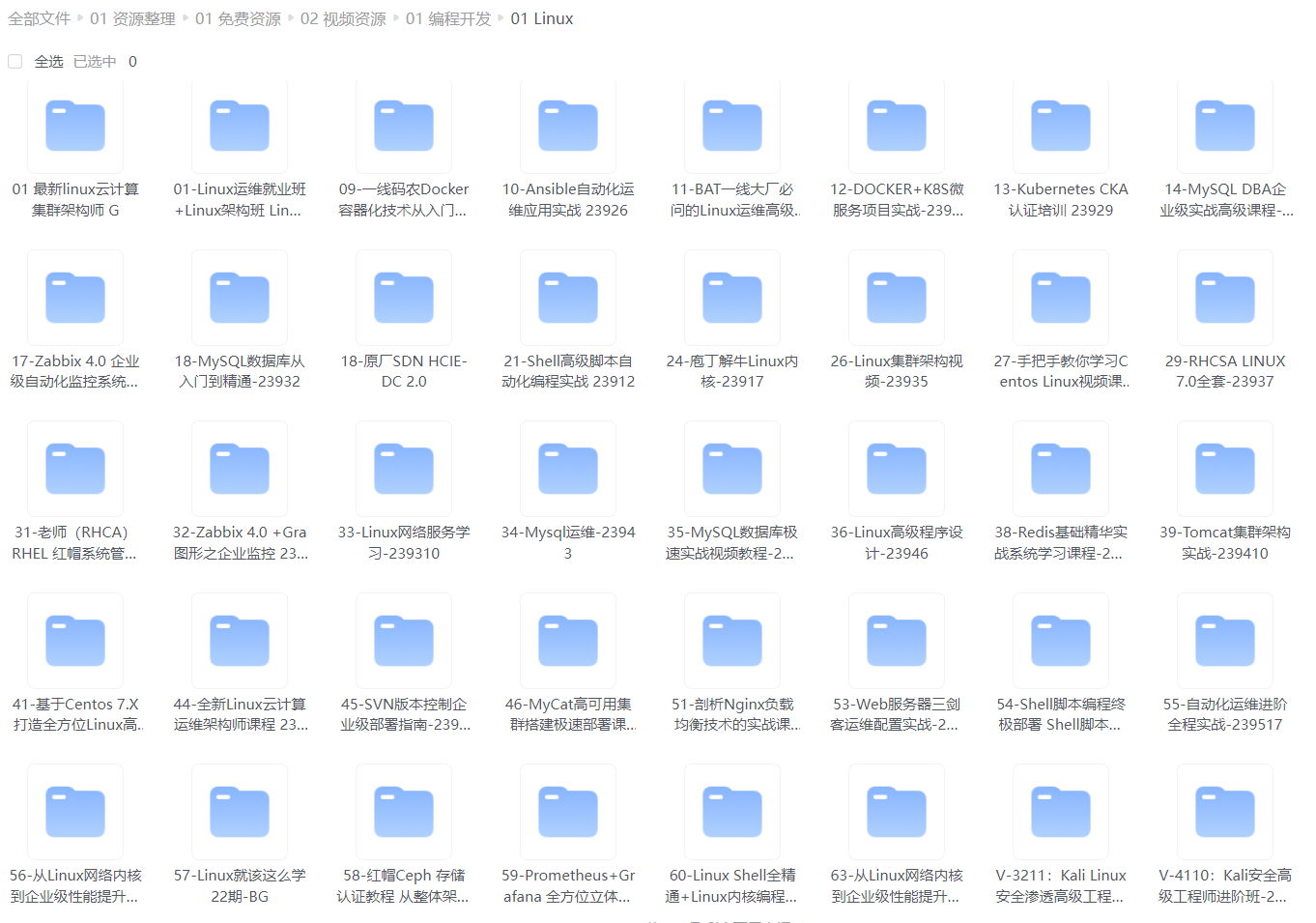
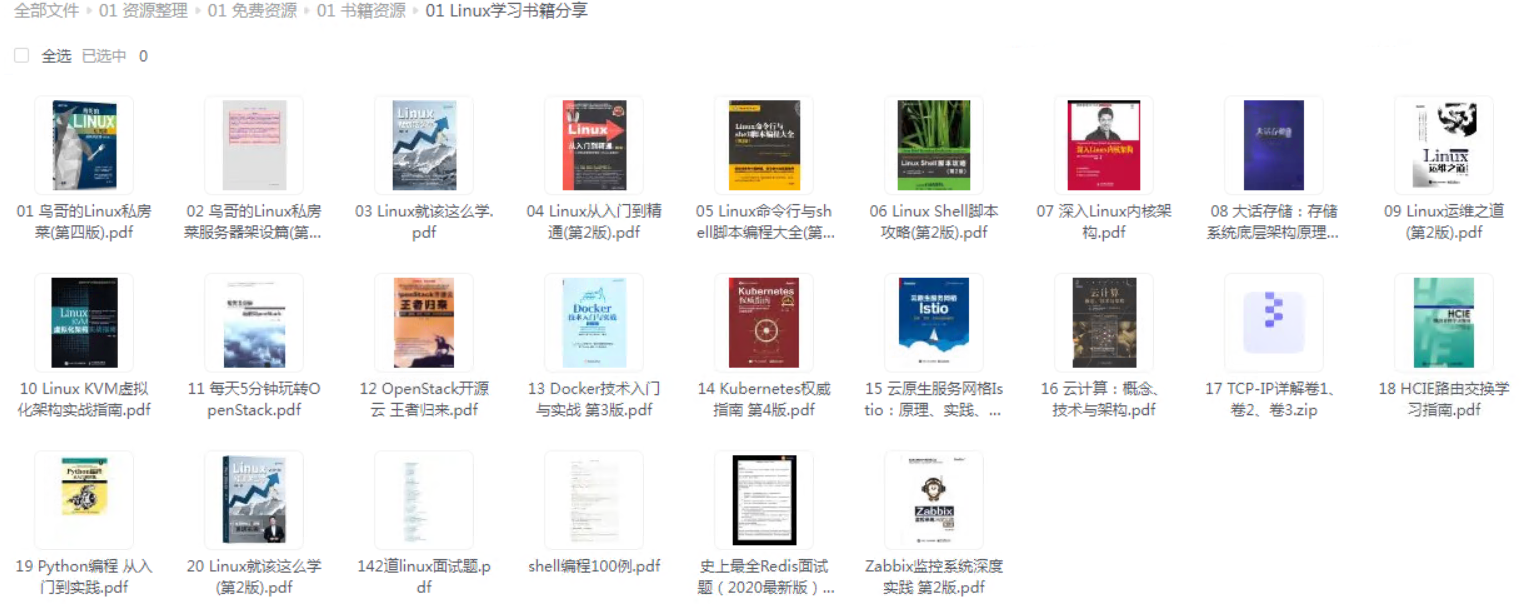
最近很多小伙伴找我要Linux学习资料,于是我翻箱倒柜,整理了一些优质资源,涵盖视频、电子书、PPT等共享给大家!
### 资料预览
给大家整理的视频资料:
给大家整理的电子书资料:
**如果本文对你有帮助,欢迎点赞、收藏、转发给朋友,让我有持续创作的动力!**
**网上学习资料一大堆,但如果学到的知识不成体系,遇到问题时只是浅尝辄止,不再深入研究,那么很难做到真正的技术提升。**
**需要这份系统化的资料的朋友,可以添加V获取:vip1024b (备注运维)**

**一个人可以走的很快,但一群人才能走的更远!不论你是正从事IT行业的老鸟或是对IT行业感兴趣的新人,都欢迎加入我们的的圈子(技术交流、学习资源、职场吐槽、大厂内推、面试辅导),让我们一起学习成长!**
4jk3-1713638127287)]
**如果本文对你有帮助,欢迎点赞、收藏、转发给朋友,让我有持续创作的动力!**
**网上学习资料一大堆,但如果学到的知识不成体系,遇到问题时只是浅尝辄止,不再深入研究,那么很难做到真正的技术提升。**
**需要这份系统化的资料的朋友,可以添加V获取:vip1024b (备注运维)**
[外链图片转存中...(img-fhv6C8W9-1713638127287)]
**一个人可以走的很快,但一群人才能走的更远!不论你是正从事IT行业的老鸟或是对IT行业感兴趣的新人,都欢迎加入我们的的圈子(技术交流、学习资源、职场吐槽、大厂内推、面试辅导),让我们一起学习成长!**

腾讯云面向开发者汇聚海量精品云计算使用和开发经验,营造开放的云计算技术生态圈。
更多推荐
 23
23 0
0- 0


 已为社区贡献1条内容

所有评论(0)