github 的几种登录方式:Password, Passkeys, Two-factor authentication ; SSH and GPG keys
github 的几种登录方式:Password, Passkeys, Two-factor authentication ; SSH and GPG keys
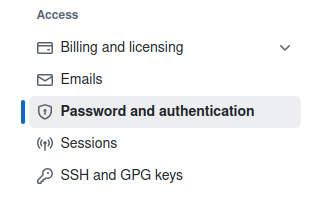
注意:区别两种密码
- Password and authentication
- SSH and GPG keys
参见本文后半部分:github: Password and authentication 与 SSH and GPG keys 的作用和区别
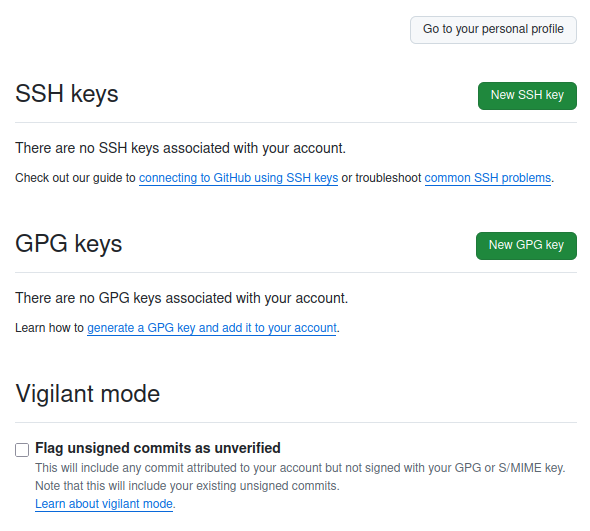
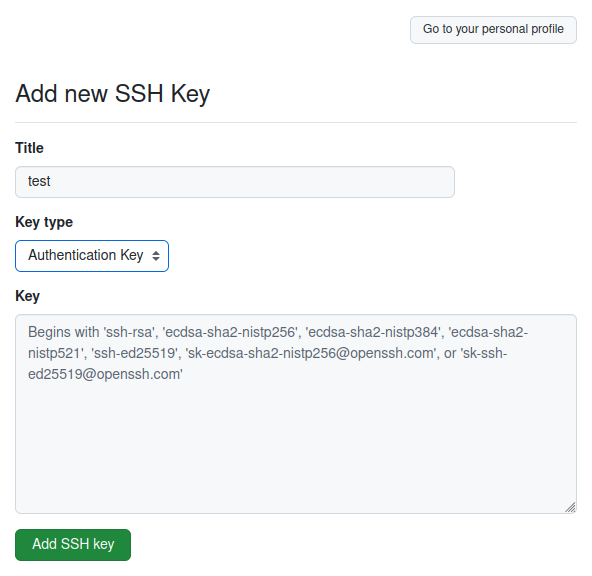
- 用户需要在自己的电脑上生成密钥对,并将公钥粘贴到 Key 窗口内?
- 还需要在本地电脑中进行一些 ssh 公钥的常规操作。
> Generating a new SSH key and adding it to the ssh-agent - GitHub Docs
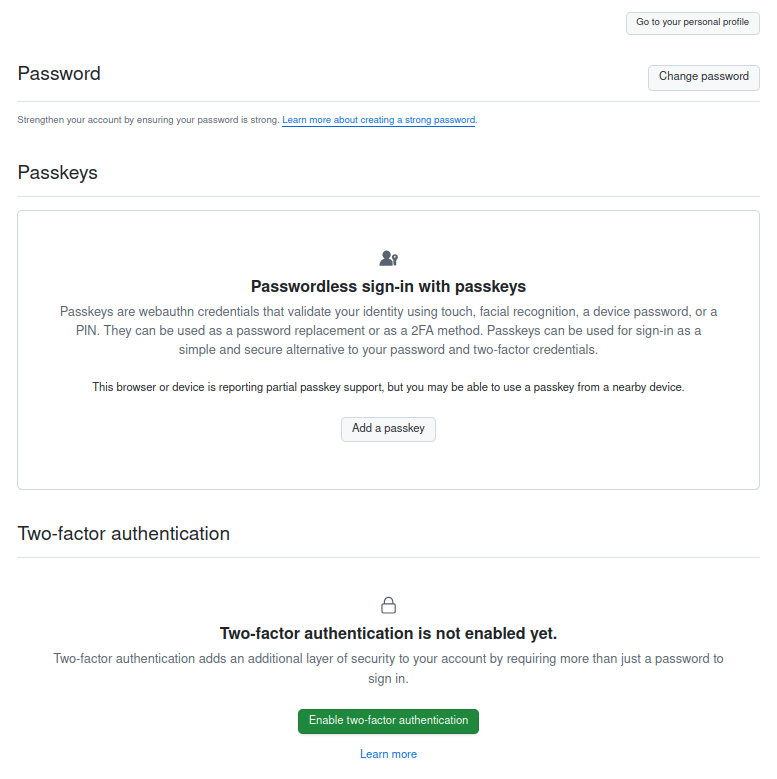
Password
Strengthen your account by ensuring your password is strong. Learn more about creating a strong password.
通过确保您的密码很强来加强您的帐户。
You must choose or generate a password for your account on GitHub that is at least:
Eight characters long, if it includes a number and a lowercase letter, or
15 characters long with any combination of characters
您必须为GitHub上的帐户选择或生成密码,密码至少为:
- 如果包含数字和小写字母,则长度为八个字符,或
- 15个字符长,可任意组合字符
Passkeys
Passwordless sign-in with passkeys
Passkeys are webauthn credentials that validate your identity using touch, facial recognition, a device password, or a PIN. They can be used as a password replacement or as a 2FA method. Passkeys can be used for sign-in as a simple and secure alternative to your password and two-factor credentials.
This browser or device is reporting partial passkey support, but you may be able to use a passkey from a nearby device.
使用密钥进行无密码登录
密钥是使用触摸、面部识别、设备密码或PIN验证您身份的webauthn凭据。它们可以用作密码替换或2FA方法。密钥可用于登录,作为密码和双因素凭据的简单而安全的替代方案。
此浏览器或设备报告部分密钥支持,但您可以使用附近设备的密钥。
Two-factor authentication
Two-factor authentication is not enabled yet.
Two-factor authentication adds an additional layer of security to your account by requiring more than just a password to sign in.
双因素身份验证尚未启用。
双因素身份验证为您的帐户增加了额外的安全层,因为登录时需要的不仅仅是密码。
About two-factor authentication
> About two-factor authentication - GitHub Docs
Two-factor authentication (2FA) is an extra layer of security used when logging into websites or apps. With 2FA, you have to log in with your username and password and provide another form of authentication that only you know or have access to.
In this article
Note
As of March 2023, GitHub required all users who contribute code on GitHub.com to enable one or more forms of two-factor authentication (2FA). If you were in an eligible group, you would have received a notification email when that group was selected for enrollment, marking the beginning of a 45-day 2FA enrollment period, and you would have seen banners asking you to enroll in 2FA on GitHub.com. If you didn't receive a notification, then you were not part of a group required to enable 2FA, though we strongly recommend it.
For more information about the 2FA enrollment rollout, see this blog post.
For GitHub, the second form of authentication is a code that's generated by an application on your mobile device or sent as a text message (SMS). After you enable 2FA, GitHub generates an authentication code any time someone attempts to sign into your account. The only way someone can sign into your account is if they know both your password and have access to the authentication code on your phone.
After you configure 2FA, using a time-based one-time password (TOTP) mobile app, or via text message, you can add a security key, like a FIDO2 hardware security key, Apple Touch ID or Windows Hello. The technology that enables authentication with a security key is called WebAuthn. WebAuthn is the successor to U2F and works in all modern browsers. For more information, see WebAuthn and Can I Use.
Optionally, you can add a passkey to your account. Passkeys are similar to security keys and satisfy both password and 2FA requirements, allowing you to sign in with a single step. However, to reduce the risk of account lockouts, you should also configure a fallback 2FA method, such as a TOTP mobile app or SMS-based authentication. If you have already set up a security key for 2FA that is passkey-eligible, you may be prompted to upgrade it to a passkey during registration. See About passkeys.
You can also use GitHub Mobile for 2FA after configuring a TOTP mobile app or text messages. GitHub Mobile uses public-key cryptography to secure your account, allowing you to use any mobile device that you've used to sign in to GitHub Mobile as your second factor.
You can also configure additional recovery methods in case you lose access to your two-factor authentication credentials. For more information on setting up 2FA, see Configuring two-factor authentication and Configuring two-factor authentication recovery methods.
Note
If you cannot use any recovery methods, you have permanently lost access to your account. However, you can unlink an email address tied to the locked account. The unlinked email address can then be linked to a new or existing account. For more information, see Unlinking your email address from a locked account.
We strongly urge you to enable 2FA for the safety of your account, not only on GitHub, but on other websites and apps that support 2FA. You can enable 2FA to access GitHub and GitHub Desktop.
If you don't enable 2FA, GitHub may ask for additional verification to confirm that it is you when you sign in for the first time from a new or unrecognized device. See Verifying new devices when signing in.
For more information, see Accessing GitHub using two-factor authentication.
Two-factor authentication recovery codes
When you configure two-factor authentication, you'll download and save your 2FA recovery codes. If you lose access to your phone, you can authenticate to GitHub using your recovery codes. For more information, see Recovering your account if you lose your 2FA credentials.
Warning
For security reasons, GitHub Support will not be able to restore access to accounts with two-factor authentication enabled if you lose your two-factor authentication credentials or lose access to your account recovery methods. For more information, see Recovering your account if you lose your 2FA credentials.
Requiring two-factor authentication in your organization
Organization owners can require that organization members, billing managers, and outside collaborators use two-factor authentication to secure their personal accounts. For more information, see Requiring two-factor authentication in your organization.
github: Password and authentication 与 SSH and GPG keys 的作用和区别
GitHub 中的 Password and Authentication(密码与身份验证)和 SSH and GPG Keys(SSH 和 GPG 密钥)是两种不同的安全机制,它们在功能和应用场景上有显著区别。以下是它们的详细对比:
1. Password and Authentication(密码与身份验证)
作用:
-
用于 GitHub 账户的基本登录验证(用户名 + 密码)。
-
支持 个人访问令牌(PAT, Personal Access Token) 代替密码进行 HTTPS Git 操作(GitHub 已弃用密码直接认证)。
-
管理 双因素认证(2FA),增强账户安全性。
特点:
-
HTTPS 克隆/推送:使用
https://github.com/...时,需提供用户名 + PAT(而非密码)。 -
临时性:PAT 可设置有效期,适合短期访问。
-
权限控制:可精细控制 PAT 的权限(如
repo、admin等)。 -
安全性较低:若 PAT 泄露,攻击者可访问对应权限的资源。
适用场景:
-
临时访问 GitHub 仓库(如 CI/CD 自动化脚本)。
-
在不支持 SSH 的环境下使用 Git(如企业防火墙限制)。
2. SSH and GPG Keys(SSH 和 GPG 密钥)
作用:
-
SSH Keys:用于安全连接 GitHub,无需每次输入密码,适用于 Git 的
git@github.com:...操作。 -
GPG Keys:用于 代码提交签名,确保提交的真实性和完整性(防篡改)。
(1) SSH Keys
特点:
-
免密推送:配置后,Git 操作无需输入密码。
-
长期有效:密钥对可长期使用,比 PAT 更稳定。
-
安全性高:基于非对称加密,私钥本地存储,不易泄露。
-
支持代理转发:适用于远程开发环境(如 VM/容器)23。
适用场景:
-
日常 Git 操作(克隆、推送、拉取)。
-
需要高安全性的开发环境。
(2) GPG Keys
特点:
-
提交签名:GitHub 会标记
Verified,证明提交者身份。 -
防篡改:确保提交内容未被修改。
-
信任链:支持 Web of Trust(WoT),但配置较复杂15。
适用场景:
-
开源项目,确保提交可信。
-
企业代码审计,防止冒名提交。
3. 主要区别
| 对比项 | Password and Authentication | SSH Keys | GPG Keys |
|---|---|---|---|
| 用途 | 登录、HTTPS Git 操作 | Git SSH 免密操作 | 提交签名验证 |
| 安全性 | 依赖 PAT 管理 | 非对称加密,更安全 | 数字签名,防篡改 |
| 有效期 | PAT 可设过期时间 | 长期有效 | 长期有效 |
| Git 操作 | https:// 协议 |
git@github.com: 协议 |
不影响协议,仅签名 |
| 适用场景 | 临时访问、自动化脚本 | 日常开发 | 安全审计、开源项目 |
4. 如何选择?
-
日常 Git 操作 → SSH Keys(免密、高效)。
-
自动化脚本/CI/CD → PAT(HTTPS)(可设短期权限)。
-
代码签名/安全审计 → GPG Keys(确保提交可信)。
如果同时使用 SSH + GPG,可实现 免密推送 + 提交验证 的最佳安全实践15。
This response is AI-generated, for reference only.

腾讯云面向开发者汇聚海量精品云计算使用和开发经验,营造开放的云计算技术生态圈。
更多推荐
 0
0 0
0- 0


 已为社区贡献14条内容

所有评论(0)