docker私有化仓库harbor搭建
Harbor在Linux上的安装
一、下载安装docker-compose
1.从github上找到合适版本(可用最新版本)下载docker-compose二进制文件安装
例:wget https://github.com/docker/compose/releases/download/1.25.0/dockercompose-Linux-x86_64
2.查看已下载二进制文件
命令 ls
3.查询环境
命令 echo $PATH
4.移动二进制文件到/usr/bin目录(可以选择其他环境配置下的目录)
mv docker-compose-linux-x86_64 /usr/bin/docker-compose
5.添加执行权限
chmod +x /usr/bin/docker-compose
6.验证查看docker-compse版本
docker-compose version
二、下载安装harbor安装文件
1.从github上找到合适版本(可用最新版本)下载harbor二进制文件安装
例:wget https://github.com/docker/compose/releases/download/1.25.0/docker-compose-Linux-x86_64
2.查看已下载的离线安装包
ls
3. 解压harbor离线安装包
tar xf harbor-offline-installer-v2.4.1.tgz
4.进入harbor文件夹下
cd harbor/
5.创建配置文件
mv harbor.yml.tmpl harbor.yml
6.修改配置文件内容
vim harbor.yml
# Configuration file of Harbor
# The IP address or hostname to access admin UI and registry service.
# DO NOT use localhost or 127.0.0.1, because Harbor needs to be accessed by external clients.
hostname: www.kubemsb.com 修改为域名,而且一定是证书签发的域名 没有域名用ip
# http related config
http:
# port for http, default is 80. If https enabled, this port will redirect to https port
port: 80
# https related config
如果不用https就注释掉下面的配置
https:
# https port for harbor, default is 443
port: 443
# The path of cert and key files for nginx
certificate: / 证书
private_key: / 密钥
# # Uncomment following will enable tls communication between all harbor components
# internal_tls:
# # set enabled to true means internal tls is enabled
# enabled: true
# # put your cert and key files on dir
# dir: /etc/harbor/tls/internal
# Uncomment external_url if you want to enable external proxy
# And when it enabled the hostname will no longer used
# external_url: https://reg.mydomain.com:8433
# The initial password of Harbor admin
# It only works in first time to install harbor
# Remember Change the admin password from UI after launching Harbor.
harbor_admin_password: 12345 访问密码
......
~~~
7.执行预备脚本
./prepare
prepare base dir is set to /root/harbor

Clearing the configuration file: /config/portal/nginx.conf

Clearing the configuration file: /config/log/logrotate.conf

Clearing the configuration file: /config/log/rsyslog_docker.conf

Generated configuration file: /config/portal/nginx.conf

Generated configuration file: /config/log/logrotate.conf

Generated configuration file: /config/log/rsyslog_docker.conf

Generated configuration file: /config/nginx/nginx.conf

Generated configuration file: /config/core/env

Generated configuration file: /config/core/app.conf

Generated configuration file: /config/registry/config.yml

Generated configuration file: /config/registryctl/env

Generated configuration file: /config/registryctl/config.yml

Generated configuration file: /config/db/env

Generated configuration file: /config/jobservice/env

Generated configuration file: /config/jobservice/config.yml

Generated and saved secret to file: /data/secret/keys/secretkey

Successfully called func: create_root_cert

Generated configuration file: /compose_location/docker-compose.yml

Clean up the input dir
8.执行安装脚本
./install.sh
[Step 0]: checking if docker is installed ...


Note: docker version: 20.10.12


[Step 1]: checking docker-compose is installed ...


Note: docker-compose version: 1.25.0


[Step 2]: loading Harbor images ...


[Step 3]: preparing environment ...


[Step 4]: preparing harbor configs ...

prepare base dir is set to /root/harbor


[Step 5]: starting Harbor ...

Creating network "harbor_harbor" with the default driver

Creating harbor-log ... done

Creating harbor-db ... done

Creating registry ... done

Creating registryctl ... done

Creating redis ... done

Creating harbor-portal ... done

Creating harbor-core ... done

Creating harbor-jobservice ... done

Creating nginx ... done

✔ ----Harbor has been installed and started successfully.----
9.验证运行情况
docker ps
10.访问harbor UI界面
直接输入配置的ip和端口访问
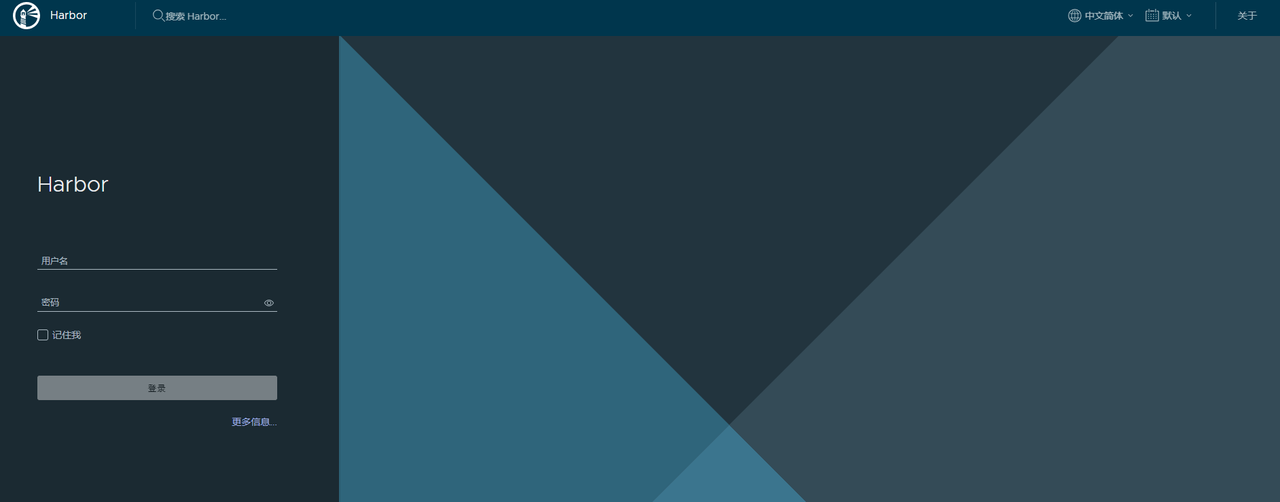
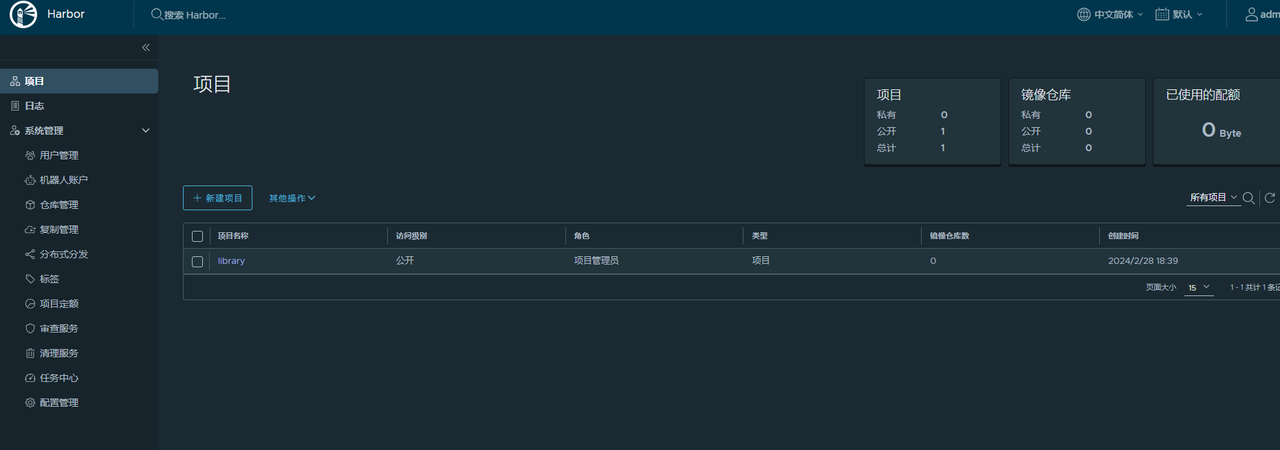
11.登录 账户名admin 密码为配置文件设置的密码
ps:
-
habor私有化仓库部署需要提前安装好docker
-
安装过程需要root权限,最好不要用一般权限用户,不然会有很多文件安装不上
-
使用harbor
添加/etc/docker/daemon.json文件,默认不存在,需要手动添加
vim /etc/docker/daemon. json
{
"insecure-registries": ["ip地址"]
}
重启加载daemon配置
systemctl daemon-reload
重启docker
systemctl restart docker
在项目中标记镜像:
docker tag SOURCE_IMAGE[:TAG] ip/library/REPOSITORY[:TAG]
推送镜像到当前项目:
docker push ip/library/REPOSITORY[:TAG]
-
harbor服务关闭与启动
docker-compose down
docker-compose up -d

腾讯云面向开发者汇聚海量精品云计算使用和开发经验,营造开放的云计算技术生态圈。
更多推荐
 29
29 0
0- 0


 已为社区贡献1条内容

所有评论(0)