2.mysql安装和基本使用
2. MySQL 安装与基本使用
2.1 MySQL 介绍
2.1.1 MySQL 历史
MySQL 之父
Michael “Monty” Widenius,1962 年 3 月 3 日出生于芬兰赫尔辛基,是开源 MySQL 数据库的创始成员、MySQL AB 公司的首席技术官、MySQL 数据库第一行代码的作者、MySQL 数据库命名人以及 MariaDB 创始人兼首席技术官。他独立完成了 MySQL 数据库服务器端 95% 的代码编写。
关于 MariaDB、MySQL、MaxDB 名称的由来,有一段趣闻:Monty 的女儿名叫 My,因此他将自己开发的数据库命名为 MySQL;2003 年,SAP 公司与 MySQL 公司建立合作伙伴关系后,Monty 又以儿子 Max 的名字将合作开发的数据库命名为 MaxDB;而现在的 MariaDB 中的 “Maria” 则是 Monty 小孙女(或小女儿)的名字。
MySQL 历史
MySQL 的海豚标志名为 “Sakila”,由 MySQL AB 的创始人从用户在 “海豚命名” 竞赛中提交的大量名称中选出。这个获胜名称由来自非洲斯威士兰的开源软件开发者 Ambrose Twebaze 提供。据 Ambrose 介绍,Sakila 源自斯威士兰的 SiSwati 方言,也是坦桑尼亚阿鲁沙附近一个小镇的名字(Ambrose 的家乡乌干达附近)。
MySQL 的历史可追溯至 1979 年。当时 Allan Larsson 和 Michael Widenius(Monty)创办了一家咨询公司,取名 TcX,其名称由来已无从考证。同年一个夜晚,Michael 基于 BASIC 语言编写了他的第一款数据库报表工具 UNIREG。
据记载,Michael 完成该工具时,极光异常明亮绚丽。通常重大事件发生时,后续记载总会提及一些异象,如刮风、下雨、出现祥瑞之气,或是星空异常闪烁等,以此凸显事件的非凡意义。
最初的 UNIREG 运行在瑞典制造的 ABC800 计算机上,该计算机内存仅 32KB,CPU 是频率为 4MHz 的 Z80。1983 年,Monty 结识了 David Axmark,两人一见如故,开始合作运营 TcX,Monty 负责技术,David 负责管理。后来,TcX 将 UNIREG 移植到了其他更强大的硬件平台,主要是 Sun 的平台。
一次,Monty 接到一个项目,需要为当时的 UNIREG 提供更通用的 SQL 接口。他找到了 mSQL 的发明人 David Hughes,商讨合作事宜。然而,经过测试,他们发现 mSQL 的速度不尽如人意,无法满足客户需求。
面对这一问题,身为程序员的 Monty 无法妥协,毅然决定重新设计整个系统。1995 年 5 月 23 日,MySQL 的第一个内部版本发布,并于次年公布了 MySQL 官方正式发行版(3.11.1)。有趣的是,第一个 MySQL 正式版仅能在 Sun Solaris 上运行,仿佛预示了它日后被 Sun 收购的命运。
在接下来的两年里,MySQL 被移植到不同平台,同时增添了不少新特性。到 1998 年,MySQL 已能在 10 多种操作系统上运行,包括应用广泛的 FreeBSD、Linux、Windows 95 和 Windows NT 等。很快,MySQL 3.22 也发布了,但它仍存在诸多问题,如不支持事务操作、子查询、外键、存储过程和视图等功能。正因这些缺陷,当时许多 Oracle 和 SQL Server 的用户对 MySQL 不屑一顾。
大约在 1999 年冬天,一场大雪过后,独立的商业公司 MySQL AB 在瑞典中部城市乌普萨拉成立。同年,包含事务型存储引擎 BDB 的 MySQL 3.23 发布。在集成 BDB 存储引擎的过程中,MySQL 开发团队得到了很好的锻炼,为后来整合 InnoDB 以及开发开放插件式存储引擎架构奠定了坚实基础。
MySQL 从诞生之初就采用双重授权标准:个人使用免费,若用于商业网站搭建或在 Windows 平台下使用,则必须购买商业许可证。2000 年,MySQL 做出重大决策,改用 GPL 许可模式,即商业用户无需购买许可证,但必须公开其源码。尽管 MySQL AB 因此收入锐减近 80%,但仍坚持采用 GPL 许可模式。
与此同时,芬兰公司 Heikki 开始与 MySQL AB 接触,探讨将 Heikki 的存储引擎 InnoDB 整合到 MySQL 数据库中的可行性。双方合作顺利,于 2001 年推出 MySQL 4.0 Alpha 版本。经过两年的公开测试和应用,到 2003 年,包含 InnoDB 的 MySQL 已非常稳定。同年,MySQL 推出 4.1 版,首次支持子查询、Unicode 和预编译 SQL 等功能。
MySQL 4.1 还处于 Alpha 版时,公司就决定并行开发 5.0 版,旨在加快 MySQL 的开发速度,以适应日益严苛的市场需求。这个新版本是 MySQL 有史以来变化最大的版本,新增了存储过程、服务端游标、触发器、查询优化以及分布式事务等功能,具备了一个 “正常数据库管理系统” 应有的全套功能。
2008 年 2 月,当时的开源领域巨头 Sun Microsystems 以 10 亿美元收购了 MySQL,创下开源软件收购价格的新高,为开源交易设立了新基准。此前的交易(如 JBoss、Zimbra、XenSource、Gluecode)金额从未接近 10 亿美元,总和才与 Sun Microsystems 收购 MySQL 的花费大致相当。MySQL 被收购后,其原有图标停用,取而代之的是 Sun/MySQL 图标。
MySQL 与 Sun 合并后,推出了 MySQL 5.1GA 版和 MySQL 5.4 Beta 版。5.4 的推出沿用了 4.1 和 5.0 当时的开发模式,使得 5.4 和 6.0 并行处于 Beta 开发阶段。
螳螂捕蝉,黄雀在后。2009 年,数据库领域的领军企业 Oracle 斥资 74 亿美元收购了 Sun Microsystems,将 MySQL 纳入旗下。
附带说明一下 Drizzle,它是 Sun/MySQL 的 Brian 在 2008 年提出的一个计划,目标是开发一个更小、更轻、更快的数据库,作为云计算(Cloud Computing)和 Web 应用的基础架构。
标志性事件
- 1999 年,MySQL AB 在瑞典正式成立。
- 2000 年,ISAM 存储引擎升级为 MyISAM 存储引擎;同年,MySQL 开放源代码,并基于 GPL 许可协议;9 月,InnoDB 推出。
- 2003 年,MySQL 4.0 发布,正式集成 InnoDB。
- 2005 年,MySQL 5.0 发布;同年,Oracle 完成对 InnoDB 引擎开发公司 Innobase 的收购;MySQL 明确展现出迈向高性能数据库的发展态势。
- 2006 年,Sun 公司以 10 亿美元收购 MySQL 公司。
- 2009 年,Oracle 公司收购 Sun,将 MySQL 收入囊中。
- 2010 年,MySQL 5.5 正式版发布,Oracle 对其进行了大量改进,并将 InnoDB 设为默认引擎。
- 2013 年,MySQL 5.6 GA 版本发布。
- 近期,MySQL 5.7 GA 版本问世,其性能、新特性和性能分析都有质的飞跃。
全球最大网站 Top20,90% 在使用 MySQL
WIKipedia.org - 维基百科
Live.com – 微软新的电子邮件服务
qq.com – 腾讯
Microsoft.com – 微软产品 / 更新 / 下载
Baidu.com – 百度
Msn.com – 微软自有互联网信息
Blogger.com – 博客平台
ASK.com - 搜索引擎
Taobao.com 淘宝
Twiter.com – 实时通讯平台
Bing.com – 必应
Sohu.com – 搜狐
Apple.com – 苹果
WrodPress.com – 成行经历
Sina.com – 新浪
Amazon.com - 亚马逊
全球 MySQL 行业应用

国内 MySQL 行业应用

2.1.2 MySQL 系列
尽管 MySQL 是最受欢迎的程序之一,但许多开发人员认为有必要对其进行拆分,形成其他项目,且每个分支项目都各有专长。这种需求以及对 Oracle 主导下核心产品增长缓慢的担忧,催生了许多备受开发人员关注的子项目和分支。本文将介绍三个流行的 MySQL 分支:Drizzle、MariaDB 和 Percona Server(包括 XtraDB 引擎)。
MySQL
官方 MySQL,其前身为 MySQL AB/SUN,最终被 Oracle 公司收购。
Percona
Percona Server 是一款由领先的 MySQL 咨询公司 Percona 发布的独立数据库产品,它允许用户替换现有的 MySQL 安装,转而使用 Percona Server,从而利用 XtraDB 存储引擎。Percona Server 声称与 MySQL 完全兼容,理论上无需修改软件中的任何代码。这是一个很大的优势,适合在寻求快速性能改进时控制质量。因此,采用 Percona Server 的一个重要原因是可以利用 XtraDB 引擎,同时尽可能减少代码更改。
此外,Percona 团队是 XtraDB 存储引擎的原作者。他们将此代码开源,因此您可能在其他产品中也能见到,但该引擎的最初创建者与 Percona Server 的开发团队是同一批人,这一点值得关注。
Percona 团队称 “Percona Server 是最接近 Oracle 发布的官方 MySQL Enterprise 发行版的版本”,这使其有别于其他对 MySQL 核心代码进行大量修改的分支。不过,Percona Server 的一个缺点是代码由其自身管理,不接受外部开发人员的贡献,以此确保对产品所包含功能的控制。
以下是 Percona Server 官网的声明:
- 可扩展性:处理更多事务,在高性能服务器上实现扩展
- 性能:使用 XtraDB 的 Percona Server 速度极快
- 可靠性:避免数据损坏,提供崩溃安全(crash-safe)复制
- 管理:支持在线备份、在线表格导入 / 导出
- 诊断:具备高级分析和检测功能
- 灵活性:支持可变页面大小,改进了缓冲池管理
MariaDB
MySQL 之父 Widenius 先生离开 Sun 后,认为依靠 Sun/Oracle 来发展 MySQL 并不靠谱,于是决定另开分支,即 MariaDB。
在出售 MySQL 之后,Widenius 发现了两个主要问题:
- MySQL 核心开发团队封闭,完全没有 Oracle 之外的成员参与,许多高手即便有意贡献也无法实现。
- 在 Oracle 收购 Sun 之后,MySQL 新版本的发布速度大幅减缓。Widenius 通过数据对比了收购前后新版本的发布速度,发现很多 bug 修复和新功能都未能及时纳入发布版本。
MariaDB 的目标是提供一个由社区开发、稳定且始终免费的 MySQL 分支,在用户级别上与主流版本兼容。开发团队致力于提高自身版本与上游版本及社区版的互操作性,Monty Program 公司承诺 MariaDB 将保持独立和开源。值得一提的是,Fedora 及 OpenSUSE Linux 已宣布,在 MariaDB 推出下一个版本后,将弃用 MySQL,转而使用 MariaDB。
MariaDB 提供了 MySQL 的标准存储引擎,即 MyISAM 和 InnoDB。因此,实际上可以将其视为 MySQL 的扩展集,不仅具备 MySQL 的所有功能,还拥有额外功能。MariaDB 还声称自己是 MySQL 的替代品,因此从 MySQL 切换到 MariaDB 时,无需更改任何基本代码即可完成安装。
最后,也是可能最重要的一点,MariaDB 的主要创建者是 Monty Widenius,他也是 MySQL 的初始创建者。Monty 成立了 Monty Program 公司来管理 MariaDB 的开发,该公司雇佣开发人员进行 MariaDB 产品的编写和改进。这既有好处也有弊端:好处是他们在 MariaDB 的功能开发和 bug 修复方面经验丰富;但弊端是该公司不以盈利为目的,而是由产品驱动,这可能带来问题,因为非盈利公司的长期运营存在不确定性。
2.1.3 MySQL 的特性
MySQL 基于开源协议发布,可免费使用,也可基于源码进行二次开发。
MySQL 使用标准 SQL 语言进行管理。
MySQL 可在多个系统上运行,具有跨平台特性,并支持多种语言。
MySQL 采用插件式存储引擎,不同的存储引擎具有不同的功能和特性,用户可根据需求灵活选择。
MySQL 基于单进程、多线程模式工作。
MySQL 提供了大量的测试组件和诸多扩展。
2.2 MySQL 安装
参考mysql安装手册
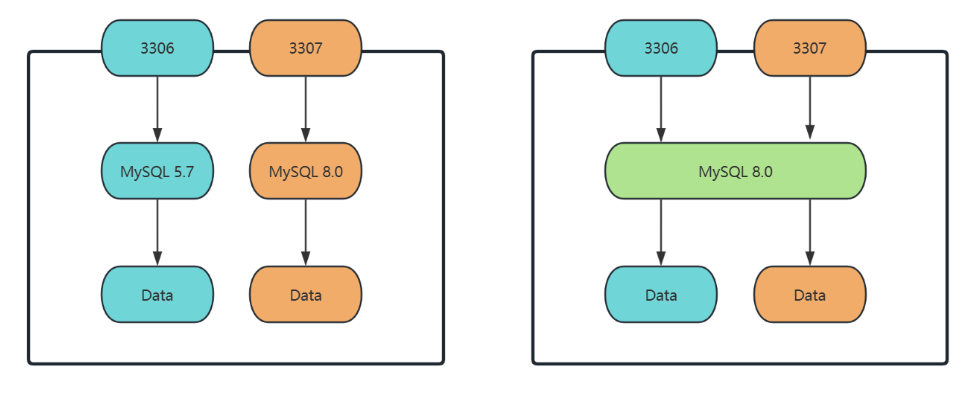
2.3 MySQL 多实例
2.3.1 数据库多实例介绍
什么是数据库多实例
以 MySQL 数据库为例,就是在一台服务器上运行多个 MySQL 服务端进程,每个进程监听一个端口(如 3306、3307、3308),维护一套属于自己的配置和数据。客户端通过不同的端口连接到相应的服务端进程,从而实现对不同实例的操作。
多实例的优点
- 节约硬件资源:在某些场景下(如测试、调研、新旧业务并存等),需要配置不同版本的 MySQL 数据库,若服务器资源不足,可在一台服务器上通过不同版本实现多实例来满足需求。
便于对比:在完全相同的硬件环境中,运行不同版本的 MySQL,使用相同参数进行测试和调研,能最大程度减少外部环境因素的影响,使结论更准确。
便于管理:在一台服务器上运行多个实例,只需在该服务器上配置安全规则,即可完成对多个实例的访问授权;而且数据库的备份、启停等工作也只需在这一台服务器上进行。
多实例的缺点
资源抢占:一台服务器上运行多个服务实例,资源总量固定,一个实例占用的资源无法被其他实例使用,这种情况下会影响服务性能,无法体现 MySQL 服务的实际性能。
存在单点风险:一台服务器上部署多个服务实例,若该服务器出现故障,所有实例都会受到影响。
2.3.2 MySQL 多实例配置方案
既可以使用不同的 MySQL 版本实现多实例,也可以使用相同的 MySQL 版本实现多实例。
2.4 MySQL 组成和常用工具
2.4.1 MySQL 主要组成
MySQL 基于 C/S 模式提供服务,主要由客户端程序、服务端程序以及一些管理工具组成。
服务端主要组成
| 程序 | 功能 |
|---|---|
| mysqld_safe | 安全启动脚本 |
| mysqld | 服务端程序,是 MySQL 服务的核心程序 |
| mysqld_multi | 多实例工具 |
客户端主要组成
| 程序 | 功能 |
|---|---|
| mysql | 基于 MySQL 协议的交互式 CLI 工具 |
| mysqldump | 备份工具 |
| mysqladmin | 服务端管理工具 |
| mysqlimport | 数据导入工具 |
MyISAM 存储引擎的管理工具
| 程序 | 功能 |
|---|---|
| myisamchk | 检测 MyISAM 库 |
| myisampack | 打包 MyISAM 表,打包后为只读 |
配置文件
不同版本的配置文件略有差异。
[root@localhost ~]# cat /etc/my.cnf #
# This group is read both both by the client and the server
# use it for options that affect everything #
[client-server]

#
# include all files from the config directory #
!includedir /etc/my.cnf.d

[root@localhost ~]# tree /etc/my.cnf.d/
/etc/my.cnf.d/
├── client.cnf
├── mysql-default-authentication-plugin.cnf
└── mysql-server.cnf

0 directories, 3 files
生效顺序
[root@localhost ~]# mysql --help | grep my.cnf
order of preference, my.cnf, $MYSQL_TCP_PORT,
/etc/my.cnf /etc/mysql/my.cnf ~/.my.cnf
2.4.2 MySQL 中的用户账户
详见 MySQL 用户管理
2.4.3 MySQL 命令类型
MySQL 中的命令分为客户端命令和服务端命令两类。
客户端命令在本地执行;服务端命令发送到服务端执行,执行结果再返回至客户端。客户端命令和服务端命令均通过 MySQL 客户端工具进行输入输出。
查看所有客户端命令
mysql> ?

For information about MySQL products and services, visit:
http://www.mysql.com/
For developer information, including the MySQL Reference Manual, visit:
http://dev.mysql.com/
To buy MySQL Enterprise support, training, or other products, visit:
https://shop.mysql.com/

List of all MySQL commands:
Note that all text commands must be first on line and end with ';' ?         (\?) Synonym for `help'.
clear     (\c) Clear the current input statement.
connect   (\r) Reconnect to the server. Optional arguments are db and host.
delimiter (\d) Set statement delimiter.
edit      (\e) Edit command with $EDITOR.
ego       (\G) Send command to mysql server, display result vertically.
exit      (\q) Exit mysql. Same as quit.
go        (\g) Send command to mysql server.
help      (\h) Display this help.
nopager   (\n) Disable pager, print to stdout.
notee     (\t) Don't write into outfile.
pager     (\P) Set PAGER [to_pager]. Print the query results via PAGER.
print     (\p) Print current command.
prompt    (\R) Change your mysql prompt.
mysql> ?

For information about MySQL products and services, visit:
http://www.mysql.com/
For developer information, including the MySQL Reference Manual, visit:
http://dev.mysql.com/
To buy MySQL Enterprise support, training, or other products, visit:
https://shop.mysql.com/

List of all MySQL commands:
Note that all text commands must be first on line and end with ';' ?         (\?) Synonym for `help'.
clear     (\c) Clear the current input statement.
connect   (\r) Reconnect to the server. Optional arguments are db and host.
delimiter (\d) Set statement delimiter.
edit      (\e) Edit command with $EDITOR.
ego       (\G) Send command to mysql server, display result vertically.
exit      (\q) Exit mysql. Same as quit.
go        (\g) Send command to mysql server.
help      (\h) Display this help.
nopager   (\n) Disable pager, print to stdout.
notee     (\t) Don't write into outfile.
pager     (\P) Set PAGER [to_pager]. Print the query results via PAGER.
print     (\p) Print current command.
prompt    (\R) Change your mysql prompt.
解释
#查看所有客户端命令
mysql> ?
For information about MySQL products and services, visit:
	http://www.mysql.com/
For developer information, including the MySQL Reference Manual, visit:
	http://dev.mysql.com/
To buy MySQL Enterprise support, training, or other products, visit:
	https://shop.mysql.com/
命令        缩写      说明
?           \?        与`help`功能相同,显示帮助信息
clear       \c        清除当前正在输入的SQL语句(如输入一半想放弃时使用)
connect     \r        重新连接到MySQL服务器,可选参数为数据库名和主机地址
delimiter   \d        设置SQL语句的分隔符(默认是分号;,存储过程中常用)
edit        \e        用系统默认编辑器(如vi、nano)编辑当前输入的命令
ego         \G        将SQL命令发送给服务器执行,并以垂直格式显示结果(适合查看长行数据)
exit        \q        退出MySQL命令行客户端(与quit功能相同)
go          \g        将SQL命令发送给服务器执行(与默认分隔符;功能类似)
help        \h        显示帮助信息(列出所有快捷命令)
nopager     \n        禁用分页器,查询结果直接输出到终端(默认行为)
notee       \t        停止将输出内容写入文件(与tee命令配合使用)
pager       \P        设置分页器(如less、more),使查询结果通过分页器显示(适合大结果集)
print       \p        打印当前正在输入的命令(预览未执行的SQL)
prompt      \R        修改MySQL命令行的提示符(默认是mysql>)
quit        \q        退出MySQL命令行客户端(与exit功能相同)
rehash      \#        重建自动补全的哈希表(输入表名/字段名时按Tab补全需要)
source      \.        执行指定的SQL脚本文件(如source /root/test.sql等价于\. /root/test.sql)
status      \s        查看MySQL服务器的状态信息(版本、连接数、当前数据库等)
system      \!        执行系统shell命令(无需退出MySQL客户端,如\! ls查看当前目录文件)
tee         \T        设置输出文件,将所有查询结果追加到该文件中(日志记录用)
use         \u        切换到指定的数据库(如\u test等价于USE test;)
charset     \C        切换字符集(处理包含多字节字符的binlog时可能需要)
warnings    \W        开启警告提示,每条SQL执行后显示警告信息
nowarning   \w        关闭警告提示(默认不显示警告)
resetconnection \x    清除当前会话的上下文(重置会话变量、临时表等)
query_attributes      用于设置字符串参数(格式为name1 value1 name2 value2...),供下一条查询语句获取使用。

For server side help, type 'help contents'
如需服务器端帮助,请输入'help contents'。

这些命令仅在MySQL交互终端中有效,使用时直接输入缩写(如\q)或完整命令(如exit)即可执行,无需加;分隔符。
查看所有服务端命令
mysql> help contents
You asked for help about help category: "Contents"
For more information, type 'help <item>', where <item> is one of the following categories:
	Account Management
	Administration
	Components
	Compound Statements
	Contents
	Data Definition
	Data Manipulation
	Data Types
	Functions
	Geographic Features
	Help Metadata
	Language Structure
	Loadable Functions
	Plugins
	Prepared Statements
	Replication Statements
	Storage Engines
	Table Maintenance
	Transactions
	Utility
查看服务端命令具体项
mysql> help Administration
You asked for help about help category: "Administration"
For more information, type 'help <item>', where <item> is one of the following topics:
	BINLOG
	CACHE INDEX
	FLUSH
	HELP COMMAND
	KILL
	LOAD INDEX
	RESET
	RESET PERSIST RESTART
	SET
	SET CHARACTER SET
	SET CHARSET SET NAMES
	SHOW
	SHOW BINARY LOGS
	SHOW BINLOG EVENTS SHOW CHARACTER SET SHOW COLLATION
	SHOW COLUMNS
	SHOW CREATE DATABASE
	SHOW CREATE EVENT
	SHOW CREATE FUNCTION  SHOW CREATE PROCEDURE SHOW CREATE SCHEMA
	SHOW CREATE TABLE
	SHOW CREATE TRIGGER SHOW CREATE USER
	SHOW CREATE VIEW SHOW DATABASES
	SHOW ENGINE
	SHOW ENGINES SHOW ERRORS
	SHOW EVENTS SHOW FIELDS
	SHOW FUNCTION CODE
	SHOW FUNCTION STATUS SHOW GRANTS
	SHOW INDEX
	SHOW MASTER LOGS
	SHOW MASTER STATUS SHOW OPEN TABLES
	SHOW PLUGINS
	SHOW PRIVILEGES
	SHOW PROCEDURE CODE
	SHOW PROCEDURE STATUS SHOW PROCESSLIST
	SHOW PROFILE
	SHOW PROFILES
	SHOW RELAYLOG EVENTS SHOW REPLICA STATUS
	SHOW REPLICAS
	SHOW SCHEMAS
	SHOW SLAVE HOSTS
	SHOW SLAVE STATUS
	SHOW STATUS
	SHOW TABLE STATUS
	SHOW TABLES
	SHOW TRIGGERS  SHOW VARIABLES SHOW WARNINGS
查看详细帮助
mysql> help BINLOG Name: 'BINLOG'
Description:
Syntax:
BINLOG 'str'

BINLOG is an internal-use statement. It is generated by the mysqlbinlog program as the printable representation of certain events in binary log files. (See https://dev.mysql.com/doc/refman/8.0/en/mysqlbinlog.html.)  The 'str' value is a base 64-encoded string the that server decodes to  determine the data change indicated by the corresponding event.

To execute BINLOG statements when applying mysqlbinlog output, a user account requires the BINLOG_ADMIN privilege (or the deprecated SUPER  privilege), or the REPLICATION_APPLIER privilege plus the appropriate privileges to execute each log event.

URL: https://dev.mysql.com/doc/refman/8.0/en/binlog.html
2.4.4 MySQL 客户端使用
MySQL 服务基于 C/S 架构,用户主要通过客户端工具与远程服务端连接,进而与 MySQL 服务进行交互。
2.4.4.1 MySQL 客户端常用选项
格式
[root@localhost ~]# mysql --help
Usage: mysql [OPTIONS] [database]

#常用选项
-V|--version	#显示客户端版本
-u|--user=name	#指定远程连接用户名
-p|--password[=name]	#指定密码,默认为空
-h|--host=host	#指定服务端主机
-P|--port=port	#指定端口,默认3306
-S|--socket=name	#指定连接时使用的socket文件,该文件在服务端启动后生成
-D|--database=db	#指定数据库
-H|--html	#以html格式输出
-X|--xml	#以xml格式输出
-t|--table	#以table格式输出,默认项
-E|--vertical	#垂直显示执行结果
-v|--verbose	#显示详细信息,配合-t选项
-C|--compress	#启用压缩
-G|--named-commands	#启用长命令
-e|--execute=sql	#执行完就退出,非交互式运行
-prompt=name	#修改命令提示符
--line-numbers	#输出行号
--print-defaults	#打印参数列表,放在最前面
--connect-timeout=N	#连接超时时长,单位S
--max-allowed-packet=N 	#一次交互发送或返回数据的大小,默认16MB,最大值为1GB,最小值为4096字节
范例
#免密登录
[root@localhost ~]# mysql -uroot -pHuawei@123
mysql> alter user root@localhost identified by '';

#显示版本
[root@localhost ~]# mysql -V
mysql  Ver 8.0.26 for Linux on x86_64 (Source distribution)

#指定用户名,主机,端口
[root@localhost ~]# mysql -uroot -h127.0.0.1 -P3306
Welcome to the MySQL monitor.  Commands end with ; or \g.
Your MySQL connection id is 22
Server version: 8.0.26 Source distribution

Copyright (c) 2000, 2021, Oracle and/or its affiliates.

Oracle is a registered trademark of Oracle Corporation and/or its
affiliates. Other names may be trademarks of their respective
owners.

Type 'help;' or '\h' for help. Type '\c' to clear the current input statement.

mysql>

#使用主机名
[root@localhost ~]# mysql --user=root --host=localhost --port=3306
Welcome to the MySQL monitor.  Commands end with ; or \g.
Your MySQL connection id is 23
Server version: 8.0.26 Source distribution

Copyright (c) 2000, 2021, Oracle and/or its affiliates.

Oracle is a registered trademark of Oracle Corporation and/or its
affiliates. Other names may be trademarks of their respective
owners.

Type 'help;' or '\h' for help. Type '\c' to clear the current input statement.

mysql>

#默认使用root连接,密码为空
[root@localhost ~]# mysql
Welcome to the MySQL monitor.  Commands end with ; or \g.
Your MySQL connection id is 24
Server version: 8.0.26 Source distribution

Copyright (c) 2000, 2021, Oracle and/or its affiliates.

Oracle is a registered trademark of Oracle Corporation and/or its
affiliates. Other names may be trademarks of their respective
owners.

Type 'help;' or '\h' for help. Type '\c' to clear the current input statement.

#打印参数列表,并不连接服务端,--print-defaults要放在第一个
[root@localhost ~]# mysql --print-defaults -uroot -hlocalhost --connection-timeout=2
mysql would have been started with the following arguments:
-uroot -hlocalhost --connection-timeout=2

#以html格式显示输出
[root@localhost ~]# mysql -H
Welcome to the MySQL monitor.  Commands end with ; or \g.
Your MySQL connection id is 25
Server version: 8.0.26 Source distribution

Copyright (c) 2000, 2021, Oracle and/or its affiliates.

Oracle is a registered trademark of Oracle Corporation and/or its
affiliates. Other names may be trademarks of their respective
owners.

Type 'help;' or '\h' for help. Type '\c' to clear the current input statement.

mysql> select version();
<TABLE BORDER=1><TR><TH>version()</TH></TR><TR><TD>8.0.26</TD></TR></TABLE>1 row in set (0.00 sec)
范例:执行完退出,非交互式执行
#环境准备
[root@localhost ~]# vim /root/test.sql
show databases;

#执行客户端命令
[root@localhost ~]# mysql -e "source /root/test.sql"
+--------------------+
| Database           |
+--------------------+
| information_schema |
| mysql              |
| performance_schema |
| sys                |
+--------------------+

#管道执行
[root@localhost ~]# cat test.sql | mysql
Database
information_schema
mysql
performance_schema
sys

#标准输入重定向执行
[root@localhost ~]# mysql -uroot < test.sql
Database
information_schema
mysql
performance_schema
sys

#以table格式输出
[root@localhost ~]# mysql -e "show databases;"
+--------------------+
| Database           |
+--------------------+
| information_schema |
| mysql              |
| performance_schema |
| sys                |
+--------------------+

#垂直显示
[root@localhost ~]# mysql -e "show databases;" -E
*************************** 1. row ***************************
Database: information_schema
*************************** 2. row ***************************
Database: mysql
*************************** 3. row ***************************
Database: performance_schema
*************************** 4. row ***************************
Database: sys
范例:修改提示符
[root@localhost ~]# mysql --prompt=[test]
Welcome to the MySQL monitor.  Commands end with ; or \g.
Your MySQL connection id is 37
Server version: 8.0.26 Source distribution

Copyright (c) 2000, 2021, Oracle and/or its affiliates.

Oracle is a registered trademark of Oracle Corporation and/or its
affiliates. Other names may be trademarks of their respective
owners.

Type 'help;' or '\h' for help. Type '\c' to clear the current input statement.

[test]
范例:指定数据库
#默认
[root@localhost ~]# mysql
Welcome to the MySQL monitor.  Commands end with ; or \g.
Your MySQL connection id is 38
Server version: 8.0.26 Source distribution

Copyright (c) 2000, 2021, Oracle and/or its affiliates.

Oracle is a registered trademark of Oracle Corporation and/or its
affiliates. Other names may be trademarks of their respective
owners.

Type 'help;' or '\h' for help. Type '\c' to clear the current input statement.

mysql> SHOW DATABASES;
+--------------------+
| Database           |
+--------------------+
| information_schema |
| mysql              |
| performance_schema |
| sys                |
+--------------------+
4 rows in set (0.00 sec)

mysql>

#指定数据库
[root@localhost ~]# mysql information_schema
Reading table information for completion of table and column names
You can turn off this feature to get a quicker startup with -A

Welcome to the MySQL monitor.  Commands end with ; or \g.
Your MySQL connection id is 41
Server version: 8.0.26 Source distribution

Copyright (c) 2000, 2021, Oracle and/or its affiliates.

Oracle is a registered trademark of Oracle Corporation and/or its
affiliates. Other names may be trademarks of their respective
owners.

Type 'help;' or '\h' for help. Type '\c' to clear the current input statement.

mysql> SELECT DATABASE();
+--------------------+
| DATABASE()         |
+--------------------+
| information_schema |
+--------------------+
1 row in set (0.01 sec)

mysql>
2.4.4.2 MySQL客户端常用命令
mysql> ?

For information about MySQL products and services, visit:
   http://www.mysql.com/
For developer information, including the MySQL Reference Manual, visit:
   http://dev.mysql.com/
To buy MySQL Enterprise support, training, or other products, visit:
   https://shop.mysql.com/

List of all MySQL commands:
Note that all text commands must be first on line and end with ';'
?         (\?) Synonym for `help'.
clear     (\c) Clear the current input statement.
connect   (\r) Reconnect to the server. Optional arguments are db and host.
delimiter (\d) Set statement delimiter.
edit      (\e) Edit command with $EDITOR.
ego       (\G) Send command to mysql server, display result vertically.
exit      (\q) Exit mysql. Same as quit.
go        (\g) Send command to mysql server.
help      (\h) Display this help.
nopager   (\n) Disable pager, print to stdout.
notee     (\t) Don't write into outfile.
pager     (\P) Set PAGER [to_pager]. Print the query results via PAGER.
print     (\p) Print current command.
prompt    (\R) Change your mysql prompt.
quit      (\q) Quit mysql.
rehash    (\#) Rebuild completion hash.
source    (\.) Execute an SQL script file. Takes a file name as an argument.
status    (\s) Get status information from the server.
system    (\!) Execute a system shell command.
tee       (\T) Set outfile [to_outfile]. Append everything into given outfile.
use       (\u) Use another database. Takes database name as argument.
charset   (\C) Switch to another charset. Might be needed for processing binlog with multi-byte charsets.
warnings  (\W) Show warnings after every statement.
nowarning (\w) Don't show warnings after every statement.
resetconnection(\x) Clean session context.
query_attributes Sets string parameters (name1 value1 name2 value2 ...) for the next query to pick up.

For server side help, type 'help contents'
范例:显示当前数据库
#显示当前数据库
mysql> \s
--------------
mysql  Ver 8.0.26 for Linux on x86_64 (Source distribution)

Connection id:          8                              #连接ID
Current database:                                      #当前使用的数据库
Current user:           root@localhost                 #连接使用的用户名
SSL:                    Not in use                     #是否使用ssl
Current pager:          stdout
Using outfile:          ''
Using delimiter:        ;
Server version:         8.0.26 Source distribution     #版本
Protocol version:       10                             #协议版本
Connection:             Localhost via UNIX socket
Server characterset:    utf8mb4                        #服务器编码
Db     characterset:    utf8mb4                        #数据库编码
Client characterset:    utf8mb4                        #客户端编码
Conn.  characterset:    utf8mb4
UNIX socket:            /var/lib/mysql/mysql.sock      #连接使用的socket文件
Binary data as:         Hexadecimal
Uptime:                 28 min 46 sec                  #服务器运行时长

Threads: 2  Questions: 6  Slow queries: 0  Opens: 117  Flush tables: 3  Open tables: 36  Queries per second avg: 0.003
--------------
范例:切换数据库
mysql> use mysql;
Reading table information for completion of table and column names
You can turn off this feature to get a quicker startup with -A

Database changed
mysql>
范例:调用系统命令
mysql> \! hostname          #查看宿主机主机名,!号后面有空格
localhost.localdomain
mysql> \! clear             #清屏
范例:修改提示符
mysql> prompt [\h--\D]
PROMPT set to '[\h--\D]'
[localhost--Mon Sep 15 22:09:09 2025]

[localhost--Mon Sep 15 22:10:01 2025]\R abcd
PROMPT set to 'abcd'
abcd
abcd
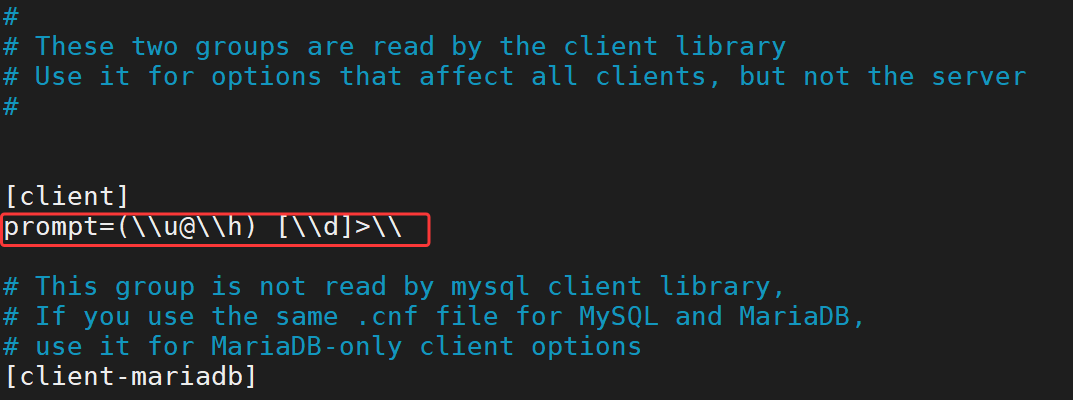
在配置文件中修改提示符
[root@localhost ~]# vim /etc/my.cnf.d/client.cnf
prompt=(\\u@\\h) [\\d]>\\
[root@localhost ~]# mysql         #验证效果
Welcome to the MySQL monitor.  Commands end with ; or \g.
Your MySQL connection id is 12
Server version: 8.0.26 Source distribution

Copyright (c) 2000, 2021, Oracle and/or its affiliates.

Oracle is a registered trademark of Oracle Corporation and/or its
affiliates. Other names may be trademarks of their respective
owners.

Type 'help;' or '\h' for help. Type '\c' to clear the current input statement.

(root@localhost) [(none)]>       #效果
提示符中可用的变量,全部可用的替换符用man sql查看
\C	#计数器
\D	#年月日时分秒
\d	#当前使用的数据库
\h	#服务器主机名
\l  #命令分隔符,默认;
\m	#当前时间,分钟
\n	#换行
\O	#月份,以英文显示
\o	#月份,数字显示
\P	#pm/am
\R	#小时,24小时制
\r	#小时,12小时制
\S	#分号
\s	#秒,数字显示
\t	#tab键
\U	#客户端用户名和主机
\u	#客户端用户名
\v	#服务端版本
\w	#星期几,英文显示
\Y	#年份,四位,数字显示
\y	#年份,两位,数字显示
范例:执行SQL脚本
[root@localhost ~]# vim test.sql
show databases;

(root@localhost) [(none)]>\. /root/test.sql
+--------------------+
| Database           |
+--------------------+
| information_schema |
| mysql              |
| performance_schema |
| sys                |
+--------------------+
4 rows in set (0.00 sec)
范例:重连
[root@localhost ~]# mysql
Welcome to the MySQL monitor.  Commands end with ; or \g.
Your MySQL connection id is 19
Server version: 8.0.26 Source distribution

Copyright (c) 2000, 2021, Oracle and/or its affiliates.

Oracle is a registered trademark of Oracle Corporation and/or its
affiliates. Other names may be trademarks of their respective
owners.

Type 'help;' or '\h' for help. Type '\c' to clear the current input statement.

mysql> \r
Connection id:    20
Current database: *** NONE ***

mysql> use mysql
Reading table information for completion of table and column names
You can turn off this feature to get a quicker startup with -A

Database changed
mysql> \r
Connection id:    21
Current database: mysql

mysql>
范例:往文件中保存输出结果
mysql> tee db.txt                 #设置写到文件db.txt
Logging to file 'db.txt'
mysql> select version();          #执行SQL语句
+-----------+
| version() |
+-----------+
| 8.0.26    |
+-----------+
1 row in set (0.00 sec)

mysql> \t                        #设置不写文件
Outfile disabled.

mysql> show databases;          #执行SQL语句
+--------------------+
| Database           |
+--------------------+
| information_schema |
| mysql              |
| performance_schema |
| sys                |
+--------------------+
4 rows in set (0.00 sec)

mysql> quit                     #退出
Bye
[root@localhost ~]# cat db.txt         #只记录了\t之前的命令
mysql> select version();
+-----------+
| version() |
+-----------+
| 8.0.26    |
+-----------+
1 row in set (0.00 sec)

mysql> \t
[root@localhost ~]#
范例:自定义
#两条查询语句,默认用;分隔
mysql> select version();show databases;
+-----------+
| version() |
+-----------+
| 8.0.26    |
+-----------+
1 row in set (0.00 sec)

+--------------------+
| Database           |
+--------------------+
| information_schema |
| mysql              |
| performance_schema |
| sys                |
+--------------------+
4 rows in set (0.01 sec)


#设置$分隔
mysql> \d $

mysql> select version()$show databases$
+-----------+
| version() |
+-----------+
| 8.0.26    |
+-----------+
1 row in set (0.01 sec)

+--------------------+
| Database           |
+--------------------+
| information_schema |
| mysql              |
| performance_schema |
| sys                |
+--------------------+
4 rows in set (0.00 sec)
范例:发送语句到服务端
mysql> select version();
+-----------+
| version() |
+-----------+
| 8.0.26    |
+-----------+
1 row in set (0.01 sec)

mysql> select version()\g
+-----------+
| version() |
+-----------+
| 8.0.26    |
+-----------+
1 row in set (0.00 sec)

mysql> select version()\G
*************************** 1. row ***************************
version(): 8.0.26
1 row in set (0.00 sec)

#开启长命令格式
[root@localhost ~]# mysql --named-commands
Welcome to the MySQL monitor.  Commands end with ; or \g.
Your MySQL connection id is 26
Server version: 8.0.26 Source distribution

Copyright (c) 2000, 2021, Oracle and/or its affiliates.

Oracle is a registered trademark of Oracle Corporation and/or its
affiliates. Other names may be trademarks of their respective
owners.

Type 'help;' or '\h' for help. Type '\c' to clear the current input statement.

mysql> select version()        #这里要断句
    -> go
+-----------+
| version() |
+-----------+
| 8.0.26    |
+-----------+
1 row in set (0.00 sec)

mysql> select version()       #这里要断句
    -> ego
*************************** 1. row ***************************
version(): 8.0.26
1 row in set (0.00 sec)
范例:只输出不执行
mysql> select version()\p
--------------
select version()
--------------

    ->
2.4.4.3 mysqladmin工具
mysqladmin也是用于管理mysql服务的本地工具
格式
[root@localhost ~]# mysqladmin --help
mysqladmin  Ver 8.0.26 for Linux on x86_64 (Source distribution)
Copyright (c) 2000, 2021, Oracle and/or its affiliates.

Oracle is a registered trademark of Oracle Corporation and/or its
affiliates. Other names may be trademarks of their respective
owners.

Administration program for the mysqld daemon.
Usage: mysqladmin [OPTIONS] command command....
  --bind-address=name IP address to bind to.
  -c, --count=#       Number of iterations to make. This works with -i         #总共执行多少次,配合-i选项使用
                      (--sleep) only.
  -#, --debug[=#]     This is a non-debug version. Catch this and exit.
  --debug-check       This is a non-debug version. Catch this and exit.
  --debug-info        This is a non-debug version. Catch this and exit.
  -f, --force         Don't ask for confirmation on drop database; with
                      multiple commands, continue even if an error occurs.
  -C, --compress      Use compression in server/client protocol.           #启用压缩
  --character-sets-dir=name
                      Directory for character set files.
  --default-character-set=name
                      Set the default character set.
  -?, --help          Display this help and exit.            #显示帮助信息
  -h, --host=name     Connect to host.                       #指定服务器地址
  -b, --no-beep       Turn off beep on error.
  -p, --password[=name]                                      #指定连接服务器的密码
                      Password to use when connecting to server. If password is
                      not given it's asked from the tty.
  -P, --port=#        Port number to use for connection or 0 for default to, in    #指定服务器端口,默认3306
                      order of preference, my.cnf, $MYSQL_TCP_PORT,
                      /etc/services, built-in default (3306).
  --protocol=name     The protocol to use for connection (tcp, socket, pipe,       #指定连接方式(tcp\socket\pipe\memory)
                      memory).
  -r, --relative      Show difference between current and previous values when
                      used with -i. Currently only works with extended-status.
  -s, --silent        Silently exit if one can't connect to server.        #如果无法连接,则静默退出
  -S, --socket=name   The socket file to use for connection.               #指定连接时使用socket文件
  -i, --sleep=#       Execute commands repeatedly with a sleep between.   #持续执行命令,间隔N秒执行一次
  --ssl-mode=name     SSL connection mode.
  --ssl-ca=name       CA file in PEM format.
  --ssl-capath=name   CA directory.
  --ssl-cert=name     X509 cert in PEM format.
  --ssl-cipher=name   SSL cipher to use.
  --ssl-key=name      X509 key in PEM format.
  --ssl-crl=name      Certificate revocation list.
  --ssl-crlpath=name  Certificate revocation list path.
  --tls-version=name  TLS version to use, permitted values are: TLSv1, TLSv1.1,
                      TLSv1.2, TLSv1.3
  --ssl-fips-mode=name
                      SSL FIPS mode (applies only for OpenSSL); permitted
                      values are: OFF, ON, STRICT
  --tls-ciphersuites=name
                      TLS v1.3 cipher to use.
  --server-public-key-path=name
                      File path to the server public RSA key in PEM format.
  --get-server-public-key
                      Get server public key
  -u, --user=name     User for login if not current user.             #指定用户名
  -v, --verbose       Write more information.
  -V, --version       Output version information and exit.             #显示客户端版本
  -E, --vertical      Print output vertically. Is similar to --relative, but
                      prints output vertically.
  -w, --wait[=#]      Wait and retry if connection is down.           #如果连接失败,是否等待重试,如果指定了具体数字,则表示重试几次
  --connect-timeout=#                                          #指定连接超时时长
  --shutdown-timeout=#                                         #指定关机超时时长
  --plugin-dir=name   Directory for client-side plugins.       #客户端插件目录
  --default-auth=name Default authentication client-side plugin to use.
  --enable-cleartext-plugin
                      Enable/disable the clear text authentication plugin.
  --show-warnings     Show warnings after execution
  --compression-algorithms=name
                      Use compression algorithm in server/client protocol.
                      Valid values are any combination of
                      'zstd','zlib','uncompressed'.
  --zstd-compression-level=#
                      Use this compression level in the client/server protocol,
                      in case --compression-algorithms=zstd. Valid range is
                      between 1 and 22, inclusive. Default is 3.

Variables (--variable-name=value)
and boolean options {FALSE|TRUE}  Value (after reading options)
--------------------------------- ----------------------------------------
bind-address                      (No default value)
count                             0
force                             FALSE
compress                          FALSE
character-sets-dir                (No default value)
default-character-set             auto
host                              (No default value)
no-beep                           FALSE
port                              0
relative                          FALSE
socket                            (No default value)
sleep                             0
ssl-ca                            (No default value)
ssl-capath                        (No default value)
ssl-cert                          (No default value)
ssl-cipher                        (No default value)
ssl-key                           (No default value)
ssl-crl                           (No default value)
ssl-crlpath                       (No default value)
tls-version                       (No default value)
tls-ciphersuites                  (No default value)
server-public-key-path            (No default value)
get-server-public-key             FALSE
user                              (No default value)
verbose                           FALSE
vertical                          FALSE
connect-timeout                   43200
shutdown-timeout                  3600
plugin-dir                        (No default value)
default-auth                      (No default value)
enable-cleartext-plugin           FALSE
show-warnings                     FALSE
compression-algorithms            (No default value)
zstd-compression-level            3

Default options are read from the following files in the given order:
/etc/my.cnf /etc/mysql/my.cnf ~/.my.cnf
The following groups are read: mysqladmin client
The following options may be given as the first argument:
--print-defaults        Print the program argument list and exit.            #显示运行参数
--no-defaults           Don't read default options from any option file,
                        except for login file.
--defaults-file=#       Only read default options from the given file #.      #从指定文件中读取选项
--defaults-extra-file=# Read this file after the global files are read.
--defaults-group-suffix=#
                        Also read groups with concat(group, suffix)
--login-path=#          Read this path from the login file.

Where command is a one or more of: (Commands may be shortened)
  create databasename   Create a new database                  #创建新的数据库
  debug                 Instruct server to write debug information to log      #开启调试模式,将调试信息写入log
  drop databasename     Delete a database and all its tables       #删除指定数据库
  extended-status       Gives an extended status message from the server       #显示扩展状态
  flush-hosts           Flush all cached hosts                 #刷新所有缓存的主机
  flush-logs            Flush all logs                         #刷新所有日志
  flush-status          Clear status variables                 #刷新状态变量
  flush-tables          Flush all tables                       #刷新所有表,会强制关闭已打开的表
  flush-threads         Flush the thread cache                 #刷新线程缓存
  flush-privileges      Reload grant tables (same as reload)   #刷新访问权限
  kill id,id,...        Kill mysql threads
  password [new-password] Change old password to new-password in current format    #修改密码
  ping                  Check if mysqld is alive               #心跳检测
  processlist           Show list of active threads in server  #显示活动线程列表
  reload                Reload grant tables                    #刷新授权信息
  refresh               Flush all tables and close and open logfiles   #刷新所有数据库表,重新打开日志文件
  shutdown              Take server down                       #关闭服务
  status                Gives a short status message from the server      #简短显示服务端状态
  start-replica         Start replication
  start-slave           Deprecated: use start-replica instead            #开启主从同步
  stop-replica          Stop replication
  stop-slave            Deprecated: use stop-replica instead             #停止主从同步
  variables             Prints variables available                       #显示服务端所有变量
  version               Get version info from server                     #显示客户端和服务端版本
范例:显示版本信息
#客户端版本
[root@localhost ~]# mysqladmin -V
mysqladmin  Ver 8.0.26 for Linux on x86_64 (Source distribution)

#客户端和服务端版本信息
[root@localhost ~]# mysqladmin version
mysqladmin  Ver 8.0.26 for Linux on x86_64 (Source distribution)
Copyright (c) 2000, 2021, Oracle and/or its affiliates.

Oracle is a registered trademark of Oracle Corporation and/or its
affiliates. Other names may be trademarks of their respective
owners.

Server version          8.0.26
Protocol version        10
Connection              Localhost via UNIX socket
UNIX socket             /var/lib/mysql/mysql.sock
Uptime:                 1 hour 44 min 34 sec

Threads: 4  Questions: 189  Slow queries: 0  Opens: 287  Flush tables: 3  Open tables: 206  Queries per second avg: 0.030
范例:显示状态信息
[root@localhost ~]# mysqladmin status
Uptime: 6352  Threads: 4  Questions: 191  Slow queries: 0  Opens: 287  Flush tables: 3  Open tables: 206  Queries per second avg: 0.030
范例:设置连接超时
[root@localhost ~]# mysqladmin -h1.2.3.4 --connect-timeout=2 ping
mysqladmin: connect to server at '1.2.3.4' failed
error: 'Can't connect to MySQL server on '1.2.3.4:3306' (110)'
Check that mysqld is running on 1.2.3.4 and that the port is 3306.
You can check this by doing 'telnet 1.2.3.4 3306'
[root@localhost ~]# echo $?
1

#静默退出,不输出错误信息
[root@localhost ~]# mysqladmin -h1.2.3.4 --connect-timeout=2 -s ping
[root@localhost ~]# echo $?
1
范例:持续执行
#每秒执行一次ping命令,一直执行下去
[root@localhost ~]# mysqladmin -i 1 ping
mysqld is alive
mysqld is alive
mysqld is alive
......

#每秒执行一次ping命令,总共执行3次
[root@localhost ~]# mysqladmin -i 1 -c 3 ping
mysqld is alive
mysqld is alive
mysqld is alive
范例:关闭服务
#mysqladmin只能关闭服务,不能启动服务
[root@localhost ~]# mysqladmin shutdown

[root@localhost ~]# mysqladmin ping
mysqladmin: connect to server at 'localhost' failed
error: 'Can't connect to local MySQL server through socket '/var/lib/mysql/mysql.sock' (2)'
Check that mysqld is running and that the socket: '/var/lib/mysql/mysql.sock' exists!

[root@localhost ~]# echo $?
1

[root@localhost ~]# systemctl start mysqld
范例:创建数据库和删除数据库
#创建
[root@localhost ~]# mysqladmin create mysqladmin-db1
[root@localhost ~]# mysqladmin create mysqladmin-db2
[root@localhost ~]# mysql -e 'show databases'
+--------------------+
| Database           |
+--------------------+
| information_schema |
| mysql              |
| mysqladmin-db1     |
| mysqladmin-db2     |
| performance_schema |
| sys                |
+--------------------+

#删除
[root@localhost ~]# mysqladmin drop mysqladmin-db1
Dropping the database is potentially a very bad thing to do.
Any data stored in the database will be destroyed.

Do you really want to drop the 'mysqladmin-db1' database [y/N] y      #回答y确认
Database "mysqladmin-db1" dropped

[root@localhost ~]# mysqladmin -f drop mysqladmin-db2      #强制删除,不需要确认
Database "mysqladmin-db2" dropped

[root@localhost ~]# mysql -e 'show databases'     #验证mysqladmin-db1和mysqladmin-db2已经删除
+--------------------+
| Database           |
+--------------------+
| information_schema |
| mysql              |
| performance_schema |
| sys                |
+--------------------+
[root@localhost ~]#
范例:修改连接密码
#旧密码为空,root用户,localhost主机连接
[root@localhost ~]# mysqladmin password 123456             #设置密码为123456
mysqladmin: [Warning] Using a password on the command line interface can be insecure.
Warning: Since password will be sent to server in plain text, use ssl connection to ensure password safety.

[root@localhost ~]# mysqladmin ping                  #不使用密码不行
mysqladmin: connect to server at 'localhost' failed
error: 'Access denied for user 'root'@'localhost' (using password: NO)'

[root@localhost ~]# mysqladmin -uroot -hlocalhost -p123456 ping       #使用密码123456
mysqladmin: [Warning] Using a password on the command line interface can be insecure.
mysqld is alive

#用旧密码修改新密码
[root@localhost ~]# mysqladmin -uroot -p123456 -hlocalhost password abcde      #更改密码为abcde
mysqladmin: [Warning] Using a password on the command line interface can be insecure.
Warning: Since password will be sent to server in plain text, use ssl connection to ensure password safety.

[root@localhost ~]# mysqladmin -uroot -p123456 -hlocalhost ping         #使用原密码测试不行
mysqladmin: [Warning] Using a password on the command line interface can be insecure.
mysqladmin: connect to server at 'localhost' failed
error: 'Access denied for user 'root'@'localhost' (using password: YES)'

[root@localhost ~]# mysqladmin -uroot -pabcde -hlocalhost ping       #使用新密码测试
mysqladmin: [Warning] Using a password on the command line interface can be insecure.
mysqld is alive
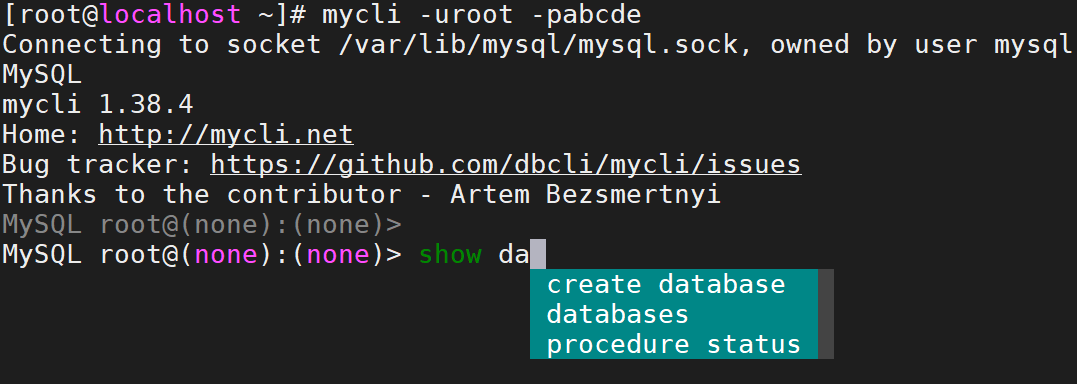
2.4.4.4 mycli 工具
MyCLI是基于Python开发的MySQL的命令行工具,具有自动完成和语法突出显示功能
[root@localhost ~]# yum install -y python39
[root@localhost ~]# pip3.9 config set global.index-url https://pypi.tuna.tsinghua.edu.cn/simple
Writing to /root/.config/pip/pip.conf
[root@localhost ~]# pip-3.9 install mycli

#使用
[root@localhost ~]# mycli -uroot -pabcde
Connecting to socket /var/lib/mysql/mysql.sock, owned by user mysql
MySQL
mycli 1.38.4
Home: http://mycli.net
Bug tracker: https://github.com/dbcli/mycli/issues
Thanks to the contributor - Artem Bezsmertnyi
MySQL root@(none):(none)>

腾讯云面向开发者汇聚海量精品云计算使用和开发经验,营造开放的云计算技术生态圈。
更多推荐
 18
18 0
0- 0


 已为社区贡献1条内容

所有评论(0)