docker 快速搭建私有镜像仓库registry以及registryUI
·
目录
一、前提
1、docker环境(docker for window为例)
2、基本命令
docker images                    #查看镜像
docker pull [仓库ip:port/]镜像:tag #拉取镜像
docker push [仓库ip:port/]镜像:tag #上传镜像
docker rmi  镜像:tag              #删除镜像
docker tag  镜像名 镜像名:tag     #重命名镜像
docker run  镜像:tag              #运行镜像
docker ps -a                     #docker 进程
二、搭建步骤
1、安装registry
step1:拉取registry
docker pull registrydocker images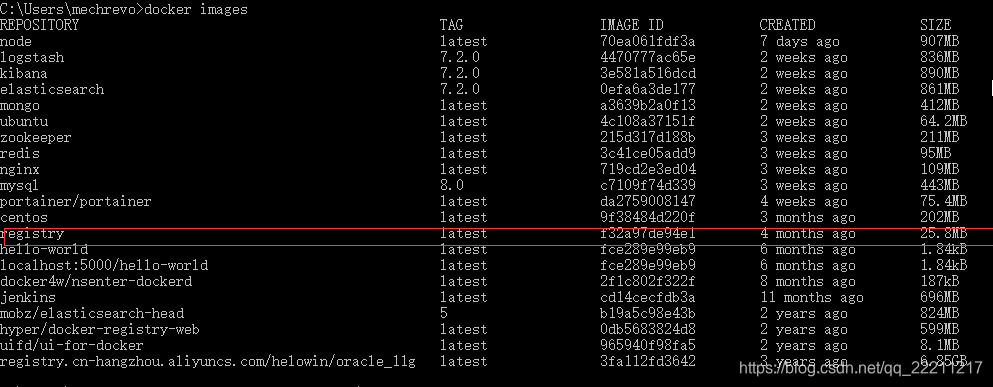
step2:运行registry
docker run -d -p 5000:5000 --name registry registrydocker ps -a
curl http://127.0.0.1:5000/v2/
2、安装registry-web
step1:拉取registry-web
docker pull hyper/docker-registry-webdocker images
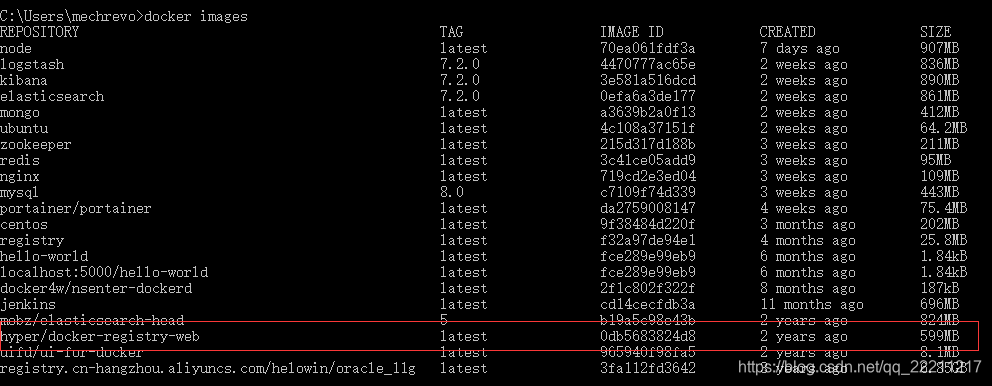
step2:运行registry-web
docker run -d -p 5001:8080 --name registry-web --link registry -e REGISTRY_URL=http://registry:5000/v2 -e REGISTRY_NAME=localhost:5000 hyper/docker-registry-web
##命令注释
docker run                                 ##运行
-d                                         ##后台运行
-p 5001:8080                               ##端口映射
--name registry-web                        ##容器命名
--link registry                            ##连接其他容器  加入registry到host
-e REGISTRY_URL=http://registry:5000/v2    ##指定仓库地址
-e REGISTRY_NAME=localhost:5000            ##仓库命名
hyper/docker-registry-web                  ##被启动的镜像
docker ps -a
curl http://127.0.0.1:5001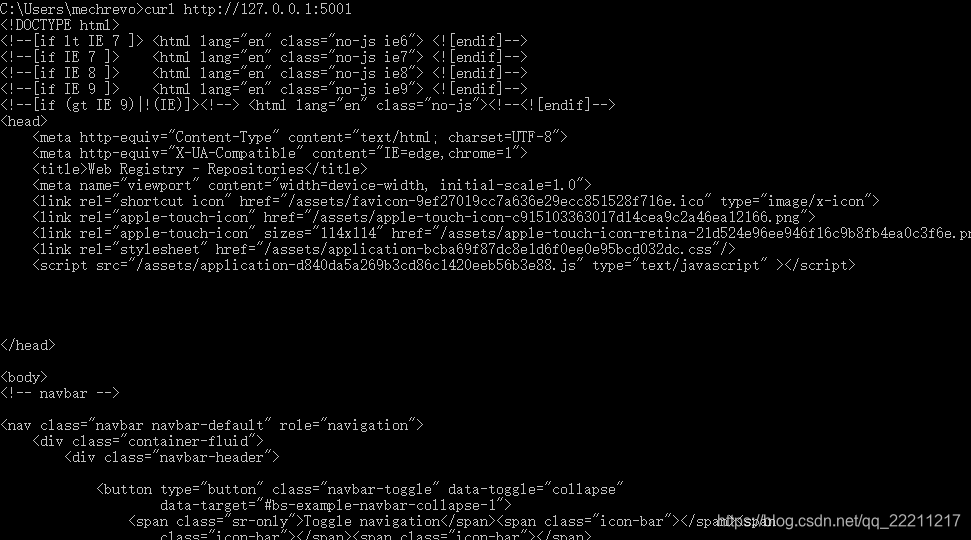
三、上传镜像
1、配置仓库(docker for window)
step1:docker for windows -》setting-》daemon-》添加insecure-registries-》[可选]registry mirrors
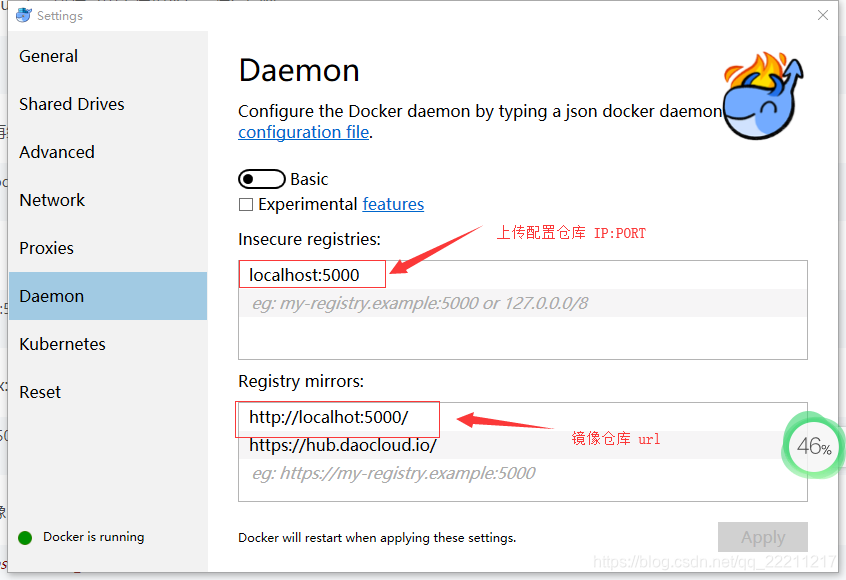
step2:重启服务
docker start registry
docker start registry-web
2、上传镜像
step1:下载测镜像并重命名
docker pull hello-worlddocker tag hello-world localhost:5000/zyj-test:1.0##注意命名规范
镜像仓库ip:port/镜像名:tag
##否则push出错
Error response from daemon: manifest for localhost:5000/uifd/ui-for-docker:latest not found
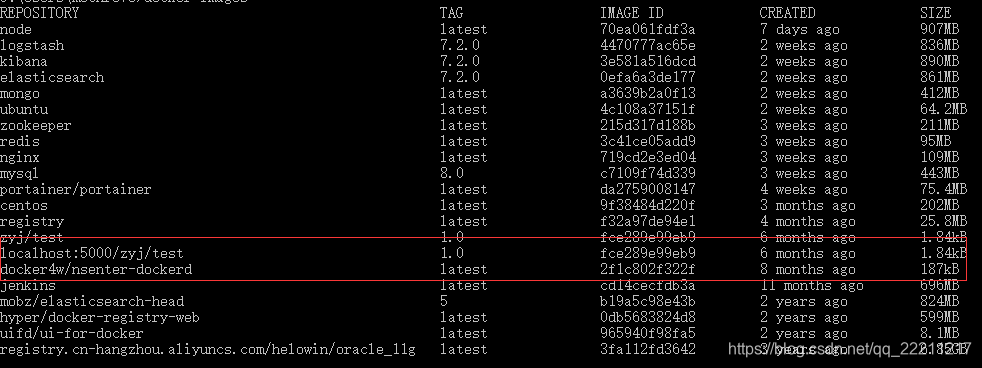
step2:上传镜像
docker pull localhost:5000/zyj/test:1.0 
浏览器输入:
http://localhost:5001/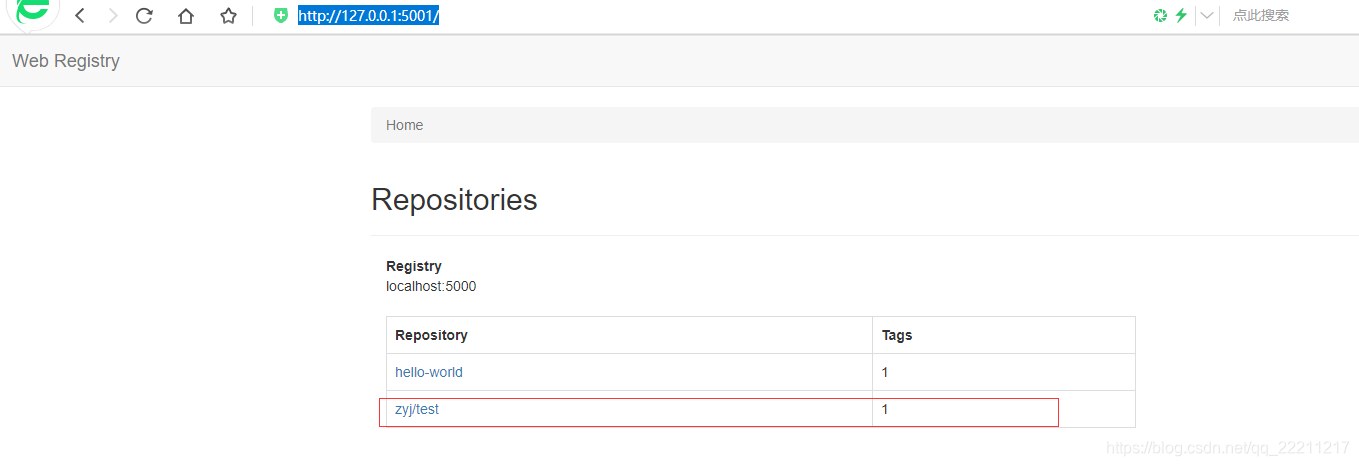
3、下载镜像
step1:删除本地已有镜像
docker rmi localhost:5000/zyj/test:1.0
step2:拉取本地仓库镜像
docker pull localhost:5000/zyj/test:1.0

腾讯云面向开发者汇聚海量精品云计算使用和开发经验,营造开放的云计算技术生态圈。
更多推荐
 1
1 0
0- 0


 已为社区贡献5条内容

所有评论(0)