flutter_for_openharmony手办收藏app实战_备份与恢复实现
本文介绍了在Flutter for OpenHarmony项目中实现数据备份与恢复功能的设计方案。主要内容包括: 核心价值:保障数据安全、支持设备迁移、提供版本回退和多设备同步功能。 页面布局:采用Scaffold结构,包含顶部导航栏和垂直排列的内容区域,使用Card组件突出主要功能。 功能实现: 备份卡片:提供数据备份到本地的功能,包含图标、说明和操作按钮 恢复卡片:支持从备份文件恢复数据,明确
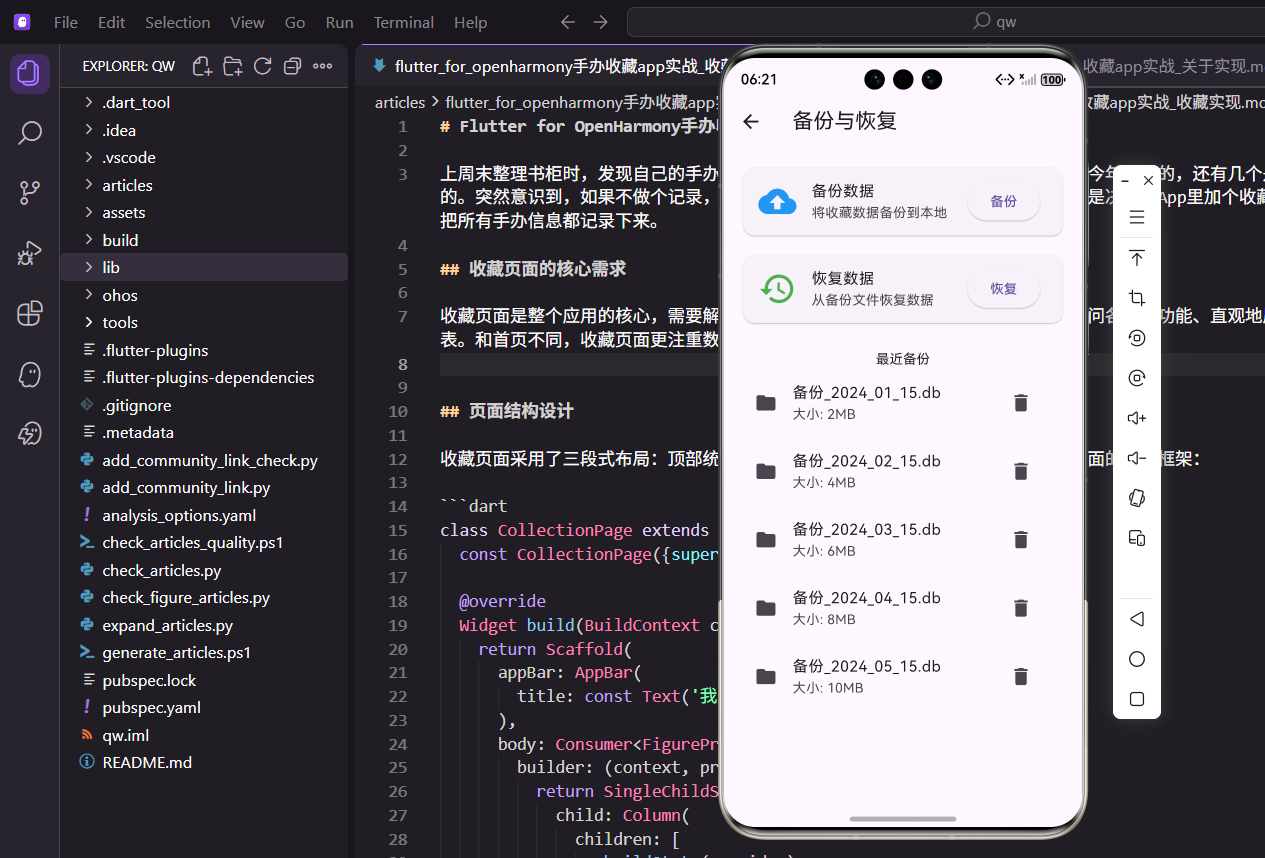
收藏数据是用户的宝贵资产,防止数据丢失至关重要。备份与恢复功能让用户可以将收藏数据导出到本地文件,在更换设备或重装应用后快速恢复数据。本文将从备份操作、恢复流程、文件管理等角度,详细讲解如何在 Flutter for OpenHarmony 项目中实现一个可靠的备份与恢复页面。
一、备份与恢复的核心价值
数据备份不仅是安全保障,更是用户信任的基础:
- 数据安全:防止因设备故障、应用卸载导致的数据丢失
- 设备迁移:更换新设备时快速迁移收藏数据
- 版本回退:出现问题时可以恢复到之前的状态
- 多设备同步:通过备份文件在多个设备间同步数据
这些需求决定了备份与恢复页面需要操作简单、流程清晰、安全可靠。
一、页面布局设计
1. Scaffold 基础结构
import 'package:flutter/material.dart';
import 'package:flutter_screenutil/flutter_screenutil.dart';
class BackupRestorePage extends StatelessWidget {
const BackupRestorePage({super.key});
Widget build(BuildContext context) {
return Scaffold(
appBar: AppBar(title: const Text('备份与恢复')),
顶部导航栏显示"备份与恢复"标题,让用户明确当前所在页面。在完整版本中,可以在右侧添加"帮助"图标,解释备份与恢复的使用方法。
2. Padding 内边距
      body: Padding(
        padding: EdgeInsets.all(16.w),
为整个页面添加 16 像素的内边距,确保内容不会紧贴屏幕边缘。这是移动端 UI 的标准边距。
3. Column 垂直布局
        child: Column(
          children: [
使用 Column 垂直排列备份卡片、恢复卡片、备份列表三部分。
二、备份卡片实现
1. Card 容器
            Card(
              child: ListTile(
                leading: Icon(Icons.backup, size: 40, color: Colors.blue),
Card 组件的优势:
- 自带阴影和圆角,让备份操作区域独立清晰
- 使用
ListTile快速构建左中右三栏布局 - 符合 Material Design 规范,用户体验一致
leading 图标设计:
- 使用
Icons.backup备份图标,符合功能主题 size: 40设置较大的图标,让操作更醒目color: Colors.blue使用蓝色,与备份的积极含义相符
2. 标题与说明
                title: const Text('备份数据'),
                subtitle: const Text('将收藏数据备份到本地'),
title 标题设计:
- 简洁明了地说明这是备份操作
- 使用默认字体大小和颜色,保持简洁
subtitle 说明文字:
- 解释备份的作用:将数据保存到本地文件
- 帮助用户理解这个操作的目的
- 可以添加更多细节:
subtitle: Text('将收藏数据备份到本地\n包括手办信息、照片、设置等'),
3. 备份按钮
                trailing: ElevatedButton(
                  onPressed: () {},
                  child: const Text('备份'),
                ),
按钮设计:
- 使用
ElevatedButton而非TextButton,更醒目 - 当前
onPressed为空实现,实际应执行备份逻辑 - 可以添加加载状态:
trailing: _isBackingUp
  ? SizedBox(
      width: 20,
      height: 20,
      child: CircularProgressIndicator(strokeWidth: 2),
    )
  : ElevatedButton(
      onPressed: () => _performBackup(),
      child: const Text('备份'),
    ),
备份过程中显示加载动画,避免用户重复点击。
三、恢复卡片实现
1. 间距控制
SizedBox(height: 12.h),
在备份卡片和恢复卡片之间添加 12 像素的垂直间距,形成视觉分隔。
2. Card 容器
            Card(
              child: ListTile(
                leading: Icon(Icons.restore, size: 40, color: Colors.green),
leading 图标设计:
- 使用
Icons.restore恢复图标,与备份图标形成对应 color: Colors.green使用绿色,与备份的蓝色形成区分- 绿色通常代表"恢复"、"重置"等含义
3. 标题与说明
                title: const Text('恢复数据'),
                subtitle: const Text('从备份文件恢复数据'),
说明文字设计:
- 解释恢复的作用:从备份文件中读取数据
- 可以添加警告信息:
subtitle: Text(
  '从备份文件恢复数据\n⚠️ 将覆盖当前数据',
  style: TextStyle(fontSize: 12.sp),
),
提醒用户恢复操作会覆盖当前数据,避免误操作。
4. 恢复按钮
                trailing: ElevatedButton(
                  onPressed: () {},
                  child: const Text('恢复'),
                ),
按钮设计:
- 与备份按钮保持一致的样式
- 实际应弹出文件选择器,让用户选择备份文件:
trailing: ElevatedButton(
  onPressed: () async {
    final result = await FilePicker.platform.pickFiles(
      type: FileType.custom,
      allowedExtensions: ['db', 'backup'],
    );

    if (result != null) {
      _showRestoreConfirmDialog(result.files.single.path!);
    }
  },
  child: const Text('恢复'),
),
四、备份列表展示
1. 间距与标题
            SizedBox(height: 24.h),
            const Text('最近备份'),
标题设计:
- 在恢复卡片和备份列表之间添加 24 像素的间距,形成明显的视觉分隔
- 使用
Text组件显示"最近备份"标题 - 可以优化标题样式:
Text(
  '最近备份',
  style: TextStyle(
    fontSize: 16.sp,
    fontWeight: FontWeight.bold,
  ),
),
2. Expanded 自适应高度
            Expanded(
              child: ListView.builder(
                itemCount: 5,
Expanded 的作用:
- 让 ListView 占据 Column 中除备份卡片、恢复卡片、标题外的所有剩余空间
- 这样备份列表可以滚动查看,不会超出屏幕
- 使用
ListView.builder按需渲染列表项
3. 备份文件列表项
                itemBuilder: (context, index) {
                  return ListTile(
                    leading: const Icon(Icons.folder),
leading 图标设计:
- 使用
Icons.folder文件夹图标,表示这是一个文件 - 使用默认大小和颜色,保持简洁
- 可以根据文件类型使用不同图标:
leading: Icon(
  backup.isAutoBackup ? Icons.cloud_done : Icons.folder,
  color: backup.isAutoBackup ? Colors.blue : Colors.grey,
),
自动备份显示云图标,手动备份显示文件夹图标。
title: Text('备份_2024_0${index + 1}_15.db'),
title 文件名显示:
- 显示备份文件的名称,包含日期信息
- 当前使用模拟数据,实际应显示真实文件名
- 文件名格式建议:
backup_YYYYMMDD_HHMMSS.db
subtitle: Text('大小: ${(index + 1) * 2}MB'),
subtitle 文件大小显示:
- 显示备份文件的大小,帮助用户了解存储占用
- 当前使用模拟数据,实际应计算真实文件大小
- 可以添加更多信息:
subtitle: Text(
  '大小: ${formatFileSize(backup.size)}\n创建时间: ${formatDate(backup.createTime)}',
),
同时显示文件大小和创建时间。
                    trailing: IconButton(
                      icon: const Icon(Icons.delete),
                      onPressed: () {},
                    ),
trailing 删除按钮:
- 使用
IconButton而非ElevatedButton,节省空间 Icons.delete删除图标是通用标识- 实际应添加二次确认:
trailing: IconButton(
  icon: const Icon(Icons.delete),
  onPressed: () {
    showDialog(
      context: context,
      builder: (context) => AlertDialog(
        title: Text('确认删除'),
        content: Text('确定要删除这个备份文件吗?'),
        actions: [
          TextButton(
            onPressed: () => Navigator.pop(context),
            child: Text('取消'),
          ),
          TextButton(
            onPressed: () {
              _deleteBackup(backup.id);
              Navigator.pop(context);
            },
            child: Text('删除', style: TextStyle(color: Colors.red)),
          ),
        ],
      ),
    );
  },
),
五、备份数据模型
为了支持备份与恢复功能,需要定义备份数据模型:
class Backup {
  final String id;
  final String fileName;
  final String filePath;
  final int size; // 字节
  final DateTime createTime;
  final bool isAutoBackup;
  final String? description;

  Backup({
    required this.id,
    required this.fileName,
    required this.filePath,
    required this.size,
    required this.createTime,
    this.isAutoBackup = false,
    this.description,
  });

  String get formattedSize {
    if (size < 1024) {
      return '$size B';
    } else if (size < 1024 * 1024) {
      return '${(size / 1024).toStringAsFixed(2)} KB';
    } else {
      return '${(size / 1024 / 1024).toStringAsFixed(2)} MB';
    }
  }

  factory Backup.fromJson(Map<String, dynamic> json) {
    return Backup(
      id: json['id'],
      fileName: json['file_name'],
      filePath: json['file_path'],
      size: json['size'],
      createTime: DateTime.parse(json['create_time']),
      isAutoBackup: json['is_auto_backup'] ?? false,
      description: json['description'],
    );
  }
}
这样可以存储完整的备份信息。
六、备份与恢复逻辑
1. 备份实现
Future<void> performBackup() async {
  try {
    // 1. 获取数据库文件路径
    final dbPath = await getDatabasePath();

    // 2. 生成备份文件名
    final timestamp = DateFormat('yyyyMMdd_HHmmss').format(DateTime.now());
    final backupFileName = 'backup_$timestamp.db';

    // 3. 获取备份目录
    final backupDir = await getApplicationDocumentsDirectory();
    final backupPath = '${backupDir.path}/backups/$backupFileName';

    // 4. 创建备份目录
    final backupFolder = Directory('${backupDir.path}/backups');
    if (!await backupFolder.exists()) {
      await backupFolder.create(recursive: true);
    }

    // 5. 复制数据库文件
    final dbFile = File(dbPath);
    await dbFile.copy(backupPath);

    // 6. 保存备份记录
    final backup = Backup(
      id: uuid.v4(),
      fileName: backupFileName,
      filePath: backupPath,
      size: await File(backupPath).length(),
      createTime: DateTime.now(),
    );
    await saveBackupRecord(backup);

    // 7. 显示成功提示
    ScaffoldMessenger.of(context).showSnackBar(
      SnackBar(content: Text('备份成功:$backupFileName')),
    );
  } catch (e) {
    print('备份失败: $e');
    ScaffoldMessenger.of(context).showSnackBar(
      SnackBar(content: Text('备份失败,请重试')),
    );
  }
}
2. 恢复实现
Future<void> performRestore(String backupPath) async {
  try {
    // 1. 验证备份文件
    final backupFile = File(backupPath);
    if (!await backupFile.exists()) {
      throw Exception('备份文件不存在');
    }

    // 2. 关闭当前数据库连接
    await closeDatabase();

    // 3. 获取数据库文件路径
    final dbPath = await getDatabasePath();

    // 4. 备份当前数据库(以防恢复失败)
    final currentDbFile = File(dbPath);
    final tempBackupPath = '$dbPath.temp';
    if (await currentDbFile.exists()) {
      await currentDbFile.copy(tempBackupPath);
    }

    // 5. 恢复备份文件
    await backupFile.copy(dbPath);

    // 6. 重新打开数据库
    await openDatabase();

    // 7. 删除临时备份
    final tempFile = File(tempBackupPath);
    if (await tempFile.exists()) {
      await tempFile.delete();
    }

    // 8. 显示成功提示
    ScaffoldMessenger.of(context).showSnackBar(
      SnackBar(content: Text('恢复成功,请重启应用')),
    );

    // 9. 重启应用
    Phoenix.rebirth(context);
  } catch (e) {
    print('恢复失败: $e');

    // 恢复失败时,尝试恢复原数据库
    final tempFile = File('$dbPath.temp');
    if (await tempFile.exists()) {
      await tempFile.copy(dbPath);
      await tempFile.delete();
    }

    ScaffoldMessenger.of(context).showSnackBar(
      SnackBar(content: Text('恢复失败,数据已回滚')),
    );
  }
}
七、状态管理集成
1. 创建 BackupProvider
class BackupProvider extends ChangeNotifier {
  List<Backup> _backups = [];
  bool _isBackingUp = false;
  bool _isRestoring = false;

  List<Backup> get backups => _backups;
  bool get isBackingUp => _isBackingUp;
  bool get isRestoring => _isRestoring;

  Future<void> loadBackups() async {
    final backupDir = await getApplicationDocumentsDirectory();
    final backupFolder = Directory('${backupDir.path}/backups');

    if (await backupFolder.exists()) {
      final files = await backupFolder.list().toList();
      _backups = files
        .where((file) => file.path.endsWith('.db'))
        .map((file) {
          final stat = file.statSync();
          return Backup(
            id: file.path,
            fileName: file.path.split('/').last,
            filePath: file.path,
            size: stat.size,
            createTime: stat.modified,
          );
        })
        .toList();

      _backups.sort((a, b) => b.createTime.compareTo(a.createTime));
      notifyListeners();
    }
  }

  Future<void> createBackup() async {
    _isBackingUp = true;
    notifyListeners();

    try {
      await performBackup();
      await loadBackups();
    } finally {
      _isBackingUp = false;
      notifyListeners();
    }
  }

  Future<void> restoreBackup(String backupPath) async {
    _isRestoring = true;
    notifyListeners();

    try {
      await performRestore(backupPath);
    } finally {
      _isRestoring = false;
      notifyListeners();
    }
  }

  Future<void> deleteBackup(String backupId) async {
    final file = File(backupId);
    if (await file.exists()) {
      await file.delete();
      await loadBackups();
    }
  }
}
2. 页面改造
body: Consumer<BackupProvider>(
  builder: (context, provider, child) {
    return Padding(
      padding: EdgeInsets.all(16.w),
      child: Column(
        children: [
          Card(
            child: ListTile(
              leading: Icon(Icons.backup, size: 40, color: Colors.blue),
              title: const Text('备份数据'),
              subtitle: const Text('将收藏数据备份到本地'),
              trailing: provider.isBackingUp
                ? SizedBox(
                    width: 20,
                    height: 20,
                    child: CircularProgressIndicator(strokeWidth: 2),
                  )
                : ElevatedButton(
                    onPressed: () => provider.createBackup(),
                    child: const Text('备份'),
                  ),
            ),
          ),
          SizedBox(height: 12.h),
          Card(
            child: ListTile(
              leading: Icon(Icons.restore, size: 40, color: Colors.green),
              title: const Text('恢复数据'),
              subtitle: const Text('从备份文件恢复数据'),
              trailing: ElevatedButton(
                onPressed: () => _showRestoreDialog(context, provider),
                child: const Text('恢复'),
              ),
            ),
          ),
          SizedBox(height: 24.h),
          const Text('最近备份'),
          Expanded(
            child: provider.backups.isEmpty
              ? Center(child: Text('暂无备份'))
              : ListView.builder(
                  itemCount: provider.backups.length,
                  itemBuilder: (context, index) {
                    final backup = provider.backups[index];
                    return ListTile(
                      leading: const Icon(Icons.folder),
                      title: Text(backup.fileName),
                      subtitle: Text('大小: ${backup.formattedSize}\n${DateFormat('yyyy-MM-dd HH:mm').format(backup.createTime)}'),
                      trailing: IconButton(
                        icon: const Icon(Icons.delete),
                        onPressed: () => _showDeleteDialog(context, provider, backup),
                      ),
                    );
                  },
                ),
          ),
        ],
      ),
    );
  },
),
通过 Consumer 监听备份状态变化,自动刷新页面。
八、OpenHarmony 适配要点
1. 文件权限
在 OpenHarmony 上需要申请存储权限:
{
  "reqPermissions": [
    {
      "name": "ohos.permission.READ_USER_STORAGE"
    },
    {
      "name": "ohos.permission.WRITE_USER_STORAGE"
    }
  ]
}
2. 自动备份
使用 WorkManager 实现定时自动备份:
Future<void> scheduleAutoBackup() async {
  await Workmanager().registerPeriodicTask(
    'auto_backup',
    'autoBackupTask',
    frequency: Duration(days: 1),
  );
}
九、实战经验总结
备份与恢复页面的实现要点:
- 操作简单:一键备份、一键恢复,降低用户操作门槛
- 安全可靠:备份前验证数据完整性,恢复前备份当前数据
- 文件管理:显示备份列表,支持删除旧备份
- 状态反馈:备份和恢复过程中显示加载动画
通过本文的实战讲解,你已经掌握了在 Flutter for OpenHarmony 项目中构建备份与恢复功能的核心技巧。
欢迎加入开源鸿蒙跨平台社区:https://openharmonycrossplatform.csdn.net

腾讯云面向开发者汇聚海量精品云计算使用和开发经验,营造开放的云计算技术生态圈。
更多推荐
 28
28 0
0- 0


 已为社区贡献2条内容

所有评论(0)