iconfont 在 uni-app 项目中的完整使用指南
本文详细介绍了在uni-app项目中使用iconfont图标库的完整流程。首先在iconfont官网搜索并下载所需图标资源,然后将文件复制到项目static目录下,修改字体路径并全局引入样式。通过demo_index.html查看图标类名后,即可在页面中使用class名称显示图标,并通过内联样式或CSS设置大小和颜色。文章还建议创建图标测试页面以便查看效果,提供了从资源获取到实际应用的全套解决方案
iconfont 在 uni-app 项目中的完整使用指南
前言
在移动端开发中,图标是我们页面不可或缺的元素。虽然 uni-app 提供了 uni-icons 组件,但有时候内置的图标无法满足我们的需求。本文将详细介绍如何在 uni-app 项目中使用 iconfont 图标库,从资源获取到实际应用的全过程。
一、寻找图标资源
1.1 访问 iconfont 官网
首先打开 iconfont.cn,这是阿里巴巴推出的矢量图标库,拥有海量的图标资源。
1.2 搜索需要的图标
以我们的"智汇银龄"项目为例,我们需要以下图标:
- 身体健康图标
- 设备图标
- 环境监测图标
- 地理位置图标
- 拍摄图标
在搜索框中输入关键词,如"身体健康"、“设备”、"环境"等。
1.3 添加入库
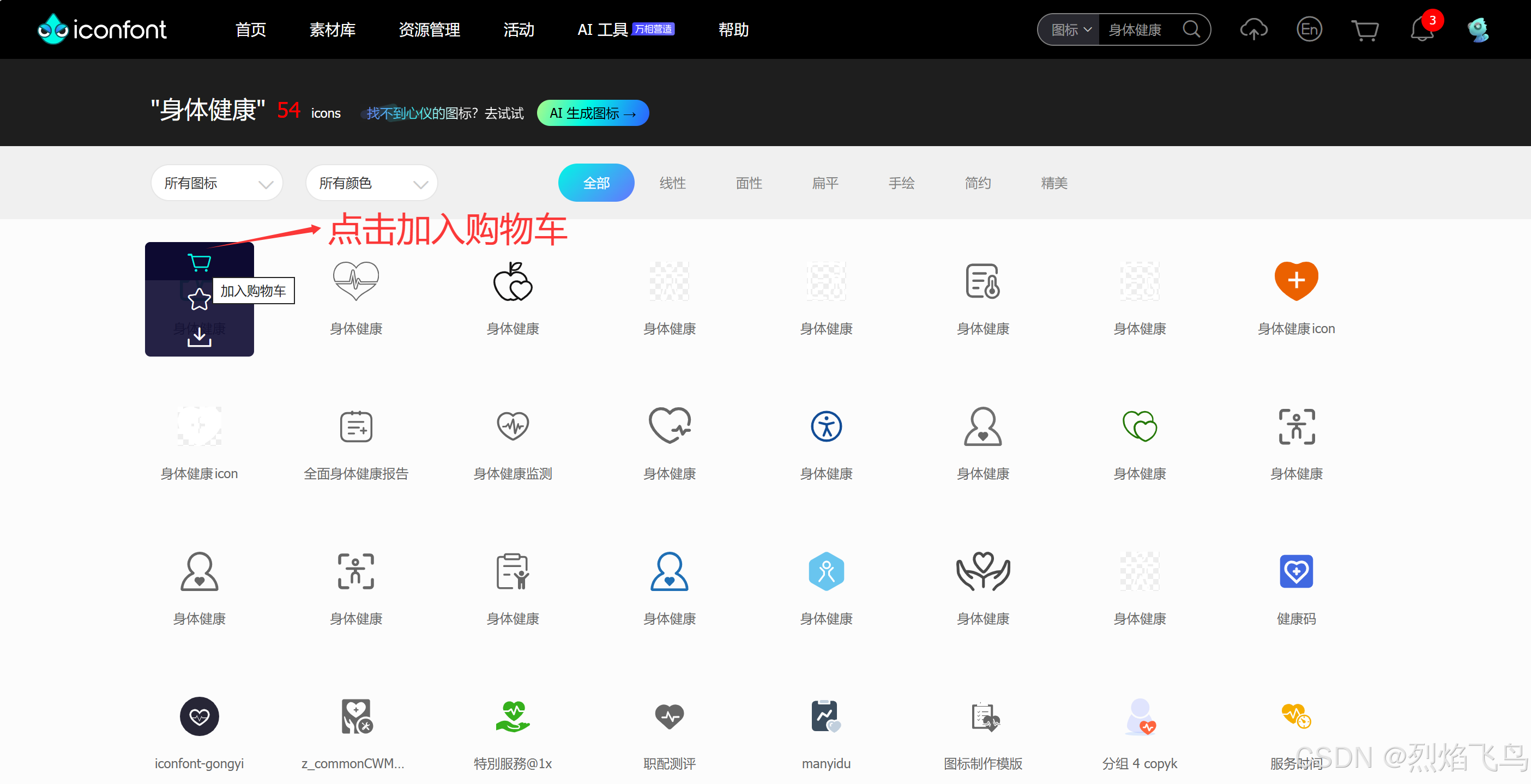
找到合适的图标后,点击图标上的"加入购物车"按钮(购物车图标)。将所有需要的图标都加入购物车。
1.4 创建项目
-
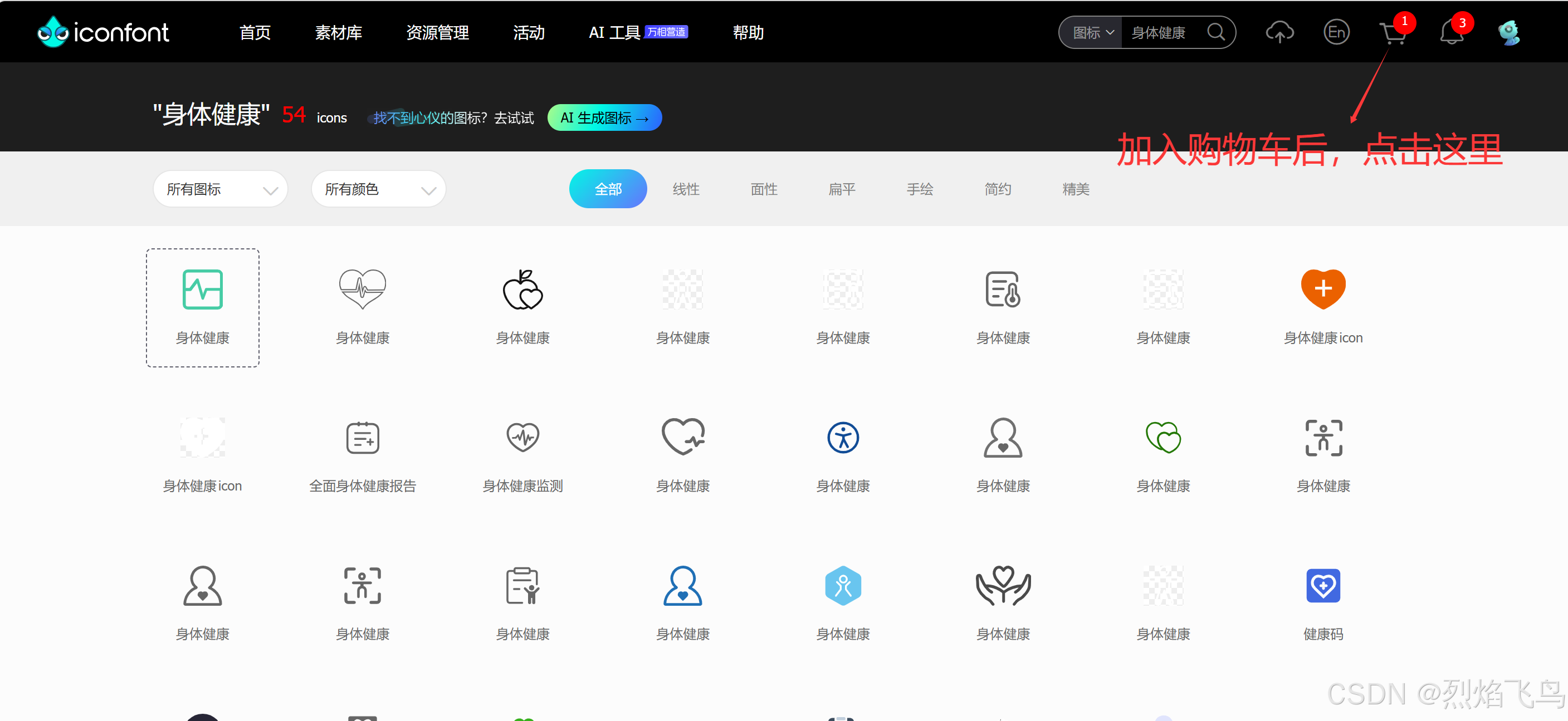
点击页面右上角的"购物车"图标
-
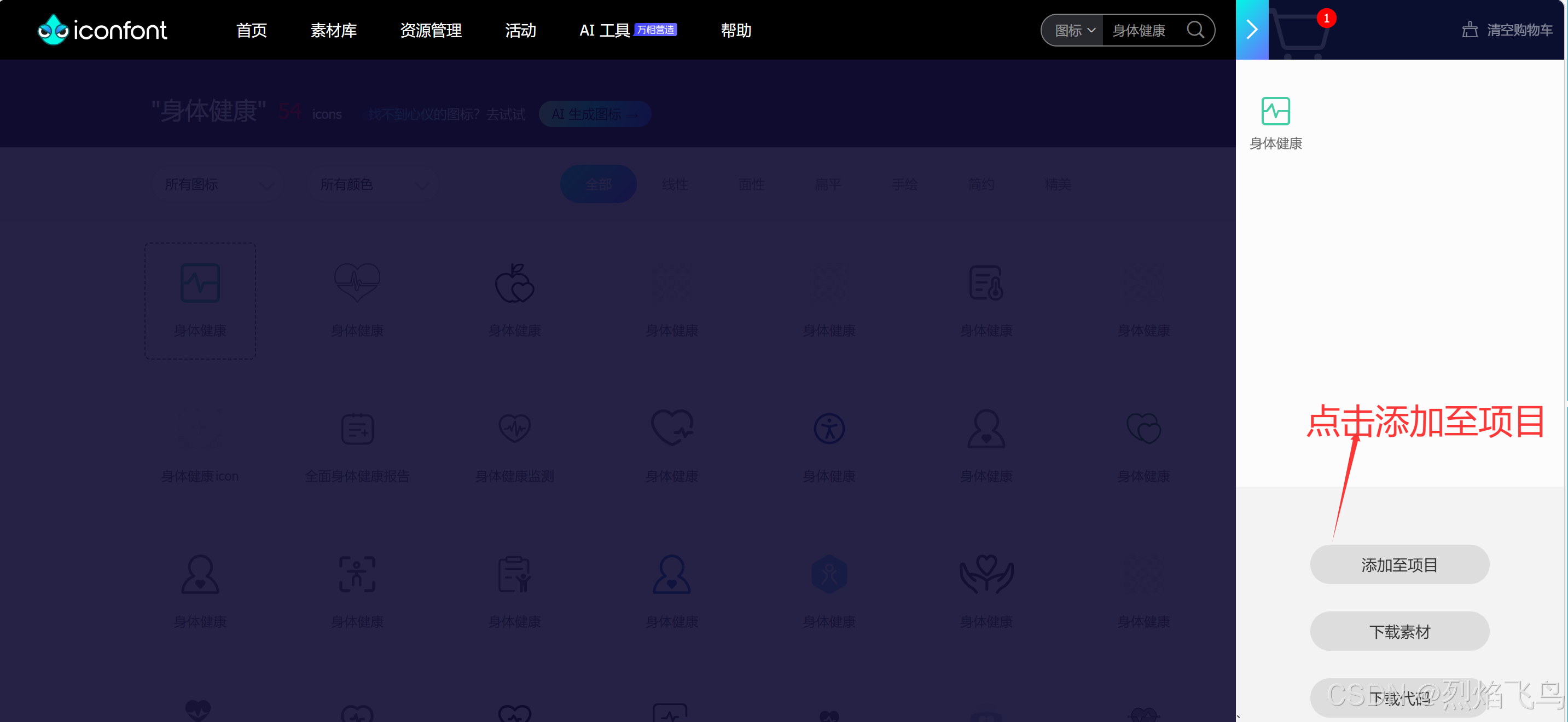
点击"添加至项目"按钮
-
如果是第一次使用,需要创建一个新项目,(如果已有项目,直接添加就行)
-
填写项目名称(如"智汇银龄")
-
点击"确定"创建项目
1.5 下载图标资源
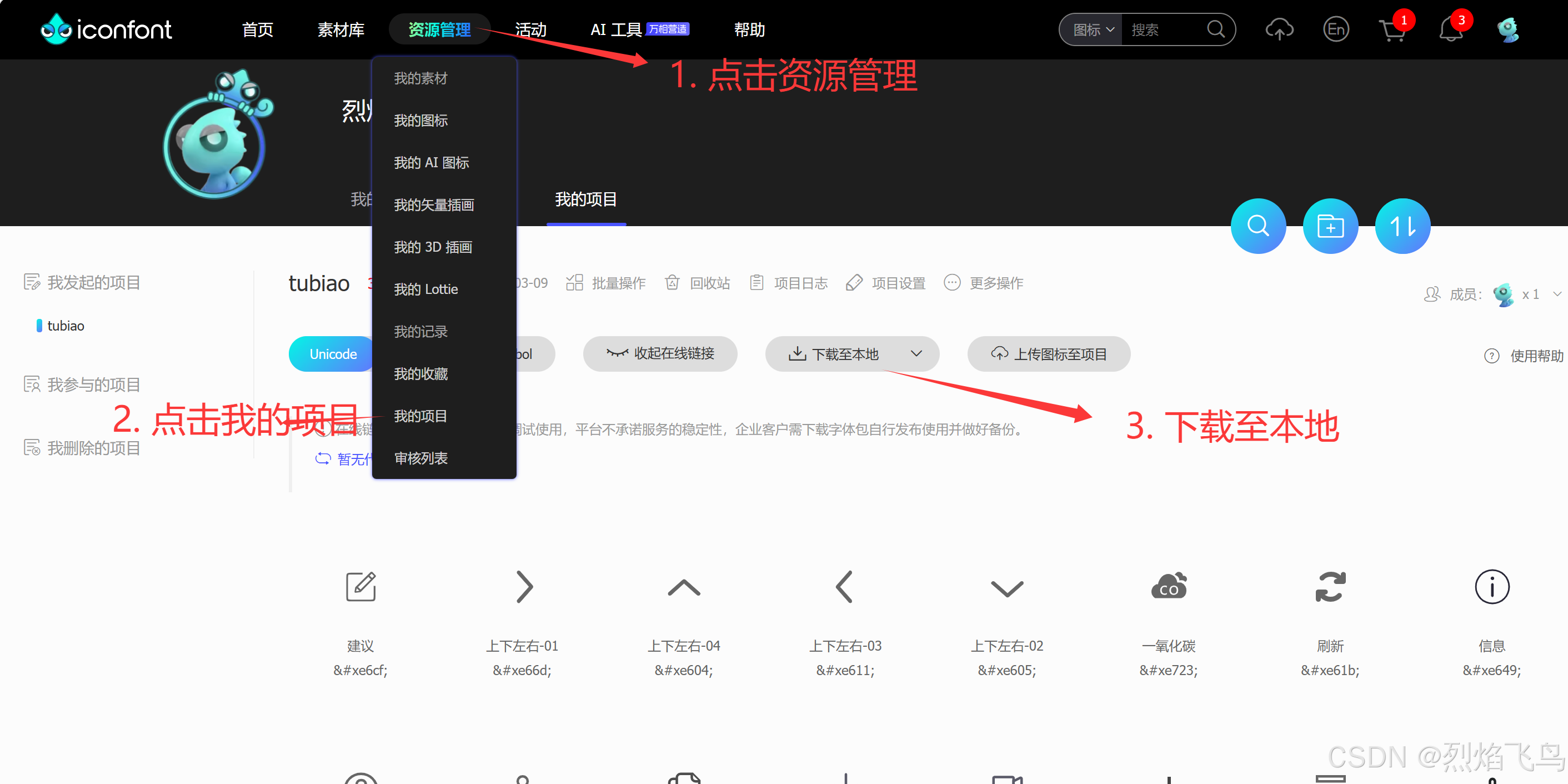
- 进入"我的项目"
- 找到刚刚创建的项目
- 点击"下载至本地"按钮
- 解压下载的文件
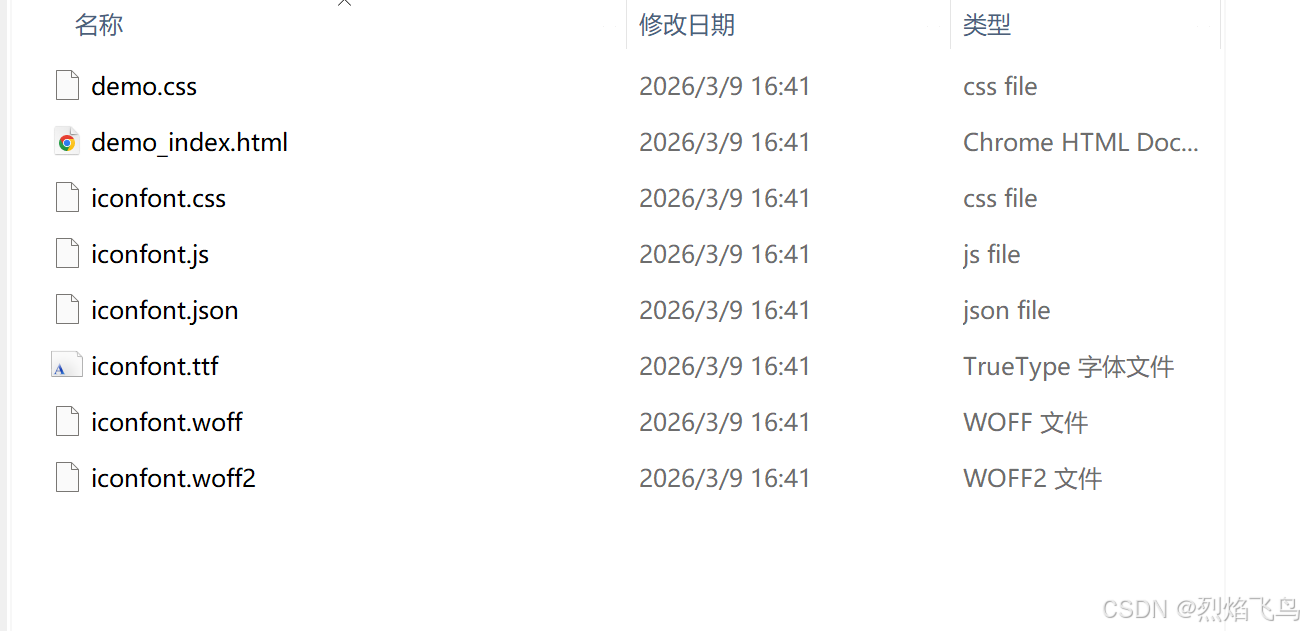
解压后会得到以下文件:
iconfont/
├── demo_index.html      # 图标演示页面
├── iconfont.css         # 图标样式文件
├── iconfont.ttf         # 字体文件
├── iconfont.woff        # Web字体格式
├── iconfont.woff2       # 压缩版Web字体格式
└── iconfont.svg         # SVG格式(可选)
二、在 uni-app 项目中配置
2.1 创建项目目录结构
在 uni-app 项目中创建以下目录结构:
你的项目/
├── static/
│   └── iconfont/           # 存放 iconfont 文件
│       ├── iconfont.css
│       ├── iconfont.ttf
│       ├── iconfont.woff
│       └── iconfont.woff2
2.2 复制文件
将解压后的所有文件复制到 static/iconfont/ 目录下。
2.3 修改字体文件路径
打开 static/iconfont/iconfont.css 文件,修改字体文件的路径:
/* 修改前 */
@font-face {
  font-family: "iconfont";
  src: url('iconfont.woff2?t=123456789') format('woff2'),
       url('iconfont.woff?t=123456789') format('woff'),
       url('iconfont.ttf?t=123456789') format('truetype');
}

/* 修改后(添加正确的路径) */
@font-face {
  font-family: "iconfont";
  src: url('/static/iconfont/iconfont.woff2?t=123456789') format('woff2'),
       url('/static/iconfont/iconfont.woff?t=123456789') format('woff'),
       url('/static/iconfont/iconfont.ttf?t=123456789') format('truetype');
}

.iconfont {
  font-family: "iconfont" !important;
  font-size: 16px;
  font-style: normal;
  -webkit-font-smoothing: antialiased;
  -moz-osx-font-smoothing: grayscale;
}
2.4 在 App.vue 中全局引入
修改项目的 App.vue 文件,全局引入 iconfont 样式:
<script>
export default {
  onLaunch: function() {
    console.log('App Launch');
  },
  onShow: function() {
    console.log('App Show');
  },
  onHide: function() {
    console.log('App Hide');
  }
}
</script>

<style>
/* 全局引入 iconfont 样式 */
@import '/static/iconfont/iconfont.css';

/* 其他全局样式 */
page {
  background-color: #f5f5f5;
}
</style>
三、查看可用图标
3.1 打开 demo_index.html
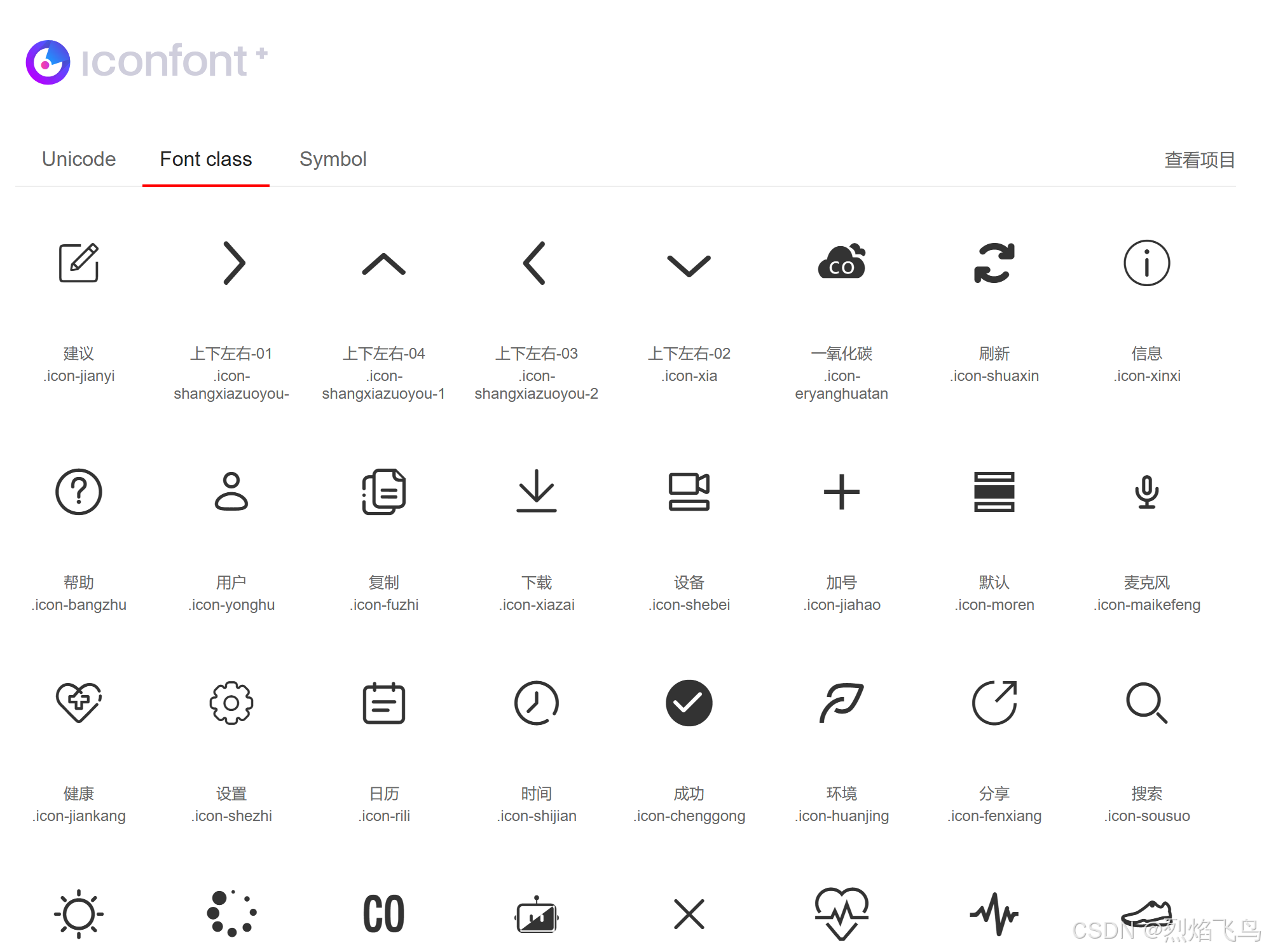
在解压的文件中,有一个 demo_index.html 文件,用浏览器打开它,可以看到所有图标的预览和类名:
iconfont 图标列表:

图标1:地理位置 类名:icon-diliweizhi
图标2:身体健康 类名:icon-shentijiankang
图标3:设备 类名:icon-shebei
图标4:环境 类名:icon-a-bianzu219beifen
图标5:185_拍摄 类名:icon-a-185_paishe
3.2 记录图标类名
记下每个图标对应的类名,后面在页面中会用到。
四、在页面中使用 iconfont
4.1 基础用法
在任意页面的模板中,直接使用类名即可:
<template>
  <view class="container">
    <!-- 基础用法 -->
    <text class="iconfont icon-shentijiankang"></text>
    <text class="iconfont icon-shebei"></text>
    <text class="iconfont icon-diliweizhi"></text>
  </view>
</template>
4.2 设置大小和颜色
通过内联样式或 class 来设置图标的颜色和大小:
<template>
  <view class="container">
    <!-- 通过内联样式设置 -->
    <text
      class="iconfont icon-shentijiankang"
      style="color: #FF8C42; font-size: 40rpx;">
    </text>

    <!-- 通过 class 设置 -->
    <text class="iconfont icon-shebei custom-icon"></text>
  </view>
</template>

<style scoped>
.custom-icon {
  color: #4CAF50;
  font-size: 60rpx;
}
</style>
4.3 在实际组件中使用
<template>
  <view class="menu-item">
    <view class="menu-left">
      <text class="iconfont icon-shebei" style="color: #FF8C42; font-size: 36rpx;"></text>
      <text class="menu-text">设备管理</text>
    </view>
    <text class="iconfont icon-diliweizhi" style="color: #999; font-size: 28rpx;">→</text>
  </view>
</template>
五、创建图标测试页面
为了方便查看所有图标的效果,可以创建一个测试页面:
5.1 在 pages.json 中添加路由
{
  "pages": [
    // ... 其他页面
    {
      "path": "pages/test/icon-test",
      "style": {
        "navigationBarTitleText": "图标测试",
        "navigationBarBackgroundColor": "#FF8C42",
        "navigationBarTextStyle": "white"
      }
    }
  ]
}
5.2 创建测试页面
先来看看效果: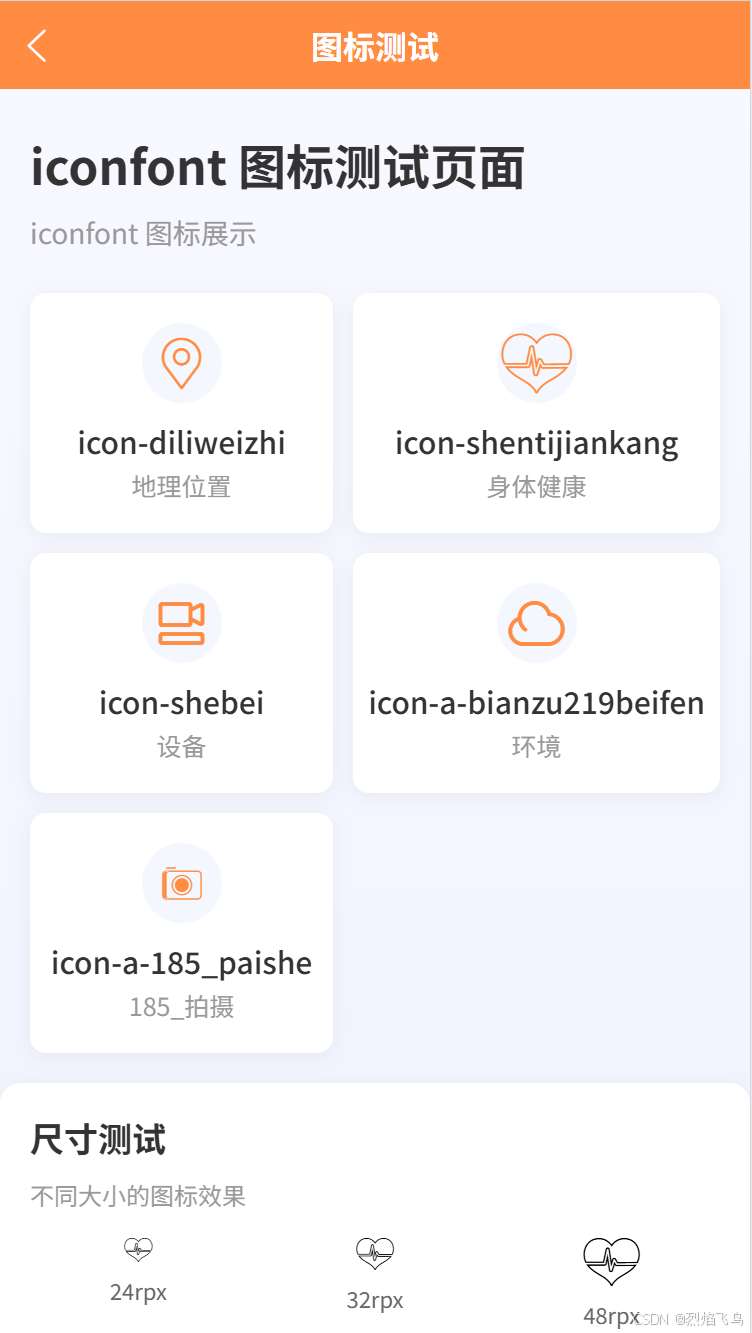
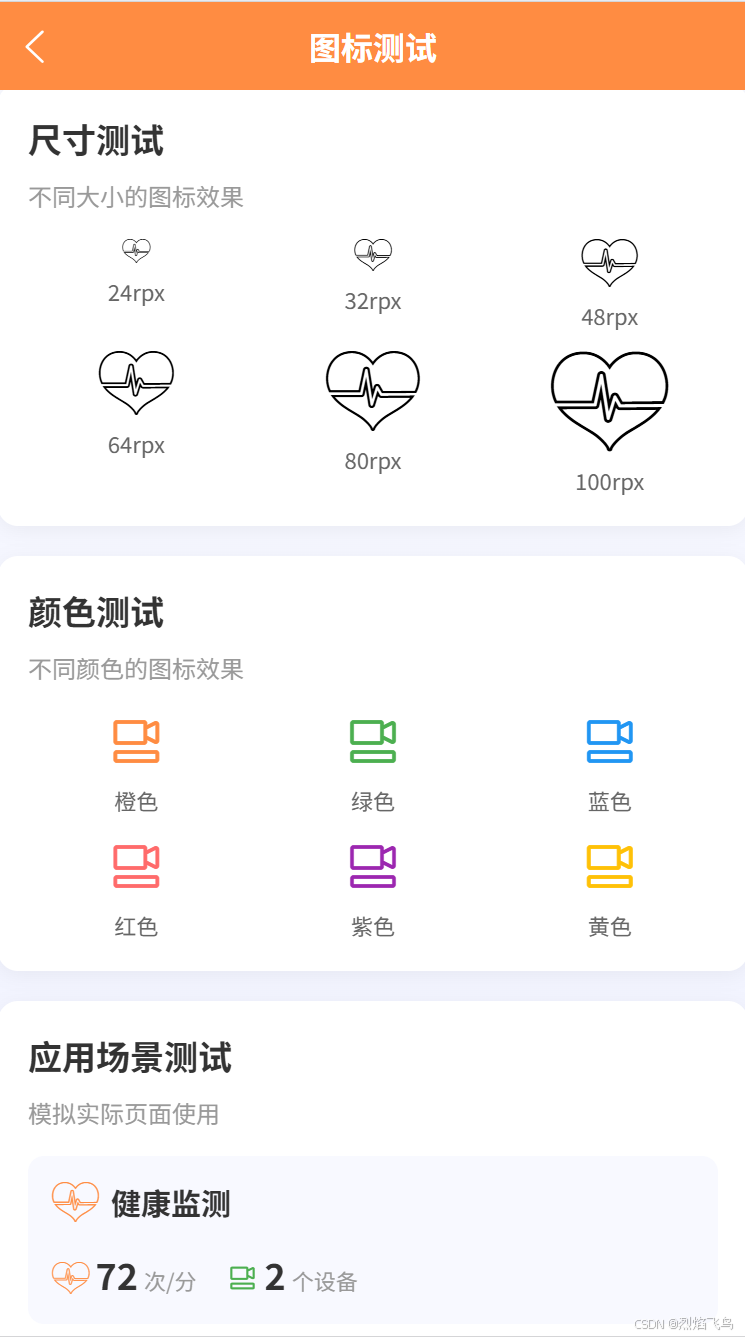
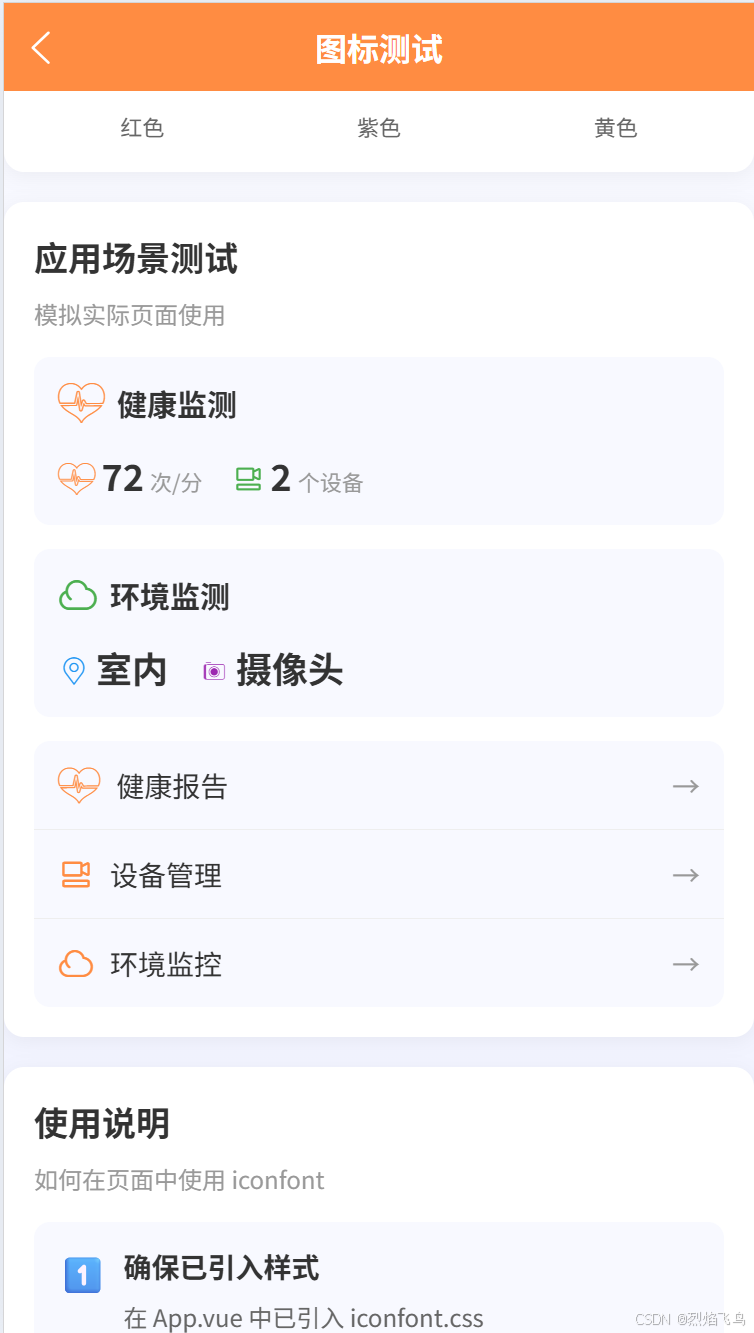
再来看看代码,创建 pages/test/icon-test.vue 文件:
<template>
<scroll-view class="test-container" scroll-y show-scrollbar="false" enhanced>
<!-- 页面标题 -->
<view class="page-header">
<text class="title">iconfont 图标测试页面</text>
<text class="subtitle">iconfont 图标展示</text>
</view>
<!-- 图标网格展示 -->
<view class="icon-grid">
<!-- 地理位置图标 -->
<view class="icon-card">
<view class="icon-wrapper">
<text class="iconfont icon-diliweizhi"></text>
</view>
<text class="icon-name">icon-diliweizhi</text>
<text class="icon-desc">地理位置</text>
</view>
<!-- 身体健康图标 -->
<view class="icon-card">
<view class="icon-wrapper">
<text class="iconfont icon-shentijiankang"></text>
</view>
<text class="icon-name">icon-shentijiankang</text>
<text class="icon-desc">身体健康</text>
</view>
<!-- 设备图标 -->
<view class="icon-card">
<view class="icon-wrapper">
<text class="iconfont icon-shebei"></text>
</view>
<text class="icon-name">icon-shebei</text>
<text class="icon-desc">设备</text>
</view>
<!-- 环境图标 -->
<view class="icon-card">
<view class="icon-wrapper">
<text class="iconfont icon-a-bianzu219beifen"></text>
</view>
<text class="icon-name">icon-a-bianzu219beifen</text>
<text class="icon-desc">环境</text>
</view>
<!-- 拍摄图标 -->
<view class="icon-card">
<view class="icon-wrapper">
<text class="iconfont icon-a-185_paishe"></text>
</view>
<text class="icon-name">icon-a-185_paishe</text>
<text class="icon-desc">185_拍摄</text>
</view>
</view>
<!-- 不同尺寸测试 -->
<view class="size-test-section">
<view class="section-title">
<text class="title-text">尺寸测试</text>
<text class="title-desc">不同大小的图标效果</text>
</view>
<view class="size-grid">
<view class="size-item">
<text class="iconfont icon-shentijiankang" style="font-size: 24rpx;"></text>
<text class="size-label">24rpx</text>
</view>
<view class="size-item">
<text class="iconfont icon-shentijiankang" style="font-size: 32rpx;"></text>
<text class="size-label">32rpx</text>
</view>
<view class="size-item">
<text class="iconfont icon-shentijiankang" style="font-size: 48rpx;"></text>
<text class="size-label">48rpx</text>
</view>
<view class="size-item">
<text class="iconfont icon-shentijiankang" style="font-size: 64rpx;"></text>
<text class="size-label">64rpx</text>
</view>
<view class="size-item">
<text class="iconfont icon-shentijiankang" style="font-size: 80rpx;"></text>
<text class="size-label">80rpx</text>
</view>
<view class="size-item">
<text class="iconfont icon-shentijiankang" style="font-size: 100rpx;"></text>
<text class="size-label">100rpx</text>
</view>
</view>
</view>
<!-- 颜色测试 -->
<view class="color-test-section">
<view class="section-title">
<text class="title-text">颜色测试</text>
<text class="title-desc">不同颜色的图标效果</text>
</view>
<view class="color-grid">
<view class="color-item">
<text class="iconfont icon-shebei" style="color: #FF8C42; font-size: 60rpx;"></text>
<text class="color-label">橙色</text>
</view>
<view class="color-item">
<text class="iconfont icon-shebei" style="color: #4CAF50; font-size: 60rpx;"></text>
<text class="color-label">绿色</text>
</view>
<view class="color-item">
<text class="iconfont icon-shebei" style="color: #2196F3; font-size: 60rpx;"></text>
<text class="color-label">蓝色</text>
</view>
<view class="color-item">
<text class="iconfont icon-shebei" style="color: #FF6B6B; font-size: 60rpx;"></text>
<text class="color-label">红色</text>
</view>
<view class="color-item">
<text class="iconfont icon-shebei" style="color: #9C27B0; font-size: 60rpx;"></text>
<text class="color-label">紫色</text>
</view>
<view class="color-item">
<text class="iconfont icon-shebei" style="color: #FFC107; font-size: 60rpx;"></text>
<text class="color-label">黄色</text>
</view>
</view>
</view>
<!-- 实际应用场景测试 -->
<view class="usage-test-section">
<view class="section-title">
<text class="title-text">应用场景测试</text>
<text class="title-desc">模拟实际页面使用</text>
</view>
<!-- 模拟健康卡片 -->
<view class="demo-card">
<view class="card-header">
<text class="iconfont icon-shentijiankang" style="color: #FF8C42; font-size: 40rpx;"></text>
<text class="card-title">健康监测</text>
</view>
<view class="card-stats">
<view class="stat-item">
<text class="iconfont icon-shentijiankang" style="color: #FF8C42; font-size: 32rpx;"></text>
<text class="stat-value">72</text>
<text class="stat-unit">次/分</text>
</view>
<view class="stat-item">
<text class="iconfont icon-shebei" style="color: #4CAF50; font-size: 32rpx;"></text>
<text class="stat-value">2</text>
<text class="stat-unit">个设备</text>
</view>
</view>
</view>
<!-- 模拟环境卡片 -->
<view class="demo-card">
<view class="card-header">
<text class="iconfont icon-a-bianzu219beifen" style="color: #4CAF50; font-size: 40rpx;"></text>
<text class="card-title">环境监测</text>
</view>
<view class="card-stats">
<view class="stat-item">
<text class="iconfont icon-diliweizhi" style="color: #2196F3; font-size: 32rpx;"></text>
<text class="stat-value">室内</text>
</view>
<view class="stat-item">
<text class="iconfont icon-a-185_paishe" style="color: #9C27B0; font-size: 32rpx;"></text>
<text class="stat-value">摄像头</text>
</view>
</view>
</view>
<!-- 模拟菜单 -->
<view class="demo-menu">
<view class="menu-item">
<view class="menu-left">
<text class="iconfont icon-shentijiankang" style="color: #FF8C42; font-size: 36rpx;"></text>
<text class="menu-text">健康报告</text>
</view>
<text class="menu-arrow">→</text>
</view>
<view class="menu-item">
<view class="menu-left">
<text class="iconfont icon-shebei" style="color: #FF8C42; font-size: 36rpx;"></text>
<text class="menu-text">设备管理</text>
</view>
<text class="menu-arrow">→</text>
</view>
<view class="menu-item">
<view class="menu-left">
<text class="iconfont icon-a-bianzu219beifen" style="color: #FF8C42; font-size: 36rpx;"></text>
<text class="menu-text">环境监控</text>
</view>
<text class="menu-arrow">→</text>
</view>
</view>
</view>
<!-- 使用说明 -->
<view class="instruction-section">
<view class="section-title">
<text class="title-text">使用说明</text>
<text class="title-desc">如何在页面中使用 iconfont</text>
</view>
<view class="instruction-box">
<view class="instruction-item">
<text class="step">1️⃣</text>
<view class="step-content">
<text class="step-title">确保已引入样式</text>
<text class="step-desc">在 App.vue 中已引入 iconfont.css</text>
</view>
</view>
<view class="instruction-item">
<text class="step">2️⃣</text>
<view class="step-content">
<text class="step-title">直接使用类名</text>
<text class="step-desc">添加 class="iconfont" 和具体图标类名</text>
</view>
</view>
<view class="code-example">
<text class="code"><text class="iconfont icon-shentijiankang"></text></text>
</view>
<view class="instruction-item">
<text class="step">3️⃣</text>
<view class="step-content">
<text class="step-title">自定义样式</text>
<text class="step-desc">通过 style 设置大小和颜色</text>
</view>
</view>
<view class="code-example">
<text class="code"><text class="iconfont icon-shebei" style="color: #FF8C42; font-size: 40rpx;"></text></text>
</view>
<view class="icon-list">
<text class="list-title">可用图标列表:</text>
<view class="list-items">
<text class="list-item">• icon-diliweizhi - 地理位置</text>
<text class="list-item">• icon-shentijiankang - 身体健康</text>
<text class="list-item">• icon-shebei - 设备</text>
<text class="list-item">• icon-a-bianzu219beifen - 环境</text>
<text class="list-item">• icon-a-185_paishe - 185_拍摄</text>
</view>
</view>
</view>
</view>
<!-- 底部留白区域 -->
<view class="bottom-space"></view>
</scroll-view>
</template>
<script setup>
// 不需要任何逻辑
</script>
<style lang="scss" scoped>
.test-container {
height: 100vh;
width: 100%;
background: linear-gradient(180deg, #f8f9ff 0%, #f0f2ff 100%);
box-sizing: border-box;
}
/* 页面内容包装器,统一处理内边距 */
.page-header,
.icon-grid,
.size-test-section,
.color-test-section,
.usage-test-section,
.instruction-section {
width: 100%;
box-sizing: border-box;
padding-left: 30rpx;
padding-right: 30rpx;
}
.page-header {
padding-top: 40rpx;
padding-bottom: 20rpx;
margin-bottom: 20rpx;
.title {
font-size: 48rpx;
font-weight: bold;
color: #333;
display: block;
margin-bottom: 8rpx;
}
.subtitle {
font-size: 28rpx;
color: #999;
}
}
.icon-grid {
display: grid;
grid-template-columns: repeat(2, 1fr);
gap: 20rpx;
margin-bottom: 30rpx;
}
.icon-card {
background: white;
border-radius: 16rpx;
padding: 30rpx 10rpx;
display: flex;
flex-direction: column;
align-items: center;
box-shadow: 0 4rpx 20rpx rgba(0, 0, 0, 0.05);
width: 100%;
box-sizing: border-box;
.icon-wrapper {
width: 80rpx;
height: 80rpx;
background: #f5f7ff;
border-radius: 50%;
display: flex;
align-items: center;
justify-content: center;
margin-bottom: 16rpx;
.iconfont {
font-size: 60rpx;
color: #FF8C42;
}
}
.icon-name {
font-size: 30rpx;
color: #333;
font-weight: 500;
margin-bottom: 4rpx;
text-align: center;
max-width: 100%;
overflow: hidden;
text-overflow: ellipsis;
white-space: nowrap;
padding: 0 5rpx;
}
.icon-desc {
font-size: 25rpx;
color: #999;
}
}
.section-title {
margin-bottom: 24rpx;
.title-text {
font-size: 34rpx;
font-weight: bold;
color: #333;
display: block;
margin-bottom: 6rpx;
}
.title-desc {
font-size: 24rpx;
color: #999;
}
}
.size-test-section,
.color-test-section,
.usage-test-section,
.instruction-section {
background: white;
border-radius: 20rpx;
padding-top: 30rpx;
padding-bottom: 30rpx;
margin-bottom: 30rpx;
box-shadow: 0 4rpx 20rpx rgba(0, 0, 0, 0.05);
}
.size-grid,
.color-grid {
display: grid;
grid-template-columns: repeat(3, 1fr);
gap: 20rpx;
}
.size-item,
.color-item {
display: flex;
flex-direction: column;
align-items: center;
gap: 12rpx;
.size-label,
.color-label {
font-size: 22rpx;
color: #666;
text-align: center;
}
}
.demo-card {
background: #f8f9ff;
border-radius: 16rpx;
padding: 24rpx;
margin-bottom: 24rpx;
width: 100%;
box-sizing: border-box;
.card-header {
display: flex;
align-items: center;
gap: 12rpx;
margin-bottom: 24rpx;
.card-title {
font-size: 30rpx;
font-weight: bold;
color: #333;
}
}
.card-stats {
display: flex;
gap: 30rpx;
flex-wrap: wrap;
.stat-item {
display: flex;
align-items: baseline;
gap: 6rpx;
.stat-value {
font-size: 36rpx;
font-weight: bold;
color: #333;
}
.stat-unit {
font-size: 22rpx;
color: #999;
}
}
}
}
.demo-menu {
background: #f8f9ff;
border-radius: 16rpx;
overflow: hidden;
width: 100%;
box-sizing: border-box;
.menu-item {
display: flex;
align-items: center;
justify-content: space-between;
padding: 24rpx;
border-bottom: 1rpx solid #eee;
&:last-child {
border-bottom: none;
}
.menu-left {
display: flex;
align-items: center;
gap: 16rpx;
flex: 1;
min-width: 0; // 防止flex溢出
.menu-text {
font-size: 28rpx;
color: #333;
flex: 1;
overflow: hidden;
text-overflow: ellipsis;
white-space: nowrap;
}
}
.menu-arrow {
color: #999;
font-size: 28rpx;
margin-left: 16rpx;
}
}
}
.instruction-box {
background: #f8f9ff;
border-radius: 16rpx;
padding: 24rpx;
width: 100%;
box-sizing: border-box;
}
.instruction-item {
display: flex;
gap: 16rpx;
margin-bottom: 24rpx;
.step {
font-size: 36rpx;
}
.step-content {
flex: 1;
.step-title {
font-size: 28rpx;
font-weight: bold;
color: #333;
display: block;
margin-bottom: 4rpx;
}
.step-desc {
font-size: 24rpx;
color: #666;
}
}
}
.code-example {
background: #2c3e50;
border-radius: 12rpx;
padding: 24rpx;
margin: 16rpx 0 30rpx;
width: 100%;
box-sizing: border-box;
overflow-x: auto;
.code {
font-family: monospace;
font-size: 22rpx;
color: #a5d6ff;
word-break: break-all;
white-space: pre-wrap;
}
}
.icon-list {
.list-title {
font-size: 28rpx;
font-weight: bold;
color: #333;
display: block;
margin-bottom: 16rpx;
}
.list-items {
display: flex;
flex-direction: column;
gap: 8rpx;
.list-item {
font-size: 24rpx;
color: #666;
}
}
}
.bottom-space {
height: 30rpx;
width: 100%;
}
</style>
六、常见问题及解决方案
6.1 图标不显示
问题:图标显示为方框或乱码
解决方案:
- 检查字体文件路径是否正确
- 确认 App.vue 中已正确引入 iconfont.css
- 检查是否同时使用了
iconfont类和具体的图标类名
<!-- 正确写法 -->
<text class="iconfont icon-shebei"></text>

<!-- 错误写法 -->
<text class="icon-shebei"></text>
6.2 图标颜色不生效
问题:设置了 color 属性但图标颜色不变
解决方案:
iconfont 是字体图标,可以通过 CSS 的 color 属性设置颜色:
<!-- 正确写法 -->
<text class="iconfont icon-shebei" style="color: #FF8C42;"></text>

<!-- 或者使用 class -->
<style>
.orange-icon {
  color: #FF8C42;
}
</style>
<text class="iconfont icon-shebei orange-icon"></text>
6.3 图标大小不合适
问题:图标太大或太小
解决方案:
通过 font-size 调整大小:
<text class="iconfont icon-shebei" style="font-size: 40rpx;"></text>
<text class="iconfont icon-shebei" style="font-size: 60rpx;"></text>
<text class="iconfont icon-shebei" style="font-size: 80rpx;"></text>
6.4 页面不能滚动
问题:内容太多,页面不能上下滑动
解决方案:
使用 scroll-view 组件包裹内容:
<template>
  <scroll-view class="container" scroll-y>
    <!-- 页面内容 -->
  </scroll-view>
</template>

<style>
.container {
  height: 100vh; /* 必须设置固定高度 */
}
</style>
七、进阶用法
7.1 封装自定义图标组件
创建 components/CustomIcon/CustomIcon.vue:
<template>
  <text
    class="iconfont"
    :class="'icon-' + name"
    :style="{
      fontSize: size + 'rpx',
      color: color
    }"
    @click="$emit('click')"
  ></text>
</template>

<script setup>
defineProps({
  name: {
    type: String,
    required: true
  },
  size: {
    type: [Number, String],
    default: 32
  },
  color: {
    type: String,
    default: '#333333'
  }
});

defineEmits(['click']);
</script>
使用自定义组件:
<template>
  <view>
    <CustomIcon name="shebei" size="40" color="#FF8C42"></CustomIcon>
    <CustomIcon name="shentijiankang" size="60" color="#4CAF50" @click="handleClick"></CustomIcon>
  </view>
</template>

<script setup>
import CustomIcon from '@/components/CustomIcon/CustomIcon.vue';

const handleClick = () => {
  console.log('图标被点击');
};
</script>
7.2 动态图标
根据条件动态显示不同图标:
<template>
  <view>
    <text
      class="iconfont"
      :class="getIconClass(type)"
      :style="{ color: getIconColor(type), fontSize: '40rpx' }"
    ></text>
  </view>
</template>

<script setup>
const props = defineProps({
  type: {
    type: String,
    default: 'health'
  }
});

const getIconClass = (type) => {
  const map = {
    'health': 'icon-shentijiankang',
    'device': 'icon-shebei',
    'environment': 'icon-a-bianzu219beifen',
    'location': 'icon-diliweizhi'
  };
  return map[type] || 'icon-shebei';
};

const getIconColor = (type) => {
  const map = {
    'health': '#FF8C42',
    'device': '#4CAF50',
    'environment': '#2196F3',
    'location': '#9C27B0'
  };
  return map[type] || '#333333';
};
</script>
八、总结
通过以上步骤,我们成功在 uni-app 项目中集成了 iconfont 图标库。相比使用内置图标,iconfont 有以下优势:
- 图标丰富:海量图标可供选择
- 自定义性强:可以上传自己的 SVG 图标
- 使用方便:像使用文字一样使用图标
- 性能优秀:字体图标比图片更轻量
参考资料

腾讯云面向开发者汇聚海量精品云计算使用和开发经验,营造开放的云计算技术生态圈。
更多推荐
 6
6 0
0- 0


 已为社区贡献1条内容

所有评论(0)