Flutter for OpenHarmony 商城App实战 - 商品列表实现
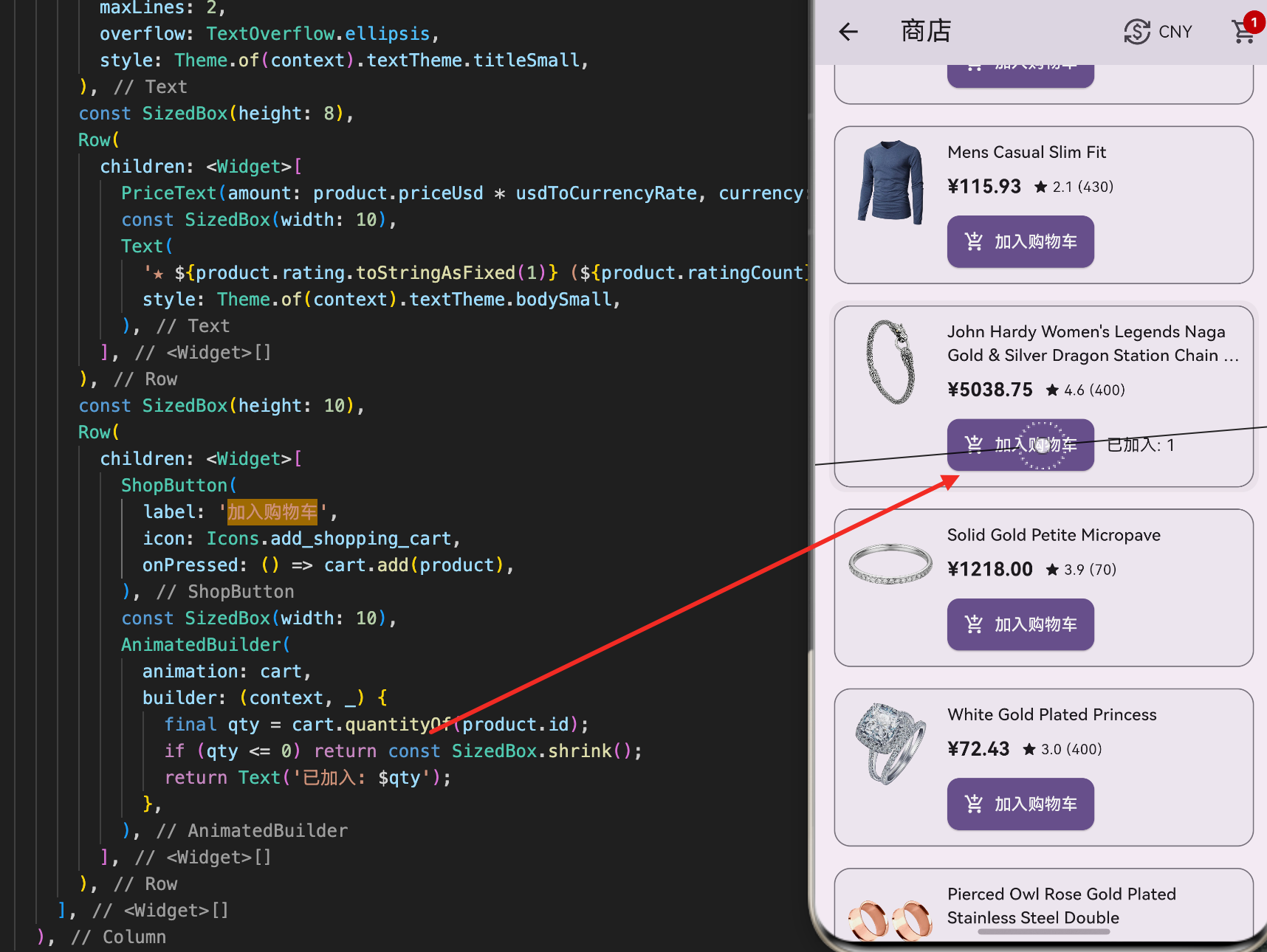
商品列表是电商应用的核心页面,用户在这里浏览和选择商品。一个好的商品列表实现需要处理异步数据加载、错误处理、下拉刷新等多个方面。本文将详细讲解如何在 Flutter for OpenHarmony 项目中实现一个功能完整的商品列表页面,包括数据加载、状态管理、UI展示和用户交互。
商品数据模型
首先,我们需要定义商品的数据模型。Product 类包含了商品的所有必要信息,包括ID、标题、价格、描述、分类、图片、评分等。
class Product {
  const Product({
    required this.id,           // 商品唯一标识
    required this.title,        // 商品标题
    required this.priceUsd,     // 美元价格
    required this.description,  // 商品描述
    required this.category,     // 商品分类
    required this.imageUrl,     // 商品图片URL
    required this.rating,       // 商品评分
    required this.ratingCount,  // 评分数量
  });

  final int id;
  final String title;
  final double priceUsd;
  final String description;
  final String category;
  final String imageUrl;
  final double rating;
  final int ratingCount;

  // 从JSON数据构建Product对象
  static Product fromJson(Map<String, Object?> json) {
    // 提取评分信息,处理可能的null值
    final ratingJson = json['rating'];
    double rating = 0;
    int count = 0;

    // 如果评分数据是Map类型,则提取rate和count
    if (ratingJson is Map) {
      final r = ratingJson['rate'];
      final c = ratingJson['count'];
      rating = (r is num) ? r.toDouble() : 0;
      count = (c is num) ? c.toInt() : 0;
    }

    // 构建并返回Product对象
    return Product(
      id: (json['id'] as num).toInt(),
      title: (json['title'] as String?) ?? '',
      priceUsd: (json['price'] as num).toDouble(),
      description: (json['description'] as String?) ?? '',
      category: (json['category'] as String?) ?? '',
      imageUrl: (json['image'] as String?) ?? '',
      rating: rating,
      ratingCount: count,
    );
  }
}
这个数据模型展示了如何处理来自API的JSON数据:
JSON解析的关键点:
- 使用
fromJson工厂方法将JSON转换为对象 - 对每个字段进行类型检查,防止类型错误
- 使用
??操作符提供默认值,处理可能的null值 - 评分数据是嵌套的Map结构,需要特殊处理
数据验证:
- 检查
ratingJson是否为Map类型 - 检查
rate和count是否为数值类型 - 如果数据格式不符合预期,使用默认值
- 确保应用不会因为数据格式问题而崩溃
商品列表页面
ProductsPage 是商品列表的主页面,负责从API获取数据、管理加载状态和显示商品列表。
class ProductsPage extends StatefulWidget {
const ProductsPage({
super.key,
required this.api, // API实例
required this.currency, // 当前货币
required this.usdToCurrencyRate, // 汇率
});
final FakeStoreApi api;
final String currency;
final double usdToCurrencyRate;
State<ProductsPage> createState() => _ProductsPageState();
}
class _ProductsPageState extends State<ProductsPage> {
// 存储异步操作的Future对象
late Future<List<Product>> _future;
void initState() {
super.initState();
// 页面初始化时加载商品列表
_future = widget.api.listProducts();
}
// 重新加载商品列表
void _reload() {
setState(() {
// 创建新的Future对象,触发重新加载
_future = widget.api.listProducts();
});
}
// 下拉刷新的回调
Future<void> _refresh() {
_reload();
// 返回一个完成的Future
return Future<void>.value();
}
这段代码展示了页面的初始化和数据加载:
Future 管理:
- 使用
late关键字延迟初始化_future - 在
initState中发起API请求 - 每次重新加载时创建新的Future对象
状态管理:
_reload()方法通过setState触发重新构建_refresh()方法供RefreshIndicator调用- 返回
Future<void>满足刷新组件的要求
异步状态处理
使用 FutureBuilder 处理异步数据加载的不同状态:
Widget build(BuildContext context) {
return FutureBuilder<List<Product>>(
future: _future,
builder: (context, snapshot) {
// 检查异步操作是否完成
if (snapshot.connectionState != ConnectionState.done) {
// 加载中状态
return const LoadingView(label: '加载商品中...');
}
// 检查是否发生错误
if (snapshot.hasError) {
// 错误状态
return ErrorView(
title: '加载商品失败',
message: '${snapshot.error}',
onRetry: _reload,
);
}
// 获取商品列表,如果为null则使用空列表
final products = snapshot.data ?? const <Product>[];
// 成功状态:显示商品列表
return RefreshIndicator(
onRefresh: _refresh,
child: ListView.separated(
padding: const EdgeInsets.all(12),
itemCount: products.length,
// 在列表项之间添加分隔符
separatorBuilder: (_, __) => const SizedBox(height: 10),
itemBuilder: (context, index) {
final product = products[index];
return ProductTile(
product: product,
currency: widget.currency,
usdToCurrencyRate: widget.usdToCurrencyRate,
// 点击商品卡片时的回调
onTap: () {
// 获取购物车实例
final cart = CartScope.of(context);
// 导航到商品详情页
Navigator.of(context).push(
MaterialPageRoute<void>(
builder: (ctx) {
// 使用CartScope包裹详情页,共享购物车状态
return CartScope(
cart: cart,
child: ProductDetailsPage(
api: widget.api,
productId: product.id,
currency: widget.currency,
usdToCurrencyRate: widget.usdToCurrencyRate,
),
);
},
),
);
},
);
},
),
);
},
);
}
这段代码展示了完整的异步状态处理流程:
FutureBuilder 的三种状态:
- 加载中:
ConnectionState.done未完成时显示加载提示 - 错误:
snapshot.hasError为true时显示错误信息和重试按钮 - 成功:数据加载完成后显示商品列表
列表优化:
- 使用
ListView.separated自动添加分隔符 separatorBuilder定义项目间距- 性能优化:只构建可见项
导航处理:
- 获取购物车实例并传递到详情页
- 使用
CartScope确保购物车状态共享 - 传递必要的参数到详情页
商品卡片组件
ProductTile 是单个商品的展示卡片,包含商品图片、标题、价格、评分和购物车操作。
class ProductTile extends StatelessWidget {
const ProductTile({
super.key,
required this.product,
required this.currency,
required this.usdToCurrencyRate,
required this.onTap,
});
final Product product;
final String currency;
final double usdToCurrencyRate;
final VoidCallback onTap;
Widget build(BuildContext context) {
// 获取购物车实例
final cart = CartScope.of(context);
return InkWell(
borderRadius: BorderRadius.circular(14),
// 点击卡片时的回调
onTap: onTap,
child: ShopCard(
child: Row(
crossAxisAlignment: CrossAxisAlignment.start,
children: <Widget>[
// 商品图片
ClipRRect(
borderRadius: BorderRadius.circular(10),
child: Image.network(
product.imageUrl,
width: 72,
height: 72,
fit: BoxFit.contain,
// 图片加载失败时显示空白区域
errorBuilder: (_, __, ___) => const SizedBox(
width: 72,
height: 72,
),
),
),
const SizedBox(width: 12),
// 商品信息
Expanded(
child: Column(
crossAxisAlignment: CrossAxisAlignment.start,
children: <Widget>[
// 商品标题
Text(
product.title,
maxLines: 2,
overflow: TextOverflow.ellipsis,
style: Theme.of(context).textTheme.titleSmall,
),
const SizedBox(height: 8),
// 价格和评分
Row(
children: <Widget>[
// 显示转换后的价格
PriceText(
amount: product.priceUsd * usdToCurrencyRate,
currency: currency,
),
const SizedBox(width: 10),
// 显示评分
Text(
'★ ${product.rating.toStringAsFixed(1)} '
'(${product.ratingCount})',
style: Theme.of(context).textTheme.bodySmall,
),
],
),
const SizedBox(height: 10),
// 购物车操作
Row(
children: <Widget>[
// 加入购物车按钮
ShopButton(
label: '加入购物车',
icon: Icons.add_shopping_cart,
onPressed: () => cart.add(product),
),
const SizedBox(width: 10),
// 显示已加入的数量
AnimatedBuilder(
animation: cart,
builder: (context, _) {
final qty = cart.quantityOf(product.id);
// 如果数量为0,不显示
if (qty <= 0) return const SizedBox.shrink();
return Text('已加入: $qty');
},
),
],
),
],
),
),
],
),
),
);
}
}
这个组件展示了如何设计一个完整的商品卡片:
布局设计:
- 使用
Row实现水平布局 - 左侧是商品图片,右侧是商品信息
- 使用
Expanded让信息区域占据剩余空间 - 使用
Column组织商品信息的垂直排列
图片处理:
- 使用
ClipRRect实现圆角效果 Image.network从URL加载图片fit: BoxFit.contain保持图片宽高比errorBuilder处理图片加载失败的情况
信息展示:
- 商品标题最多显示2行,超出部分用省略号表示
- 价格使用
PriceText组件显示,支持多货币 - 评分显示星号和评分数量
- 使用主题样式保持风格一致
购物车交互:
- 点击按钮直接添加到购物车
- 使用
AnimatedBuilder监听购物车变化 - 实时显示已加入的商品数量
- 数量为0时不显示,保持界面整洁
错误处理与重试
应用需要优雅地处理网络错误和加载失败的情况。
// 错误视图组件
class ErrorView extends StatelessWidget {
const ErrorView({
required this.title,
required this.message,
this.onRetry,
});
final String title;
final String message;
final VoidCallback? onRetry;
Widget build(BuildContext context) {
return Center(
child: Padding(
padding: const EdgeInsets.all(16),
child: Column(
mainAxisSize: MainAxisSize.min,
children: <Widget>[
// 错误标题
Text(title, style: Theme.of(context).textTheme.titleMedium),
const SizedBox(height: 8),
// 错误信息
Text(
message,
style: Theme.of(context).textTheme.bodyMedium,
textAlign: TextAlign.center,
),
// 重试按钮
if (onRetry != null) ...<Widget>[
const SizedBox(height: 12),
ShopButton(
label: '重试',
onPressed: onRetry,
icon: Icons.refresh,
),
],
],
),
),
);
}
}
这个错误视图提供了友好的错误提示:
用户体验:
- 清晰的错误标题和详细的错误信息
- 提供重试按钮让用户重新尝试
- 居中显示,视觉上突出
- 使用主题样式保持一致性
错误处理流程:
- 当API请求失败时显示错误视图
- 用户可以点击重试按钮重新加载
- 重试时创建新的Future对象
- 如果再次失败,继续显示错误信息
下拉刷新实现
RefreshIndicator 提供了Material Design风格的下拉刷新功能。
RefreshIndicator(
  // 下拉刷新时的回调
  onRefresh: _refresh,
  child: ListView.separated(
    padding: const EdgeInsets.all(12),
    itemCount: products.length,
    separatorBuilder: (_, __) => const SizedBox(height: 10),
    itemBuilder: (context, index) {
      // 构建列表项
    },
  ),
)
下拉刷新的关键点:
刷新流程:
- 用户下拉列表时触发刷新
onRefresh回调返回一个Future- 当Future完成时,刷新动画结束
- 用户看到最新的商品列表
性能考虑:
- 刷新时重新创建Future对象
- 不会重复加载已有的数据
- 用户可以随时刷新获取最新数据
总结
商品列表的实现涉及多个重要的技术点。首先是使用 FutureBuilder 处理异步数据加载的不同状态。其次是设计合理的商品卡片组件,展示商品信息并支持购物车操作。再次是实现错误处理和重试机制,提高应用的稳定性。最后是集成下拉刷新功能,让用户能够随时获取最新数据。
这种设计确保了商品列表的功能完整性和用户体验的流畅性。用户可以轻松浏览商品、查看详情、添加到购物车,整个流程自然而直观。
欢迎加入开源鸿蒙跨平台社区:https://openharmonycrossplatform.csdn.net

腾讯云面向开发者汇聚海量精品云计算使用和开发经验,营造开放的云计算技术生态圈。
更多推荐
 14
14 0
0- 0


 已为社区贡献18条内容

所有评论(0)