Flutter框架适配鸿蒙:TextButton详解
TextButton是Material Design中最轻量的按钮组件,没有背景色和边框,仅显示文字和点击时的波纹效果。它的设计理念是保持界面简洁,用于次要操作或辅助功能,不抢占用户的注意力。TextButton在视觉权重上最低,通常与ElevatedButton搭配使用,形成主次分明的设计层次。TextButton的波纹效果提供了必要的交互反馈,让用户感知到点击操作,同时保持了界面的轻量化。
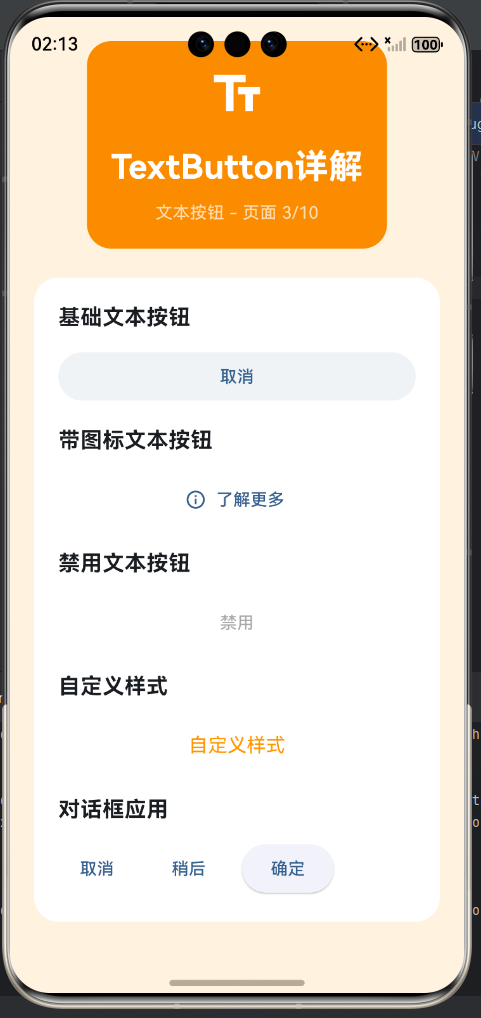
一、TextButton概述
TextButton是Material Design中最轻量的按钮组件,没有背景色和边框,仅显示文字和点击时的波纹效果。它的设计理念是保持界面简洁,用于次要操作或辅助功能,不抢占用户的注意力。TextButton在视觉权重上最低,通常与ElevatedButton搭配使用,形成主次分明的设计层次。TextButton的波纹效果提供了必要的交互反馈,让用户感知到点击操作,同时保持了界面的轻量化。
TextButton特点
| 特性 | 说明 | 设计意图 | 适用场景 |
|---|---|---|---|
| 扁平无背景 | 无背景色和阴影 | 轻量化设计 | 辅助操作 |
| 文字显示 | 仅显示文字 | 简洁明了 | 信息确认 |
| 波纹反馈 | 点击时有涟漪 | 交互反馈 | 提示可点击 |
| 最小空间 | 占用空间最小 | 节省空间 | 紧凑界面 |
| 灵活布局 | 可嵌入文本 | 自然流畅 | 文本内操作 |
| 一致性 | 遵循Material规范 | 品牌统一 | 标准体验 |
| 可访问 | 支持键盘和触摸 | 无障碍 | 包容性强 |
| 性能好 | 渲染开销小 | 流畅体验 | 大量按钮 |
TextButton与其他按钮对比
| 按钮类型 | 视觉特点 | 使用场景 | 重要程度 | 空间占用 |
|---|---|---|---|---|
| TextButton | 扁平无背景 | 次要操作、导航 | 低 | 最小 |
| OutlinedButton | 带边框 | 中等操作 | 中 | 中等 |
| ElevatedButton | 凸起有阴影 | 主要操作 | 高 | 较大 |
二、TextButton应用场景
TextButton适用于需要提供操作入口但又不希望过于突出的场景。在对话框中,TextButton常用于取消、稍后、了解更多等次要操作。在表单中,用于清空、重置、忘记密码等辅助功能。在导航中,用于了解更多、查看详情等跳转操作。在卡片或列表中,用于分享、收藏等辅助功能。TextButton应该放在次要位置,如对话框的右侧、表单的底部、文本的末尾,避免抢夺主要操作的注意力。
应用场景分类
| 场景类型 | 示例文案 | 按钮位置 | 交互频率 | 视觉要求 |
|---|---|---|---|---|
| 对话框辅助 | 取消、稍后 | 右侧或底部 | 中等 | 不抢眼 |
| 表单辅助 | 清空、重置 | 表单下方 | 较高 | 不突出 |
| 导航辅助 | 了解更多 | 文本末尾 | 高 | 自然融合 |
| 次要操作 | 跳过、忽略 | 右下角 | 低 | 低视觉权重 |
| 链接替代 | 查看详情 | 文本中 | 中等 | 像链接 |
| 确认操作 | 确定 | 主操作旁 | 高 | 次要确认 |
| 反馈操作 | 反馈、帮助 | 底部 | 低 | 不干扰 |
| 设置操作 | 设置、偏好 | 角落 | 中等 | 不明显 |
场景示例
// 对话框辅助按钮
AlertDialog(
  title: Text('提示'),
  content: Text('确定要执行此操作吗?'),
  actions: [
    TextButton(
      onPressed: () {},
      child: Text('取消'),
    ),
    ElevatedButton(
      onPressed: () {},
      child: Text('确定'),
    ),
  ],
)

// 表单辅助按钮
Column(
  children: [
    TextField(decoration: InputDecoration(labelText: '用户名')),
    SizedBox(height: 16),
    TextField(decoration: InputDecoration(labelText: '密码')),
    SizedBox(height: 16),
    Row(
      children: [
        TextButton(
          onPressed: () {},
          child: Text('清空'),
        ),
        TextButton(
          onPressed: () {},
          child: Text('重置'),
        ),
        Spacer(),
        ElevatedButton(
          onPressed: () {},
          child: Text('登录'),
        ),
      ],
    ),
  ],
)

// 导航辅助按钮
RichText(
  text: TextSpan(
    children: [
      TextSpan(text: '这是正文内容。'),
      WidgetSpan(
        child: TextButton(
          style: TextButton.styleFrom(padding: EdgeInsets.zero),
          onPressed: () {},
          child: Text('了解更多'),
        ),
      ),
    ],
  ),
)
三、基础属性详解
TextButton的核心属性与ElevatedButton类似,包括onPressed、onLongPress、child、style等。onPressed是必需属性,处理点击事件,设置为null时按钮进入禁用状态。onLongPress提供长按回调,用于触发特殊操作。child属性定义按钮内容,通常是Text widget或Row。style属性通过ButtonStyle或TextButton.styleFrom控制样式。autofocus和focusNode用于焦点管理。TextButton的默认样式会使用主题的文本主题颜色,可以通过foregroundColor自定义。
核心属性说明
| 属性 | 类型 | 默认值 | 必需 | 说明 |
|---|---|---|---|---|
| onPressed | VoidCallback | - | 是 | 点击回调,null表示禁用 |
| onLongPress | VoidCallback | null | 否 | 长按回调 |
| child | Widget | - | 是 | 按钮内容 |
| style | ButtonStyle | 主题样式 | 否 | 按钮样式配置 |
| autofocus | bool | false | 否 | 是否自动聚焦 |
| focusNode | FocusNode | null | 否 | 焦点节点 |
基础用法示例
// 最简单的TextButton
TextButton(
  onPressed: () {
    print('点击了文本按钮');
  },
  child: Text('取消'),
)

// 带长按事件
TextButton(
  onPressed: () {
    print('点击');
  },
  onLongPress: () {
    print('长按');
  },
  child: Text('长按我'),
)

// 自定义样式
TextButton(
  style: TextButton.styleFrom(
    foregroundColor: Colors.blue,
    padding: EdgeInsets.symmetric(horizontal: 16, vertical: 8),
    textStyle: TextStyle(fontSize: 16),
  ),
  onPressed: () {},
  child: Text('自定义样式'),
)
四、样式定制方法
TextButton的样式定制主要通过TextButton.styleFrom静态方法或ButtonStyle构造函数实现。styleFrom提供了便捷的参数来设置前景色、背景色、内边距、文字样式等。由于TextButton默认没有背景,backgroundColor参数通常用于设置悬停或按下时的背景色。foregroundColor控制文字和图标的颜色。primary是旧版API,建议使用foregroundColor。padding控制内边距,影响按钮的点击区域大小。textStyle自定义文字样式,包括字体大小、粗细等。
styleFrom常用参数
| 参数 | 类型 | 说明 | 示例 |
|---|---|---|---|
| foregroundColor | Color | 前景色(文字/图标) | Colors.blue |
| backgroundColor | Color | 背景色(通常为空) | Colors.transparent |
| disabledForegroundColor | Color | 禁用时的前景色 | Colors.grey |
| padding | EdgeInsetsGeometry | 内边距 | EdgeInsets.all(8) |
| minimumSize | Size | 最小尺寸 | Size(40, 32) |
| textStyle | TextStyle | 文字样式 | TextStyle(fontSize: 16) |
| shape | OutlinedBorder | 形状 | StadiumBorder() |
样式定制示例
// 自定义颜色
TextButton(
  style: TextButton.styleFrom(
    foregroundColor: Colors.blue,
  ),
  onPressed: () {},
  child: Text('蓝色文本按钮'),
)

// 自定义大小和内边距
TextButton(
  style: TextButton.styleFrom(
    foregroundColor: Colors.green,
    padding: EdgeInsets.symmetric(horizontal: 24, vertical: 12),
    minimumSize: Size(80, 40),
  ),
  onPressed: () {},
  child: Text('较大按钮'),
)

// 自定义文字样式
TextButton(
  style: TextButton.styleFrom(
    foregroundColor: Colors.purple,
    textStyle: TextStyle(
      fontSize: 18,
      fontWeight: FontWeight.bold,
    ),
  ),
  onPressed: () {},
  child: Text('粗体大字'),
)

// 圆角背景(悬停时显示)
TextButton(
  style: TextButton.styleFrom(
    foregroundColor: Colors.orange,
    backgroundColor: MaterialStateProperty.resolveWith((states) {
      if (states.contains(MaterialState.hovered)) {
        return Colors.orange.withOpacity(0.1);
      }
      return Colors.transparent;
    }),
    shape: RoundedRectangleBorder(
      borderRadius: BorderRadius.circular(8),
    ),
    padding: EdgeInsets.symmetric(horizontal: 16, vertical: 8),
  ),
  onPressed: () {},
  child: Text('悬停显示背景'),
)
五、带图标的TextButton
虽然TextButton主要用于显示文字,但也支持显示图标,通过icon构造函数或自定义child实现。带图标的TextButton适合在需要节省空间但又要明确表达功能时使用,如分享按钮、收藏按钮等。图标和文字的间距会自动调整,保持视觉平衡。图标可以使用Icons中的预定义图标,也可以使用自定义的图片或其他widget。
图标按钮设计原则
| 原则 | 说明 | 注意事项 |
|---|---|---|
| 图标清晰 | 使用有明确含义的图标 | 避免模糊图标 |
| 尺寸适中 | 图标不要太大或太小 | iconSize: 18-20 |
| 颜色一致 | 图标颜色与文字一致 | 使用foregroundColor |
| 简洁布局 | 图标+文字的组合要简洁 | 避免复杂布局 |
| 语义化 | 图标能辅助理解含义 | 不完全依赖图标 |
| 一致性 | 相同功能用相同图标 | 保持统一 |
带图标示例
// 使用icon构造函数
TextButton.icon(
  icon: Icon(Icons.info_outline, size: 18),
  label: Text('了解更多'),
  onPressed: () {},
)

TextButton.icon(
  icon: Icon(Icons.arrow_forward, size: 18),
  label: Text('继续'),
  onPressed: () {},
)

TextButton.icon(
  icon: Icon(Icons.share, size: 18),
  label: Text('分享'),
  onPressed: () {},
)

// 自定义布局
TextButton(
  onPressed: () {},
  style: TextButton.styleFrom(padding: EdgeInsets.symmetric(horizontal: 12)),
  child: Row(
    mainAxisSize: MainAxisSize.min,
    children: [
      Icon(Icons.help_outline, size: 16),
      SizedBox(width: 4),
      Text('帮助'),
    ],
  ),
)

// 仅图标
TextButton(
  onPressed: () {},
  style: TextButton.styleFrom(
    minimumSize: Size(40, 40),
    padding: EdgeInsets.zero,
  ),
  child: Icon(Icons.close),
)
六、TextButton禁用状态
TextButton的禁用状态通过将onPressed设置为null来触发。禁用时,按钮的文本颜色会变为灰色且透明度降低,波纹效果也会禁用。禁用状态对于提供用户反馈和防止误操作非常重要,应该在操作条件不满足时禁用按钮。禁用样式可以通过disabledForegroundColor属性自定义,也可以使用MaterialStateProperty实现更精细的状态控制。
禁用状态应用
| 场景 | 禁用条件 | 恢复条件 | 示例 |
|---|---|---|---|
| 内容不足 | 没有足够内容 | 有足够内容 | “加载更多” |
| 权限限制 | 没有权限 | 获得权限 | “编辑” |
| 网络异常 | 网络不可用 | 网络恢复 | “重试” |
| 操作完成 | 操作已完成 | 重新开始 | “提交” |
| 数据加载 | 数据加载中 | 加载完成 | “刷新” |
禁用状态示例
// 基础禁用
TextButton(
onPressed: null,
child: Text('禁用的按钮'),
)
// 自定义禁用样式
TextButton(
style: TextButton.styleFrom(
foregroundColor: Colors.blue,
disabledForegroundColor: Colors.grey.shade400,
),
onPressed: null,
child: Text('自定义禁用样式'),
)
// 动态禁用
class DynamicDisableTextButton extends StatefulWidget {
State<DynamicDisableTextButton> createState() => _DynamicDisableTextButtonState();
}
class _DynamicDisableTextButtonState extends State<DynamicDisableTextButton> {
bool _hasContent = false;
int _itemCount = 0;
Widget build(BuildContext context) {
return Column(
children: [
Text('当前项目数: $_itemCount'),
SizedBox(height: 8),
Row(
children: [
TextButton(
onPressed: () {
setState(() => _itemCount++);
},
child: Text('添加项目'),
),
SizedBox(width: 16),
TextButton(
onPressed: _hasContent ? () {
print('加载更多');
} : null,
child: Text('加载更多'),
),
],
),
],
);
}
}
七、TextButton在对话框中的使用
TextButton在对话框中是最常见的按钮类型之一,通常用于取消、稍后、了解更多等次要操作。对话框中的按钮应该遵循Material Design的规范,取消按钮放在左侧或底部,确认按钮放在右侧或底部,使用ElevatedButton或TextButton区分主次。TextButton用于取消或不重要的操作,ElevatedButton用于确认或重要的操作。按钮应该有明确的操作动词,文案简洁明了。
对话框按钮布局
| 操作类型 | 推荐按钮 | 位置 | 文案示例 |
|---|---|---|---|
| 取消操作 | TextButton | 左侧或底部 | “取消” |
| 确认操作 | ElevatedButton | 右侧或底部 | “确定” |
| 稍后操作 | TextButton | 中间 | “稍后” |
| 了解更多 | TextButton | 底部 | “了解更多” |
| 不再提示 | TextButton | 底部 | “不再提示” |
对话框示例
// 确认对话框
AlertDialog(
  title: Text('删除项目'),
  content: Text('确定要删除此项目吗?此操作不可撤销。'),
  actions: [
    TextButton(
      onPressed: () {
        Navigator.of(context).pop();
      },
      child: Text('取消'),
    ),
    ElevatedButton(
      onPressed: () {
        // 执行删除
        Navigator.of(context).pop();
      },
      style: ElevatedButton.styleFrom(backgroundColor: Colors.red),
      child: Text('删除'),
    ),
  ],
)

// 信息对话框
AlertDialog(
  title: Text('新功能'),
  content: Column(
    mainAxisSize: MainAxisSize.min,
    crossAxisAlignment: CrossAxisAlignment.start,
    children: [
      Text('我们添加了一些新功能,想要了解更多吗?'),
      SizedBox(height: 8),
      TextButton(
        style: TextButton.styleFrom(padding: EdgeInsets.zero),
        onPressed: () {},
        child: Text('查看更新日志'),
      ),
    ],
  ),
  actions: [
    TextButton(
      onPressed: () {
        Navigator.of(context).pop();
      },
      child: Text('稍后'),
    ),
    ElevatedButton(
      onPressed: () {
        // 导航到更新页面
        Navigator.of(context).pop();
      },
      child: Text('查看'),
    ),
  ],
)

// 简单提示对话框
SimpleDialog(
  title: Text('选择选项'),
  children: [
    SimpleDialogOption(
      onPressed: () {
        Navigator.of(context).pop(1);
      },
      child: Text('选项1'),
    ),
    SimpleDialogOption(
      onPressed: () {
        Navigator.of(context).pop(2);
      },
      child: Text('选项2'),
    ),
    SimpleDialogOption(
      onPressed: () {
        Navigator.of(context).pop(3);
      },
      child: Text('选项3'),
    ),
  ],
)
八、TextButton最佳实践
在实际开发中,使用TextButton应该遵循一些最佳实践。TextButton应该用于次要操作,不要用于主要操作,重要操作应该用ElevatedButton。文案应该使用动作动词,简洁明了,如"取消"、“了解更多”、“跳过”。按钮应该放在次要位置,避免抢夺主要操作的注意力。禁用状态要清晰,让用户知道为什么按钮不可用。TextButton可以与ElevatedButton、OutlinedButton组合使用,形成主次分明的设计层次。
按钮文案指南
| 类型 | 推荐 | 不推荐 | 原因 |
|---|---|---|---|
| 取消操作 | “取消”、“关闭” | “不要”、“算了” | 标准术语 |
| 跳转操作 | “了解更多”、“查看详情” | “点这里” | 明确清晰 |
| 跳过操作 | “跳过”、“忽略” | “算了” | 标准用词 |
| 反馈操作 | “反馈”、“帮助” | “有问题” | 积极正面 |
| 设置操作 | “设置”、“偏好” | “配置” | 用户友好 |
按钮布局示例
// 表单按钮组合
Column(
  children: [
    TextField(decoration: InputDecoration(labelText: '用户名')),
    SizedBox(height: 16),
    TextField(decoration: InputDecoration(labelText: '密码')),
    SizedBox(height: 16),
    Row(
      children: [
        TextButton(
          onPressed: () {},
          child: Text('忘记密码?'),
        ),
        Spacer(),
        ElevatedButton(
          onPressed: () {},
          child: Text('登录'),
        ),
      ],
    ),
  ],
)

// 列表项按钮
ListTile(
  title: Text('设置选项'),
  subtitle: Text('这是一个重要的设置'),
  trailing: TextButton(
    onPressed: () {},
    child: Text('配置'),
  ),
)

// 卡片操作按钮
Card(
  child: Padding(
    padding: EdgeInsets.all(16),
    child: Column(
      children: [
        Text('Flutter开发指南', style: TextStyle(fontSize: 18)),
        SizedBox(height: 8),
        Text('¥99.99', style: TextStyle(fontSize: 24, color: Colors.red)),
        SizedBox(height: 16),
        Row(
          children: [
            TextButton.icon(
              icon: Icon(Icons.favorite_border, size: 18),
              label: Text('收藏'),
              onPressed: () {},
            ),
            SizedBox(width: 16),
            Expanded(
              child: ElevatedButton(
                onPressed: () {},
                child: Text('加入购物车'),
              ),
            ),
          ],
        ),
      ],
    ),
  ),
)
欢迎加入开源鸿蒙跨平台社区:https://openharmonycrossplatform.csdn.net

腾讯云面向开发者汇聚海量精品云计算使用和开发经验,营造开放的云计算技术生态圈。
更多推荐
 22
22 0
0- 0


 已为社区贡献11条内容

所有评论(0)