Flutter for OpenHarmony 身体健康状况记录App实战 - 运动详情实现
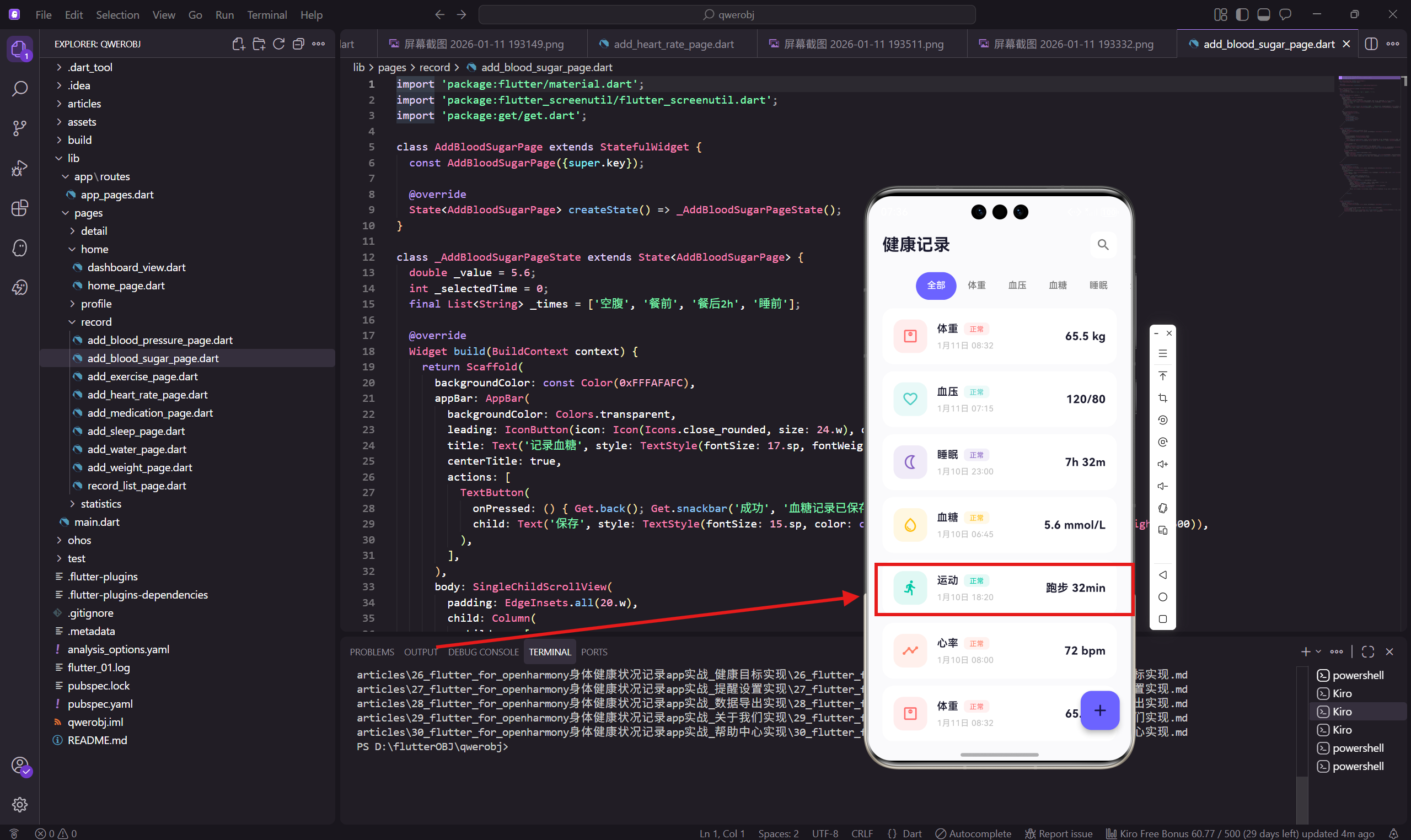
前言
运动是保持健康的重要方式,运动详情页面需要展示运动时长、类型、消耗热量等关键信息。好的运动记录界面能激励用户坚持锻炼,追踪自己的运动进度。
这篇文章会讲解运动详情页面的实现,包括运动信息卡片、统计数据展示、历史记录列表等核心组件。
页面整体结构
运动详情页面包含三个主要部分:当前运动卡片、统计数据行、历史记录列表。
class ExerciseDetailPage extends StatelessWidget {
const ExerciseDetailPage({super.key});
Widget build(BuildContext context) {
return Scaffold(
backgroundColor: const Color(0xFFFAFAFC),
appBar: AppBar(
backgroundColor: Colors.transparent,
leading: IconButton(
icon: Icon(Icons.arrow_back_ios_rounded, size: 20.w),
onPressed: () => Get.back()
),
title: Text('运动详情', style: TextStyle(fontSize: 17.sp, fontWeight: FontWeight.w600)),
centerTitle: true,
),
body: SingleChildScrollView(
padding: EdgeInsets.all(20.w),
child: Column(
children: [
_buildCurrentCard(),
SizedBox(height: 20.h),
_buildStatsRow(),
SizedBox(height: 20.h),
_buildHistory(),
],
),
),
);
}
}
页面结构和其他详情页保持一致,使用统一的背景色和间距。SingleChildScrollView 确保内容在小屏幕上也能正常滚动。
当前运动展示卡片
运动卡片使用青绿色渐变背景,这个颜色给人活力、健康的感觉,和运动主题非常契合。
Widget _buildCurrentCard() {
  return Container(
    width: double.infinity,
    padding: EdgeInsets.all(24.w),
    decoration: BoxDecoration(
      gradient: const LinearGradient(
        colors: [Color(0xFF00C9A7), Color(0xFF4ECDC4)]
      ),
      borderRadius: BorderRadius.circular(24.r),
    ),
    child: Column(
      children: [
        Row(
          mainAxisAlignment: MainAxisAlignment.center,
          children: [
            Icon(Icons.directions_run_rounded, size: 28.w, color: Colors.white70),
            SizedBox(width: 8.w),
            Text('跑步', style: TextStyle(fontSize: 16.sp, color: Colors.white70)),
          ],
        ),
        SizedBox(height: 12.h),
        Text('32 分钟', style: TextStyle(
          fontSize: 40.sp,
          fontWeight: FontWeight.w700,
          color: Colors.white
        )),
        SizedBox(height: 8.h),
        Text('3.2 公里 · 280 千卡', style: TextStyle(
          fontSize: 14.sp,
          color: Colors.white70
        )),
      ],
    ),
  );
}
渐变色从 #00C9A7 到 #4ECDC4,是一个清新的青绿色系。顶部用图标加文字的方式显示运动类型,跑步用 Icons.directions_run_rounded 图标。
运动时长是核心数据,使用 40sp 的大字号突出显示。下方用中间点分隔显示距离和热量消耗,这两个是跑步运动的重要指标。
运动类型图标映射
不同的运动类型需要使用不同的图标:
IconData _getExerciseIcon(String type) {
  switch (type) {
    case '跑步': return Icons.directions_run_rounded;
    case '步行': return Icons.directions_walk_rounded;
    case '骑行': return Icons.directions_bike_rounded;
    case '游泳': return Icons.pool_rounded;
    case '瑜伽': return Icons.self_improvement_rounded;
    case '健身': return Icons.fitness_center_rounded;
    default: return Icons.sports_rounded;
  }
}
这个方法根据运动类型返回对应的图标,让用户能快速识别不同的运动记录。
统计数据行
统计数据行展示本周运动时长和消耗热量两个汇总数据。
Widget _buildStatsRow() {
  return Row(
    children: [
      _buildStatCard('本周运动', '156', '分钟', const Color(0xFF00C9A7)),
      SizedBox(width: 12.w),
      _buildStatCard('消耗热量', '1,280', '千卡', const Color(0xFFFF6B6B)),
    ],
  );
}

Widget _buildStatCard(String label, String value, String unit, Color color) {
  return Expanded(
    child: Container(
      padding: EdgeInsets.all(16.w),
      decoration: BoxDecoration(
        color: Colors.white,
        borderRadius: BorderRadius.circular(16.r)
      ),
      child: Column(
        crossAxisAlignment: CrossAxisAlignment.start,
        children: [
          Text(label, style: TextStyle(fontSize: 12.sp, color: Colors.grey[500])),
          SizedBox(height: 8.h),
          Row(
            crossAxisAlignment: CrossAxisAlignment.end,
            children: [
              Text(value, style: TextStyle(
                fontSize: 24.sp,
                fontWeight: FontWeight.w700,
                color: color
              )),
              Padding(
                padding: EdgeInsets.only(bottom: 3.h),
                child: Text(' $unit', style: TextStyle(
                  fontSize: 12.sp,
                  color: Colors.grey[400]
                ))
              ),
            ],
          ),
        ],
      ),
    ),
  );
}
两个统计卡片并排显示,用 Expanded 平均分配宽度。运动时长用绿色,热量消耗用红色,颜色区分让用户能快速识别不同类型的数据。
数值使用 24sp 的字号,比详情卡片的数字小一些,形成视觉层次。单位放在数值右下角,用灰色小字显示。
热量消耗计算
不同运动类型的热量消耗率不同,可以根据运动类型和时长估算消耗的热量:
int _calculateCalories(String type, int minutes, double weight) {
  // MET值(代谢当量)
  double met;
  switch (type) {
    case '跑步': met = 9.8; break;
    case '步行': met = 3.5; break;
    case '骑行': met = 7.5; break;
    case '游泳': met = 8.0; break;
    case '瑜伽': met = 3.0; break;
    case '健身': met = 6.0; break;
    default: met = 5.0;
  }

  // 热量消耗公式:MET × 体重(kg) × 时间(小时)
  return (met * weight * minutes / 60).round();
}
这个方法使用 MET(代谢当量)来计算热量消耗,不同运动的 MET 值不同,跑步最高,步行和瑜伽较低。
历史记录列表
历史记录展示用户过去的运动数据,包括日期、运动类型、时长和热量消耗。
Widget _buildHistory() {
  final history = [
    {'date': '今天', 'type': '跑步', 'duration': '32min', 'cal': '280'},
    {'date': '昨天', 'type': '步行', 'duration': '45min', 'cal': '180'},
    {'date': '1月9日', 'type': '游泳', 'duration': '40min', 'cal': '320'},
    {'date': '1月8日', 'type': '骑行', 'duration': '60min', 'cal': '400'},
  ];

  return Container(
    padding: EdgeInsets.all(20.w),
    decoration: BoxDecoration(
      color: Colors.white,
      borderRadius: BorderRadius.circular(20.r)
    ),
    child: Column(
      crossAxisAlignment: CrossAxisAlignment.start,
      children: [
        Text('历史记录', style: TextStyle(
          fontSize: 16.sp,
          fontWeight: FontWeight.w600,
          color: const Color(0xFF1A1A2E)
        )),
        SizedBox(height: 16.h),
        ...history.map((item) => Padding(
          padding: EdgeInsets.only(bottom: 14.h),
          child: Row(
            children: [
              Expanded(
                child: Column(
                  crossAxisAlignment: CrossAxisAlignment.start,
                  children: [
                    Text(item['date']!, style: TextStyle(
                      fontSize: 14.sp,
                      fontWeight: FontWeight.w500,
                      color: const Color(0xFF1A1A2E)
                    )),
                    SizedBox(height: 2.h),
                    Text(item['type']!, style: TextStyle(
                      fontSize: 12.sp,
                      color: Colors.grey[400]
                    )),
                  ],
                ),
              ),
              Text(item['duration']!, style: TextStyle(
                fontSize: 14.sp,
                color: const Color(0xFF1A1A2E)
              )),
              SizedBox(width: 16.w),
              Text('${item['cal']}kcal', style: TextStyle(
                fontSize: 14.sp,
                fontWeight: FontWeight.w600,
                color: const Color(0xFF00C9A7)
              )),
            ],
          ),
        )),
      ],
    ),
  );
}
每条记录左边显示日期和运动类型,右边显示时长和热量消耗。热量消耗用绿色突出显示,这是用户最关心的数据之一。
运动类型作为副标题放在日期下面,用灰色小字显示,不会抢主体信息的视觉焦点。
运动目标进度
可以添加一个运动目标进度的展示,激励用户完成每周运动目标:
Widget _buildWeeklyGoal() {
  final current = 156;
  final target = 150;
  final percentage = (current / target).clamp(0.0, 1.0);

  return Container(
    padding: EdgeInsets.all(16.w),
    decoration: BoxDecoration(
      color: Colors.white,
      borderRadius: BorderRadius.circular(16.r),
    ),
    child: Column(
      crossAxisAlignment: CrossAxisAlignment.start,
      children: [
        Row(
          mainAxisAlignment: MainAxisAlignment.spaceBetween,
          children: [
            Text('本周目标', style: TextStyle(
              fontSize: 14.sp,
              fontWeight: FontWeight.w500,
              color: const Color(0xFF1A1A2E)
            )),
            Text(
              current >= target ? '已达成 🎉' : '进行中',
              style: TextStyle(
                fontSize: 12.sp,
                color: current >= target
                  ? const Color(0xFF00C9A7)
                  : Colors.grey[500],
              ),
            ),
          ],
        ),
        SizedBox(height: 12.h),
        ClipRRect(
          borderRadius: BorderRadius.circular(4.r),
          child: LinearProgressIndicator(
            value: percentage,
            minHeight: 8.h,
            backgroundColor: Colors.grey[100],
            valueColor: const AlwaysStoppedAnimation(Color(0xFF00C9A7)),
          ),
        ),
        SizedBox(height: 8.h),
        Text(
          '$current / $target 分钟',
          style: TextStyle(fontSize: 12.sp, color: Colors.grey[500]),
        ),
      ],
    ),
  );
}
进度条直观地展示当前运动时长和目标的对比,达成目标时显示庆祝 emoji,给用户正向反馈。
运动类型分布
如果用户有多种运动类型的记录,可以展示运动类型的分布情况:
Widget _buildTypeDistribution() {
  final types = [
    {'type': '跑步', 'percent': 0.45, 'color': const Color(0xFFFF6B6B)},
    {'type': '步行', 'percent': 0.30, 'color': const Color(0xFF4D96FF)},
    {'type': '游泳', 'percent': 0.15, 'color': const Color(0xFF00C9A7)},
    {'type': '其他', 'percent': 0.10, 'color': const Color(0xFFFFBE0B)},
  ];

  return Container(
    padding: EdgeInsets.all(16.w),
    decoration: BoxDecoration(
      color: Colors.white,
      borderRadius: BorderRadius.circular(16.r),
    ),
    child: Column(
      crossAxisAlignment: CrossAxisAlignment.start,
      children: [
        Text('运动类型分布', style: TextStyle(
          fontSize: 14.sp,
          fontWeight: FontWeight.w500,
          color: const Color(0xFF1A1A2E),
        )),
        SizedBox(height: 16.h),
        ...types.map((t) => Padding(
          padding: EdgeInsets.only(bottom: 12.h),
          child: Row(
            children: [
              Container(
                width: 8.w,
                height: 8.w,
                decoration: BoxDecoration(
                  color: t['color'] as Color,
                  borderRadius: BorderRadius.circular(2.r),
                ),
              ),
              SizedBox(width: 8.w),
              Text(t['type'] as String, style: TextStyle(
                fontSize: 13.sp,
                color: const Color(0xFF1A1A2E),
              )),
              const Spacer(),
              Text(
                '${((t['percent'] as double) * 100).toInt()}%',
                style: TextStyle(
                  fontSize: 13.sp,
                  fontWeight: FontWeight.w600,
                  color: t['color'] as Color,
                ),
              ),
            ],
          ),
        )),
      ],
    ),
  );
}
每种运动类型用不同颜色的小方块标识,右边显示占比百分数。这种设计让用户能快速了解自己的运动偏好。
小结
运动详情页面通过青绿色主题传达活力和健康的感觉,用图标区分不同的运动类型,用统计卡片展示汇总数据。
核心设计要点包括:运动时长作为主要数据突出显示,热量消耗用醒目的颜色标注,历史记录包含完整的运动信息。这些设计让用户能全面了解自己的运动情况,激励他们坚持锻炼。
欢迎加入开源鸿蒙跨平台社区:https://openharmonycrossplatform.csdn.net

腾讯云面向开发者汇聚海量精品云计算使用和开发经验,营造开放的云计算技术生态圈。
更多推荐
 15
15 0
0- 0


 已为社区贡献20条内容

所有评论(0)