Flutter for OpenHarmony 视力保护提醒App实战 - percent_indicator进度指示
概述
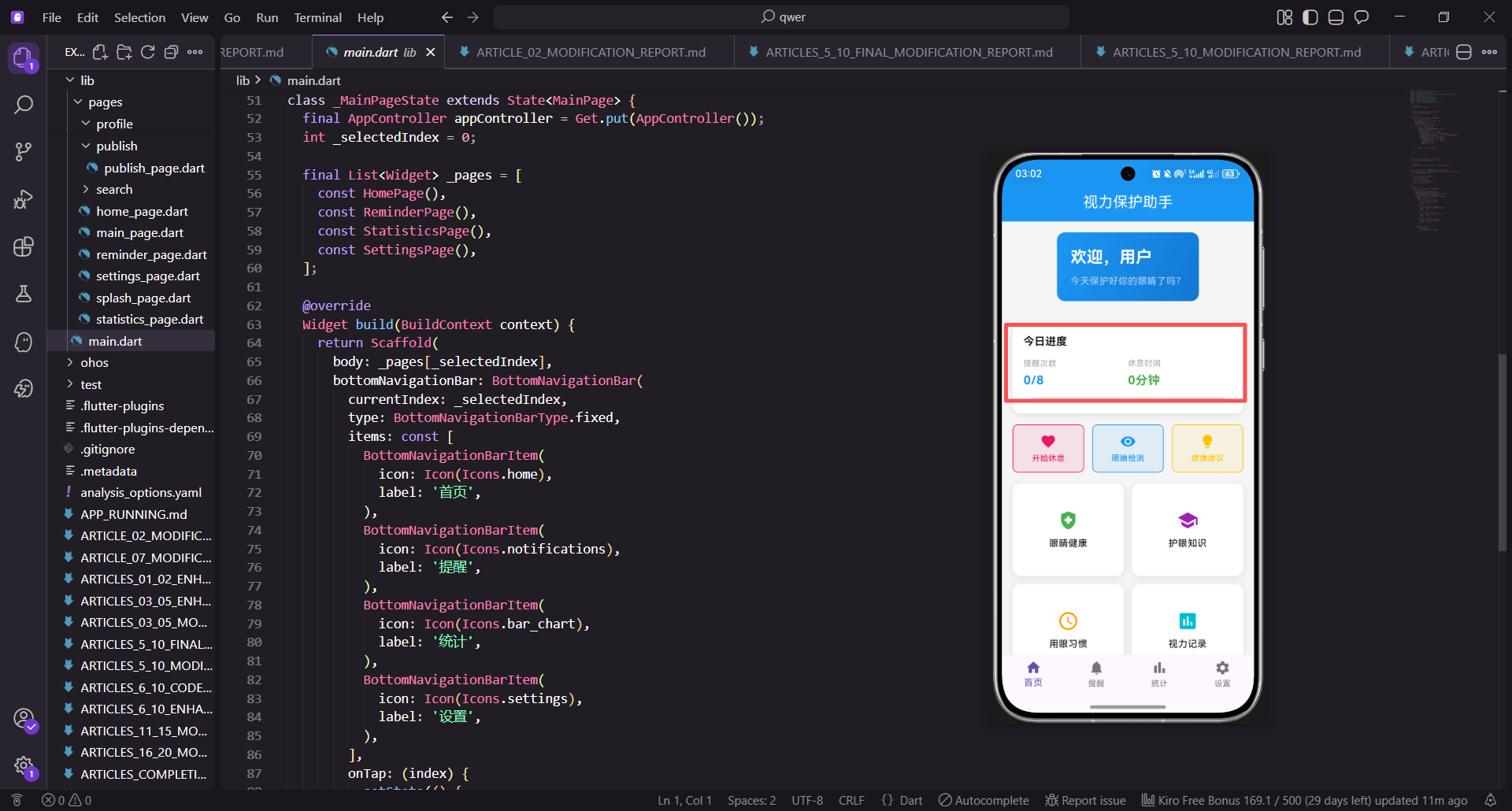
percent_indicator是Flutter中用于显示进度的库,它提供了线性进度条和圆形进度条两种类型。在视力保护提醒应用中,我们使用percent_indicator来展示各种进度信息,例如每日提醒完成度、眼睛健康度、用眼规律度等关键指标。进度指示器能够以直观的视觉方式展示用户的健康数据,让用户快速了解自己的用眼情况和健康状态。通过不同的颜色和样式,我们可以区分不同的健康指标,并为用户提供清晰的视觉反馈。本文将详细讲解如何使用percent_indicator创建各种进度指示器,包括线性进度条、圆形进度条以及多个进度条的组合使用。
percent_indicator的核心功能
percent_indicator主要提供以下功能:
- 线性进度条 - 用于展示线性进度
- 圆形进度条 - 用于展示圆形进度
- 动画效果 - 支持平滑的动画过渡
- 自定义样式 - 支持丰富的样式自定义选项
这些功能结合在一起,为应用提供了一个完整的进度显示解决方案。
项目依赖配置
在pubspec.yaml中,我们已经配置了所需的依赖:
dependencies:
  flutter:
    sdk: flutter
  percent_indicator: ^4.1.1
  flutter_screenutil: ^5.9.0
percent_indicator库提供了进度指示功能,flutter_screenutil用于屏幕适配。这些依赖都是为了支持鸿蒙系统的Flutter开发。
线性进度条实现
线性进度条用于展示线性进度,例如每日提醒完成度。下面我们来实现一个完整的线性进度条容器,包含标题、进度条和百分比显示。首先构建外层容器,设置白色背景、圆角和阴影效果,使其在应用中显示为一个独立的卡片。然后在容器内部使用Column布局来垂直排列标题和进度条。通过EdgeInsets设置合适的边距和内边距,确保内容与容器边界有适当的间距。
Widget _buildLinearProgressIndicator() {
  return Container(
    margin: EdgeInsets.all(16.w),
    padding: EdgeInsets.all(16.w),
    decoration: BoxDecoration(
      color: Colors.white,
      borderRadius: BorderRadius.circular(12.r),
      boxShadow: [
        BoxShadow(
          color: Colors.black.withOpacity(0.1),
          blurRadius: 8,
          offset: const Offset(0, 2),
        ),
      ],
    ),
    child: Column(
      crossAxisAlignment: CrossAxisAlignment.start,
      children: [
        Text(
          '今日完成度',
这段代码实现了UI界面的构建。通过组合多个Flutter Widget组件,我们可以创建复杂的用户界面。这样可以提高代码的可维护性和复用性。在实际应用中,这种模块化的UI构建方式能够加快开发效率。
          style: TextStyle(fontSize: 16.sp, fontWeight: FontWeight.bold),
        ),
        SizedBox(height: 16.h),
        Row(
          children: [
            Expanded(
              child: LinearPercentIndicator(
                lineHeight: 10.h,
                percent: 0.75,
                backgroundColor: Colors.grey[200],
                progressColor: const Color(0xFF2196F3),
                barRadius: Radius.circular(5.r),
                animation: true,
                animationDuration: 1000,
              ),
            ),
            SizedBox(width: 12.w),
            Text(
              '75%',
              style: TextStyle(
                fontSize: 14.sp,
                fontWeight: FontWeight.bold,
                color: const Color(0xFF2196F3),
              ),
            ),
          ],
        ),
        SizedBox(height: 16.h),
        Text(
          '眼睛健康度',
          style: TextStyle(fontSize: 16.sp, fontWeight: FontWeight.bold),
        ),
        SizedBox(height: 12.h),
        Row(
          children: [
            Expanded(
              child: LinearPercentIndicator(
                lineHeight: 10.h,
                percent: 0.82,
                backgroundColor: Colors.grey[200],
                progressColor: const Color(0xFF4CAF50),
                barRadius: Radius.circular(5.r),
                animation: true,
                animationDuration: 1000,
              ),
            ),
            SizedBox(width: 12.w),
            Text(
              '82%',
              style: TextStyle(
                fontSize: 14.sp,
                fontWeight: FontWeight.bold,
                color: const Color(0xFF4CAF50),
              ),
            ),
          ],
        ),
      ],
    ),
  );
}
LinearPercentIndicator是percent_indicator提供的线性进度条组件。这个组件通过简单的参数配置就能创建出美观的进度条。lineHeight定义了进度条的高度,通常设置为10-15个单位。percent定义了进度值,范围在0-1之间,例如0.75表示75%的进度。backgroundColor定义了背景颜色,通常使用浅灰色来显示未完成部分。progressColor定义了进度颜色,可以根据不同的指标使用不同的颜色来区分。barRadius定义了进度条的圆角,使其看起来更圆润。animation设置为true表示启用动画,animationDuration定义了动画时长,使进度条的变化更加平滑自然。
圆形进度条实现
圆形进度条用于展示圆形进度,例如眼睛疲劳度。圆形进度条相比线性进度条更加醒目,适合展示重要的健康指标。我们同样使用Container作为外层容器,设置白色背景和阴影效果。在容器内部使用Column布局,将标题、圆形进度条和提示文字垂直排列。通过crossAxisAlignment设置为center,使所有内容居中显示,这样圆形进度条会更加突出。
Widget _buildCircularProgressIndicator() {
  return Container(
    margin: EdgeInsets.all(16.w),
    padding: EdgeInsets.all(16.w),
    decoration: BoxDecoration(
      color: Colors.white,
      borderRadius: BorderRadius.circular(12.r),
      boxShadow: [
        BoxShadow(
          color: Colors.black.withOpacity(0.1),
          blurRadius: 8,
          offset: const Offset(0, 2),
        ),
      ],
    ),
    child: Column(
      crossAxisAlignment: CrossAxisAlignment.center,
      children: [
        Text(
          '眼睛疲劳度',
这段代码实现了UI界面的构建。通过组合多个Flutter Widget组件,我们可以创建复杂的用户界面。这样可以提高代码的可维护性和复用性。在实际应用中,这种模块化的UI构建方式能够加快开发效率。
          style: TextStyle(fontSize: 16.sp, fontWeight: FontWeight.bold),
        ),
        SizedBox(height: 16.h),
        CircularPercentIndicator(
          radius: 80.r,
          lineWidth: 8.w,
          percent: 0.65,
          center: Column(
            mainAxisAlignment: MainAxisAlignment.center,
            children: [
              Text(
                '65%',
                style: TextStyle(
                  fontSize: 24.sp,
                  fontWeight: FontWeight.bold,
                  color: const Color(0xFFFFC107),
                ),
              ),
              SizedBox(height: 4.h),
              Text(
                '中等疲劳',
                style: TextStyle(fontSize: 12.sp, color: Colors.grey),
              ),
            ],
          ),
          progressColor: const Color(0xFFFFC107),
          backgroundColor: Colors.grey[200]!,
          animation: true,
          animationDuration: 1000,
          circularStrokeCap: CircularStrokeCap.round,
        ),
        SizedBox(height: 16.h),
        Text(
          '建议立即休息',
          style: TextStyle(fontSize: 12.sp, color: Colors.grey),
        ),
      ],
    ),
  );
}
CircularPercentIndicator是percent_indicator提供的圆形进度条组件,它能创建出视觉效果更加突出的圆形进度显示。radius定义了圆形的半径,通常设置为60-100个单位。lineWidth定义了进度条的宽度,决定了进度条的粗细程度。percent定义了进度值,范围在0-1之间。center参数非常重要,它定义了圆形中心显示的内容,可以是百分比数字、状态文字等。progressColor定义了进度颜色,backgroundColor定义了背景颜色。circularStrokeCap定义了进度条的端点样式,设置为round会使端点呈圆形,看起来更加柔和。通过这些参数的组合,我们可以创建出美观且信息丰富的圆形进度指示器。
多个进度条组合
在实际应用中,我们经常需要显示多个进度条来展示不同的健康指标。为了提高代码的复用性和可维护性,我们可以创建一个通用的进度条项目组件,然后在容器中多次调用它。这样做的好处是可以减少代码重复,使代码结构更清晰。我们使用Column布局来垂直排列多个进度条,每个进度条之间使用SizedBox添加适当的间距。通过提取公共的进度条构建逻辑到_buildProgressItem方法中,我们可以轻松地创建任意数量的进度条。
Widget _buildMultipleProgressIndicators() {
  return Container(
    margin: EdgeInsets.all(16.w),
    padding: EdgeInsets.all(16.w),
    decoration: BoxDecoration(
      color: Colors.white,
      borderRadius: BorderRadius.circular(12.r),
      boxShadow: [
        BoxShadow(
          color: Colors.black.withOpacity(0.1),
          blurRadius: 8,
          offset: const Offset(0, 2),
        ),
      ],
    ),
    child: Column(
      crossAxisAlignment: CrossAxisAlignment.start,
      children: [
        Text(
          '健康评分',
这段代码实现了UI界面的构建。通过组合多个Flutter Widget组件,我们可以创建复杂的用户界面。这样可以提高代码的可维护性和复用性。在实际应用中,这种模块化的UI构建方式能够加快开发效率。
          style: TextStyle(fontSize: 16.sp, fontWeight: FontWeight.bold),
        ),
        SizedBox(height: 16.h),
        _buildProgressItem('眼睛健康度', 0.82, const Color(0xFF4CAF50)),
        SizedBox(height: 12.h),
        _buildProgressItem('用眼规律度', 0.75, const Color(0xFF2196F3)),
        SizedBox(height: 12.h),
        _buildProgressItem('休息充分度', 0.88, const Color(0xFFFFC107)),
        SizedBox(height: 12.h),
        _buildProgressItem('整体评分', 0.82, const Color(0xFF00BCD4)),
      ],
    ),
  );
}

Widget _buildProgressItem(String label, double percent, Color color) {
  return Column(
    crossAxisAlignment: CrossAxisAlignment.start,
    children: [
      Row(
        mainAxisAlignment: MainAxisAlignment.spaceBetween,
        children: [
          Text(
            label,
            style: TextStyle(fontSize: 12.sp, fontWeight: FontWeight.w500),
          ),
          Text(
            '${(percent * 100).toStringAsFixed(0)}分',
            style: TextStyle(
              fontSize: 12.sp,
              fontWeight: FontWeight.bold,
              color: color,
            ),
          ),
        ],
      ),
      SizedBox(height: 4.h),
      LinearPercentIndicator(
        lineHeight: 6.h,
        percent: percent,
        backgroundColor: Colors.grey[200],
        progressColor: color,
        barRadius: Radius.circular(3.r),
        animation: true,
        animationDuration: 1000,
      ),
    ],
  );
}
这个例子展示了如何创建多个进度条并组合在一起。_buildProgressItem方法是一个可复用的组件,它接收标签、进度值和颜色作为参数。每个进度条都有不同的标签、进度值和颜色,这样用户可以一目了然地看到各个健康指标的情况。通过Row布局将标签和百分比分别放在左右两侧,使信息展示更加清晰。LinearPercentIndicator组件的高度设置较小(6.h),使多个进度条能够紧凑地排列在一起。这种设计模式在实际应用中非常实用,可以快速展示多个相关的数据指标。
动画效果
percent_indicator支持平滑的动画过渡,这使得进度条的变化看起来更加自然流畅。当进度值发生变化时,进度条会在指定的时间内平滑地从旧值过渡到新值,而不是直接跳变。这种动画效果能够提升用户体验,让应用看起来更加专业。我们可以通过animation参数启用或禁用动画,通过animationDuration参数控制动画的时长。此外,还可以通过onAnimationEnd回调在动画完成时执行某些操作,例如更新UI或触发其他事件。
LinearPercentIndicator(
  lineHeight: 10.h,
  percent: 0.75,
  backgroundColor: Colors.grey[200],
  progressColor: const Color(0xFF2196F3),
  barRadius: Radius.circular(5.r),
  animation: true,
  animationDuration: 1000,  // 动画时长为1000毫秒
  onAnimationEnd: () {
    print('动画完成');
  },
)
animation设置为true表示启用动画。animationDuration定义了动画的时长(毫秒)。onAnimationEnd回调在动画完成时触发。
屏幕适配处理
在整个进度指示器中,我们使用flutter_screenutil库来处理屏幕适配。.w表示宽度单位,.h表示高度单位,.sp表示字体大小单位。这样可以确保在不同屏幕尺寸的设备上,进度指示器都能正确显示。
例如,SizedBox(height: 16.h)表示高度为16个高度单位。TextStyle(fontSize: 16.sp)表示字体大小为16个字体单位。
动态更新进度
在实际应用中,进度值通常是动态的,需要根据用户的操作或数据变化而实时更新。为了实现动态更新,我们需要使用StatefulWidget来管理进度值的状态。通过在initState方法中启动一个延时任务,我们可以在页面加载后的一段时间内更新进度值。使用setState方法来更新_progress变量,这会触发Widget的重新构建,进度条会自动显示新的进度值并播放动画。这种模式在实际应用中非常常见,例如在加载数据、处理任务或执行长时间操作时,我们都需要动态更新进度条来反映当前的进度。
class ProgressPage extends StatefulWidget {
const ProgressPage({super.key});
State<ProgressPage> createState() => _ProgressPageState();
}
class _ProgressPageState extends State<ProgressPage> {
double _progress = 0.0;
void initState() {
super.initState();
_startProgressAnimation();
}
void _startProgressAnimation() {
Future.delayed(const Duration(milliseconds: 500), () {
setState(() {
_progress = 0.75;
这段代码定义了一个Widget类。通过继承StatefulWidget或StatelessWidget,我们可以创建可复用的UI组件。这样可以使代码结构更清晰。在实际应用中,组件化的设计能够提高代码的可维护性。
});
});
}
Widget build(BuildContext context) {
return LinearPercentIndicator(
lineHeight: 10.h,
percent: _progress,
backgroundColor: Colors.grey[200],
progressColor: const Color(0xFF2196F3),
barRadius: Radius.circular(5.r),
animation: true,
animationDuration: 1000,
);
}
}
通过使用setState来更新_progress的值,进度条会自动更新并显示动画效果。
总结
percent_indicator是一个强大的进度指示库,它提供了线性进度条和圆形进度条两种类型。通过使用percent_indicator,我们可以轻松地创建各种进度指示器来展示进度信息。通过flutter_screenutil库,我们确保了进度指示器在不同屏幕尺寸上的正确显示。
在视力保护提醒应用中,我们使用percent_indicator来展示各种进度信息,例如每日提醒完成度、眼睛健康度等,帮助用户更好地了解自己的用眼情况。
欢迎加入开源鸿蒙跨平台社区:https://openharmonycrossplatform.csdn.net

腾讯云面向开发者汇聚海量精品云计算使用和开发经验,营造开放的云计算技术生态圈。
更多推荐
 15
15 0
0- 0


 已为社区贡献26条内容

所有评论(0)