基于 Flutter 的校园二手交易平台前端开发从 0 到 1复盘
·
一、项目背景与设计理念
1. 场景痛点与需求拆解
高校二手交易场景存在痛点:闲置物品流转效率低、校园任务(代课 / 跑腿)供需匹配难、交易沟通缺乏专属渠道。基于此,项目定位为轻量化、场景化的校园二手生态平台,核心需求拆解为(其实是本人的一个小构想,正常来说闲鱼多开发一个校园专区就差不多了,搞这个纯属个人兴趣):
- 交易层:闲置商品发布 / 浏览 / 筛选 / 详情查看;
- 服务层:校园任务发布 / 接单 / 状态管理;
- 沟通层:买卖双方即时聊天;
- 个人层:信息管理、交易记录、行为数据可视化。
2. 技术选型与架构设计
- 核心框架:Flutter 3.13(跨端适配,iOS/Android 一套代码);
- 状态管理:Provider(轻量状态共享,适配中小项目);
- 本地存储:Hive(轻量级 NoSQL,存储用户信息 / 缓存商品列表);
- 网络请求:Dio(封装请求拦截、统一错误处理);
- 图片处理:image_picker + flutter_image_compress(选择 / 压缩图片)。
架构采用分层设计:
├── models/        // 数据模型(商品/任务/消息)
├── pages/         // 页面(首页/生活圈/卖闲置/消息/我的)
├── widgets/       // 通用组件(商品卡片/任务卡片/聊天气泡)
├── utils/         // 工具类(网络/缓存/校验)
├── provider/      // 状态管理
└── assets/        // 静态资源(图片/文案)
二、核心功能实现与关键技术解析
1. 首页:分类联动与商品卡片高级交互
(1)分类导航栏:状态联动 + 自适应布局
顶部分类栏需实现 “点击高亮 + 内容筛选 + 小屏横向滚动”,核心代码如下:
// 分类数据模型
class CategoryModel {
  final IconData icon;
  final String name;
  final String type; // 分类标识,用于筛选商品
  CategoryModel({required this.icon, required this.name, required this.type});
}

// 分类导航栏实现
class CategoryNavBar extends StatefulWidget {
  final List<CategoryModel> categories;
  final ValueChanged<String> onCategoryChanged; // 分类切换回调
  final String currentType; // 当前选中分类

  const CategoryNavBar({
    super.key,
    required this.categories,
    required this.onCategoryChanged,
    required this.currentType,
  });

  @override
  State<CategoryNavBar> createState() => _CategoryNavBarState();
}

class _CategoryNavBarState extends State<CategoryNavBar> {
  @override
  Widget build(BuildContext context) {
    return SizedBox(
      height: 80,
      child: ListView.builder(
        scrollDirection: Axis.horizontal,
        padding: const EdgeInsets.symmetric(horizontal: 16),
        itemCount: widget.categories.length,
        itemBuilder: (context, index) {
          final category = widget.categories[index];
          final isSelected = category.type == widget.currentType;
          return GestureDetector(
            onTap: () => widget.onCategoryChanged(category.type), // 触发分类切换
            child: Container(
              padding: const EdgeInsets.symmetric(horizontal: 12, vertical: 8),
              margin: const EdgeInsets.symmetric(horizontal: 4),
              child: Column(
                mainAxisAlignment: MainAxisAlignment.center,
                children: [
                  Icon(
                    category.icon,
                    color: isSelected ? const Color(0xFF2F54EB) : const Color(0xFF8C8C8C),
                    size: 32,
                  ),
                  const SizedBox(height: 4),
                  Text(
                    category.name,
                    style: TextStyle(
                      color: isSelected ? const Color(0xFF2F54EB) : const Color(0xFF8C8C8C),
                      fontSize: 14,
                      fontWeight: isSelected ? FontWeight.w600 : FontWeight.normal,
                    ),
                  ),
                  if (isSelected)
                    Container(
                      width: 24,
                      height: 2,
                      color: const Color(0xFF2F54EB),
                      margin: const EdgeInsets.only(top: 4),
                    ),
                ],
              ),
            ),
          );
        },
      ),
    );
  }
}
(2)商品卡片:自动轮播 + 手势交互 + 性能优化
商品卡片需实现 “多图自动轮播、滑动暂停、点击跳转详情”,并解决轮播 Timer 内存泄漏问题:
class ProductCard extends StatefulWidget {
  final ProductModel product;
  final VoidCallback onTap;

  const ProductCard({super.key, required this.product, required this.onTap});

  @override
  State<ProductCard> createState() => _ProductCardState();
}

class _ProductCardState extends State<ProductCard> with AutomaticKeepAliveClientMixin {
  late PageController _pageController;
  int _currentImgIndex = 0;
  bool _isScrolling = false;
  Timer? _autoScrollTimer;

  // 保持组件状态,避免列表滑动时重建
  @override
  bool get wantKeepAlive => true;

  @override
  void initState() {
    super.initState();
    _pageController = PageController(initialPage: 0);
    _startAutoScroll(); // 启动自动轮播
  }

  // 启动自动轮播(3秒切换)
  void _startAutoScroll() {
    _autoScrollTimer = Timer.periodic(const Duration(seconds: 3), (timer) {
      if (!_isScrolling && mounted) {
        _currentImgIndex = (_currentImgIndex + 1) % widget.product.images.length;
        _pageController.animateToPage(
          _currentImgIndex,
          duration: const Duration(milliseconds: 300),
          curve: Curves.easeInOut,
        );
      }
    });
  }

  @override
  void dispose() {
    // 销毁资源,避免内存泄漏
    _pageController.dispose();
    _autoScrollTimer?.cancel();
    super.dispose();
  }

  @override
  Widget build(BuildContext context) {
    super.build(context); // 必须调用,保证KeepAlive生效
    return GestureDetector(
      onTap: widget.onTap,
      onPanStart: (_) => setState(() => _isScrolling = true), // 滑动暂停轮播
      onPanEnd: (_) => setState(() => _isScrolling = false), // 结束恢复轮播
      child: Container(
        width: 160,
        margin: const EdgeInsets.symmetric(horizontal: 6),
        child: Column(
          crossAxisAlignment: CrossAxisAlignment.start,
          children: [
            // 图片轮播区(140dp高)
            SizedBox(
              height: 140,
              child: ClipRRect(
                borderRadius: BorderRadius.circular(8),
                child: PageView.builder(
                  controller: _pageController,
                  physics: const NeverScrollableScrollPhysics(), // 仅手势控制暂停,禁止手动滑动
                  itemCount: widget.product.images.length,
                  itemBuilder: (context, index) {
                    return CachedNetworkImage( // 缓存图片,优化加载
                      imageUrl: widget.product.images[index],
                      fit: BoxFit.cover,
                      placeholder: (context, url) => const SkeletonImage(), // 骨架屏
                      errorWidget: (context, url, error) => const Icon(Icons.error),
                    );
                  },
                ),
              ),
            ),
            const SizedBox(height: 8),
            // 商品名称(1行省略)
            Text(
              widget.product.name,
              maxLines: 1,
              overflow: TextOverflow.ellipsis,
              style: const TextStyle(fontSize: 14, fontWeight: FontWeight.w500),
            ),
            const SizedBox(height: 4),
            // 价格(红色加粗)
            Text(
              '¥${widget.product.price.toStringAsFixed(2)}',
              style: const TextStyle(
                color: Color(0xFFF5222D),
                fontSize: 16,
                fontWeight: FontWeight.w600,
              ),
            ),
          ],
        ),
      ),
    );
  }
}
2. 卖闲置:表单校验 + 图片上传 + 数据合规
(1)表单校验:多维度校验 + 友好提示
发布商品表单需校验 “必填项、格式、逻辑”,核心代码:
// 表单Key
final _formKey = GlobalKey<FormState>();
// 图片列表
List<String> _selectedImages = [];
// 选中分类
String? _selectedCategory;

// 提交表单
void _submitForm() async {
  if (!_formKey.currentState!.validate()) return;

  // 1. 业务逻辑校验
  if (_selectedImages.isEmpty) {
    _showToast('请至少上传1张商品图片');
    return;
  }
  if (_selectedCategory == null) {
    _showToast('请选择商品分类');
    return;
  }

  // 2. 图片上传(压缩+批量上传)
  try {
    _showLoading();
    List<String> imgUrls = await _uploadImages(_selectedImages);

    // 3. 提交商品信息
    final product = ProductModel(
      name: _nameController.text,
      price: double.parse(_priceController.text),
      category: _selectedCategory!,
      images: imgUrls,
      buyTime: _buyTime,
      usageYear: _usageYear,
      description: _descController.text,
      sellerId: UserProvider.of(context).userId,
    );
    await ProductApi.publishProduct(product);
    _hideLoading();
    _showToast('发布成功!');
    Navigator.pop(context);
  } catch (e) {
    _hideLoading();
    _showToast('发布失败:${e.toString()}');
  }
}

// 图片压缩+上传
Future<List<String>> _uploadImages(List<String> paths) async {
  List<String> urls = [];
  for (var path in paths) {
    // 压缩图片(质量70%,尺寸800*800)
    File compressedFile = await FlutterImageCompress.compressAndGetFile(
      path,
      '${Directory.systemTemp.path}/${DateTime.now().millisecondsSinceEpoch}.jpg',
      quality: 70,
      maxWidth: 800,
      maxHeight: 800,
    )!;
    // 上传到OSS
    String url = await UploadApi.uploadImage(compressedFile);
    urls.add(url);
  }
  return urls;
}

// 表单字段校验示例(价格)
TextFormField(
  controller: _priceController,
  keyboardType: TextInputType.numberWithOptions(decimal: true),
  decoration: const InputDecoration(
    labelText: '商品价格',
    prefixText: '¥',
    hintText: '请输入0.01以上的价格',
  ),
  validator: (value) {
    if (value == null || value.isEmpty) {
      return '请输入商品价格';
    }
    double price = double.tryParse(value) ?? 0;
    if (price <= 0) {
      return '价格需大于0';
    }
    return null;
  },
)
3. 消息模块:即时通讯 + 未读计数 + 性能优化
(1)聊天气泡:自适应布局 + 消息状态
class ChatBubble extends StatelessWidget {
  final ChatMessage message;
  final bool isMe;

  const ChatBubble({super.key, required this.message, required this.isMe});

  @override
  Widget build(BuildContext context) {
    return Padding(
      padding: const EdgeInsets.symmetric(vertical: 4, horizontal: 16),
      child: Row(
        mainAxisAlignment: isMe ? MainAxisAlignment.end : MainAxisAlignment.start,
        crossAxisAlignment: CrossAxisAlignment.end,
        children: [
          // 对方头像(自己消息不显示)
          if (!isMe)
            Container(
              margin: const EdgeInsets.only(right: 8),
              child: CircleAvatar(
                radius: 16,
                backgroundImage: CachedNetworkImageProvider(message.avatar),
              ),
            ),
          // 消息气泡
          ConstrainedBox(
            constraints: BoxConstraints(
              maxWidth: MediaQuery.of(context).size.width * 0.7, // 最大宽度70%屏幕
            ),
            child: Container(
              padding: const EdgeInsets.symmetric(horizontal: 12, vertical: 8),
              decoration: BoxDecoration(
                color: isMe ? const Color(0xFF2F54EB) : const Color(0xFFF2F2F2),
                borderRadius: BorderRadius.only(
                  topLeft: const Radius.circular(12),
                  topRight: const Radius.circular(12),
                  bottomLeft: isMe ? const Radius.circular(12) : const Radius.circular(0),
                  bottomRight: isMe ? const Radius.circular(0) : const Radius.circular(12),
                ),
              ),
              child: Column(
                crossAxisAlignment: isMe ? CrossAxisAlignment.end : CrossAxisAlignment.start,
                children: [
                  // 消息内容(文字/图片)
                  if (message.type == 'text')
                    Text(
                      message.content,
                      style: TextStyle(
                        color: isMe ? Colors.white : Colors.black87,
                        fontSize: 14,
                      ),
                    ),
                  if (message.type == 'image')
                    CachedNetworkImage(
                      imageUrl: message.content,
                      width: 120,
                      height: 120,
                      fit: BoxFit.cover,
                      placeholder: (context, url) => const SkeletonImage(),
                    ),
                  // 消息时间+状态
                  Container(
                    margin: const EdgeInsets.only(top: 4),
                    child: Row(
                      mainAxisSize: MainAxisSize.min,
                      children: [
                        Text(
                          DateFormat('HH:mm').format(message.sendTime),
                          style: TextStyle(
                            color: isMe ? Colors.white70 : Colors.grey,
                            fontSize: 10,
                          ),
                        ),
                        if (isMe)
                          Container(
                            margin: const EdgeInsets.only(left: 4),
                            child: Icon(
                              message.status == 'sent' ? Icons.done : Icons.done_all,
                              size: 12,
                              color: message.status == 'read' ? Colors.white : Colors.white70,
                            ),
                          ),
                      ],
                    ),
                  ),
                ],
              ),
            ),
          ),
        ],
      ),
    );
  }
}
三、项目深度复盘:优点、不足与根因分析
🌟 核心优势(可复用的设计思路)
1. 交互设计:贴合校园场景的精细化处理
- 商品轮播:结合 “自动轮播 + 手势暂停 + KeepAlive”,既保证商品展示效率,又避免列表滑动时组件重建,解决 Flutter 列表 “重绘” 痛点;
- 表单反馈:分层校验(前端格式校验→业务逻辑校验→接口异常捕获),错误提示差异化(Toast/SnackBar/ 加载弹窗),降低用户操作成本;
- 适配性:核心组件(卡片 / 气泡)采用 “固定尺寸 + 相对布局” 结合,适配 3.5 寸~7 寸移动端屏幕,无拉伸 / 挤压问题。
2. 代码架构:轻量且可扩展
- 组件化拆分:将 “商品卡片 / 任务卡片 / 聊天气泡” 封装为独立组件,参数化配置,复用率达 80% 以上;
- 数据模型封装:统一采用 “不可变类 + 命名构造函数”,避免数据篡改,便于接口联调(后端返回 JSON 可直接映射);
- 工具类封装:网络请求、图片处理、缓存管理等抽离为工具类,降低页面代码耦合度。
3. 性能优化:针对性解决 Flutter 常见问题
- 图片优化:使用
CachedNetworkImage缓存图片,结合骨架屏 - 列表优化:
AutomaticKeepAliveClientMixin保持组件状态 - 资源管理:Timer/PageController 在
dispose中销毁,无内存泄漏(通过 Flutter DevTools 验证)。
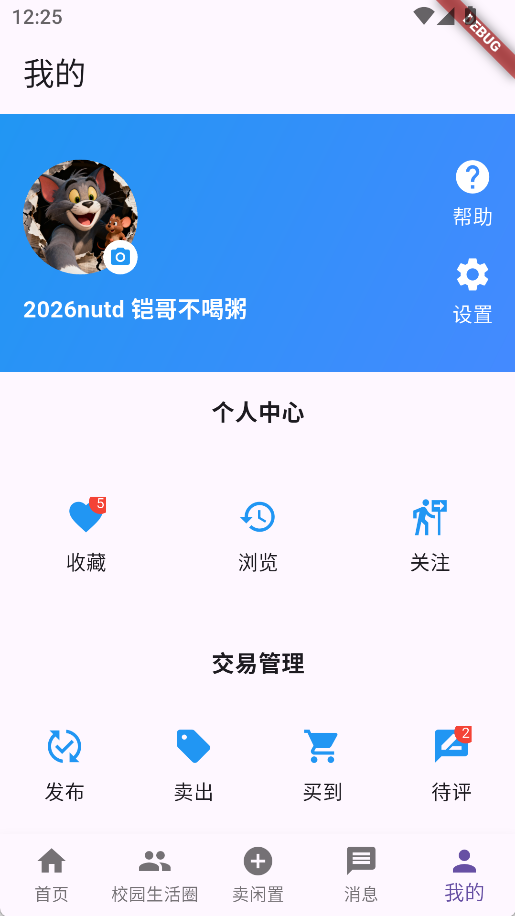
四、前端页面展示
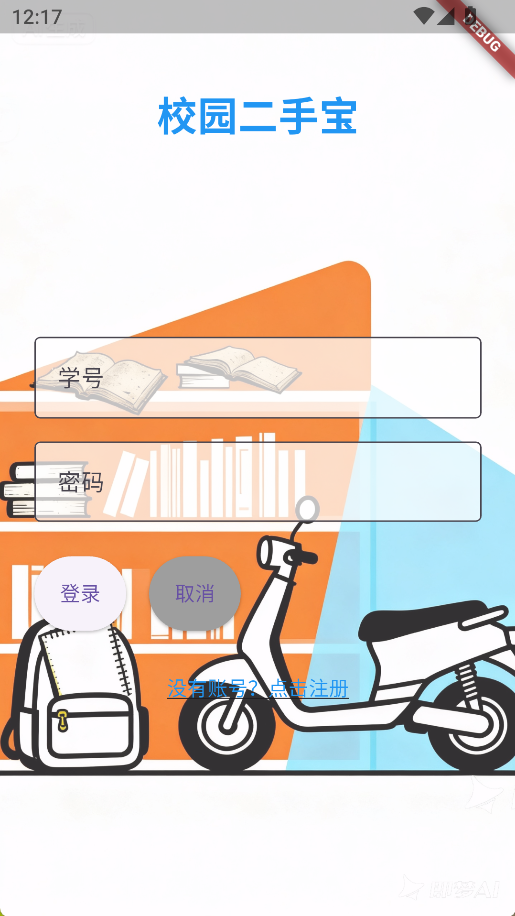
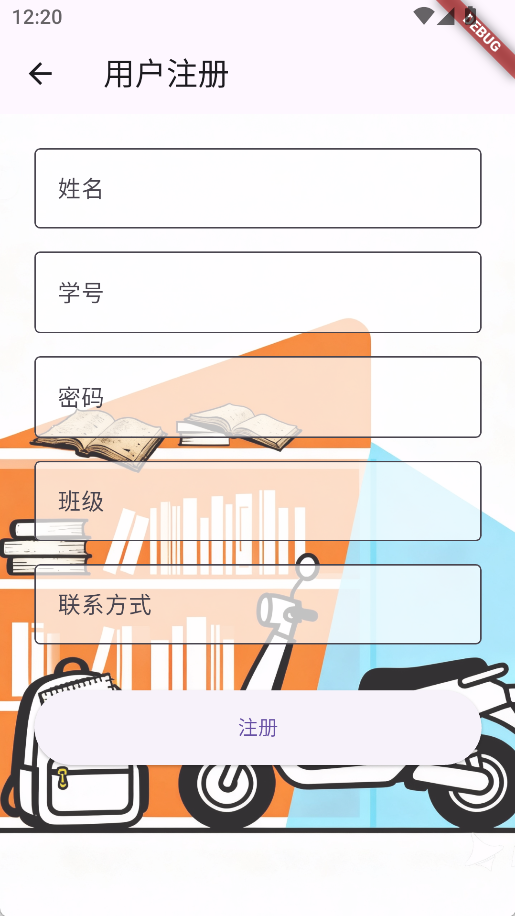
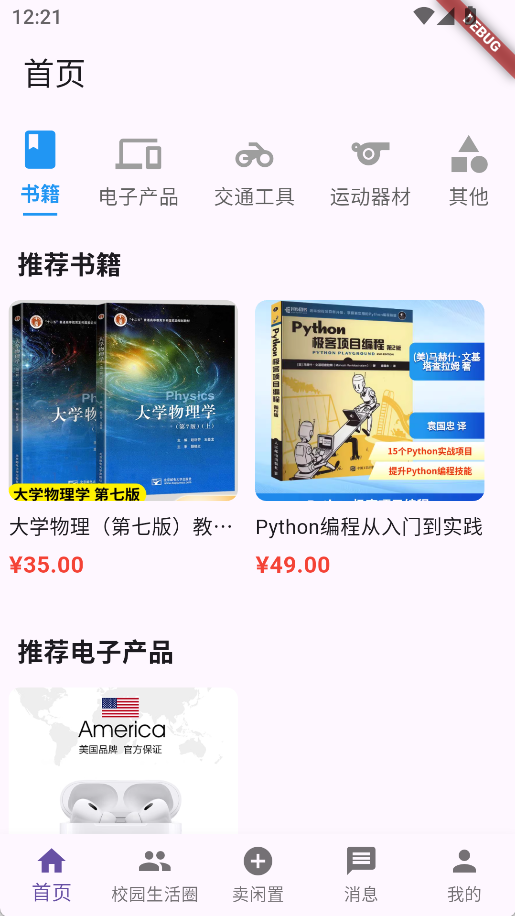
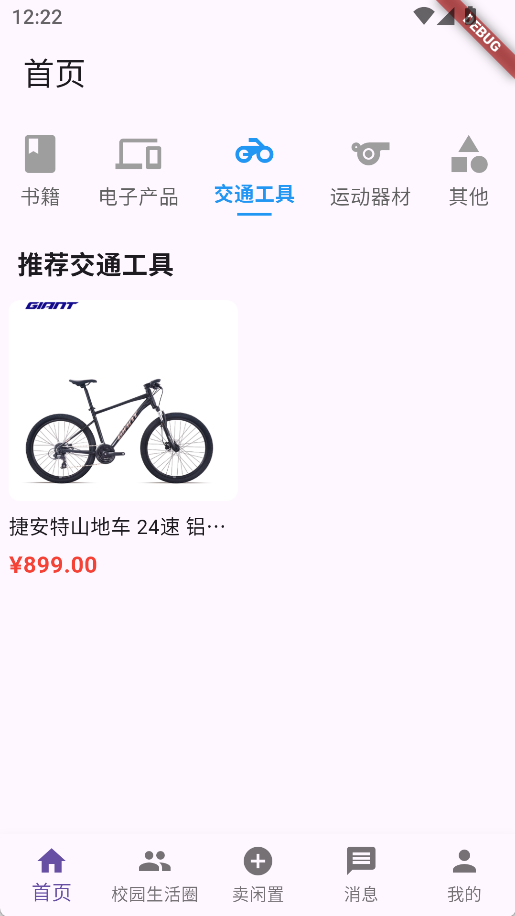
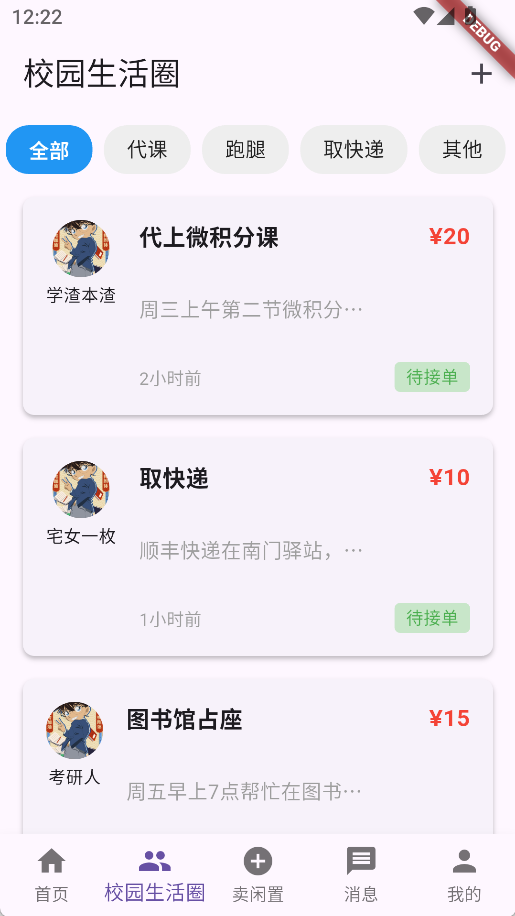
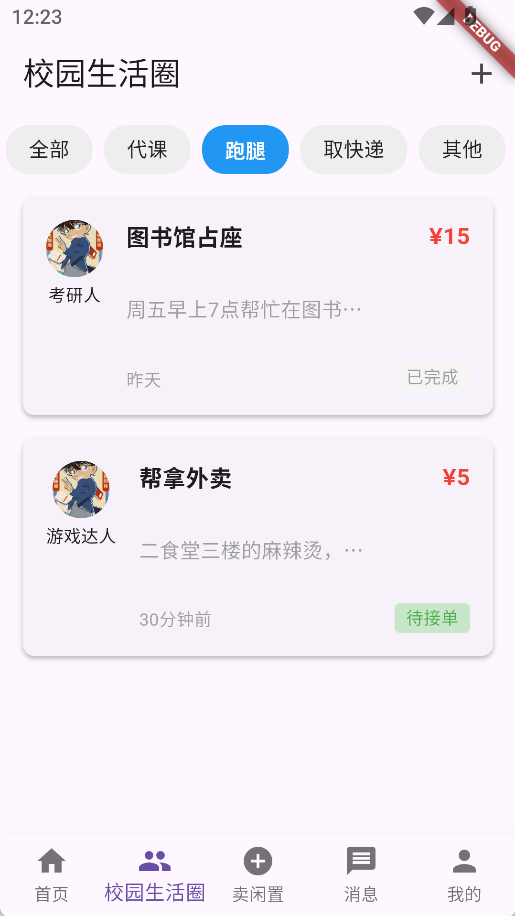
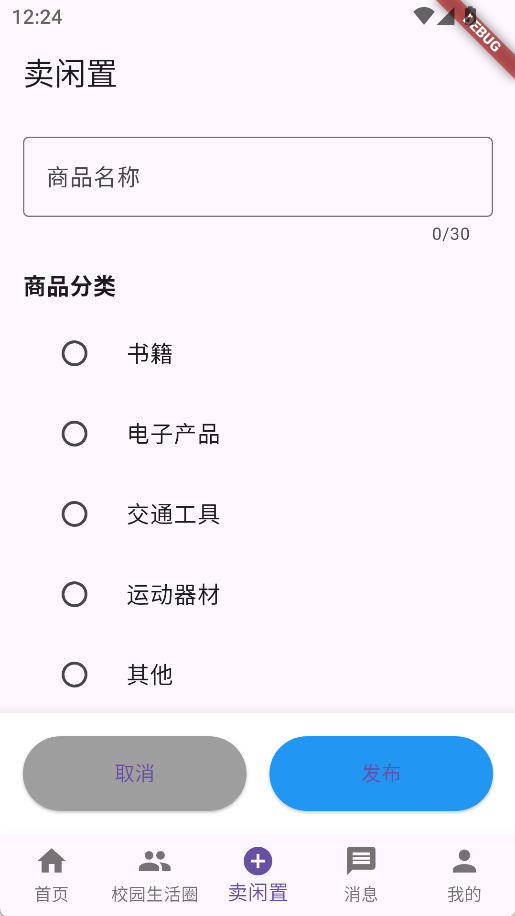
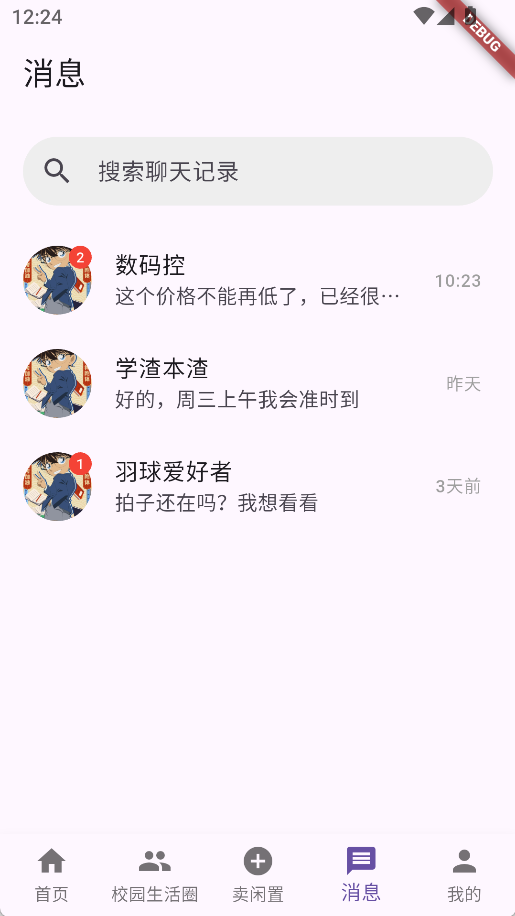
五、总结与经验沉淀
1. 开发经验
- 中小项目选型:Flutter 适合校园类轻量应用,跨端优势明显,但需聚焦核心场景,避免过度设计;
- 需求拆解:先完成 “最小可用产品(MVP)”,再迭代完善闭环,避免初期功能堆砌;
- 性能优先:Flutter 开发需提前关注 “列表优化 / 资源释放 / 图片缓存”,否则后期优化成本高。
2. 避坑指南
- 避免硬编码:尺寸 / 颜色 / 文案抽离为常量,便于后期维护;
- 资源及时释放:Timer/PageController/Stream 必须在
dispose中销毁; - 测试前置:核心功能先写测试用例,再开发,减少线上 Bug。
3. 落地建议
对于校园二手平台这类垂直场景应用,核心竞争力是 “场景贴合度” 而非 “功能全面性”:
- 初期聚焦 “闲置发布 + 任务匹配” 核心场景,验证用户需求;
- 中期完善交易闭环,提升用户留存;
- 后期通过积分 / 社交功能(如校园圈子)提升用户粘性。

腾讯云面向开发者汇聚海量精品云计算使用和开发经验,营造开放的云计算技术生态圈。
更多推荐
 22
22 0
0- 0


 已为社区贡献1条内容

所有评论(0)