在 E 盘通过 Anaconda 创建虚拟环境并安装 LabelImg 标注工具
·
LabelImg 是一款轻量、开源的图像标注工具,广泛应用于计算机视觉领域的目标检测数据集制作。很多同学在安装时容易遇到环境冲突、路径权限等问题,本文将手把手教你在 E 盘通过 Anaconda 创建独立虚拟环境,并顺利安装 LabelImg,全程避坑,新手也能轻松搞定!
一、前置准备
1. 环境要求
- 已安装 Anaconda/Miniconda(推荐 Anaconda3,版本≥2022.10),且能正常打开 Anaconda Prompt;
- Windows 系统(本文以 Windows 10/11 为例),E 盘有至少 500MB 可用空间;
- 网络畅通(需下载依赖包,建议切换国内镜像源提速)。
2. 提前配置 Anaconda 镜像源(可选,提速必备)
默认镜像源下载速度慢,建议先配置清华镜像源:
打开 Anaconda Prompt,输入以下命令生成.condarc配置文件:
conda config --set show_channel_urls yes
打开电脑的用户目录(C:\Users\你的用户名),找到.condarc文件,用记事本打开并替换为以下内容:
channels:
  - defaults
show_channel_urls: true
default_channels:
  - https://mirrors.tuna.tsinghua.edu.cn/anaconda/pkgs/main
  - https://mirrors.tuna.tsinghua.edu.cn/anaconda/pkgs/r
  - https://mirrors.tuna.tsinghua.edu.cn/anaconda/pkgs/msys2
custom_channels:
  conda-forge: https://mirrors.tuna.tsinghua.edu.cn/anaconda/cloud
  msys2: https://mirrors.tuna.tsinghua.edu.cn/anaconda/cloud
  bioconda: https://mirrors.tuna.tsinghua.edu.cn/anaconda/cloud
  menpo: https://mirrors.tuna.tsinghua.edu.cn/anaconda/cloud
  pytorch: https://mirrors.tuna.tsinghua.edu.cn/anaconda/cloud
  pytorch-lts: https://mirrors.tuna.tsinghua.edu.cn/anaconda/cloud
  simpleitk: https://mirrors.tuna.tsinghua.edu.cn/anaconda/cloud
保存文件后,在 Anaconda Prompt 执行以下命令清除缓存:
conda clean -i
二、在 E 盘创建 Anaconda 虚拟环境
默认环境通常在 C 盘,接下来我们手动指定 E 盘创建环境。
3. 创建 E 盘的虚拟环境
输入以下命令,创建虚拟环境(指定 Python 版本 3.8,兼容 LabelImg 所有版本),并将环境存储到 E 盘:
# 创建环境,指定Python3.8,环境存储路径为E:\python-vnue
conda create --prefix E:\python-vnue python=3.8 -y
--prefix:指定环境存储路径,E:\anaconda_envs为自定义文件夹(无需提前创建,命令会自动生成);python=3.8:LabelImg 对 Python3.6~3.9 兼容性最好,推荐 3.8;-y:自动确认所有安装选项,无需手动回车。
4. 激活 E 盘的虚拟环境
创建完成后,激活该环境(关键步骤,后续安装 LabelImg 必须在激活的环境中进行):
conda activate E:\python-vnue
激活成功后,命令行前缀会变成(E:\python-vnue),表示已进入该虚拟环境。
三、在虚拟环境中安装 LabelImg
pip install labelimg -i https://pypi.tuna.tsinghua.edu.cn/simple
安装日志如下:
(labelimg) E:\python-vnue>pip install labelimg -i https://pypi.tuna.tsinghua.edu.cn/simple
Looking in indexes: https://pypi.tuna.tsinghua.edu.cn/simple
Collecting labelimg
  Downloading https://pypi.tuna.tsinghua.edu.cn/packages/c5/fb/9947097363fbbfde3921f7cf7ce9800c89f909d26a506145aec37c75cda7/labelImg-1.8.6.tar.gz (247 kB)
     ---------------------------------------- 247.7/247.7 kB 1.5 MB/s eta 0:00:00
  Preparing metadata (setup.py) ... done
Collecting pyqt5
  Downloading https://pypi.tuna.tsinghua.edu.cn/packages/56/d5/68eb9f3d19ce65df01b6c7b7a577ad3bbc9ab3a5dd3491a4756e71838ec9/PyQt5-5.15.11-cp38-abi3-win_amd64.whl (6.9 MB)
     ---------------------------------------- 6.9/6.9 MB 15.7 MB/s eta 0:00:00
Collecting lxml
  Downloading https://pypi.tuna.tsinghua.edu.cn/packages/e3/b0/f9a25749c3c076b2dcf1df6f427adb0cdcf387fe307d2b153b6f13cbb033/lxml-6.0.2-cp38-cp38-win_amd64.whl (4.0 MB)
     ---------------------------------------- 4.0/4.0 MB 23.4 MB/s eta 0:00:00
Collecting PyQt5-sip<13,>=12.15
  Downloading https://pypi.tuna.tsinghua.edu.cn/packages/4f/fc/7d44e8f83eded93fa1517d8354529b7a21cae5d93c26e1681fd7e4bcbb2b/PyQt5_sip-12.15.0-cp38-cp38-win_amd64.whl (59 kB)
     ---------------------------------------- 59.0/59.0 kB ? eta 0:00:00
Collecting PyQt5-Qt5<5.16.0,>=5.15.2
  Downloading https://pypi.tuna.tsinghua.edu.cn/packages/37/97/5d3b222b924fa2ed4c2488925155cd0b03fd5d09ee1cfcf7c553c11c9f66/PyQt5_Qt5-5.15.2-py3-none-win_amd64.whl (50.1 MB)
     ---------------------------------------- 50.1/50.1 MB 15.9 MB/s eta 0:00:00
Building wheels for collected packages: labelimg
  Building wheel for labelimg (setup.py) ... done
  Created wheel for labelimg: filename=labelImg-1.8.6-py2.py3-none-any.whl size=261581 sha256=9e054f254d690cfaf605a1d8c2d4eb931e3d626bbd48cd0215a0701fce30e804
  Stored in directory: c:\users\flowerfog\appdata\local\pip\cache\wheels\6e\a6\57\87059c70d0f25650e60d741c9815f089df3645aa8766a47b6c
Successfully built labelimg
Installing collected packages: PyQt5-Qt5, PyQt5-sip, lxml, pyqt5, labelimg
Successfully installed PyQt5-Qt5-5.15.2 PyQt5-sip-12.15.0 labelimg-1.8.6 lxml-6.0.2 pyqt5-5.15.11
四、启动 LabelImg 并验证
在激活的虚拟环境中,直接输入命令:
labelimg
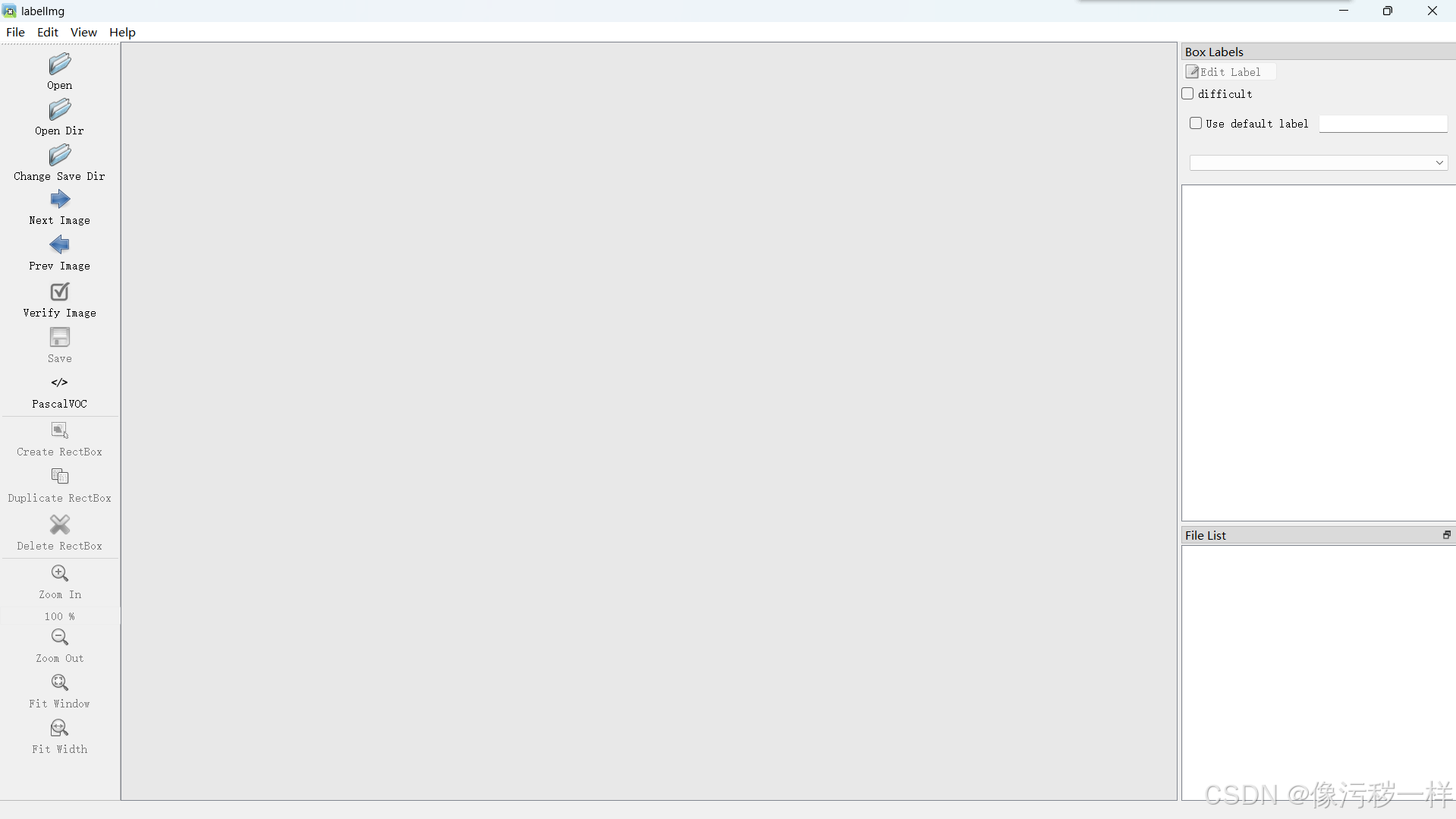
下次我们再重新进入的时候需要重新激活环境再进去,激活之后可以看到base变成labelimg

Labelimg是一款开源的数据标注工具,可以标注三种格式。
1、 VOC标签格式,保存为xml文件。
2 、yolo标签格式,保存为txt文件。
3、 createML标签格式,保存为json格式。

腾讯云面向开发者汇聚海量精品云计算使用和开发经验,营造开放的云计算技术生态圈。
更多推荐
 5
5 0
0- 0


 已为社区贡献2条内容

所有评论(0)