Flutter for OpenHarmony Web开发助手App实战:颜色选择器
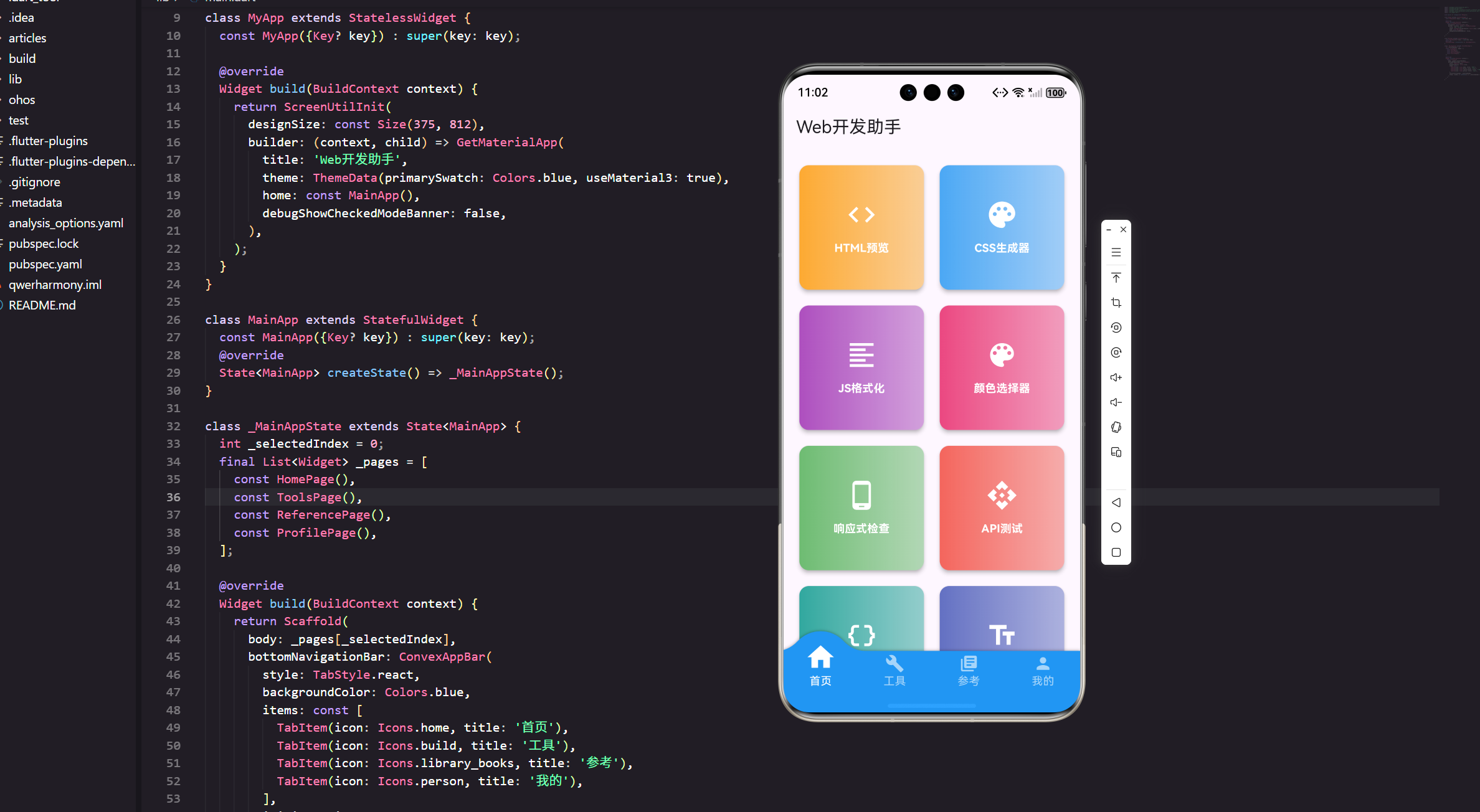
做Web开发时,选择合适的颜色是个常见需求。今天我们来实现一个功能完整的颜色选择器,支持多种颜色格式转换。
功能规划
一个好用的颜色选择器应该具备这些功能:
可视化选择:通过色板直观地选择颜色。
格式转换:支持HEX、RGB、HSL等多种格式。
历史记录:保存最近使用的颜色。
预设色板:提供常用的颜色方案。
完整代码实现
import 'package:flutter/material.dart';
import 'package:flutter/services.dart';
import 'package:flutter_screenutil/flutter_screenutil.dart';
import 'package:get/get.dart';
class ColorPickerPage extends StatefulWidget {
const ColorPickerPage({Key? key}) : super(key: key);
State<ColorPickerPage> createState() => _ColorPickerPageState();
}
class _ColorPickerPageState extends State<ColorPickerPage> {
Color _selectedColor = Colors.blue;
final List<Color> _recentColors = [];
// 预设颜色
final List<Color> _presetColors = [
Colors.red,
Colors.pink,
Colors.purple,
Colors.deepPurple,
Colors.indigo,
Colors.blue,
Colors.lightBlue,
Colors.cyan,
Colors.teal,
Colors.green,
Colors.lightGreen,
Colors.lime,
Colors.yellow,
Colors.amber,
Colors.orange,
Colors.deepOrange,
Colors.brown,
Colors.grey,
Colors.blueGrey,
Colors.black,
];
Widget build(BuildContext context) {
return Scaffold(
appBar: AppBar(
title: const Text('颜色选择器'),
actions: [
IconButton(
icon: const Icon(Icons.palette),
onPressed: _showColorPicker,
tooltip: '打开调色板',
),
],
),
body: SingleChildScrollView(
padding: EdgeInsets.all(16.w),
child: Column(
crossAxisAlignment: CrossAxisAlignment.start,
children: [
// 当前颜色预览
_buildColorPreview(),
SizedBox(height: 24.h),
// 颜色值显示
_buildColorValues(),
SizedBox(height: 24.h),
// RGB滑块
_buildRgbSliders(),
SizedBox(height: 24.h),
// 预设颜色
_buildPresetColors(),
SizedBox(height: 24.h),
// 最近使用
if (_recentColors.isNotEmpty) ...[
_buildRecentColors(),
SizedBox(height: 24.h),
],
],
),
),
);
}
Widget _buildColorPreview() {
return Container(
width: double.infinity,
height: 150.h,
decoration: BoxDecoration(
color: _selectedColor,
borderRadius: BorderRadius.circular(12.r),
boxShadow: [
BoxShadow(
color: _selectedColor.withOpacity(0.5),
blurRadius: 20,
offset: const Offset(0, 10),
),
],
),
child: Center(
child: Container(
padding: EdgeInsets.symmetric(horizontal: 16.w, vertical: 8.h),
decoration: BoxDecoration(
color: Colors.white.withOpacity(0.9),
borderRadius: BorderRadius.circular(8.r),
),
child: Text(
_colorToHex(_selectedColor),
style: TextStyle(
fontSize: 24.sp,
fontWeight: FontWeight.bold,
fontFamily: 'monospace',
),
),
),
),
);
}
Widget _buildColorValues() {
return Card(
child: Padding(
padding: EdgeInsets.all(16.w),
child: Column(
crossAxisAlignment: CrossAxisAlignment.start,
children: [
Text(
'颜色值',
style: TextStyle(
fontSize: 16.sp,
fontWeight: FontWeight.bold,
),
),
SizedBox(height: 12.h),
_buildColorValueRow('HEX', _colorToHex(_selectedColor)),
SizedBox(height: 8.h),
_buildColorValueRow('RGB', _colorToRgb(_selectedColor)),
SizedBox(height: 8.h),
_buildColorValueRow('HSL', _colorToHsl(_selectedColor)),
],
),
),
);
}
Widget _buildColorValueRow(String label, String value) {
return Row(
children: [
SizedBox(
width: 50.w,
child: Text(
label,
style: TextStyle(
fontSize: 14.sp,
color: Colors.grey[600],
),
),
),
Expanded(
child: Container(
padding: EdgeInsets.symmetric(horizontal: 12.w, vertical: 8.h),
decoration: BoxDecoration(
color: Colors.grey[100],
borderRadius: BorderRadius.circular(8.r),
),
child: Row(
mainAxisAlignment: MainAxisAlignment.spaceBetween,
children: [
Text(
value,
style: TextStyle(
fontSize: 14.sp,
fontFamily: 'monospace',
),
),
IconButton(
icon: Icon(Icons.copy, size: 18.sp),
onPressed: () => _copyToClipboard(value),
padding: EdgeInsets.zero,
constraints: const BoxConstraints(),
),
],
),
),
),
],
);
}
Widget _buildRgbSliders() {
return Card(
child: Padding(
padding: EdgeInsets.all(16.w),
child: Column(
crossAxisAlignment: CrossAxisAlignment.start,
children: [
Text(
'RGB调节',
style: TextStyle(
fontSize: 16.sp,
fontWeight: FontWeight.bold,
),
),
SizedBox(height: 12.h),
_buildSlider('R', _selectedColor.red, Colors.red, (value) {
setState(() {
_selectedColor = Color.fromARGB(
255,
value.toInt(),
_selectedColor.green,
_selectedColor.blue,
);
});
}),
_buildSlider('G', _selectedColor.green, Colors.green, (value) {
setState(() {
_selectedColor = Color.fromARGB(
255,
_selectedColor.red,
value.toInt(),
_selectedColor.blue,
);
});
}),
_buildSlider('B', _selectedColor.blue, Colors.blue, (value) {
setState(() {
_selectedColor = Color.fromARGB(
255,
_selectedColor.red,
_selectedColor.green,
value.toInt(),
);
});
}),
],
),
),
);
}
Widget _buildSlider(
String label,
int value,
Color color,
Function(double) onChanged,
) {
return Row(
children: [
SizedBox(
width: 30.w,
child: Text(
label,
style: TextStyle(
fontSize: 14.sp,
fontWeight: FontWeight.bold,
color: color,
),
),
),
Expanded(
child: Slider(
value: value.toDouble(),
min: 0,
max: 255,
activeColor: color,
onChanged: onChanged,
),
),
SizedBox(
width: 40.w,
child: Text(
value.toString(),
textAlign: TextAlign.right,
style: TextStyle(
fontSize: 14.sp,
fontFamily: 'monospace',
),
),
),
],
);
}
Widget _buildPresetColors() {
return Column(
crossAxisAlignment: CrossAxisAlignment.start,
children: [
Text(
'预设颜色',
style: TextStyle(
fontSize: 16.sp,
fontWeight: FontWeight.bold,
),
),
SizedBox(height: 12.h),
Wrap(
spacing: 8.w,
runSpacing: 8.h,
children: _presetColors.map((color) {
return _buildColorButton(color);
}).toList(),
),
],
);
}
Widget _buildRecentColors() {
return Column(
crossAxisAlignment: CrossAxisAlignment.start,
children: [
Row(
mainAxisAlignment: MainAxisAlignment.spaceBetween,
children: [
Text(
'最近使用',
style: TextStyle(
fontSize: 16.sp,
fontWeight: FontWeight.bold,
),
),
TextButton(
onPressed: () {
setState(() => _recentColors.clear());
},
child: const Text('清空'),
),
],
),
SizedBox(height: 12.h),
Wrap(
spacing: 8.w,
runSpacing: 8.h,
children: _recentColors.map((color) {
return _buildColorButton(color);
}).toList(),
),
],
);
}
Widget _buildColorButton(Color color) {
final isSelected = color.value == _selectedColor.value;
return GestureDetector(
onTap: () => _selectColor(color),
child: Container(
width: 50.w,
height: 50.w,
decoration: BoxDecoration(
color: color,
borderRadius: BorderRadius.circular(8.r),
border: Border.all(
color: isSelected ? Colors.black : Colors.grey[300]!,
width: isSelected ? 3.w : 1.w,
),
boxShadow: [
if (isSelected)
BoxShadow(
color: color.withOpacity(0.5),
blurRadius: 8,
offset: const Offset(0, 4),
),
],
),
),
);
}
void _selectColor(Color color) {
setState(() {
_selectedColor = color;
_addToRecent(color);
});
}
void _addToRecent(Color color) {
_recentColors.removeWhere((c) => c.value == color.value);
_recentColors.insert(0, color);
if (_recentColors.length > 10) {
_recentColors.removeLast();
}
}
void _showColorPicker() {
showDialog(
context: context,
builder: (context) => AlertDialog(
title: const Text('选择颜色'),
content: SingleChildScrollView(
child: Column(
mainAxisSize: MainAxisSize.min,
children: [
// 简化的色相选择器
SizedBox(
height: 200.h,
child: GridView.builder(
gridDelegate: SliverGridDelegateWithFixedCrossAxisCount(
crossAxisCount: 10,
crossAxisSpacing: 4.w,
mainAxisSpacing: 4.h,
),
itemCount: 100,
itemBuilder: (context, index) {
final hue = (index / 100) * 360;
final color = HSLColor.fromAHSL(1.0, hue, 0.5, 0.5).toColor();
return GestureDetector(
onTap: () {
_selectColor(color);
Navigator.pop(context);
},
child: Container(
decoration: BoxDecoration(
color: color,
borderRadius: BorderRadius.circular(4.r),
),
),
);
},
),
),
],
),
),
actions: [
TextButton(
onPressed: () => Navigator.pop(context),
child: const Text('关闭'),
),
],
),
);
}
String _colorToHex(Color color) {
return '#${color.value.toRadixString(16).substring(2, 8).toUpperCase()}';
}
String _colorToRgb(Color color) {
return 'rgb(${color.red}, ${color.green}, ${color.blue})';
}
String _colorToHsl(Color color) {
final hsl = HSLColor.fromColor(color);
return 'hsl(${hsl.hue.toInt()}, ${(hsl.saturation * 100).toInt()}%, ${(hsl.lightness * 100).toInt()}%)';
}
void _copyToClipboard(String text) {
Clipboard.setData(ClipboardData(text: text));
Get.snackbar(
'复制成功',
'已复制: $text',
snackPosition: SnackPosition.BOTTOM,
duration: const Duration(seconds: 2),
);
}
}
颜色预览设计
顶部的大色块是整个页面的视觉焦点:
Container(
  decoration: BoxDecoration(
    color: _selectedColor,
    borderRadius: BorderRadius.circular(12.r),
    boxShadow: [
      BoxShadow(
        color: _selectedColor.withOpacity(0.5),
        blurRadius: 20,
        offset: const Offset(0, 10),
      ),
    ],
  ),
)
使用当前颜色的半透明版本作为阴影,让色块看起来有悬浮感。中间显示HEX值,方便用户快速查看。
多格式支持
提供三种常用的颜色格式:
HEX格式:网页开发最常用,如#FF5733。
String _colorToHex(Color color) {
  return '#${color.value.toRadixString(16).substring(2, 8).toUpperCase()}';
}
RGB格式:直观易懂,如rgb(255, 87, 51)。
String _colorToRgb(Color color) {
  return 'rgb(${color.red}, ${color.green}, ${color.blue})';
}
HSL格式:基于色相、饱和度、亮度,如hsl(9, 100%, 60%)。
String _colorToHsl(Color color) {
  final hsl = HSLColor.fromColor(color);
  return 'hsl(${hsl.hue.toInt()}, ${(hsl.saturation * 100).toInt()}%, ${(hsl.lightness * 100).toInt()}%)';
}
每种格式都有复制按钮,点击即可复制到剪贴板。
RGB滑块实现
三个滑块分别控制红、绿、蓝三个通道:
Slider(
  value: _selectedColor.red.toDouble(),
  min: 0,
  max: 255,
  activeColor: Colors.red,
  onChanged: (value) {
    setState(() {
      _selectedColor = Color.fromARGB(
        255,
        value.toInt(),
        _selectedColor.green,
        _selectedColor.blue,
      );
    });
  },
)
滑块的颜色和对应的通道一致,视觉上很直观。拖动滑块时,颜色实时更新。
预设色板
提供20种常用颜色,覆盖了主要的色系:
final List<Color> _presetColors = [
  Colors.red,
  Colors.pink,
  Colors.purple,
  // ... 更多颜色
];
使用Wrap组件自动换行排列,适应不同屏幕宽度。
历史记录功能
记录用户最近选择的10种颜色:
void _addToRecent(Color color) {
  _recentColors.removeWhere((c) => c.value == color.value);
  _recentColors.insert(0, color);
  if (_recentColors.length > 10) {
    _recentColors.removeLast();
  }
}
如果颜色已存在,先移除再添加到开头,保证不重复。超过10个就删除最旧的。
这个功能很实用,用户经常需要在几种颜色之间切换。
调色板对话框
点击AppBar的调色板图标,弹出一个更丰富的颜色选择器:
GridView.builder(
  gridDelegate: SliverGridDelegateWithFixedCrossAxisCount(
    crossAxisCount: 10,
  ),
  itemCount: 100,
  itemBuilder: (context, index) {
    final hue = (index / 100) * 360;
    final color = HSLColor.fromAHSL(1.0, hue, 0.5, 0.5).toColor();
    return GestureDetector(
      onTap: () {
        _selectColor(color);
        Navigator.pop(context);
      },
      child: Container(color: color),
    );
  },
)
通过HSL色彩空间生成100种不同色相的颜色,排列成10x10的网格。用户可以快速选择任意颜色。
颜色按钮设计
预设色板和历史记录都使用相同的颜色按钮:
Widget _buildColorButton(Color color) {
  final isSelected = color.value == _selectedColor.value;
  return Container(
    decoration: BoxDecoration(
      color: color,
      border: Border.all(
        color: isSelected ? Colors.black : Colors.grey[300]!,
        width: isSelected ? 3.w : 1.w,
      ),
      boxShadow: [
        if (isSelected)
          BoxShadow(
            color: color.withOpacity(0.5),
            blurRadius: 8,
          ),
      ],
    ),
  );
}
选中的颜色有更粗的边框和阴影效果,一眼就能看出来。
复制功能实现
每个颜色值旁边都有复制按钮:
void _copyToClipboard(String text) {
  Clipboard.setData(ClipboardData(text: text));
  Get.snackbar(
    '复制成功',
    '已复制: $text',
    snackPosition: SnackPosition.BOTTOM,
    duration: const Duration(seconds: 2),
  );
}
复制后显示一个提示,告诉用户复制了什么内容。这个反馈很重要,否则用户不确定操作是否成功。
性能优化
颜色选择器涉及频繁的UI更新,需要注意性能:
避免过度重建:只在颜色真正改变时才setState。
使用const构造:对于不变的Widget使用const。
合理的Widget拆分:把独立的部分拆成单独的Widget。
功能扩展建议
颜色方案生成:根据选中的颜色生成配色方案(互补色、类似色等)。
渐变生成器:选择两种颜色生成渐变CSS代码。
颜色对比度检查:检查文字和背景的对比度是否符合无障碍标准。
从图片取色:上传图片,从中提取主要颜色。
保存颜色方案:把常用的颜色组合保存下来。
实战经验
做这个功能时,一开始我只做了RGB滑块。但测试时发现,用滑块调出想要的颜色很困难。
后来加入了预设色板和调色板对话框,体验好了很多。大部分时候用户只需要点击预设颜色,偶尔需要精确调整时才用滑块。
还有一个细节:历史记录功能。这是后来加的,但用户反馈说非常实用。很多时候需要在几种颜色之间对比,有了历史记录就方便多了。
颜色空间转换
HSL色彩空间比RGB更适合人类理解:
Hue(色相):颜色的种类,0-360度。
Saturation(饱和度):颜色的纯度,0-100%。
Lightness(亮度):颜色的明暗,0-100%。
Flutter提供了HSLColor类来处理HSL颜色:
final hsl = HSLColor.fromColor(color);
final color = HSLColor.fromAHSL(1.0, hue, saturation, lightness).toColor();
在调色板中,我们固定饱和度和亮度为50%,只改变色相,这样能生成一系列鲜艳的颜色。
小结
颜色选择器通过多种交互方式,让用户可以方便地选择和使用颜色。RGB滑块适合精确调整,预设色板适合快速选择,调色板适合探索新颜色。
多格式支持和一键复制功能,让颜色选择器真正成为开发工具,而不只是一个玩具。
记住:好的工具要考虑不同场景下的使用需求,提供多种方式达到同一个目的。
欢迎加入开源鸿蒙跨平台社区:https://openharmonycrossplatform.csdn.net

腾讯云面向开发者汇聚海量精品云计算使用和开发经验,营造开放的云计算技术生态圈。
更多推荐
 17
17 0
0- 0


 已为社区贡献16条内容

所有评论(0)