Flutter for OpenHarmony 猫咪管家App实战 - 添加体重实现
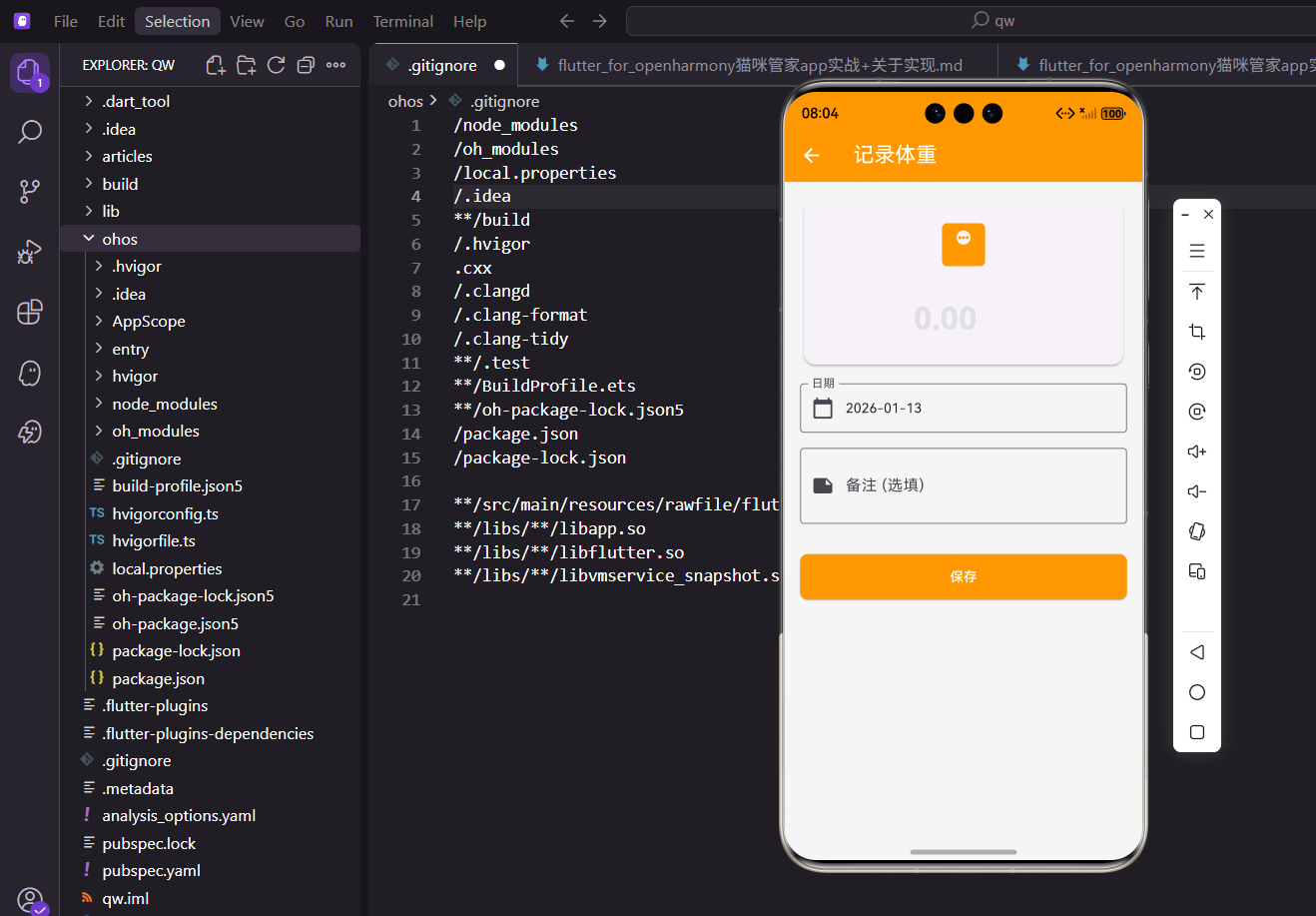
定期记录猫咪的体重,是监测健康状况的重要手段。今天我们来实现添加体重记录的功能,这是一个简洁但实用的表单页面。
功能需求
添加体重页面需要实现:
- 输入体重数值
- 选择记录日期
- 添加可选备注
- 保存体重记录
功能虽然简单,但设计上有不少讲究。
依赖引入
首先导入需要的包:
import 'package:flutter/material.dart';
import 'package:provider/provider.dart';
import 'package:flutter_screenutil/flutter_screenutil.dart';
import 'package:intl/intl.dart';
import '../../providers/cat_provider.dart';
import '../../models/weight_record.dart';
Provider管理体重数据,保存后自动刷新图表。
intl用于日期格式化显示。
有状态组件
添加页面需要管理表单状态:
class AddWeightScreen extends StatefulWidget {
final String catId;
const AddWeightScreen({super.key, required this.catId});
State<AddWeightScreen> createState() => _AddWeightScreenState();
}
catId标识是给哪只猫咪添加体重记录。
StatefulWidget用于管理输入状态。
状态变量
State类中定义变量:
class _AddWeightScreenState extends State<AddWeightScreen> {
  final _formKey = GlobalKey<FormState>();
  final _weightController = TextEditingController();
  final _notesController = TextEditingController();
  DateTime _date = DateTime.now();
GlobalKey用于表单验证。
日期默认是今天。
资源释放
dispose中释放控制器:
void dispose() {
_weightController.dispose();
_notesController.dispose();
super.dispose();
}
TextEditingController需要手动释放。
这是避免内存泄漏的标准做法。
页面结构
build方法构建整体布局:
Widget build(BuildContext context) {
return Scaffold(
appBar: AppBar(title: const Text('记录体重')),
body: Form(
key: _formKey,
child: SingleChildScrollView(
padding: EdgeInsets.all(16.w),
child: Column(
crossAxisAlignment: CrossAxisAlignment.start,
children: [
Form包裹表单用于验证。
SingleChildScrollView防止键盘遮挡。
体重输入卡片
突出显示的体重输入区域:
              Card(
                child: Padding(
                  padding: EdgeInsets.all(16.w),
                  child: Column(
                    children: [
                      Icon(Icons.monitor_weight, size: 60.sp, color: Colors.orange),
                      SizedBox(height: 16.h),
大图标让页面有视觉焦点。
Card包裹让输入区域更突出。
体重输入框:
                      TextFormField(
                        controller: _weightController,
                        keyboardType: const TextInputType.numberWithOptions(decimal: true),
                        textAlign: TextAlign.center,
                        style: TextStyle(fontSize: 32.sp, fontWeight: FontWeight.bold),
                        decoration: InputDecoration(
                          hintText: '0.00',
                          suffixText: 'kg',
                          border: InputBorder.none,
                          hintStyle: TextStyle(fontSize: 32.sp, color: Colors.grey[300]),
                        ),
大字号让体重数值更醒目。
居中对齐,无边框设计更简洁。
验证逻辑:
                        validator: (value) {
                          if (value?.isEmpty ?? true) return '请输入体重';
                          if (double.tryParse(value!) == null) return '请输入有效数字';
                          return null;
                        },
                      ),
                    ],
                  ),
                ),
              ),
              SizedBox(height: 16.h),
先检查是否为空,再检查是否是有效数字。
两步验证确保输入正确。
日期选择器
点击选择记录日期:
              InkWell(
                onTap: () => _selectDate(context),
                child: InputDecorator(
                  decoration: const InputDecoration(
                    labelText: '日期',
                    border: OutlineInputBorder(),
                    prefixIcon: Icon(Icons.calendar_today),
                  ),
                  child: Text(DateFormat('yyyy-MM-dd').format(_date)),
                ),
              ),
              SizedBox(height: 16.h),
InkWell让整个区域可点击。
InputDecorator让样式与其他输入框一致。
备注输入
可选的备注字段:
              TextFormField(
                controller: _notesController,
                maxLines: 2,
                decoration: const InputDecoration(
                  labelText: '备注 (选填)',
                  border: OutlineInputBorder(),
                  prefixIcon: Icon(Icons.note),
                ),
              ),
              SizedBox(height: 32.h),
maxLines: 2让输入框有两行高度。
可以记录称重时的特殊情况。
保存按钮
底部的提交按钮:
              SizedBox(
                width: double.infinity,
                height: 48.h,
                child: ElevatedButton(
                  onPressed: _saveRecord,
                  child: const Text('保存'),
                ),
              ),
            ],
          ),
        ),
      ),
    );
  }
按钮撑满宽度,视觉上更突出。
点击触发保存逻辑。
日期选择方法
弹出日期选择器:
  Future<void> _selectDate(BuildContext context) async {
    final picked = await showDatePicker(
      context: context,
      initialDate: _date,
      firstDate: DateTime(2020),
      lastDate: DateTime.now(),
    );
    if (picked != null) setState(() => _date = picked);
  }
lastDate设为今天,不能选择未来的日期。
选择后更新状态刷新UI。
保存记录逻辑
验证并保存数据:
  void _saveRecord() {
    if (_formKey.currentState!.validate()) {
      final record = WeightRecord(
        catId: widget.catId,
        weight: double.parse(_weightController.text),
        date: _date,
        notes: _notesController.text.isEmpty ? null : _notesController.text,
      );

      context.read<CatProvider>().addWeightRecord(record);
      Navigator.pop(context);
      ScaffoldMessenger.of(context).showSnackBar(
        const SnackBar(content: Text('体重记录添加成功!')),
      );
    }
  }
}
validate触发表单验证,通过后才保存。
SnackBar给用户一个成功的反馈。
数据模型
WeightRecord的结构:
class WeightRecord {
  final String id;
  final String catId;
  final double weight;
  final DateTime date;
  final String? notes;
}
weight用double存储,支持小数。
notes是可选字段。
TextInputType详解
数字键盘的类型:
keyboardType: const TextInputType.numberWithOptions(decimal: true)
numberWithOptions弹出数字键盘。
decimal: true允许输入小数点。
InputBorder.none
无边框输入框:
decoration: InputDecoration(
  border: InputBorder.none,
  ...
)
去掉输入框的边框。
配合Card使用,整体更简洁。
textAlign居中
输入内容居中显示:
textAlign: TextAlign.center
体重数值居中更美观。
配合大字号效果更好。
大字号输入
突出显示体重数值:
style: TextStyle(fontSize: 32.sp, fontWeight: FontWeight.bold)
32sp是很大的字号。
粗体让数值更醒目。
hintStyle自定义
提示文字的样式:
hintStyle: TextStyle(fontSize: 32.sp, color: Colors.grey[300])
提示文字与输入文字同样大小。
浅灰色不会太抢眼。
suffixText单位
显示单位:
suffixText: 'kg'
在输入框右侧显示单位。
用户知道要输入的是公斤。
表单验证
两步验证逻辑:
validator: (value) {
  if (value?.isEmpty ?? true) return '请输入体重';
  if (double.tryParse(value!) == null) return '请输入有效数字';
  return null;
}
先检查是否为空。
再检查是否是有效的数字。
tryParse安全转换
字符串转数字:
double.tryParse(value!)
转换失败返回null,不会抛异常。
比parse更安全。
空字符串转null
备注字段的处理:
notes: _notesController.text.isEmpty ? null : _notesController.text
空字符串存为null更合理。
三元表达式简洁处理。
Card布局
卡片内的布局结构:
Card(
  child: Padding(
    padding: EdgeInsets.all(16.w),
    child: Column(
      children: [
        Icon(...),
        SizedBox(...),
        TextFormField(...),
      ],
    ),
  ),
)
Padding给内容留出边距。
Column让内容垂直排列。
小结
添加体重页面涉及的知识点:
- 自定义输入框样式
- 数字键盘和验证
- 日期选择器
- 表单验证和保存
这些技巧在其他表单页面也能用到。
欢迎加入OpenHarmony跨平台开发社区,一起交流Flutter开发经验:
https://openharmonycrossplatform.csdn.net

腾讯云面向开发者汇聚海量精品云计算使用和开发经验,营造开放的云计算技术生态圈。
更多推荐
 29
29 0
0- 0


 已为社区贡献22条内容

所有评论(0)