Flutter轻量级开源记事本app实战:收藏列表
设计思路
在记事本应用中,收藏功能是用户管理重要笔记的核心功能。用户可以将重要的、常用的笔记标记为收藏,方便快速访问和查看。收藏列表页面需要清晰展示所有收藏的笔记,并提供便捷的操作方式。本文将详细介绍如何实现一个功能完整的收藏列表系统。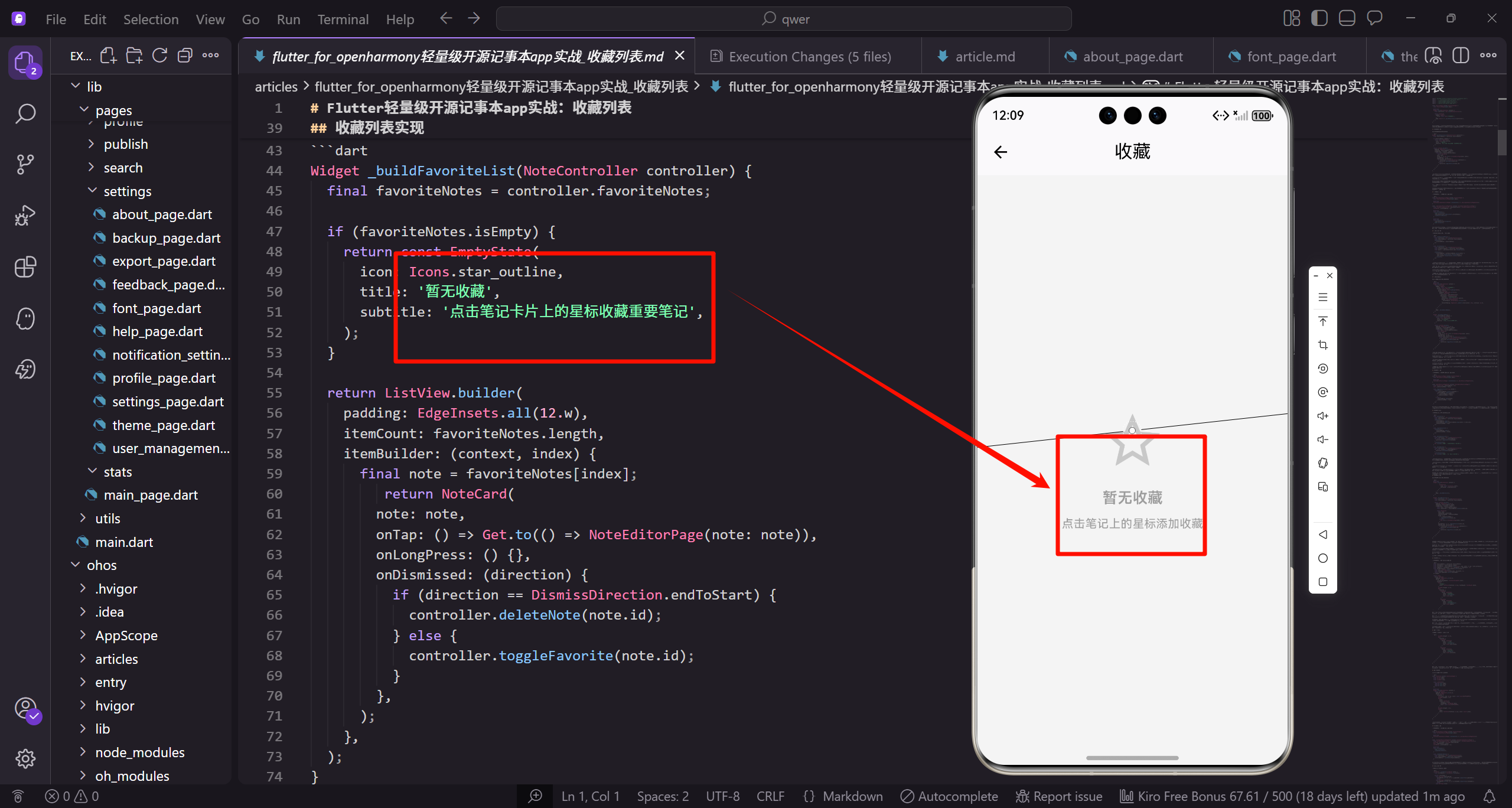
基础页面结构
收藏列表页面的基础架构设计。
import 'package:flutter/material.dart';
import 'package:get/get.dart';
import 'package:flutter_screenutil/flutter_screenutil.dart';
import '../../controllers/note_controller.dart';
import '../notes/widgets/note_card.dart';
import '../notes/widgets/empty_state.dart';
import '../editor/note_editor_page.dart';
class FavoritePage extends StatelessWidget {
const FavoritePage({super.key});
Widget build(BuildContext context) {
final controller = Get.find<NoteController>();
return Scaffold(
appBar: AppBar(
title: const Text('收藏列表'),
),
body: Obx(() => _buildFavoriteList(controller)),
);
}
}
FavoritePage使用StatelessWidget构建,通过Get.find获取NoteController实例来管理数据。AppBar显示"收藏列表"标题,body使用Obx包裹实现响应式更新。当收藏笔记发生变化时,界面会自动刷新显示最新数据。这种设计确保了数据与UI的同步更新。
收藏列表实现
构建收藏列表的核心UI组件。
Widget _buildFavoriteList(NoteController controller) {
  final favoriteNotes = controller.favoriteNotes;

  if (favoriteNotes.isEmpty) {
    return const EmptyState(
      icon: Icons.star_outline,
      title: '暂无收藏',
      subtitle: '点击笔记卡片上的星标收藏重要笔记',
    );
  }

  return ListView.builder(
    padding: EdgeInsets.all(12.w),
    itemCount: favoriteNotes.length,
    itemBuilder: (context, index) {
      final note = favoriteNotes[index];
         return NoteCard(
        note: note,
        onTap: () => Get.to(() => NoteEditorPage(note: note)),
        onLongPress: () {},
        onDismissed: (direction) {
          if (direction == DismissDirection.endToStart) {
            controller.deleteNote(note.id);
          } else {
            controller.toggleFavorite(note.id);
          }
        },
      );
    },
  );
}
_buildFavoriteList方法首先获取所有收藏的笔记。如果收藏列表为空,显示EmptyState组件提示用户。这个方法使用条件判断来处理空列表情况,提供友好的用户界面反馈。EmptyState组件包含图标、标题和副标题,引导用户进行收藏操作。
ListView.builder用于动态构建列表,性能优异且支持大量数据。每个笔记项都包装在NoteCard中,提供统一的视觉样式和交互体验。通过itemBuilder回调函数,可以高效地创建和复用列表项。
NoteCard组件配置了完整的交互功能。onTap点击事件导航到笔记编辑页面,onLongPress长按事件为空(可扩展功能),onDismissed滑动事件支持左滑删除和右滑取消收藏。这种设计让用户可以通过简单的手势操作管理笔记。
滑动删除功能通过direction参数判断滑动方向,实现了直观的手势操作。左滑删除笔记,右滑取消收藏,符合用户的操作习惯。这种交互设计让收藏管理变得更加便捷和高效。
整体代码结构清晰,职责分明。方法专注于构建收藏列表UI,通过依赖注入获取控制器数据,实现了良好的分层架构。这种设计模式便于后续维护和功能扩展,保证了代码的可读性和可维护性。
搜索功能基础
为收藏列表添加搜索功能的基础结构。
class SearchableFavoritePage extends StatefulWidget {
const SearchableFavoritePage({super.key});
State<SearchableFavoritePage> createState() => _SearchableFavoritePageState();
}
class _SearchableFavoritePageState extends State<SearchableFavoritePage> {
final TextEditingController _searchController = TextEditingController();
List<Note> _filteredNotes = [];
void initState() {
super.initState();
_searchController.addListener(_filterNotes);
_loadFavoriteNotes();
}
void dispose() {
_searchController.dispose();
super.dispose();
}
SearchableFavoritePage使用StatefulWidget管理搜索状态。_searchController用于接收用户输入,_filteredNotes存储过滤后的结果。initState中添加搜索监听器并加载收藏笔记,dispose中清理资源避免内存泄漏。这种设计确保了搜索功能的完整性和资源管理的正确性。
搜索逻辑实现
实现收藏笔记的搜索和过滤逻辑。
  void _loadFavoriteNotes() {
    final controller = Get.find<NoteController>();
    final favoriteNotes = controller.favoriteNotes;
    setState(() {
      _filteredNotes = favoriteNotes;
    });
  }

  void _filterNotes() {
    final controller = Get.find<NoteController>();
    final allFavoriteNotes = controller.favoriteNotes;
    final query = _searchController.text.toLowerCase();

    setState(() {
      _filteredNotes = allFavoriteNotes.where((note) =>
        note.title.toLowerCase().contains(query) ||
        note.content.toLowerCase().contains(query)
      ).toList();
    });
  }
_loadFavoriteNotes方法加载所有收藏笔记到过滤列表中。_filterNotes根据搜索关键词实时过滤笔记内容,支持标题和内容的模糊匹配。使用toLowerCase实现不区分大小写的搜索,提升用户体验。这种实时搜索机制让用户能够快速找到目标收藏笔记。
搜索过滤逻辑使用where方法筛选符合条件的笔记,支持标题和内容的同时搜索。通过toLowerCase转换确保搜索不区分大小写,提升搜索的准确性和用户体验。这种双重搜索策略让用户能够通过多种方式找到目标笔记。
setState触发界面更新,确保搜索结果能够实时显示在界面上。每当用户输入新的搜索关键词时,_filterNotes方法会被调用,重新计算过滤结果并更新UI。这种响应式设计提供了流畅的搜索体验。
搜索功能的实现采用了函数式编程的思想,通过链式调用处理数据转换。where方法用于筛选,toList方法将结果转换为列表,整个过程简洁高效。这种代码风格既保证了性能,又提高了代码的可读性。
搜索界面构建
构建搜索功能的用户界面组件。
Widget build(BuildContext context) {
return Scaffold(
appBar: AppBar(
title: const Text('收藏列表'),
bottom: PreferredSize(
preferredSize: Size.fromHeight(60.h),
child: Padding(
padding: EdgeInsets.all(16.w),
child: TextField(
controller: _searchController,
decoration: InputDecoration(
hintText: '搜索收藏的笔记',
prefixIcon: const Icon(Icons.search),
border: OutlineInputBorder(
borderRadius: BorderRadius.circular(25),
),
contentPadding: EdgeInsets.symmetric(horizontal: 16.w, vertical: 12.h),
),
),
),
),
),
body: _buildSearchBody(),
);
}
Widget _buildSearchBody() {
if (_filteredNotes.isEmpty) {
return const EmptyState(
icon: Icons.search_off,
title: '未找到收藏',
subtitle: '尝试使用其他关键词搜索',
);
}
return ListView.builder(
padding: EdgeInsets.all(12.w),
itemCount: _filteredNotes.length,
itemBuilder: (context, index) {
final note = _filteredNotes[index];
return NoteCard(
note: note,
onTap: () => Get.to(() => NoteEditorPage(note: note)),
onLongPress: () {},
onDismissed: (direction) {
final controller = Get.find<NoteController>();
if (direction == DismissDirection.endToStart) {
controller.deleteNote(note.id);
} else {
controller.toggleFavorite(note.id);
}
},
);
},
);
}
搜索界面在AppBar底部添加了搜索输入框,使用TextField接收用户输入。搜索框包含搜索图标和圆角边框,提供良好的视觉体验。当搜索结果为空时显示EmptyState提示,否则显示过滤后的笔记列表。NoteCard保持原有的交互功能,确保搜索体验的一致性。
AppBar的bottom属性使用PreferredSize创建搜索框区域,高度设置为60.h。TextField的装饰使用InputDecoration配置提示文本、前缀图标和边框样式。圆角边框和内边距让搜索框更加美观和易用。
_buildSearchBody方法处理搜索结果的显示逻辑。当过滤列表为空时,显示带有搜索图标的EmptyState组件,提供友好的空状态提示。这种设计让用户在没有搜索结果时不会感到困惑。
ListView.builder用于展示搜索结果,保持与收藏列表相同的布局结构。每个NoteCard都配置了完整的交互功能,包括点击编辑、滑动删除等操作。这样确保了搜索体验与正常浏览体验的一致性。
搜索功能的实现采用了响应式设计,通过setState触发界面更新。当用户输入搜索关键词时,_filterNotes方法会实时过滤数据并更新界面。这种即时反馈的搜索机制提升了用户体验。
批量操作基础
为收藏列表添加批量操作功能的基础结构。
class BatchFavoritePage extends StatefulWidget {
const BatchFavoritePage({super.key});
State<BatchFavoritePage> createState() => _BatchFavoritePageState();
}
class _BatchFavoritePageState extends State<BatchFavoritePage> {
final Set<String> _selectedNotes = {};
bool _isSelectionMode = false;
void _toggleSelection(String noteId) {
setState(() {
if (_selectedNotes.contains(noteId)) {
_selectedNotes.remove(noteId);
if (_selectedNotes.isEmpty) {
_isSelectionMode = false;
}
} else {
_selectedNotes.add(noteId);
_isSelectionMode = true;
}
});
}
BatchFavoritePage支持批量选择和操作收藏笔记。_selectedNotes使用Set存储选中的笔记ID,确保唯一性。_isSelectionMode标识当前是否处于选择模式。_toggleSelection方法切换笔记的选中状态,当没有选中项时自动退出选择模式。这种设计让用户可以灵活地进行批量操作。
批量操作方法
实现批量选择和操作的核心方法。
  void _selectAll() {
    final controller = Get.find<NoteController>();
    final favoriteNotes = controller.favoriteNotes;
    setState(() {
      _selectedNotes.clear();
      _selectedNotes.addAll(favoriteNotes.map((note) => note.id));
      _isSelectionMode = true;
    });
  }

  void _clearSelection() {
    setState(() {
      _selectedNotes.clear();
      _isSelectionMode = false;
    });
  }

  void _batchUnfavorite() {
    final controller = Get.find<NoteController>();
    for (final noteId in _selectedNotes) {
      controller.toggleFavorite(noteId);
    }
    _clearSelection();
    Get.snackbar('成功', '已取消收藏选中的笔记');
  }

  void _batchDelete() {
    final controller = Get.find<NoteController>();
    for (final noteId in _selectedNotes) {
      controller.deleteNote(noteId);
    }
    _clearSelection();
    Get.snackbar('成功', '已删除选中的笔记');
  }
_selectAll方法选中所有收藏笔记,_clearSelection清空选择状态。_batchUnfavorite批量取消收藏,_batchDelete批量删除笔记。操作完成后自动清空选择状态并显示成功提示。这些批量操作大大提升了用户管理收藏笔记的效率。
_selectAll方法使用map函数将所有收藏笔记的ID提取到选中集合中,通过setState更新界面状态并进入选择模式,让用户可以一键选择所有笔记,大大简化了批量操作的过程。
_clearSelection方法清空选中集合并退出选择模式,通过setState触发界面更新。这个方法在批量操作完成后被自动调用,确保界面状态的正确性。清空选择状态让用户可以继续进行其他操作。
_batchUnfavorite和_batchDelete方法都使用for循环遍历选中的笔记ID,分别执行取消收藏和删除操作。操作完成后调用_clearSelection清空选择状态,并通过Get.snackbar显示操作结果提示。这种统一的操作流程保证了用户体验的一致性。
批量操作的实现采用了命令模式的思想,每个方法都封装了特定的操作逻辑。通过控制器执行实际的数据操作,通过setState更新界面状态,通过snackbar提供用户反馈。这种设计模式让代码结构清晰,便于维护和扩展。
批量操作界面
构建批量操作的用户界面组件。
Widget build(BuildContext context) {
),
IconButton(
icon: const Icon(Icons.clear),
onPressed: _clearSelection,
),
],
],
),
body: _buildBatchList(),
);
}
Widget _buildBatchList() {
final controller = Get.find<NoteController>();
final favoriteNotes = controller.favoriteNotes;
return ListView.builder(
padding: EdgeInsets.all(12.w),
itemCount: favoriteNotes.length,
itemBuilder: (context, index) {
final note = favoriteNotes[index];
final isSelected = _selectedNotes.contains(note.id);
return NoteCard(
note: note,
isSelected: isSelected,
isSelectionMode: _isSelectionMode,
onTap: () {
if (_isSelectionMode) {
_toggleSelection(note.id);
} else {
Get.to(() => NoteEditorPage(note: note));
}
},
onLongPress: () => _toggleSelection(note.id),
onDismissed: (direction) {
if (direction == DismissDirection.endToStart) {
controller.deleteNote(note.id);
} else {
controller.toggleFavorite(note.id);
}
},
);
},
);
}
}
批量操作界面根据选择模式动态显示AppBar标题和操作按钮。选择模式下显示选中数量和批量操作按钮,包括全选、清空、取消收藏和删除。NoteCard支持选择状态显示,点击行为根据模式变化。这种设计提供了直观的批量操作体验。
AppBar的标题使用三元运算符动态切换,选择模式下显示"已选择X项",普通模式显示"收藏列表"。actions数组使用条件渲染,只在选择模式下显示批量操作按钮。这种动态UI设计让界面更加简洁和直观。
_buildBatchList方法构建批量选择列表,使用ListView.builder展示所有收藏笔记。每个NoteCard都传递了isSelected和isSelectionMode参数,用于控制选择状态的视觉显示。这种设计让用户能够清楚地看到哪些笔记被选中。
NoteCard的点击行为根据选择模式动态调整。选择模式下点击切换选中状态,普通模式下点击导航到编辑页面。长按操作始终用于切换选择模式,这种交互设计符合用户的使用习惯。
滑动操作在批量模式下保持原有功能,支持左滑删除和右滑取消收藏。这种设计确保了批量操作不会影响原有的单笔记操作功能,保持了功能的一致性和完整性。
批量操作按钮
为收藏列表添加统计信息展示功能。
  final favoriteNotes = controller.favoriteNotes;
  final totalNotes = favoriteNotes.length;
  final totalWords = favoriteNotes.fold<int>(0, (sum, note) => sum + note.wordCount);
  final avgWords = totalNotes > 0 ? totalWords ~/ totalNotes : 0;
  final thisMonthCount = favoriteNotes.where((note) {
    final now = DateTime.now();
    final monthAgo = DateTime(now.year, now.month, 1);
    return note.updatedAt.isAfter(monthAgo);
  }).length;

  return Card(
    child: Padding(
      padding: EdgeInsets.all(16.w),
      child: Column(
        crossAxisAlignment: CrossAxisAlignment.start,
        children: [
          Text(
            '收藏统计',
            style: TextStyle(fontSize: 16.sp, fontWeight: FontWeight.bold),
          ),
          SizedBox(height: 12.h),
          Row(
            children: [
              Expanded(
                child: _StatItem(
                  label: '收藏数量',
                  value: '$totalNotes',
                  icon: Icons.star,
                ),
              ),
              Expanded(
                child: _StatItem(
                  label: '本周更新',
                  value: '$thisWeekCount',
                  icon: Icons.update,
                ),
              ),
            ],
          ),
统计卡片计算并展示收藏笔记的各项数据。包括收藏数量、总字数、平均字数和本周更新数量。使用fold方法累加所有笔记的字数,where方法筛选本周更新的笔记。Card包含标题和统计项,使用Row布局让信息紧凑显示。这些统计数据帮助用户了解收藏的使用情况。
统计计算使用多个变量存储不同维度的数据。totalNotes记录收藏总数,totalWords通过fold方法累加所有笔记的字数,avgWords计算平均字数。thisWeekCount使用where方法筛选本周内更新的笔记数量,这些统计指标全面反映了收藏的使用情况。
Card组件作为统计数据的容器,使用Padding提供内部间距,Column垂直排列子组件。crossAxisAlignment设置为CrossAxisAlignment.start让内容左对齐,提供更好的视觉层次。这种布局设计让统计信息既紧凑又易于阅读。
统计卡片使用Row布局展示两个统计项,每个统计项使用Expanded平均分配空间。第一行显示收藏数量和本周更新数,使用不同的图标区分数据类型。这种两列布局既节省空间又保持了信息的清晰度。
Text组件显示统计标题,使用TextStyle设置字体大小和粗细,增强视觉层次。SizedBox在标题和内容之间添加12.h的垂直间距,让布局更加舒适。这些细节处理提升了统计卡片的整体美观度和用户体验。
统计卡片布局
完成统计卡片的布局结构设计。
          SizedBox(height: 12.h),
          Row(
            children: [
              Expanded(
                child: _StatItem(
                  label: '总字数',
                  value: '$totalWords',
                  icon: Icons.text_fields,
                ),
              ),
              Expanded(
                child: _StatItem(
                  label: '平均字数',
                  value: '$avgWords',
                  icon: Icons.calculate,
                ),
              ),
            ],
          ),
        ],
      ),
    ),
  );
}
统计卡片使用两个Row布局展示四项统计信息。第一行显示收藏数量和本周更新数,第二行显示总字数和平均字数。每个统计项使用_StatItem组件,保持视觉一致性。SizedBox添加适当的间距,让布局更加美观。这种设计让统计信息清晰易读。
统计项组件
创建专用的统计项显示组件。
class _StatItem extends StatelessWidget {
final String label;
final String value;
final IconData icon;
const _StatItem({
required this.label,
required this.value,
required this.icon,
});
Widget build(BuildContext context) {
return Container(
padding: EdgeInsets.all(12.w),
child: Column(
children: [
Icon(icon, size: 24.sp, color: const Color(0xFF2196F3)),
SizedBox(height: 4.h),
Text(
value,
style: TextStyle(
fontSize: 18.sp,
fontWeight: FontWeight.bold,
color: const Color(0xFF2196F3),
),
),
SizedBox(height: 2.h),
Text(
label,
style: TextStyle(fontSize: 12.sp, color: Colors.grey),
),
],
),
);
}
}
_StatItem组件使用Column垂直排列图标、数值和标签。图标和数值使用主题色蓝色突出显示,标签使用灰色文字。Container提供内边距,让内容有足够的呼吸空间。这种设计让每个统计项都有清晰的视觉层次,便于用户快速理解数据含义。
排序功能基础
为收藏列表添加排序功能的基础结构。
class SortableFavoritePage extends StatefulWidget {
const SortableFavoritePage({super.key});
State<SortableFavoritePage> createState() => _SortableFavoritePageState();
}
class _SortableFavoritePageState extends State<SortableFavoritePage> {
final TextEditingController _searchController = TextEditingController();
SortType _sortType = SortType.modifiedTime;
bool _isAscending = false;
List<Note> _filteredNotes = [];
void initState() {
super.initState();
_loadAndSortNotes();
}
void _loadAndSortNotes() {
final controller = Get.find<NoteController>();
final favoriteNotes = controller.favoriteNotes;
_filteredNotes = _sortNotes(favoriteNotes);
}
SortableFavoritePage是支持排序功能的收藏页面。包含搜索控制器、排序类型、排序方向和过滤后的笔记列表。initState时自动加载并排序收藏笔记。_loadAndSortNotes方法获取收藏笔记并应用当前排序规则。这种设计让用户可以按不同方式查看收藏内容。
排序逻辑实现
实现不同类型的排序逻辑。
  List<Note> _sortNotes(List<Note> notes) {
    final sortedNotes = List<Note>.from(notes);

    switch (_sortType) {
      case SortType.modifiedTime:
        sortedNotes.sort((a, b) => a.updatedAt.compareTo(b.updatedAt));
        break;
      case SortType.createdTime:
        sortedNotes.sort((a, b) => a.createdAt.compareTo(b.createdAt));
        break;
      case SortType.title:
        sortedNotes.sort((a, b) => a.title.compareTo(b.title));
        break;
    }

    if (!_isAscending) {
      sortedNotes = sortedNotes.reversed.toList();
    }

    return sortedNotes;
  }
_sortNotes方法根据排序类型对笔记进行排序。支持按修改时间、创建时间和标题三种排序方式。使用switch语句处理不同的排序类型,最后根据排序方向决定是否反转列表。这种灵活的排序机制满足了用户不同的查看需求。
排序方法首先创建原始列表的副本,避免直接修改原始数据。通过switch语句根据_sortType选择相应的排序逻辑,每种排序类型都使用compareTo方法进行比较。这种设计确保了排序操作的不可变性和数据安全性。
时间排序使用DateTime的compareTo方法,能够准确比较时间的先后顺序。标题排序使用字符串的compareTo方法,按照字母顺序排列笔记。这种多样化的排序选项让用户可以根据不同的需求组织收藏内容。
排序方向通过_isAscending标志控制,当设置为false时使用reversed方法反转列表。这种设计让用户可以在升序和降序之间切换,提供了更灵活的查看方式。整个排序过程高效且易于理解。
排序界面构建
构建排序功能的用户界面。
Widget build(BuildContext context) {
return Scaffold(
appBar: AppBar(
title: const Text('收藏列表'),
actions: [
PopupMenuButton<SortType>(
icon: const Icon(Icons.sort),
onSelected: (type) {
setState(() {
_sortType = type;
_loadAndSortNotes();
});
},
itemBuilder: (context) => [
const PopupMenuItem(
value: SortType.modifiedTime,
child: Text('修改时间'),
),
const PopupMenuItem(
value: SortType.createdTime,
child: Text('创建时间'),
),
const PopupMenuItem(
value: SortType.title,
child: Text('标题'),
),
],
),
IconButton(
icon: Icon(_isAscending ? Icons.arrow_upward : Icons.arrow_downward),
onPressed: () {
setState(() {
_isAscending = !_isAscending;
_loadAndSortNotes();
});
},
),
],
),
body: _buildSortedList(),
);
}
Widget _buildSortedList() {
return ListView.builder(
padding: EdgeInsets.all(12.w),
itemCount: _filteredNotes.length,
itemBuilder: (context, index) {
final note = _filteredNotes[index];
return NoteCard(
note: note,
onTap: () => Get.to(() => NoteEditorPage(note: note)),
onLongPress: () {},
onDismissed: (direction) {
final controller = Get.find<NoteController>();
if (direction == DismissDirection.endToStart) {
controller.deleteNote(note.id);
} else {
controller.toggleFavorite(note.id);
}
},
);
},
);
}
}
排序界面使用PopupMenuButton提供排序类型选择,IconButton切换排序方向。选择排序类型或切换方向后重新加载并排序笔记。ListView显示排序后的收藏列表,保持原有的滑动操作功能。这种设计让用户可以灵活地组织和查看收藏内容。
AppBar的actions数组包含两个排序控件:PopupMenuButton用于选择排序类型,IconButton用于切换排序方向。PopupMenuButton的itemBuilder提供三个排序选项:修改时间、创建时间和标题。每个选项使用PopupMenuItem包装,确保一致的视觉样式。
排序类型选择后,通过setState更新_sortType状态并调用_loadAndSortNotes方法重新排序数据。排序方向切换使用三元运算符动态切换图标,向上箭头表示升序,向下箭头表示降序。这种直观的图标设计让用户一目了然。
_buildSortedList方法构建排序后的列表视图,使用ListView.builder展示排序后的笔记。每个NoteCard保持原有的交互功能,包括点击编辑、滑动删除等操作。这种设计确保排序功能不会影响原有的用户体验。
排序功能采用了响应式设计,当用户选择不同的排序方式时,界面会立即更新显示结果。这种即时反馈的机制让用户能够快速找到所需的笔记,提升了整体的使用体验和操作效率。
导出功能实现
为收藏列表添加导出功能。
void _exportFavorites(NoteController controller) {
  final favoriteNotes = controller.favoriteNotes;
  if (favoriteNotes.isEmpty) {
    Get.snackbar('提示', '收藏列表为空,无法导出');
    return;
  }

  final exportData = _generateExportData(favoriteNotes);
  final fileName = 'favorites_${DateTime.now().millisecondsSinceEpoch}.json';

  // 这里可以实现实际的文件保存逻辑
  Get.snackbar('成功', '已导出${favoriteNotes.length}个收藏笔记');
}

String _generateExportData(List<Note> notes) {
  final export = {
    'type': 'favorites',
    'exportTime': DateTime.now().toIso8601String(),
    'count': notes.length,
    'notes': notes.map((note) => {
      'id': note.id,
      'title': note.title,
      'content': note.content,
      'createdAt': note.createdAt.toIso8601String(),
      'updatedAt': note.updatedAt.toIso8601String(),
    }).toList(),
  };

  return jsonEncode(export);
}
_exportFavorites方法检查收藏列表是否为空,避免导出空文件。生成包含时间戳的文件名,调用_generateExportData创建导出数据。导出数据包含类型、时间、数量和笔记详细信息,使用JSON格式便于后续处理。这种设计确保了导出功能的完整性和数据的可恢复性。
_exportFavorites方法首先检查收藏列表是否为空,如果为空则显示提示信息并提前返回。这种防御性编程避免了无效操作,提升了用户体验。文件名使用当前时间戳确保唯一性,防止文件覆盖冲突。
_generateExportData方法创建结构化的导出数据,包含导出类型、时间戳、笔记数量和详细信息。每个笔记都包含ID、标题、内容、创建时间和更新时间等完整信息。这种全面的数据结构确保了导出数据的完整性和可恢复性。
数据导出使用JSON格式,通过jsonEncode将Map对象转换为JSON字符串。JSON格式具有良好的可读性和跨平台兼容性,便于数据交换和存储。这种标准化的数据格式让导出的数据可以被其他系统轻松解析和使用。
主题适配实现
确保收藏列表在不同主题下都有良好的显示效果。
class ThemedFavoritePage extends StatelessWidget {
const ThemedFavoritePage({super.key});
Widget build(BuildContext context) {
final theme = Theme.of(context);
final controller = Get.find<NoteController>();
return Scaffold(
backgroundColor: theme.scaffoldBackgroundColor,
appBar: AppBar(
backgroundColor: theme.appBarTheme.backgroundColor,
title: Text(
'收藏列表',
style: TextStyle(color: theme.appBarTheme.titleTextStyle?.color),
),
iconTheme: IconThemeData(color: theme.appBarTheme.iconTheme?.color),
),
body: _buildThemedBody(controller, theme),
);
}
Widget _buildThemedBody(NoteController controller, ThemeData theme) {
return Obx(() {
final favoriteNotes = controller.favoriteNotes;
if (favoriteNotes.isEmpty) {
return const EmptyState(
icon: Icons.star_outline,
title: '暂无收藏',
subtitle: '点击笔记卡片上的星标收藏重要笔记',
);
}
return ListView.builder(
padding: EdgeInsets.all(12.w),
itemCount: favoriteNotes.length,
itemBuilder: (context, index) {
final note = favoriteNotes[index];
return Card(
color: theme.cardColor,
child: ListTile(
leading: Icon(
note.isFavorite ? Icons.star : Icons.star_border,
color: Colors.amber,
),
title: Text(
note.title.isEmpty ? '无标题' : note.title,
style: TextStyle(color: theme.textTheme.titleLarge?.color),
),
subtitle: Text(
note.content.isEmpty ? '无内容' : note.content,
style: TextStyle(color: theme.textTheme.bodyMedium?.color),
maxLines: 2,
overflow: TextOverflow.ellipsis,
),
onTap: () => Get.to(() => NoteEditorPage(note: note)),
),
);
},
);
});
}
}
ThemedFavoritePage使用Theme.of(context)获取当前主题配置,确保所有UI元素都适配主题色。背景色、AppBar颜色、文本颜色都使用主题属性。Card和ListTile的颜色也根据主题动态调整。这种完整的主题适配让应用在各种主题下都有良好的视觉体验。
Scaffold的backgroundColor使用theme.scaffoldBackgroundColor,确保背景色与主题一致。AppBar的backgroundColor和titleTextStyle都从主题中获取,保持视觉统一。iconTheme也使用主题颜色,确保图标在不同主题下都能正常显示。
_buildThemedBody方法构建主题适配的列表内容,使用Obx响应数据变化。当收藏列表为空时显示EmptyState组件,提供友好的空状态提示。这种设计让用户在没有收藏时也能获得良好的视觉体验。
class CompleteFavoritePage extends StatefulWidget {
const CompleteFavoritePage({super.key});
@override
State createState() => _CompleteFavoritePageState();
}
class _CompleteFavoritePageState extends State {
final TextEditingController _searchController = TextEditingController();
final Set _selectedNotes = {};
bool _isSelectionMode = false;
bool _isAscending = false;
SortType _sortType = SortType.modifiedTime;
List _filteredNotes = [];
@override
void initState() {
super.initState();
_searchController.addListener(_filterNotes);
_loadAndSortNotes();
}
@override
void dispose() {
_searchController.dispose();
super.dispose();
}
CompleteFavoritePage整合了搜索、批量操作、排序等所有功能。包含搜索控制器、选择状态、排序配置等完整的状态管理。initState中初始化搜索监听和数据加载,dispose中清理资源。这种整合设计提供了一个功能完整的收藏管理解决方案。

## 总结

收藏列表功能为用户提供了强大的笔记管理能力。通过收藏、搜索、批量操作、统计、排序、导出和主题适配等功能,用户可以高效地管理重要笔记。这些功能的组合让笔记应用更加实用和便捷。

良好的收藏列表设计不仅提供了便捷的访问方式,还提供了丰富的管理功能,让用户可以快速找到和管理收藏的内容。通过合理的架构设计和用户体验优化,收藏列表成为了笔记应用中不可或缺的核心功能。

在实际开发中,还需要考虑性能优化、错误处理、用户反馈等方面,确保功能的稳定性和可靠性。同时,保持代码的可维护性和可扩展性,为后续功能迭代打下良好基础。

---

欢迎加入开源鸿蒙跨平台社区:https://openharmonycrossplatform.csdn.net

腾讯云面向开发者汇聚海量精品云计算使用和开发经验,营造开放的云计算技术生态圈。
更多推荐
 14
14 0
0- 0


 已为社区贡献23条内容

所有评论(0)