运维自动化Ansible

前言
学ansible,基础篇就是一件事
学各种模块的语法,参数
由于模块较多,参数较多,需要做好笔记,以及一定的背诵,敲打建议记忆
基础篇学习路线
1.主机清单语法,学会如何批量管理服务器组,配置服务器认证,服务器变量
2.学习常见的模块,语法,参数,用法
3.改造shell脚本为ansible模块
yum install rsync -y
yum remove rsync -y


这个shell命令就得转变为ansible的模块操作, yum模块,提供参数


useradd bob01
简单的linux命令,转变为ansible的模块操作
users模块,提供一些参数,用户名的名字,用户的uid,以及用户的过期时间等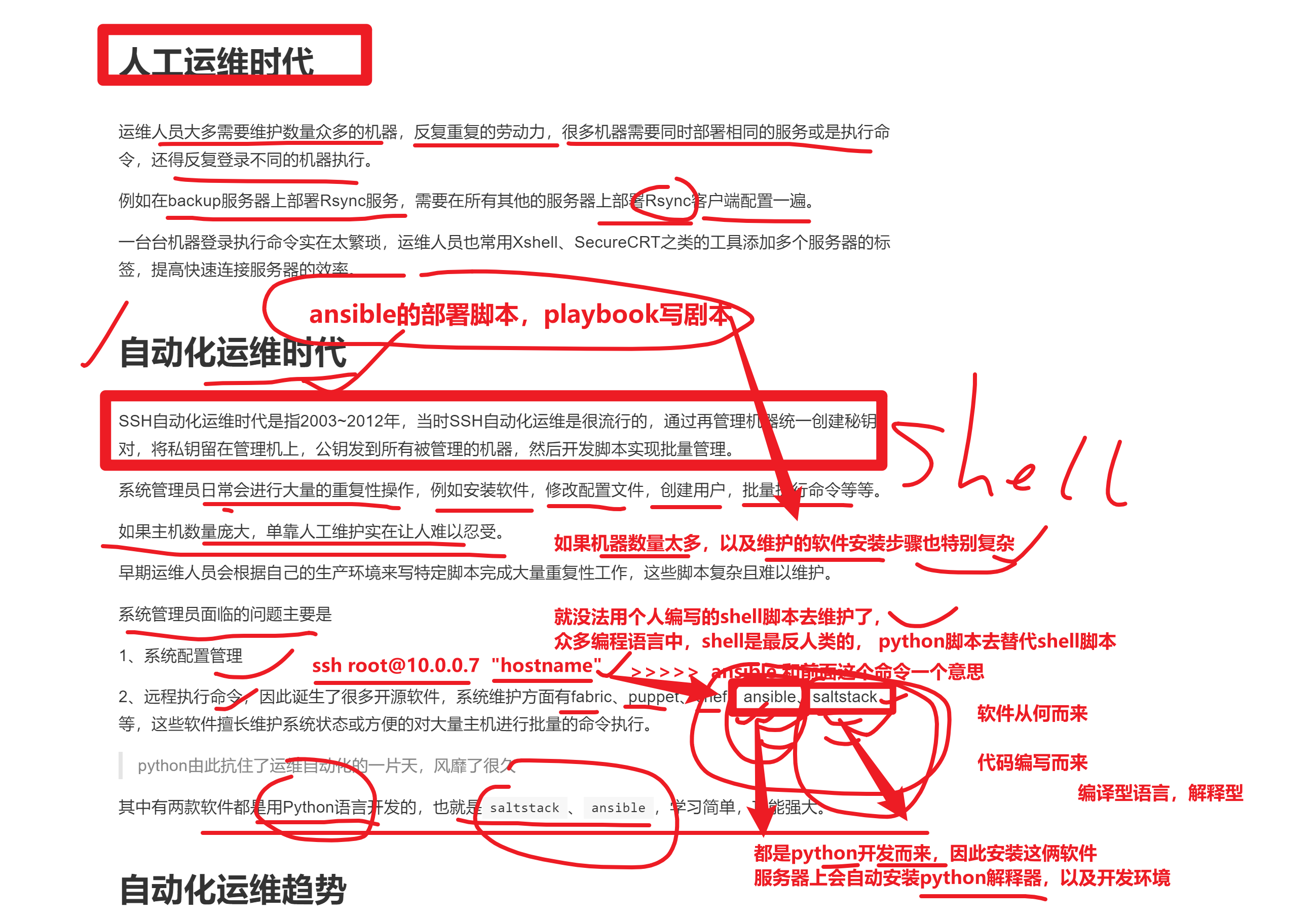
# 自动化运维好处
- - 提高工作效率,减少重复性工作
- - 大大减少人为出错的可能性
- - 数据化管理、数据化汇报、问题可追溯
ansible
saltstack
这俩自动化运维工具

master-61机器,管理了100台目标机器
指标
shell 脚本结合for循环处理这100个机器
每一个指标就是每一个命令
free -m > xxx.file
cpuinfo

shell,命令导出的数据就是一堆普通的文本字符串,难以加工处理

如果能导出为数据交换格式,如json,如yaml,如xml就可以很轻松的发给各种编程语言,实现数据加工,格式化处理,发给前端去做网页展示


ansible几条命令就可以实现了
并且
ansible导出的服务器信息,如内存,磁盘,网卡,等等一堆信息,可以直接导出为json数据
json数据就可以直接发给前端,前端就可以展示出服务器的信息

这就是运维开发做的事
后端python+ansible获取数据,导出json,发给前端
前端写html,js,对json数据展示

运维平台就出来了
如何学习ansible
1.打开ansible官网,查看所有最新的功能,不要看其他的文档,可能已经很陈旧了,python3也已经更新了很多,导致用法变化等。

https://docs.ansible.com/ansible/latest/
最新官网文档

nfs服务
rsync服务

shell脚本,堆砌了各种部署的命令
↓
把这个脚本,所有的操作,全部替换为ansible的模块


2.你可能要执行的各种命令,ansible都提供了模块,如文件拷贝,如软件安装,服务重启等;

3.你使用ansible,必须严格按照ansible提供的语法来,否则只有报错

4.先学语法,语法基本功扎实后,面对千变万化的需求,才能游刃有余

5.多动手,ansible需要记忆的操作比较多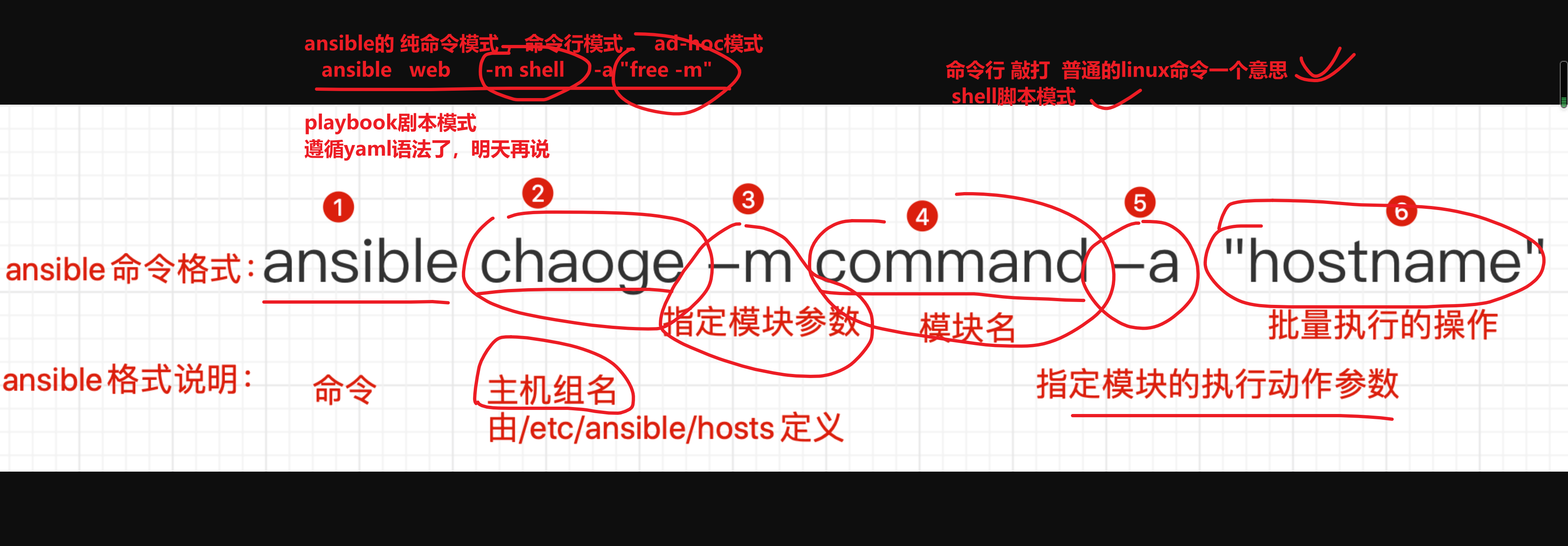
1、ansible安装部署
在master-61管理机安装
yum install epel-release ansible libselinux-python -y


前提你配置好了阿里云的epel源可以直接安装
yum install ansible -y


[root@master-61 ~]#ansible --version
ansible 2.9.27
  config file = /etc/ansible/ansible.cfg
  configured module search path = [u'/root/.ansible/plugins/modules', u'/usr/share/ansible/plugins/modules']
  ansible python module location = /usr/lib/python2.7/site-packages/ansible
  executable location = /usr/bin/ansible
  python version = 2.7.5 (default, Apr 11 2018, 07:36:10) [GCC 4.8.5 20150623 (Red Hat 4.8.5-28)]
其他被管理的机器
全部初始化,还原sshd原本的配置即可
用于学习ansible的主机连接配置参数
主机清单文件(主机分组)
把综合架构需要用到的机器,进行分组
主机清单配置文件
vim /etc/ansible/hosts

[web]
172.16.1.7
172.16.1.8
172.16.1.9


[nfs]
172.16.1.31

[bakcup]
172.16.1.41
主机分组后,执行命令测试,批量管理一组机器
管理所有的机器,使用特殊主机组,all
让所有的主机,远程执行hostname,返回主机名信息
[root@master-61 ~]#ansible all -m shell -a "hostname"

但是默认没配置认证方式,权限被拒绝
ansible主机登录认证
Ansible批量管理主机有两种方式:
- - 传统的密码认证
- - 公钥认证
所有的机器配置好公私钥登录,即可免密码操作
ansible基于公私钥认证
1.将master61机器的公钥,分发给想免密登录的机器
2.后续在对该机器操作,就直接进行ssh的公钥认证了,可以免密码,直接远程执行
1.配置好master-61免密登录31机器

2.后续可以免密执行ansible的各种模块了

[root@master-61 ~]#ansible nfs -m command -a "hostname"


你可以配置所有机器的公钥一键分发,就可以实现all所有主机的远程命令执行
ansible all -m shell "hostname" # 返回结果给master-61机器
基于密码认证
在你的客户端机器、修改了ssh默认端口、以及密码需要修改主机清单文件才可以正确连接。
注意你得配置允许密码登录才能进行如下测试,可以再开一个web-9机器。
ansible主机清单配置文件语法(重要)
/etc/ansible/hosts 主机清单文件
注意,部分资料里的主机配置文件语法,旧版如下
Ansible 2.0 has deprecated the “ssh” from ansible_ssh_user, ansible_ssh_host, and ansible_ssh_port to become

这是旧版本的用法
ansible_ssh_host
ansible_ssh_port
ansible_ssh_user
ansible_ssh_password

最新的,去掉了中间的_ssh


新版参数
ansible_user
ansible_host
ansible_port


如果你写旧版本的语法,新版也也认识
新版参数
| 参数 | 参数类型 | 参数说明 |
|---|---|---|
| ansible_host | 主机地址 | 远程主机ip |
| ansible_port | 主机端口 | 设置SSH连接端口,默认22 |
| ansible_user | 主机用户 | 默认SSH远程连接的用户身份 |
| ansible_password | 用户密码 | 指定SSH远程主机密码 |
给rsync机器,进行密码认证
1.给rsync机器,添加密码,端口等信息

[backup]
172.16.1.41  ansible_port=22  ansible_password='123123'

2.如果目标机器的ssh信息都被改了,这里也得改
[backup]
172.16.1.41  ansible_port=22999  ansible_password='123456'
添加rsync机器的ssh信息
Ansible软件使用的前提是SSH+KEY免密验证的环境,如果没有配置也可以使用Ansible,如下
[root@master-61 ~]#tail -2 /etc/ansible/hosts
[backup]
172.16.1.41 ansible_port=22999 ansible_user=root ansible_password=123123
测试执行
[root@master-61 ~]#ansible backup -m ping
172.16.1.41 | SUCCESS => {
    "ansible_facts": {
        "discovered_interpreter_python": "/usr/bin/python"
    },
    "changed": false,
    "ping": "pong"
}
添加web机器组的信息
[root@master-61 ~]#tail /etc/ansible/hosts

[web]
172.16.1.7 ansible_port=22999 ansible_user=root ansible_password=123123
172.16.1.8 ansible_port=22999 ansible_user=root ansible_password=123123

[nfs]
172.16.1.31

[backup]
172.16.1.41 ansible_ssh_port=22999 ansible_ssh_user=root ansible_ssh_pass=123123
测试执行
[root@master-61 ~]#ansible web -m ping
172.16.1.8 | SUCCESS => {
    "ansible_facts": {
        "discovered_interpreter_python": "/usr/bin/python"
    },
    "changed": false,
    "ping": "pong"
}
172.16.1.7 | SUCCESS => {
    "ansible_facts": {
        "discovered_interpreter_python": "/usr/bin/python"
    },
    "changed": false,
    "ping": "pong"
}
拿web机器测试(单独操作某主机)
1.先配置主机组的参数
[web]
172.16.1.7 ansible_port=22999 ansible_password='123123'
172.16.1.8 ansible_port=22999 ansible_password='123123'
172.16.1.9 ansible_port=22999 ansible_password='123123'


2.执行ping模块,看下是否和远程主机通信
[root@master-61 ~]#ansible  web -m ping
172.16.1.7 | SUCCESS => {
    "ansible_facts": {
        "discovered_interpreter_python": "/usr/bin/python"
    },
    "changed": false,
    "ping": "pong"
}
172.16.1.9 | SUCCESS => {
    "ansible_facts": {
        "discovered_interpreter_python": "/usr/bin/python"
    },
    "changed": false,
    "ping": "pong"
}
172.16.1.8 | SUCCESS => {
    "ansible_facts": {
        "discovered_interpreter_python": "/usr/bin/python"
    },
    "changed": false,
    "ping": "pong"
}
故障解决
你可能会遇见如下问题,关于新机器的指纹确认问题。

```
[root@master-61 ~]#
[root@master-61 ~]#ansible 172.16.1.9 -m ping
172.16.1.9 | FAILED! => {
    "msg": "Using a SSH password instead of a key is not possible because Host Key checking is enabled and sshpass does not support this.  Please add this host's fingerprint to your known_hosts file to manage this host."
}
```

解决办法1,手动ssh连接,进行指纹确认,写入到本机的

```
[root@master-61 ~]#cat ~/.ssh/known_hosts
```

解决办法2,ansible配置文件中忽略指纹确认

```
[root@master-61 ~]#grep 'host_key_checking' /etc/ansible/ansible.cfg
host_key_checking = False
```

问题以及解决,可以正确操作web-9机器

```
[root@master-61 ~]#ansible 172.16.1.9 -m ping
172.16.1.9 | SUCCESS => {
    "ansible_facts": {
        "discovered_interpreter_python": "/usr/bin/python"
    },
    "changed": false,
    "ping": "pong"
}
```

#### 踩坑记录(ansible缓存)

由于ansible在对远程主机操作之前,默认会先通过setup模块获取机器的facts(静态属性),并且会生成缓存,便于加速远程主机的操作;

但缓存也会导致一些奇怪的现象,比如客户端的机器信息更新了,服务端依旧使用的是旧数据,那就不准确了,因此可以删除缓存。

```
关于缓存导致bug的文章,https://serverfault.com/questions/630253/ansible-stuck-on-gathering-facts


清理ansible的缓存目录即可
[root@master-61 ~]#rm -rf ~/.ansible/cp/*
同一组连续的ip
可以修改主机清单文件如下,前提是该些主机的配置一致
[web]
172.16.1.[7:9]
公共变量
当主机清单里,很多主机组,有相同的变量属性,可以写成公共变量
这部分配置是针对web主机组,抽象的变量
[root@master-61 ~]#grep -vE '^#|^$' /etc/ansible/hosts
[web:vars]
ansible_ssh_port=22999
ansible_ssh_user=root
ansible_ssh_pass=123123
[web]
172.16.1.[7:9]
[nfs]
172.16.1.31 ansible_ssh_port=22999
[backup]
172.16.1.41 ansible_ssh_port=22999 ansible_ssh_user=root ansible_ssh_pass=123123
测试web组和backup组是否可用
1.主机清单
[web:vars]
ansible_port=22999
ansible_password='123123'

[web]
172.16.1.[7:9]


[nfs]
172.16.1.31

[backup]
172.16.1.41  ansible_port=22999  ansible_password='123456'


2.ansible ad-hoc命令

web机器组
[root@master-61 ~]#ansible web -m ping


rsync机器
[root@master-61 ~]#ansible backup -m shell -a "touch /opt/已给我毅力giao    warn=false"
172.16.1.41 | CHANGED | rc=0 >>

[root@master-61 ~]#
[root@master-61 ~]#
[root@master-61 ~]#ansible backup -m shell -a "ls /opt/"
172.16.1.41 | CHANGED | rc=0 >>
已给我毅力giao
[root@master-61 ~]#ansible web -m ping
172.16.1.7 | SUCCESS => {
"ansible_facts": {
"discovered_interpreter_python": "/usr/bin/python"
},
"changed": false,
"ping": "pong"
}
172.16.1.8 | SUCCESS => {
"ansible_facts": {
"discovered_interpreter_python": "/usr/bin/python"
},
"changed": false,
"ping": "pong"
}
172.16.1.9 | SUCCESS => {
"ansible_facts": {
"discovered_interpreter_python": "/usr/bin/python"
},
"changed": false,
"ping": "pong"
}
# 获取主机名
[root@master-61 ~]#ansible web -m shell -a hostname
172.16.1.9 | CHANGED | rc=0 >>
web-9
172.16.1.8 | CHANGED | rc=0 >>
web-8
172.16.1.7 | CHANGED | rc=0 >>
web-7所有主机都生效的变量(最终版)
指定主机组名all,即可针对所有主机生效,前提是,你要确保这个信息是所有主机通用的。
[root@master-61 ~]#grep -vE '^#|^$' /etc/ansible/hosts
[all:vars]
ansible_port=22999
#ansible_user=root
#ansible_password=123123

[web]
172.16.1.7
172.16.1.8
172.16.1.9

[nfs]
172.16.1.31

[backup]
172.16.1.41
远程执行命令
[root@master-61 ~]#rm -rf ~/.ansible/cp/*
[root@master-61 ~]#
[root@master-61 ~]#ansible all -m shell -a hostname

[root@master-61 ~]#ansible all -m shell -a hostname
172.16.1.31 | CHANGED | rc=0 >>
nfs-31
172.16.1.8 | CHANGED | rc=0 >>
web-8
172.16.1.41 | CHANGED | rc=0 >>
rsync-41
172.16.1.7 | CHANGED | rc=0 >>
web-7
172.16.1.9 | CHANGED | rc=0 >>
web-9
一定要学会看报错
关于ansible连接指纹确认的问题
1.master-61需要确认目标机器的指纹,记录到本地known_hosts文件
ls ~/.ssh/known_hosts文件中 这里就存放了目标机器的指纹信息

可以进行认证方式,密码,还是公钥


2.首次远程连接,需要指纹确认,可以忽略该指纹
ssh的连接参数,忽略指纹的确认
ansible的配置文件中也有一个参数忽略指纹的确认


一般用法是
总之ansible就是以ssh连接标准来


1.指纹确认 yes/no

2.密码认证/公钥认证

关于ansible如何初始化的使用,有三个方案


方案1
已经基于ssh完成了指纹确认,认证方式
ansible直接用就可以
你可以先一键分发公钥,实现批量免密登录,再ansible免密远程执行命令

方案2
ssh root@172.16.1.7
手动确认yes,写入到本地的known_hosts

你可以手动ssh连接,确认指纹后,再ansible去远程操作,选择认证方式就行


方案3,
你可以直接忽略指纹确认,在主机清单文件中定义好ssh连接配置参数

这个是最简单的,修改ansible配置文件,打开忽略指纹确认的参数即可

修改如下参数即可
 72 # uncomment this to disable SSH key host checking
 73 host_key_checking = False

后续就进入了认证方式阶段,选择密码,还是公钥,
常见错误
- 端口错了
-  密码错了
- 用户错了

如果出错
1.找ansible的/etc/ansible/hosts中语法是否出错
2.看目标机器,到底提供了什么样的ssh连接形式(sshd_config)
2、ansible命令执行方式
ansible提供了多少个模块给你用

[root@master-61 ~]#ansible-doc -l |wc -l
3387
Ansible实现批量管理主机的模式主要有俩:
利用ansible命令实现批量管理(ad-hoc)模式
利用ansible剧本实现批量管理(playbook)模式
Ad-hoc和playbook的关系就好比shell命令与shell scripts的关系
ad-hoc模式
Ansible的ad-hoc模式也就是ansible的命令行模式,该模式通常用来临时处理一些任务。例如
临时批量查看所有被管控机器的内存、负载、磁盘
临时批量分发某个特定文件
Playbook模式
Ansible的playbook模式就是针对特定的具体较大的任务,事先写好执行剧本,然后在其他机器上批量执行相同的任务,属于定制化的批量执行任务,例如
- - 一键安装Rsync
- - 一键搭建LNMP集群等
ansible-doc命令
列出ansible所有支持的模块,这就是ansible这个万能工具箱所有的零件了。
[root@master-61 ~]#ansible-doc -l |grep ^ping
ping                                                          Try to connect to host, verify a usable python and re...
pingdom                                                       Pause/unpause Pingdom alerts


[root@master-61 ~]#ansible-doc -l |grep ^shell
shell


当前ansible支持3387个模块
[root@master-61 ~]#ansible-doc -l |wc -l
3387

当前ansible支持的模块数量

```
[root@master-61 ~]#ansible-doc -l |wc -l
3387
```

查看某个模块的具体用法

```
[root@master-61 ~]#ansible-doc -s shell

[root@master-61 ~]#ansible-doc -s ping
```
3、ansible核心内容(模块学习)
ansible执行命令结果(状态颜色)
运维远程执行命令,有2个方式
shell脚本,远程执行
ansible模块,远程执行

区别在哪

shell脚本不够智能,不会记录上一次的执行状态,以及修改的状态,因此导致,傻瓜式的,重复性执行。效率是极其低下的,不做状态记录

shell   yum install  rsync  ;  mkdir -p ;


ansible的模块,yum模块会记录执行的状态
第一次执行,装完之后,的确对目标机器产生了修改的状态,会给master-61返回一个命令的执行结果,执行状态,存储下来
ansible web -m yum -a "name=rsync  state=installed"

ansible会检测目标机器,对比这个状态,如果状态没变,ansible就不会再执行该命令,因此效率很高
ansible web -m yum -a "name=rsync  state=installed"
ansible的状态,就是如下的颜色区分,看到不同的状态
这俩是命令成功了
- 绿色:命令以用户期望的执行了,但是状态没有发生改变;
- 黄色:命令以用户期望的执行了,并且状态发生了改变;
- 紫色:警告信息,说明ansible提示你有更合适的用法;出现了warning警告
- 红色:命令错误,执行失败;
- 蓝色: 详细的执行过程;
官网文档
Ansible自动化软件的核心功能就在于其众多的模块,可以说学习Ansible就是学习模块的使用。
剩余的是对Ansible剧本编写的熟练度。
ping测试连通性
1.通过master-61查看目标机器是否运行

ansible all -m ping

命令语法

```
ansible 主机组 -m 模块名  [模块参数]
```

查看模块解释

```
[root@master-61 ~]#ansible-doc -s ping
- name: Try to connect to host, verify a usable python and return `pong' on success
  ping:
      data:                  # Data to return for the `ping' return value. If this parameter is set to `crash', the
                               module will cause an exception.
[root@master-61 ~]#
```

执行

```
[root@master-61 ~]#ansible web -m ping
172.16.1.8 | SUCCESS => {
    "ansible_facts": {
        "discovered_interpreter_python": "/usr/bin/python"
    },
    "changed": false,
    "ping": "pong"
}
172.16.1.9 | SUCCESS => {
    "ansible_facts": {
        "discovered_interpreter_python": "/usr/bin/python"
    },
    "changed": false,
    "ping": "pong"
}
172.16.1.7 | SUCCESS => {
    "ansible_facts": {
        "discovered_interpreter_python": "/usr/bin/python"
    },
    "changed": false,
    "ping": "pong"
}
```
command 简单命令模块
语法

```
[root@master-61 ~]#ansible-doc -s command

ansible 主机组 -m command -a "需要批量执行的命令"
```

该模块作用:在远程节点上执行一个命令

- command模块是ansible默认的模块,也就是默认就指定了 -m command
- 只支持简单命令命令执行,比如你想远程看下服务器的资源信息,普通的linux命令

command模块是ansible命令基本模块

- 使用command模块执行远程命令,命令不得用变量($HOME)

- 不得出现特殊符号

  ```
  < 、>、|、;、&
  ```

  ,否则无法识别,需要则使用shell模块实现

  - 也就是无法使用复杂的linux命令

### 远程查看主机名

```
[root@master-61 ~]#ansible web -m command -a "hostname"
172.16.1.7 | CHANGED | rc=0 >>
web-7
172.16.1.8 | CHANGED | rc=0 >>
web-8
172.16.1.9 | CHANGED | rc=0 >>
web-9
[root@master-61 ~]#ansible web -a "hostname"
172.16.1.8 | CHANGED | rc=0 >>
web-8
172.16.1.7 | CHANGED | rc=0 >>
web-7
172.16.1.9 | CHANGED | rc=0 >>
web-9

```

简写,command是ansible的基础模块,默认就是`-m command`

```

```

### 查看远程主机内存

```
ansible web -a "free -m"
```

### 远程创建文件、查看文件


```
[root@master-61 ~]#ansible web  -m command -a "touch /opt/人生无常大肠包小肠.log"

[root@master-61 ~]#ansible web -m command -a "cat /opt/人生无常大肠包小肠.log"


```

### 远程获取机器负载

```
[root@master-61 ~]#ansible web -a "uptime"
172.16.1.9 | CHANGED | rc=0 >>
 11:35:36 up 3 days,  5:09,  2 users,  load average: 0.00, 0.01, 0.05
172.16.1.7 | CHANGED | rc=0 >>
 11:35:36 up  2:56,  2 users,  load average: 0.00, 0.01, 0.02
172.16.1.8 | CHANGED | rc=0 >>
 11:35:36 up  2:26,  2 users,  load average: 0.00, 0.01, 0.03

```

### 关闭告警信息

```
[root@master-61 ~]#ansible web  -m command -a "touch /opt/人生无常大肠包小肠.log    warn=false  "
172.16.1.9 | CHANGED | rc=0 >>

172.16.1.8 | CHANGED | rc=0 >>

172.16.1.7 | CHANGED | rc=0 >>

```

### 在所有机器上,创建yuchao01用户

```
[root@master-61 ~]#ansible web    -m command -a "useradd yuchao01"
使用command提供的专有命令
这些命令用于编写ansible-playbook,完成服务器部署的各种复杂条件限定。
| 选项参数 | 选项说明 |
|---|---|
| chdir | 在执行命令执行,通过cd命令进入指定目录 |
| creates | 定义一个文件是否存在,若不存在,则运行相应命令;存在则跳过 |
| free_form(必须) | 参数信息中可以输入任何系统命令,实现远程管理 |
| removes | 定义一个文件是否存在,如果存在,则运行相应命令;如果不存在则跳过 |
Command练习
### Command练习

备份/var/log日志目录,需要先进入根目录

`cd / && tar -zcvf /opt/log.tgz   /var/log`

注意你备份文件存放的文件夹是否存在

```
ansible web -m command -a "tar -zcf /opt/log.tgz   /var/log   chdir=/"


[root@master-61 ~]#ansible web -a "ls -l /opt"

```

在/opt下创建chaoge666.log

```
2个写法

ansible  web -a "touch /opt/chaoge666.log"

ansible web -a "touch chaoge666.log  chdir=/opt"


```

备份/etc所有配置文件到 /backup_config/etc.tgz 。

```
ansible web -a "tar -zcf /backup_config/etc.tgz   etc chdir=/"
目标目录不存在则会报错

```


练习removes命令

```
1.这里就得提前考虑 /backup_config文件夹是否存在,必须先有文件夹,才能执行该备份命令


2.判断如果该文件夹不存在,则不执行备份

目标文件夹不存在,这个命令不会对目标机器产生任何修改,因此绿色结果
ansible web -a "tar -zcf /backup_config/etc.tgz   etc chdir=/  removes=/backup_config"


3.你必须先创建该文件夹
ansible web -a "mkdir -p /backup_config"
ansible web -a "tar -zcf /backup_config/etc.tgz   etc chdir=/  removes=/backup_config"


4.再次执行该命令

```

测试creates命令,如果目标目录已经存在了,就别创建该目录了

```
[root@master-61 ~]#ansible backup -m command -a 'mkdir /opt creates=/opt'
172.16.1.41 | SUCCESS | rc=0 >>
skipped, since /opt exists
```


远程过滤进程信息,无法使用,因为command不支持特殊符号

```
想用特殊符号,更复杂的linux命令用shell模块

虽然ansible提供了大量的模块

万能模块shell
但是你在学习阶段,还是尽量的用专有的模块
shell模块(万能模块)
shell模块功能:在远程节点上执行命令(复杂的命令)
也就是等于你在linux上直接执行任何复杂的命令都可以
但是ansible的使用理念是,人家提供了几千个模块,并且有很复杂的功能,你在用shell模块之前,先查一查是否有对应的模块。
你如果想使用ansible提供的状态功能,记录你每次执行命令的结果,你就必须得使用专有的模块,否则无法使用该功能
在目标机器
执行一个普通的shell脚本yum
group
user
Shell练习
### Shell练习

> shell模块可以识别特殊符号,就等于远程执行命令了

远程过滤ssh进程信息

```
ansible all -m shell -a "ps -ef|grep ssh"
```

使用重定向符号,创建文件

```
>>
>


# 远程获取时间信息,且写入到文件中
command

command不认识重定向
# ansible web -m command -a "date > /tmp/date.log"


[root@master-61 ~]#ansible web -m shell -a "date '+%F %T' > /tmp/date.log"
172.16.1.7 | CHANGED | rc=0 >>

172.16.1.9 | CHANGED | rc=0 >>

172.16.1.8 | CHANGED | rc=0 >>

[root@master-61 ~]#ansible web -m shell -a 'cat /tmp/date.log'
172.16.1.8 | CHANGED | rc=0 >>
2022-05-06 12:06:23
172.16.1.9 | CHANGED | rc=0 >>
2022-05-06 12:06:23
172.16.1.7 | CHANGED | rc=0 >>
2022-05-06 12:06:23

```


### 远程执行复杂linux命令

这个命令就无法在command中执行

通过一条命令,做如下事情

- 创建文件夹
- 生成sh脚本文件(查看主机名)
- 赋予脚本可执行权限
- 执行脚本
- 忽略warning信息

```

ansible web  -m shell  -a "mkdir /0224/;echo 'hostname' > /0224/hostname.sh;chmod +x /0224/hostname.sh;/0224/hostname.sh;  warn=false"


```

### 小结shell模块

shell命令别过度依赖,那就等于用ansible远程帮你执行了个普通的shell命令;

你应该多去琢磨其他模块,如文件模块、拷贝模块,脚本模块,定时任务模块,yum模块等等等。
copy拷贝文件
copy模块是远程推送数据模块,只能把数据推送给远程主机节点,无法拉取数据到本地。
既然是文件拷贝,可用参数也就是围绕文件属性。
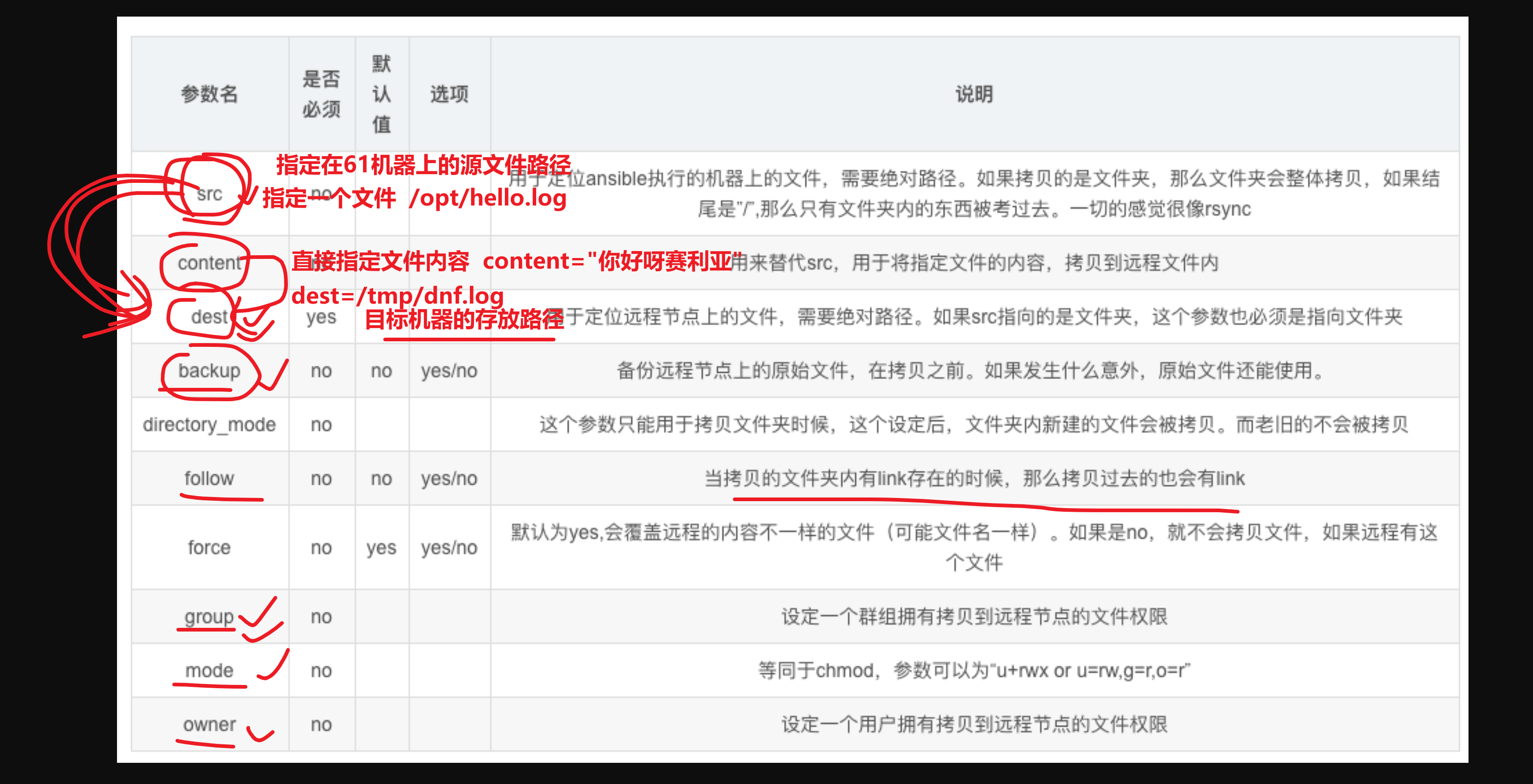
将master-61管理机器上的数据,拷贝到目标机器上

### copy练习

语法

```
ansible 主机组 -m copy -a "参数"
```

### 简单发送文件

src

dest

参数练习

并且ansible的模块记录了文件属性,文件的md5值,得到了文件的唯一校验值,判断文件内容是否变化,如果未变化,不做处理,提升批量管理的效率


```
[root@master-61 ~]#ansible web -m copy   -a "src=/tmp/61-dnf.log   dest=/tmp/web-dnf.log"

```

### 发送文件且指定文件属性

```
61
↓
web机器组(属性变化,www,600)


权限改为600、修改为www用户(要求目标机器存在该用户)

```
创建www用户


远程拷贝文件,且修改权限,为600
[root@master-61 ~]#ansible web -m copy -a "src=/tmp/61-dnf.log   dest=/opt/web-dnf.log  group=www owner=www   mode=600 "


远程检查文件信息
[root@master-61 ~]#ansible web -m shell -a "ls -l  /opt/web-dnf.log"
172.16.1.8 | CHANGED | rc=0 >>
-rw------- 1 www www 22 May  6 12:21 /opt/web-dnf.log
172.16.1.7 | CHANGED | rc=0 >>
-rw------- 1 www www 22 May  6 12:21 /opt/web-dnf.log
172.16.1.9 | CHANGED | rc=0 >>
-rw------- 1 www www 22 May  6 12:21 /opt/web-dnf.log


```

### 发送文件且先做好备份

使用backup参数,防止覆盖远程文件,丢失备份,提前备份该目标机器的数据

```
1.检查目标机器的文件
[root@master-61 ~]#ansible web -m shell -a "ls -l  /opt/web-dnf.log"
172.16.1.8 | CHANGED | rc=0 >>
-rw------- 1 www www 22 May  6 12:21 /opt/web-dnf.log
172.16.1.7 | CHANGED | rc=0 >>
-rw------- 1 www www 22 May  6 12:21 /opt/web-dnf.log
172.16.1.9 | CHANGED | rc=0 >>
-rw------- 1 www www 22 May  6 12:21 /opt/web-dnf.log


2.远程拷贝文件,且做好备份
[root@master-61 ~]#ansible web -m copy -a "src=/tmp/61-dnf.log  dest=/opt/web-dnf.log   backup=yes"


3.发现ansible帮你做好了备份
[root@master-61 ~]#ansible web -m copy -a "src=/tmp/61-dnf.log  dest=/opt/web-dnf.log   backup=yes"  ^C
[root@master-61 ~]#
[root@master-61 ~]#
[root@master-61 ~]#ansible web -m shell -a "ls -l /opt/web*"
172.16.1.8 | CHANGED | rc=0 >>
-rw------- 1 www www 83 May  6 12:25 /opt/web-dnf.log
-rw------- 1 www www 52 May  6 12:23 /opt/web-dnf.log.6088.2022-05-06@12:25:29~
172.16.1.9 | CHANGED | rc=0 >>
-rw------- 1 www www 83 May  6 12:25 /opt/web-dnf.log
-rw------- 1 www www 52 May  6 12:23 /opt/web-dnf.log.35948.2022-05-06@12:25:29~
172.16.1.7 | CHANGED | rc=0 >>
-rw------- 1 www www 83 May  6 12:25 /opt/web-dnf.log
-rw------- 1 www www 52 May  6 12:23 /opt/web-dnf.log.9089.2022-05-06@12:25:29~


### 指定数据写入到远程文件中

向rsyncd.conf中填入账号密码,覆盖其原有的文件内容

content参数

```
[root@master-61 ~]#ansible web -m copy -a "content='远离毒奶粉,好好学linux才是王道'   dest=/opt/web-dnf.log      "

查看文件内容


```

注意像这样的覆盖操作,还是添加备份参数更合适

```
[root@master-61 ~]#ansible web -m copy -a "content='远离毒奶粉,好好学linux才是王道'   dest=/opt/web-dnf.log    backup=yes  "
```

### 复制文件夹,注意结尾斜杠

练习src、dest,以及分隔符的添加


远程拷贝/opt/ 下的所有内容到目标机器
[root@master-61 ~]#ansible web -m copy -a "src=/opt/  dest=/tmp/"


远程拷贝/opt  整个目录到目标机器
[root@master-61 ~]#ansible web -m copy -a "src=/opt  dest=/tmp/"
file文件操作模块
https://docs.ansible.com/ansible/latest/modules/file_module.html#file-module
copy区别开
file模块作用是创建、以及设置文件目录属性。
copy模块,src(管理机器上 ) dest(目标机器上)
file专门用于在远程机器上,关于文件的所有操作
file src(目标机器上的文件) dest(目标机器上的文件)
file模块主要用于创建文件、目录数据,以及对现有的文件、目录权限进行修改
对文件属性各种操作的
直接看examples示例用法即可

```
或者看命令帮助
[root@master-61 ~]#ansible-doc -s file
```

### 远程创建文件

ansible每次命令的执行,都会记录下当前的状态

state参数、path参数

```
远程在web服务器组中,创建一个文本,  hello_ansible.log

ansible web -m file -a "path=/opt/hello_ansible.log state=touch"


[root@master-61 ~]#ansible web -m shell -a "ls -ld /opt/hello*"
172.16.1.7 | CHANGED | rc=0 >>
drwxr-xr-x 2 root root 6 May  6 14:56 /opt/hello_ansible
-rw-r--r-- 1 root root 0 May  6 14:54 /opt/hello_ansible.log

```

### 创建文件夹

state参数、path参数

```
[root@master-61 ~]#ansible web -m file -a "path=/opt/hello_ansible  state=directory"

```

### 创建文件且设定权限

state参数、path参数、owner参数、group参数

path=/opt/hello-linux.log

```
ansible web -m file -a "path=/opt/hello-linux.log  state=touch owner=www group=www  "
```

### 远程修改文件属性

```
[root@master-61 ~]#ansible web -m file -a "path=/opt/hello-linux.log  state=touch owner=www group=www  mode=777"


### 创建软连接文件

软连接,也就是在目标机器上,指定源文件,创建软连接

src、dest、state

给web服务器组的 /etc/hosts文件,添加软连接到/opt/hosts文件


```
ansible web -m file -a "src=/etc/hosts  dest=/opt/hosts state=link  "


```

### 强制性创建文件(软连接)

```
意义不大,查看force参数的作用
[root@master-61 ~]#ansible web -m file -a "src=/etc/hostsss  dest=/opt/hosts state=link  force=yes "


### 修改已存在文件/文件夹的属性


```
修改文件 Path、mode

[root@master-61 ~]#ansible 172.16.1.7 -m file -a "path=/opt/chaoge666.log  owner=www group=www  mode=666"


修改文件夹 Path、mode owner,group

[root@master-61 ~]#ansible 172.16.1.7 -m file -a "path=/opt/hello_ansible  owner=www group=www"


```

### 关于file模块的所有参数作用

```
https://docs.ansible.com/ansible/latest/collections/ansible/builtin/file_module.html#parameters
```

### 关于file模块的实例用法

playbook剧本的写法,yaml写法

```
https://docs.ansible.com/ansible/latest/collections/ansible/builtin/file_module.html#examples
```
script脚本模块
一键部署rsync,nfs,nginx等
1.把脚本发到目标机器上执行,
2.远程执行,目标机器上不需要存在这个脚本
模块功能:把本地脚本传输到远程节点上并运行脚本
比起shell模块,script模块功能更强大,管理机本地有一份脚本,就可以在所有机器上运行。
scripts模块的功能参数
| 选项参数 | 选项说明 |
|---|---|
| creates | 定义一个文件是否存在,若不存在,则运行相应命令;存在则跳过 |
| free_form(必须) | 参数信息中可以输入任何系统命令,实现远程管理 |
| removes | 定义一个文件是否存在,如果存在,则运行相应命令;如果不存在则跳过 |
### 远程执行脚本

为什么要用ansible,主要是ansible使用对应的模块,执行完命令后,记录了每一次文件修改的状态,这个状态,一是让你更清晰文件的情况、而是也防止反复修改文件,提升效率。


```
为什么需要用scripts模块

script模块

反复执行命令,远程执行脚本

```


```
1.管理机创建测试脚本

master-61创建该脚本


[root@master-61 ~]#cat echo_server_info.sh
echo "$(hostname -I)" >> /tmp/server_info.log
echo "$(uptime)" >> /tmp/server_info.log
echo "$(free -m)" >> /tmp/server_info.log


2.添加执行权限
[root@master-61 ~]#chmod +x echo_server_info.sh


3.远程执行
发给nfs机器去执行


4.检查结果


利用script模块批量让所有被管控机器执行脚本,该脚本不用在远程主机上存在


### 远程在目标机器执行脚本

```
远程安装nginx脚本
[root@master-61 ~]#cat install_nginx.sh
#yum install nginx -y
yum remove nginx -y

echo "ansible很重要,是你挣钱的工具"
[root@master-61 ~]#
[root@master-61 ~]#ansible nfs -m script -a "/root/install_nginx.sh"


### 查看命令执行详细过程

-vvvvv参数显示详细过程,v越多,越详细

```
[root@master-61 ~]#ansible nfs -vvvvv  -m shell -a "df -h"

显示命令执行的详细过程,开启了debug日志模式


```
记住ansible的语法

记住模块的名字

记住对应模块完成功能的参数
cron定时任务模块
https://docs.ansible.com/ansible/latest/modules/cron_module.html#cron-module
cron模块用于管理定时任务的记录,编写任务

```
定时任务的记录,语法格式

* * * * *   要执行的命令


### 对比ansible的cron模块,和crontab

常见的参数如此,使用ansible编写定时任务,和直接编写是没有什么区别的


### 添加ntpdate定时任务

添加每5分钟执行一次和阿里云时间同步


```
*/5  * * * *            ntpdate -u ntp.aliyun.com
```

name、job、minute参数

```
cron模块创建定时任务
[root@master-61 ~]#ansible nfs  -m cron   -a "name='ntp aliyun'   minute=*/5   job='ntpdate -u ntp.aliyun.
172.16.1.31 | CHANGED => {
    "ansible_facts": {
        "discovered_interpreter_python": "/usr/bin/python"
    },
    "changed": true,
    "envs": [],
    "jobs": [
        "ntp aliyun"
    ]
}


查看远程机器的crontab记录


[root@master-61 ~]#ansible nfs -m shell -a "crontab -l"
172.16.1.31 | CHANGED | rc=0 >>
* * * * * /usr/sbin/ntpdate time1.aliyun.com > /dev/null 2>&1
#Ansible: ntp aliyun
*/5 * * * * ntpdate -u ntp.aliyun.com


```

### 删除定时任务

只能基于cron模块指定名字的修改

```
name参数,state参数


先检查远程的定时任务
[root@master-61 ~]#ansible nfs -m shell -a "crontab -l"
172.16.1.31 | CHANGED | rc=0 >>
* * * * * /usr/sbin/ntpdate time1.aliyun.com > /dev/null 2>&1
#Ansible: ntp aliyun
*/5 * * * * ntpdate -u ntp.aliyun.com


正统用法
ansible nfs -m cron -a "name='ntp aliyun'  state=absent "


歪门邪道
[root@master-61 ~]#ansible nfs -m shell -a "crontab -r"
172.16.1.31 | CHANGED | rc=0 >>


### 创建每分钟执行的任务

不指定任何时间规则,默认是每分钟

```
[root@master-61 ~]#ansible nfs -m cron -a "name='一句话'  job='echo "人定胜天" >>/tmp/hello.log '  "172.16.1.31 | CHANGED => {
    "ansible_facts": {
        "discovered_interpreter_python": "/usr/bin/python"
    },
    "changed": true,
    "envs": [],
    "jobs": [
        "一句话"
    ]
}
[root@master-61 ~]#
[root@master-61 ~]#ansible nfs -m shell -a "crontab -l"
172.16.1.31 | CHANGED | rc=0 >>
#Ansible: 一句话
* * * * * echo 人定胜天 >>/tmp/hello.log

```

### 修改指定名称的定时任务

```
[root@master-61 ~]#ansible nfs -m cron -a "name='一句话'    minute=30  hour=23   job='echo 人定胜天 >>/tmp/hello.log' "
172.16.1.31 | CHANGED => {
    "ansible_facts": {
        "discovered_interpreter_python": "/usr/bin/python"
    },
    "changed": true,
    "envs": [],
    "jobs": [
        "一句话"
    ]
}
[root@master-61 ~]#
[root@master-61 ~]#
[root@master-61 ~]#ansible nfs -m shell -a "crontab -l"
172.16.1.31 | CHANGED | rc=0 >>
#Ansible: 一句话
30 23 * * * echo 人定胜天 >>/tmp/hello.log
group模块
https://docs.ansible.com/ansible/latest/modules/group_module.html#group-
语法

```
模块参数    参数描述
name    创建指定的组名
gid        组的GID
state        absent,移除远程主机的组
             present,创建远端主机的组
```

对组管理,也就是创建、删除、查看了


### 创建chaoge_ops组,gid=1234

name、gid

```
ansible nfs  -m group  -a "name=chaoge_ops   gid=1234"
```

### 删除组

```
name、gid、state

ansible nfs  -m group  -a "name=chaoge_ops   gid=1234  state=absent"
```
user用户模块
https://docs.ansible.com/ansible/latest/modules/user_module.html#user-module
用户管理,也就是关于用户的
uid
用户名
用户主组
用户附加组
创建用户
删除用户
创建关于用户的公私钥
用户过期时间
用户密码过期时间
https://docs.ansible.com/ansible/latest/collections/ansible/builtin/user_module.html#examples
| 模块参数 | 参数描述 |
|---|---|
| create_home | 创建家目录,设置no则不创建家目录 |
| group | 创建用户组 |
| name | 创建用户的名字 |
| password | 创建用户的密码 |
| uid | 创建用户的UID |
| shell | 用户登录解释器 |
| state | Absent(删除用户)present(默认参数,创建) |
| expires | 账户过期时间 |
### 创建chaoge01用户,uid为8888

```
ansible nfs -m user -a "name=chaoge01  uid=8888"

```

### 创建用户cc01

- uid、gid为1777
- 没有家目录、不允许登录


```
注意该用户组是否存在,否则报错
group、name、gid

ansible nfs -m group -a "name=cc01 gid=1777"


创建用户,设置权限
user、name、uid、group、create_home、shell


ansible nfs -m group -a "name=cc01 gid=1777"

[root@master-61 ~]#ansible nfs -m user -a "name=cc01 uid=1777 group=1777 create_home=no  shell=/sbin/nologin "


检查用户
yum安装软件
https://docs.ansible.com/ansible/latest/collections/ansible/builtin/yum_module.html#examples
yum模块明显就是一个专门用于管理软件的模块。
yum模块其实就是在远程节点上,执行yum命令,你可以快速登录到目标机器,查看进程

### 安装net-tools最新版本

latest参数也用于升级软件包

```
[root@master-61 ~]#ansible backup -m yum -a "name=net-tools state=latest"
```

### 卸载net-tools软件

```
[root@master-61 ~]#ansible backup -m yum -a "name=net-tools state=absent"
```

### 卸载rsync服务

```
[root@master-61 ~]#ansible backup -m yum -a "name=rsync state=abesent"
```

### 安装rsync服务

```
[root@master-61 ~]#ansible backup -m yum -a "name=rsync state=installed"


检查rsync
[root@master-61 ~]#ansible backup -m shell -a "rpm -qa rsync"
service/systemd模块
该模块作用是针对yum包管理

service适用于centos6前的系统

systemd命令应用于centos7系统

**要注意的是service模块依旧对centos7有效,但是建议大家使用systemd模块**

> - systemd模块用于控制远程主机的systemd服务,说白了,就是Linux下的systemd命令。需要远程主机支持systemd
> - 用法和service模块基本相同

### systemd模块参数

```
如果使用systemctl 管理程序的话,可以使用systemd模块,systemctl 可以 控制程序启/停,reload,开机启动,观察程序状态(status)等,掌握使用后管理就更方便了

主要参数
daemon_reload:在执行任何其他操作之前运行守护进程重新加载,以确保systemd已经读取其他更改
enabled:服务是否开机自动启动yes|no。enabled和state至少要有一个被定义
masked:是否将服务设置为masked状态,被mask的服务是无法启动的
name:必选项,服务名称
no_block(2.3后新增):不要同步等待操作请求完成
state:对当前服务执行启动,停止、重启、重新加载等操作(started,stopped,restarted,reloaded)
user:使用服务的调用者运行systemctl,而不是系统的服务管理者
```

### 安装、启动nginx服务

```
1.安装nginx服务
[root@master-61 ~]#ansible 172.16.1.7 -m yum -a "name=nginx state=installed"

2.启动服务
[root@master-61 ~]#ansible web -m systemd -a "name=nginx state=started"

3.查询状态,这里ansible未直接提供status参数,你可以借助command模块即可
[root@master-61 ~]#ansible web -a "systemctl status nginx"

4.停止nginx服务
[root@master-61 ~]#ansible web -m systemd -a "name=nginx state=stopped"

5.设置nginx开机自启
[root@master-61 ~]#ansible web -m systemd -a "name=nginx state=started enabled=yes"

6.检查nginx状态
[root@master-61 ~]#ansible web -a "systemctl is-enabled nginx"

[root@master-61 ~]#ansible web -a "systemctl status nginx"

7.关闭开机自启、且停止服务
[root@master-61 ~]#ansible web -m systemd -a "name=nginx state=stopped  enabled=no"

8.再次检查状态
[root@master-61 ~]#ansible web  -m shell -a "systemctl is-enabled nginx;systemctl status nginx"
mount挂载模块
https://docs.ansible.com/ansible/latest/collections/ansible/posix/mount_module.html#mount-
### 给web-7机器挂载nfs目录(只写入/etc/fstab而不挂载)

```
[root@master-61 ~]#ansible web -m mount -a "src='172.16.1.1:/nfs-nginx-data' path=/usr/share/nginx/html fstype=nfs state=present"
```

### 给web-7机器挂载nfs目录(立即挂载且写入/etc/fstab)

```
[root@master-61 ~]#ansible web -m mount -a "src='172.16.1.31:/nfs-nginx-data' path=/usr/share/nginx/html fstype=nfs state=mounted"

检查
[root@master-61 ~]#ansible web -a "df -h"

[root@master-61 ~]#ansible web -a "cat /etc/fstab"
```

### 取消挂载,以及删除fstab记录

```
[root@master-61 ~]#ansible web -m mount -a "src='172.16.1.31:/nfs-nginx-data' path=/usr/share/nginx/html fstype=nfs state=absent"

验证
[root@master-61 ~]#ansible web -a "df -h"
[root@master-61 ~]#ansible web -a "cat /etc/fstab"
```

### 取消挂载,不删除fstab记录

```
[root@master-61 ~]#ansible web -m mount -a "src='172.16.1.31:/nfs-nginx-data' path=/usr/share/nginx/html fstype=nfs state=umounted"
```

### 总结参数

```
mounted 挂载设备且写入fstab
present 仅写入fstab 不挂载
absent  卸载且删除fstab记录
umounted 只卸载不删除fstab记录
archive压缩模块
https://docs.ansible.com/ansible/latest/collections/community/general/archive_module.html
### 支持压缩类型

```
bz2

gz ← (default)

tar

xz

zip

用法文档
https://docs.ansible.com/ansible/latest/collections/community/general/archive_module.html#examples
指定format即可
```

### 压缩/etc配置文件到指定路径

```
[root@master-61 ~]#ansible web -m archive -a "path=/etc dest=/opt/etc.tgz"
[root@master-61 ~]#ansible web -a "ls /opt -l"
[root@master-61 ~]#ansible web -a "file /opt/etc.tgz"
```

### 压缩/var/log为zip类型到指定路径

```
[root@master-61 ~]#ansible web -m archive -a "path=/var/log dest=/opt/log.zip format=zip"

[root@master-61 ~]#ansible web -a "file /opt/log.zip"
unarchive解压缩模块
https://docs.ansible.com/ansible/latest/collections/ansible/builtin/unarchive_module.html#examples
### 解压缩etc.tgz到指定目录(远程解压)

remote_src远程数据源

```
指定目录必须存在
[root@master-61 ~]#ansible web -m file -a "path=/opt/etc_file state=directory"


解压缩
[root@master-61 ~]#ansible web -m unarchive -a "src=/opt/etc.tgz dest=/opt/etc_file/ remote_src=yes"

查看
[root@master-61 ~]#ansible web -a "ls /opt/etc_file/etc/"
```

## 将管理机的压缩包,解压到远程机器上

将master-61的压缩文件,解压到web-7机器上

```
1.生成etc.tgz数据
[root@master-61 ~]#cd / && tar -zcf /opt/etc.tgz etc


2.远程解压到web-7机器上
[root@master-61 /]#ansible web -m unarchive -a "src=/opt/etc.tgz  dest=/tmp/"

3.检查
[root@master-61 /]#ansible web -a "ls /tmp/etc/"

腾讯云面向开发者汇聚海量精品云计算使用和开发经验,营造开放的云计算技术生态圈。
更多推荐
 9
9 0
0- 0


 已为社区贡献21条内容

所有评论(0)