flutter_for_openharmony家庭相册app实战+数据统计实现
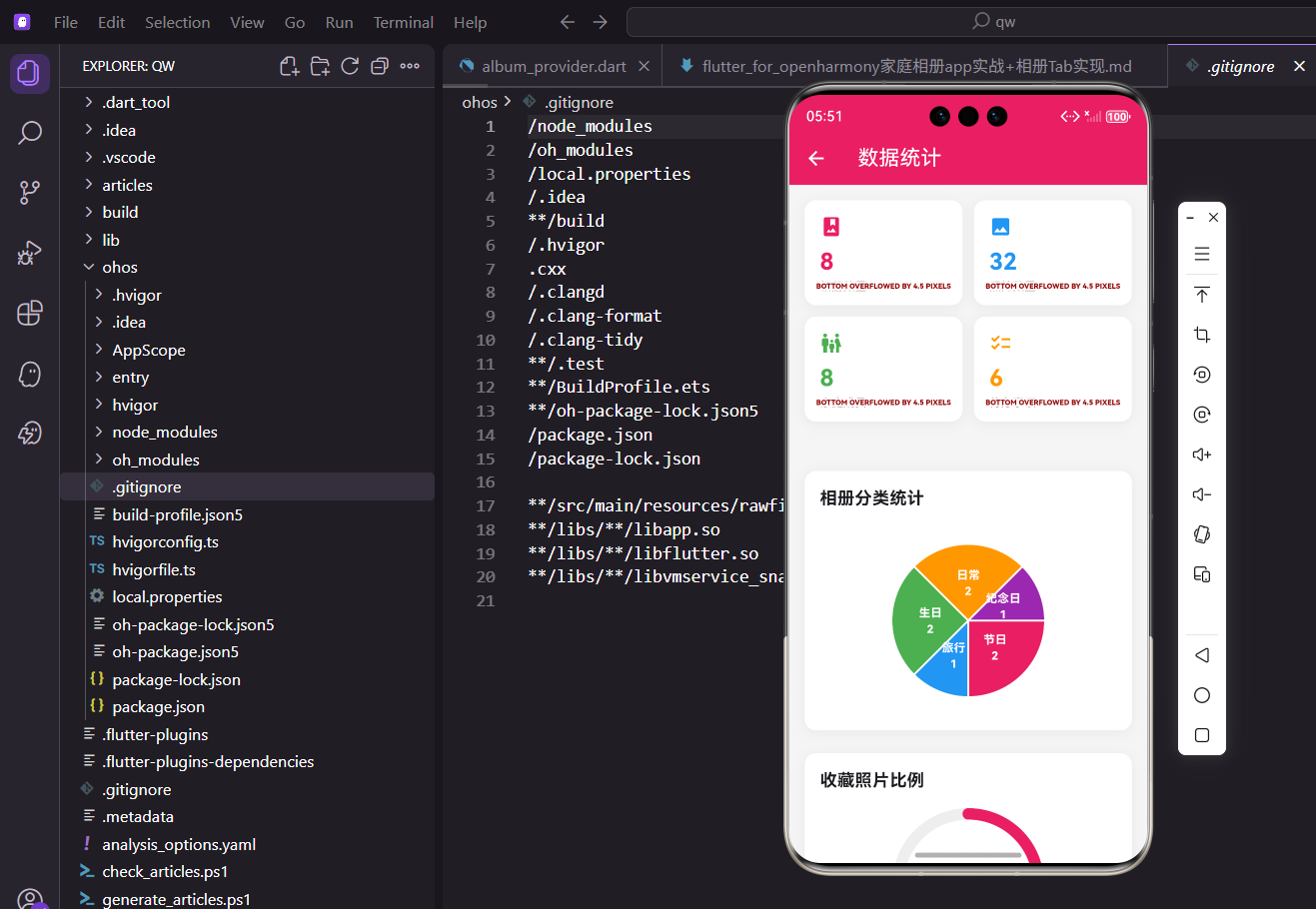
数据统计功能让用户直观了解应用内的数据概况。通过展示相册数量、照片数量、家庭成员数等关键指标,用户可以快速掌握家庭信息的规模。今天我们来实现这个功能。
设计思路
数据统计页面分为六个部分:概览卡片展示关键数据、分类统计展示相册分布、收藏比例展示收藏情况、待办进度展示完成情况、存储空间展示使用情况、活动统计展示事件数据。这样的设计让用户一目了然,能从多个维度了解应用的使用情况。每个部分都用卡片形式展示,视觉上统一协调。
创建页面结构
先搭建基本框架:
import 'package:flutter/material.dart';
import 'package:flutter_screenutil/flutter_screenutil.dart';
import 'package:provider/provider.dart';
import '../../providers/album_provider.dart';
import '../../providers/family_provider.dart';
import '../../providers/event_provider.dart';
class StatisticsScreen extends StatelessWidget {
const StatisticsScreen({super.key});
Widget build(BuildContext context) {
return Scaffold(
appBar: AppBar(
title: const Text('数据统计'),
elevation: 0,
),
AppBar的elevation设为0,去掉阴影,让标题栏和内容区域更融合。标题简单明了,直接叫"数据统计"。
      body: Consumer3<AlbumProvider, FamilyProvider, EventProvider>(
        builder: (context, albumProvider, familyProvider, eventProvider, _) {
          return SingleChildScrollView(
            padding: EdgeInsets.all(16.w),
            child: Column(
              crossAxisAlignment: CrossAxisAlignment.start,
              children: [
                _buildOverviewSection(
                  albumProvider,
                  familyProvider,
                  eventProvider,
                ),
                SizedBox(height: 24.h),
                _buildCategorySection(albumProvider),
                SizedBox(height: 24.h),
                _buildFavoriteSection(albumProvider),
                SizedBox(height: 24.h),
                _buildTodoSection(eventProvider),
                SizedBox(height: 24.h),
                _buildStorageSection(albumProvider),
                SizedBox(height: 24.h),
                _buildActivitySection(eventProvider),
              ],
            ),
          );
        },
      ),
    );
  }
}
用Consumer3同时监听三个Provider的数据变化。这样任何一个Provider的数据更新,整个页面都会重新构建,保证数据实时性。SingleChildScrollView让页面可以滚动,Column垂直排列各个统计部分。每个部分之间用SizedBox添加24像素的间距,视觉上有呼吸感。crossAxisAlignment设为start,让内容左对齐。
概览卡片部分
展示四个关键数据指标:
Widget _buildOverviewSection(
  AlbumProvider albumProvider,
  FamilyProvider familyProvider,
  EventProvider eventProvider,
) {
  return Column(
    crossAxisAlignment: CrossAxisAlignment.start,
    children: [
      Row(
        children: [
          Container(
            padding: EdgeInsets.all(8.w),
            decoration: BoxDecoration(
              color: const Color(0xFFE91E63).withOpacity(0.1),
              borderRadius: BorderRadius.circular(8.r),
            ),
            child: const Icon(
              Icons.dashboard,
              color: Color(0xFFE91E63),
              size: 20,
            ),
          ),
          SizedBox(width: 8.w),
          Text(
            '数据概览',
            style: TextStyle(
              fontSize: 18.sp,
              fontWeight: FontWeight.bold,
              color: Colors.black87,
            ),
          ),
        ],
      ),
      SizedBox(height: 16.h),
      GridView.count(
        crossAxisCount: 2,
        shrinkWrap: true,
        physics: const NeverScrollableScrollPhysics(),
        mainAxisSpacing: 12.w,
        crossAxisSpacing: 12.w,
        childAspectRatio: 1.5,
        children: [
          _buildStatCard(
            '相册数量',
            albumProvider.albums.length.toString(),
            Icons.photo_album,
            const Color(0xFFE91E63),
          ),
          _buildStatCard(
            '照片数量',
            albumProvider.photos.length.toString(),
            Icons.photo,
            const Color(0xFF2196F3),
          ),
          _buildStatCard(
            '家庭成员',
            familyProvider.members.length.toString(),
            Icons.family_restroom,
            const Color(0xFF4CAF50),
          ),
          _buildStatCard(
            '待办事项',
            eventProvider.pendingTodos.length.toString(),
            Icons.checklist,
            const Color(0xFFFF9800),
          ),
        ],
      ),
    ],
  );
}
GridView.count创建2列网格布局,shrinkWrap使高度自适应,不占据无限高度。physics设为NeverScrollableScrollPhysics,禁用网格自身的滚动,让外层的SingleChildScrollView统一处理滚动。mainAxisSpacing和crossAxisSpacing设置网格间距,childAspectRatio设为1.5,让卡片宽高比是3:2,不会太扁也不会太方。四个卡片分别展示相册、照片、成员和待办数量,每个卡片调用_buildStatCard方法构建,传入标题、数值、图标和颜色。
单个统计卡片
每个卡片包含图标、数值和标题:
Widget _buildStatCard(
  String title,
  String value,
  IconData icon,
  Color color,
) {
  return Container(
    padding: EdgeInsets.all(16.w),
    decoration: BoxDecoration(
      color: Colors.white,
      borderRadius: BorderRadius.circular(16.r),
      boxShadow: [
        BoxShadow(
          color: Colors.black.withOpacity(0.05),
          blurRadius: 10,
          offset: const Offset(0, 2),
        ),
      ],
    ),
Container用白色背景,圆角16像素,看起来像一个圆润的卡片。boxShadow添加阴影效果,颜色是黑色5%透明度,blurRadius是10,产生柔和的阴影。offset设为(0, 2),阴影向下偏移2像素,模拟卡片浮起的效果。这种阴影设计符合Material Design规范,让卡片有层次感。
    child: Column(
      crossAxisAlignment: CrossAxisAlignment.start,
      mainAxisAlignment: MainAxisAlignment.center,
      children: [
        Container(
          padding: EdgeInsets.all(8.w),
          decoration: BoxDecoration(
            color: color.withOpacity(0.1),
            borderRadius: BorderRadius.circular(8.r),
          ),
          child: Icon(icon, color: color, size: 20),
        ),
图标放在一个带背景色的容器中,背景色用主题色的10%透明度,图标本身用主题色。这种设计让图标更醒目,同时不会太突兀。padding设为8像素,给图标留出呼吸空间。borderRadius设为8像素,和外层卡片的圆角呼应。
        SizedBox(height: 12.h),
        Text(
          value,
          style: TextStyle(
            fontSize: 28.sp,
            fontWeight: FontWeight.bold,
            color: color,
          ),
        ),
        SizedBox(height: 4.h),
        Text(
          title,
          style: TextStyle(
            fontSize: 13.sp,
            color: Colors.grey[600],
          ),
        ),
      ],
    ),
  );
}
数值用大字号28像素,加粗显示,颜色和图标一致,视觉上形成呼应。标题用小字号13像素,灰色显示,作为辅助信息。数值和标题之间只有4像素间距,让它们紧密关联。图标和数值之间有12像素间距,分隔两个视觉层次。这种层次分明的设计让信息易于阅读。
分类统计部分
展示各相册分类的数量分布:
Widget _buildCategorySection(AlbumProvider provider) {
  final categoryCount = <String, int>{};
  for (var album in provider.albums) {
    final category = album.category ?? '未分类';
    categoryCount[category] = (categoryCount[category] ?? 0) + 1;
  }

  final colors = [
    const Color(0xFFE91E63),
    const Color(0xFF2196F3),
    const Color(0xFF4CAF50),
    const Color(0xFFFF9800),
    const Color(0xFF9C27B0),
    const Color(0xFF00BCD4),
  ];

  return Container(
    padding: EdgeInsets.all(16.w),
    decoration: BoxDecoration(
      color: Colors.white,
      borderRadius: BorderRadius.circular(16.r),
      boxShadow: [
        BoxShadow(
          color: Colors.black.withOpacity(0.05),
          blurRadius: 10,
          offset: const Offset(0, 2),
        ),
      ],
    ),
    child: Column(
      crossAxisAlignment: CrossAxisAlignment.start,
      children: [
        Row(
          children: [
            Container(
              padding: EdgeInsets.all(8.w),
              decoration: BoxDecoration(
                color: const Color(0xFF9C27B0).withOpacity(0.1),
                borderRadius: BorderRadius.circular(8.r),
              ),
              child: const Icon(
                Icons.pie_chart,
                color: Color(0xFF9C27B0),
                size: 20,
              ),
            ),
            SizedBox(width: 8.w),
            Text(
              '相册分类统计',
              style: TextStyle(
                fontSize: 16.sp,
                fontWeight: FontWeight.bold,
                color: Colors.black87,
              ),
            ),
          ],
        ),
        SizedBox(height: 16.h),
        if (categoryCount.isEmpty)
          Center(
            child: Padding(
              padding: EdgeInsets.symmetric(vertical: 24.h),
              child: Column(
                children: [
                  Icon(
                    Icons.folder_off,
                    size: 48,
                    color: Colors.grey[400],
                  ),
                  SizedBox(height: 8.h),
                  Text(
                    '暂无相册数据',
                    style: TextStyle(
                      fontSize: 14.sp,
                      color: Colors.grey[500],
                    ),
                  ),
                ],
              ),
            ),
          )
        else
          ...categoryCount.entries.toList().asMap().entries.map((entry) {
            final index = entry.key;
            final category = entry.value;
            final color = colors[index % colors.length];
            final total = provider.albums.length;
            final percent = category.value / total;

            return _buildCategoryItem(
              category.key,
              category.value,
              percent,
              color,
            );
          }),
      ],
    ),
  );
}
先统计各分类的相册数量,用Map存储,key是分类名称,value是数量。遍历所有相册,获取category字段,如果为null就用"未分类"。putIfAbsent方法在key不存在时插入默认值0,然后加1。这样遍历完成后,categoryCount就包含了每个分类的相册数量。colors数组定义了6种颜色,用于区分不同分类。
Container是整个分类统计的容器,白色背景,圆角16像素,添加阴影效果。Column垂直排列标题和分类列表。标题部分是个Row,左边是带背景色的图标容器,右边是"相册分类统计"文字。图标用pie_chart,表示饼图统计,颜色用紫色。
        SizedBox(height: 16.h),
        if (categoryCount.isEmpty)
          Center(
            child: Padding(
              padding: EdgeInsets.symmetric(vertical: 24.h),
              child: Column(
                children: [
                  Icon(
                    Icons.folder_off,
                    size: 48,
                    color: Colors.grey[400],
                  ),
                  SizedBox(height: 8.h),
                  Text(
                    '暂无相册数据',
                    style: TextStyle(
                      fontSize: 14.sp,
                      color: Colors.grey[500],
                    ),
                  ),
                ],
              ),
            ),
          )
如果categoryCount是空的,说明没有相册数据,显示空状态提示。用folder_off图标表示"没有文件夹",尺寸48像素,颜色用浅灰色。下方显示"暂无相册数据"文字,也用灰色。这种空状态设计友好,让用户知道不是出错了,只是还没有数据。
        else
          ...categoryCount.entries.toList().asMap().entries.map((entry) {
            final index = entry.key;
            final category = entry.value;
            final color = colors[index % colors.length];
            final total = provider.albums.length;
            final percent = category.value / total;

            return _buildCategoryItem(
              category.key,
              category.value,
              percent,
              color,
            );
          }),
      ],
    ),
  );
}
如果有数据,用展开运算符…把分类列表展开到Column的children中。categoryCount.entries返回Map的键值对列表,toList转成List,asMap给每个元素加上索引。这样我们能同时获取索引和分类数据。index用来选择颜色,对colors.length取模,保证索引不越界。计算每个分类的百分比,用分类数量除以总数。然后调用_buildCategoryItem构建分类项,传入分类名称、数量、百分比和颜色。
分类项组件
每个分类项显示名称、数量和进度条:
Widget _buildCategoryItem(
  String name,
  int count,
  double percent,
  Color color,
) {
  return Container(
    margin: EdgeInsets.only(bottom: 12.h),
    child: Column(
      crossAxisAlignment: CrossAxisAlignment.start,
      children: [
        Row(
          mainAxisAlignment: MainAxisAlignment.spaceBetween,
          children: [
            Row(
              children: [
                Container(
                  width: 12.w,
                  height: 12.w,
                  decoration: BoxDecoration(
                    color: color,
                    borderRadius: BorderRadius.circular(3.r),
                  ),
                ),
                SizedBox(width: 8.w),
                Text(
                  name,
                  style: TextStyle(
                    fontSize: 14.sp,
                    color: Colors.black87,
                  ),
                ),
              ],
            ),
分类项用Container包装,底部margin设为12像素,和下一个分类项保持间距。Column垂直排列名称行和进度条。名称行是个Row,左右两端对齐。左边是颜色标记和分类名称,颜色标记是个12x12的小方块,用分类对应的颜色填充,圆角3像素。分类名称用14像素字号,黑色87%透明度,这是Material Design推荐的正文颜色。
            Text(
              '$count 个 (${(percent * 100).toStringAsFixed(1)}%)',
              style: TextStyle(
                fontSize: 13.sp,
                color: Colors.grey[600],
              ),
            ),
          ],
        ),
        SizedBox(height: 8.h),
        ClipRRect(
          borderRadius: BorderRadius.circular(4.r),
          child: LinearProgressIndicator(
            value: percent,
            backgroundColor: Colors.grey[200],
            valueColor: AlwaysStoppedAnimation<Color>(color),
            minHeight: 8.h,
          ),
        ),
      ],
    ),
  );
}
右边显示数量和百分比,格式是"X 个 (XX.X%)"。percent乘以100转成百分比,toStringAsFixed(1)保留一位小数。字号13像素,灰色显示,作为辅助信息。名称行和进度条之间有8像素间距。进度条用LinearProgressIndicator,value设为percent,范围是0到1。backgroundColor是浅灰色,表示未完成部分。valueColor是分类对应的颜色,表示已完成部分。minHeight设为8像素,让进度条有一定的高度,不会太细。ClipRRect给进度条加圆角,borderRadius设为4像素。这种设计让进度条既美观又直观,用户能快速看出各分类的占比。
收藏比例部分
展示收藏照片的比例:
Widget _buildFavoriteSection(AlbumProvider provider) {
  final favoriteCount = provider.favoritePhotos.length;
  final totalCount = provider.photos.length;
  final favoritePercent = totalCount > 0 ? favoriteCount / totalCount : 0.0;

  return Container(
    padding: EdgeInsets.all(16.w),
    decoration: BoxDecoration(
      color: Colors.white,
      borderRadius: BorderRadius.circular(16.r),
      boxShadow: [
        BoxShadow(
          color: Colors.black.withOpacity(0.05),
          blurRadius: 10,
          offset: const Offset(0, 2),
        ),
      ],
    ),
    child: Column(
      crossAxisAlignment: CrossAxisAlignment.start,
      children: [
        Row(
          children: [
            Container(
              padding: EdgeInsets.all(8.w),
              decoration: BoxDecoration(
                color: const Color(0xFFE91E63).withOpacity(0.1),
                borderRadius: BorderRadius.circular(8.r),
              ),
              child: const Icon(
                Icons.favorite,
                color: Color(0xFFE91E63),
                size: 20,
              ),
            ),
            SizedBox(width: 8.w),
            Text(
              '收藏照片比例',
              style: TextStyle(
                fontSize: 16.sp,
                fontWeight: FontWeight.bold,
                color: Colors.black87,
              ),
            ),
          ],
        ),
        SizedBox(height: 20.h),
        Row(
          children: [
            SizedBox(
              width: 120.w,
              height: 120.w,
              child: Stack(
                alignment: Alignment.center,
                children: [
                  SizedBox(
                    width: 120.w,
                    height: 120.w,
                    child: CircularProgressIndicator(
                      value: favoritePercent,
                      strokeWidth: 12.w,
                      backgroundColor: Colors.grey[200],
                      valueColor: const AlwaysStoppedAnimation<Color>(
                        Color(0xFFE91E63),
                      ),
                    ),
                  ),
                  Column(
                    mainAxisAlignment: MainAxisAlignment.center,
                    children: [
                      Text(
                        '${(favoritePercent * 100).toStringAsFixed(1)}%',
                        style: TextStyle(
                          fontSize: 24.sp,
                          fontWeight: FontWeight.bold,
                          color: const Color(0xFFE91E63),
                        ),
                      ),
                      Text(
                        '收藏率',
                        style: TextStyle(
                          fontSize: 12.sp,
                          color: Colors.grey[600],
                        ),
                      ),
                    ],
                  ),
                ],
              ),
            ),
            SizedBox(width: 24.w),
            Expanded(
              child: Column(
                crossAxisAlignment: CrossAxisAlignment.start,
                children: [
                  _buildFavoriteStatRow(
                    '收藏照片',
                    favoriteCount.toString(),
                    const Color(0xFFE91E63),
                  ),
                  SizedBox(height: 12.h),
                  _buildFavoriteStatRow(
                    '全部照片',
                    totalCount.toString(),
                    const Color(0xFF2196F3),
                  ),
                  SizedBox(height: 12.h),
                  _buildFavoriteStatRow(
                    '未收藏',
                    (totalCount - favoriteCount).toString(),
                    Colors.grey,
                  ),
                ],
              ),
            ),
          ],
        ),
      ],
    ),
  );
}

Widget _buildFavoriteStatRow(String label, String value, Color color) {
  return Row(
    children: [
      Container(
        width: 8.w,
        height: 8.w,
        decoration: BoxDecoration(
          color: color,
          shape: BoxShape.circle,
        ),
      ),
      SizedBox(width: 8.w),
      Text(
        label,
        style: TextStyle(
          fontSize: 13.sp,
          color: Colors.grey[600],
        ),
      ),
      const Spacer(),
      Text(
        value,
        style: TextStyle(
          fontSize: 15.sp,
          fontWeight: FontWeight.w600,
          color: Colors.black87,
        ),
      ),
    ],
  );
}
收藏比例用圆形进度条展示,中心显示百分比。右侧列出收藏、全部和未收藏的具体数量。
待办进度部分
展示待办事项的完成情况:
Widget _buildTodoSection(EventProvider provider) {
  final completed = provider.completedTodos.length;
  final total = provider.todos.length;
  final pending = total - completed;
  final progress = total > 0 ? completed / total : 0.0;

  return Container(
    padding: EdgeInsets.all(16.w),
    decoration: BoxDecoration(
      color: Colors.white,
      borderRadius: BorderRadius.circular(16.r),
      boxShadow: [
        BoxShadow(
          color: Colors.black.withOpacity(0.05),
          blurRadius: 10,
          offset: const Offset(0, 2),
        ),
      ],
    ),
    child: Column(
      crossAxisAlignment: CrossAxisAlignment.start,
      children: [
        Row(
          children: [
            Container(
              padding: EdgeInsets.all(8.w),
              decoration: BoxDecoration(
                color: const Color(0xFF4CAF50).withOpacity(0.1),
                borderRadius: BorderRadius.circular(8.r),
              ),
              child: const Icon(
                Icons.task_alt,
                color: Color(0xFF4CAF50),
                size: 20,
              ),
            ),
            SizedBox(width: 8.w),
            Text(
              '待办完成进度',
              style: TextStyle(
                fontSize: 16.sp,
                fontWeight: FontWeight.bold,
                color: Colors.black87,
              ),
            ),
          ],
        ),
        SizedBox(height: 16.h),
        Row(
          mainAxisAlignment: MainAxisAlignment.spaceBetween,
          children: [
            Text(
              '已完成 $completed / $total',
              style: TextStyle(
                fontSize: 14.sp,
                color: Colors.grey[600],
              ),
            ),
            Text(
              '${(progress * 100).toStringAsFixed(1)}%',
              style: TextStyle(
                fontSize: 14.sp,
                fontWeight: FontWeight.w600,
                color: const Color(0xFF4CAF50),
              ),
            ),
          ],
        ),
        SizedBox(height: 12.h),
        ClipRRect(
          borderRadius: BorderRadius.circular(8.r),
          child: LinearProgressIndicator(
            value: progress,
            backgroundColor: Colors.grey[200],
            valueColor: const AlwaysStoppedAnimation<Color>(
              Color(0xFF4CAF50),
            ),
            minHeight: 16.h,
          ),
        ),
        SizedBox(height: 16.h),
        Row(
          children: [
            Expanded(
              child: _buildTodoStatItem(
                '已完成',
                completed.toString(),
                const Color(0xFF4CAF50),
                Icons.check_circle,
              ),
            ),
            SizedBox(width: 12.w),
            Expanded(
              child: _buildTodoStatItem(
                '待完成',
                pending.toString(),
                const Color(0xFFFF9800),
                Icons.pending,
              ),
            ),
          ],
        ),
      ],
    ),
  );
}

Widget _buildTodoStatItem(
  String label,
  String value,
  Color color,
  IconData icon,
) {
  return Container(
    padding: EdgeInsets.all(12.w),
    decoration: BoxDecoration(
      color: color.withOpacity(0.1),
      borderRadius: BorderRadius.circular(12.r),
    ),
    child: Row(
      children: [
        Icon(icon, color: color, size: 24),
        SizedBox(width: 8.w),
        Column(
          crossAxisAlignment: CrossAxisAlignment.start,
          children: [
            Text(
              value,
              style: TextStyle(
                fontSize: 18.sp,
                fontWeight: FontWeight.bold,
                color: color,
              ),
            ),
            Text(
              label,
              style: TextStyle(
                fontSize: 12.sp,
                color: Colors.grey[600],
              ),
            ),
          ],
        ),
      ],
    ),
  );
}
待办进度用线性进度条展示,上方显示完成数量和百分比。下方用两个卡片分别显示已完成和待完成数量。
存储空间部分
展示照片占用的存储空间:
Widget _buildStorageSection(AlbumProvider provider) {
  final photoCount = provider.photos.length;
  final estimatedSize = photoCount * 2.5;
  final usedPercent = estimatedSize / 1024;

  return Container(
    padding: EdgeInsets.all(16.w),
    decoration: BoxDecoration(
      color: Colors.white,
      borderRadius: BorderRadius.circular(16.r),
      boxShadow: [
        BoxShadow(
          color: Colors.black.withOpacity(0.05),
          blurRadius: 10,
          offset: const Offset(0, 2),
        ),
      ],
    ),
    child: Column(
      crossAxisAlignment: CrossAxisAlignment.start,
      children: [
        Row(
          children: [
            Container(
              padding: EdgeInsets.all(8.w),
              decoration: BoxDecoration(
                color: const Color(0xFF2196F3).withOpacity(0.1),
                borderRadius: BorderRadius.circular(8.r),
              ),
              child: const Icon(
                Icons.storage,
                color: Color(0xFF2196F3),
                size: 20,
              ),
            ),
            SizedBox(width: 8.w),
            Text(
              '存储空间',
              style: TextStyle(
                fontSize: 16.sp,
                fontWeight: FontWeight.bold,
                color: Colors.black87,
              ),
            ),
          ],
        ),
        SizedBox(height: 16.h),
        Row(
          mainAxisAlignment: MainAxisAlignment.spaceBetween,
          children: [
            Text(
              '已使用 ${estimatedSize.toStringAsFixed(1)} MB',
              style: TextStyle(
                fontSize: 14.sp,
                color: Colors.grey[600],
              ),
            ),
            Text(
              '总容量 1 GB',
              style: TextStyle(
                fontSize: 14.sp,
                color: Colors.grey[600],
              ),
            ),
          ],
        ),
        SizedBox(height: 12.h),
        ClipRRect(
          borderRadius: BorderRadius.circular(8.r),
          child: LinearProgressIndicator(
            value: usedPercent.clamp(0.0, 1.0),
            backgroundColor: Colors.grey[200],
            valueColor: AlwaysStoppedAnimation<Color>(
              usedPercent > 0.8
                  ? Colors.red
                  : usedPercent > 0.6
                      ? Colors.orange
                      : const Color(0xFF2196F3),
            ),
            minHeight: 12.h,
          ),
        ),
        SizedBox(height: 12.h),
        Row(
          mainAxisAlignment: MainAxisAlignment.spaceBetween,
          children: [
            Row(
              children: [
                Icon(
                  Icons.photo,
                  size: 16,
                  color: Colors.grey[600],
                ),
                SizedBox(width: 4.w),
                Text(
                  '$photoCount 张照片',
                  style: TextStyle(
                    fontSize: 13.sp,
                    color: Colors.grey[600],
                  ),
                ),
              ],
            ),
            Text(
              '平均 2.5 MB/张',
              style: TextStyle(
                fontSize: 13.sp,
                color: Colors.grey[600],
              ),
            ),
          ],
        ),
      ],
    ),
  );
}
存储空间根据照片数量估算使用量。进度条颜色根据使用率变化,超过80%显示红色警告。
活动统计部分
展示活动相关的统计数据:
Widget _buildActivitySection(EventProvider provider) {
  final events = provider.events;
  final upcomingEvents = events.where((e) =>
    e.date.isAfter(DateTime.now())
  ).length;
  final pastEvents = events.length - upcomingEvents;
  final anniversaries = provider.anniversaries.length;

  return Container(
    padding: EdgeInsets.all(16.w),
    decoration: BoxDecoration(
      color: Colors.white,
      borderRadius: BorderRadius.circular(16.r),
      boxShadow: [
        BoxShadow(
          color: Colors.black.withOpacity(0.05),
          blurRadius: 10,
          offset: const Offset(0, 2),
        ),
      ],
    ),
    child: Column(
      crossAxisAlignment: CrossAxisAlignment.start,
      children: [
        Row(
          children: [
            Container(
              padding: EdgeInsets.all(8.w),
              decoration: BoxDecoration(
                color: const Color(0xFFFF9800).withOpacity(0.1),
                borderRadius: BorderRadius.circular(8.r),
              ),
              child: const Icon(
                Icons.event,
                color: Color(0xFFFF9800),
                size: 20,
              ),
            ),
            SizedBox(width: 8.w),
            Text(
              '活动统计',
              style: TextStyle(
                fontSize: 16.sp,
                fontWeight: FontWeight.bold,
                color: Colors.black87,
              ),
            ),
          ],
        ),
        SizedBox(height: 16.h),
        Row(
          children: [
            Expanded(
              child: _buildActivityStatCard(
                '即将到来',
                upcomingEvents.toString(),
                const Color(0xFF2196F3),
                Icons.upcoming,
              ),
            ),
            SizedBox(width: 12.w),
            Expanded(
              child: _buildActivityStatCard(
                '已结束',
                pastEvents.toString(),
                Colors.grey,
                Icons.history,
              ),
            ),
            SizedBox(width: 12.w),
            Expanded(
              child: _buildActivityStatCard(
                '纪念日',
                anniversaries.toString(),
                const Color(0xFFE91E63),
                Icons.cake,
              ),
            ),
          ],
        ),
      ],
    ),
  );
}

Widget _buildActivityStatCard(
  String label,
  String value,
  Color color,
  IconData icon,
) {
  return Container(
    padding: EdgeInsets.symmetric(
      horizontal: 12.w,
      vertical: 16.h,
    ),
    decoration: BoxDecoration(
      color: color.withOpacity(0.1),
      borderRadius: BorderRadius.circular(12.r),
    ),
    child: Column(
      children: [
        Icon(icon, color: color, size: 24),
        SizedBox(height: 8.h),
        Text(
          value,
          style: TextStyle(
            fontSize: 20.sp,
            fontWeight: FontWeight.bold,
            color: color,
          ),
        ),
        SizedBox(height: 4.h),
        Text(
          label,
          style: TextStyle(
            fontSize: 11.sp,
            color: Colors.grey[600],
          ),
        ),
      ],
    ),
  );
}
活动统计展示即将到来、已结束和纪念日三个指标。每个指标用带背景色的卡片展示,图标和数值使用相同颜色。
小结
数据统计功能通过多种可视化方式展示应用数据。概览卡片展示关键指标,让用户快速了解整体情况。分类统计用进度条展示相册分布,直观地显示各分类的占比。收藏比例用圆形进度条展示,中心显示百分比,右侧列出具体数量,信息层次分明。待办进度用线性进度条展示完成情况,配合已完成和待完成的卡片,让用户清楚地看到任务进度。存储空间展示照片占用情况,进度条颜色根据使用率变化,超过80%显示红色警告,提醒用户注意空间管理。活动统计展示即将到来、已结束和纪念日三个维度的数据,每个指标用带背景色的卡片展示,视觉上统一协调。
这些组件的组合使用为用户提供了清晰的数据概览。每个统计部分都用白色卡片包装,添加阴影效果,视觉上有层次感。颜色的使用也很讲究,不同类型的数据用不同颜色区分,但整体保持协调。图标的选择贴合数据含义,比如收藏用爱心图标,待办用任务图标,存储用存储图标,让用户能快速理解数据类型。
空状态的处理也很到位,没有数据时显示友好的提示,而不是空白页面。这种细节处理能提升用户体验,让用户知道当前状态,不会产生困惑。整个页面的布局合理,信息密度适中,既能展示足够的数据,又不会让用户感到信息过载。滚动交互流畅,用户可以轻松浏览所有统计信息。
实际项目中,这些统计数据可以定期更新,比如每天凌晨计算一次,缓存起来,用户打开页面时直接显示缓存数据,提升加载速度。也可以添加时间范围选择,让用户查看不同时间段的统计数据,比如最近一周、最近一月、最近一年。还可以添加数据导出功能,让用户能把统计数据导出为图片或PDF,方便分享和保存。
欢迎加入开源鸿蒙跨平台社区:https://openharmonycrossplatform.csdn.net

腾讯云面向开发者汇聚海量精品云计算使用和开发经验,营造开放的云计算技术生态圈。
更多推荐
 14
14 0
0- 0


 已为社区贡献12条内容

所有评论(0)