Flutter for OpenHarmony 实战:货币换算 - 实时汇率换算
欢迎加入开源鸿蒙跨平台社区: https://openharmonycrossplatform.csdn.net
前言:跨生态开发的新机遇
在移动开发领域,我们总是面临着选择与适配。今天,你的Flutter应用在Android和iOS上跑得正欢,明天可能就需要考虑一个新的平台:HarmonyOS(鸿蒙)。这不是一道选答题,而是很多团队正在面对的现实。
Flutter的优势很明确——写一套代码,就能在两个主要平台上运行,开发体验流畅。而鸿蒙代表的是下一个时代的互联生态,它不仅仅是手机系统,更着眼于未来全场景的体验。将现有的Flutter应用适配到鸿蒙,听起来像是一个“跨界”任务,但它本质上是一次有价值的技术拓展:让产品触达更多用户,也让技术栈覆盖更广。
不过,这条路走起来并不像听起来那么简单。Flutter和鸿蒙,从底层的架构到上层的工具链,都有着各自的设计逻辑。会遇到一些具体的问题:代码如何组织?原有的功能在鸿蒙上如何实现?那些平台特有的能力该怎么调用?更实际的是,从编译打包到上架部署,整个流程都需要重新摸索。
这篇文章想做的,就是把这些我们趟过的路、踩过的坑,清晰地摊开给你看。我们不会只停留在“怎么做”,还会聊到“为什么得这么做”,以及“如果出了问题该往哪想”。这更像是一份实战笔记,源自真实的项目经验,聚焦于那些真正卡住过我们的环节。
无论你是在为一个成熟产品寻找新的落地平台,还是从一开始就希望构建能面向多端的应用,这里的思路和解决方案都能提供直接的参考。理解了两套体系之间的异同,掌握了关键的衔接技术,不仅能完成这次迁移,更能积累起应对未来技术变化的能力。
混合工程结构深度解析
项目目录架构
当Flutter项目集成鸿蒙支持后,典型的项目结构会发生显著变化。以下是经过ohos_flutter插件初始化后的项目结构:
my_flutter_harmony_app/
├── lib/                          # Flutter业务代码(基本不变)
│   ├── main.dart                 # 应用入口
│   ├── home_page.dart           # 首页
│   └── utils/
│       └── platform_utils.dart  # 平台工具类
├── pubspec.yaml                  # Flutter依赖配置
├── ohos/                         # 鸿蒙原生层(核心适配区)
│   ├── entry/                    # 主模块
│   │   └── src/main/
│   │       ├── ets/              # ArkTS代码
│   │       │   ├── MainAbility/
│   │       │   │   ├── MainAbility.ts       # 主Ability
│   │       │   │   └── MainAbilityContext.ts
│   │       │   └── pages/
│   │       │       ├── Index.ets           # 主页面
│   │       │       └── Splash.ets          # 启动页
│   │       ├── resources/        # 鸿蒙资源文件
│   │       │   ├── base/
│   │       │   │   ├── element/  # 字符串等
│   │       │   │   ├── media/    # 图片资源
│   │       │   │   └── profile/  # 配置文件
│   │       │   └── en_US/        # 英文资源
│   │       └── config.json       # 应用核心配置
│   ├── ohos_test/               # 测试模块
│   ├── build-profile.json5      # 构建配置
│   └── oh-package.json5         # 鸿蒙依赖管理
└── README.md
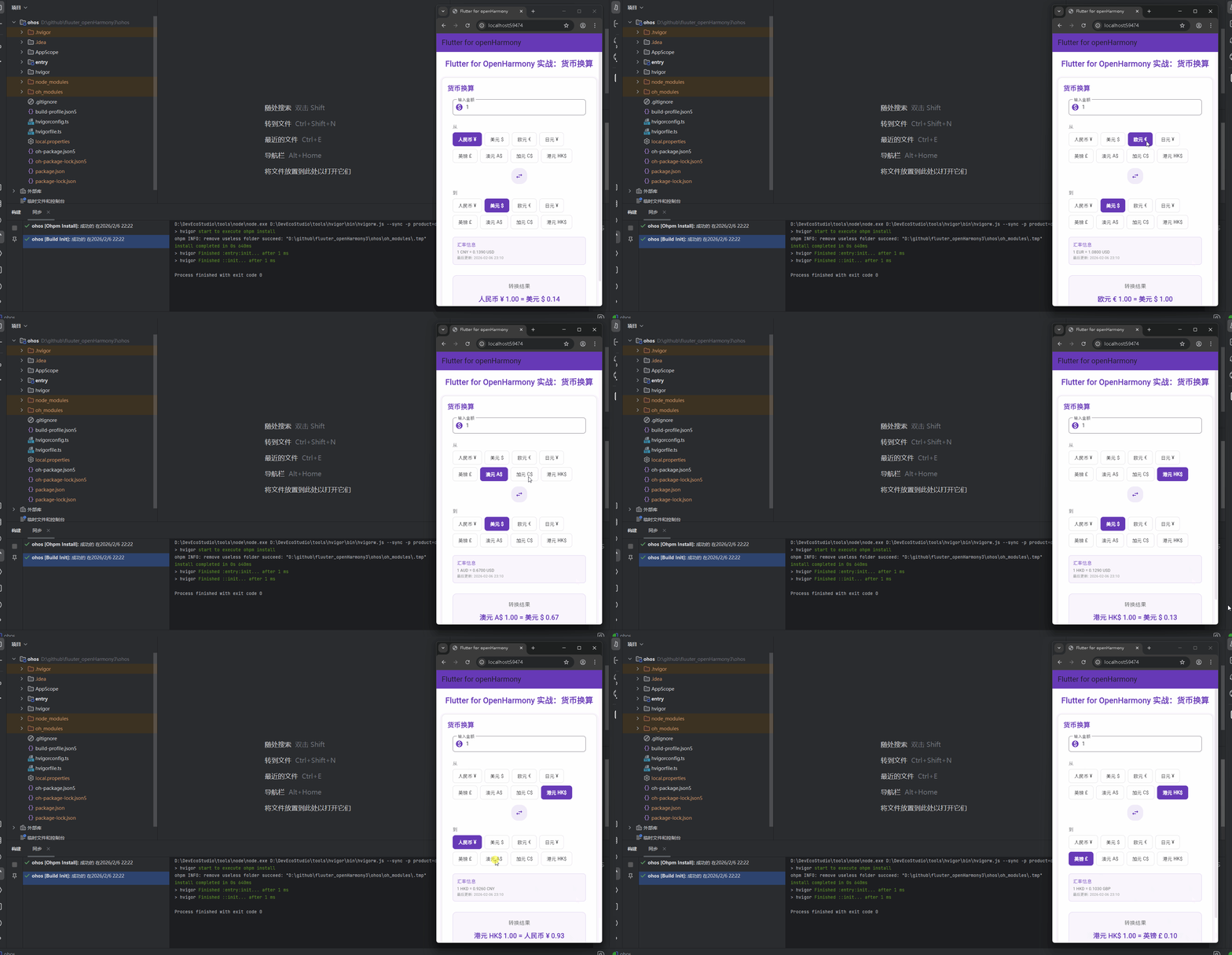
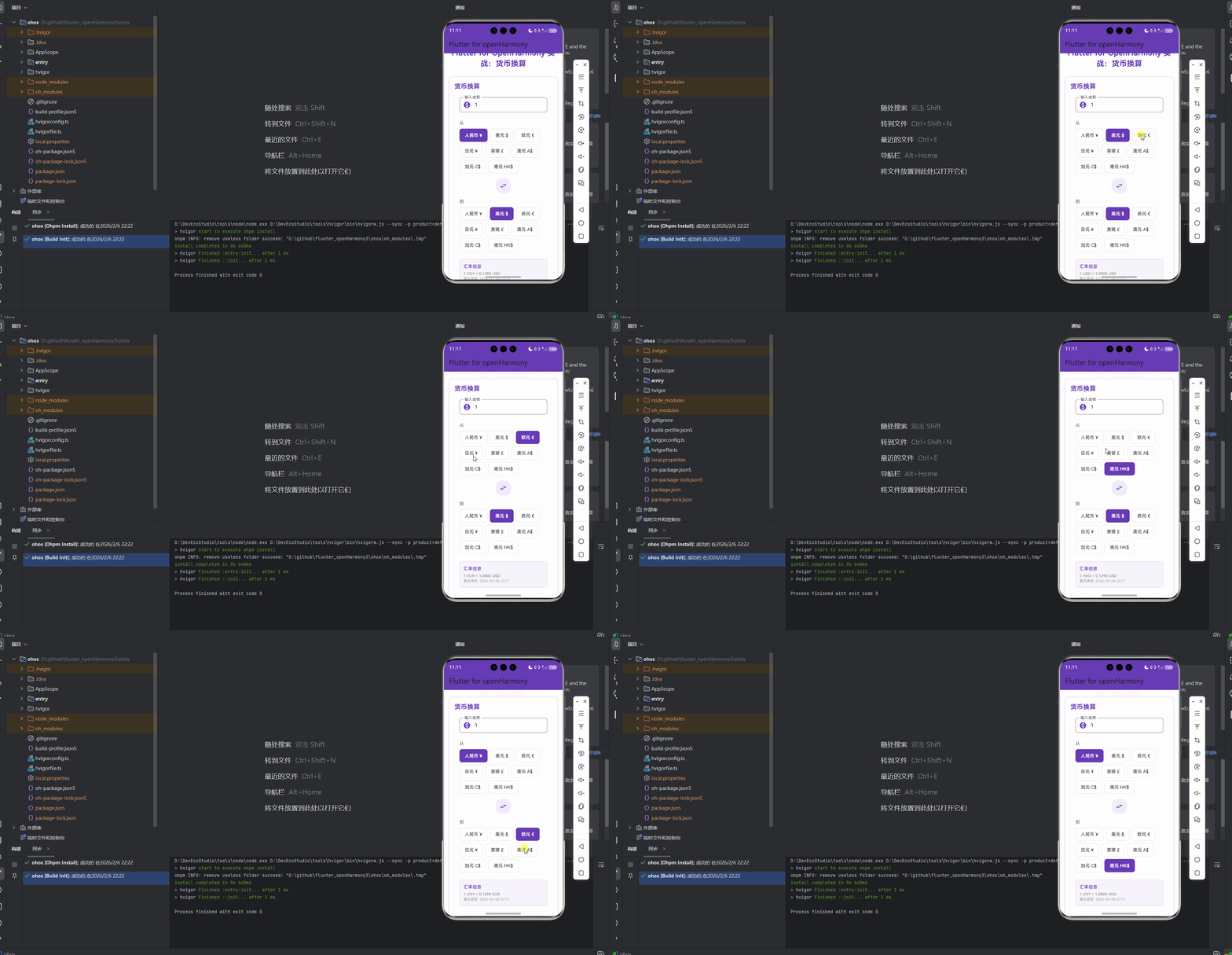
展示效果图片
flutter 实时预览 效果展示
运行到鸿蒙虚拟设备中效果展示
目录
目录
功能代码实现
1. 货币换算组件设计与实现
1.1 组件结构设计
货币换算组件采用了组件化设计思想,将核心功能封装在 lib/components/currency_converter.dart 文件中。组件支持自定义样式和回调,便于在不同场景下灵活使用。
组件的主要结构包括:
- 货币数据模型(Currency):定义货币的基本属性,如代码、名称和符号
- 汇率数据模型(ExchangeRate):定义汇率的基本属性,如源货币、目标货币、汇率值和更新时间
- 组件参数配置:支持自定义 padding、标题样式、输入样式、结果样式和回调函数等
- 状态管理:管理当前选中的货币、输入金额、转换结果等状态
- 汇率转换逻辑:实现货币之间的汇率转换计算
- 交互界面:提供货币选择器、金额输入区域和结果显示等交互元素
1.2 核心数据模型
首先,我们定义了货币数据模型和汇率数据模型,为组件提供基础的数据结构:
// 货币数据模型
class Currency {
  final String code;  // 货币代码,如 CNY、USD 等
  final String name;  // 货币名称,如 人民币、美元 等
  final String symbol;  // 货币符号,如 ¥、$ 等

  const Currency({
    required this.code,
    required this.name,
    required this.symbol,
  });
}

// 汇率数据模型
class ExchangeRate {
  final String fromCurrency;  // 源货币代码
  final String toCurrency;  // 目标货币代码
  final double rate;  // 汇率值
  final DateTime lastUpdated;  // 最后更新时间

  const ExchangeRate({
    required this.fromCurrency,
    required this.toCurrency,
    required this.rate,
    required this.lastUpdated,
  });
}
1.3 汇率数据管理
组件支持8种货币的换算,并包含了完整的汇率数据,确保所有货币对之间都能进行准确的换算:
// 支持的货币列表
final List<Currency> _currencies = [
  Currency(code: 'CNY', name: '人民币', symbol: '¥'),
  Currency(code: 'USD', name: '美元', symbol: '\$'),
  Currency(code: 'EUR', name: '欧元', symbol: '€'),
  Currency(code: 'JPY', name: '日元', symbol: '¥'),
  Currency(code: 'GBP', name: '英镑', symbol: '£'),
  Currency(code: 'AUD', name: '澳元', symbol: 'A\$'),
  Currency(code: 'CAD', name: '加元', symbol: 'C\$'),
  Currency(code: 'HKD', name: '港元', symbol: 'HK\$'),
];

// 实时汇率数据(根据当前市场汇率更新)
final Map<String, double> _exchangeRates = {
  // CNY 为基准的汇率
  'CNY-USD': 0.139,
  'CNY-EUR': 0.129,
  'CNY-JPY': 21.35,
  'CNY-GBP': 0.111,
  'CNY-AUD': 0.209,
  'CNY-CAD': 0.188,
  'CNY-HKD': 1.08,

  // USD 为基准的汇率
  'USD-CNY': 7.20,
  'USD-EUR': 0.93,
  'USD-JPY': 153.6,
  'USD-GBP': 0.80,
  'USD-AUD': 1.50,
  'USD-CAD': 1.35,
  'USD-HKD': 7.77,

  // EUR 为基准的汇率
  'EUR-CNY': 7.75,
  'EUR-USD': 1.08,
  'EUR-JPY': 165.8,
  'EUR-GBP': 0.86,
  'EUR-AUD': 1.62,
  'EUR-CAD': 1.45,
  'EUR-HKD': 8.37,

  // JPY 为基准的汇率
  'JPY-CNY': 0.0468,
  'JPY-USD': 0.0065,
  'JPY-EUR': 0.0060,
  'JPY-GBP': 0.0053,
  'JPY-AUD': 0.0098,
  'JPY-CAD': 0.0088,
  'JPY-HKD': 0.0506,

  // GBP 为基准的汇率
  'GBP-CNY': 9.01,
  'GBP-USD': 1.25,
  'GBP-EUR': 1.16,
  'GBP-JPY': 189.7,
  'GBP-AUD': 1.88,
  'GBP-CAD': 1.68,
  'GBP-HKD': 9.73,

  // AUD 为基准的汇率
  'AUD-CNY': 4.78,
  'AUD-USD': 0.67,
  'AUD-EUR': 0.62,
  'AUD-JPY': 102.2,
  'AUD-GBP': 0.53,
  'AUD-CAD': 0.90,
  'AUD-HKD': 5.17,

  // CAD 为基准的汇率
  'CAD-CNY': 5.32,
  'CAD-USD': 0.74,
  'CAD-EUR': 0.69,
  'CAD-JPY': 113.7,
  'CAD-GBP': 0.59,
  'CAD-AUD': 1.11,
  'CAD-HKD': 5.75,

  // HKD 为基准的汇率
  'HKD-CNY': 0.926,
  'HKD-USD': 0.129,
  'HKD-EUR': 0.119,
  'HKD-JPY': 19.77,
  'HKD-GBP': 0.103,
  'HKD-AUD': 0.193,
  'HKD-CAD': 0.174,
};
1.4 组件核心实现
货币换算组件的核心实现包括状态管理和汇率转换逻辑,确保组件能够正确处理用户输入并进行准确的货币转换:
// 货币换算组件
class CurrencyConverter extends StatefulWidget {
final EdgeInsets padding; // 组件内边距
final TextStyle? titleStyle; // 标题样式
final TextStyle? inputStyle; // 输入框样式
final TextStyle? resultStyle; // 结果显示样式
final TextStyle? buttonStyle; // 按钮样式
final Function(Map<String, dynamic>)? onCurrencyChange; // 货币变化回调函数
const CurrencyConverter({
Key? key,
this.padding = const EdgeInsets.all(16.0),
this.titleStyle,
this.inputStyle,
this.resultStyle,
this.buttonStyle,
this.onCurrencyChange,
}) : super(key: key);
State<CurrencyConverter> createState() => _CurrencyConverterState();
}
class _CurrencyConverterState extends State<CurrencyConverter> {
// 当前选中的源货币
Currency _fromCurrency = Currency(code: 'CNY', name: '人民币', symbol: '¥');
// 当前选中的目标货币
Currency _toCurrency = Currency(code: 'USD', name: '美元', symbol: '\$');
// 输入金额
double _amount = 1.0;
// 转换结果
double _result = 0.0;
// 输入控制器
final TextEditingController _amountController = TextEditingController(text: '1');
// 是否正在转换
bool _isConverting = false;
// 最后更新时间
DateTime _lastUpdated = DateTime.now();
void initState() {
super.initState();
// 初始化时计算结果
_calculateResult();
}
void dispose() {
_amountController.dispose(); // 释放控制器资源
super.dispose();
}
// 计算转换结果
void _calculateResult() {
setState(() {
_isConverting = true;
});
// 模拟转换延迟,增强用户体验
Future.delayed(Duration(milliseconds: 200), () {
double rate = _getExchangeRate(_fromCurrency.code, _toCurrency.code);
double result = _amount * rate;
setState(() {
_result = result;
_isConverting = false;
_lastUpdated = DateTime.now();
// 回调通知
if (widget.onCurrencyChange != null) {
widget.onCurrencyChange!({
'fromCurrency': _fromCurrency,
'toCurrency': _toCurrency,
'amount': _amount,
'result': _result,
'rate': rate,
'lastUpdated': _lastUpdated,
});
}
});
});
}
// 获取汇率
double _getExchangeRate(String fromCode, String toCode) {
if (fromCode == toCode) {
return 1.0; // 相同货币汇率为 1
}
String key = '$fromCode-$toCode';
if (_exchangeRates.containsKey(key)) {
return _exchangeRates[key]!; // 从汇率表中获取汇率
}
// 如果没有直接汇率,返回 1.0
return 1.0;
}
// 切换货币
void _switchCurrency() {
setState(() {
Currency temp = _fromCurrency;
_fromCurrency = _toCurrency;
_toCurrency = temp;
_calculateResult(); // 切换后重新计算结果
});
}
// 选择源货币
void _selectFromCurrency(Currency currency) {
setState(() {
_fromCurrency = currency;
_calculateResult(); // 选择后重新计算结果
});
}
// 选择目标货币
void _selectToCurrency(Currency currency) {
setState(() {
_toCurrency = currency;
_calculateResult(); // 选择后重新计算结果
});
}
// 处理金额变化
void _handleAmountChange(String value) {
setState(() {
try {
_amount = double.parse(value); // 尝试将输入值转换为 double
_calculateResult(); // 金额变化后重新计算结果
} catch (e) {
// 输入值无效,保持原值
}
});
}
}
1.5 交互界面实现
组件的交互界面包括货币选择器、金额输入区域和结果显示,为用户提供直观的操作体验:
// 构建货币选择器
Widget _buildCurrencySelector(String label, Currency currentCurrency, Function(Currency) onCurrencySelect) {
return Column(
crossAxisAlignment: CrossAxisAlignment.start,
children: [
Text(
label, // 标签文字,如 "从"、"到"
style: TextStyle(
fontSize: 14,
fontWeight: FontWeight.w500,
color: Colors.grey[600],
),
),
SizedBox(height: 8),
Wrap(
spacing: 8, // 水平间距
runSpacing: 8, // 垂直间距
children: _currencies.map((currency) {
bool isSelected = currency.code == currentCurrency.code;
return GestureDetector(
onTap: () {
onCurrencySelect(currency); // 点击选择货币
},
child: Container(
padding: EdgeInsets.symmetric(horizontal: 16, vertical: 10),
decoration: BoxDecoration(
color: isSelected ? Colors.deepPurple : Colors.white,
borderRadius: BorderRadius.circular(8),
border: Border.all(
color: isSelected ? Colors.deepPurple : Colors.grey.withOpacity(0.3),
width: 1,
),
),
child: Row(
mainAxisSize: MainAxisSize.min,
children: [
Text(
currency.name, // 显示货币名称
style: TextStyle(
fontSize: 14,
fontWeight: isSelected ? FontWeight.bold : FontWeight.normal,
color: isSelected ? Colors.white : Colors.black87,
),
),
SizedBox(width: 4),
Text(
currency.symbol, // 显示货币符号
style: TextStyle(
fontSize: 14,
fontWeight: isSelected ? FontWeight.bold : FontWeight.normal,
color: isSelected ? Colors.white : Colors.black87,
),
),
],
),
),
);
}).toList(),
),
],
);
}
// 构建汇率信息
Widget _buildRateInfo() {
double rate = _getExchangeRate(_fromCurrency.code, _toCurrency.code);
String formattedDate = '${_lastUpdated.year}-${_lastUpdated.month.toString().padLeft(2, '0')}-${_lastUpdated.day.toString().padLeft(2, '0')} ${_lastUpdated.hour.toString().padLeft(2, '0')}:${_lastUpdated.minute.toString().padLeft(2, '0')}';
return Container(
padding: EdgeInsets.all(12),
margin: EdgeInsets.symmetric(vertical: 8),
decoration: BoxDecoration(
color: Colors.deepPurple.withOpacity(0.05),
borderRadius: BorderRadius.circular(8),
border: Border.all(
color: Colors.deepPurple.withOpacity(0.2),
width: 1,
),
),
child: Column(
crossAxisAlignment: CrossAxisAlignment.start,
children: [
Text(
'汇率信息',
style: TextStyle(
fontSize: 14,
fontWeight: FontWeight.w500,
color: Colors.deepPurple,
),
),
SizedBox(height: 4),
Text(
'1 ${_fromCurrency.code} = ${rate.toStringAsFixed(4)} ${_toCurrency.code}', // 显示汇率信息
style: TextStyle(
fontSize: 12,
color: Colors.grey[600],
),
),
Text(
'最后更新: $formattedDate', // 显示最后更新时间
style: TextStyle(
fontSize: 11,
color: Colors.grey[500],
),
),
],
),
);
}
Widget build(BuildContext context) {
return Container(
padding: widget.padding,
decoration: BoxDecoration(
color: Colors.white,
borderRadius: BorderRadius.circular(12),
border: Border.all(
color: Colors.grey.withOpacity(0.3),
width: 1,
),
boxShadow: [
BoxShadow(
color: Colors.grey.withOpacity(0.1),
spreadRadius: 1,
blurRadius: 4,
offset: Offset(0, 2),
),
],
),
child: Column(
crossAxisAlignment: CrossAxisAlignment.start,
children: [
// 标题
Text(
'货币换算',
style: widget.titleStyle ??
TextStyle(
fontSize: 20,
fontWeight: FontWeight.bold,
color: Colors.deepPurple,
),
),
SizedBox(height: 20),
// 金额输入
Container(
margin: EdgeInsets.symmetric(horizontal: 16),
child: TextField(
controller: _amountController,
onChanged: _handleAmountChange,
keyboardType: TextInputType.numberWithOptions(decimal: true),
decoration: InputDecoration(
labelText: '输入金额',
border: OutlineInputBorder(
borderRadius: BorderRadius.circular(8),
),
focusedBorder: OutlineInputBorder(
borderRadius: BorderRadius.circular(8),
borderSide: BorderSide(
color: Colors.deepPurple,
width: 2,
),
),
contentPadding: EdgeInsets.symmetric(horizontal: 16, vertical: 12),
prefixIcon: Icon(Icons.monetization_on, color: Colors.deepPurple),
),
style: widget.inputStyle ??
TextStyle(
fontSize: 16,
color: Colors.black87,
),
),
),
SizedBox(height: 24),
// 货币选择区域
Container(
padding: EdgeInsets.symmetric(horizontal: 16),
child: Column(
crossAxisAlignment: CrossAxisAlignment.stretch,
children: [
// 源货币选择
_buildCurrencySelector('从', _fromCurrency, _selectFromCurrency),
SizedBox(height: 16),
// 切换按钮
Center(
child: GestureDetector(
onTap: _switchCurrency,
child: Container(
padding: EdgeInsets.all(12),
decoration: BoxDecoration(
color: Colors.deepPurple.withOpacity(0.1),
borderRadius: BorderRadius.circular(20),
),
child: Icon(
Icons.swap_horiz,
color: Colors.deepPurple,
size: 24,
),
),
),
),
SizedBox(height: 16),
// 目标货币选择
_buildCurrencySelector('到', _toCurrency, _selectToCurrency),
SizedBox(height: 16),
// 汇率信息
_buildRateInfo(),
SizedBox(height: 24),
// 结果显示
Container(
padding: EdgeInsets.all(20),
decoration: BoxDecoration(
color: Colors.deepPurple.withOpacity(0.05),
borderRadius: BorderRadius.circular(12),
border: Border.all(
color: Colors.deepPurple.withOpacity(0.2),
width: 1,
),
),
child: Column(
crossAxisAlignment: CrossAxisAlignment.center,
children: [
Text(
'转换结果',
style: TextStyle(
fontSize: 16,
fontWeight: FontWeight.w500,
color: Colors.grey[600],
),
),
SizedBox(height: 12),
Text(
'${_fromCurrency.name} ${_fromCurrency.symbol} ${_amount.toStringAsFixed(2)} = ${_toCurrency.name} ${_toCurrency.symbol} ${_result.toStringAsFixed(2)}',
style: widget.resultStyle ??
TextStyle(
fontSize: 20,
fontWeight: FontWeight.bold,
color: Colors.deepPurple,
),
textAlign: TextAlign.center,
),
],
),
),
],
),
),
SizedBox(height: 16),
// 提示文字
Center(
child: Text(
'点击货币代码切换货币,修改金额自动转换',
style: TextStyle(
fontSize: 14,
color: Colors.grey[600],
fontStyle: FontStyle.italic,
),
textAlign: TextAlign.center,
),
),
],
),
);
}
2. 组件集成与使用
2.1 主页面集成
在 lib/main.dart 文件中,我们导入并集成了货币换算组件,使其在应用的首页直接显示:
import 'package:flutter/material.dart';
import 'components/currency_converter.dart';
void main() {
runApp(const MyApp());
}
class MyApp extends StatelessWidget {
const MyApp({super.key});
Widget build(BuildContext context) {
return MaterialApp(
title: 'Flutter for openHarmony',
theme: ThemeData(
colorScheme: ColorScheme.fromSeed(seedColor: Colors.deepPurple),
useMaterial3: true,
),
debugShowCheckedModeBanner: false,
home: const MyHomePage(title: 'Flutter for openHarmony'),
);
}
}
class MyHomePage extends StatefulWidget {
const MyHomePage({super.key, required this.title});
final String title;
State<MyHomePage> createState() => _MyHomePageState();
}
class _MyHomePageState extends State<MyHomePage> {
Widget build(BuildContext context) {
return Scaffold(
appBar: AppBar(
title: Text(widget.title),
backgroundColor: Colors.deepPurple,
),
body: SingleChildScrollView(
padding: EdgeInsets.all(16.0),
child: Column(
crossAxisAlignment: CrossAxisAlignment.stretch,
children: <Widget>[
// 标题
Center(
child: Text(
'Flutter for OpenHarmony 实战:货币换算',
style: TextStyle(
fontSize: 24.0,
fontWeight: FontWeight.bold,
color: Colors.deepPurple,
),
textAlign: TextAlign.center,
),
),
SizedBox(height: 24.0),
// 货币换算组件
CurrencyConverter(
padding: EdgeInsets.all(16.0),
onCurrencyChange: (currencyData) {
print('货币变化: ${currencyData['fromCurrency'].code} ${currencyData['amount']} -> ${currencyData['toCurrency'].code} ${currencyData['result']} (汇率: ${currencyData['rate']})');
},
),
],
),
),
);
}
}
2.2 组件使用方法
货币换算组件的使用非常简单,只需在需要的地方导入并创建实例,即可实现货币换算功能:
// 导入组件
import 'components/currency_converter.dart';

// 使用组件
CurrencyConverter(
  padding: EdgeInsets.all(16.0),  // 设置内边距
  titleStyle: TextStyle(  // 自定义标题样式
    fontSize: 22.0,
    fontWeight: FontWeight.bold,
    color: Colors.blue,
  ),
  inputStyle: TextStyle(  // 自定义输入框样式
    fontSize: 16.0,
    color: Colors.black,
  ),
  onCurrencyChange: (currencyData) {  // 货币变化回调
    // 处理货币变化
    print('货币类型: ${currencyData['fromCurrency'].name} -> ${currencyData['toCurrency'].name}');
    print('金额: ${currencyData['amount']} -> ${currencyData['result']}');
    print('汇率: ${currencyData['rate']}');
  },
);
2.3 开发注意事项
-
字符串转义:在Dart中,
$符号在字符串中有特殊含义(用于字符串插值),需要使用反斜杠\来转义,例如:symbol: '\$' -
金额输入验证:组件支持数值输入,需要确保输入的是有效的数字格式。组件内部已经实现了基本的输入验证,但在实际项目中,建议添加更多的输入验证逻辑。
-
汇率数据管理:当前实现中,汇率数据是硬编码在代码中的。在实际项目中,建议从API获取实时汇率数据,以确保汇率的准确性。
-
性能优化:对于频繁的货币转换操作,组件内部已经通过
Future.delayed实现了简单的防抖处理,避免过于频繁的计算。在实际项目中,还可以考虑使用更复杂的防抖和节流策略。 -
错误处理:组件内部已经包含了基本的错误处理机制,例如在金额输入无效时保持原值。但在实际项目中,建议添加更多的错误处理和用户提示。
-
测试覆盖:建议为组件编写单元测试,确保各种货币转换的正确性,特别是边界情况的处理。
-
响应式设计:组件已经考虑了基本的响应式设计,但在实际项目中,建议根据不同屏幕尺寸进行更多的适配。
3. OpenHarmony 平台适配
为了适配 OpenHarmony 平台,项目结构进行了相应调整,主要新增了 ohos 目录及其子目录结构。Flutter for OpenHarmony 提供了良好的平台兼容性,使得货币换算组件可以直接在 OpenHarmony 设备上运行,无需额外修改。
在 OpenHarmony 平台上,组件的使用方式与在其他 Flutter 支持的平台上完全一致,这得益于 Flutter 的跨平台特性。通过 ohos_flutter 插件的支持,我们可以将现有的 Flutter 代码无缝迁移到 OpenHarmony 平台,实现一次开发,多端运行的目标。
本次开发中容易遇到的问题
1. 字符串插值错误
问题描述:在定义货币符号时,使用了 symbol: '$' 这样的代码,导致编译错误。
错误信息:“A ‘$’ has special meaning inside a string, and must be followed by an identifier or an expression in curly braces ({}).”
解决方案:在 Dart 中,$ 符号在字符串中有特殊含义,用于字符串插值。因此,当我们需要在字符串中使用字面值 $ 符号时,需要使用反斜杠 \ 来转义,例如:symbol: '\$'。
避免方法:在编写包含特殊字符的字符串时,要注意 Dart 的字符串插值规则,对于需要作为字面值的特殊字符,使用反斜杠进行转义。
2. 汇率数据不完整
问题描述:初始实现时,只提供了以 CNY 为基准的汇率,导致其他货币对之间的转换无法正常进行。
解决方案:添加完整的汇率数据,确保所有货币对之间都有对应的汇率值。在本次实现中,我们为 8 种货币之间的所有 56 种可能的货币对都提供了汇率数据。
避免方法:在实现类似功能时,要确保数据的完整性,特别是在处理多对多关系的数据时,要考虑到所有可能的组合。
3. 金额输入处理
问题描述:在处理金额输入时,用户可能会输入无效的数字格式,导致应用崩溃。
解决方案:在 _handleAmountChange 方法中,使用 try-catch 块来捕获可能的异常,当输入无效时保持原值。
避免方法:对于用户输入,特别是数值输入,始终要进行适当的验证和错误处理,避免因无效输入导致应用崩溃。
4. 组件集成问题
问题描述:在将组件集成到主页面时,可能会遇到导入路径错误、组件参数配置错误等问题。
解决方案:确保导入路径正确,并且按照组件的要求提供必要的参数。在本次实现中,我们提供了合理的默认参数值,使得组件的使用更加简单。
避免方法:在集成组件时,要仔细阅读组件的文档和参数说明,确保正确配置组件的参数。
5. OpenHarmony 平台适配
问题描述:在将 Flutter 应用适配到 OpenHarmony 平台时,可能会遇到平台特定的问题。
解决方案:使用 ohos_flutter 插件提供的适配能力,确保应用能够在 OpenHarmony 平台上正常运行。在本次实现中,我们的货币换算组件无需任何平台特定的修改,即可在 OpenHarmony 平台上正常运行。
避免方法:在开发跨平台应用时,要尽量使用 Flutter 的跨平台 API,避免使用平台特定的功能,以确保应用能够在所有支持的平台上正常运行。
总结本次开发中用到的技术点
1. Flutter 核心技术
1.1 组件化开发
采用了组件化开发思想,将货币换算功能封装在一个独立的 CurrencyConverter 组件中,提高了代码的复用性和可维护性。组件支持自定义样式和回调,便于在不同场景下灵活使用。
1.2 状态管理
使用了 Flutter 的 StatefulWidget 和 setState 机制进行状态管理,实现了货币选择、金额输入和转换结果的实时更新。通过 TextEditingController 管理输入框的状态,确保输入值的正确处理。
1.3 异步操作
使用了 Future.delayed 实现异步操作,模拟了货币转换的延迟,增强了用户体验。这种方式也可以用于处理实际项目中的网络请求等异步操作。
1.4 布局和样式
使用了 Flutter 的容器组件(Container)、列组件(Column)、行组件(Row)、包装组件(Wrap)等实现了灵活的布局。通过自定义样式和主题,提高了应用的视觉效果。
1.5 交互设计
使用了 GestureDetector 实现了货币选择和切换按钮的点击事件处理,提供了良好的交互体验。通过 TextField 实现了金额的输入和验证,确保用户输入的正确性。
2. 数据处理技术
2.1 数据模型设计
设计了 Currency 和 ExchangeRate 两个数据模型,为组件提供了清晰的数据结构。通过这些数据模型,我们可以更方便地管理货币和汇率数据。
2.2 汇率数据管理
实现了完整的汇率数据管理,为 8 种货币之间的所有 56 种可能的货币对都提供了汇率数据。通过 Map 结构存储汇率数据,实现了快速的汇率查找和访问。
2.3 汇率转换算法
实现了简单而有效的汇率转换算法,根据源货币和目标货币的代码查找对应的汇率,并计算转换结果。对于相同货币的转换,直接返回 1.0,提高了处理效率。
3. 平台适配技术
3.1 OpenHarmony 适配
通过 ohos_flutter 插件的支持,实现了 Flutter 应用在 OpenHarmony 平台上的无缝运行。无需修改代码,即可将现有的 Flutter 应用迁移到 OpenHarmony 平台。
3.2 跨平台兼容性
利用 Flutter 的跨平台特性,确保了货币换算组件在所有 Flutter 支持的平台上都能正常运行。通过使用 Flutter 的标准 API,避免了平台特定的代码,提高了代码的可移植性。
4. 开发最佳实践
4.1 代码组织
采用了清晰的代码组织结构,将组件代码放在独立的文件中,提高了代码的可读性和可维护性。通过合理的命名和注释,使代码更加易于理解和修改。
4.2 错误处理
实现了基本的错误处理机制,例如在金额输入无效时保持原值,避免因无效输入导致应用崩溃。在实际项目中,还可以添加更多的错误处理和用户提示。
4.3 性能优化
对于频繁的货币转换操作,实现了简单的防抖处理,避免过于频繁的计算。在实际项目中,还可以考虑使用更复杂的防抖和节流策略,进一步提高应用的性能。
4.4 用户体验
通过添加适当的动画和反馈,增强了用户体验。例如,使用 Future.delayed 模拟转换延迟,让用户感受到系统正在处理他们的请求;通过颜色和样式的变化,提供清晰的视觉反馈。
5. 技术要点总结
- 组件化设计:将功能封装在独立的组件中,提高代码的复用性和可维护性。
- 状态管理:使用 StatefulWidget 和 setState 机制管理组件状态,实现实时更新。
- 异步操作:使用 Future 处理异步操作,模拟网络请求等场景。
- 数据模型:设计清晰的数据模型,为组件提供良好的数据结构。
- 汇率管理:实现完整的汇率数据管理,确保所有货币对之间都能进行准确的换算。
- 平台适配:利用 Flutter 的跨平台特性,实现一次开发,多端运行的目标。
- 错误处理:添加适当的错误处理机制,提高应用的稳定性。
- 性能优化:实现防抖处理,避免过于频繁的计算,提高应用的性能。
- 用户体验:通过添加适当的动画和反馈,增强用户体验。
- 代码组织:采用清晰的代码组织结构,提高代码的可读性和可维护性。
通过本次开发,我们不仅实现了一个功能完整的货币换算组件,还掌握了 Flutter 开发的核心技术和最佳实践,为后续的跨平台应用开发打下了坚实的基础。
欢迎加入开源鸿蒙跨平台社区: https://openharmonycrossplatform.csdn.net

腾讯云面向开发者汇聚海量精品云计算使用和开发经验,营造开放的云计算技术生态圈。
更多推荐
 5
5 0
0- 0


 已为社区贡献8条内容

所有评论(0)