Flutter for OpenHarmony 家具购买记录App实战:添加预算实现
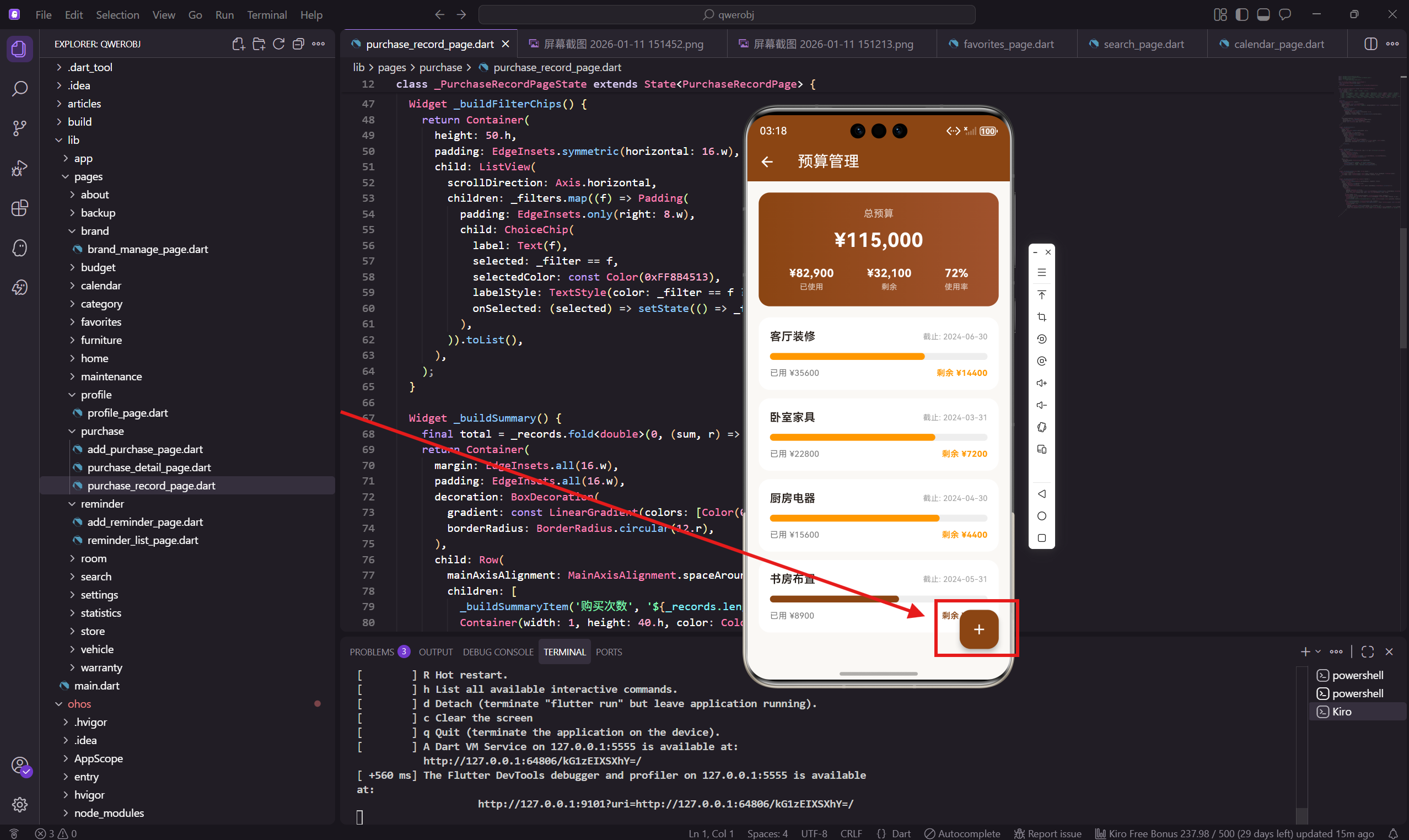
添加预算页面让用户创建新的预算计划。除了基本的预算信息,还可以设置提醒,当预算快用完时收到通知。
这个页面的表单比较丰富,包括预算信息、时间设置、提醒设置三个区块。提醒设置用 Switch 开关控制,是这个页面的特色。
页面设计思路
添加预算页面的设计要点:
- 预算信息区块:名称、分类、金额
- 时间设置区块:开始日期、截止日期
- 提醒设置区块:多个开关控制不同的提醒选项
- 备注区块
- 保存按钮
提醒设置让用户可以自定义什么时候收到提醒,比如超支时提醒、快用完时提醒。
页面基础结构
添加预算页面用 StatefulWidget:
class AddBudgetPage extends StatefulWidget {
const AddBudgetPage({super.key});
State<AddBudgetPage> createState() => _AddBudgetPageState();
}
状态类里定义分类选项:
class _AddBudgetPageState extends State<AddBudgetPage> {
  String _category = '客厅';
  final _categories = ['客厅', '卧室', '书房', '餐厅', '厨房', '卫生间', '全屋'];
预算可以按房间分类,也可以选择"全屋"表示整体预算。
build 方法实现
build 方法构建整个页面:
Widget build(BuildContext context) {
return Scaffold(
backgroundColor: const Color(0xFFFAF8F5),
appBar: AppBar(
title: const Text('添加预算'),
backgroundColor: const Color(0xFF8B4513),
foregroundColor: Colors.white
),
body: SingleChildScrollView(
padding: EdgeInsets.all(16.w),
child: Column(
children: [
_buildSection('预算信息', [
_buildField('预算名称', '请输入预算名称', Icons.account_balance_wallet),
_buildDropdown('预算分类', _categories, _category,
(v) => setState(() => _category = v!)),
_buildField('预算金额', '请输入预算金额', Icons.payment),
]),
预算信息区块包含名称、分类、金额三个字段。
时间设置区块
时间设置包含开始日期和截止日期:
            SizedBox(height: 16.h),
            _buildSection('时间设置', [
              _buildDateField('开始日期'),
              _buildDateField('截止日期'),
            ]),
开始日期通常是创建预算的日期,截止日期是预算的有效期限。
提醒设置区块
提醒设置用 Switch 开关控制:
            SizedBox(height: 16.h),
            _buildSection('提醒设置', [
              _buildSwitchTile('预算超支提醒', true),
              _buildSwitchTile('预算即将用完提醒', true),
              _buildField('提醒阈值(%)', '80', Icons.notifications),
            ]),
两个开关分别控制超支提醒和即将用完提醒。提醒阈值设置当使用率达到多少时触发提醒,默认是 80%。
备注和保存按钮
备注区块和保存按钮:
            SizedBox(height: 16.h),
            _buildSection('备注', [_buildNotesField()]),
            SizedBox(height: 24.h),
            _buildSaveButton(),
          ],
        ),
      ),
    );
  }
区块容器组件
_buildSection 方法和其他页面一样:
  Widget _buildSection(String title, List<Widget> children) {
    return Container(
      padding: EdgeInsets.all(16.w),
      decoration: BoxDecoration(
        color: Colors.white,
        borderRadius: BorderRadius.circular(16.r)
      ),
      child: Column(
        crossAxisAlignment: CrossAxisAlignment.start,
        children: [
          Text(title, style: TextStyle(
            fontSize: 16.sp,
            fontWeight: FontWeight.bold,
            color: const Color(0xFF5D4037)
          )),
          SizedBox(height: 16.h),
          ...children,
        ]
      ),
    );
  }
文本输入框组件
普通文本输入框:
  Widget _buildField(String label, String hint, IconData icon) {
    return Padding(
      padding: EdgeInsets.only(bottom: 12.h),
      child: TextFormField(
        decoration: InputDecoration(
          labelText: label,
          hintText: hint,
          prefixIcon: Icon(icon, color: const Color(0xFF8B4513)),
          border: OutlineInputBorder(borderRadius: BorderRadius.circular(10.r)),
        ),
      ),
    );
  }
下拉选择框组件
分类下拉框:
  Widget _buildDropdown(String label, List<String> items, String value,
      Function(String?) onChanged) {
    return Padding(
      padding: EdgeInsets.only(bottom: 12.h),
      child: DropdownButtonFormField<String>(
        value: value,
        decoration: InputDecoration(
          labelText: label,
          border: OutlineInputBorder(borderRadius: BorderRadius.circular(10.r))
        ),
        items: items.map((i) => DropdownMenuItem(value: i, child: Text(i))).toList(),
        onChanged: onChanged,
      ),
    );
  }
日期选择器组件
日期选择器:
  Widget _buildDateField(String label) {
    return Padding(
      padding: EdgeInsets.only(bottom: 12.h),
      child: TextFormField(
        readOnly: true,
        decoration: InputDecoration(
          labelText: label,
          prefixIcon: const Icon(Icons.calendar_today, color: Color(0xFF8B4513)),
          border: OutlineInputBorder(borderRadius: BorderRadius.circular(10.r)),
        ),
        onTap: () async {
          await showDatePicker(
            context: context,
            initialDate: DateTime.now(),
            firstDate: DateTime(2000),
            lastDate: DateTime(2030)
          );
        },
      ),
    );
  }
Switch 开关组件
提醒开关的实现:
  Widget _buildSwitchTile(String title, bool value) {
    return Padding(
      padding: EdgeInsets.only(bottom: 8.h),
      child: Row(
        mainAxisAlignment: MainAxisAlignment.spaceBetween,
        children: [
          Text(title, style: TextStyle(fontSize: 14.sp)),
          Switch(
            value: value,
            onChanged: (v) {},
            activeColor: const Color(0xFF8B4513)
          ),
        ],
      ),
    );
  }
Switch 是 Flutter 内置的开关组件,activeColor 设置开启时的颜色。
实际项目中,value 和 onChanged 应该连接到状态变量,这样开关才能真正切换。
状态管理改进
要让开关真正工作,需要用状态变量:
bool _overBudgetAlert = true;
bool _nearLimitAlert = true;

Widget _buildSwitchTile(String title, bool value, Function(bool) onChanged) {
  return Padding(
    padding: EdgeInsets.only(bottom: 8.h),
    child: Row(
      mainAxisAlignment: MainAxisAlignment.spaceBetween,
      children: [
        Text(title, style: TextStyle(fontSize: 14.sp)),
        Switch(
          value: value,
          onChanged: onChanged,
          activeColor: const Color(0xFF8B4513)
        ),
      ],
    ),
  );
}

// 调用时
_buildSwitchTile('预算超支提醒', _overBudgetAlert,
  (v) => setState(() => _overBudgetAlert = v)),
备注输入框组件
多行备注输入框:
  Widget _buildNotesField() {
    return TextFormField(
      maxLines: 3,
      decoration: InputDecoration(
        hintText: '请输入备注信息...',
        border: OutlineInputBorder(borderRadius: BorderRadius.circular(10.r))
      ),
    );
  }
保存按钮组件
保存按钮:
  Widget _buildSaveButton() {
    return SizedBox(
      width: double.infinity,
      height: 50.h,
      child: ElevatedButton(
        onPressed: () {
          Get.back();
          Get.snackbar('成功', '预算添加成功',
            backgroundColor: Colors.green,
            colorText: Colors.white
          );
        },
        style: ElevatedButton.styleFrom(
          backgroundColor: const Color(0xFF8B4513),
          shape: RoundedRectangleBorder(borderRadius: BorderRadius.circular(12.r))
        ),
        child: Text('保存', style: TextStyle(fontSize: 16.sp, color: Colors.white)),
      ),
    );
  }
表单验证
保存前应该验证必填字段:
void _save() {
  if (_nameController.text.isEmpty) {
    Get.snackbar('提示', '请输入预算名称');
    return;
  }
  if (_amountController.text.isEmpty) {
    Get.snackbar('提示', '请输入预算金额');
    return;
  }
  // 验证金额是否为有效数字
  final amount = double.tryParse(_amountController.text);
  if (amount == null || amount <= 0) {
    Get.snackbar('提示', '请输入有效的预算金额');
    return;
  }
  // 保存逻辑
}
提醒阈值的处理
提醒阈值应该是 0-100 之间的数字:
Widget _buildThresholdField() {
  return TextFormField(
    keyboardType: TextInputType.number,
    decoration: InputDecoration(
      labelText: '提醒阈值(%)',
      hintText: '80',
      prefixIcon: Icon(Icons.notifications, color: const Color(0xFF8B4513)),
      suffixText: '%',
      border: OutlineInputBorder(borderRadius: BorderRadius.circular(10.r)),
    ),
    validator: (value) {
      final threshold = int.tryParse(value ?? '');
      if (threshold == null || threshold < 0 || threshold > 100) {
        return '请输入0-100之间的数字';
      }
      return null;
    },
  );
}
keyboardType: TextInputType.number 弹出数字键盘,suffixText 在输入框右边显示百分号。
预算模板
可以提供一些预设的预算模板,让用户快速创建:
final _templates = [
  {'name': '客厅装修', 'amount': 50000, 'category': '客厅'},
  {'name': '卧室家具', 'amount': 30000, 'category': '卧室'},
  {'name': '厨房电器', 'amount': 20000, 'category': '厨房'},
];

Widget _buildTemplateSelector() {
  return Wrap(
    spacing: 8.w,
    children: _templates.map((t) => ActionChip(
      label: Text(t['name'] as String),
      onPressed: () {
        // 填充模板数据
        _nameController.text = t['name'] as String;
        _amountController.text = '${t['amount']}';
        setState(() => _category = t['category'] as String);
      },
    )).toList(),
  );
}
用户点击模板后,自动填充表单字段,省去手动输入的麻烦。
小结
添加预算页面是一个功能丰富的表单页面,包含预算信息、时间设置、提醒设置三个区块。Switch 开关让用户可以自定义提醒选项。
表单验证确保用户输入有效的数据,预算模板可以加快创建速度。
下一篇会讲保修管理页面的实现,帮助用户追踪家具的保修状态。
欢迎加入开源鸿蒙跨平台社区:https://openharmonycrossplatform.csdn.net

腾讯云面向开发者汇聚海量精品云计算使用和开发经验,营造开放的云计算技术生态圈。
更多推荐
 19
19 0
0- 0


 已为社区贡献21条内容

所有评论(0)