flutter_for_openharmony手语学习app实战+首页实现
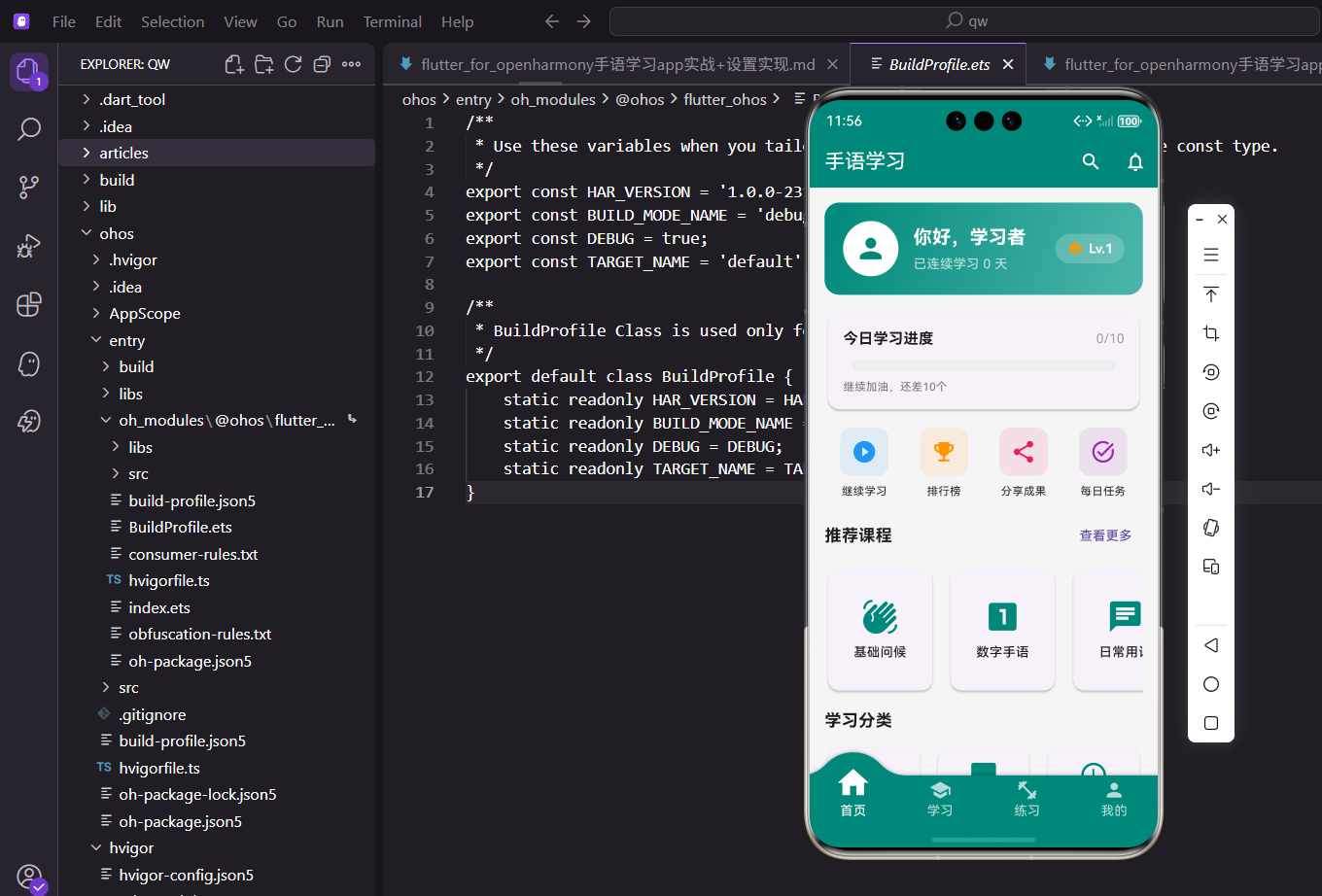
最近在做一个手语学习类的App,用Flutter for OpenHarmony来开发。首页作为用户打开App后看到的第一个界面,承载了很多功能入口和信息展示,今天就来聊聊这个首页是怎么搭建的。
整体思路
首页要展示的内容挺多:用户信息卡片、今日学习进度、快捷操作入口、推荐课程、学习分类等。考虑到内容较多,整个页面采用SingleChildScrollView包裹,让用户可以滑动查看。
先看下页面的基本骨架:
class HomeScreen extends StatelessWidget {
const HomeScreen({super.key});
Widget build(BuildContext context) {
return Scaffold(
appBar: AppBar(
title: const Text('手语学习'),
actions: [
IconButton(
icon: const Icon(Icons.search),
onPressed: () => Navigator.push(
context,
MaterialPageRoute(builder: (_) => const SearchScreen()),
),
),
],
),
这里用了Scaffold作为页面的基础框架,AppBar设置了标题和右侧的搜索按钮。点击搜索图标会通过Navigator.push跳转到搜索页面。
      body: SingleChildScrollView(
        padding: EdgeInsets.all(16.w),
        child: Column(
          crossAxisAlignment: CrossAxisAlignment.start,
          children: [
            _buildWelcomeCard(context),
            SizedBox(height: 16.h),
            _buildDailyProgress(context),
            SizedBox(height: 16.h),
            _buildQuickActions(context),
            SizedBox(height: 16.h),
            _buildRecommendSection(context),
          ],
        ),
      ),
    );
  }
}
body部分用SingleChildScrollView包裹一个Column,各个模块依次排列。这里用了flutter_screenutil做屏幕适配,.w和.h分别是宽度和高度的适配单位。
用户欢迎卡片
首页顶部是一个渐变背景的欢迎卡片,展示用户头像、昵称和连续学习天数:
Widget _buildWelcomeCard(BuildContext context) {
  final userProvider = Provider.of<UserProvider>(context);
  return Container(
    padding: EdgeInsets.all(20.w),
    decoration: BoxDecoration(
      gradient: const LinearGradient(
        colors: [Color(0xFF00897B), Color(0xFF4DB6AC)],
        begin: Alignment.topLeft,
        end: Alignment.bottomRight,
      ),
      borderRadius: BorderRadius.circular(16.r),
    ),
渐变背景用LinearGradient实现,从左上到右下,颜色从深青色过渡到浅青色。BoxDecoration可以设置容器的装饰效果,包括背景色、渐变、圆角等。
    child: Row(
      children: [
        CircleAvatar(
          radius: 30.r,
          backgroundColor: Colors.white,
          child: Icon(
            Icons.person,
            size: 35.sp,
            color: const Color(0xFF00897B)
          ),
        ),
        SizedBox(width: 16.w),
        Expanded(
          child: Column(
            crossAxisAlignment: CrossAxisAlignment.start,
            children: [
              Text(
                '你好,${userProvider.userName}',
                style: TextStyle(
                  fontSize: 20.sp,
                  fontWeight: FontWeight.bold,
                  color: Colors.white
                ),
              ),
              Text(
                '已连续学习 ${userProvider.consecutiveDays} 天',
                style: TextStyle(fontSize: 14.sp, color: Colors.white70),
              ),
            ],
          ),
        ),
      ],
    ),
  );
}
头像部分用了CircleAvatar组件,设置白色背景配合主题色图标,和渐变背景形成对比。userProvider是通过Provider获取的状态管理对象,数据变化时界面会自动刷新。
今日学习进度
学习类App少不了进度展示,这里用了percent_indicator库的线性进度条:
Widget _buildDailyProgress(BuildContext context) {
  final appProvider = Provider.of<AppProvider>(context);
  final progress = appProvider.todayLearned / appProvider.dailyGoal;

  return GestureDetector(
    onTap: () => Navigator.push(
      context,
      MaterialPageRoute(builder: (_) => const DailyTaskScreen()),
    ),
首先从appProvider获取今日已学数量和每日目标,计算出进度百分比。整个卡片包了一层GestureDetector,点击可以跳转到每日任务详情页。
    child: Card(
      child: Padding(
        padding: EdgeInsets.all(16.w),
        child: Column(
          crossAxisAlignment: CrossAxisAlignment.start,
          children: [
            Row(
              mainAxisAlignment: MainAxisAlignment.spaceBetween,
              children: [
                Text(
                  '今日学习进度',
                  style: TextStyle(fontSize: 16.sp, fontWeight: FontWeight.bold)
                ),
                Text(
                  '${appProvider.todayLearned}/${appProvider.dailyGoal}',
                  style: TextStyle(fontSize: 14.sp, color: Colors.grey)
                ),
              ],
            ),
            SizedBox(height: 12.h),
            LinearPercentIndicator(
              lineHeight: 12.h,
              percent: progress.clamp(0.0, 1.0),
              backgroundColor: Colors.grey[200],
              progressColor: const Color(0xFF00897B),
              barRadius: Radius.circular(6.r),
              animation: true,
            ),
          ],
        ),
      ),
    ),
  );
}
progress.clamp(0.0, 1.0)确保进度值在0到1之间,防止数据异常时进度条显示出问题。LinearPercentIndicator的animation: true开启了动画效果,体验更好。
快捷操作入口
首页中间放了四个快捷入口,方便用户快速进入常用功能:
Widget _buildQuickActions(BuildContext context) {
  final actions = [
    {'icon': Icons.play_circle_filled, 'label': '继续学习', 'color': Colors.blue},
    {'icon': Icons.quiz, 'label': '每日测验', 'color': Colors.orange},
    {'icon': Icons.bookmark, 'label': '我的收藏', 'color': Colors.pink},
    {'icon': Icons.history, 'label': '学习记录', 'color': Colors.purple},
  ];
把数据放在List里,包含图标、文字和颜色三个属性。这样写的好处是后续要加减入口只需要改数组就行,维护起来很方便。
  return Row(
    mainAxisAlignment: MainAxisAlignment.spaceAround,
    children: actions.map((action) {
      return GestureDetector(
        onTap: () {},
        child: Column(
          children: [
            Container(
              padding: EdgeInsets.all(12.w),
              decoration: BoxDecoration(
                color: (action['color'] as Color).withOpacity(0.1),
                borderRadius: BorderRadius.circular(12.r),
              ),
              child: Icon(
                action['icon'] as IconData,
                color: action['color'] as Color,
                size: 28.sp
              ),
            ),
            SizedBox(height: 8.h),
            Text(action['label'] as String, style: TextStyle(fontSize: 12.sp)),
          ],
        ),
      );
    }).toList(),
  );
}
用map遍历数组生成Widget列表。每个图标的背景色是对应颜色的10%透明度,用withOpacity(0.1)实现,这样既有颜色区分又不会太刺眼。
推荐课程横向列表
推荐课程采用横向滚动的卡片列表:
Widget _buildRecommendSection(BuildContext context) {
  return Column(
    crossAxisAlignment: CrossAxisAlignment.start,
    children: [
      Row(
        mainAxisAlignment: MainAxisAlignment.spaceBetween,
        children: [
          Text(
            '推荐课程',
            style: TextStyle(fontSize: 18.sp, fontWeight: FontWeight.bold)
          ),
          TextButton(
            onPressed: () => Navigator.push(
              context,
              MaterialPageRoute(builder: (_) => const RecommendScreen()),
            ),
            child: const Text('查看更多'),
          ),
        ],
      ),
标题栏右侧有个"查看更多"按钮,点击可以跳转到完整的推荐列表页面,首页只展示部分内容。
      SizedBox(height: 8.h),
      SizedBox(
        height: 140.h,
        child: ListView.builder(
          scrollDirection: Axis.horizontal,
          itemCount: 5,
          itemBuilder: (context, index) {
            final courses = ['基础问候', '数字手语', '日常用语', '情感表达', '紧急求助'];
            return Container(
              width: 120.w,
              margin: EdgeInsets.only(right: 12.w),
              child: Card(
                child: InkWell(
                  onTap: () {},
                  borderRadius: BorderRadius.circular(12.r),
                  child: Column(
                    mainAxisAlignment: MainAxisAlignment.center,
                    children: [
                      Icon(Icons.sign_language, size: 40.sp, color: const Color(0xFF00897B)),
                      SizedBox(height: 8.h),
                      Text(courses[index], style: TextStyle(fontSize: 14.sp)),
                    ],
                  ),
                ),
              ),
            );
          },
        ),
      ),
    ],
  );
}
横向列表用ListView.builder配合scrollDirection: Axis.horizontal实现。需要给外层SizedBox一个固定高度,不然会报错。每个卡片宽度固定120,右边留12的间距。
学习分类网格
最后是学习分类模块,用GridView.builder实现3列网格:
Widget _buildCategorySection(BuildContext context) {
  final categories = [
    {'name': '基础入门', 'count': 20, 'icon': Icons.star},
    {'name': '日常交流', 'count': 35, 'icon': Icons.chat_bubble},
    {'name': '数字时间', 'count': 15, 'icon': Icons.access_time},
  ];
分类数据同样用数组存储,包含名称、词汇数量和图标,结构清晰明了。
  return GridView.builder(
    shrinkWrap: true,
    physics: const NeverScrollableScrollPhysics(),
    gridDelegate: SliverGridDelegateWithFixedCrossAxisCount(
      crossAxisCount: 3,
      crossAxisSpacing: 12.w,
      mainAxisSpacing: 12.h,
      childAspectRatio: 1,
    ),
    itemCount: categories.length,
    itemBuilder: (context, index) {
      final category = categories[index];
      return Card(
        child: InkWell(
          onTap: () {},
          borderRadius: BorderRadius.circular(12.r),
          child: Column(
            mainAxisAlignment: MainAxisAlignment.center,
            children: [
              Icon(
                category['icon'] as IconData,
                size: 32.sp,
                color: const Color(0xFF00897B)
              ),
              SizedBox(height: 8.h),
              Text(category['name'] as String, style: TextStyle(fontSize: 12.sp)),
              Text('${category['count']}个词汇', style: TextStyle(fontSize: 10.sp, color: Colors.grey)),
            ],
          ),
        ),
      );
    },
  );
}
因为GridView是放在ScrollView里面的,所以要设置shrinkWrap: true让它根据内容自适应高度。同时physics: NeverScrollableScrollPhysics()禁用GridView自身的滚动,避免滚动冲突。
小结
首页的实现主要就是把各个模块拆分成独立的方法,然后在build里组装起来。用Provider管理状态数据,用screenutil做屏幕适配,代码结构清晰,后续维护也方便。
欢迎加入开源鸿蒙跨平台社区:https://openharmonycrossplatform.csdn.net
学习日历
显示每日学习打卡情况:
Widget _buildLearningCalendar() {
  return Container(
    margin: EdgeInsets.all(16.w),
    padding: EdgeInsets.all(16.w),
    decoration: BoxDecoration(
      color: Colors.white,
      borderRadius: BorderRadius.circular(12.r),
      boxShadow: [
        BoxShadow(
          color: Colors.black.withOpacity(0.05),
          blurRadius: 10,
          offset: const Offset(0, 2),
        ),
      ],
    ),
    child: Column(
      crossAxisAlignment: CrossAxisAlignment.start,
      children: [
        Row(
          mainAxisAlignment: MainAxisAlignment.spaceBetween,
          children: [
            Text(
              '学习打卡',
              style: TextStyle(fontSize: 16.sp, fontWeight: FontWeight.bold),
            ),
            Text(
              '已连续打卡 7 天',
              style: TextStyle(
                fontSize: 12.sp,
                color: const Color(0xFF00897B),
                fontWeight: FontWeight.w600,
              ),
            ),
          ],
        ),
        SizedBox(height: 12.h),
        Row(
          mainAxisAlignment: MainAxisAlignment.spaceAround,
          children: List.generate(7, (index) {
            final isChecked = index < 5; // 示例数据
            return Column(
              children: [
                Text(
                  ['一', '二', '三', '四', '五', '六', '日'][index],
                  style: TextStyle(fontSize: 12.sp, color: Colors.grey[600]),
                ),
                SizedBox(height: 4.h),
                Container(
                  width: 32.w,
                  height: 32.w,
                  decoration: BoxDecoration(
                    color: isChecked
                        ? const Color(0xFF00897B)
                        : Colors.grey[200],
                    shape: BoxShape.circle,
                  ),
                  child: isChecked
                      ? Icon(Icons.check, color: Colors.white, size: 16.sp)
                      : null,
                ),
              ],
            );
          }),
        ),
      ],
    ),
  );
}
学习日历显示一周的打卡情况,已打卡的日期显示绿色圆圈和对勾。顶部显示连续打卡天数,激励用户坚持学习。
学习目标
设置和显示学习目标:
Widget _buildLearningGoal() {
  final todayMinutes = 25; // 今日学习时长
  final goalMinutes = 30; // 目标时长
  final progress = todayMinutes / goalMinutes;

  return Container(
    margin: EdgeInsets.all(16.w),
    padding: EdgeInsets.all(16.w),
    decoration: BoxDecoration(
      gradient: const LinearGradient(
        colors: [Color(0xFFFF9800), Color(0xFFFFB74D)],
        begin: Alignment.topLeft,
        end: Alignment.bottomRight,
      ),
      borderRadius: BorderRadius.circular(12.r),
    ),
    child: Column(
      crossAxisAlignment: CrossAxisAlignment.start,
      children: [
        Row(
          mainAxisAlignment: MainAxisAlignment.spaceBetween,
          children: [
            Text(
              '今日目标',
              style: TextStyle(
                fontSize: 16.sp,
                fontWeight: FontWeight.bold,
                color: Colors.white,
              ),
            ),
            Text(
              '$todayMinutes / $goalMinutes 分钟',
              style: TextStyle(
                fontSize: 14.sp,
                color: Colors.white.withOpacity(0.9),
              ),
            ),
          ],
        ),
        SizedBox(height: 12.h),
        ClipRRect(
          borderRadius: BorderRadius.circular(10.r),
          child: LinearProgressIndicator(
            value: progress.clamp(0.0, 1.0),
            minHeight: 8.h,
            backgroundColor: Colors.white.withOpacity(0.3),
            valueColor: const AlwaysStoppedAnimation<Color>(Colors.white),
          ),
        ),
        SizedBox(height: 8.h),
        Text(
          progress >= 1.0 ? '太棒了!今日目标已完成' : '还差${goalMinutes - todayMinutes}分钟完成目标',
          style: TextStyle(
            fontSize: 12.sp,
            color: Colors.white.withOpacity(0.9),
          ),
        ),
      ],
    ),
  );
}
学习目标卡片使用橙色渐变背景,显示今日学习时长和目标时长。进度条直观展示完成情况,底部文字根据进度动态变化。
热门课程
展示热门学习内容:
Widget _buildPopularCourses() {
  return Container(
    margin: EdgeInsets.all(16.w),
    child: Column(
      crossAxisAlignment: CrossAxisAlignment.start,
      children: [
        Row(
          mainAxisAlignment: MainAxisAlignment.spaceBetween,
          children: [
            Text(
              '热门课程',
              style: TextStyle(fontSize: 18.sp, fontWeight: FontWeight.bold),
            ),
            TextButton(
              onPressed: () {},
              child: const Text('更多'),
            ),
          ],
        ),
        SizedBox(height: 12.h),
        SizedBox(
          height: 180.h,
          child: ListView.builder(
            scrollDirection: Axis.horizontal,
            itemCount: 5,
            itemBuilder: (context, index) {
              return Container(
                width: 140.w,
                margin: EdgeInsets.only(right: 12.w),
                decoration: BoxDecoration(
                  color: Colors.white,
                  borderRadius: BorderRadius.circular(12.r),
                  boxShadow: [
                    BoxShadow(
                      color: Colors.black.withOpacity(0.05),
                      blurRadius: 10,
                      offset: const Offset(0, 2),
                    ),
                  ],
                ),
                child: Column(
                  crossAxisAlignment: CrossAxisAlignment.start,
                  children: [
                    Container(
                      height: 100.h,
                      decoration: BoxDecoration(
                        color: Colors.grey[300],
                        borderRadius: BorderRadius.vertical(
                          top: Radius.circular(12.r),
                        ),
                      ),
                      child: Center(
                        child: Icon(
                          Icons.play_circle_outline,
                          size: 40.sp,
                          color: Colors.white,
                        ),
                      ),
                    ),
                    Padding(
                      padding: EdgeInsets.all(8.w),
                      child: Column(
                        crossAxisAlignment: CrossAxisAlignment.start,
                        children: [
                          Text(
                            '课程标题 ${index + 1}',
                            style: TextStyle(
                              fontSize: 13.sp,
                              fontWeight: FontWeight.w600,
                            ),
                            maxLines: 2,
                            overflow: TextOverflow.ellipsis,
                          ),
                          SizedBox(height: 4.h),
                          Row(
                            children: [
                              Icon(Icons.people, size: 12.sp, color: Colors.grey[600]),
                              SizedBox(width: 4.w),
                              Text(
                                '${1000 + index * 200}人学习',
                                style: TextStyle(
                                  fontSize: 11.sp,
                                  color: Colors.grey[600],
                                ),
                              ),
                            ],
                          ),
                        ],
                      ),
                    ),
                  ],
                ),
              );
            },
          ),
        ),
      ],
    ),
  );
}
热门课程使用横向滚动列表展示,每个课程卡片显示缩略图、标题和学习人数。这个功能帮助用户发现优质内容。
学习排行榜
显示学习时长排行:
Widget _buildLeaderboard() {
  return Container(
    margin: EdgeInsets.all(16.w),
    padding: EdgeInsets.all(16.w),
    decoration: BoxDecoration(
      color: Colors.white,
      borderRadius: BorderRadius.circular(12.r),
      boxShadow: [
        BoxShadow(
          color: Colors.black.withOpacity(0.05),
          blurRadius: 10,
          offset: const Offset(0, 2),
        ),
      ],
    ),
    child: Column(
      crossAxisAlignment: CrossAxisAlignment.start,
      children: [
        Row(
          mainAxisAlignment: MainAxisAlignment.spaceBetween,
          children: [
            Text(
              '学习排行榜',
              style: TextStyle(fontSize: 16.sp, fontWeight: FontWeight.bold),
            ),
            Container(
              padding: EdgeInsets.symmetric(horizontal: 8.w, vertical: 4.h),
              decoration: BoxDecoration(
                color: const Color(0xFF00897B).withOpacity(0.1),
                borderRadius: BorderRadius.circular(12.r),
              ),
              child: Text(
                '我的排名: 第15名',
                style: TextStyle(
                  fontSize: 11.sp,
                  color: const Color(0xFF00897B),
                  fontWeight: FontWeight.w600,
                ),
              ),
            ),
          ],
        ),
        SizedBox(height: 12.h),
        ...List.generate(3, (index) {
          final medals = ['🥇', '🥈', '🥉'];
          return Container(
            margin: EdgeInsets.only(bottom: 8.h),
            padding: EdgeInsets.all(8.w),
            decoration: BoxDecoration(
              color: Colors.grey[50],
              borderRadius: BorderRadius.circular(8.r),
            ),
            child: Row(
              children: [
                Text(
                  medals[index],
                  style: TextStyle(fontSize: 20.sp),
                ),
                SizedBox(width: 12.w),
                CircleAvatar(
                  radius: 16.r,
                  backgroundColor: const Color(0xFF00897B).withOpacity(0.1),
                  child: Text(
                    '用户${index + 1}',
                    style: TextStyle(
                      fontSize: 10.sp,
                      color: const Color(0xFF00897B),
                    ),
                  ),
                ),
                SizedBox(width: 8.w),
                Expanded(
                  child: Text(
                    '用户${index + 1}',
                    style: TextStyle(fontSize: 13.sp, fontWeight: FontWeight.w500),
                  ),
                ),
                Text(
                  '${120 - index * 10}小时',
                  style: TextStyle(
                    fontSize: 12.sp,
                    color: const Color(0xFF00897B),
                    fontWeight: FontWeight.w600,
                  ),
                ),
              ],
            ),
          );
        }),
      ],
    ),
  );
}
排行榜显示学习时长前三名,使用奖牌emoji增加趣味性。顶部显示当前用户的排名,激励用户提升学习时长。
每日一句
显示每日手语短句:
Widget _buildDailyPhrase() {
  return Container(
    margin: EdgeInsets.all(16.w),
    padding: EdgeInsets.all(16.w),
    decoration: BoxDecoration(
      gradient: const LinearGradient(
        colors: [Color(0xFF9C27B0), Color(0xFFBA68C8)],
        begin: Alignment.topLeft,
        end: Alignment.bottomRight,
      ),
      borderRadius: BorderRadius.circular(12.r),
    ),
    child: Column(
      crossAxisAlignment: CrossAxisAlignment.start,
      children: [
        Row(
          children: [
            Icon(Icons.wb_sunny, color: Colors.white, size: 24.sp),
            SizedBox(width: 8.w),
            Text(
              '每日一句',
              style: TextStyle(
                fontSize: 16.sp,
                fontWeight: FontWeight.bold,
                color: Colors.white,
              ),
            ),
          ],
        ),
        SizedBox(height: 12.h),
        Text(
          '你好,很高兴认识你',
          style: TextStyle(
            fontSize: 18.sp,
            fontWeight: FontWeight.w600,
            color: Colors.white,
          ),
        ),
        SizedBox(height: 8.h),
        Row(
          children: [
            TextButton.icon(
              onPressed: () {},
              icon: Icon(Icons.play_arrow, color: Colors.white, size: 16.sp),
              label: Text(
                '观看视频',
                style: TextStyle(fontSize: 12.sp, color: Colors.white),
              ),
              style: TextButton.styleFrom(
                backgroundColor: Colors.white.withOpacity(0.2),
                padding: EdgeInsets.symmetric(horizontal: 12.w, vertical: 6.h),
              ),
            ),
            SizedBox(width: 8.w),
            TextButton.icon(
              onPressed: () {},
              icon: Icon(Icons.bookmark_border, color: Colors.white, size: 16.sp),
              label: Text(
                '收藏',
                style: TextStyle(fontSize: 12.sp, color: Colors.white),
              ),
              style: TextButton.styleFrom(
                backgroundColor: Colors.white.withOpacity(0.2),
                padding: EdgeInsets.symmetric(horizontal: 12.w, vertical: 6.h),
              ),
            ),
          ],
        ),
      ],
    ),
  );
}
每日一句卡片使用紫色渐变背景,显示一句常用手语表达。提供观看视频和收藏两个操作按钮,帮助用户学习日常用语。
总结
手语学习首页通过丰富的功能模块,为用户提供了完整的学习入口。从学习打卡到目标追踪,从热门课程到排行榜,每个功能都旨在激励用户坚持学习。每日一句功能让用户每天都能学到新知识,保持学习的新鲜感。
欢迎加入开源鸿蒙跨平台社区:https://openharmonycrossplatform.csdn.net

腾讯云面向开发者汇聚海量精品云计算使用和开发经验,营造开放的云计算技术生态圈。
更多推荐
 10
10 0
0- 0


 已为社区贡献19条内容

所有评论(0)