Flutter for OpenHarmony高级闹钟App实战:天气详情实现
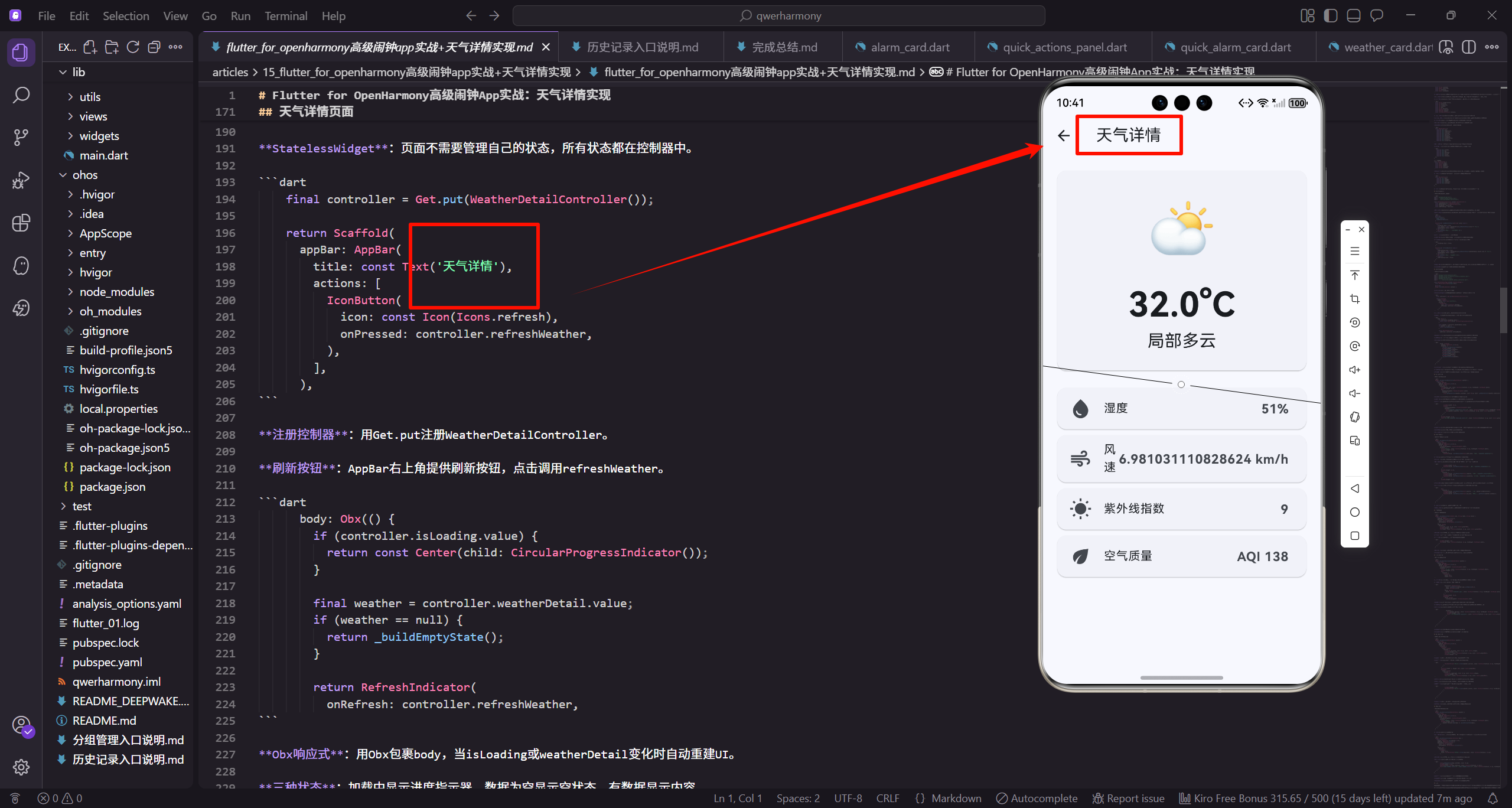
天气详情页面能让用户查看完整的天气信息,包括温度、湿度、风速、空气质量等等。咱们这次要实现一个信息丰富的天气详情页,不仅展示当前天气,还要显示未来几天的预报,帮助用户做好出行准备。
说实话,做天气详情的时候,我一直在想怎么把这么多信息展示得既清晰又美观。最后决定用卡片式布局,把不同维度的天气信息分组展示,配合图标和颜色让数据更直观。
天气数据模型
首先定义完整的天气数据结构。
/// 详细天气信息
class WeatherDetail {
  final String city;
  final double temperature;
  final String condition;
  final String iconCode;
  final double feelsLike;
  final int humidity;
  final double windSpeed;
基础字段:city是城市名,temperature是当前温度,condition是天气状况(晴、雨、雪等),iconCode用于显示天气图标。
体感温度:feelsLike记录体感温度,这个值考虑了风速和湿度,比实际温度更能反映人体感受。
环境参数:humidity是湿度百分比,windSpeed是风速,这些都是用户关心的信息。
  final String windDirection;
  final int pressure;
  final int visibility;
  final int uvIndex;
  final int aqi;
  final String aqiLevel;
  final DateTime sunrise;
  final DateTime sunset;
  final List<DailyForecast> forecast;
风向和气压:windDirection记录风向(东南西北),pressure是气压值。
能见度和紫外线:visibility是能见度(公里),uvIndex是紫外线指数,这对户外活动很重要。
空气质量:aqi是空气质量指数,aqiLevel是等级(优良中等等)。
日出日落:sunrise和sunset记录日出日落时间,帮助用户规划作息。
预报列表:forecast存储未来几天的天气预报。
  const WeatherDetail({
    required this.city,
    required this.temperature,
    required this.condition,
    required this.iconCode,
    required this.feelsLike,
    required this.humidity,
    required this.windSpeed,
    required this.windDirection,
    required this.pressure,
    required this.visibility,
构造函数:所有字段都是required,确保创建对象时提供完整信息。
const构造:用const让对象不可变,这样更安全,也能提升性能。
    required this.uvIndex,
    required this.aqi,
    required this.aqiLevel,
    required this.sunrise,
    required this.sunset,
    required this.forecast,
  });
}

/// 每日预报
class DailyForecast {
  final DateTime date;
  final double tempMax;
  final double tempMin;
  final String condition;
  final String iconCode;
预报模型:DailyForecast存储单日预报,date是日期,tempMax和tempMin是最高最低温度。
简化设计:预报模型比详情模型简单,只包含用户最关心的信息。
  const DailyForecast({
    required this.date,
    required this.tempMax,
    required this.tempMin,
    required this.condition,
    required this.iconCode,
  });
}
一致性:预报模型的字段命名和详情模型保持一致,比如都用iconCode表示图标。
天气详情控制器
实现天气数据的获取和管理。
import 'package:get/get.dart';
import '../models/weather_detail.dart';
import '../services/weather_service.dart';

class WeatherDetailController extends GetxController {
  final _weatherService = WeatherService();
  final weatherDetail = Rxn<WeatherDetail>();
  final isLoading = false.obs;
  final isRefreshing = false.obs;
服务依赖:WeatherService负责从API获取天气数据,控制器只管理状态和UI逻辑。
响应式状态:weatherDetail用Rxn表示可空的天气详情,isLoading标记初始加载,isRefreshing标记下拉刷新。
void onInit() {
super.onInit();
loadWeatherDetail();
}
Future<void> loadWeatherDetail({String? city}) async {
try {
isLoading.value = true;
final detail = await _weatherService.getWeatherDetail(city ?? '北京');
weatherDetail.value = detail;
} catch (e) {
Get.snackbar('错误', '加载天气失败: $e');
} finally {
初始加载:onInit时自动加载天气数据。
城市参数:city参数可选,默认加载北京的天气,用户可以切换城市。
异常处理:用try-catch捕获网络异常,通过snackbar提示用户。
      isLoading.value = false;
    }
  }

  Future<void> refreshWeather() async {
    try {
      isRefreshing.value = true;
      final detail = await _weatherService.getWeatherDetail(weatherDetail.value?.city ?? '北京');
      weatherDetail.value = detail;
    } catch (e) {
      Get.snackbar('错误', '刷新失败: $e');
    } finally {
      isRefreshing.value = false;
    }
  }
}
刷新逻辑:refreshWeather用于下拉刷新,用isRefreshing而不是isLoading,这样UI能区分初始加载和刷新。
保持城市:刷新时用当前城市,不会切换回默认城市。
天气详情页面
实现天气详情的展示界面。
import 'package:flutter/material.dart';
import 'package:flutter_screenutil/flutter_screenutil.dart';
import 'package:get/get.dart';
import 'package:intl/intl.dart';
import '../../controllers/weather_detail_controller.dart';
class WeatherDetailPage extends StatelessWidget {
const WeatherDetailPage({super.key});
Widget build(BuildContext context) {
intl导入:用于日期时间格式化。
StatelessWidget:页面不需要管理自己的状态,所有状态都在控制器中。
    final controller = Get.put(WeatherDetailController());

    return Scaffold(
      appBar: AppBar(
        title: const Text('天气详情'),
        actions: [
          IconButton(
            icon: const Icon(Icons.refresh),
            onPressed: controller.refreshWeather,
          ),
        ],
      ),
注册控制器:用Get.put注册WeatherDetailController。
刷新按钮:AppBar右上角提供刷新按钮,点击调用refreshWeather。
      body: Obx(() {
        if (controller.isLoading.value) {
          return const Center(child: CircularProgressIndicator());
        }

        final weather = controller.weatherDetail.value;
        if (weather == null) {
          return _buildEmptyState();
        }

        return RefreshIndicator(
          onRefresh: controller.refreshWeather,
Obx响应式:用Obx包裹body,当isLoading或weatherDetail变化时自动重建UI。
三种状态:加载中显示进度指示器,数据为空显示空状态,有数据显示内容。
下拉刷新:用RefreshIndicator包裹内容,用户下拉时调用refreshWeather。
          child: ListView(
            padding: EdgeInsets.all(16.w),
            children: [
              _buildCurrentWeatherCard(weather),
              SizedBox(height: 16.h),
              _buildDetailsGrid(weather),
              SizedBox(height: 16.h),
              _buildAirQualityCard(weather),
              SizedBox(height: 16.h),
              _buildSunCard(weather),
              SizedBox(height: 16.h),
              _buildForecastCard(weather),
            ],
          ),
        );
      }),
    );
  }
ListView布局:用ListView垂直排列各个卡片,padding设置整体边距。
卡片分组:当前天气、详细参数、空气质量、日出日落、预报,每个卡片展示一类信息。
间距统一:每个卡片之间用SizedBox(height: 16.h)分隔,保持一致的视觉节奏。
当前天气卡片
实现当前天气的展示。
  Widget _buildCurrentWeatherCard(WeatherDetail weather) {
    return Card(
      child: Padding(
        padding: EdgeInsets.all(24.w),
        child: Column(
          children: [
            Text(weather.city, style: TextStyle(fontSize: 24.sp, fontWeight: FontWeight.bold)),
            SizedBox(height: 16.h),
            Row(
              mainAxisAlignment: MainAxisAlignment.center,
              children: [
                Icon(_getWeatherIcon(weather.iconCode), size: 64.sp, color: _getWeatherColor(weather.condition)),
Card容器:用Card包裹让当前天气区域有明显的视觉边界。
城市标题:用大字号粗体显示城市名,让用户清楚知道是哪里的天气。
天气图标:_getWeatherIcon根据iconCode返回对应图标,_getWeatherColor根据天气状况返回颜色。
                SizedBox(width: 16.w),
                Column(
                  crossAxisAlignment: CrossAxisAlignment.start,
                  children: [
                    Text('${weather.temperature.toInt()}°', style: TextStyle(fontSize: 48.sp, fontWeight: FontWeight.bold)),
                    Text(weather.condition, style: TextStyle(fontSize: 18.sp, color: Colors.grey[600])),
                  ],
                ),
              ],
            ),
            SizedBox(height: 16.h),
            Text('体感温度 ${weather.feelsLike.toInt()}°', style: TextStyle(fontSize: 14.sp, color: Colors.grey[600])),
          ],
        ),
      ),
    );
  }
温度显示:用48.sp的超大字号显示温度,让用户一眼就能看到。toInt()去掉小数,温度不需要那么精确。
天气状况:用较小字号和灰色显示天气状况文字。
体感温度:放在底部,用小字号显示,这是补充信息。
详细参数网格
实现详细参数的网格展示。
  Widget _buildDetailsGrid(WeatherDetail weather) {
    return Card(
      child: Padding(
        padding: EdgeInsets.all(16.w),
        child: Column(
          crossAxisAlignment: CrossAxisAlignment.start,
          children: [
            Text('详细信息', style: TextStyle(fontSize: 18.sp, fontWeight: FontWeight.bold)),
            SizedBox(height: 16.h),
            Row(
              children: [
                Expanded(child: _buildDetailItem(Icons.water_drop, '湿度', '${weather.humidity}%')),
标题:用粗体显示"详细信息",让用户知道这个卡片的内容。
网格布局:用Row和Expanded创建2列网格,每个参数占据相等的空间。
统一组件:_buildDetailItem创建统一样式的参数项,传入图标、标签、数值。
                SizedBox(width: 12.w),
                Expanded(child: _buildDetailItem(Icons.air, '风速', '${weather.windSpeed}m/s')),
              ],
            ),
            SizedBox(height: 12.h),
            Row(
              children: [
                Expanded(child: _buildDetailItem(Icons.compress, '气压', '${weather.pressure}hPa')),
                SizedBox(width: 12.w),
                Expanded(child: _buildDetailItem(Icons.visibility, '能见度', '${weather.visibility}km')),
              ],
            ),
            SizedBox(height: 12.h),
间距设置:Row中的两个item之间用SizedBox(width: 12.w)分隔,两行之间用SizedBox(height: 12.h)分隔。
单位显示:每个数值都带上单位,%、m/s、hPa、km,让用户清楚数值的含义。
            Row(
              children: [
                Expanded(child: _buildDetailItem(Icons.explore, '风向', weather.windDirection)),
                SizedBox(width: 12.w),
                Expanded(child: _buildDetailItem(Icons.wb_sunny, '紫外线', _getUVLevel(weather.uvIndex))),
              ],
            ),
          ],
        ),
      ),
    );
  }
风向显示:直接显示风向文字,比如"东南风"。
紫外线等级:_getUVLevel把数值转换成等级文字,比如"强"、“中等”,更易理解。
参数项组件
实现单个参数项的UI。
  Widget _buildDetailItem(IconData icon, String label, String value) {
    return Container(
      padding: EdgeInsets.all(12.w),
      decoration: BoxDecoration(
        color: Colors.grey[100],
        borderRadius: BorderRadius.circular(8.r),
      ),
      child: Column(
        children: [
          Icon(icon, size: 24.sp, color: Colors.grey[700]),
          SizedBox(height: 8.h),
          Text(label, style: TextStyle(fontSize: 12.sp, color: Colors.grey[600])),
容器样式:用浅灰色背景和圆角,让参数项有明显的视觉边界。
垂直布局:图标、标签、数值垂直排列,这是常见的参数展示方式。
图标颜色:用深灰色,和背景形成对比但不会太突兀。
          SizedBox(height: 4.h),
          Text(value, style: TextStyle(fontSize: 16.sp, fontWeight: FontWeight.bold)),
        ],
      ),
    );
  }
数值突出:用粗体和较大字号显示数值,这是用户最关心的信息。
间距控制:标签和数值之间只有4.h的间距,让它们在视觉上更紧密。
空气质量卡片
实现空气质量的展示。
  Widget _buildAirQualityCard(WeatherDetail weather) {
    return Card(
      child: Padding(
        padding: EdgeInsets.all(16.w),
        child: Column(
          crossAxisAlignment: CrossAxisAlignment.start,
          children: [
            Text('空气质量', style: TextStyle(fontSize: 18.sp, fontWeight: FontWeight.bold)),
            SizedBox(height: 16.h),
            Row(
              children: [
                Container(
                  width: 60.w,
                  height: 60.w,
独立卡片:空气质量单独一个卡片,因为这个信息很重要,值得突出显示。
标题样式:和其他卡片保持一致的标题样式。
                  decoration: BoxDecoration(
                    color: _getAQIColor(weather.aqi).withOpacity(0.2),
                    shape: BoxShape.circle,
                  ),
                  child: Center(
                    child: Text('${weather.aqi}', style: TextStyle(fontSize: 24.sp, fontWeight: FontWeight.bold, color: _getAQIColor(weather.aqi))),
                  ),
                ),
                SizedBox(width: 16.w),
                Expanded(
                  child: Column(
                    crossAxisAlignment: CrossAxisAlignment.start,
AQI数值:用圆形容器包裹,背景色根据AQI值变化,数值越大颜色越深。
颜色编码:_getAQIColor根据AQI值返回对应颜色,绿色表示优,黄色表示良,红色表示差。
居中显示:用Center让AQI数值在圆形容器中居中。
                    children: [
                      Text(weather.aqiLevel, style: TextStyle(fontSize: 20.sp, fontWeight: FontWeight.bold)),
                      SizedBox(height: 4.h),
                      Text('空气质量${weather.aqiLevel}', style: TextStyle(fontSize: 14.sp, color: Colors.grey[600])),
                    ],
                  ),
                ),
              ],
            ),
          ],
        ),
      ),
    );
  }
等级文字:用大字号粗体显示等级,比如"优"、“良”。
说明文字:用小字号灰色显示完整说明,比如"空气质量优"。
日出日落卡片
实现日出日落时间的展示。
  Widget _buildSunCard(WeatherDetail weather) {
    return Card(
      child: Padding(
        padding: EdgeInsets.all(16.w),
        child: Row(
          children: [
            Expanded(
              child: Column(
                children: [
                  Icon(Icons.wb_sunny, size: 32.sp, color: Colors.orange),
                  SizedBox(height: 8.h),
                  Text('日出', style: TextStyle(fontSize: 14.sp, color: Colors.grey[600])),
                  SizedBox(height: 4.h),
横向布局:日出和日落并排显示,用Row和Expanded平分空间。
太阳图标:用wb_sunny图标表示日出,橙色让人联想到太阳。
                  Text(DateFormat('HH:mm').format(weather.sunrise), style: TextStyle(fontSize: 18.sp, fontWeight: FontWeight.bold)),
                ],
              ),
            ),
            Container(width: 1, height: 60.h, color: Colors.grey[300]),
            Expanded(
              child: Column(
                children: [
                  Icon(Icons.nightlight, size: 32.sp, color: Colors.indigo),
                  SizedBox(height: 8.h),
                  Text('日落', style: TextStyle(fontSize: 14.sp, color: Colors.grey[600])),
时间格式化:用DateFormat(‘HH:mm’)格式化时间,只显示小时和分钟。
分隔线:用Container创建竖线分隔日出和日落,高度60.h,颜色浅灰。
月亮图标:用nightlight图标表示日落,深蓝色营造夜晚的感觉。
                  SizedBox(height: 4.h),
                  Text(DateFormat('HH:mm').format(weather.sunset), style: TextStyle(fontSize: 18.sp, fontWeight: FontWeight.bold)),
                ],
              ),
            ),
          ],
        ),
      ),
    );
  }
对称设计:日出和日落的布局完全对称,视觉上很平衡。
时间突出:用粗体和较大字号显示时间,这是用户最关心的信息。
预报卡片
实现未来天气预报的展示。
  Widget _buildForecastCard(WeatherDetail weather) {
    return Card(
      child: Padding(
        padding: EdgeInsets.all(16.w),
        child: Column(
          crossAxisAlignment: CrossAxisAlignment.start,
          children: [
            Text('未来预报', style: TextStyle(fontSize: 18.sp, fontWeight: FontWeight.bold)),
            SizedBox(height: 16.h),
            ...weather.forecast.map((day) => _buildForecastItem(day)),
          ],
        ),
      ),
    );
  }
标题:用粗体显示"未来预报"。
展开运算符:用…把forecast列表展开成多个Widget,每个预报对应一个_buildForecastItem。
  Widget _buildForecastItem(DailyForecast day) {
    return Container(
      margin: EdgeInsets.only(bottom: 12.h),
      padding: EdgeInsets.all(12.w),
      decoration: BoxDecoration(
        color: Colors.grey[50],
        borderRadius: BorderRadius.circular(8.r),
      ),
      child: Row(
        children: [
          SizedBox(
            width: 60.w,
            child: Text(DateFormat('MM/dd').format(day.date), style: TextStyle(fontSize: 14.sp)),
          ),
容器样式:用浅灰色背景和圆角,让每个预报项有明显的边界。
日期显示:固定宽度60.w,用MM/dd格式显示月日。
          Icon(_getWeatherIcon(day.iconCode), size: 24.sp),
          SizedBox(width: 12.w),
          Expanded(child: Text(day.condition, style: TextStyle(fontSize: 14.sp))),
          Text('${day.tempMin.toInt()}° ~ ${day.tempMax.toInt()}°', style: TextStyle(fontSize: 14.sp, fontWeight: FontWeight.bold)),
        ],
      ),
    );
  }
}
天气图标:显示当天的天气图标,让用户快速了解天气状况。
温度范围:显示最低温到最高温,用~连接,这是预报的标准格式。
Expanded使用:让天气状况文字占据剩余空间,温度靠右对齐。
总结
这篇文章咱们实现了完整的天气详情功能。从数据模型到UI展示,从当前天气到未来预报,每个环节都考虑得很周到。天气详情不仅是数据展示,更重要的是帮助用户做好出行准备。
说实话,做天气详情让我对信息架构有了更深的理解。数据要分组展示,相关的信息放在一起。颜色要有意义,比如AQI用颜色编码,让用户一眼就能判断空气质量。图标要直观,太阳、月亮、水滴,这些图标不需要文字说明用户也能理解。
如果你也在做类似的功能,建议重点关注数据的准确性,天气数据要及时更新。UI要清晰,不要把所有信息堆在一起。交互要流畅,下拉刷新要有明确的反馈。
欢迎加入OpenHarmony跨平台开发社区交流:https://openharmonycrossplatform.csdn.net

腾讯云面向开发者汇聚海量精品云计算使用和开发经验,营造开放的云计算技术生态圈。
更多推荐
 4
4 0
0- 0


 已为社区贡献20条内容

所有评论(0)