Flutter for OpenHarmony三国杀攻略App实战 - 活动中心实现
前言
活动中心是提升用户参与度和应用活跃度的重要功能模块。本文将基于真实项目代码,详细实现一个功能完整的活动中心系统,包括活动展示、状态标识、时间显示、视觉设计等核心功能。
功能需求分析
活动中心核心功能
我们的活动中心需要实现以下关键功能:
- 活动展示:以卡片形式展示各类活动
- 状态标识:区分进行中和已结束的活动
- 时间信息:显示活动的具体时间安排
- 视觉分类:通过颜色区分不同类型的活动
- 响应式设计:适配不同屏幕尺寸
- 交互反馈:提供良好的用户体验
页面架构实现
基础结构搭建
import 'package:flutter/material.dart';
import 'package:flutter_screenutil/flutter_screenutil.dart';

class EventsScreen extends StatelessWidget {
  const EventsScreen({Key? key}) : super(key: key);
使用 StatelessWidget 实现活动中心页面,因为活动信息相对稳定,不需要复杂的状态管理。引入 flutter_screenutil 确保在不同设备上的完美适配效果。const 构造函数 是性能优化的最佳实践。
主体布局设计
Widget build(BuildContext context) {
return Scaffold(
appBar: AppBar(title: const Text('活动中心')),
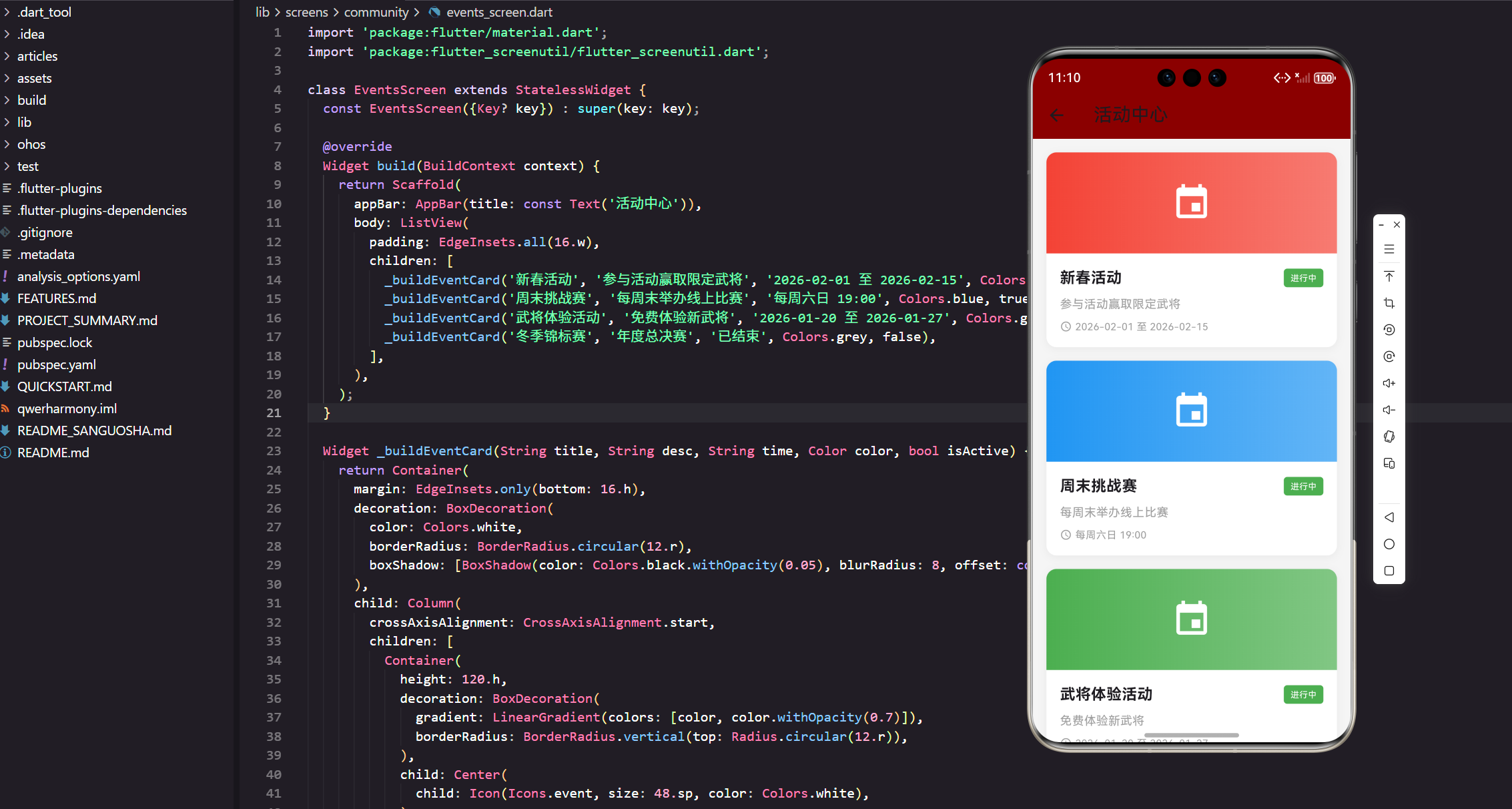
body: ListView(
padding: EdgeInsets.all(16.w),
children: [
_buildEventCard('新春活动', '参与活动赢取限定武将', '2026-02-01 至 2026-02-15', Colors.red, true),
_buildEventCard('周末挑战赛', '每周末举办线上比赛', '每周六日 19:00', Colors.blue, true),
_buildEventCard('武将体验活动', '免费体验新武将', '2026-01-20 至 2026-01-27', Colors.green, true),
_buildEventCard('冬季锦标赛', '年度总决赛', '已结束', Colors.grey, false),
],
),
);
}
页面采用 ListView 作为主容器,展示多个活动卡片。活动数据包含了不同类型的活动:节日活动、定期赛事、体验活动和已结束活动。每个活动都有独特的颜色标识,帮助用户快速区分活动类型。
活动卡片设计
卡片容器实现
Widget _buildEventCard(String title, String desc, String time, Color color, bool isActive) {
  return Container(
    margin: EdgeInsets.only(bottom: 16.h),
    decoration: BoxDecoration(
      color: Colors.white,
      borderRadius: BorderRadius.circular(12.r),
      boxShadow: [
        BoxShadow(
          color: Colors.black.withOpacity(0.05),
          blurRadius: 8,
          offset: const Offset(0, 2)
        )
      ],
    ),
活动卡片使用 Container 作为基础容器,margin 在卡片间提供间距。BoxDecoration 提供白色背景、圆角效果和轻微阴影。阴影参数经过精心调整,既能提供视觉层次又不会过于突兀,符合 Material Design 的设计规范。
卡片结构布局
child: Column(
  crossAxisAlignment: CrossAxisAlignment.start,
  children: [
    Container(
      height: 120.h,
      decoration: BoxDecoration(
        gradient: LinearGradient(
          colors: [color, color.withOpacity(0.7)]
        ),
        borderRadius: BorderRadius.vertical(top: Radius.circular(12.r)),
      ),
      child: Center(
        child: Icon(Icons.event, size: 48.sp, color: Colors.white),
      ),
    ),
卡片采用 上下分层 的设计:上部分是彩色的头部区域,下部分是白色的内容区域。头部使用渐变背景,从纯色过渡到70%透明度,营造出丰富的视觉层次。BorderRadius.vertical 只对顶部添加圆角,与整体卡片的圆角保持一致。
头部图标设计
child: Center(
  child: Icon(Icons.event, size: 48.sp, color: Colors.white),
),
头部中央放置一个 活动图标,使用 Material Icons 的 event 图标,大小设置为 48.sp 确保足够的视觉冲击力。白色图标在彩色背景上形成良好的对比度,让用户一眼就能识别这是活动相关的内容。
内容区域实现
信息布局结构
Padding(
  padding: EdgeInsets.all(16.w),
  child: Column(
    crossAxisAlignment: CrossAxisAlignment.start,
    children: [
      Row(
        children: [
          Expanded(
            child: Text(
              title,
              style: TextStyle(fontSize: 18.sp, fontWeight: FontWeight.bold)
            ),
          ),
内容区域使用 Padding 提供内边距,确保文字不会贴边显示。Column 垂直布局各个信息元素,crossAxisAlignment.start 让所有内容左对齐。标题使用 Row 布局,Expanded 让标题占用大部分空间。
状态标签实现
if (isActive)
  Container(
    padding: EdgeInsets.symmetric(horizontal: 8.w, vertical: 4.h),
    decoration: BoxDecoration(
      color: Colors.green,
      borderRadius: BorderRadius.circular(4.r),
    ),
    child: Text(
      '进行中',
      style: TextStyle(fontSize: 10.sp, color: Colors.white)
    ),
  ),
状态标签使用 条件渲染,只在活动进行中时显示。绿色背景配合白色文字,形成鲜明的视觉标识。小圆角设计让标签看起来更加精致。这种设计让用户能够快速识别哪些活动正在进行。
描述信息展示
SizedBox(height: 8.h),
Text(
  desc,
  style: TextStyle(fontSize: 14.sp, color: Colors.grey)
),
SizedBox(height: 8.h),
活动描述使用 灰色文字 显示,表明这是辅助信息。字号设置为 14.sp 确保良好的可读性。上下使用 SizedBox 提供适当的间距,让内容层次更加清晰。
时间信息设计
Row(
  children: [
    Icon(Icons.access_time, size: 14.sp, color: Colors.grey),
    SizedBox(width: 4.w),
    Text(
      time,
      style: TextStyle(fontSize: 12.sp, color: Colors.grey)
    ),
  ],
),
时间信息采用 图标+文字 的组合,使用时钟图标让用户直观理解这是时间信息。图标和文字都使用灰色,保持视觉的一致性。4.w 的间距确保图标和文字不会过于紧密。
颜色系统设计
活动类型配色
_buildEventCard('新春活动', '参与活动赢取限定武将', '2026-02-01 至 2026-02-15', Colors.red, true),
_buildEventCard('周末挑战赛', '每周末举办线上比赛', '每周六日 19:00', Colors.blue, true),
_buildEventCard('武将体验活动', '免费体验新武将', '2026-01-20 至 2026-01-27', Colors.green, true),
_buildEventCard('冬季锦标赛', '年度总决赛', '已结束', Colors.grey, false),
不同类型的活动使用不同的 主题色彩:
- 红色:节日活动,营造喜庆氛围
- 蓝色:竞技活动,体现专业性
- 绿色:体验活动,传达友好感
- 灰色:已结束活动,表示不可用状态
这种配色方案让用户能够快速识别活动类型,提升了界面的易用性。
渐变效果实现
decoration: BoxDecoration(
  gradient: LinearGradient(
    colors: [color, color.withOpacity(0.7)]
  ),
  borderRadius: BorderRadius.vertical(top: Radius.circular(12.r)),
),
头部背景使用 线性渐变,从纯色过渡到70%透明度的同色。这种渐变效果增加了视觉层次,让界面更加生动有趣。渐变方向采用默认的从左到右,符合用户的视觉习惯。
响应式布局优化
屏幕适配策略
padding: EdgeInsets.all(16.w),
margin: EdgeInsets.only(bottom: 16.h),
height: 120.h,
fontSize: 18.sp,
size: 48.sp,
borderRadius: BorderRadius.circular(12.r),
使用 flutter_screenutil 的适配单位确保在不同屏幕上的一致性。所有尺寸都使用相对单位:.w 用于宽度,.h 用于高度,.sp 用于字体,.r 用于圆角。这种适配方案能够在各种设备上提供良好的显示效果。
布局弹性设计
Expanded(
  child: Text(
    title,
    style: TextStyle(fontSize: 18.sp, fontWeight: FontWeight.bold)
  ),
),
使用 Expanded 让标题文字占用剩余空间,确保即使标题很长也能正常显示。这种弹性布局设计能够适应不同长度的活动标题。
交互功能扩展
点击事件处理
// 可扩展的点击功能
Widget _buildEventCard(String title, String desc, String time, Color color, bool isActive) {
  return GestureDetector(
    onTap: () {
      if (isActive) {
        // 跳转到活动详情页
        Navigator.push(context, MaterialPageRoute(
          builder: (context) => EventDetailScreen(title: title)
        ));
      } else {
        // 显示活动已结束提示
        ScaffoldMessenger.of(context).showSnackBar(
          SnackBar(content: Text('活动已结束'))
        );
      }
    },
    child: Container(
      // 卡片内容
    ),
  );
}
通过添加 GestureDetector 可以实现卡片点击功能。根据活动状态提供不同的交互反馈:进行中的活动跳转到详情页,已结束的活动显示提示信息。
长按功能实现
GestureDetector(
  onTap: () => _handleTap(),
  onLongPress: () => _showEventOptions(),
  child: Container(
    // 卡片内容
  ),
),
可以添加 长按功能 显示更多操作选项,如收藏活动、分享活动等。这种交互方式为高级用户提供了更多的功能入口。
数据模型设计
活动数据结构
class Event {
  final String id;
  final String title;
  final String description;
  final String imageUrl;
  final DateTime startTime;
  final DateTime endTime;
  final EventType type;
  final EventStatus status;
  final Color themeColor;
  final List<String> rewards;

  Event({
    required this.id,
    required this.title,
    required this.description,
    required this.imageUrl,
    required this.startTime,
    required this.endTime,
    required this.type,
    required this.status,
    required this.themeColor,
    this.rewards = const [],
  });

  bool get isActive =>
    DateTime.now().isAfter(startTime) &&
    DateTime.now().isBefore(endTime);

  String get timeDisplay {
    if (status == EventStatus.ended) return '已结束';
    if (type == EventType.weekly) return '每周六日 19:00';
    return '${_formatDate(startTime)} 至 ${_formatDate(endTime)}';
  }
}

enum EventType { festival, competition, experience, tournament }
enum EventStatus { upcoming, active, ended }
完整的数据模型包含了活动的所有必要信息,提供了计算属性来判断活动状态和格式化时间显示。枚举类型确保了数据的一致性和类型安全。
状态管理优化
使用GetX管理状态
class EventsController extends GetxController {
final events = <Event>[].obs;
final isLoading = false.obs;
void onInit() {
super.onInit();
loadEvents();
}
Future<void> loadEvents() async {
isLoading.value = true;
try {
// 模拟网络请求
await Future.delayed(Duration(seconds: 2));
events.assignAll(mockEvents);
} catch (e) {
Get.snackbar('错误', '加载活动失败');
} finally {
isLoading.value = false;
}
}
void refreshEvents() {
loadEvents();
}
}
使用 GetX 进行状态管理,提供响应式的数据更新和错误处理。obs 让数据变为可观察的,界面会自动响应数据变化。
动画效果增强
卡片入场动画
AnimatedContainer(
  duration: Duration(milliseconds: 300),
  curve: Curves.easeInOut,
  margin: EdgeInsets.only(bottom: 16.h),
  decoration: BoxDecoration(
    color: Colors.white,
    borderRadius: BorderRadius.circular(12.r),
    boxShadow: [
      BoxShadow(
        color: Colors.black.withOpacity(0.05),
        blurRadius: 8,
        offset: Offset(0, 2)
      )
    ],
  ),
  child: // 卡片内容
),
使用 AnimatedContainer 可以为卡片添加动画效果,让界面更加生动。当卡片属性发生变化时,会有平滑的过渡动画。
状态切换动画
AnimatedSwitcher(
  duration: Duration(milliseconds: 200),
  child: isActive
    ? Container(
        key: ValueKey('active'),
        // 进行中状态的UI
      )
    : Container(
        key: ValueKey('inactive'),
        // 已结束状态的UI
      ),
),
AnimatedSwitcher 可以为状态标签的切换添加动画效果,让状态变化更加自然。
性能优化策略
图片加载优化
// 头部图片优化
CachedNetworkImage(
  imageUrl: event.imageUrl,
  height: 120.h,
  fit: BoxFit.cover,
  placeholder: (context, url) => Container(
    height: 120.h,
    decoration: BoxDecoration(
      gradient: LinearGradient(
        colors: [color, color.withOpacity(0.7)]
      ),
    ),
    child: Center(
      child: CircularProgressIndicator(color: Colors.white),
    ),
  ),
  errorWidget: (context, url, error) => Container(
    height: 120.h,
    decoration: BoxDecoration(
      gradient: LinearGradient(
        colors: [color, color.withOpacity(0.7)]
      ),
    ),
    child: Center(
      child: Icon(Icons.event, size: 48.sp, color: Colors.white),
    ),
  ),
),
使用 cached_network_image 包提供图片缓存和占位符功能,提升用户体验。错误时回退到图标显示,确保界面的完整性。
总结
通过本文的实现,我们构建了一个功能完整、视觉精美的活动中心系统。这个系统不仅提供了清晰的活动展示,还通过颜色分类、状态标识、响应式布局等多个方面的优化,为用户提供了优秀的使用体验。
核心技术要点:
- 使用 Container 和 BoxDecoration 实现精美的卡片设计
- 通过 LinearGradient 创建丰富的视觉层次
- 采用条件渲染实现动态的状态标识
- 运用 flutter_screenutil 实现完美的屏幕适配
- 通过颜色系统区分不同类型的活动
这个活动中心有效提升了用户的参与度和应用的活跃度,为运营活动提供了良好的展示平台。在下一篇文章中,我们将实现设置功能,完善应用的用户体验。
欢迎加入开源鸿蒙跨平台社区:https://openharmonycrossplatform.csdn.net

腾讯云面向开发者汇聚海量精品云计算使用和开发经验,营造开放的云计算技术生态圈。
更多推荐
 25
25 0
0- 0


 已为社区贡献20条内容

所有评论(0)