Flutter OpenHarmony 三方库 shared_preferences 本地数据存储适配详解
欢迎加入开源鸿蒙跨平台社区:
https://openharmonycrossplatform.csdn.net
1. 引言
在 Flutter 应用开发中,本地数据存储是一个基础且重要的需求。无论是保存用户偏好设置、应用配置、登录状态,还是缓存简单的业务数据,都需要一个轻量级的持久化方案。shared_preferences 是 Flutter 官方推荐的轻量级键值对存储插件,它封装了 Android 的 SharedPreferences 和 iOS 的 NSUserDefaults,提供了统一的 API 接口。在 OpenHarmony 平台上,该库已经完成了适配工作,开发者可以直接引入使用。
本文将通过一个完整的"应用设置中心"场景,详细介绍 shared_preferences 库在 OpenHarmony 环境下的使用方法,包括核心 API 讲解、完整的应用级示例代码,以及常见问题解答。
当前环境说明:
- Flutter 版本:3.27.5
- HarmonyOS 版本:6.0
- shared_preferences 版本:2.5.3(OpenHarmony 适配版)
源码仓库:
- OpenHarmony 适配版本:https://atomgit.com/openharmony-tpc/flutter_packages.git
2. shared_preferences 库概述
2.1 库简介
shared_preferences 是一个轻量级的键值对存储插件,提供了以下核心功能:
| 功能 | 说明 |
|---|---|
| 数据存储 | 支持 bool、int、double、String、List 五种数据类型 |
| 数据读取 | 提供类型安全的读取方法 |
| 数据删除 | 支持单条删除和清空所有数据 |
| 异步操作 | 所有操作均为异步,不阻塞主线程 |
2.2 应用场景
- 用户偏好设置(主题、语言、字体大小等)
- 应用配置(是否首次启动、引导页状态等)
- 登录状态保存(Token、用户信息等)
- 简单的数据缓存
3. 核心 API 详解
3.1 getInstance() 方法详解
static Future<SharedPreferences> getInstance()
功能说明
获取 SharedPreferences 实例,这是使用库的第一步。该方法会从磁盘加载所有已存储的偏好设置,并返回一个单例对象。
参数说明
该方法无参数。
返回值
返回 Future<SharedPreferences> 对象,包含所有已存储的键值对。
使用场景
在应用启动时或需要使用本地存储的地方调用,获取实例后才能进行读写操作。
使用示例
// 获取 SharedPreferences 实例
final prefs = await SharedPreferences.getInstance();
3.2 setString() 方法详解
Future<bool> setString(String key, String value)
功能说明
将字符串值保存到本地存储中。如果 key 已存在,则覆盖原有值。
参数说明
| 参数 | 类型 | 说明 |
|---|---|---|
| key | String | 存储的键名 |
| value | String | 要存储的字符串值 |
返回值
返回 Future<bool>,表示保存是否成功。
使用场景
保存用户名、Token、主题名称等字符串类型的数据。
使用示例
// 保存用户名
await prefs.setString('username', '张三');

// 保存主题
await prefs.setString('theme', 'dark');
3.3 getString() 方法详解
String? getString(String key)
功能说明
从本地存储中读取字符串值。如果 key 不存在,返回 null。
参数说明
| 参数 | 类型 | 说明 |
|---|---|---|
| key | String | 要读取的键名 |
返回值
返回 String?,如果 key 存在则返回对应的字符串值,否则返回 null。
使用场景
读取之前保存的用户名、主题等字符串数据。
使用示例
// 读取用户名
final username = prefs.getString('username');

// 读取主题,带默认值
final theme = prefs.getString('theme') ?? 'light';
3.4 setInt() 方法详解
Future<bool> setInt(String key, int value)
功能说明
将整数值保存到本地存储中。
参数说明
| 参数 | 类型 | 说明 |
|---|---|---|
| key | String | 存储的键名 |
| value | int | 要存储的整数值 |
返回值
返回 Future<bool>,表示保存是否成功。
使用场景
保存字体大小、版本号、计数器等整数类型的数据。
使用示例
// 保存字体大小
await prefs.setInt('fontSize', 16);

// 保存应用启动次数
await prefs.setInt('launchCount', 5);
3.5 getInt() 方法详解
int? getInt(String key)
功能说明
从本地存储中读取整数值。如果 key 不存在,返回 null。
参数说明
| 参数 | 类型 | 说明 |
|---|---|---|
| key | String | 要读取的键名 |
返回值
返回 int?,如果 key 存在则返回对应的整数值,否则返回 null。
使用场景
读取之前保存的字体大小、版本号等整数数据。
使用示例
// 读取字体大小,带默认值
final fontSize = prefs.getInt('fontSize') ?? 14;

// 读取启动次数
final launchCount = prefs.getInt('launchCount') ?? 0;
3.6 setBool() 方法详解
Future<bool> setBool(String key, bool value)
功能说明
将布尔值保存到本地存储中。
参数说明
| 参数 | 类型 | 说明 |
|---|---|---|
| key | String | 存储的键名 |
| value | bool | 要存储的布尔值 |
返回值
返回 Future<bool>,表示保存是否成功。
使用场景
保存开关状态、是否首次启动、是否开启通知等布尔类型的数据。
使用示例
// 保存是否开启夜间模式
await prefs.setBool('nightMode', true);

// 保存是否已完成引导
await prefs.setBool('hasCompletedOnboarding', true);
3.7 getBool() 方法详解
bool? getBool(String key)
功能说明
从本地存储中读取布尔值。如果 key 不存在,返回 null。
参数说明
| 参数 | 类型 | 说明 |
|---|---|---|
| key | String | 要读取的键名 |
返回值
返回 bool?,如果 key 存在则返回对应的布尔值,否则返回 null。
使用场景
读取之前保存的开关状态、引导页状态等布尔数据。
使用示例
// 读取夜间模式状态,带默认值
final nightMode = prefs.getBool('nightMode') ?? false;

// 读取引导页状态
final hasCompleted = prefs.getBool('hasCompletedOnboarding') ?? false;
3.8 setDouble() 方法详解
Future<bool> setDouble(String key, double value)
功能说明
将双精度浮点数保存到本地存储中。
参数说明
| 参数 | 类型 | 说明 |
|---|---|---|
| key | String | 存储的键名 |
| value | double | 要存储的双精度浮点数值 |
返回值
返回 Future<bool>,表示保存是否成功。
使用场景
保存音量、亮度、缩放比例等浮点数类型的数据。
使用示例
// 保存音量
await prefs.setDouble('volume', 0.75);

// 保存屏幕亮度
await prefs.setDouble('brightness', 0.6);
3.9 getDouble() 方法详解
double? getDouble(String key)
功能说明
从本地存储中读取双精度浮点数值。如果 key 不存在,返回 null。
参数说明
| 参数 | 类型 | 说明 |
|---|---|---|
| key | String | 要读取的键名 |
返回值
返回 double?,如果 key 存在则返回对应的双精度浮点数值,否则返回 null。
使用场景
读取之前保存的音量、亮度等浮点数数据。
使用示例
// 读取音量,带默认值
final volume = prefs.getDouble('volume') ?? 0.5;

// 读取亮度
final brightness = prefs.getDouble('brightness') ?? 0.5;
3.10 setStringList() 方法详解
Future<bool> setStringList(String key, List<String> value)
功能说明
将字符串列表保存到本地存储中。
参数说明
| 参数 | 类型 | 说明 |
|---|---|---|
| key | String | 存储的键名 |
| value | List | 要存储的字符串列表 |
返回值
返回 Future<bool>,表示保存是否成功。
使用场景
保存搜索历史、最近打开的文件列表、收藏列表等字符串列表数据。
使用示例
// 保存搜索历史
await prefs.setStringList('searchHistory', ['Flutter', 'OpenHarmony', 'Dart']);

// 保存收藏列表
await prefs.setStringList('favorites', ['item1', 'item2', 'item3']);
3.11 getStringList() 方法详解
List<String>? getStringList(String key)
功能说明
从本地存储中读取字符串列表。如果 key 不存在,返回 null。
参数说明
| 参数 | 类型 | 说明 |
|---|---|---|
| key | String | 要读取的键名 |
返回值
返回 List<String>?,如果 key 存在则返回对应的字符串列表,否则返回 null。
使用场景
读取之前保存的搜索历史、收藏列表等字符串列表数据。
使用示例
// 读取搜索历史,带默认值
final history = prefs.getStringList('searchHistory') ?? [];

// 读取收藏列表
final favorites = prefs.getStringList('favorites') ?? [];
3.12 remove() 方法详解
Future<bool> remove(String key)
功能说明
从本地存储中删除指定 key 的数据。
参数说明
| 参数 | 类型 | 说明 |
|---|---|---|
| key | String | 要删除的键名 |
返回值
返回 Future<bool>,表示删除是否成功。
使用场景
删除单个配置项,如清除登录状态、清除搜索历史等。
使用示例
// 删除登录状态
await prefs.remove('isLoggedIn');

// 清除搜索历史
await prefs.remove('searchHistory');
3.13 clear() 方法详解
Future<bool> clear()
功能说明
清空本地存储中的所有数据。
返回值
返回 Future<bool>,表示清空是否成功。
使用场景
退出登录时清除所有用户数据、恢复出厂设置等。
使用示例
// 清空所有数据
await prefs.clear();
3.14 getKeys() 方法详解
Set<String> getKeys()
功能说明
获取本地存储中所有 key 的集合。
返回值
返回 Set<String>,包含所有已存储的键名。
使用场景
遍历所有配置项、调试查看存储内容等。
使用示例
// 获取所有 key
final keys = prefs.getKeys();
print('所有配置项: $keys');
3.15 containsKey() 方法详解
bool containsKey(String key)
功能说明
检查本地存储中是否包含指定 key。
参数说明
| 参数 | 类型 | 说明 |
|---|---|---|
| key | String | 要检查的键名 |
返回值
返回 bool,如果 key 存在则返回 true,否则返回 false。
使用场景
判断某个配置项是否已设置、检查是否首次启动等。
使用示例
// 检查是否已设置用户名
if (prefs.containsKey('username')) {
  print('用户名已设置');
}

// 检查是否首次启动
if (!prefs.containsKey('hasLaunched')) {
  print('首次启动');
}
4. 完整应用示例:应用设置中心
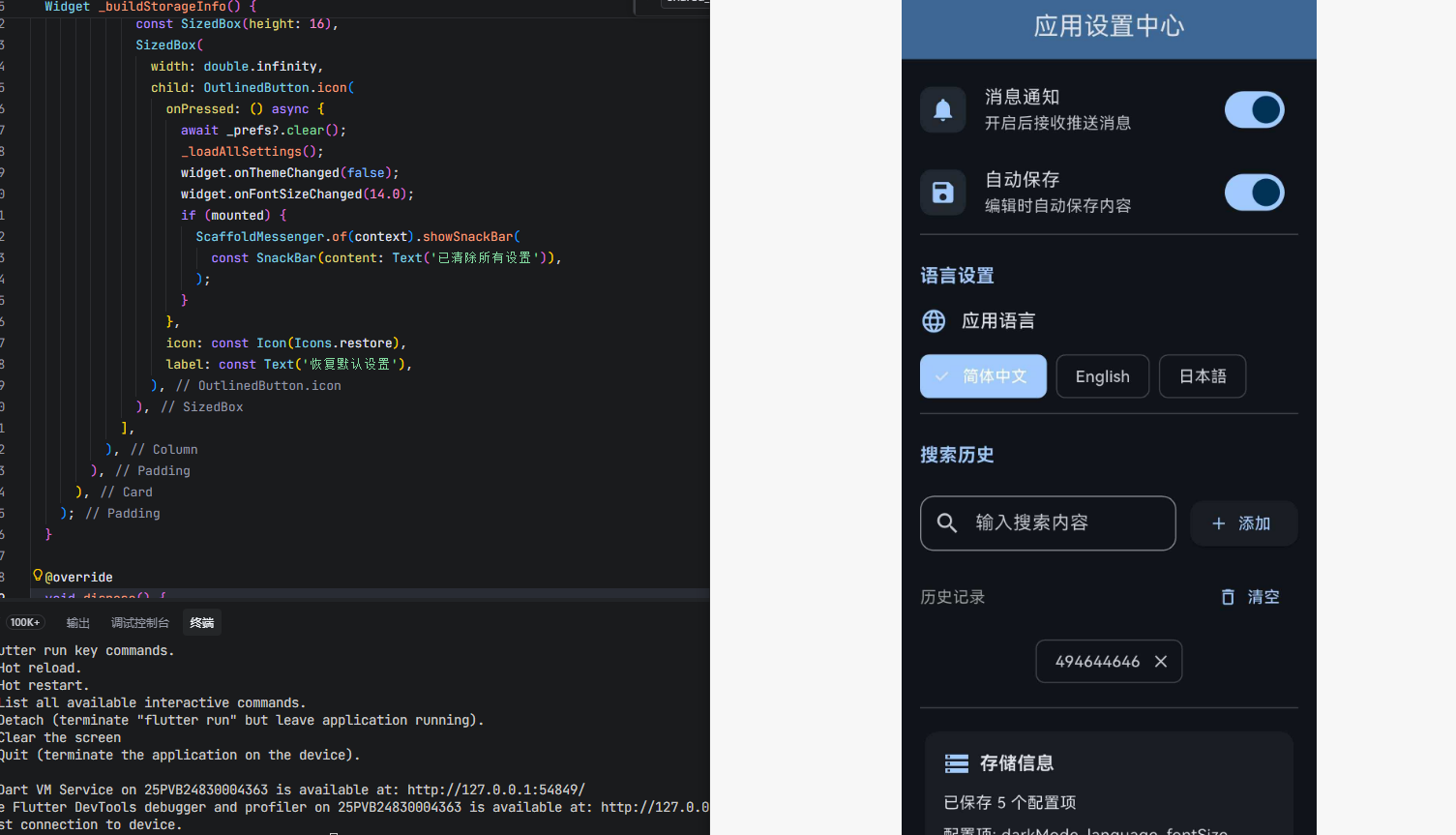
下面通过一个完整的"应用设置中心"示例,展示如何在实际应用中使用 shared_preferences。这个示例包含了主题切换、字体大小调节、通知开关、搜索历史管理等常见功能。
4.1 添加依赖
在 pubspec.yaml 中添加依赖:
dependencies:
  shared_preferences:
    git:
      url: https://atomgit.com/openharmony-tpc/flutter_packages.git
      path: packages/shared_preferences/shared_preferences
      ref: br_shared_preferences-v2.5.3_ohos
4.2 完整代码
import 'package:flutter/material.dart';
import 'package:shared_preferences/shared_preferences.dart';
void main() {
runApp(const MyApp());
}
class MyApp extends StatefulWidget {
const MyApp({super.key});
State<MyApp> createState() => _MyAppState();
}
class _MyAppState extends State<MyApp> {
bool _isDarkMode = false;
double _fontSize = 14.0;
void initState() {
super.initState();
_loadSettings();
}
Future<void> _loadSettings() async {
final prefs = await SharedPreferences.getInstance();
setState(() {
_isDarkMode = prefs.getBool('darkMode') ?? false;
_fontSize = prefs.getDouble('fontSize') ?? 14.0;
});
}
void _updateTheme(bool isDark) {
setState(() {
_isDarkMode = isDark;
});
}
void _updateFontSize(double size) {
setState(() {
_fontSize = size;
});
}
Widget build(BuildContext context) {
return MaterialApp(
title: '应用设置中心',
debugShowCheckedModeBanner: false,
theme: _isDarkMode ? _buildDarkTheme() : _buildLightTheme(),
home: SettingsScreen(
isDarkMode: _isDarkMode,
fontSize: _fontSize,
onThemeChanged: _updateTheme,
onFontSizeChanged: _updateFontSize,
),
);
}
ThemeData _buildLightTheme() {
return ThemeData(
colorScheme: ColorScheme.fromSeed(
seedColor: Colors.blue,
brightness: Brightness.light,
),
useMaterial3: true,
appBarTheme: const AppBarTheme(
centerTitle: true,
elevation: 0,
),
);
}
ThemeData _buildDarkTheme() {
return ThemeData(
colorScheme: ColorScheme.fromSeed(
seedColor: Colors.blue,
brightness: Brightness.dark,
),
useMaterial3: true,
appBarTheme: const AppBarTheme(
centerTitle: true,
elevation: 0,
),
);
}
}
class SettingsScreen extends StatefulWidget {
final bool isDarkMode;
final double fontSize;
final Function(bool) onThemeChanged;
final Function(double) onFontSizeChanged;
const SettingsScreen({
super.key,
required this.isDarkMode,
required this.fontSize,
required this.onThemeChanged,
required this.onFontSizeChanged,
});
State<SettingsScreen> createState() => _SettingsScreenState();
}
class _SettingsScreenState extends State<SettingsScreen> {
SharedPreferences? _prefs;
bool _notificationsEnabled = true;
bool _autoSaveEnabled = false;
String _selectedLanguage = 'zh-CN';
final List<String> _searchHistory = [];
final TextEditingController _searchController = TextEditingController();
void initState() {
super.initState();
_initPreferences();
}
Future<void> _initPreferences() async {
_prefs = await SharedPreferences.getInstance();
_loadAllSettings();
}
void _loadAllSettings() {
setState(() {
_notificationsEnabled = _prefs?.getBool('notifications') ?? true;
_autoSaveEnabled = _prefs?.getBool('autoSave') ?? false;
_selectedLanguage = _prefs?.getString('language') ?? 'zh-CN';
_searchHistory.clear();
_searchHistory.addAll(_prefs?.getStringList('searchHistory') ?? []);
});
}
Future<void> _saveSetting(String key, dynamic value) async {
if (_prefs == null) return;
if (value is bool) {
await _prefs!.setBool(key, value);
} else if (value is int) {
await _prefs!.setInt(key, value);
} else if (value is double) {
await _prefs!.setDouble(key, value);
} else if (value is String) {
await _prefs!.setString(key, value);
} else if (value is List<String>) {
await _prefs!.setStringList(key, value);
}
}
Future<void> _toggleNotifications(bool value) async {
setState(() {
_notificationsEnabled = value;
});
await _saveSetting('notifications', value);
}
Future<void> _toggleAutoSave(bool value) async {
setState(() {
_autoSaveEnabled = value;
});
await _saveSetting('autoSave', value);
}
Future<void> _changeLanguage(String language) async {
setState(() {
_selectedLanguage = language;
});
await _saveSetting('language', language);
}
Future<void> _addSearchHistory(String text) async {
if (text.trim().isEmpty) return;
setState(() {
_searchHistory.insert(0, text.trim());
if (_searchHistory.length > 10) {
_searchHistory.removeLast();
}
});
await _saveSetting('searchHistory', _searchHistory);
}
Future<void> _clearSearchHistory() async {
setState(() {
_searchHistory.clear();
});
await _saveSetting('searchHistory', []);
}
Widget build(BuildContext context) {
return Scaffold(
appBar: AppBar(
title: const Text('应用设置中心'),
backgroundColor: Theme.of(context).colorScheme.inversePrimary,
),
body: ListView(
children: [
_buildSectionHeader('外观设置'),
_buildThemeSwitch(),
_buildFontSizeSlider(),
_buildSectionDivider(),
_buildSectionHeader('功能设置'),
_buildSwitchTile(
icon: Icons.notifications,
title: '消息通知',
subtitle: '开启后接收推送消息',
value: _notificationsEnabled,
onChanged: _toggleNotifications,
),
_buildSwitchTile(
icon: Icons.save,
title: '自动保存',
subtitle: '编辑时自动保存内容',
value: _autoSaveEnabled,
onChanged: _toggleAutoSave,
),
_buildSectionDivider(),
_buildSectionHeader('语言设置'),
_buildLanguageSelector(),
_buildSectionDivider(),
_buildSectionHeader('搜索历史'),
_buildSearchHistory(),
_buildSectionDivider(),
_buildStorageInfo(),
],
),
);
}
Widget _buildSectionHeader(String title) {
return Padding(
padding: const EdgeInsets.fromLTRB(16, 24, 16, 8),
child: Text(
title,
style: TextStyle(
fontSize: 16,
fontWeight: FontWeight.bold,
color: Theme.of(context).colorScheme.primary,
),
),
);
}
Widget _buildSectionDivider() {
return const Padding(
padding: EdgeInsets.symmetric(horizontal: 16),
child: Divider(height: 1),
);
}
Widget _buildThemeSwitch() {
return ListTile(
leading: Container(
width: 40,
height: 40,
decoration: BoxDecoration(
color: Theme.of(context).colorScheme.primary.withOpacity(0.1),
borderRadius: BorderRadius.circular(10),
),
child: Icon(
widget.isDarkMode ? Icons.dark_mode : Icons.light_mode,
color: Theme.of(context).colorScheme.primary,
),
),
title: const Text('深色模式'),
subtitle: Text(widget.isDarkMode ? '已开启' : '已关闭'),
trailing: Switch(
value: widget.isDarkMode,
onChanged: (value) {
widget.onThemeChanged(value);
_saveSetting('darkMode', value);
},
),
);
}
Widget _buildFontSizeSlider() {
return Padding(
padding: const EdgeInsets.symmetric(horizontal: 16, vertical: 8),
child: Column(
crossAxisAlignment: CrossAxisAlignment.start,
children: [
Row(
children: [
Icon(
Icons.text_fields,
color: Theme.of(context).colorScheme.primary,
size: 24,
),
const SizedBox(width: 12),
const Text(
'字体大小',
style: TextStyle(fontSize: 16, fontWeight: FontWeight.w500),
),
const Spacer(),
Text(
'${widget.fontSize.toInt()}',
style: TextStyle(
color: Theme.of(context).colorScheme.primary,
fontWeight: FontWeight.bold,
fontSize: 16,
),
),
],
),
Slider(
value: widget.fontSize,
min: 12,
max: 24,
divisions: 12,
label: '${widget.fontSize.toInt()}',
onChanged: (value) {
widget.onFontSizeChanged(value);
_saveSetting('fontSize', value);
},
),
],
),
);
}
Widget _buildSwitchTile({
required IconData icon,
required String title,
required String subtitle,
required bool value,
required Function(bool) onChanged,
}) {
return ListTile(
leading: Container(
width: 40,
height: 40,
decoration: BoxDecoration(
color: Theme.of(context).colorScheme.primary.withOpacity(0.1),
borderRadius: BorderRadius.circular(10),
),
child: Icon(
icon,
color: Theme.of(context).colorScheme.primary,
),
),
title: Text(title),
subtitle: Text(subtitle),
trailing: Switch(
value: value,
onChanged: (v) => onChanged(v),
),
);
}
Widget _buildLanguageSelector() {
final languages = {
'zh-CN': '简体中文',
'en-US': 'English',
'ja-JP': '日本語',
};
return Padding(
padding: const EdgeInsets.symmetric(horizontal: 16, vertical: 8),
child: Column(
crossAxisAlignment: CrossAxisAlignment.start,
children: [
Row(
children: [
Icon(
Icons.language,
color: Theme.of(context).colorScheme.primary,
size: 24,
),
const SizedBox(width: 12),
const Text(
'应用语言',
style: TextStyle(fontSize: 16, fontWeight: FontWeight.w500),
),
],
),
const SizedBox(height: 12),
Wrap(
spacing: 8,
runSpacing: 8,
children: languages.entries.map((entry) {
final isSelected = _selectedLanguage == entry.key;
return ChoiceChip(
label: Text(entry.value),
selected: isSelected,
onSelected: (selected) {
if (selected) {
_changeLanguage(entry.key);
}
},
selectedColor: Theme.of(context).colorScheme.primary,
labelStyle: TextStyle(
color: isSelected ? Colors.white : null,
),
);
}).toList(),
),
],
),
);
}
Widget _buildSearchHistory() {
return Padding(
padding: const EdgeInsets.all(16),
child: Column(
children: [
Row(
children: [
Expanded(
child: TextField(
controller: _searchController,
decoration: InputDecoration(
hintText: '输入搜索内容',
prefixIcon: const Icon(Icons.search),
border: OutlineInputBorder(
borderRadius: BorderRadius.circular(12),
),
contentPadding: const EdgeInsets.symmetric(horizontal: 16),
),
onSubmitted: (value) {
_addSearchHistory(value);
_searchController.clear();
},
),
),
const SizedBox(width: 12),
ElevatedButton.icon(
onPressed: () {
_addSearchHistory(_searchController.text);
_searchController.clear();
},
icon: const Icon(Icons.add),
label: const Text('添加'),
style: ElevatedButton.styleFrom(
shape: RoundedRectangleBorder(
borderRadius: BorderRadius.circular(12),
),
),
),
],
),
if (_searchHistory.isNotEmpty) ...[
const SizedBox(height: 16),
Row(
children: [
const Text(
'历史记录',
style: TextStyle(fontSize: 14, color: Colors.grey),
),
const Spacer(),
TextButton.icon(
onPressed: _clearSearchHistory,
icon: const Icon(Icons.delete_outline, size: 18),
label: const Text('清空'),
),
],
),
const SizedBox(height: 8),
Wrap(
spacing: 8,
runSpacing: 8,
children: _searchHistory.map((item) {
return Chip(
label: Text(item),
deleteIcon: const Icon(Icons.close, size: 18),
onDeleted: () {
setState(() {
_searchHistory.remove(item);
});
_saveSetting('searchHistory', _searchHistory);
},
);
}).toList(),
),
],
],
),
);
}
Widget _buildStorageInfo() {
final keys = _prefs?.getKeys() ?? {};
return Padding(
padding: const EdgeInsets.all(16),
child: Card(
child: Padding(
padding: const EdgeInsets.all(16),
child: Column(
crossAxisAlignment: CrossAxisAlignment.start,
children: [
Row(
children: [
Icon(
Icons.storage,
color: Theme.of(context).colorScheme.primary,
),
const SizedBox(width: 8),
const Text(
'存储信息',
style: TextStyle(fontSize: 16, fontWeight: FontWeight.bold),
),
],
),
const SizedBox(height: 12),
Text('已保存 ${keys.length} 个配置项'),
const SizedBox(height: 8),
Text('配置项: ${keys.join(', ')}'),
const SizedBox(height: 16),
SizedBox(
width: double.infinity,
child: OutlinedButton.icon(
onPressed: () async {
await _prefs?.clear();
_loadAllSettings();
widget.onThemeChanged(false);
widget.onFontSizeChanged(14.0);
if (mounted) {
ScaffoldMessenger.of(context).showSnackBar(
const SnackBar(content: Text('已清除所有设置')),
);
}
},
icon: const Icon(Icons.restore),
label: const Text('恢复默认设置'),
),
),
],
),
),
),
);
}
void dispose() {
_searchController.dispose();
super.dispose();
}
}
4.3 代码说明
4.3.1 应用架构
- 使用
StatefulWidget管理应用状态 - 在
initState中异步加载设置 - 通过回调函数实现子组件与父组件的通信
4.3.2 设置保存逻辑
- 封装
_saveSetting()方法,根据数据类型自动选择对应的存储方法 - 支持 bool、int、double、String、List 五种类型
- 每次修改设置后立即保存到本地存储
4.3.3 功能模块
- 外观设置:深色模式切换、字体大小调节
- 功能设置:消息通知开关、自动保存开关
- 语言设置:多语言选择器
- 搜索历史:添加、删除、清空搜索历史
- 存储信息:查看已保存的配置项,恢复默认设置
5. 常见问题
5.1 shared_preferences 适合存储大量数据吗?
不适合。shared_preferences 适用于存储简单的键值对数据,如配置项、用户偏好等。如果需要存储大量数据或复杂的数据结构,建议使用数据库(如 sqflite、drift)或文件存储。
5.2 数据何时写入磁盘?
shared_preferences 的写入操作是异步的,调用 setXxx() 方法后会立即返回,数据会在后台写入磁盘。如果需要确保数据已写入磁盘,可以 await 返回的 Future。
5.3 如何监听数据变化?
shared_preferences 本身不提供数据变化监听功能。如果需要监听变化,可以在保存数据后手动通知,或使用状态管理方案(如 Provider、Riverpod)结合 shared_preferences。
5.4 数据是否安全?
shared_preferences 存储的数据是明文的,不适合存储敏感信息(如密码、Token)。如果需要存储敏感信息,建议使用加密存储方案(如 flutter_secure_storage)。
5.5 OpenHarmony 平台有什么限制?
在 OpenHarmony 平台上,shared_preferences 的功能与官方版本基本一致。需要注意的是,必须使用 OpenHarmony 适配版本,pub.dev 上的官方版本不支持 HarmonyOS 平台。
6. 总结
shared_preferences 是 Flutter 应用开发中不可或缺的轻量级存储方案。通过本文的"应用设置中心"示例,我们展示了如何在实际应用中使用该库进行数据持久化。无论是主题切换、字体调节,还是搜索历史管理,shared_preferences 都能提供简单高效的解决方案。

腾讯云面向开发者汇聚海量精品云计算使用和开发经验,营造开放的云计算技术生态圈。
更多推荐
 12
12 0
0- 0


 已为社区贡献19条内容

所有评论(0)