Flutter for OpenHarmony第三方库实战:智能图片处理 —— image_picker 组合应用
想象一下这样的场景:用户打开你的应用,从相册选择一张照片,进行精细裁剪,然后一键分享到社交平台。这个看似简单的流程,背后却涉及多个技术环节的协作。fill:#333;important;important;fill:none;color:#333;color:#333;important;fill:none;fill:#333;height:1em;图片选择图片裁剪系统分享知识点内容📦 依赖管理
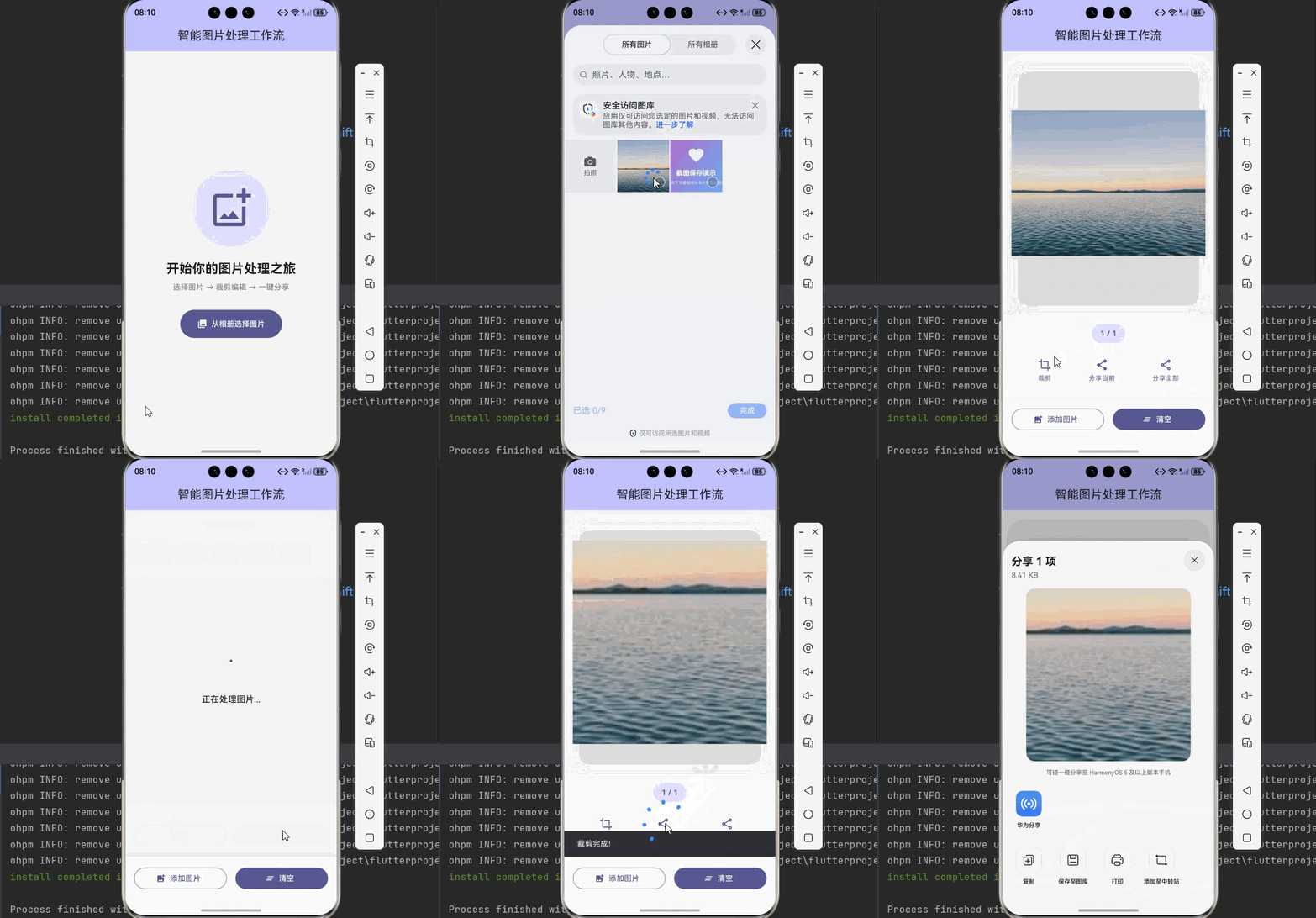
欢迎加入开源鸿蒙跨平台社区:https://openharmonycrossplatform.csdn.net
🚀 项目概述:我们要构建什么?
想象一下这样的场景:用户打开你的应用,从相册选择一张照片,进行精细裁剪,然后一键分享到社交平台。这个看似简单的流程,背后却涉及多个技术环节的协作。
🎯 核心功能一览
| 功能模块 | 实现库 | 核心能力 |
|---|---|---|
| 🖼️ 图片选择 | image_picker | 相册选择、多图选择、质量控制 |
| ✂️ 图片裁剪 | image_cropper | 自由裁剪、固定比例、圆形裁剪 |
| 📤 系统分享 | share_extend | 文本分享、图片分享、多图分享 |
💡 为什么选择这三个库?
1️⃣ image_picker - 官方维护,稳定可靠
- Flutter 官方团队维护,质量有保障
- 支持相册和相机两种来源
- 支持图片质量压缩和尺寸限制
2️⃣ image_cropper - 功能强大,交互友好
- 支持多种裁剪比例预设
- 提供完整的裁剪 UI 组件
- 支持手势缩放和旋转
3️⃣ share_extend - 原生体验,无缝集成
- 调用系统原生分享面板
- 支持分享到任意应用
- 无需集成各平台 SDK
📦 第一步:环境配置
1.1 添加依赖
打开 pubspec.yaml,添加三个库的依赖:
dependencies:
  flutter:
    sdk: flutter

  # 图片选择
  image_picker:
    git:
      url: https://gitcode.com/openharmony-tpc/flutter_packages.git
      path: packages/image_picker

  # 图片裁剪
  image_cropper:
    git:
      url: https://atomgit.com/openharmony-sig/fluttertpc_image_cropper.git
      path: ./image_cropper
      ref: master

  # 系统分享
  share_extend:
    git:
      url: "https://atomgit.com/openharmony-sig/fluttertpc_share_extend.git"
      ref: "master"

dev_dependencies:
  # 图片裁剪鸿蒙平台支持
  imagecropper_ohos:
    git:
      url: https://atomgit.com/openharmony-sig/fluttertpc_image_cropper.git
      path: ./image_cropper/ohos
      ref: master
⚠️ 注意:
imagecropper_ohos需要作为dev_dependency引入,这是鸿蒙平台的原生实现。
1.2 权限配置
在 OpenHarmony 平台上,需要配置相关权限:
📄 ohos/entry/src/main/module.json5:
{
  "module": {
    "requestPermissions": [
      {
        "name": "ohos.permission.INTERNET",
        "reason": "$string:network_reason",
        "usedScene": {
          "abilities": ["EntryAbility"],
          "when": "inuse"
        }
      },
      {
        "name": "ohos.permission.READ_MEDIA",
        "reason": "$string:read_media_reason",
        "usedScene": {
          "abilities": ["EntryAbility"],
          "when": "inuse"
        }
      }
    ]
  }
}
📄 ohos/entry/src/main/resources/base/element/string.json:
{
  "string": [
    {
      "name": "network_reason",
      "value": "使用网络加载图片资源"
    },
    {
      "name": "read_media_reason",
      "value": "读取相册图片进行编辑"
    }
  ]
}
1.3 执行依赖安装
flutter pub get
🖼️ 第二步:图片选择模块
2.1 理解 ImagePicker 的核心概念
ImagePicker 是 Flutter 官方提供的图片选择插件,它的设计理念是简单即美。只需要几行代码,就能实现从相册选择图片的功能。
// 创建选择器实例
final ImagePicker _picker = ImagePicker();

// 从相册选择单张图片
final XFile? image = await _picker.pickImage(
  source: ImageSource.gallery,  // 来源:相册
);
2.2 XFile 是什么?
XFile 是一个跨平台的文件抽象类,它提供了统一的文件操作接口:
// XFile 常用属性和方法
XFile image = ...;

String path = image.path;           // 文件路径
String name = image.name;           // 文件名
int length = await image.length();  // 文件大小
Uint8List bytes = await image.readAsBytes();  // 读取字节
2.3 图片质量控制
在实际应用中,我们经常需要对选择的图片进行质量控制,避免用户选择过大的图片导致内存问题:
// 选择图片时设置质量和尺寸限制
final XFile? image = await _picker.pickImage(
  source: ImageSource.gallery,
  imageQuality: 85,    // 图片质量:0-100
  maxWidth: 1920,      // 最大宽度
  maxHeight: 1080,     // 最大高度
);
2.4 多图选择
当用户需要选择多张图片时,可以使用 pickMultiImage 方法:
// 选择多张图片
final List<XFile> images = await _picker.pickMultiImage(
  imageQuality: 85,
  maxWidth: 1920,
  maxHeight: 1080,
);

// 遍历处理
for (final image in images) {
  print('选中图片: ${image.path}');
}
✂️ 第三步:图片裁剪模块
3.1 裁剪流程设计
图片裁剪是一个交互密集的操作,需要考虑用户体验:
3.2 为什么需要图片采样?
直接加载大图会导致内存问题。sampleImage 方法会将图片缩放到合适的大小:
final imageCropper = ImagecropperOhos();

// 加载图片采样(将图片缩放到最大 1024 像素)
final File? sampleFile = await imageCropper.sampleImage(
  path: originalImagePath,
  maximumSize: 1024,
);
3.3 裁剪比例预设
image_cropper 提供了丰富的裁剪比例预设,满足不同场景需求:
| 预设值 | 比例 | 适用场景 |
|---|---|---|
original |
自由比例 | 任意裁剪 |
square |
1:1 | 头像、Instagram |
ratio3x2 |
3:2 | 传统摄影 |
ratio4x3 |
4:3 | 标准照片 |
ratio16x9 |
16:9 | 宽屏壁纸 |
ratio21x9 |
21:9 | 电影画幅 |
3.4 裁剪界面集成
使用 Crop Widget 构建交互式裁剪界面:
Crop(
  image: FileImage(sampleFile!),    // 待裁剪的图片
  onCrop: (croppedFile) async {
    // 裁剪完成回调
    setState(() {
      _croppedImage = croppedFile;
    });
  },
  aspectRatio: 1.0,                 // 裁剪比例
  cropStyle: CropStyle.rectangle,   // 裁剪样式
);
📤 第四步:系统分享模块
4.1 分享类型说明
share_extend 支持多种分享类型:
// 分享文本
ShareExtend.share("分享的文本内容", "text");

// 分享单张图片
ShareExtend.share(imagePath, "image");

// 分享文件
ShareExtend.share(filePath, "file");

// 分享多张图片
ShareExtend.shareMultiple([path1, path2, path3], "image");
4.2 分享流程设计
4.3 错误处理
分享操作可能因为各种原因失败,需要做好错误处理:
Future<void> shareImage(String imagePath) async {
  try {
    if (imagePath.isEmpty) {
      // 提示用户没有可分享的内容
      return;
    }
    await ShareExtend.share(imagePath, "image");
  } catch (e) {
    // 处理分享失败的情况
    print('分享失败: $e');
  }
}
🎨 第五步:完整应用实现
现在,让我们把所有模块组合起来,构建一个完整的图片处理工作流应用:
5.1 应用架构设计
5.2 完整代码实现
import 'dart:io';
import 'package:flutter/material.dart';
import 'package:image_picker/image_picker.dart';
import 'package:imagecropper_ohos/imagecropper_ohos.dart';
import 'package:imagecropper_ohos/page/crop.dart';
import 'package:share_extend/share_extend.dart';
void main() {
runApp(const ImageWorkflowApp());
}
class ImageWorkflowApp extends StatelessWidget {
const ImageWorkflowApp({super.key});
Widget build(BuildContext context) {
return MaterialApp(
title: '智能图片处理工作流',
debugShowCheckedModeBanner: false,
theme: ThemeData(
colorScheme: ColorScheme.fromSeed(seedColor: const Color(0xFF6366F1)),
useMaterial3: true,
appBarTheme: const AppBarTheme(
centerTitle: true,
elevation: 0,
),
),
home: const ImageWorkflowPage(),
);
}
}
class ImageWorkflowPage extends StatefulWidget {
const ImageWorkflowPage({super.key});
State<ImageWorkflowPage> createState() => _ImageWorkflowPageState();
}
class _ImageWorkflowPageState extends State<ImageWorkflowPage> {
final ImagePicker _picker = ImagePicker();
final imageCropper = ImagecropperOhos();
final GlobalKey<CropState> _cropKey = GlobalKey<CropState>();
List<XFile> _selectedImages = [];
File? _sampleImage;
File? _originalFile;
Map<int, File> _croppedImages = {}; // 为每张图片保存裁剪结果
int _currentIndex = 0;
bool _isProcessing = false;
double? _aspectRatio;
final List<double?> _aspectRatios = [
null, // 自由
1.0, // 1:1
3.0/2.0, // 3:2
4.0/3.0, // 4:3
16.0/9.0, // 16:9
];
final Map<double?, String> _aspectRatioLabels = {
null: '自由',
1.0: '1:1',
3.0/2.0: '3:2',
4.0/3.0: '4:3',
16.0/9.0: '16:9',
};
Widget build(BuildContext context) {
return Scaffold(
backgroundColor: Colors.grey[100],
appBar: AppBar(
title: const Text('智能图片处理工作流'),
backgroundColor: Theme.of(context).colorScheme.inversePrimary,
),
body: _buildBody(),
bottomNavigationBar: _buildBottomBar(),
);
}
Widget _buildBody() {
if (_selectedImages.isEmpty) {
return _buildEmptyState();
}
if (_isProcessing) {
return _buildProcessingState();
}
if (_sampleImage != null) {
return _buildCropView();
}
return _buildImagePreview();
}
Widget _buildEmptyState() {
return Center(
child: Column(
mainAxisAlignment: MainAxisAlignment.center,
children: [
Container(
padding: const EdgeInsets.all(32),
decoration: BoxDecoration(
color: Theme.of(context).colorScheme.primaryContainer,
shape: BoxShape.circle,
),
child: Icon(
Icons.add_photo_alternate_outlined,
size: 80,
color: Theme.of(context).colorScheme.primary,
),
),
const SizedBox(height: 24),
Text(
'开始你的图片处理之旅',
style: Theme.of(context).textTheme.headlineSmall?.copyWith(
fontWeight: FontWeight.bold,
),
),
const SizedBox(height: 8),
Text(
'选择图片 → 裁剪编辑 → 一键分享',
style: Theme.of(context).textTheme.bodyMedium?.copyWith(
color: Colors.grey[600],
),
),
const SizedBox(height: 32),
FilledButton.icon(
onPressed: _pickImages,
icon: const Icon(Icons.photo_library),
label: const Text('从相册选择图片'),
style: FilledButton.styleFrom(
padding: const EdgeInsets.symmetric(
horizontal: 32,
vertical: 16,
),
),
),
],
),
);
}
Widget _buildProcessingState() {
return Center(
child: Column(
mainAxisAlignment: MainAxisAlignment.center,
children: [
const CircularProgressIndicator(),
const SizedBox(height: 24),
Text(
'正在处理图片...',
style: Theme.of(context).textTheme.titleMedium,
),
],
),
);
}
Widget _buildImagePreview() {
return Column(
children: [
Expanded(
child: PageView.builder(
itemCount: _selectedImages.length,
onPageChanged: (index) {
setState(() {
_currentIndex = index;
_sampleImage = null;
});
},
itemBuilder: (context, index) {
// 优先显示裁剪后的图片
final imageFile = _croppedImages.containsKey(index)
? _croppedImages[index]
: File(_selectedImages[index].path);
return Container(
margin: const EdgeInsets.all(16),
decoration: BoxDecoration(
borderRadius: BorderRadius.circular(16),
boxShadow: [
BoxShadow(
color: Colors.black.withOpacity(0.1),
blurRadius: 20,
offset: const Offset(0, 10),
),
],
),
child: ClipRRect(
borderRadius: BorderRadius.circular(16),
child: Image.file(
imageFile!,
fit: BoxFit.contain,
),
),
);
},
),
),
_buildImageInfo(),
],
);
}
Widget _buildImageInfo() {
return Container(
padding: const EdgeInsets.all(16),
decoration: BoxDecoration(
color: Colors.white,
boxShadow: [
BoxShadow(
color: Colors.black.withOpacity(0.05),
blurRadius: 10,
offset: const Offset(0, -5),
),
],
),
child: Column(
children: [
Row(
mainAxisAlignment: MainAxisAlignment.center,
children: [
Container(
padding: const EdgeInsets.symmetric(
horizontal: 16,
vertical: 8,
),
decoration: BoxDecoration(
color: Theme.of(context).colorScheme.primaryContainer,
borderRadius: BorderRadius.circular(20),
),
child: Text(
'${_currentIndex + 1} / ${_selectedImages.length}',
style: TextStyle(
color: Theme.of(context).colorScheme.primary,
fontWeight: FontWeight.bold,
),
),
),
],
),
const SizedBox(height: 16),
Row(
mainAxisAlignment: MainAxisAlignment.spaceEvenly,
children: [
_buildActionButton(
icon: Icons.crop,
label: '裁剪',
onTap: _startCrop,
),
_buildActionButton(
icon: Icons.share,
label: '分享当前',
onTap: () => _shareCurrentImage(),
),
_buildActionButton(
icon: Icons.share_outlined,
label: '分享全部',
onTap: _shareAllImages,
),
],
),
],
),
);
}
Widget _buildActionButton({
required IconData icon,
required String label,
required VoidCallback onTap,
}) {
return InkWell(
onTap: onTap,
borderRadius: BorderRadius.circular(12),
child: Container(
padding: const EdgeInsets.symmetric(
horizontal: 20,
vertical: 12,
),
child: Column(
mainAxisSize: MainAxisSize.min,
children: [
Icon(icon, color: Theme.of(context).colorScheme.primary),
const SizedBox(height: 4),
Text(
label,
style: TextStyle(
color: Theme.of(context).colorScheme.primary,
fontSize: 12,
),
),
],
),
),
);
}
Widget _buildCropView() {
return Column(
children: [
Padding(
padding: const EdgeInsets.all(16),
child: Text(
'选择裁剪比例',
style: Theme.of(context).textTheme.titleMedium,
),
),
SizedBox(
height: 50,
child: ListView.builder(
scrollDirection: Axis.horizontal,
itemCount: _aspectRatios.length,
itemBuilder: (context, index) {
final ratio = _aspectRatios[index];
final isSelected = ratio == _aspectRatio;
return Padding(
padding: const EdgeInsets.symmetric(horizontal: 4),
child: ChoiceChip(
label: Text(_aspectRatioLabels[ratio]!),
selected: isSelected,
onSelected: (selected) {
if (selected) {
setState(() {
_aspectRatio = ratio;
});
}
},
),
);
},
),
),
Expanded(
child: Container(
margin: const EdgeInsets.all(16),
child: Crop.file(
_sampleImage!,
key: _cropKey,
aspectRatio: _aspectRatio,
),
),
),
Padding(
padding: const EdgeInsets.all(16),
child: Row(
children: [
Expanded(
child: OutlinedButton(
onPressed: _cancelCrop,
child: const Text('取消'),
),
),
const SizedBox(width: 16),
Expanded(
child: FilledButton(
onPressed: _confirmCrop,
child: const Text('确认裁剪'),
),
),
],
),
),
],
);
}
Widget _buildBottomBar() {
if (_selectedImages.isEmpty) return const SizedBox.shrink();
return Container(
padding: const EdgeInsets.all(16),
decoration: BoxDecoration(
color: Colors.white,
boxShadow: [
BoxShadow(
color: Colors.black.withOpacity(0.05),
blurRadius: 10,
offset: const Offset(0, -5),
),
],
),
child: SafeArea(
child: Row(
children: [
Expanded(
child: OutlinedButton.icon(
onPressed: _pickImages,
icon: const Icon(Icons.add_photo_alternate),
label: const Text('添加图片'),
),
),
const SizedBox(width: 16),
Expanded(
child: FilledButton.icon(
onPressed: _clearAll,
icon: const Icon(Icons.clear_all),
label: const Text('清空'),
),
),
],
),
),
);
}
Future<void> _pickImages() async {
final List<XFile> images = await _picker.pickMultiImage(
imageQuality: 85,
maxWidth: 1920,
maxHeight: 1080,
);
if (images.isNotEmpty) {
setState(() {
_selectedImages = images;
_currentIndex = 0;
_sampleImage = null;
_croppedImage = null;
});
}
}
Future<void> _startCrop() async {
if (_selectedImages.isEmpty) return;
setState(() {
_isProcessing = true;
});
try {
final sampleFile = await imageCropper.sampleImage(
path: _selectedImages[_currentIndex].path,
maximumSize: 1024,
);
setState(() {
_sampleImage = sampleFile;
_originalFile = File(_selectedImages[_currentIndex].path);
_isProcessing = false;
});
} catch (e) {
setState(() {
_isProcessing = false;
});
if (mounted) {
ScaffoldMessenger.of(context).showSnackBar(
SnackBar(content: Text('加载图片失败: $e')),
);
}
}
}
void _cancelCrop() {
setState(() {
_sampleImage = null;
});
}
Future<void> _confirmCrop() async {
if (_sampleImage == null || _originalFile == null) return;
setState(() {
_isProcessing = true;
});
try {
final scale = _cropKey.currentState?.scale;
final area = _cropKey.currentState?.area;
final angle = _cropKey.currentState?.angle;
final cx = _cropKey.currentState?.cx ?? 0;
final cy = _cropKey.currentState?.cy ?? 0;
if (area == null) {
setState(() {
_isProcessing = false;
});
return;
}
// 使用更高分辨率进行裁剪
final sample = await imageCropper.sampleImage(
path: _originalFile!.path,
maximumSize: (2000 / scale!).round(),
);
final croppedFile = await imageCropper.cropImage(
file: sample!,
area: area,
angle: angle,
cx: cx,
cy: cy,
);
sample.delete();
setState(() {
_croppedImages[_currentIndex] = croppedFile!;
_sampleImage = null;
_isProcessing = false;
});
if (mounted) {
ScaffoldMessenger.of(context).showSnackBar(
const SnackBar(content: Text('裁剪完成!')),
);
}
} catch (e) {
setState(() {
_isProcessing = false;
});
if (mounted) {
ScaffoldMessenger.of(context).showSnackBar(
SnackBar(content: Text('裁剪失败: $e')),
);
}
}
}
Future<void> _shareCurrentImage() async {
String pathToShare = _croppedImages.containsKey(_currentIndex)
? _croppedImages[_currentIndex]!.path
: (_selectedImages.isNotEmpty ? _selectedImages[_currentIndex].path : '');
if (pathToShare.isEmpty) {
ScaffoldMessenger.of(context).showSnackBar(
const SnackBar(content: Text('没有可分享的图片')),
);
return;
}
try {
await ShareExtend.share(pathToShare, "image");
} catch (e) {
if (mounted) {
ScaffoldMessenger.of(context).showSnackBar(
SnackBar(content: Text('分享失败: $e')),
);
}
}
}
Future<void> _shareAllImages() async {
if (_selectedImages.isEmpty) {
ScaffoldMessenger.of(context).showSnackBar(
const SnackBar(content: Text('没有可分享的图片')),
);
return;
}
try {
final paths = _selectedImages.map((img) => img.path).toList();
await ShareExtend.shareMultiple(paths, "image");
} catch (e) {
if (mounted) {
ScaffoldMessenger.of(context).showSnackBar(
SnackBar(content: Text('分享失败: $e')),
);
}
}
}
void _clearAll() {
setState(() {
_selectedImages = [];
_sampleImage = null;
_croppedImages.clear();
_currentIndex = 0;
});
}
}
🎯 第六步:功能详解与优化
6.1 工作流状态管理
我们的应用采用了清晰的状态管理:
// 核心状态变量
List<XFile> _selectedImages = [];  // 选中的图片列表
File? _sampleImage;                 // 采样后的图片(用于裁剪)
File? _originalFile;                // 原始图片文件
Map<int, File> _croppedImages = {}; // 裁剪后的图片映射(按索引存储)
int _currentIndex = 0;              // 当前查看的图片索引
bool _isProcessing = false;         // 处理中状态
6.2 用户体验优化
🔄 加载状态反馈
if (_isProcessing) {
  return _buildProcessingState();  // 显示加载动画
}
📱 图片预览优化
使用 PageView 实现左右滑动切换图片,提升浏览体验:
PageView.builder(
  onPageChanged: (index) {
    setState(() {
      _currentIndex = index;
    });
  },
  // ...
)
6.3 错误处理策略
try {
  // 执行可能失败的操作
  await someOperation();
} catch (e) {
  // 友好的错误提示
  if (mounted) {
    ScaffoldMessenger.of(context).showSnackBar(
      SnackBar(content: Text('操作失败: $e')),
    );
  }
}
💡 扩展思路
🎨 添加滤镜功能
可以集成 photofilters 库,在裁剪后添加滤镜效果:
// 滤镜处理示例
final filteredImage = await applyFilter(image, filter);
💾 添加本地保存
使用 path_provider 保存处理后的图片:
final directory = await getApplicationDocumentsDirectory();
final savedPath = '${directory.path}/processed_image.jpg';
await File(imagePath).copy(savedPath);
📋 添加操作历史
使用 shared_preferences 记录用户的操作历史:
final prefs = await SharedPreferences.getInstance();
await prefs.setStringList('recent_images', imagePaths);
🎉 总结
通过本文,我们完成了一个完整的智能图片处理工作流应用,掌握了:
| 知识点 | 内容 |
|---|---|
| 📦 依赖管理 | 多个三方库的协同配置 |
| 🖼️ 图片选择 | 单选、多选、质量控制 |
| ✂️ 图片裁剪 | 采样加载、比例选择、交互裁剪 |
| 📤 系统分享 | 单图分享、多图分享 |
| 🎨 UI 设计 | 状态管理、交互优化、错误处理 |
这三个库的组合,覆盖了图片处理的核心流程,可以作为你开发图片相关应用的基础框架。希望这篇文章能帮助你在 Flutter for OpenHarmony 的开发之路上更进一步!

腾讯云面向开发者汇聚海量精品云计算使用和开发经验,营造开放的云计算技术生态圈。
更多推荐
 10
10 0
0- 0


 已为社区贡献28条内容

所有评论(0)