Flutter for OpenHarmony衣橱管家App实战:添加穿搭记录实现
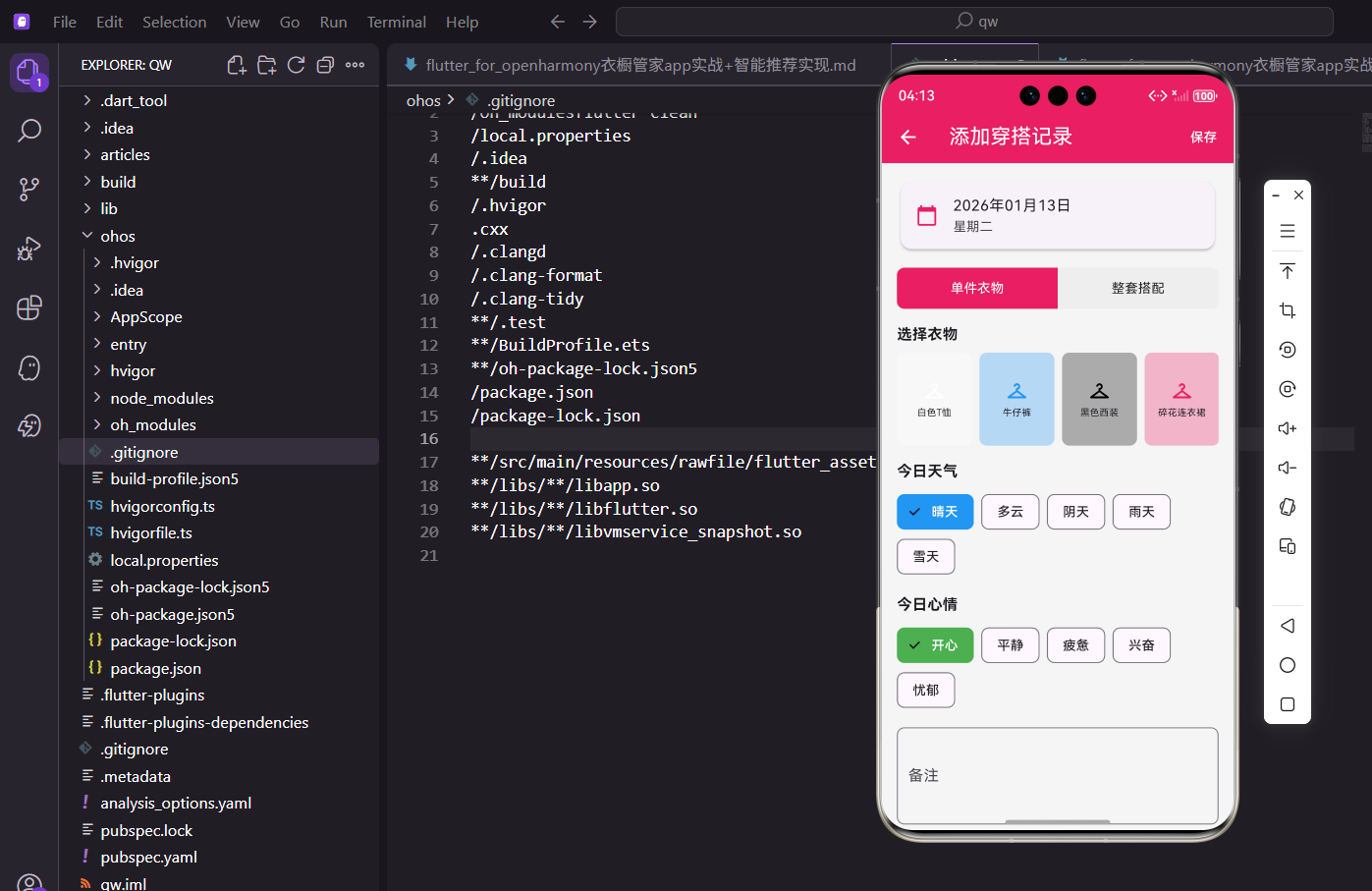
每天记录穿了什么,是衣橱管理的好习惯。今天来实现添加穿搭记录的功能,支持选择衣物或搭配,还能记录天气和心情。
记录的内容
一条穿搭记录包含这些信息:
- 日期:哪天穿的
- 衣物/搭配:穿了什么
- 天气:当天天气情况
- 心情:穿着时的心情
- 备注:额外的穿搭心得
这些信息组合起来,就是一份完整的穿搭日记。
页面结构
接收选中的日期作为参数:
import 'package:flutter/material.dart';
import 'package:provider/provider.dart';
import 'package:flutter_screenutil/flutter_screenutil.dart';
import 'package:uuid/uuid.dart';
import 'package:intl/intl.dart';
import '../../providers/wardrobe_provider.dart';
import '../../models/clothing_item.dart';
class AddWearRecordScreen extends StatefulWidget {
final DateTime selectedDate;
const AddWearRecordScreen({super.key, required this.selectedDate});
State<AddWearRecordScreen> createState() => _AddWearRecordScreenState();
}
从日历页面跳转时传入选中的日期。
uuid用于生成记录的唯一ID。
状态变量
管理表单的各项选择:
class _AddWearRecordScreenState extends State<AddWearRecordScreen> {
String? _selectedClothingId;
String? _selectedOutfitId;
String _selectedWeather = '晴天';
String _selectedMood = '开心';
final _notesController = TextEditingController();
bool _isClothingMode = true;
final List<String> _weathers = ['晴天', '多云', '阴天', '雨天', '雪天'];
final List<String> _moods = ['开心', '平静', '疲惫', '兴奋', '忧郁'];
void dispose() {
_notesController.dispose();
super.dispose();
}
_isClothingMode控制选择单件衣物还是整套搭配。
天气和心情有默认值,减少用户操作。
页面布局
AppBar带保存按钮,主体是滚动表单:
Widget build(BuildContext context) {
return Scaffold(
appBar: AppBar(
title: const Text('添加穿搭记录'),
actions: [
TextButton(
onPressed: _saveRecord,
child: const Text('保存', style: TextStyle(color: Colors.white)),
),
],
),
body: SingleChildScrollView(
padding: EdgeInsets.all(16.w),
child: Column(
crossAxisAlignment: CrossAxisAlignment.start,
children: [
Card(
child: ListTile(
leading: const Icon(Icons.calendar_today, color: Color(0xFFE91E63)),
title: Text(DateFormat('yyyy年MM月dd日').format(widget.selectedDate)),
subtitle: Text(DateFormat('EEEE', 'zh_CN').format(widget.selectedDate)),
),
),
顶部卡片显示选中的日期和星期几。
日期格式化为中文格式,更友好。
模式切换
在单件衣物和整套搭配之间切换:
            SizedBox(height: 16.h),
            _buildModeSwitch(),
            SizedBox(height: 16.h),
            _isClothingMode ? _buildClothingPicker() : _buildOutfitPicker(),
            SizedBox(height: 16.h),
            _buildWeatherPicker(),
            SizedBox(height: 16.h),
            _buildMoodPicker(),
            SizedBox(height: 16.h),
            TextField(
              controller: _notesController,
              maxLines: 3,
              decoration: InputDecoration(
                labelText: '备注',
                hintText: '记录今天的穿搭心得...',
                border: OutlineInputBorder(borderRadius: BorderRadius.circular(8.r)),
              ),
            ),
          ],
        ),
      ),
    );
  }
根据模式显示不同的选择器。
备注是可选的,用多行输入框。
模式切换组件
用分段按钮实现模式切换:
  Widget _buildModeSwitch() {
    return Row(
      children: [
        Expanded(
          child: GestureDetector(
            onTap: () => setState(() => _isClothingMode = true),
            child: Container(
              padding: EdgeInsets.symmetric(vertical: 12.h),
              decoration: BoxDecoration(
                color: _isClothingMode ? const Color(0xFFE91E63) : Colors.grey.shade200,
                borderRadius: BorderRadius.horizontal(left: Radius.circular(8.r)),
              ),
              child: Center(
                child: Text('单件衣物', style: TextStyle(color: _isClothingMode ? Colors.white : Colors.black87)),
              ),
            ),
          ),
        ),
        Expanded(
          child: GestureDetector(
            onTap: () => setState(() => _isClothingMode = false),
            child: Container(
              padding: EdgeInsets.symmetric(vertical: 12.h),
              decoration: BoxDecoration(
                color: !_isClothingMode ? const Color(0xFFE91E63) : Colors.grey.shade200,
                borderRadius: BorderRadius.horizontal(right: Radius.circular(8.r)),
              ),
              child: Center(
                child: Text('整套搭配', style: TextStyle(color: !_isClothingMode ? Colors.white : Colors.black87)),
              ),
            ),
          ),
        ),
      ],
    );
  }
两个按钮左右排列,选中的高亮显示。
圆角只在外侧,形成一个整体的分段控件。
衣物选择器
横向滚动展示所有衣物:
  Widget _buildClothingPicker() {
    return Consumer<WardrobeProvider>(
      builder: (context, provider, child) {
        return Column(
          crossAxisAlignment: CrossAxisAlignment.start,
          children: [
            Text('选择衣物', style: TextStyle(fontSize: 16.sp, fontWeight: FontWeight.bold)),
            SizedBox(height: 8.h),
            SizedBox(
              height: 100.h,
              child: ListView.builder(
                scrollDirection: Axis.horizontal,
                itemCount: provider.clothes.length,
                itemBuilder: (context, index) {
                  final item = provider.clothes[index];
                  final isSelected = _selectedClothingId == item.id;
横向ListView展示衣物,方便滑动选择。
选中状态通过ID比较判断。
衣物项样式
选中和未选中用边框区分:
                  return GestureDetector(
                    onTap: () => setState(() => _selectedClothingId = item.id),
                    child: Container(
                      width: 80.w,
                      margin: EdgeInsets.only(right: 8.w),
                      decoration: BoxDecoration(
                        color: ClothingItem.getColorFromName(item.color).withOpacity(0.3),
                        borderRadius: BorderRadius.circular(8.r),
                        border: Border.all(color: isSelected ? const Color(0xFFE91E63) : Colors.transparent, width: 2),
                      ),
                      child: Column(
                        mainAxisAlignment: MainAxisAlignment.center,
                        children: [
                          Icon(Icons.checkroom, color: ClothingItem.getColorFromName(item.color)),
                          SizedBox(height: 4.h),
                          Text(item.name, style: TextStyle(fontSize: 10.sp), maxLines: 2, textAlign: TextAlign.center),
                        ],
                      ),
                    ),
                  );
                },
              ),
            ),
          ],
        );
      },
    );
  }
选中时显示粉色边框,视觉反馈明确。
衣物名称最多两行,超出省略。
搭配选择器
用列表展示所有搭配:
  Widget _buildOutfitPicker() {
    return Consumer<WardrobeProvider>(
      builder: (context, provider, child) {
        return Column(
          crossAxisAlignment: CrossAxisAlignment.start,
          children: [
            Text('选择搭配', style: TextStyle(fontSize: 16.sp, fontWeight: FontWeight.bold)),
            SizedBox(height: 8.h),
            ...provider.outfits.map((outfit) {
              final isSelected = _selectedOutfitId == outfit.id;
              return Card(
                margin: EdgeInsets.only(bottom: 8.h),
                color: isSelected ? const Color(0xFFE91E63).withOpacity(0.1) : null,
                child: ListTile(
                  leading: Icon(Icons.style, color: isSelected ? const Color(0xFFE91E63) : Colors.grey),
                  title: Text(outfit.name),
                  subtitle: Text('${outfit.occasion} · ${outfit.season}'),
                  trailing: isSelected ? const Icon(Icons.check, color: Color(0xFFE91E63)) : null,
                  onTap: () => setState(() => _selectedOutfitId = outfit.id),
                ),
              );
            }),
          ],
        );
      },
    );
  }
搭配用卡片列表展示,信息更完整。
选中的卡片背景变色,右侧显示勾选图标。
天气选择
用ChoiceChip实现单选:
  Widget _buildWeatherPicker() {
    return Column(
      crossAxisAlignment: CrossAxisAlignment.start,
      children: [
        Text('今日天气', style: TextStyle(fontSize: 16.sp, fontWeight: FontWeight.bold)),
        SizedBox(height: 8.h),
        Wrap(
          spacing: 8.w,
          children: _weathers.map((w) {
            return ChoiceChip(
              label: Text(w),
              selected: _selectedWeather == w,
              selectedColor: Colors.blue,
              labelStyle: TextStyle(color: _selectedWeather == w ? Colors.white : Colors.black87),
              onSelected: (s) => setState(() => _selectedWeather = w),
            );
          }).toList(),
        ),
      ],
    );
  }
ChoiceChip是Material Design的单选芯片组件。
天气用蓝色主题,和心情区分开。
心情选择
同样用ChoiceChip,但用绿色主题:
  Widget _buildMoodPicker() {
    return Column(
      crossAxisAlignment: CrossAxisAlignment.start,
      children: [
        Text('今日心情', style: TextStyle(fontSize: 16.sp, fontWeight: FontWeight.bold)),
        SizedBox(height: 8.h),
        Wrap(
          spacing: 8.w,
          children: _moods.map((m) {
            return ChoiceChip(
              label: Text(m),
              selected: _selectedMood == m,
              selectedColor: Colors.green,
              labelStyle: TextStyle(color: _selectedMood == m ? Colors.white : Colors.black87),
              onSelected: (s) => setState(() => _selectedMood = m),
            );
          }).toList(),
        ),
      ],
    );
  }
心情用绿色主题,视觉上和天气区分。
五种心情覆盖常见的情绪状态。
保存逻辑
验证输入并创建记录:
  void _saveRecord() {
    if (_isClothingMode && _selectedClothingId == null) {
      ScaffoldMessenger.of(context).showSnackBar(const SnackBar(content: Text('请选择衣物')));
      return;
    }
    if (!_isClothingMode && _selectedOutfitId == null) {
      ScaffoldMessenger.of(context).showSnackBar(const SnackBar(content: Text('请选择搭配')));
      return;
    }

    final record = WearRecord(
      id: const Uuid().v4(),
      clothingId: _isClothingMode ? _selectedClothingId : null,
      outfitId: !_isClothingMode ? _selectedOutfitId : null,
      date: widget.selectedDate,
      weather: _selectedWeather,
      mood: _selectedMood,
      notes: _notesController.text.isEmpty ? null : _notesController.text,
    );

    Provider.of<WardrobeProvider>(context, listen: false).addWearRecord(record);
    Navigator.pop(context);
    ScaffoldMessenger.of(context).showSnackBar(const SnackBar(content: Text('记录添加成功')));
  }
}
根据模式验证对应的选择是否为空。
备注为空时存null,不存空字符串。
保存成功后返回上一页并显示提示。
小结
添加穿搭记录页面的核心是多种选择器的组合。模式切换、衣物选择、天气心情选择,每种都有合适的交互方式。
几个要点:
- 模式切换要直观
- 选中状态要有明确反馈
- 验证要覆盖所有必填项
- 保存后给用户确认提示
这套表单模式可以复用到其他记录场景。
欢迎加入开源鸿蒙跨平台社区:https://openharmonycrossplatform.csdn.net

腾讯云面向开发者汇聚海量精品云计算使用和开发经验,营造开放的云计算技术生态圈。
更多推荐
 13
13 0
0- 0


 已为社区贡献22条内容

所有评论(0)