【openHarmony】开源鸿蒙跨平台训练营 DAY7:Flutter鸿蒙实战轮播图、搜索框和导航指示器
在前端开发中,首页的视觉效果和用户体验至关重要。今天我们将通过HarmonyOS ArkTS框架,实现一个完整的首页核心组件:轮播图、搜索框和导航指示器。这些组件不仅美观实用,还能显著提升用户交互体验。
前言
在前端开发中,首页的视觉效果和用户体验至关重要。今天我们将通过HarmonyOS ArkTS框架,实现一个完整的首页核心组件:轮播图、搜索框和导航指示器。这些组件不仅美观实用,还能显著提升用户交互体验。
一、项目架构设计
首先,我们规划项目结构:
MyHarmonyHome/
├── entry/src/main/ets/
│ ├── components/ # 自定义组件
│ │ ├── BannerSwiper.ets # 轮播图组件
│ │ ├── SearchBar.ets # 搜索框组件
│ │ └── NavIndicator.ets # 导航指示器
│ ├── model/ # 数据模型
│ │ └── HomeModel.ets
│ └── pages/ # 页面
│ └── HomePage.ets
└── resources/ # 资源文件
二、数据模型设计
HomeModel.ets
// 轮播图数据模型
export class BannerItem {
  id: number;
  imageRes: Resource;
  title: string;
  description: string;

  constructor(id: number, imageRes: Resource, title: string, description: string) {
    this.id = id;
    this.imageRes = imageRes;
    this.title = title;
    this.description = description;
  }
}

// 导航项数据模型
export class NavItem {
  id: number;
  icon: Resource;
  title: string;
  active: boolean = false;

  constructor(id: number, icon: Resource, title: string) {
    this.id = id;
    this.icon = icon;
    this.title = title;
  }
}

// 数据源
export class HomeDataSource {
  // 获取轮播图数据
  static getBannerList(): BannerItem[] {
    return [
      new BannerItem(1, $r('app.media.banner1'), '新品上市', '最新科技产品抢先体验'),
      new BannerItem(2, $r('app.media.banner2'), '限时优惠', '全场满减,最高减500元'),
      new BannerItem(3, $r('app.media.banner3'), '热门推荐', '用户口碑爆款推荐'),
      new BannerItem(4, $r('app.media.banner4'), '品质生活', '打造精致生活方式')
    ];
  }

  // 获取导航数据
  static getNavItems(): NavItem[] {
    return [
      new NavItem(1, $r('app.media.icon_home'), '首页'),
      new NavItem(2, $r('app.media.icon_category'), '分类'),
      new NavItem(3, $r('app.media.icon_cart'), '购物车'),
      new NavItem(4, $r('app.media.icon_promo'), '促销'),
      new NavItem(5, $r('app.media.icon_mine'), '我的')
    ];
  }
}
三、轮播图组件实现
BannerSwiper.ets
@Component
export struct BannerSwiper {
  private bannerList: BannerItem[];
  @State currentIndex: number = 0;
  private timerId: number = 0;
  @State imageLoaded: boolean[] = [];

  // 构造函数
  constructor(bannerList: BannerItem[]) {
    this.bannerList = bannerList;
    this.imageLoaded = new Array(bannerList.length).fill(false);
  }

  aboutToAppear() {
    this.startAutoPlay();
  }

  aboutToDisappear() {
    this.stopAutoPlay();
  }

  // 自动播放控制
  private startAutoPlay() {
    if (this.timerId) clearInterval(this.timerId);
    if (this.bannerList.length <= 1) return;

    this.timerId = setInterval(() => {
      let nextIndex = this.currentIndex + 1;
      if (nextIndex >= this.bannerList.length) {
        nextIndex = 0;
      }
      this.currentIndex = nextIndex;
    }, 3500);
  }

  private stopAutoPlay() {
    if (this.timerId) {
      clearInterval(this.timerId);
      this.timerId = 0;
    }
  }

  // 构建轮播项
  @Builder
  private BannerItemBuilder(item: BannerItem, index: number) {
    Stack({ alignContent: Alignment.BottomStart }) {
      // 图片区域
      Image(item.imageRes)
        .width('100%')
        .height(200)
        .objectFit(ImageFit.Cover)
        .borderRadius(16)
        .transition({ type: TransitionType.Insert, opacity: 0 })
        .transition({ type: TransitionType.Delete, opacity: 0 })

      // 标题遮罩层
      Column() {
        Text(item.title)
          .fontSize(18)
          .fontWeight(FontWeight.Bold)
          .fontColor(Color.White)
          .margin({ bottom: 4 })

        Text(item.description)
          .fontSize(12)
          .fontColor(Color.White)
          .opacity(0.9)
          .maxLines(1)
          .textOverflow({ overflow: TextOverflow.Ellipsis })
      }
      .width('100%')
      .padding({ left: 16, right: 16, bottom: 12, top: 12 })
      .backgroundBlur(10)
      .backgroundColor('rgba(0,0,0,0.4)')
      .borderRadius({
        bottomLeft: 16,
        bottomRight: 16
      })
    }
    .width('100%')
    .height(200)
    .shadow({ radius: 8, color: '#1A000000', offsetX: 0, offsetY: 4 })
  }

  // 构建指示器
  @Builder
  private IndicatorBuilder() {
    Row({ space: 6 }) {
      ForEach(this.bannerList, (item: BannerItem, index: number) => {
        Stack() {
          // 背景圆
          Circle()
            .width(32)
            .height(8)
            .fill(this.currentIndex === index ? '#FF6A00' : '#E0E0E0')
            .opacity(this.currentIndex === index ? 0.3 : 0.2)

          // 前景圆点
          Circle()
            .width(this.currentIndex === index ? 16 : 8)
            .height(8)
            .fill(this.currentIndex === index ? '#FF6A00' : '#666666')
            .animation({
              duration: 300,
              curve: Curve.EaseOut
            })
        }
        .onClick(() => {
          this.currentIndex = index;
          this.startAutoPlay();
        })
      })
    }
    .margin({ top: 12 })
    .justifyContent(FlexAlign.Center)
  }

  build() {
    Column() {
      // Swiper轮播图
      Swiper() {
        ForEach(this.bannerList, (item: BannerItem, index: number) => {
          this.BannerItemBuilder(item, index)
        })
      }
      .width('100%')
      .height(200)
      .indicator(false)
      .loop(true)
      .autoPlay(true)
      .interval(3500)
      .duration(500)
      .curve(Curve.EaseInOut)
      .onChange((index: number) => {
        this.currentIndex = index;
      })
      .onTouch((event: TouchEvent) => {
        if (event.type === TouchType.Down) {
          this.stopAutoPlay();
        } else if (event.type === TouchType.Up) {
          this.startAutoPlay();
        }
      })

      // 自定义指示器
      this.IndicatorBuilder()
    }
    .width('100%')
    .padding({ left: 16, right: 16 })
  }
}
四、搜索框组件实现
SearchBar.ets
@Component
export struct SearchBar {
  @State searchText: string = '';
  @State isFocused: boolean = false;
  private placeholder: string = '搜索商品或品牌';

  // 搜索回调函数
  private onSearch: (text: string) => void = () => {};

  constructor(placeholder?: string, onSearch?: (text: string) => void) {
    if (placeholder) this.placeholder = placeholder;
    if (onSearch) this.onSearch = onSearch;
  }

  // 执行搜索
  private performSearch() {
    if (this.searchText.trim().length > 0) {
      this.onSearch(this.searchText);
      // 收起键盘
      this.isFocused = false;
    }
  }

  // 清空搜索
  private clearSearch() {
    this.searchText = '';
    this.isFocused = false;
  }

  build() {
    Row() {
      // 搜索图标
      Image($r('app.media.icon_search'))
        .width(20)
        .height(20)
        .margin({ left: 12, right: 8 })
        .objectFit(ImageFit.Contain)

      // 输入框
      TextInput({
        text: this.searchText,
        placeholder: this.placeholder
      })
        .width('70%')
        .height(40)
        .fontSize(16)
        .fontColor('#333333')
        .placeholderColor('#999999')
        .caretColor('#FF6A00')
        .maxLength(50)
        .onChange((value: string) => {
          this.searchText = value;
        })
        .onSubmit(() => {
          this.performSearch();
        })
        .onEditChange((isEditing: boolean) => {
          this.isFocused = isEditing;
        })

      // 清除按钮(有内容时显示)
      if (this.searchText.length > 0) {
        Image($r('app.media.icon_clear'))
          .width(16)
          .height(16)
          .margin({ left: 8, right: 8 })
          .onClick(() => {
            this.clearSearch();
          })
      }

      // 搜索按钮
      Button('搜索', { type: ButtonType.Capsule })
        .width(60)
        .height(32)
        .fontSize(14)
        .fontColor(Color.White)
        .backgroundColor('#FF6A00')
        .margin({ left: 8, right: 12 })
        .stateEffect(true)
        .onClick(() => {
          this.performSearch();
        })
    }
    .width('100%')
    .height(56)
    .backgroundColor(Color.White)
    .borderRadius(28)
    .shadow(this.isFocused ? {
      radius: 16,
      color: '#1AFF6A00',
      offsetX: 0,
      offsetY: 4
    } : {
      radius: 8,
      color: '#0A000000',
      offsetX: 0,
      offsetY: 2
    })
    .animation({
      duration: 300,
      curve: Curve.EaseOut
    })
    .onClick(() => {
      if (!this.isFocused) {
        this.isFocused = true;
      }
    })
  }
}
五、导航指示器组件
NavIndicator.ets
@Component
export struct NavIndicator {
  private navItems: NavItem[];
  @State currentIndex: number = 0;
  private onItemClick: (index: number, item: NavItem) => void = () => {};

  constructor(
    navItems: NavItem[],
    initialIndex: number = 0,
    onItemClick?: (index: number, item: NavItem) => void
  ) {
    this.navItems = navItems;
    this.currentIndex = initialIndex;
    if (onItemClick) this.onItemClick = onItemClick;

    // 设置初始激活状态
    if (this.navItems.length > 0) {
      this.navItems.forEach((item, index) => {
        item.active = index === initialIndex;
      });
    }
  }

  // 切换导航项
  private switchNav(index: number) {
    if (index < 0 || index >= this.navItems.length) return;

    // 更新激活状态
    this.navItems.forEach((item, i) => {
      item.active = i === index;
    });

    this.currentIndex = index;
    this.onItemClick(index, this.navItems[index]);
  }

  // 构建导航项
  @Builder
  private NavItemBuilder(item: NavItem, index: number) {
    Column({ space: 4 }) {
      // 图标容器
      Stack() {
        // 背景圆(激活时有动画)
        Circle()
          .width(item.active ? 44 : 0)
          .height(44)
          .fill('#FFF2E8')
          .opacity(item.active ? 1 : 0)
          .animation({
            duration: 300,
            curve: Curve.EaseOut
          })

        // 图标
        Image(item.icon)
          .width(24)
          .height(24)
          .objectFit(ImageFit.Contain)
          .fillColor(item.active ? '#FF6A00' : '#666666')
          .animation({
            duration: 200,
            curve: Curve.EaseInOut
          })
      }
      .width(44)
      .height(44)
      .justifyContent(FlexAlign.Center)
      .alignItems(HorizontalAlign.Center)

      // 标题
      Text(item.title)
        .fontSize(12)
        .fontColor(item.active ? '#FF6A00' : '#666666')
        .fontWeight(item.active ? FontWeight.Medium : FontWeight.Normal)
        .animation({
          duration: 200,
          curve: Curve.EaseInOut
        })

      // 激活指示条
      Rectangle()
        .width(20)
        .height(3)
        .fill('#FF6A00')
        .radius({ topLeft: 2, topRight: 2 })
        .opacity(item.active ? 1 : 0)
        .margin({ top: 2 })
        .animation({
          duration: 300,
          curve: Curve.EaseOut
        })
    }
    .width(64)
    .onClick(() => {
      this.switchNav(index);
    })
  }

  build() {
    Row({ space: 0 }) {
      ForEach(this.navItems, (item: NavItem, index: number) => {
        this.NavItemBuilder(item, index)
      })
    }
    .width('100%')
    .height(72)
    .backgroundColor(Color.White)
    .borderRadius({
      topLeft: 20,
      topRight: 20
    })
    .shadow({
      radius: 16,
      color: '#1A000000',
      offsetX: 0,
      offsetY: -4
    })
    .justifyContent(FlexAlign.SpaceAround)
    .padding({ top: 8, bottom: 12 })
  }
}
六、完整首页集成
HomePage.ets
import { BannerSwiper, SearchBar, NavIndicator } from '../components';
import { HomeDataSource } from '../model/HomeModel';
import prompt from '@ohos.prompt';

@Entry
@Component
struct HomePage {
  // 页面数据
  @State bannerData: BannerItem[] = [];
  @State navData: NavItem[] = [];
  @State currentPage: string = '首页';
  @State searchHistory: string[] = ['鸿蒙手机', '智能手表', '平板电脑'];

  // 页面加载
  aboutToAppear() {
    this.loadHomeData();
  }

  // 加载数据
  loadHomeData() {
    this.bannerData = HomeDataSource.getBannerList();
    this.navData = HomeDataSource.getNavItems();
  }

  // 搜索处理
  handleSearch(searchText: string) {
    if (searchText.trim().length === 0) {
      prompt.showToast({
        message: '请输入搜索关键词',
        duration: 1500
      });
      return;
    }

    prompt.showToast({
      message: `搜索: ${searchText}`,
      duration: 2000
    });

    // 添加到搜索历史(去重)
    if (!this.searchHistory.includes(searchText)) {
      this.searchHistory.unshift(searchText);
      if (this.searchHistory.length > 5) {
        this.searchHistory.pop();
      }
    }

    console.log(`执行搜索: ${searchText}`);
    // 实际开发中这里调用搜索API
  }

  // 导航点击处理
  handleNavClick(index: number, item: NavItem) {
    this.currentPage = item.title;
    prompt.showToast({
      message: `切换到: ${item.title}`,
      duration: 1500
    });

    // 根据导航项执行不同操作
    switch (index) {
      case 0: // 首页
        // 刷新首页数据
        this.loadHomeData();
        break;
      case 1: // 分类
        // 跳转到分类页面
        console.log('跳转到分类页面');
        break;
      case 2: // 购物车
        // 跳转到购物车
        console.log('跳转到购物车');
        break;
      // ... 其他导航项
    }
  }

  build() {
    Column() {
      // 1. 顶部状态栏区域
      Row() {
        Text('HarmonyOS商城')
          .fontSize(20)
          .fontWeight(FontWeight.Bold)
          .fontColor('#333333')

        Image($r('app.media.icon_notify'))
          .width(24)
          .height(24)
          .margin({ left: 'auto' })
          .onClick(() => {
            prompt.showToast({ message: '消息中心', duration: 1500 });
          })
      }
      .width('100%')
      .padding({ left: 16, right: 16, top: 12, bottom: 8 })

      // 2. 搜索框
      SearchBar('搜索商品或品牌', (text: string) => {
        this.handleSearch(text);
      })
      .margin({ left: 16, right: 16, bottom: 12 })

      // 3. 轮播图
      BannerSwiper({ bannerList: this.bannerData })
      .margin({ bottom: 20 })

      // 4. 快捷入口(可选)
      Text('快捷入口')
        .fontSize(18)
        .fontWeight(FontWeight.Bold)
        .margin({ left: 16, bottom: 12 })
        .alignSelf(HorizontalAlign.Start)

      // 5. 占位内容区域
      Scroll() {
        Column() {
          // 这里可以添加其他内容组件
          Text('热门推荐')
            .fontSize(18)
            .fontWeight(FontWeight.Bold)
            .margin({ top: 20, bottom: 12 })

          // 示例商品列表
          ForEach([1, 2, 3, 4], (item: number) => {
            Row() {
              Image($r('app.media.product' + item))
                .width(80)
                .height(80)
                .borderRadius(8)
                .margin({ right: 12 })

              Column({ space: 6 }) {
                Text(`商品${item} - HarmonyOS生态产品`)
                  .fontSize(16)
                  .fontWeight(FontWeight.Medium)
                Text('¥' + (item * 999))
                  .fontSize(18)
                  .fontColor('#FF6A00')
                  .fontWeight(FontWeight.Bold)
              }
              .alignItems(HorizontalAlign.Start)
            }
            .width('100%')
            .padding(12)
            .backgroundColor(Color.White)
            .borderRadius(12)
            .margin({ bottom: 8 })
            .shadow({ radius: 4, color: '#0A000000' })
          })
        }
        .width('100%')
        .padding({ left: 16, right: 16, bottom: 80 })
      }
      .scrollable(ScrollDirection.Vertical)
      .width('100%')
      .height('100%')

      // 6. 底部导航指示器
      NavIndicator(this.navData, 0, (index: number, item: NavItem) => {
        this.handleNavClick(index, item);
      })
    }
    .width('100%')
    .height('100%')
    .backgroundColor('#F8F8F8')
  }
}
七、最终效果展示
运行效果图: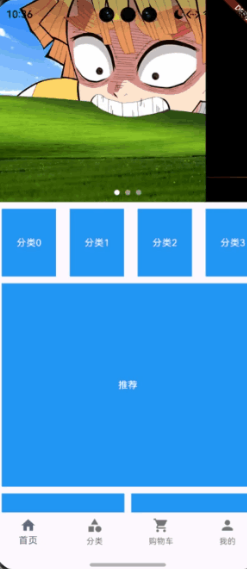
八、关键技术点
1. 组件化开发
每个功能模块都封装成独立组件,便于复用和维护。
2. 状态管理
使用 @State 装饰器管理组件内部状态,实现数据驱动UI更新。
3. 动画效果
通过 ArkTS 动画API实现平滑的过渡效果,提升用户体验。
4. 事件处理
完善的触摸、点击事件处理,提供良好的交互反馈。
5. 响应式设计
适配不同屏幕尺寸,确保在各种设备上都有良好表现。
九、扩展建议
性能优化:
图片懒加载
虚拟列表
组件复用
功能增强:
搜索联想
轮播图3D效果
导航徽标提示
主题切换:
支持深色模式
自定义主题色
总结
通过今天的实战,我们学习了如何在HarmonyOS中实现首页核心组件。这些组件不仅功能完整,而且具有良好的用户体验和视觉效果。掌握这些技术后,你可以轻松构建出美观实用的HarmonyOS应用界面。
欢迎加入开源鸿蒙跨平台社区: https://openharmonycrossplatform.csdn.net

腾讯云面向开发者汇聚海量精品云计算使用和开发经验,营造开放的云计算技术生态圈。
更多推荐
 9
9 0
0- 0


 已为社区贡献1条内容

所有评论(0)