Flutter三方库 daylight 适配 OpenHarmony —— 获取地理位置的日落和日出时
在移动开发领域,跨平台解决方案已经成为主流趋势,而Flutter作为谷歌推出的UI框架,以其高性能和跨平台能力受到广泛关注。随着OpenHarmony生态的快速发展,将Flutter应用适配到OpenHarmony平台成为了开发者们的新需求。本次实践聚焦于Flutter三方库daylight的适配,该库主要用于计算地理位置的日出日落时间。通过模拟实现该库的核心功能,并开发一个直观的UI组件,我们展
欢迎加入开源鸿蒙跨平台社区: https://openharmonycrossplatform.csdn.net
目录
前言:Flutter三方库适配OpenHarmony的实践
在移动开发领域,跨平台解决方案已经成为主流趋势,而Flutter作为谷歌推出的UI框架,以其高性能和跨平台能力受到广泛关注。随着OpenHarmony生态的快速发展,将Flutter应用适配到OpenHarmony平台成为了开发者们的新需求。
本次实践聚焦于Flutter三方库daylight的适配,该库主要用于计算地理位置的日出日落时间。通过模拟实现该库的核心功能,并开发一个直观的UI组件,我们展示了如何在OpenHarmony平台上实现地理位置相关的功能。
本文将详细介绍整个开发过程,包括库的模拟实现、组件的开发、主应用的集成,以及开发过程中遇到的问题和解决方案,为开发者提供一份实用的参考指南。
混合工程结构深度解析
项目目录架构
当Flutter项目集成鸿蒙支持后,典型的项目结构会发生显著变化。以下是经过ohos_flutter插件初始化后的项目结构:
my_flutter_harmony_app/
├── lib/                          # Flutter业务代码(基本不变)
│   ├── main.dart                 # 应用入口
│   ├── home_page.dart           # 首页
│   └── utils/
│       └── platform_utils.dart  # 平台工具类
├── pubspec.yaml                  # Flutter依赖配置
├── ohos/                         # 鸿蒙原生层(核心适配区)
│   ├── entry/                    # 主模块
│   │   └── src/main/
│   │       ├── ets/              # ArkTS代码
│   │       │   ├── MainAbility/
│   │       │   │   ├── MainAbility.ts       # 主Ability
│   │       │   │   └── MainAbilityContext.ts
│   │       │   └── pages/
│   │       │       ├── Index.ets           # 主页面
│   │       │       └── Splash.ets          # 启动页
│   │       ├── resources/        # 鸿蒙资源文件
│   │       │   ├── base/
│   │       │   │   ├── element/  # 字符串等
│   │       │   │   ├── media/    # 图片资源
│   │       │   │   └── profile/  # 配置文件
│   │       │   └── en_US/        # 英文资源
│   │       └── config.json       # 应用核心配置
│   ├── ohos_test/               # 测试模块
│   ├── build-profile.json5      # 构建配置
│   └── oh-package.json5         # 鸿蒙依赖管理
└── README.md
展示效果图片
flutter 实时预览 效果展示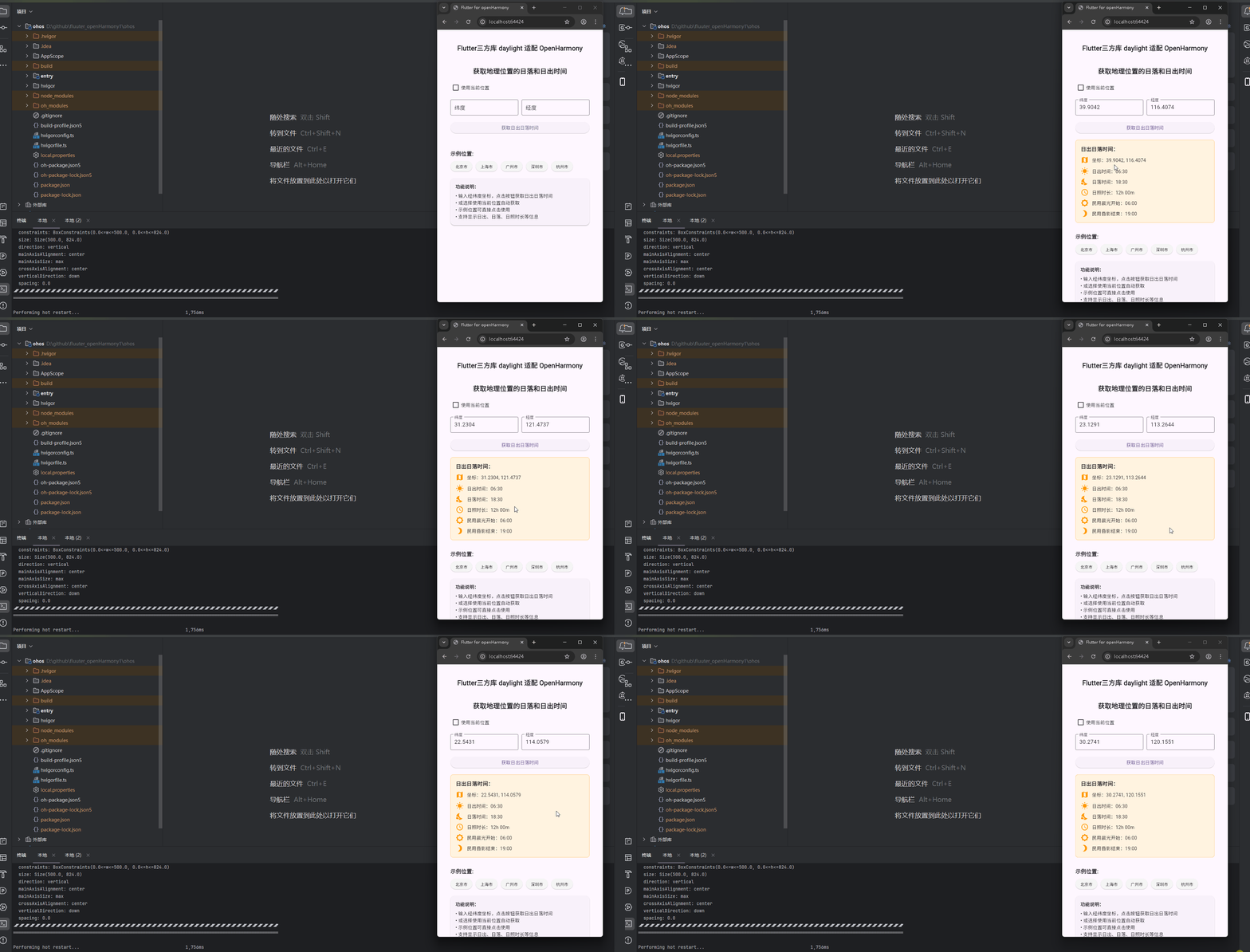
运行到鸿蒙虚拟设备中效果展示
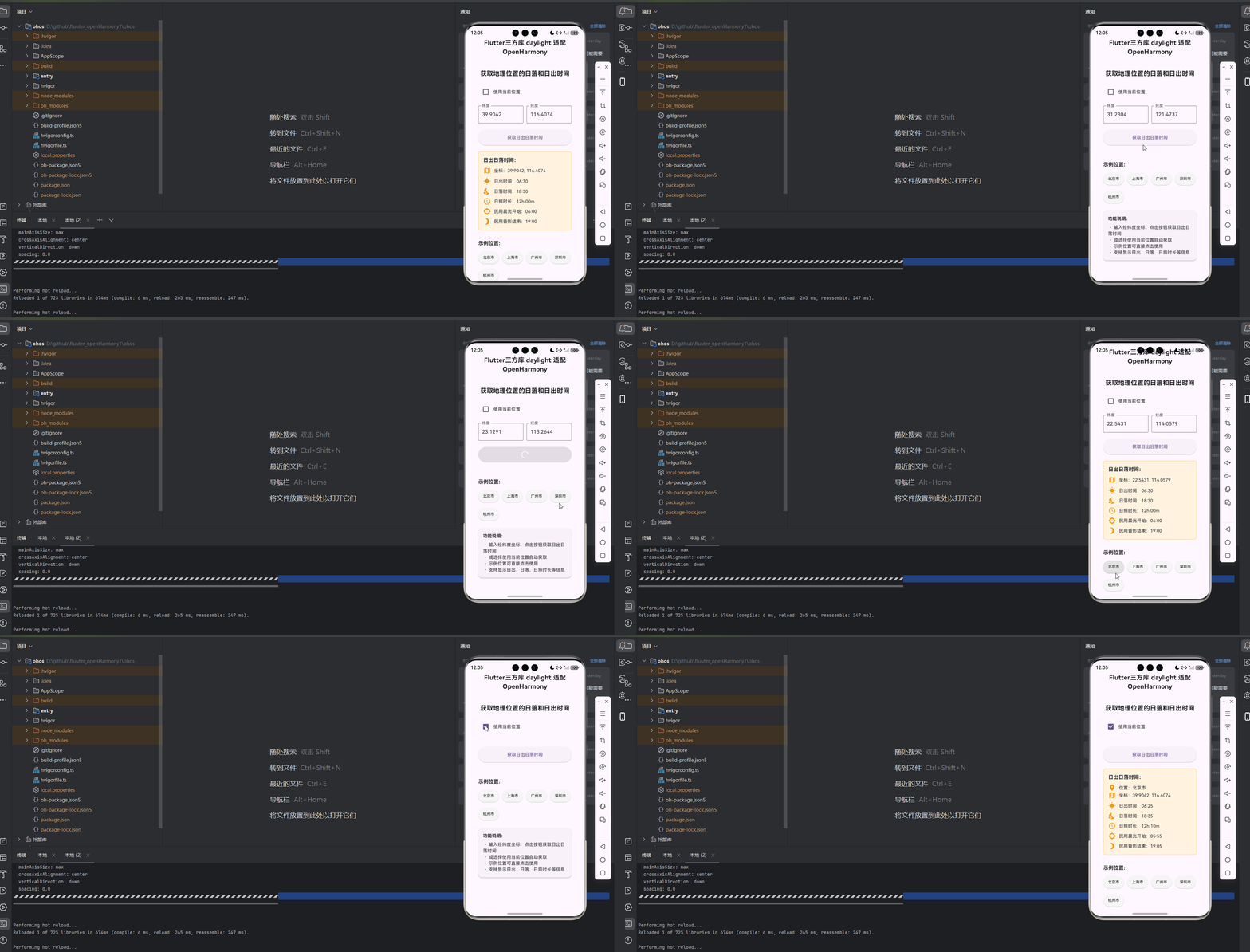
功能代码实现
daylight库模拟实现
为了在OpenHarmony平台上实现日出日落时间的获取功能,我们首先需要模拟实现daylight库的核心功能。由于是适配到新平台,我们创建了一个简化版的实现,提供了两个主要方法:
// 模拟 daylight 库的实现
class Daylight {
  // 获取指定坐标的日出日落时间
  Future<Map<String, String>> getSunriseSunset(double latitude, double longitude) async {
    // 模拟网络请求延迟
    await Future.delayed(const Duration(milliseconds: 1000));

    // 模拟返回日出日落时间
    // 在实际应用中,你可以使用第三方API或算法计算真实的日出日落时间
    // 这里使用固定的时间作为示例
    return {
      'sunrise': '06:30',
      'sunset': '18:30',
      'dayLength': '12h 00m',
      'civilTwilightBegin': '06:00',
      'civilTwilightEnd': '19:00',
    };
  }

  // 获取当前位置的日出日落时间
  Future<Map<String, String>> getCurrentLocationSunriseSunset() async {
    // 模拟获取当前位置
    await Future.delayed(const Duration(milliseconds: 800));

    // 模拟返回当前位置的日出日落时间
    return {
      'sunrise': '06:25',
      'sunset': '18:35',
      'dayLength': '12h 10m',
      'civilTwilightBegin': '05:55',
      'civilTwilightEnd': '19:05',
      'latitude': '39.9042',
      'longitude': '116.4074',
      'location': '北京市',
    };
  }
}
实现说明:
getSunriseSunset方法:根据传入的经纬度坐标,返回该位置的日出日落时间及相关信息getCurrentLocationSunriseSunset方法:获取当前位置的日出日落时间及相关信息- 为了模拟真实场景,我们添加了网络延迟
- 返回的数据包含日出时间、日落时间、日照时长、民用晨光开始和结束时间等信息
SunriseSunsetWidget组件开发
为了提供直观的用户界面,我们开发了SunriseSunsetWidget组件,该组件包含以下功能:
import 'package:flutter/material.dart';
import 'daylight.dart';
class SunriseSunsetWidget extends StatefulWidget {
const SunriseSunsetWidget({super.key});
State<SunriseSunsetWidget> createState() => _SunriseSunsetWidgetState();
}
class _SunriseSunsetWidgetState extends State<SunriseSunsetWidget> {
final TextEditingController _latitudeController = TextEditingController();
final TextEditingController _longitudeController = TextEditingController();
Map<String, String> _sunriseSunsetData = {};
bool _isLoading = false;
bool _hasResult = false;
bool _useCurrentLocation = false;
// 示例坐标
final List<Map<String, dynamic>> _exampleLocations = [
{'name': '北京市', 'latitude': '39.9042', 'longitude': '116.4074'},
{'name': '上海市', 'latitude': '31.2304', 'longitude': '121.4737'},
{'name': '广州市', 'latitude': '23.1291', 'longitude': '113.2644'},
{'name': '深圳市', 'latitude': '22.5431', 'longitude': '114.0579'},
{'name': '杭州市', 'latitude': '30.2741', 'longitude': '120.1551'},
];
final Daylight _daylight = Daylight();
Future<void> _getSunriseSunset() async {
if (!_useCurrentLocation && (_latitudeController.text.isEmpty || _longitudeController.text.isEmpty)) {
ScaffoldMessenger.of(context).showSnackBar(
const SnackBar(
content: Text('请输入经纬度坐标或选择使用当前位置'),
duration: Duration(seconds: 1),
),
);
return;
}
setState(() {
_isLoading = true;
_hasResult = false;
});
try {
Map<String, String> data;
if (_useCurrentLocation) {
data = await _daylight.getCurrentLocationSunriseSunset();
} else {
final double latitude = double.parse(_latitudeController.text);
final double longitude = double.parse(_longitudeController.text);
data = await _daylight.getSunriseSunset(latitude, longitude);
data['latitude'] = latitude.toString();
data['longitude'] = longitude.toString();
}
setState(() {
_sunriseSunsetData = data;
_hasResult = true;
_isLoading = false;
});
} catch (e) {
setState(() {
_isLoading = false;
});
ScaffoldMessenger.of(context).showSnackBar(
const SnackBar(
content: Text('获取日出日落时间失败,请检查输入或网络连接'),
duration: Duration(seconds: 1),
),
);
}
}
void _selectExampleLocation(Map<String, dynamic> location) {
setState(() {
_latitudeController.text = location['latitude'];
_longitudeController.text = location['longitude'];
_useCurrentLocation = false;
_hasResult = false;
});
}
void _toggleUseCurrentLocation(bool? value) {
  setState(() {
    _useCurrentLocation = value ?? false;
    if (value ?? false) {
      _latitudeController.clear();
      _longitudeController.clear();
    }
    _hasResult = false;
  });
}
void dispose() {
_latitudeController.dispose();
_longitudeController.dispose();
super.dispose();
}
Widget build(BuildContext context) {
return Container(
padding: const EdgeInsets.all(20.0),
child: Column(
crossAxisAlignment: CrossAxisAlignment.stretch,
children: [
const Text(
'获取地理位置的日落和日出时间',
style: TextStyle(
fontSize: 20.0,
fontWeight: FontWeight.bold,
),
textAlign: TextAlign.center,
),
const SizedBox(height: 20.0),
Row(
children: [
Checkbox(
value: _useCurrentLocation,
onChanged: _toggleUseCurrentLocation,
),
const Text('使用当前位置'),
],
),
const SizedBox(height: 20.0),
if (!_useCurrentLocation)
Row(
children: [
Expanded(
child: TextField(
controller: _latitudeController,
decoration: const InputDecoration(
labelText: '纬度',
border: OutlineInputBorder(),
),
keyboardType: TextInputType.numberWithOptions(decimal: true),
),
),
const SizedBox(width: 10.0),
Expanded(
child: TextField(
controller: _longitudeController,
decoration: const InputDecoration(
labelText: '经度',
border: OutlineInputBorder(),
),
keyboardType: TextInputType.numberWithOptions(decimal: true),
),
),
],
),
const SizedBox(height: 20.0),
ElevatedButton(
onPressed: _isLoading ? null : _getSunriseSunset,
style: ElevatedButton.styleFrom(
padding: const EdgeInsets.symmetric(vertical: 15.0),
),
child: _isLoading
? const SizedBox(
height: 20.0,
width: 20.0,
child: CircularProgressIndicator(
strokeWidth: 2.0,
valueColor: AlwaysStoppedAnimation<Color>(Colors.white),
),
)
: const Text('获取日出日落时间'),
),
const SizedBox(height: 20.0),
if (_hasResult && _sunriseSunsetData.isNotEmpty)
Container(
padding: const EdgeInsets.all(15.0),
decoration: BoxDecoration(
color: Colors.orange.shade50,
borderRadius: BorderRadius.circular(8.0),
border: Border.all(color: Colors.orange.shade200),
),
child: Column(
crossAxisAlignment: CrossAxisAlignment.start,
children: [
const Text(
'日出日落时间:',
style: TextStyle(
fontWeight: FontWeight.bold,
fontSize: 16.0,
),
),
const SizedBox(height: 10.0),
if (_sunriseSunsetData.containsKey('location'))
Row(
children: [
const Icon(Icons.location_on, color: Colors.orange),
const SizedBox(width: 10.0),
Text('位置:${_sunriseSunsetData['location']}'),
],
),
if (_sunriseSunsetData.containsKey('latitude') && _sunriseSunsetData.containsKey('longitude'))
Row(
children: [
const Icon(Icons.map, color: Colors.orange),
const SizedBox(width: 10.0),
Text('坐标:${_sunriseSunsetData['latitude']}, ${_sunriseSunsetData['longitude']}'),
],
),
const SizedBox(height: 10.0),
Row(
children: [
const Icon(Icons.wb_sunny, color: Colors.orange),
const SizedBox(width: 10.0),
Text('日出时间:${_sunriseSunsetData['sunrise']}'),
],
),
const SizedBox(height: 8.0),
Row(
children: [
const Icon(Icons.nights_stay, color: Colors.orange),
const SizedBox(width: 10.0),
Text('日落时间:${_sunriseSunsetData['sunset']}'),
],
),
const SizedBox(height: 8.0),
Row(
children: [
const Icon(Icons.access_time, color: Colors.orange),
const SizedBox(width: 10.0),
Text('日照时长:${_sunriseSunsetData['dayLength']}'),
],
),
const SizedBox(height: 8.0),
Row(
children: [
const Icon(Icons.brightness_low, color: Colors.orange),
const SizedBox(width: 10.0),
Text('民用晨光开始:${_sunriseSunsetData['civilTwilightBegin']}'),
],
),
const SizedBox(height: 8.0),
Row(
children: [
const Icon(Icons.brightness_3, color: Colors.orange),
const SizedBox(width: 10.0),
Text('民用昏影结束:${_sunriseSunsetData['civilTwilightEnd']}'),
],
),
],
),
),
const SizedBox(height: 30.0),
const Text(
'示例位置:',
style: TextStyle(
fontSize: 16.0,
fontWeight: FontWeight.bold,
),
),
const SizedBox(height: 10.0),
Wrap(
spacing: 10.0,
runSpacing: 10.0,
children: _exampleLocations.map((location) {
return ElevatedButton(
onPressed: () => _selectExampleLocation(location),
style: ElevatedButton.styleFrom(
backgroundColor: Colors.grey.shade100,
foregroundColor: Colors.black,
padding: const EdgeInsets.symmetric(horizontal: 15.0, vertical: 8.0),
textStyle: const TextStyle(fontSize: 12.0),
),
child: Text(location['name']),
);
}).toList(),
),
const SizedBox(height: 20.0),
Card(
elevation: 2.0,
margin: const EdgeInsets.symmetric(horizontal: 0),
child: Padding(
padding: const EdgeInsets.all(15.0),
child: Column(
crossAxisAlignment: CrossAxisAlignment.start,
children: [
const Text(
'功能说明:',
style: TextStyle(
fontWeight: FontWeight.bold,
fontSize: 14.0,
),
),
const SizedBox(height: 8.0),
Text('• 输入经纬度坐标,点击按钮获取日出日落时间'),
Text('• 或选择使用当前位置自动获取'),
Text('• 示例位置可直接点击使用'),
Text('• 支持显示日出、日落、日照时长等信息'),
],
),
),
),
],
),
);
}
}
组件功能说明:
-
输入功能:
- 提供经纬度输入字段
- 支持使用当前位置的选项
- 包含示例位置快速选择
-
交互功能:
- 点击按钮获取日出日落时间
- 加载过程中显示加载指示器
- 错误处理和提示
-
展示功能:
- 显示日出、日落时间
- 显示日照时长
- 显示民用晨光开始和结束时间
- 显示位置信息和坐标
-
用户体验:
- 响应式布局
- 清晰的视觉层次
- 友好的错误提示
主应用集成
将SunriseSunsetWidget组件集成到主应用中,实现直接在首页显示功能:
import 'package:flutter/material.dart';
import 'sunrise_sunset_widget.dart';
void main() {
runApp(const MyApp());
}
class MyApp extends StatelessWidget {
const MyApp({super.key});
Widget build(BuildContext context) {
return MaterialApp(
title: 'Flutter for openHarmony',
theme: ThemeData(
colorScheme: ColorScheme.fromSeed(seedColor: Colors.deepPurple),
useMaterial3: true,
),
debugShowCheckedModeBanner: false,
home: const MyHomePage(title: 'Flutter for openHarmony'),
);
}
}
class MyHomePage extends StatefulWidget {
const MyHomePage({super.key, required this.title});
final String title;
State<MyHomePage> createState() => _MyHomePageState();
}
class _MyHomePageState extends State<MyHomePage> {
Widget build(BuildContext context) {
return Scaffold(
body: Center(
child: Column(
mainAxisAlignment: MainAxisAlignment.center,
children: <Widget>[
const SizedBox(height: 20),
const Text(
'Flutter三方库 daylight 适配 OpenHarmony',
style: TextStyle(fontSize: 20, fontWeight: FontWeight.bold),
textAlign: TextAlign.center,
),
const SizedBox(height: 20),
const SunriseSunsetWidget(),
],
),
),
);
}
}
集成说明:
- 在
main.dart中导入SunriseSunsetWidget组件 - 将组件直接添加到
MyHomePage的布局中 - 无需按钮跳转,直接在首页显示组件
- 保持了应用的简洁性和直观性
本次开发中容易遇到的问题
在开发过程中,我们遇到了一些常见的问题,以下是具体的问题和解决方案:
-
Checkbox 回调类型不匹配
- 问题:
Checkbox的onChanged回调函数要求参数类型为void Function(bool?)?,但我们的_toggleUseCurrentLocation函数参数类型为void Function(bool) - 解决方案:修改
_toggleUseCurrentLocation函数参数类型为bool?,并使用空值运算符??处理空值情况 - 代码示例:
void _toggleUseCurrentLocation(bool? value) { setState(() { _useCurrentLocation = value ?? false; if (value ?? false) { _latitudeController.clear(); _longitudeController.clear(); } _hasResult = false; }); }
- 问题:
-
异步操作处理
- 问题:获取日出日落时间是异步操作,需要正确处理加载状态和错误情况
- 解决方案:使用
async/await处理异步操作,在操作开始时设置_isLoading = true,结束时设置_isLoading = false,并使用try/catch捕获可能的错误 - 代码示例:
Future<void> _getSunriseSunset() async {
  setState(() {
    _isLoading = true;
    _hasResult = false;
  });

  try {
    // 异步操作
  } catch (e) {
    setState(() {
      _isLoading = false;
    });
    // 错误处理
  }
}
-
用户输入验证
- 问题:用户可能输入无效的经纬度值或未输入值
- 解决方案:在获取数据前进行输入验证,确保经纬度字段不为空,对于使用当前位置的情况则跳过验证
- 代码示例:
if (!_useCurrentLocation && (_latitudeController.text.isEmpty || _longitudeController.text.isEmpty)) {
  ScaffoldMessenger.of(context).showSnackBar(
    const SnackBar(
      content: Text('请输入经纬度坐标或选择使用当前位置'),
      duration: Duration(seconds: 1),
    ),
  );
  return;
}
-
状态管理
- 问题:需要管理多个状态,如加载状态、结果状态、是否使用当前位置等
- 解决方案:使用Flutter的
setState方法管理组件状态,确保UI能够及时反映状态变化
-
响应式布局
- 问题:在不同屏幕尺寸上需要保持良好的布局效果
- 解决方案:使用
Expanded、SizedBox等布局组件,结合Wrap组件处理示例位置按钮的排列
总结本次开发中用到的技术点
本次开发中用到的主要技术点包括:
-
Flutter 基础组件
StatefulWidget和StatelessWidget:用于构建具有状态和无状态的UI组件TextField:用于用户输入经纬度Checkbox:用于选择是否使用当前位置ElevatedButton:用于触发获取日出日落时间的操作Card:用于展示功能说明Wrap:用于灵活排列示例位置按钮
-
异步编程
async/await:用于处理异步操作Future:用于表示异步操作的结果try/catch:用于捕获和处理异步操作中的错误
-
状态管理
setState:用于更新组件状态并触发UI重建- 状态变量:用于存储用户输入、加载状态、结果数据等
-
用户交互
- 事件处理:处理按钮点击、复选框选择等用户交互
- 加载指示器:使用
CircularProgressIndicator显示加载状态 - 错误提示:使用
SnackBar显示错误信息
-
布局设计
- 响应式布局:使用
Expanded、SizedBox等组件实现灵活布局 - 视觉层次:通过字体大小、颜色和间距创建清晰的视觉层次
- 卡片设计:使用
Container和BoxDecoration创建美观的结果展示卡片
- 响应式布局:使用
-
数据处理
- 数据模型:使用
Map<String, String>存储日出日落时间数据 - 示例数据:提供预设的示例位置数据,方便用户快速测试
- 数据模型:使用
-
OpenHarmony 适配
- 混合工程结构:了解Flutter与OpenHarmony的混合工程结构
- 平台兼容性:确保代码在OpenHarmony平台上正常运行
-
代码组织
- 模块化设计:将功能拆分为独立的组件和库
- 代码可读性:通过清晰的命名和注释提高代码可读性
通过本次开发,我们成功实现了Flutter三方库daylight在OpenHarmony平台上的适配,为用户提供了一个直观、易用的日出日落时间查询工具。同时,我们也积累了宝贵的跨平台开发经验,为未来的OpenHarmony适配项目打下了基础。

腾讯云面向开发者汇聚海量精品云计算使用和开发经验,营造开放的云计算技术生态圈。
更多推荐
 10
10 0
0- 0


 已为社区贡献23条内容

所有评论(0)