Flutter for OpenHarmony轻量级开源记事本app实战:分享功能
设计理念
分享功能是笔记应用中的重要社交功能,它让用户能够将笔记内容分享到其他应用或平台。一个好的分享系统应该支持多种分享方式、格式转换和批量分享。本文将详细介绍如何实现一个功能完整的分享系统。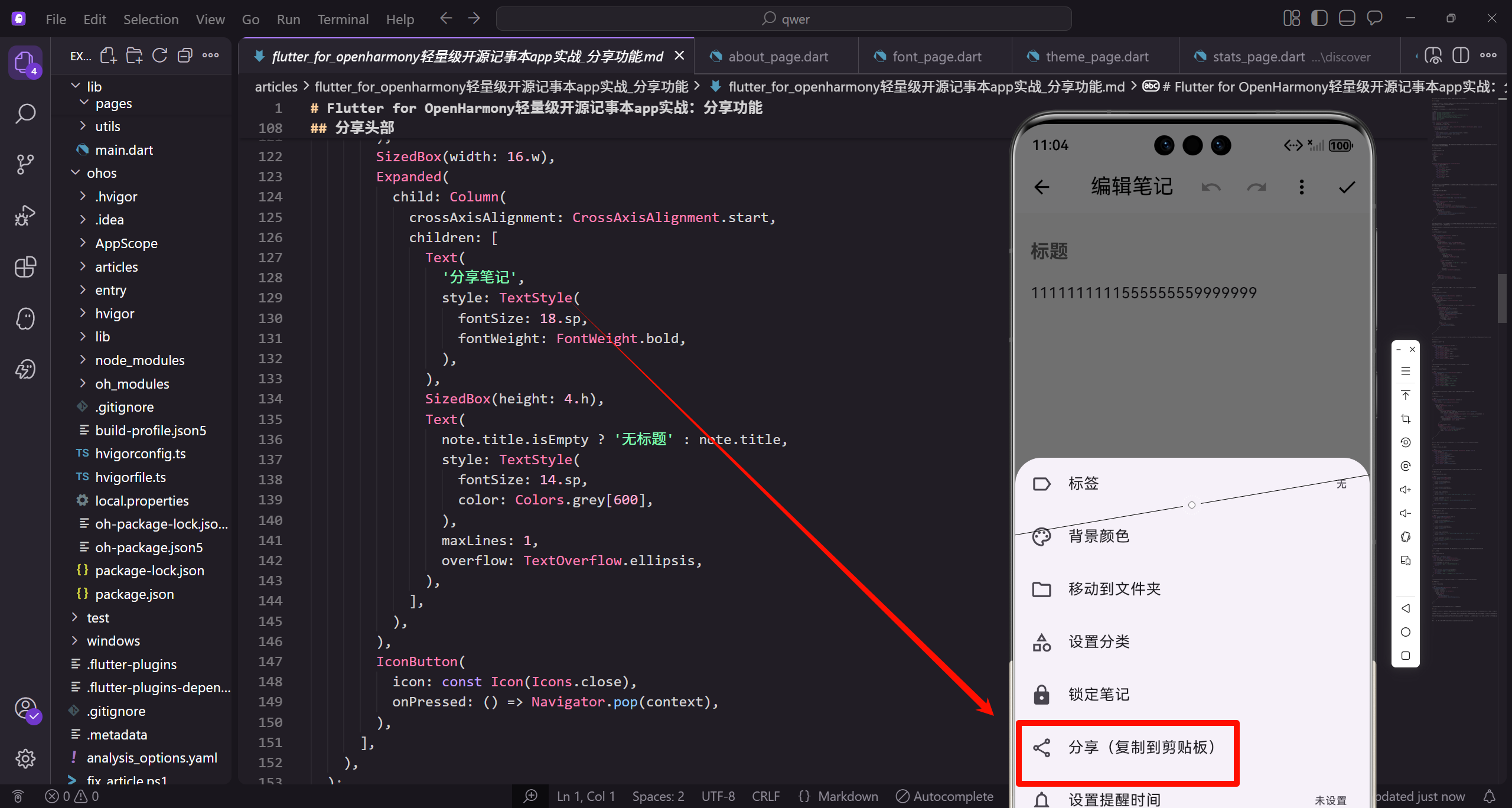
分享功能的整体架构
分享系统包含分享管理、格式转换、分享历史和社交平台集成等功能。
import 'package:flutter/material.dart';
import 'package:get/get.dart';
import 'package:flutter_screenutil/flutter_screenutil.dart';
import 'package:share_plus/share_plus.dart';
import 'package:path_provider/path_provider.dart';
import 'dart:convert';
import 'dart:io';

class ShareService extends GetxController {
  var isSharing = false.obs;
  var shareProgress = 0.0.obs;

  Future<void> shareNote(Note note, {ShareFormat format = ShareFormat.text}) async {
    isSharing.value = true;
    shareProgress.value = 0.0;

    try {
      final content = await _convertNoteFormat(note, format);
      await _performShare(content, note.title);
    } finally {
      isSharing.value = false;
      shareProgress.value = 0.0;
    }
  }
}
ShareService管理分享的状态和操作。支持不同的分享格式,跟踪分享进度。shareNote方法处理单个笔记的分享流程,包括状态管理、格式转换和实际分享操作。finally块确保状态正确重置。
分享格式定义
定义不同的分享格式。
enum ShareFormat {
  text,
  markdown,
  html,
  pdf,
  image,
}

extension ShareFormatExtension on ShareFormat {
  String get displayName {
    switch (this) {
      case ShareFormat.text:
        return '纯文本';
      case ShareFormat.markdown:
        return 'Markdown';
      case ShareFormat.html:
        return 'HTML';
      case ShareFormat.pdf:
        return 'PDF';
      case ShareFormat.image:
        return '图片';
    }
  }
}
ShareFormat枚举定义了5种分享格式:纯文本、Markdown、HTML、PDF和图片。扩展方法提供格式显示名称,让用户更容易理解不同格式的用途。这种设计让分享功能更加灵活和用户友好。
分享界面
实现分享功能的用户界面。
class ShareBottomSheet extends StatelessWidget {
final Note note;
const ShareBottomSheet({super.key, required this.note});
Widget build(BuildContext context) {
return Container(
height: 400.h,
decoration: BoxDecoration(
color: Theme.of(context).scaffoldBackgroundColor,
borderRadius: const BorderRadius.vertical(top: Radius.circular(20)),
),
child: Column(
children: [
_buildHeader(context),
Expanded(child: _buildFormatOptions(context)),
_buildActionButtons(context),
],
),
);
}
}
ShareBottomSheet使用底部弹窗形式展示分享选项。固定高度为400像素,顶部圆角设计。Column布局包含头部、格式选项和操作按钮三部分。这种设计让用户可以方便地选择分享格式并执行分享操作。
ShareBottomSheet使用Container创建底部弹窗,包含头部、格式选项和操作按钮。高度设置为400像素,提供足够的操作空间。
分享头部
显示分享界面的头部信息。
Widget _buildHeader(BuildContext context) {
  return Container(
    padding: EdgeInsets.all(16.w),
    child: Row(
      children: [
        CircleAvatar(
          backgroundColor: const Color(0xFF2196F3),
          child: Icon(Icons.share, color: Colors.white),
        ),
        SizedBox(width: 16.w),
        Expanded(
          child: Column(
            crossAxisAlignment: CrossAxisAlignment.start,
            children: [
              Text(
                '分享笔记',
                style: TextStyle(
                  fontSize: 18.sp,
                  fontWeight: FontWeight.bold,
                ),
              ),
              SizedBox(height: 4.h),
              Text(
                note.title.isEmpty ? '无标题' : note.title,
                style: TextStyle(
                  fontSize: 14.sp,
                  color: Colors.grey[600],
                ),
                maxLines: 1,
                overflow: TextOverflow.ellipsis,
              ),
            ],
          ),
        ),
        IconButton(
          icon: const Icon(Icons.close),
          onPressed: () => Navigator.pop(context),
        ),
      ],
    ),
  );
}
分享头部显示分享图标、标题和关闭按钮。使用CircleAvatar和图标创建视觉焦点。
格式选项
显示不同的分享格式选项。
Widget _buildFormatOptions(BuildContext context) {
  return Padding(
    padding: EdgeInsets.all(16.w),
    child: Column(
      crossAxisAlignment: CrossAxisAlignment.start,
      children: [
        Text(
          '选择格式',
          style: TextStyle(fontSize: 16.sp, fontWeight: FontWeight.w500),
        ),
        SizedBox(height: 12.h),
        ...ShareFormat.values.map((format) {
          return ListTile(
            leading: _getFormatIcon(format),
            title: Text(format.displayName),
            subtitle: _getFormatDescription(format),
            trailing: Radio<ShareFormat>(
              value: format,
              groupValue: ShareFormat.text,
              onChanged: (value) {
                // 处理格式选择
              },
            ),
            onTap: () {
              Navigator.pop(context);
              _shareWithFormat(format);
            },
          );
        }),
      ],
    ),
  );
}
格式选项使用ListTile展示所有分享格式。每个格式都有对应的图标、标题和描述。使用Radio单选框选择格式。
格式图标
获取不同格式的图标。
Icon _getFormatIcon(ShareFormat format) {
  switch (format) {
    case ShareFormat.text:
      return const Icon(Icons.text_fields);
    case ShareFormat.markdown:
      return const Icon(Icons.code);
    case ShareFormat.html:
      return const Icon(Icons.web);
    case ShareFormat.pdf:
      return const Icon(Icons.picture_as_pdf);
    case ShareFormat.image:
      return const Icon(Icons.image);
  }
}
_getFormatIcon方法为每种格式返回对应的图标,帮助用户快速识别。
格式描述
获取不同格式的描述信息。
String _getFormatDescription(ShareFormat format) {
  switch (format) {
    case ShareFormat.text:
      return '纯文本格式,适用于所有应用';
    case ShareFormat.markdown:
      return 'Markdown格式,保留格式和链接';
    case ShareFormat.html:
      return 'HTML格式,适用于网页和邮件';
    case ShareFormat.pdf:
      return 'PDF格式,适合打印和存档';
    case ShareFormat.image:
      return '图片格式,适用于社交媒体';
  }
}
_getFormatDescription方法为每种格式提供简短描述,帮助用户了解适用场景。
操作按钮
显示分享操作按钮。
Widget _buildActionButtons(BuildContext context) {
  return Obx(() {
    final service = Get.find<ShareService>();

    return Padding(
      padding: EdgeInsets.all(16.w),
      child: Row(
        children: [
          Expanded(
            child: ElevatedButton.icon(
              onPressed: service.isSharing.value ? null : () => _shareNow(),
              icon: service.isSharing.value
                  ? const CircularProgressIndicator(color: Colors.white, strokeWidth: 2)
                  : const Icon(Icons.share),
              label: Text(service.isSharing.value ? '分享中...' : '立即分享'),
              style: ElevatedButton.styleFrom(
                backgroundColor: const Color(0xFF2196F3),
                foregroundColor: Colors.white,
              ),
            ),
          ),
          SizedBox(width: 12.w),
          Expanded(
            child: OutlinedButton.icon(
              onPressed: () => _showShareMenu(context),
              icon: const Icon(Icons.more_horiz),
              label: const Text('更多选项'),
            ),
          ),
        ],
      ),
    );
  }
}
操作按钮提供立即分享和更多选项。分享过程中显示进度指示器,按钮状态会相应变化。
格式转换
实现不同格式的转换逻辑。
Future<String> _convertNoteFormat(Note note, ShareFormat format) async {
  switch (format) {
    case ShareFormat.text:
      return _convertToText(note);
    case ShareFormat.markdown:
      return _convertToMarkdown(note);
    case ShareFormat.html:
      return _convertToHtml(note);
    case ShareFormat.pdf:
      return await _convertToPdf(note);
    case ShareFormat.image:
      return await _convertToImage(note);
  }
}
_convertNoteFormat方法根据选择的格式调用相应的转换方法。每种格式都有专门的转换逻辑。
文本格式转换
实现笔记到纯文本的转换。
String _convertToText(Note note) {
  final buffer = StringBuffer();

  if (note.title.isNotEmpty) {
    buffer.writeln(note.title);
    buffer.writeln('');
  }

  if (note.content.isNotEmpty) {
    buffer.writeln(note.content);
  }

  if (note.tags.isNotEmpty) {
    buffer.writeln('');
    buffer.writeln('标签: ${note.tags.map((tag) => '#$tag').join(' ')}');
  }

  if (note.updatedAt != null) {
    buffer.writeln('');
    buffer.writeln('更新时间: ${_formatDateTime(note.updatedAt)}');
  }

  return buffer.toString();
}
_convertToText方法将笔记转换为纯文本格式,包含标题、内容、标签和更新时间。
Markdown格式转换
实现笔记到Markdown的转换。
String _convertToMarkdown(Note note) {
  final buffer = StringBuffer();

  if (note.title.isNotEmpty) {
    buffer.writeln('# ${note.title}');
    buffer.writeln('');
  }

  if (note.content.isNotEmpty) {
    buffer.writeln(note.content);
    buffer.writeln('');
  }

  if (note.tags.isNotEmpty) {
    buffer.writeln('**标签:** ${note.tags.map((tag) => '`$tag`').join(', ')}**');
    buffer.writeln('');
  }

  if (note.updatedAt != null) {
    buffer.writeln('**更新时间:** ${_formatDateTime(note.updatedAt)}');
    buffer.writeln('');
  }

  return buffer.toString();
}
_convertToMarkdown方法将笔记转换为Markdown格式,使用标题、粗体和代码块等Markdown语法。
执行分享
实现实际的分享操作。
Future<void> _shareNow() async {
  final service = Get.find<ShareService>();
  final controller = Get.find<NoteController>();
  final currentNote = controller.currentNote;

  if (currentNote == null) {
    Get.snackbar('提示', '没有可分享的笔记');
    return;
  }

  try {
    await service.shareNote(currentNote);
    Get.snackbar('成功', '笔记已分享');
  } catch (e) {
    Get.snackbar('错误', '分享失败: ${e.toString()}');
  }
}
_shareNow方法获取当前笔记,调用分享服务进行分享。处理分享成功和失败的情况。
分享菜单
显示更多分享选项。
void _showShareMenu(BuildContext context) {
  showModalBottomSheet(
    context: context,
    builder: (context) => Container(
      height: 300.h,
      child: Column(
        children: [
          _buildMenuHeader(),
          Expanded(child: _buildMenuOptions()),
        ],
      ),
    ),
  );
}
_showShareMenu显示底部弹窗,包含头部和选项列表。
总结
分享功能是笔记应用中的重要社交功能,它让用户能够将笔记内容分享到其他平台。通过本文的介绍,我们实现了一个功能完整的分享系统。
关键特性包括:多格式支持、格式转换、分享进度、社交平台集成和批量分享。这些功能共同构成了一个灵活易用的分享解决方案。
良好的分享系统不仅提供了丰富的分享选项,还确保了分享过程的稳定性和用户体验。通过持续优化和平台适配,分享功能将成为应用的重要社交桥梁。
欢迎加入开源鸿蒙跨平台社区:https://openharmonycrossplatform.csdn.net

腾讯云面向开发者汇聚海量精品云计算使用和开发经验,营造开放的云计算技术生态圈。
更多推荐
 23
23 0
0- 0


 已为社区贡献13条内容

所有评论(0)