Flutter for OpenHarmony音乐播放器App实战:最近播放实现
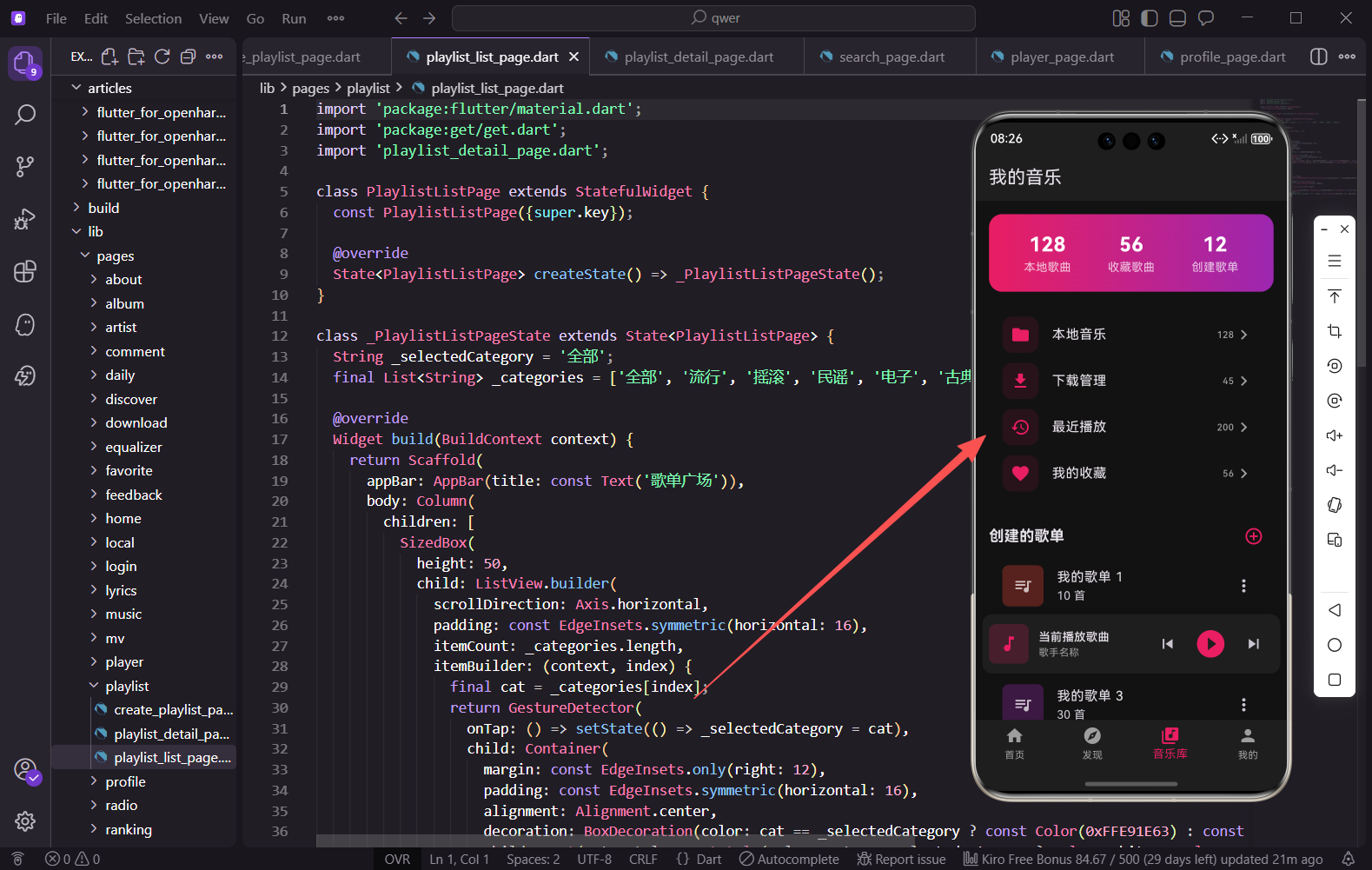
最近播放是音乐播放器中一个非常实用的功能,用户可以快速找到之前听过的歌曲。本篇文章将详细介绍如何实现最近播放页面,包括按日期分组显示、播放全部功能和清空历史记录等功能。
页面基础结构
最近播放页面使用StatelessWidget,因为页面状态相对简单。
import 'package:flutter/material.dart';

class RecentPlayPage extends StatelessWidget {
  const RecentPlayPage({super.key});
页面不需要管理复杂的状态,使用StatelessWidget即可。如果需要添加多选删除等功能,可以改为StatefulWidget。
AppBar设计
AppBar包含标题和清空按钮。
Widget build(BuildContext context) {
return Scaffold(
appBar: AppBar(
title: const Text('最近播放'),
actions: [
IconButton(
icon: const Icon(Icons.delete_outline),
onPressed: () => _showClearDialog(context),
),
],
),
清空按钮使用删除图标,点击后弹出确认对话框。这种设计让用户可以方便地清理播放历史。
页面主体布局
页面主体包含播放全部按钮和歌曲列表。
      body: Column(
        children: [
          _buildPlayAllButton(),
          Expanded(
            child: _buildSongList(),
          ),
        ],
      ),
    );
  }
使用Column垂直排列播放按钮和列表。Expanded让列表占据剩余空间。
播放全部按钮
顶部显示播放全部按钮和歌曲总数。
  Widget _buildPlayAllButton() {
    return Padding(
      padding: const EdgeInsets.all(16),
      child: ElevatedButton.icon(
        onPressed: () => _playAll(),
        icon: const Icon(Icons.play_arrow),
        label: const Text('播放全部 (200)'),
        style: ElevatedButton.styleFrom(
          backgroundColor: const Color(0xFFE91E63),
          foregroundColor: Colors.white,
          minimumSize: const Size(double.infinity, 48),
          shape: RoundedRectangleBorder(
            borderRadius: BorderRadius.circular(25),
          ),
        ),
      ),
    );
  }
按钮使用主题色背景,宽度撑满整个屏幕。括号内显示歌曲总数,让用户了解播放历史的规模。
歌曲列表构建
列表按日期分组显示歌曲。
  Widget _buildSongList() {
    return ListView.builder(
      itemCount: 200,
      itemBuilder: (context, index) {
        final daysAgo = index ~/ 20;
        final showHeader = index % 20 == 0;
        return Column(
          crossAxisAlignment: CrossAxisAlignment.start,
          children: [
            if (showHeader) _buildDateHeader(daysAgo),
            _buildSongItem(index),
          ],
        );
      },
    );
  }
使用整除运算计算歌曲属于哪一天,每20首歌曲显示一个日期头部。这种分组方式让用户可以快速定位到某一天的播放记录。
日期头部组件
显示日期分组标题。
  Widget _buildDateHeader(int daysAgo) {
    String dateText;
    if (daysAgo == 0) {
      dateText = '今天';
    } else if (daysAgo == 1) {
      dateText = '昨天';
    } else {
      dateText = '$daysAgo天前';
    }

    return Padding(
      padding: const EdgeInsets.fromLTRB(16, 16, 16, 8),
      child: Text(
        dateText,
        style: const TextStyle(
          color: Colors.grey,
          fontWeight: FontWeight.bold,
        ),
      ),
    );
  }
今天和昨天使用友好的文字描述,其他日期显示"X天前"。这种设计比显示具体日期更加直观。
歌曲列表项
每首歌曲显示封面、名称、歌手和播放按钮。
  Widget _buildSongItem(int index) {
    return ListTile(
      leading: Container(
        width: 50,
        height: 50,
        decoration: BoxDecoration(
          borderRadius: BorderRadius.circular(8),
          color: Colors.primaries[index % Colors.primaries.length].withOpacity(0.3),
        ),
        child: const Icon(Icons.music_note, color: Colors.white70),
      ),
      title: Text(
        '最近播放 ${index + 1}',
        maxLines: 1,
        overflow: TextOverflow.ellipsis,
      ),
      subtitle: const Text(
        '歌手名称',
        style: TextStyle(color: Colors.grey, fontSize: 12),
      ),
      trailing: const Icon(
        Icons.play_circle_outline,
        color: Color(0xFFE91E63),
      ),
      onTap: () => _playSong(index),
    );
  }
封面使用圆角矩形,颜色根据索引变化增加视觉层次。播放按钮使用主题色,点击整个列表项可以播放歌曲。
播放全部方法
点击播放全部按钮后的处理。
  void _playAll() {
    Get.toNamed('/player', arguments: {
      'type': 'recent',
      'startIndex': 0,
    });
    Get.snackbar(
      '播放',
      '开始播放最近播放列表',
      snackPosition: SnackPosition.BOTTOM,
    );
  }
跳转到播放器页面,传递播放类型和起始索引。
播放单曲方法
点击单曲后从该歌曲开始播放。
  void _playSong(int index) {
    Get.toNamed('/player', arguments: {
      'type': 'recent',
      'startIndex': index,
    });
  }
传递起始索引,播放器会从该歌曲开始播放最近播放列表。
清空历史对话框
点击清空按钮后显示确认对话框。
  void _showClearDialog(BuildContext context) {
    showDialog(
      context: context,
      builder: (context) => AlertDialog(
        backgroundColor: const Color(0xFF1E1E1E),
        title: const Text('清空播放历史'),
        content: const Text('确定要清空所有播放历史吗?此操作不可恢复。'),
        actions: [
          TextButton(
            onPressed: () => Navigator.pop(context),
            child: const Text('取消'),
          ),
          TextButton(
            onPressed: () {
              Navigator.pop(context);
              _clearHistory();
            },
            child: const Text(
              '清空',
              style: TextStyle(color: Colors.red),
            ),
          ),
        ],
      ),
    );
  }
对话框明确告知用户操作不可恢复,清空按钮使用红色提醒用户这是危险操作。
清空历史方法
执行清空历史的逻辑。
  void _clearHistory() {
    // 实际项目中需要调用API或清除本地存储
    Get.snackbar(
      '成功',
      '播放历史已清空',
      snackPosition: SnackPosition.BOTTOM,
    );
  }
清空后显示成功提示,实际项目中需要调用API或清除本地存储。
歌曲操作菜单
长按歌曲显示操作菜单。
  void _showSongOptions(BuildContext context, int index) {
    showModalBottomSheet(
      context: context,
      backgroundColor: const Color(0xFF1E1E1E),
      shape: const RoundedRectangleBorder(
        borderRadius: BorderRadius.vertical(top: Radius.circular(16)),
      ),
      builder: (context) => Column(
        mainAxisSize: MainAxisSize.min,
        children: [
          ListTile(
            leading: Container(
              width: 50,
              height: 50,
              decoration: BoxDecoration(
                borderRadius: BorderRadius.circular(8),
                color: Colors.grey.withOpacity(0.3),
              ),
              child: const Icon(Icons.music_note, color: Colors.white70),
            ),
            title: Text('最近播放 ${index + 1}'),
            subtitle: const Text('歌手名称', style: TextStyle(color: Colors.grey)),
          ),
          const Divider(),
          ListTile(
            leading: const Icon(Icons.play_circle_outline),
            title: const Text('下一首播放'),
            onTap: () => Navigator.pop(context),
          ),
          ListTile(
            leading: const Icon(Icons.playlist_add),
            title: const Text('添加到歌单'),
            onTap: () => Navigator.pop(context),
          ),
          ListTile(
            leading: const Icon(Icons.delete_outline, color: Colors.red),
            title: const Text('从历史中删除', style: TextStyle(color: Colors.red)),
            onTap: () {
              Navigator.pop(context);
              _removeFromHistory(index);
            },
          ),
          const SizedBox(height: 16),
        ],
      ),
    );
  }
菜单顶部显示歌曲信息,下方是各种操作选项。删除选项使用红色提醒用户。
删除单条记录
从历史中删除单首歌曲。
  void _removeFromHistory(int index) {
    Get.snackbar(
      '已删除',
      '已从播放历史中移除',
      snackPosition: SnackPosition.BOTTOM,
    );
  }
删除后显示提示,实际项目中需要更新数据源并刷新列表。
播放时间显示
可以为每首歌曲添加播放时间。
  Widget _buildSongItemWithTime(int index) {
    final playTime = DateTime.now().subtract(Duration(hours: index));
    final timeText = '${playTime.hour.toString().padLeft(2, '0')}:${playTime.minute.toString().padLeft(2, '0')}';

    return ListTile(
      leading: Container(
        width: 50,
        height: 50,
        decoration: BoxDecoration(
          borderRadius: BorderRadius.circular(8),
          color: Colors.primaries[index % Colors.primaries.length].withOpacity(0.3),
        ),
        child: const Icon(Icons.music_note, color: Colors.white70),
      ),
      title: Text('最近播放 ${index + 1}'),
      subtitle: Row(
        children: [
          const Text('歌手名称', style: TextStyle(color: Colors.grey, fontSize: 12)),
          const SizedBox(width: 8),
          Text(timeText, style: const TextStyle(color: Colors.grey, fontSize: 12)),
        ],
      ),
      trailing: const Icon(Icons.play_circle_outline, color: Color(0xFFE91E63)),
    );
  }
在副标题中显示播放时间,让用户知道具体是什么时候听的这首歌。
空状态处理
当没有播放历史时显示空状态。
  Widget _buildEmptyState() {
    return Center(
      child: Column(
        mainAxisAlignment: MainAxisAlignment.center,
        children: [
          Icon(
            Icons.history,
            size: 80,
            color: Colors.grey.withOpacity(0.5),
          ),
          const SizedBox(height: 16),
          const Text(
            '暂无播放记录',
            style: TextStyle(color: Colors.grey, fontSize: 16),
          ),
          const SizedBox(height: 8),
          const Text(
            '快去发现喜欢的音乐吧',
            style: TextStyle(color: Colors.grey, fontSize: 14),
          ),
        ],
      ),
    );
  }
空状态页面使用大图标配合文字说明,引导用户去发现音乐。
下拉刷新
可以添加下拉刷新功能更新播放历史。
  Future<void> _refreshHistory() async {
    await Future.delayed(const Duration(seconds: 1));
    Get.snackbar('刷新', '播放历史已更新');
  }
下拉刷新可以同步云端的播放历史记录。
播放次数统计
可以显示每首歌曲的播放次数。
  Widget _buildPlayCount(int count) {
    return Container(
      padding: const EdgeInsets.symmetric(horizontal: 6, vertical: 2),
      decoration: BoxDecoration(
        color: const Color(0xFFE91E63).withOpacity(0.2),
        borderRadius: BorderRadius.circular(10),
      ),
      child: Text(
        '播放$count次',
        style: const TextStyle(
          color: Color(0xFFE91E63),
          fontSize: 10,
        ),
      ),
    );
  }
播放次数使用小标签显示,让用户了解自己对某首歌的喜爱程度。
总结
最近播放页面的实现涉及到列表分组显示、日期格式化、操作菜单等多个功能点。通过按日期分组的方式,让用户可以快速定位到某一天的播放记录。清空历史和删除单条记录的功能让用户可以管理自己的播放历史。在实际项目中,还需要对接后端接口或本地存储来持久化播放历史数据。
欢迎加入开源鸿蒙跨平台社区:https://openharmonycrossplatform.csdn.net

腾讯云面向开发者汇聚海量精品云计算使用和开发经验,营造开放的云计算技术生态圈。
更多推荐
 12
12 0
0- 0


 已为社区贡献35条内容

所有评论(0)