Flutter for OpenHarmony剧本杀组队App实战:个人中心布局实现
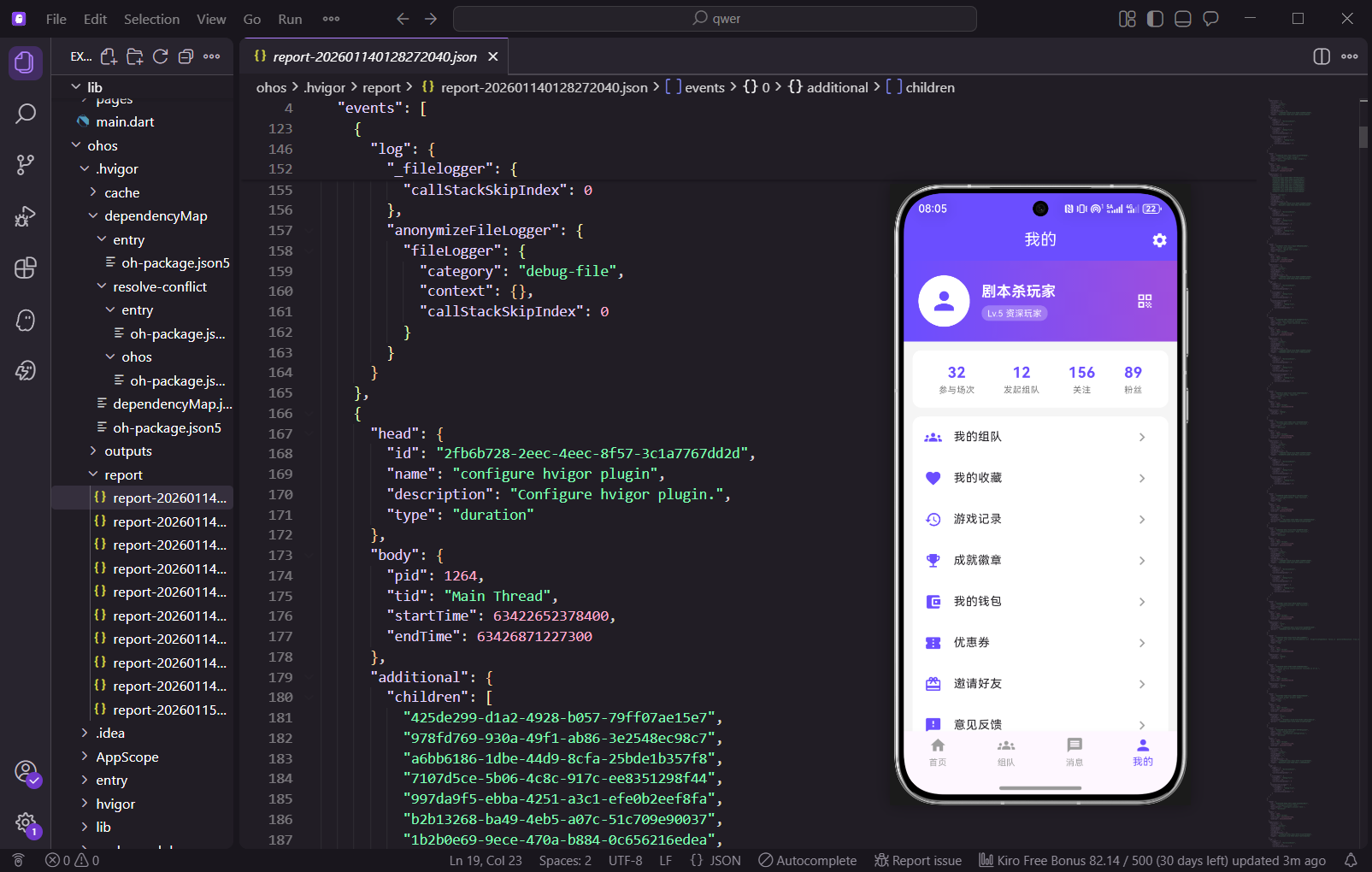
个人中心是用户管理个人信息、查看游戏数据和访问各项功能的核心入口。本篇文章将详细讲解如何实现一个功能完善的个人中心页面,包括用户信息展示、数据统计和功能菜单列表。
个人中心页面采用经典的三段式布局:顶部用户信息区域使用渐变背景突出展示,中间数据统计区域展示用户的游戏数据,底部功能菜单列表提供各项功能入口。
import 'package:flutter/material.dart';
import 'package:get/get.dart';
import 'settings_page.dart';
import 'my_teams_page.dart';
import 'favorites_page.dart';
import 'edit_profile_page.dart';
import 'history_page.dart';
import 'feedback_page.dart';
import 'about_page.dart';
import 'achievement_page.dart';
import 'level_page.dart';
import 'wallet_page.dart';
import 'invite_page.dart';
import 'coupon_page.dart';
首先导入所需的依赖包和页面文件。Flutter的material库提供了丰富的UI组件,GetX用于路由导航和状态管理。我们还导入了设置页面、我的组队、收藏、编辑资料、历史记录、反馈、关于、成就、等级、钱包、邀请和优惠券等子页面。
/// 个人中心页面
/// 展示用户信息、游戏数据统计和功能菜单
/// 采用渐变背景头部设计,突出用户身份展示
class ProfilePage extends StatelessWidget {
  ProfilePage({super.key});

  // 用户基本信息数据
  final Map<String, dynamic> _userInfo = {
    'nickname': '剧本杀玩家',
    'level': 5,
    'levelName': '资深玩家',
    'avatar': '',
  };
ProfilePage使用StatelessWidget因为页面数据主要来自服务器,不需要本地状态管理。_userInfo存储用户的基本信息,包括昵称、等级、等级名称和头像。实际项目中这些数据应该从用户状态管理器或API获取。
  // 用户统计数据
  final Map<String, dynamic> _stats = {
    'games': 32,
    'teams': 12,
    'following': 156,
    'followers': 89,
  };

  // 功能菜单配置列表
  final List<Map<String, dynamic>> _menuItems = [
    {'icon': Icons.groups, 'title': '我的组队', 'page': 'MyTeamsPage'},
    {'icon': Icons.favorite, 'title': '我的收藏', 'page': 'FavoritesPage'},
_stats存储用户的统计数据,包括参与场次、发起组队数、关注数和粉丝数。_menuItems定义功能菜单的配置,每个菜单项包含图标、标题和目标页面。使用配置化的方式可以方便地添加或修改菜单项。
    {'icon': Icons.history, 'title': '游戏记录', 'page': 'HistoryPage'},
    {'icon': Icons.emoji_events, 'title': '成就徽章', 'page': 'AchievementPage'},
    {'icon': Icons.account_balance_wallet, 'title': '我的钱包', 'page': 'WalletPage'},
    {'icon': Icons.confirmation_number, 'title': '优惠券', 'page': 'CouponPage'},
    {'icon': Icons.card_giftcard, 'title': '邀请好友', 'page': 'InvitePage'},
    {'icon': Icons.feedback, 'title': '意见反馈', 'page': 'FeedbackPage'},
    {'icon': Icons.info, 'title': '关于我们', 'page': 'AboutPage'},
  ];
继续定义菜单项配置,包括游戏记录、成就徽章、钱包、优惠券、邀请好友、意见反馈和关于我们。这些功能覆盖了用户在个人中心可能需要的所有操作入口。
Widget build(BuildContext context) {
return Scaffold(
backgroundColor: const Color(0xFFF5F5F5),
appBar: AppBar(
title: const Text('我的'),
centerTitle: true,
elevation: 0,
actions: [
IconButton(
icon: const Icon(Icons.settings),
onPressed: () => Get.to(() => SettingsPage()),
),
],
),
build方法构建页面主体结构。Scaffold设置浅灰色背景,AppBar标题居中显示"我的",右侧放置设置按钮。elevation设为0去除AppBar阴影,与下方渐变头部区域无缝衔接。
      body: SingleChildScrollView(
        child: Column(
          children: [
            _buildHeader(),
            _buildStatsCard(),
            _buildQuickActions(),
            _buildMenuSection(),
            const SizedBox(height: 20),
          ],
        ),
      ),
    );
  }
页面主体使用SingleChildScrollView包裹Column,支持内容超出屏幕时滚动。页面分为四个主要区域:头部用户信息、统计数据卡片、快捷操作和功能菜单列表。底部添加间距避免内容紧贴屏幕底部。
  /// 构建头部用户信息区域
  /// 使用渐变背景突出展示用户身份
  Widget _buildHeader() {
    return Container(
      padding: const EdgeInsets.all(20),
      decoration: const BoxDecoration(
        gradient: LinearGradient(
          colors: [Color(0xFF6B4EFF), Color(0xFF9D4EDD)],
          begin: Alignment.topLeft,
          end: Alignment.bottomRight,
        ),
      ),
头部区域使用Container包裹,设置内边距和渐变背景。渐变从主题紫色(0xFF6B4EFF)过渡到浅紫色(0xFF9D4EDD),从左上到右下的方向增加视觉层次感。
      child: Row(
        children: [
          // 用户头像
          GestureDetector(
            onTap: () => Get.to(() => EditProfilePage()),
            child: Stack(
              children: [
                const CircleAvatar(
                  radius: 40,
                  backgroundColor: Colors.white,
                  child: Icon(
                    Icons.person,
                    size: 45,
                    color: Color(0xFF6B4EFF),
                  ),
                ),
头部内容使用Row水平排列头像和用户信息。头像使用GestureDetector包裹实现点击跳转到编辑资料页面。Stack用于在头像上叠加编辑图标。CircleAvatar创建圆形头像,白色背景配合紫色图标。
                Positioned(
                  right: 0,
                  bottom: 0,
                  child: Container(
                    padding: const EdgeInsets.all(4),
                    decoration: const BoxDecoration(
                      color: Colors.white,
                      shape: BoxShape.circle,
                    ),
                    child: const Icon(
                      Icons.camera_alt,
                      size: 14,
                      color: Color(0xFF6B4EFF),
                    ),
                  ),
                ),
              ],
            ),
          ),
使用Positioned在头像右下角放置相机图标,提示用户可以更换头像。图标使用白色圆形背景,与头像形成视觉区分。
          const SizedBox(width: 16),
          // 用户信息
          Expanded(
            child: Column(
              crossAxisAlignment: CrossAxisAlignment.start,
              children: [
                Text(
                  _userInfo['nickname'],
                  style: const TextStyle(
                    color: Colors.white,
                    fontSize: 22,
                    fontWeight: FontWeight.bold,
                  ),
                ),
                const SizedBox(height: 8),
用户信息区域使用Expanded占据剩余空间,Column垂直排列昵称和等级标签。昵称使用白色粗体大字显示,突出用户身份。
                GestureDetector(
                  onTap: () => Get.to(() => LevelPage()),
                  child: Container(
                    padding: const EdgeInsets.symmetric(
                      horizontal: 12,
                      vertical: 4,
                    ),
                    decoration: BoxDecoration(
                      color: Colors.white.withOpacity(0.2),
                      borderRadius: BorderRadius.circular(12),
                    ),
                    child: Row(
                      mainAxisSize: MainAxisSize.min,
                      children: [
                        const Icon(
                          Icons.military_tech,
                          size: 16,
                          color: Colors.amber,
                        ),
等级标签使用GestureDetector包裹,点击跳转到等级详情页面。半透明白色背景配合圆角设计,与渐变背景形成层次。Row内放置勋章图标和等级文字。
                        const SizedBox(width: 4),
                        Text(
                          'Lv.${_userInfo['level']} ${_userInfo['levelName']}',
                          style: const TextStyle(
                            color: Colors.white,
                            fontSize: 12,
                          ),
                        ),
                      ],
                    ),
                  ),
                ),
              ],
            ),
          ),
等级文字显示等级数字和等级名称,使用白色小字体。mainAxisSize设为min让Row宽度自适应内容。
          // 二维码按钮
          Column(
            children: [
              IconButton(
                icon: const Icon(
                  Icons.qr_code,
                  color: Colors.white,
                  size: 28,
                ),
                onPressed: () => _showQRCode(),
              ),
              const Text(
                '我的二维码',
                style: TextStyle(
                  color: Colors.white70,
                  fontSize: 10,
                ),
              ),
            ],
          ),
        ],
      ),
    );
  }
右侧放置二维码按钮,点击显示用户的个人二维码。按钮下方添加文字说明,使用半透明白色小字体。
  /// 显示二维码弹窗
  void _showQRCode() {
    Get.dialog(
      AlertDialog(
        title: const Text('我的二维码'),
        content: Column(
          mainAxisSize: MainAxisSize.min,
          children: [
            Container(
              width: 200,
              height: 200,
              decoration: BoxDecoration(
                color: Colors.grey[200],
                borderRadius: BorderRadius.circular(12),
              ),
              child: const Center(
                child: Icon(
                  Icons.qr_code_2,
                  size: 150,
                  color: Color(0xFF6B4EFF),
                ),
              ),
            ),
二维码弹窗使用GetX的dialog方法显示。AlertDialog包含标题和内容区域,内容区域展示二维码图片占位符。实际项目中应该使用qr_flutter等库生成真实二维码。
            const SizedBox(height: 16),
            const Text(
              '扫一扫,加我好友',
              style: TextStyle(color: Colors.grey),
            ),
          ],
        ),
        actions: [
          TextButton(
            onPressed: () => Get.back(),
            child: const Text('关闭'),
          ),
          TextButton(
            onPressed: () {
              Get.back();
              Get.snackbar('提示', '二维码已保存到相册');
            },
            child: const Text('保存'),
          ),
        ],
      ),
    );
  }
弹窗底部提供关闭和保存两个按钮。保存按钮点击后显示提示信息,实际项目中应该调用系统API保存图片到相册。
  /// 构建统计数据卡片
  Widget _buildStatsCard() {
    return Container(
      margin: const EdgeInsets.all(12),
      padding: const EdgeInsets.symmetric(vertical: 20),
      decoration: BoxDecoration(
        color: Colors.white,
        borderRadius: BorderRadius.circular(16),
        boxShadow: [
          BoxShadow(
            color: Colors.black.withOpacity(0.05),
            blurRadius: 10,
            offset: const Offset(0, 2),
          ),
        ],
      ),
统计数据卡片使用白色背景、圆角和轻微阴影,与页面背景形成层次区分。margin设置外边距,padding设置内边距。
      child: Row(
        mainAxisAlignment: MainAxisAlignment.spaceEvenly,
        children: [
          _buildStatItem(
            count: _stats['games'].toString(),
            label: '参与场次',
            onTap: () => Get.to(() => HistoryPage()),
          ),
          _buildDivider(),
          _buildStatItem(
            count: _stats['teams'].toString(),
            label: '发起组队',
            onTap: () => Get.to(() => MyTeamsPage()),
          ),
统计数据使用Row水平排列,spaceEvenly均匀分布各项。每个统计项包含数字和标签,点击跳转到对应的详情页面。使用分隔线区分各项。
          _buildDivider(),
          _buildStatItem(
            count: _stats['following'].toString(),
            label: '关注',
            onTap: () => _showFollowList(true),
          ),
          _buildDivider(),
          _buildStatItem(
            count: _stats['followers'].toString(),
            label: '粉丝',
            onTap: () => _showFollowList(false),
          ),
        ],
      ),
    );
  }
继续添加关注和粉丝统计项,点击分别显示关注列表和粉丝列表。
  /// 构建单个统计项
  Widget _buildStatItem({
    required String count,
    required String label,
    required VoidCallback onTap,
  }) {
    return GestureDetector(
      onTap: onTap,
      child: Column(
        children: [
          Text(
            count,
            style: const TextStyle(
              fontSize: 24,
              fontWeight: FontWeight.bold,
              color: Color(0xFF6B4EFF),
            ),
          ),
统计项组件接收数字、标签和点击回调三个参数。数字使用紫色粗体大字显示,突出数据展示。
          const SizedBox(height: 4),
          Text(
            label,
            style: TextStyle(
              fontSize: 12,
              color: Colors.grey[600],
            ),
          ),
        ],
      ),
    );
  }

  /// 构建分隔线
  Widget _buildDivider() {
    return Container(
      width: 1,
      height: 30,
      color: Colors.grey[300],
    );
  }
标签使用灰色小字体显示。分隔线使用Container实现,设置宽度1像素、高度30像素的灰色竖线。
  /// 显示关注/粉丝列表
  void _showFollowList(bool isFollowing) {
    final title = isFollowing ? '我的关注' : '我的粉丝';
    final users = [
      {'name': '玩家A', 'level': 'Lv.6'},
      {'name': '玩家B', 'level': 'Lv.4'},
      {'name': '玩家C', 'level': 'Lv.8'},
      {'name': '玩家D', 'level': 'Lv.3'},
      {'name': '玩家E', 'level': 'Lv.5'},
    ];
关注/粉丝列表使用底部弹出面板展示。根据isFollowing参数决定显示关注列表还是粉丝列表。users数组存储模拟的用户数据。
    Get.bottomSheet(
      Container(
        height: 400,
        decoration: const BoxDecoration(
          color: Colors.white,
          borderRadius: BorderRadius.vertical(top: Radius.circular(20)),
        ),
        child: Column(
          children: [
            Padding(
              padding: const EdgeInsets.all(16),
              child: Row(
                children: [
                  Text(
                    title,
                    style: const TextStyle(
                      fontSize: 18,
                      fontWeight: FontWeight.bold,
                    ),
                  ),
                  const Spacer(),
                  IconButton(
                    icon: const Icon(Icons.close),
                    onPressed: () => Get.back(),
                  ),
                ],
              ),
            ),
底部面板使用GetX的bottomSheet方法显示。顶部显示标题和关闭按钮,使用Row水平排列。
            Expanded(
              child: ListView.builder(
                itemCount: users.length,
                itemBuilder: (context, index) {
                  final user = users[index];
                  return ListTile(
                    leading: const CircleAvatar(
                      backgroundColor: Color(0xFF6B4EFF),
                      child: Icon(
                        Icons.person,
                        color: Colors.white,
                      ),
                    ),
                    title: Text(user['name']!),
                    subtitle: Text(user['level']!),
                    trailing: isFollowing
                        ? OutlinedButton(
                            onPressed: () {},
                            child: const Text('已关注'),
                          )
                        : ElevatedButton(
                            onPressed: () {},
                            style: ElevatedButton.styleFrom(
                              backgroundColor: const Color(0xFF6B4EFF),
                            ),
                            child: const Text(
                              '回关',
                              style: TextStyle(color: Colors.white),
                            ),
                          ),
                  );
                },
              ),
            ),
          ],
        ),
      ),
    );
  }
用户列表使用ListView.builder构建,每个用户项显示头像、昵称、等级和操作按钮。关注列表显示"已关注"按钮,粉丝列表显示"回关"按钮。
  /// 构建快捷操作区域
  Widget _buildQuickActions() {
    final actions = [
      {'icon': Icons.account_balance_wallet, 'label': '钱包', 'page': WalletPage()},
      {'icon': Icons.confirmation_number, 'label': '优惠券', 'page': CouponPage()},
      {'icon': Icons.emoji_events, 'label': '成就', 'page': AchievementPage()},
      {'icon': Icons.card_giftcard, 'label': '邀请', 'page': InvitePage()},
    ];
快捷操作区域提供常用功能的快速入口,包括钱包、优惠券、成就和邀请四个功能。
    return Container(
      margin: const EdgeInsets.symmetric(horizontal: 12),
      padding: const EdgeInsets.all(16),
      decoration: BoxDecoration(
        color: Colors.white,
        borderRadius: BorderRadius.circular(16),
      ),
      child: Row(
        mainAxisAlignment: MainAxisAlignment.spaceAround,
        children: actions.map((action) {
          return GestureDetector(
            onTap: () => Get.to(() => action['page'] as Widget),
            child: Column(
              children: [
                Container(
                  width: 50,
                  height: 50,
                  decoration: BoxDecoration(
                    color: const Color(0xFF6B4EFF).withOpacity(0.1),
                    borderRadius: BorderRadius.circular(12),
                  ),
快捷操作使用白色卡片包裹,Row水平排列四个操作项。每个操作项包含图标和文字,图标使用浅紫色背景的圆角方形容器。
                  child: Icon(
                    action['icon'] as IconData,
                    color: const Color(0xFF6B4EFF),
                  ),
                ),
                const SizedBox(height: 8),
                Text(
                  action['label'] as String,
                  style: TextStyle(
                    fontSize: 12,
                    color: Colors.grey[700],
                  ),
                ),
              ],
            ),
          );
        }).toList(),
      ),
    );
  }
图标使用紫色显示,下方文字使用灰色小字体。点击跳转到对应的功能页面。
  /// 构建功能菜单区域
  Widget _buildMenuSection() {
    return Container(
      margin: const EdgeInsets.all(12),
      decoration: BoxDecoration(
        color: Colors.white,
        borderRadius: BorderRadius.circular(16),
      ),
      child: Column(
        children: [
          _buildMenuItem(
            icon: Icons.groups,
            title: '我的组队',
            subtitle: '查看参与的组队',
            onTap: () => Get.to(() => MyTeamsPage()),
          ),
功能菜单区域使用白色卡片包裹,Column垂直排列各个菜单项。每个菜单项包含图标、标题、副标题和点击回调。
          _buildMenuDivider(),
          _buildMenuItem(
            icon: Icons.favorite,
            title: '我的收藏',
            subtitle: '收藏的剧本和店铺',
            onTap: () => Get.to(() => FavoritesPage()),
          ),
          _buildMenuDivider(),
          _buildMenuItem(
            icon: Icons.history,
            title: '游戏记录',
            subtitle: '历史游戏记录',
            onTap: () => Get.to(() => HistoryPage()),
          ),
继续添加收藏和游戏记录菜单项,每个菜单项之间使用分隔线区分。
          _buildMenuDivider(),
          _buildMenuItem(
            icon: Icons.feedback,
            title: '意见反馈',
            subtitle: '帮助我们改进',
            onTap: () => Get.to(() => FeedbackPage()),
          ),
          _buildMenuDivider(),
          _buildMenuItem(
            icon: Icons.info,
            title: '关于我们',
            subtitle: '了解更多信息',
            onTap: () => Get.to(() => AboutPage()),
          ),
        ],
      ),
    );
  }
添加意见反馈和关于我们菜单项,完成功能菜单区域的构建。
  /// 构建单个菜单项
  Widget _buildMenuItem({
    required IconData icon,
    required String title,
    required String subtitle,
    required VoidCallback onTap,
  }) {
    return ListTile(
      leading: Container(
        width: 40,
        height: 40,
        decoration: BoxDecoration(
          color: const Color(0xFF6B4EFF).withOpacity(0.1),
          borderRadius: BorderRadius.circular(10),
        ),
        child: Icon(
          icon,
          color: const Color(0xFF6B4EFF),
        ),
      ),
菜单项组件使用ListTile实现,leading放置图标容器,使用浅紫色背景和紫色图标。
      title: Text(
        title,
        style: const TextStyle(
          fontWeight: FontWeight.w500,
        ),
      ),
      subtitle: Text(
        subtitle,
        style: TextStyle(
          fontSize: 12,
          color: Colors.grey[500],
        ),
      ),
      trailing: const Icon(
        Icons.chevron_right,
        color: Colors.grey,
      ),
      onTap: onTap,
    );
  }
title显示菜单标题,subtitle显示副标题说明,trailing放置右箭头图标提示可点击。
  /// 构建菜单分隔线
  Widget _buildMenuDivider() {
    return Divider(
      height: 1,
      indent: 70,
      color: Colors.grey[200],
    );
  }
}
菜单分隔线使用Divider组件,设置indent缩进与图标对齐,颜色使用浅灰色。
个人中心页面的设计遵循了移动端应用的标准模式,用户可以快速找到所需功能。渐变背景的头部区域突出了用户身份展示,统计数据卡片直观展示了用户的游戏数据。
快捷操作区域提供了常用功能的快速入口,减少用户的操作路径。功能菜单列表使用ListTile组件,布局规范统一,每个菜单项都有图标、标题和副标题,信息展示清晰。
通过本篇文章的学习,我们完成了个人中心页面的布局实现。这个页面是用户管理个人信息和访问各项功能的核心入口,为用户提供了便捷的操作体验。下一篇文章我们将实现设置功能页面。
欢迎加入开源鸿蒙跨平台社区:https://openharmonycrossplatform.csdn.net

腾讯云面向开发者汇聚海量精品云计算使用和开发经验,营造开放的云计算技术生态圈。
更多推荐
 14
14 0
0- 0


 已为社区贡献32条内容

所有评论(0)