Flutter for OpenHarmony衣橱管家App实战:使用帮助功能实现
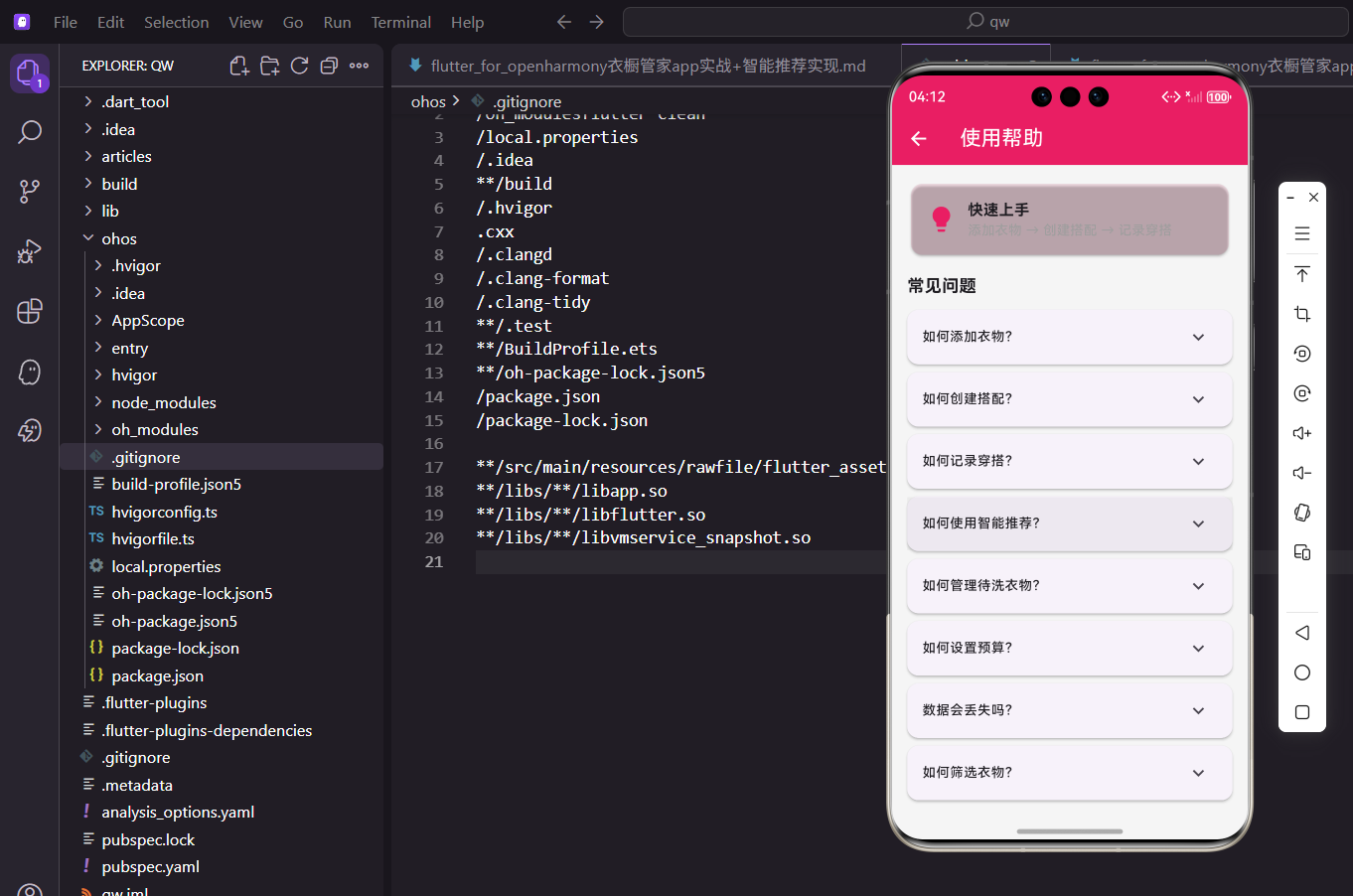
用户下载了你的App,打开后一脸懵逼不知道怎么用,这是最糟糕的体验。一个好的使用帮助页面,能让用户快速上手,减少流失率。今天我们来实现衣橱管家App的使用帮助功能,打造一个清晰易懂的帮助中心。
帮助页面的设计思路
帮助页面不是说明书,不需要面面俱到。用户遇到问题时才会来看帮助,所以我们要用FAQ(常见问题)的形式,让用户能快速找到答案。
好的帮助页面应该做到三点:问题分类清晰、答案简洁明了、支持快速搜索。我们先从基础版本开始,后续可以逐步完善。
页面整体结构
帮助页面分为两部分:顶部是快速上手指引,下面是常见问题列表。
import 'package:flutter/material.dart';
import 'package:flutter_screenutil/flutter_screenutil.dart';
class HelpScreen extends StatelessWidget {
const HelpScreen({super.key});
Widget build(BuildContext context) {
final faqs = [
{'q': '如何添加衣物?', 'a': '在衣橱页面点击右下角的"+"按钮,填写衣物信息后保存即可。'},
{'q': '如何创建搭配?', 'a': '在搭配页面点击右下角的"+"按钮,选择要搭配的衣物,设置场合和季节后保存。'},
{'q': '如何记录穿搭?', 'a': '在日历页面选择日期,点击"+"按钮添加当天的穿搭记录。'},
{'q': '如何使用智能推荐?', 'a': '在搭配页面点击右上角的魔法棒图标,选择场合和天气后生成推荐。'},
{'q': '如何管理待洗衣物?', 'a': '在衣物详情页点击"加入待洗",或在"我的"页面进入待洗衣物管理。'},
{'q': '如何设置预算?', 'a': '在"我的"页面进入预算管理,设置月度预算并记录支出。'},
{'q': '数据会丢失吗?', 'a': '建议开启自动备份功能,定期导出数据以防丢失。'},
{'q': '如何筛选衣物?', 'a': '在衣橱页面点击筛选图标,可按分类、颜色、季节、价格筛选。'},
];
return Scaffold(
appBar: AppBar(title: const Text('使用帮助')),
body: ListView(
padding: EdgeInsets.all(16.w),
children: [
_buildQuickStartCard(),
SizedBox(height: 16.h),
Text('常见问题', style: TextStyle(fontSize: 18.sp, fontWeight: FontWeight.bold)),
SizedBox(height: 12.h),
...faqs.map((faq) => _buildFaqItem(faq['q']!, faq['a']!)),
],
),
);
}
}
faqs列表存储所有常见问题,每个问题包含q(问题)和a(答案)两个字段。这种数据结构简单清晰,方便后续维护和扩展。
ListView直接使用children而不是builder,因为FAQ数量固定且不多。展开运算符…配合map方法,将FAQ列表转换为Widget列表。
快速上手卡片
快速上手卡片用醒目的颜色突出显示,告诉用户App的核心使用流程。
Widget _buildQuickStartCard() {
  return Card(
    color: const Color(0xFFE91E63).withOpacity(0.1),
    child: Padding(
      padding: EdgeInsets.all(16.w),
      child: Row(
        children: [
          Icon(Icons.lightbulb, color: const Color(0xFFE91E63), size: 32.sp),
          SizedBox(width: 12.w),
          Expanded(
            child: Column(
              crossAxisAlignment: CrossAxisAlignment.start,
              children: [
                Text('快速上手', style: TextStyle(fontSize: 16.sp, fontWeight: FontWeight.bold)),
                Text('添加衣物 → 创建搭配 → 记录穿搭', style: TextStyle(fontSize: 14.sp, color: Colors.grey)),
              ],
            ),
          ),
        ],
      ),
    ),
  );
}
卡片使用品牌色的10%透明度作为背景,与下面的白色FAQ卡片形成区分。灯泡图标象征"提示",符合用户的直觉认知。
三步流程用箭头连接,简洁明了地告诉用户App的核心使用路径。Expanded确保文字区域占据剩余空间,长文本时能正确换行。
FAQ列表项组件
每个FAQ使用ExpansionTile组件,点击问题展开显示答案,节省屏幕空间。
Widget _buildFaqItem(String question, String answer) {
  return Card(
    margin: EdgeInsets.only(bottom: 8.h),
    child: ExpansionTile(
      title: Text(question, style: TextStyle(fontSize: 14.sp, fontWeight: FontWeight.w500)),
      children: [
        Padding(
          padding: EdgeInsets.fromLTRB(16.w, 0, 16.w, 16.h),
          child: Text(answer, style: TextStyle(fontSize: 14.sp, color: Colors.grey.shade700)),
        ),
      ],
    ),
  );
}
ExpansionTile是Material Design提供的可展开列表项组件,自带展开收起动画和箭头图标。title显示问题,children显示答案。
答案的padding设置为左右16、下16、上0,因为ExpansionTile内部已经有上边距。答案文字使用稍深的灰色,比纯灰色更易阅读。
分类FAQ展示
当FAQ数量较多时,可以按功能模块分类展示,方便用户快速定位。
Widget _buildCategorizedFaqs() {
  final categories = {
    '衣橱管理': [
      {'q': '如何添加衣物?', 'a': '在衣橱页面点击右下角的"+"按钮,填写衣物信息后保存即可。'},
      {'q': '如何编辑衣物信息?', 'a': '点击衣物进入详情页,点击右上角编辑按钮即可修改。'},
      {'q': '如何删除衣物?', 'a': '在衣物详情页点击删除按钮,确认后即可删除。'},
    ],
    '搭配功能': [
      {'q': '如何创建搭配?', 'a': '在搭配页面点击右下角的"+"按钮,选择要搭配的衣物。'},
      {'q': '如何使用智能推荐?', 'a': '在搭配页面点击魔法棒图标,选择场合和天气后生成推荐。'},
    ],
    '日历记录': [
      {'q': '如何记录穿搭?', 'a': '在日历页面选择日期,点击"+"按钮添加当天的穿搭记录。'},
      {'q': '如何查看穿搭历史?', 'a': '在日历页面可以查看每天的穿搭记录,也可以进入穿搭历史页面。'},
    ],
  };

  return Column(
    crossAxisAlignment: CrossAxisAlignment.start,
    children: categories.entries.map((entry) {
      return Column(
        crossAxisAlignment: CrossAxisAlignment.start,
        children: [
          Padding(
            padding: EdgeInsets.symmetric(vertical: 12.h),
            child: Text(entry.key, style: TextStyle(fontSize: 16.sp, fontWeight: FontWeight.bold, color: const Color(0xFFE91E63))),
          ),
          ...entry.value.map((faq) => _buildFaqItem(faq['q']!, faq['a']!)),
        ],
      );
    }).toList(),
  );
}
使用Map按功能模块组织FAQ,key是分类名称,value是该分类下的问题列表。分类标题使用品牌色,与问题卡片形成视觉区分。
entries.map遍历Map的键值对,每个分类生成一个标题和对应的FAQ列表。这种结构让用户能快速找到相关问题。
搜索功能实现
当FAQ很多时,搜索功能能帮助用户快速找到答案。
class _HelpScreenState extends State<HelpScreen> {
  final _searchController = TextEditingController();
  String _searchQuery = '';

  List<Map<String, String>> _filterFaqs(List<Map<String, String>> faqs) {
    if (_searchQuery.isEmpty) return faqs;
    return faqs.where((faq) {
      return faq['q']!.contains(_searchQuery) || faq['a']!.contains(_searchQuery);
    }).toList();
  }

  Widget _buildSearchBar() {
    return Padding(
      padding: EdgeInsets.only(bottom: 16.h),
      child: TextField(
        controller: _searchController,
        decoration: InputDecoration(
          hintText: '搜索问题...',
          prefixIcon: const Icon(Icons.search),
          border: OutlineInputBorder(borderRadius: BorderRadius.circular(24.r)),
          contentPadding: EdgeInsets.symmetric(horizontal: 16.w, vertical: 12.h),
        ),
        onChanged: (value) => setState(() => _searchQuery = value),
      ),
    );
  }
}
搜索同时匹配问题和答案,用户输入关键词后实时过滤FAQ列表。where方法过滤列表,contains方法检查是否包含关键词。
搜索框使用圆角边框,prefixIcon显示搜索图标。onChanged实时更新搜索关键词,触发界面刷新显示过滤结果。
搜索无结果处理
当搜索没有匹配结果时,需要显示友好的提示。
Widget _buildSearchEmpty() {
  return Center(
    child: Column(
      mainAxisAlignment: MainAxisAlignment.center,
      children: [
        Icon(Icons.search_off, size: 64.sp, color: Colors.grey),
        SizedBox(height: 16.h),
        Text('没有找到相关问题', style: TextStyle(fontSize: 16.sp, color: Colors.grey)),
        SizedBox(height: 8.h),
        Text('试试其他关键词,或联系客服', style: TextStyle(fontSize: 14.sp, color: Colors.grey)),
      ],
    ),
  );
}
空状态使用search_off图标,直观表达搜索失败。副文案建议用户尝试其他关键词或联系客服,给出下一步操作指引。
这种设计让用户知道不是系统出错,而是确实没有匹配的内容。
图文教程展示
对于复杂的功能,可以提供图文教程,比纯文字更直观。
Widget _buildTutorialCard(String title, String description, IconData icon) {
  return Card(
    margin: EdgeInsets.only(bottom: 12.h),
    child: InkWell(
      onTap: () {
        // 跳转到详细教程页面
      },
      child: Padding(
        padding: EdgeInsets.all(16.w),
        child: Row(
          children: [
            Container(
              width: 48.w,
              height: 48.w,
              decoration: BoxDecoration(
                color: const Color(0xFFE91E63).withOpacity(0.1),
                borderRadius: BorderRadius.circular(12.r),
              ),
              child: Icon(icon, color: const Color(0xFFE91E63)),
            ),
            SizedBox(width: 12.w),
            Expanded(
              child: Column(
                crossAxisAlignment: CrossAxisAlignment.start,
                children: [
                  Text(title, style: TextStyle(fontSize: 14.sp, fontWeight: FontWeight.bold)),
                  SizedBox(height: 4.h),
                  Text(description, style: TextStyle(fontSize: 12.sp, color: Colors.grey)),
                ],
              ),
            ),
            const Icon(Icons.chevron_right, color: Colors.grey),
          ],
        ),
      ),
    ),
  );
}
教程卡片包含图标、标题、描述和右箭头,点击后跳转到详细教程页面。InkWell提供点击水波纹效果。
图标使用品牌色背景的圆角容器,与FAQ卡片风格统一。右箭头暗示用户这个卡片可以点击进入详情。
视频教程入口
对于更复杂的功能,可以提供视频教程链接。
Widget _buildVideoTutorial() {
  return Card(
    color: Colors.blue.withOpacity(0.1),
    child: Padding(
      padding: EdgeInsets.all(16.w),
      child: Row(
        children: [
          Container(
            width: 60.w,
            height: 60.w,
            decoration: BoxDecoration(
              color: Colors.blue,
              borderRadius: BorderRadius.circular(12.r),
            ),
            child: Icon(Icons.play_circle_fill, color: Colors.white, size: 32.sp),
          ),
          SizedBox(width: 12.w),
          Expanded(
            child: Column(
              crossAxisAlignment: CrossAxisAlignment.start,
              children: [
                Text('视频教程', style: TextStyle(fontSize: 16.sp, fontWeight: FontWeight.bold)),
                SizedBox(height: 4.h),
                Text('3分钟快速上手衣橱管家', style: TextStyle(fontSize: 14.sp, color: Colors.grey)),
              ],
            ),
          ),
        ],
      ),
    ),
  );
}
视频教程卡片使用蓝色调,与其他卡片区分。播放图标直观表达这是视频内容。
标题说明视频时长,让用户知道需要花多少时间观看。实际项目中点击后可以跳转到视频播放页面或外部链接。
联系客服入口
当用户在帮助页面找不到答案时,需要提供联系客服的入口。
Widget _buildContactSupport() {
  return Card(
    margin: EdgeInsets.only(top: 16.h),
    child: Padding(
      padding: EdgeInsets.all(16.w),
      child: Column(
        children: [
          Text('没有找到答案?', style: TextStyle(fontSize: 14.sp, color: Colors.grey)),
          SizedBox(height: 12.h),
          Row(
            mainAxisAlignment: MainAxisAlignment.spaceAround,
            children: [
              _buildContactItem(Icons.email, '发送邮件', () {}),
              _buildContactItem(Icons.chat, '在线客服', () {}),
              _buildContactItem(Icons.feedback, '意见反馈', () {}),
            ],
          ),
        ],
      ),
    ),
  );
}

Widget _buildContactItem(IconData icon, String label, VoidCallback onTap) {
  return GestureDetector(
    onTap: onTap,
    child: Column(
      children: [
        Container(
          width: 48.w,
          height: 48.w,
          decoration: BoxDecoration(
            color: const Color(0xFFE91E63).withOpacity(0.1),
            shape: BoxShape.circle,
          ),
          child: Icon(icon, color: const Color(0xFFE91E63)),
        ),
        SizedBox(height: 4.h),
        Text(label, style: TextStyle(fontSize: 12.sp)),
      ],
    ),
  );
}
联系客服区域放在页面底部,提供邮件、在线客服、意见反馈三种联系方式。用户找不到答案时自然会滑到底部看到这个入口。
三个联系方式横向排列,使用圆形图标按钮,点击后执行对应的操作。
新手引导功能
首次使用App时,可以显示新手引导,帮助用户快速了解主要功能。
void _showOnboarding(BuildContext context) {
  showDialog(
    context: context,
    barrierDismissible: false,
    builder: (context) => Dialog(
      child: Padding(
        padding: EdgeInsets.all(24.w),
        child: Column(
          mainAxisSize: MainAxisSize.min,
          children: [
            Icon(Icons.waving_hand, size: 48.sp, color: const Color(0xFFE91E63)),
            SizedBox(height: 16.h),
            Text('欢迎使用衣橱管家', style: TextStyle(fontSize: 18.sp, fontWeight: FontWeight.bold)),
            SizedBox(height: 8.h),
            Text(
              '让我们花1分钟了解一下主要功能',
              style: TextStyle(fontSize: 14.sp, color: Colors.grey),
              textAlign: TextAlign.center,
            ),
            SizedBox(height: 24.h),
            SizedBox(
              width: double.infinity,
              child: ElevatedButton(
                onPressed: () {
                  Navigator.pop(context);
                  // 开始引导流程
                },
                style: ElevatedButton.styleFrom(backgroundColor: const Color(0xFFE91E63)),
                child: const Text('开始了解', style: TextStyle(color: Colors.white)),
              ),
            ),
            TextButton(
              onPressed: () => Navigator.pop(context),
              child: const Text('跳过'),
            ),
          ],
        ),
      ),
    ),
  );
}
新手引导弹窗在用户首次打开App时显示,barrierDismissible设为false防止用户点击外部关闭。
提供"开始了解"和"跳过"两个选项,尊重用户的选择。开始了解后可以启动分步引导流程。
功能更新日志
帮助页面还可以展示功能更新日志,让用户了解App的最新变化。
Widget _buildChangeLog() {
  final logs = [
    {'version': '1.2.0', 'date': '2024-01-15', 'changes': ['新增智能推荐功能', '优化搜索体验', '修复已知问题']},
    {'version': '1.1.0', 'date': '2024-01-01', 'changes': ['新增预算管理', '新增购物清单', '界面优化']},
    {'version': '1.0.0', 'date': '2023-12-15', 'changes': ['首次发布']},
  ];

  return Column(
    crossAxisAlignment: CrossAxisAlignment.start,
    children: [
      Text('更新日志', style: TextStyle(fontSize: 18.sp, fontWeight: FontWeight.bold)),
      SizedBox(height: 12.h),
      ...logs.map((log) => Card(
        margin: EdgeInsets.only(bottom: 8.h),
        child: Padding(
          padding: EdgeInsets.all(16.w),
          child: Column(
            crossAxisAlignment: CrossAxisAlignment.start,
            children: [
              Row(
                mainAxisAlignment: MainAxisAlignment.spaceBetween,
                children: [
                  Text('v${log['version']}', style: TextStyle(fontSize: 14.sp, fontWeight: FontWeight.bold)),
                  Text(log['date'] as String, style: TextStyle(fontSize: 12.sp, color: Colors.grey)),
                ],
              ),
              SizedBox(height: 8.h),
              ...(log['changes'] as List<String>).map((change) => Padding(
                padding: EdgeInsets.only(bottom: 4.h),
                child: Row(
                  children: [
                    Icon(Icons.check_circle, size: 14.sp, color: Colors.green),
                    SizedBox(width: 8.w),
                    Expanded(child: Text(change, style: TextStyle(fontSize: 13.sp))),
                  ],
                ),
              )),
            ],
          ),
        ),
      )),
    ],
  );
}
更新日志按版本号倒序排列,最新版本显示在最前面。每个版本显示版本号、日期和更新内容列表。
更新内容前加绿色对勾图标,表示这是新增或改进的功能。这种设计让用户一目了然地看到每个版本的变化。
完整代码整合
把所有功能整合在一起,形成完整的使用帮助页面。
import 'package:flutter/material.dart';
import 'package:flutter_screenutil/flutter_screenutil.dart';
class HelpScreen extends StatelessWidget {
const HelpScreen({super.key});
Widget build(BuildContext context) {
final faqs = [
{'q': '如何添加衣物?', 'a': '在衣橱页面点击右下角的"+"按钮,填写衣物信息后保存即可。'},
{'q': '如何创建搭配?', 'a': '在搭配页面点击右下角的"+"按钮,选择要搭配的衣物,设置场合和季节后保存。'},
{'q': '如何记录穿搭?', 'a': '在日历页面选择日期,点击"+"按钮添加当天的穿搭记录。'},
{'q': '如何使用智能推荐?', 'a': '在搭配页面点击右上角的魔法棒图标,选择场合和天气后生成推荐。'},
{'q': '如何管理待洗衣物?', 'a': '在衣物详情页点击"加入待洗",或在"我的"页面进入待洗衣物管理。'},
{'q': '如何设置预算?', 'a': '在"我的"页面进入预算管理,设置月度预算并记录支出。'},
{'q': '数据会丢失吗?', 'a': '建议开启自动备份功能,定期导出数据以防丢失。'},
{'q': '如何筛选衣物?', 'a': '在衣橱页面点击筛选图标,可按分类、颜色、季节、价格筛选。'},
];
return Scaffold(
appBar: AppBar(title: const Text('使用帮助')),
body: ListView(
padding: EdgeInsets.all(16.w),
children: [
_buildQuickStartCard(),
SizedBox(height: 16.h),
Text('常见问题', style: TextStyle(fontSize: 18.sp, fontWeight: FontWeight.bold)),
SizedBox(height: 12.h),
...faqs.map((faq) => _buildFaqItem(faq['q']!, faq['a']!)),
_buildContactSupport(),
],
),
);
}
Widget _buildQuickStartCard() {
return Card(
color: const Color(0xFFE91E63).withOpacity(0.1),
child: Padding(
padding: EdgeInsets.all(16.w),
child: Row(
children: [
Icon(Icons.lightbulb, color: const Color(0xFFE91E63), size: 32.sp),
SizedBox(width: 12.w),
Expanded(
child: Column(
crossAxisAlignment: CrossAxisAlignment.start,
children: [
Text('快速上手', style: TextStyle(fontSize: 16.sp, fontWeight: FontWeight.bold)),
Text('添加衣物 → 创建搭配 → 记录穿搭', style: TextStyle(fontSize: 14.sp, color: Colors.grey)),
],
),
),
],
),
),
);
}
Widget _buildFaqItem(String question, String answer) {
return Card(
margin: EdgeInsets.only(bottom: 8.h),
child: ExpansionTile(
title: Text(question, style: TextStyle(fontSize: 14.sp, fontWeight: FontWeight.w500)),
children: [
Padding(
padding: EdgeInsets.fromLTRB(16.w, 0, 16.w, 16.h),
child: Text(answer, style: TextStyle(fontSize: 14.sp, color: Colors.grey.shade700)),
),
],
),
);
}
Widget _buildContactSupport() {
return Card(
margin: EdgeInsets.only(top: 16.h),
child: Padding(
padding: EdgeInsets.all(16.w),
child: Column(
children: [
Text('没有找到答案?', style: TextStyle(fontSize: 14.sp, color: Colors.grey)),
SizedBox(height: 12.h),
Row(
mainAxisAlignment: MainAxisAlignment.spaceAround,
children: [
_buildContactItem(Icons.email, '发送邮件'),
_buildContactItem(Icons.chat, '在线客服'),
_buildContactItem(Icons.feedback, '意见反馈'),
],
),
],
),
),
);
}
Widget _buildContactItem(IconData icon, String label) {
return Column(
children: [
Container(
width: 48.w,
height: 48.w,
decoration: BoxDecoration(
color: const Color(0xFFE91E63).withOpacity(0.1),
shape: BoxShape.circle,
),
child: Icon(icon, color: const Color(0xFFE91E63)),
),
SizedBox(height: 4.h),
Text(label, style: TextStyle(fontSize: 12.sp)),
],
);
}
}
完整代码结构清晰,主build方法组装各个模块,私有方法分别处理快速上手卡片、FAQ列表项、联系客服区域。
这种设计让代码易于维护,如果需要添加新的FAQ,只需要在faqs列表中添加即可。
写在最后
使用帮助页面是App的重要组成部分,它能帮助用户快速上手,减少使用障碍。一个好的帮助页面应该简洁明了,让用户能快速找到答案。
记住,帮助页面不是说明书,用户不会从头到尾阅读。用FAQ的形式组织内容,让用户能快速定位到自己关心的问题。
欢迎加入开源鸿蒙跨平台社区:https://openharmonycrossplatform.csdn.net

腾讯云面向开发者汇聚海量精品云计算使用和开发经验,营造开放的云计算技术生态圈。
更多推荐
 10
10 0
0- 0


 已为社区贡献22条内容

所有评论(0)