Flutter for OpenHarmony艺考真题题库app实战+学习进度实现
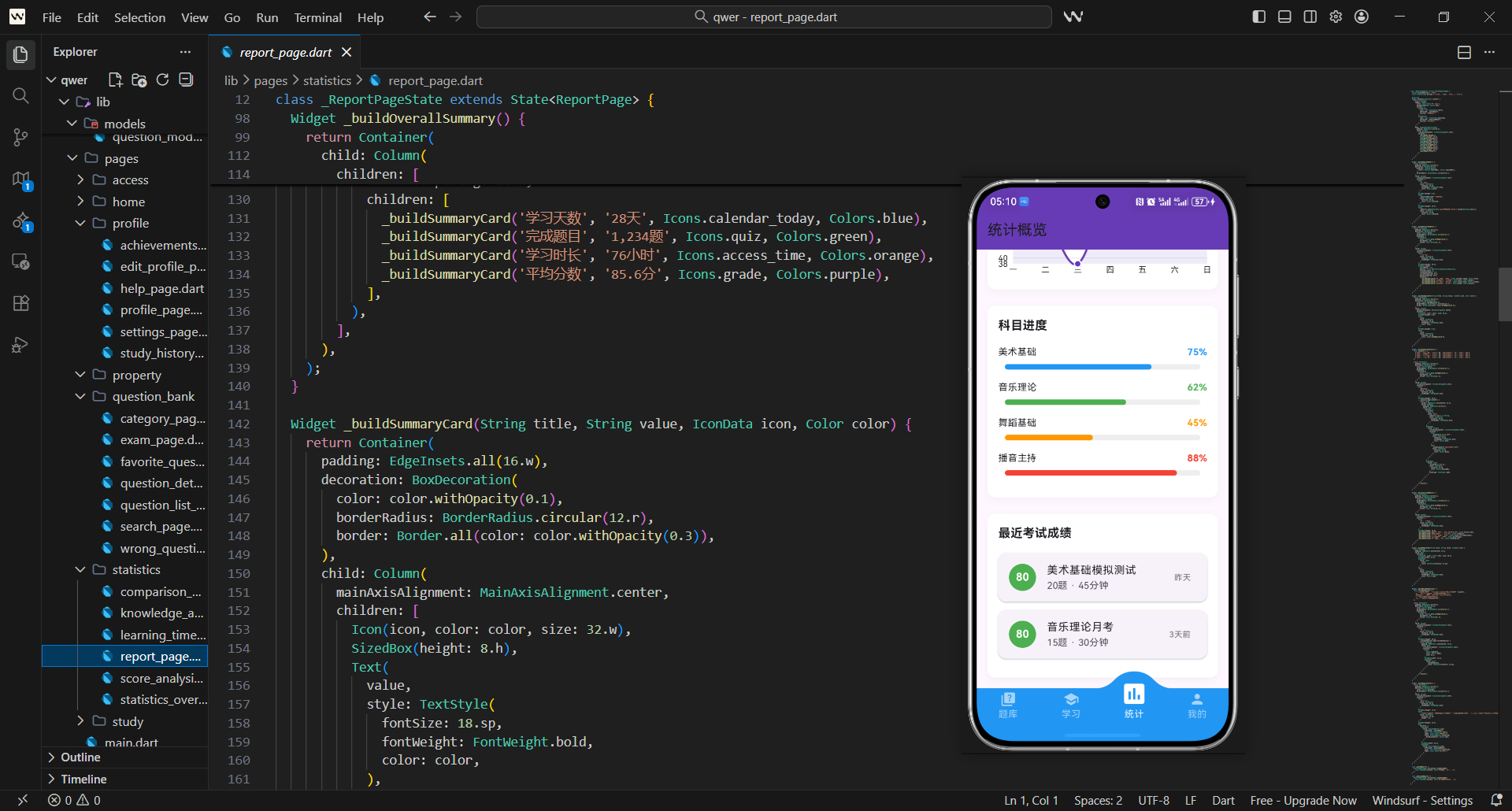
学习进度是艺考学习应用中的重要功能,它能够帮助用户了解自己的学习状况,制定合理的学习计划。今天我们将详细介绍如何构建一个功能完善的学习进度页面,包含进度统计、图表展示、成就系统等功能。
进度页面架构
学习进度页面核心采用TabBar+多标签页的设计模式,优势如下:
- 分层展示学习数据,用户可按需切换查看维度
- 标签页逻辑解耦,便于后续单独维护和扩展功能
- 符合移动端用户操作习惯,提升交互体验
class ProgressPage extends StatefulWidget {
const ProgressPage({Key? key}) : super(key: key);
State<ProgressPage> createState() => _ProgressPageState();
}
在状态管理上,通过selectedTabIndex控制当前激活的标签页:
- 初始化默认选中第一个标签(总体进度)
- 点击切换时触发
setState更新UI,保证状态同步
class _ProgressPageState extends State<ProgressPage> {
int selectedTabIndex = 0;
final List<String> tabs = ['总体进度', '科目详情', '学习统计'];
Widget build(BuildContext context) {
return Scaffold(
appBar: AppBar(
title: const Text('学习进度'),
backgroundColor: Colors.indigo,
),
页面布局采用Column嵌套结构,设计要点:
- 顶部固定TabBar,底部自适应内容区域
- Expanded包裹内容区,避免布局溢出
- 整体遵循Material Design规范,保证视觉一致性
      body: Column(
        children: [
          _buildTabBar(),
          Expanded(child: _buildTabContent()),
        ],
      ),
    );
  }
}
TabBar实现
自定义TabBar的核心设计细节:
- 高度固定为50.h,适配不同屏幕尺寸
- 增加阴影效果,提升视觉层次感
- 选中态通过底部边框+背景色双重标识
Widget _buildTabBar() {
  return Container(
    height: 50.h,
    decoration: BoxDecoration(
      color: Colors.white,
      boxShadow: [
        BoxShadow(
          color: Colors.grey.withOpacity(0.2),
          blurRadius: 4,
          offset: const Offset(0, 2),
        ),
      ],
    ),
TabBar的点击交互逻辑设计:
- 遍历tabs列表生成可点击的Tab项
- 通过
isSelected判断当前选中状态 - 点击时更新
selectedTabIndex,触发UI重绘
  child: Row(
    children: tabs.asMap().entries.map((entry) {
      final index = entry.key;
      final tab = entry.value;
      final isSelected = index == selectedTabIndex;

      return Expanded(
        child: GestureDetector(
          onTap: () {
            setState(() {
              selectedTabIndex = index;
            });
          },
Tab项的样式差异化设计:
- 选中态文字加粗+靛蓝色,未选中态灰色
- 底部边框宽度2.w,强化选中视觉反馈
- 文字大小16.sp,保证不同设备显示一致
          child: Container(
            decoration: BoxDecoration(
              color: isSelected ? Colors.indigo : Colors.transparent,
              border: Border(
                bottom: BorderSide(
                  color: isSelected ? Colors.indigo : Colors.transparent,
                  width: 2.w,
                ),
              ),
            ),
            child: Center(
              child: Text(
                tab,
                style: TextStyle(
                  color: isSelected ? Colors.indigo : Colors.grey[600],
                  fontSize: 16.sp,
                  fontWeight: isSelected ? FontWeight.bold : FontWeight.normal,
                ),
              ),
            ),
          ),
        ),
      );
    }).toList(),
  ),
);
}
总体进度页面
总体进度页面的内容组织逻辑:
- 采用SingleChildScrollView适配长内容
- 按「进度卡片→趋势图表→成就徽章」顺序展示
- 各模块间保留24.h间距,提升呼吸感
Widget _buildOverallProgress() {
  final progress = MockData.getStudyProgress();

  return SingleChildScrollView(
    padding: EdgeInsets.all(16.w),
    child: Column(
      crossAxisAlignment: CrossAxisAlignment.start,
      children: [
        _buildProgressCard(),
        SizedBox(height: 24.h),
        _buildProgressChart(),
        SizedBox(height: 24.h),
        _buildAchievementBadges(),
      ],
    ),
  );
}
进度卡片实现
进度卡片的核心数据计算逻辑:
- 基于总题数和已学习题数计算完成度
- 正确率=正确题数/已学习题数,体现学习质量
- 所有数值采用模拟数据,实际需对接业务接口
Widget _buildProgressCard() {
  final totalQuestions = 515;
  final studiedQuestions = 234;
  final correctQuestions = 189;
  final progressPercentage = studiedQuestions / totalQuestions;
  final accuracyPercentage = correctQuestions / studiedQuestions;
进度卡片的视觉设计亮点:
- 线性渐变背景(靛蓝深浅色),提升质感
- 圆角16.r,符合现代移动端设计趋势
- 文字层级分明,标题加粗+20.sp,副标题14.sp
  return Container(
    padding: EdgeInsets.all(20.w),
    decoration: BoxDecoration(
      gradient: LinearGradient(
        colors: [Colors.indigo[400]!, Colors.indigo[600]!],
      ),
      borderRadius: BorderRadius.circular(16.r),
    ),
    child: Column(
      children: [
        Text(
          '总体学习进度',
          style: TextStyle(
            fontSize: 20.sp,
            fontWeight: FontWeight.bold,
            color: Colors.white,
          ),
        ),
环形进度指示器的配置要点:
- 半径80.r,线条宽度12.w,保证视觉突出
- 中心展示百分比+「完成度」文字,信息直观
- 进度条白色,背景半透明白色,对比清晰
        SizedBox(height: 20.h),
        CircularPercentIndicator(
          radius: 80.r,
          lineWidth: 12.w,
          percent: progressPercentage,
          center: Column(
            children: [
              Text(
                '${(progressPercentage * 100).toStringAsFixed(1)}%',
                style: TextStyle(
                  fontSize: 24.sp,
                  fontWeight: FontWeight.bold,
                  color: Colors.white,
                ),
              ),
              Text(
                '完成度',
                style: TextStyle(
                  fontSize: 14.sp,
                  color: Colors.white70,
                ),
              ),
            ],
          ),
          progressColor: Colors.white,
          backgroundColor: Colors.white30,
        ),
进度卡片的统计项布局设计:
- 横向三等分布局,展示核心数据
- 统一白色文字,适配渐变背景
- 间距均匀,保证视觉平衡
        SizedBox(height: 20.h),
        Row(
          mainAxisAlignment: MainAxisAlignment.spaceAround,
          children: [
            _buildProgressItem('总题数', '$totalQuestions', Colors.white),
            _buildProgressItem('已学习', '$studiedQuestions', Colors.white),
            _buildProgressItem('正确率', '${(accuracyPercentage * 100).toStringAsFixed(1)}%', Colors.white),
          ],
        ),
      ],
    ),
  );
}
学习趋势图表
趋势图表的容器设计要点:
- 白色背景+圆角+轻微阴影,区分内容模块
- 内边距16.w,保证图表与边框间距合理
- 标题加粗18.sp,突出模块主题
Widget _buildProgressChart() {
  return Container(
    padding: EdgeInsets.all(16.w),
    decoration: BoxDecoration(
      color: Colors.white,
      borderRadius: BorderRadius.circular(12.r),
      boxShadow: [
        BoxShadow(
          color: Colors.grey.withOpacity(0.1),
          blurRadius: 10,
          offset: const Offset(0, 4),
        ),
      ],
    ),
    child: Column(
      crossAxisAlignment: CrossAxisAlignment.start,
      children: [
        Text(
          '本周学习趋势',
          style: TextStyle(
            fontSize: 18.sp,
            fontWeight: FontWeight.bold,
          ),
        ),
折线图的基础配置逻辑:
- 高度固定200.h,保证图表展示完整
- 隐藏网格线和多余坐标轴,简化视觉
- 底部仅展示星期几的文字标签
        SizedBox(height: 16.h),
        SizedBox(
          height: 200.h,
          child: LineChart(
            LineChartData(
              gridData: FlGridData(show: false),
              titlesData: FlTitlesData(
                leftTitles: AxisTitles(sideTitles: SideTitles(showTitles: false)),
                rightTitles: AxisTitles(sideTitles: SideTitles(showTitles: false)),
                topTitles: AxisTitles(sideTitles: SideTitles(showTitles: false)),
折线图的X轴标签定制:
- 自定义底部标签为周一至周日
- 字体大小12.sp,保证可读性
- 基于value索引匹配对应星期文字
                bottomTitles: AxisTitles(
                  sideTitles: SideTitles(
                    showTitles: true,
                    getTitlesWidget: (value, meta) {
                      const days = ['一', '二', '三', '四', '五', '六', '日'];
                      return Text(
                        days[value.toInt()],
                        style: TextStyle(fontSize: 12.sp),
                      );
                    },
                  ),
                ),
              ),
折线图的线条与数据点设计:
- 曲线展示更贴合趋势变化,视觉更流畅
- 线条宽度3.w,靛蓝色为主色调
- 数据点带白色描边,突出显示
              borderData: FlBorderData(show: false),
              lineBarsData: [
                LineChartBarData(
                  spots: [
                    const FlSpot(0, 20),
                    const FlSpot(1, 35),
                    const FlSpot(2, 28),
                  ],
                  isCurved: true,
                  color: Colors.indigo,
                  barWidth: 3.w,
                  dotData: FlDotData(
                    show: true,
                    getDotPainter: (spot, percent, barData, index) {
                      return FlDotCirclePainter(
                        radius: 4.r,
                        color: Colors.indigo,
                        strokeWidth: 2.w,
                        strokeColor: Colors.white,
                      );
                    },
                  ),
                ),
              ],
            ),
          ),
        ),
      ],
    ),
  );
}
成就徽章系统
成就徽章模块的布局逻辑:
- 卡片式容器包裹,与其他模块视觉统一
- GridView展示徽章,4列布局更紧凑
- shrinkWrap+NeverScrollableScrollPhysics避免滚动冲突
Widget _buildAchievementBadges() {
  return Container(
    padding: EdgeInsets.all(16.w),
    decoration: BoxDecoration(
      color: Colors.white,
      borderRadius: BorderRadius.circular(12.r),
      boxShadow: [
        BoxShadow(
          color: Colors.grey.withOpacity(0.1),
          blurRadius: 10,
          offset: const Offset(0, 4),
        ),
      ],
    ),
    child: Column(
      crossAxisAlignment: CrossAxisAlignment.start,
      children: [
        Text(
          '成就徽章',
          style: TextStyle(
            fontSize: 18.sp,
            fontWeight: FontWeight.bold,
          ),
        ),
        SizedBox(height: 16.h),
        GridView.builder(
          shrinkWrap: true,
          physics: const NeverScrollableScrollPhysics(),
          gridDelegate: SliverGridDelegateWithFixedCrossAxisCount(
            crossAxisCount: 4,
            childAspectRatio: 1,
            crossAxisSpacing: 16.w,
            mainAxisSpacing: 16.h,
          ),
成就徽章的状态控制逻辑:
- 模拟已解锁/未解锁状态(前5个解锁)
- 解锁态展示对应颜色,未解锁态灰色
- 图标+文字组合,信息传达更完整
          itemCount: 8,
          itemBuilder: (context, index) {
            final badges = [
              {'icon': Icons.star, 'color': Colors.amber, 'name': '新手'},
              {'icon': Icons.emoji_events, 'color': Colors.blue, 'name': '勤奋'},
            ];

            final badge = badges[index % badges.length];
            final isUnlocked = index < 5;

            return Column(
              children: [
                Container(
                  width: 50.w,
                  height: 50.w,
                  decoration: BoxDecoration(
                    color: isUnlocked ? badge['color'] as Color : Colors.grey[300],
                    borderRadius: BorderRadius.circular(25.r),
                  ),
                  child: Icon(
                    badge['icon'] as IconData,
                    color: isUnlocked ? Colors.white : Colors.grey[600],
                    size: 24.w,
                  ),
                ),
                SizedBox(height: 4.h),
                Text(
                  badge['name'] as String,
                  style: TextStyle(
                    fontSize: 10.sp,
                    color: isUnlocked ? Colors.black : Colors.grey[500],
                  ),
                ),
              ],
            );
          },
        ),
      ],
    ),
  );
}
科目详情页面
科目详情的列表展示逻辑:
- ListView.builder按需构建列表项,优化性能
- 每个科目卡片独立封装,便于复用
- 卡片底部间距16.h,区分不同科目
Widget _buildSubjectDetails() {
  final progress = MockData.getStudyProgress();

  return ListView.builder(
    padding: EdgeInsets.all(16.w),
    itemCount: progress.length,
    itemBuilder: (context, index) {
      final subject = progress[index];
      final percentage = subject.studiedQuestions / subject.totalQuestions;
      final accuracy = subject.correctQuestions / subject.studiedQuestions;

      return Card(
        margin: EdgeInsets.only(bottom: 16.h),
        child: Padding(
          padding: EdgeInsets.all(16.w),
科目卡片的信息展示逻辑:
- 顶部展示科目名称+进度百分比,突出核心信息
- 线性进度条直观展示完成度
- 底部展示进度数值+正确率,补充细节
          child: Column(
            crossAxisAlignment: CrossAxisAlignment.start,
            children: [
              Row(
                mainAxisAlignment: MainAxisAlignment.spaceBetween,
                children: [
                  Text(
                    subject.subject,
                    style: TextStyle(
                      fontSize: 18.sp,
                      fontWeight: FontWeight.bold,
                    ),
                  ),
                  Text(
                    '${(percentage * 100).toStringAsFixed(1)}%',
                    style: TextStyle(
                      fontSize: 16.sp,
                      fontWeight: FontWeight.bold,
                      color: Colors.indigo,
                    ),
                  ),
                ],
              ),
              SizedBox(height: 12.h),
              LinearPercentIndicator(
                lineHeight: 8.h,
                percent: percentage,
                progressColor: Colors.indigo,
                backgroundColor: Colors.grey[200],
                barRadius: Radius.circular(4.r),
              ),
            ],
          ),
        ),
      );
    },
  );
}
学习统计页面
学习统计页面的内容组织:
- 按「统计卡片→时长图表→科目分布」分层展示
- 采用SingleChildScrollView适配小屏设备
- 模块间16.h间距,保证布局呼吸感
Widget _buildStudyStatistics() {
  return SingleChildScrollView(
    padding: EdgeInsets.all(16.w),
    child: Column(
      children: [
        _buildStatCard(),
        SizedBox(height: 16.h),
        _buildStudyTimeChart(),
        SizedBox(height: 16.h),
        _buildSubjectDistribution(),
      ],
    ),
  );
}
统计卡片实现
统计卡片的信息分类逻辑:
- 分两行展示6个核心统计维度
- 不同维度用不同颜色区分,便于识别
- 数值+单位组合,信息更精准
Widget _buildStatCard() {
  return Container(
    padding: EdgeInsets.all(20.w),
    decoration: BoxDecoration(
      color: Colors.white,
      borderRadius: BorderRadius.circular(12.r),
      boxShadow: [
        BoxShadow(
          color: Colors.grey.withOpacity(0.1),
          blurRadius: 10,
          offset: const Offset(0, 4),
        ),
      ],
    ),
    child: Column(
      children: [
        Text(
          '学习统计',
          style: TextStyle(
            fontSize: 18.sp,
            fontWeight: FontWeight.bold,
          ),
        ),
        SizedBox(height: 20.h),
        Row(
          mainAxisAlignment: MainAxisAlignment.spaceAround,
          children: [
            _buildStatItem('总学习时长', '126小时', Colors.blue),
            _buildStatItem('连续学习', '15天', Colors.green),
            _buildStatItem('平均每日', '45分钟', Colors.orange),
          ],
        ),
      ],
    ),
  );
}
数据可视化
学习统计页面使用多种图表来展示数据,包括柱状图、饼图等。这些图表能够帮助用户直观地了解自己的学习情况。
性能优化
进度页面使用多个图表和统计组件,需要注意性能优化。我们使用const构造函数减少不必要的重建,合理使用ListView.builder来优化列表性能。
响应式设计
进度页面采用响应式设计,能够适配不同屏幕尺寸。我们使用flutter_screenutil插件确保在不同设备上都有良好的显示效果。
通过以上实现,我们创建了一个功能完善、视觉丰富的学习进度页面。这个页面不仅能够帮助用户了解自己的学习状况,还提供了丰富的统计信息和成就系统,为用户的学习提供了有力支持。
欢迎加入开源鸿蒙跨平台社区:https://openharmonycrossplatform.csdn.net

腾讯云面向开发者汇聚海量精品云计算使用和开发经验,营造开放的云计算技术生态圈。
更多推荐
 30
30 0
0- 0


 已为社区贡献35条内容

所有评论(0)